If you are looking to build a marketplace with no restriction of shop type then Multi-Vendor Marketplace for Shopify is the solution.
Selling physical as well as digital products on this Multi-Vendor Marketplace is really flexible & easy.
In Multivendor Marketplace App for Shopify, a merchant can set up a store for physical (normal) products, digital products & even both.
They can easily select the Shop Type from the app’s configuration section. Check out: Sell Digital Products on MultiVendor Marketplace
Now, for adding digital products to your multivendor store, you require digital storage. The app in itself comes with defined storage depending on the subscription plan.
The digital storage provided in the Multivendor Marketplace for Shopify depends on the plan that you have activated:
- Pro Plan ($60/month)- 15 GB digital storage
- Executive Plan ($40/month)- 5 GB digital storage
- Basic Plan ($15/month)- 3 GB digital storage
The admin can check this storage by going to Multi vendor Marketplace Admin Panel > Hover over the three dots (⋅⋅⋅) on the top right of the dashboard > Click on the ‘Digital Storage’:
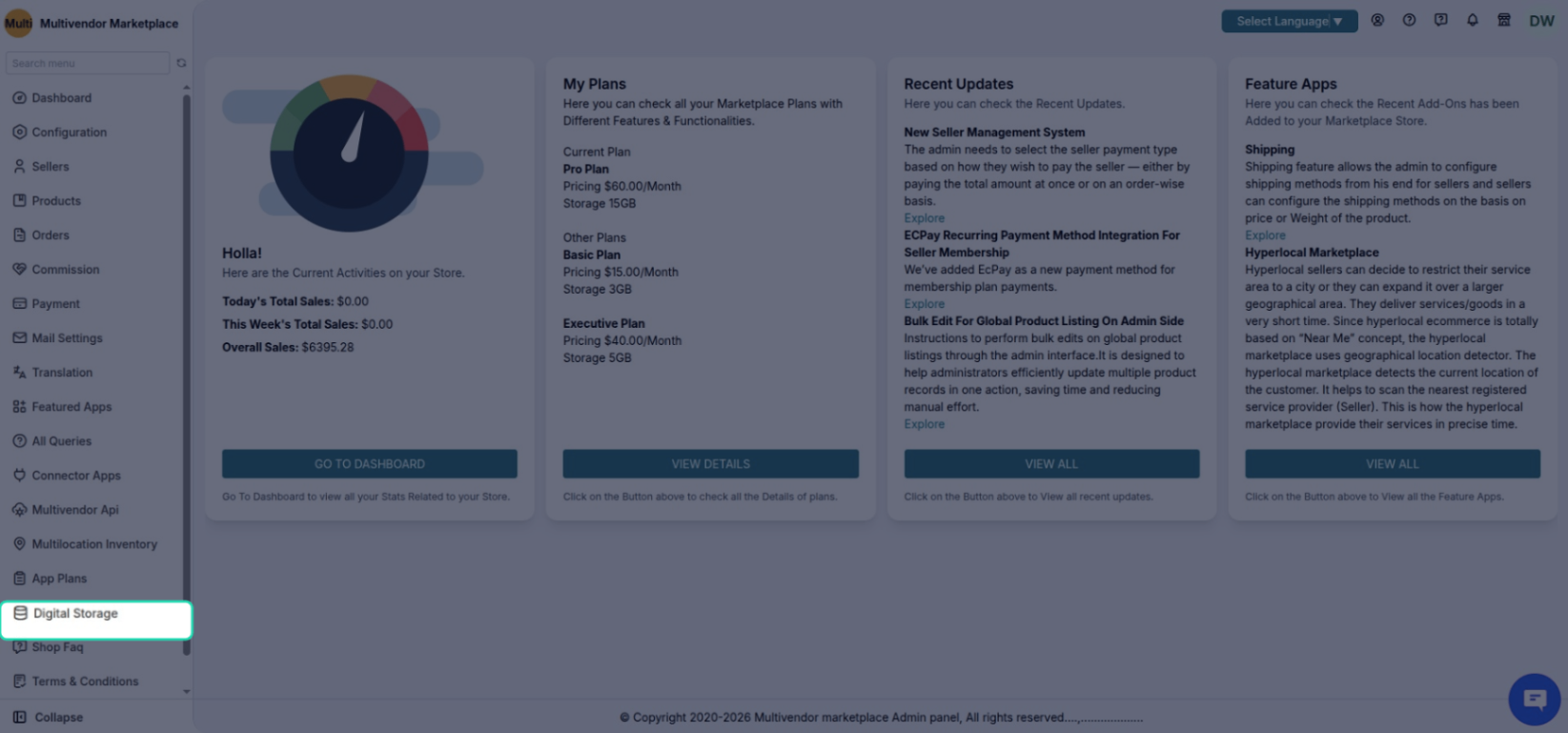
In case, if the admin wants to increase this digital storage, then, he can do so by Upgrading Plan.
Upgrade Digital Storage Plan
For this, go to Multi vendor Marketplace Admin Panel > Hover over the three dots (⋅⋅⋅) on the top right of the dashboard > Click on the ‘Digital Storage’ > Click on Upgrade Plan button:
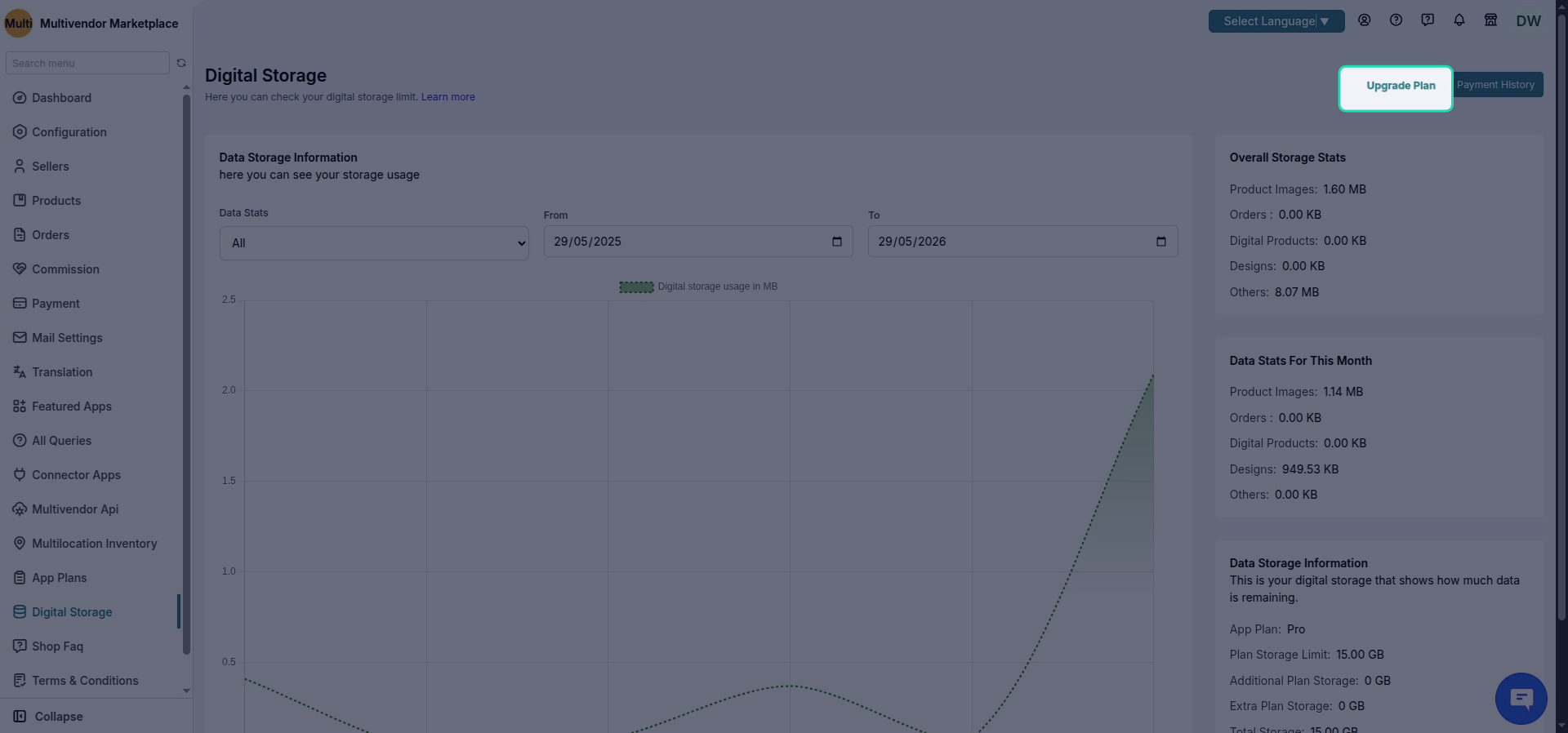
This action will take you to the following page:
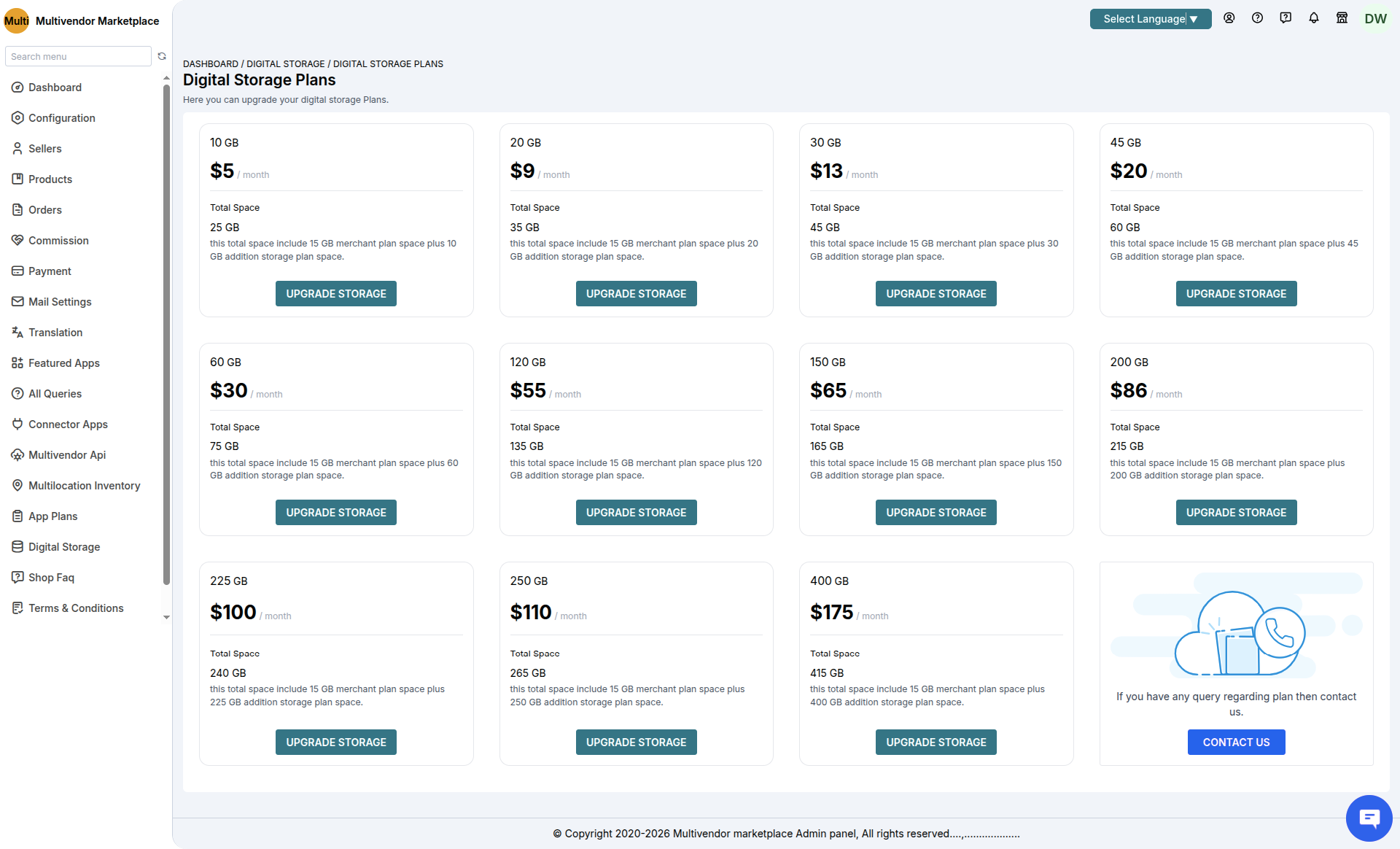
Now here, we have eleven different Digital Storage Plans to choose from:
- 10 GB for $5/month
- 20 GB for $9/month
- 30 GB for $13/month
- 45 GB for $20/month
- 60 GB for $30/month
- 120 GB for $55/month
- 150 GB for $65/month
- 200 GB for $86/month
- 225 GB for $100/month
- 250 GB for $110/month
- 400 GB for $175/month
NOTE
Suppose, you are on PRO plan of MultiVendor and further you have selected 20 GB digital storage plan then your total digital storage will become 35 GB
(Free digital storage that you got with PRO plan: 15 GB + additional purchased 20 GB).
Moreover, we will charge you $9/month for the same, deducting this amount as the Usage Charge.
Usage Charge: The variable charges add to the recurring monthly fees of an existing application in use.
There might be some features in the application, which require an extra amount and that depends on the usage of these features,
like the number of email count, or the digital storage space you are using.
NOTE
Once you select a plan, you CANNOT disable it or opt it out. Also, if you have selected a higher plan, you CANNOT degrade the plan, i.e., move to a lower plan.
Example: After selecting 20 GB for $9/month plan, you can’t disable it or move to 10 GB for $5/month plan. You can only upgrade it to 30 GB for $13/month plan.
ADDITIONAL INFORMATION
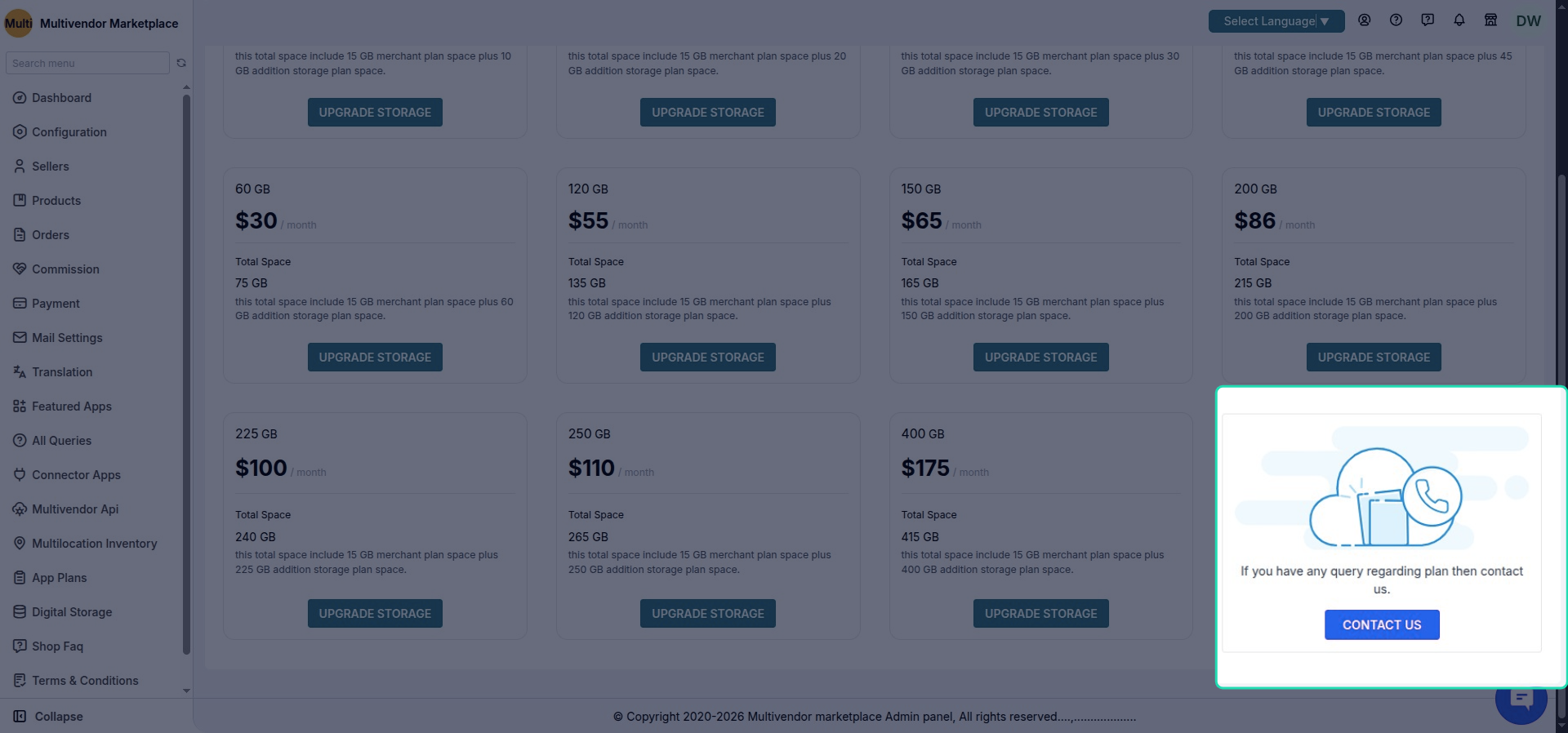
If you want to have more than 400 GB of digital storage on your Multi-Vendor Marketplace, you can simply contact us.
Drop an email at [email protected] regarding the same & we’ll increase your digital storage as per your requirement.
(This involves extra charges over & above your monthly multivendor plan charges).
How to upgrade the digital storage plan?
Simply, click on the Upgrade Storage button for the plan that you want to go with. This action will give you the following pop-up:
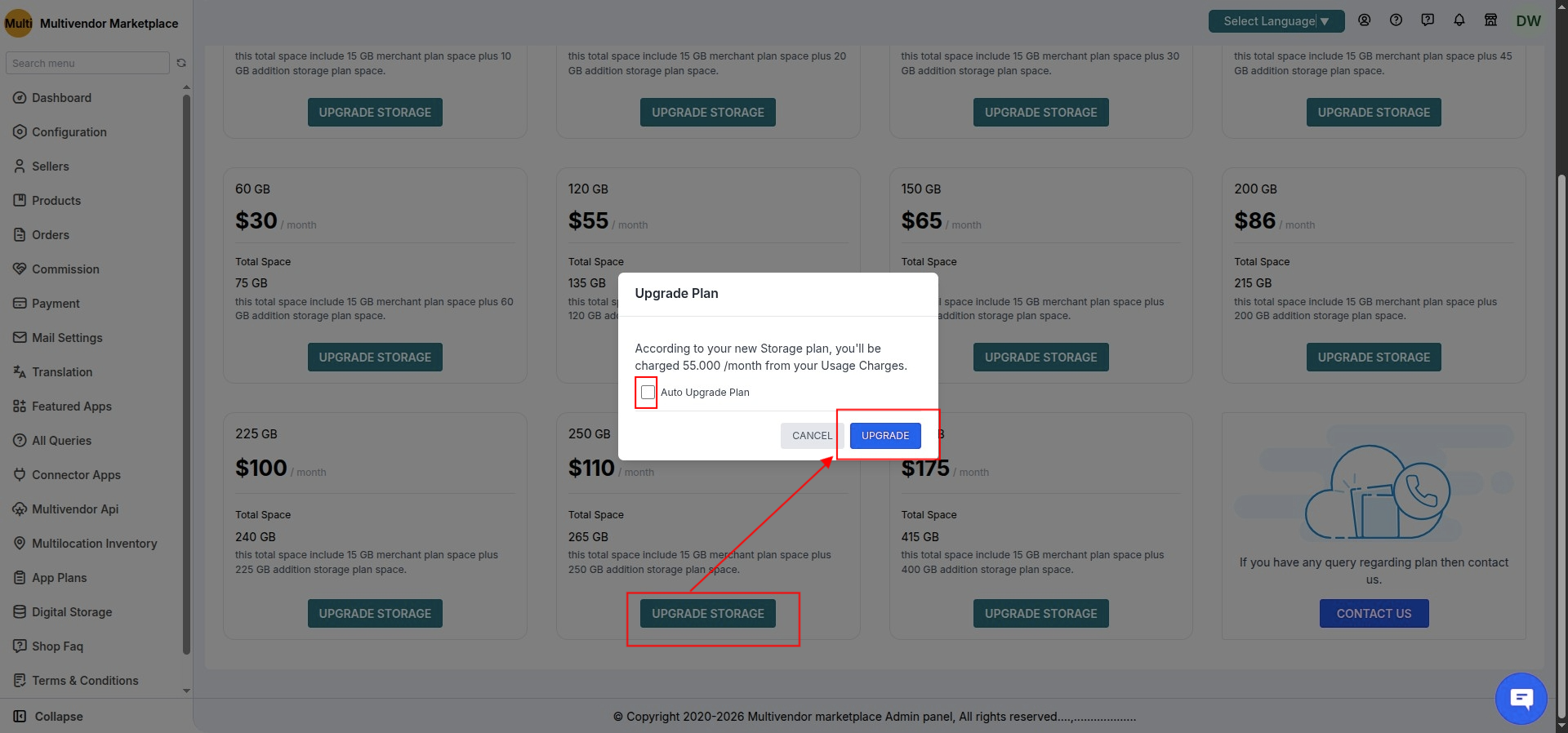
You can check the Auto Upgrade Plan option here to automatically upgrade your plan to a higher one once you have used all the current digital storage in your store. (This is completely optional.)
Further, click on the Upgrade button.
The admin will receive an email regarding the same.
This is how the plan status will be visible:
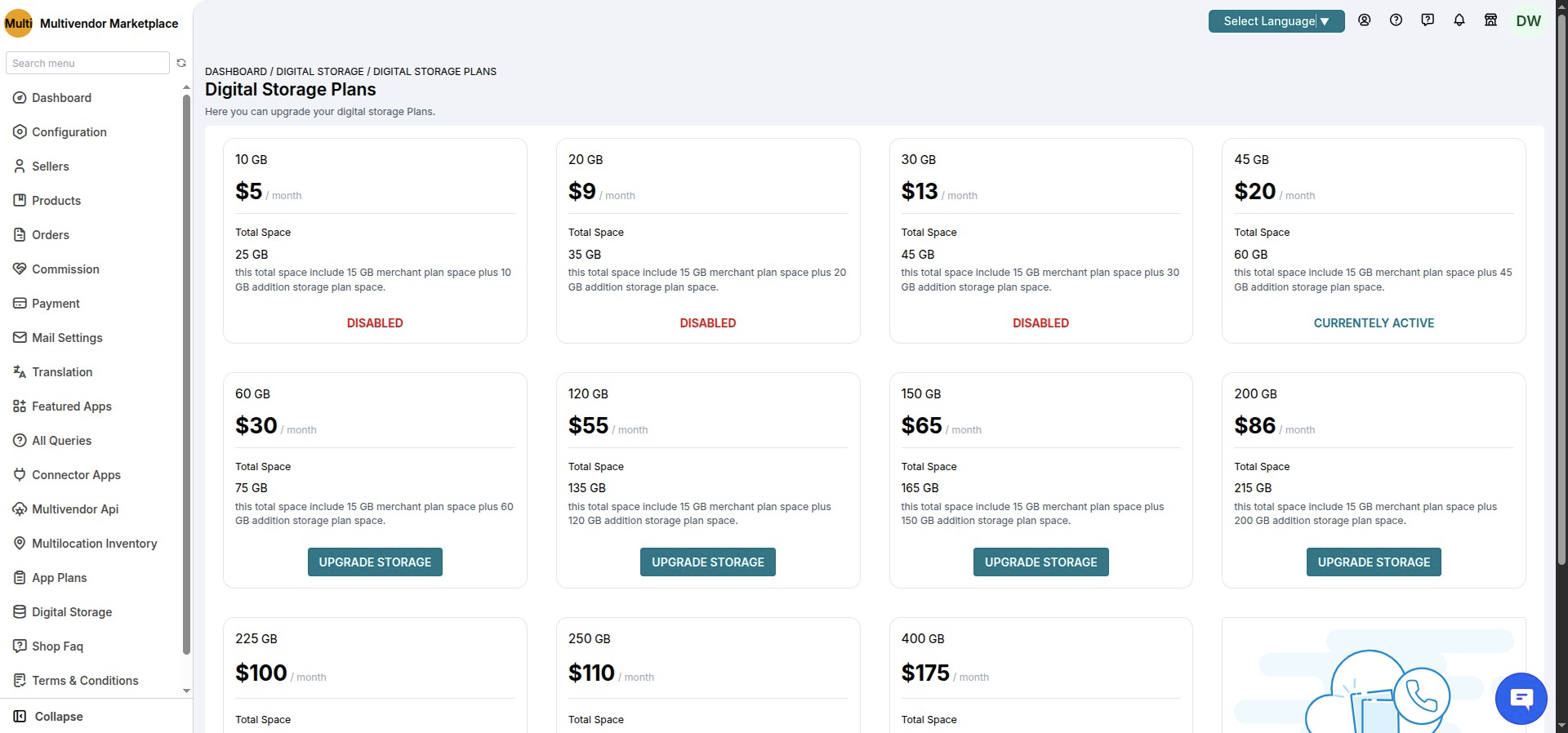
We will disable the lower plans, and you can switch only to the higher ones as explained above.
Further, you can view the increased digital storage information by going to Multi vendor Marketplace Admin Panel >
Hover over the three dots (⋅⋅⋅) on the top right of the dashboard > Click on the ‘Digital Storage’:
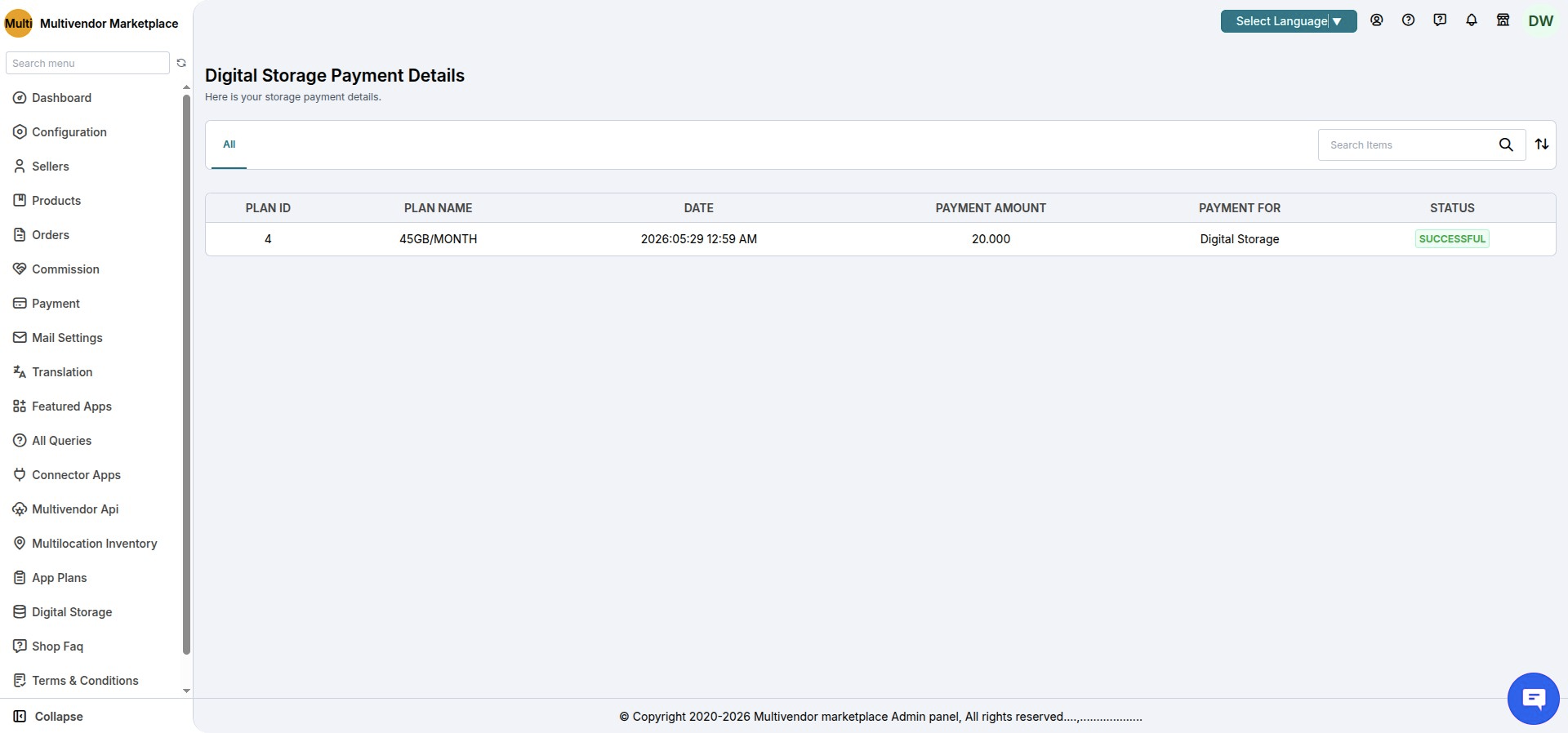
Payment History
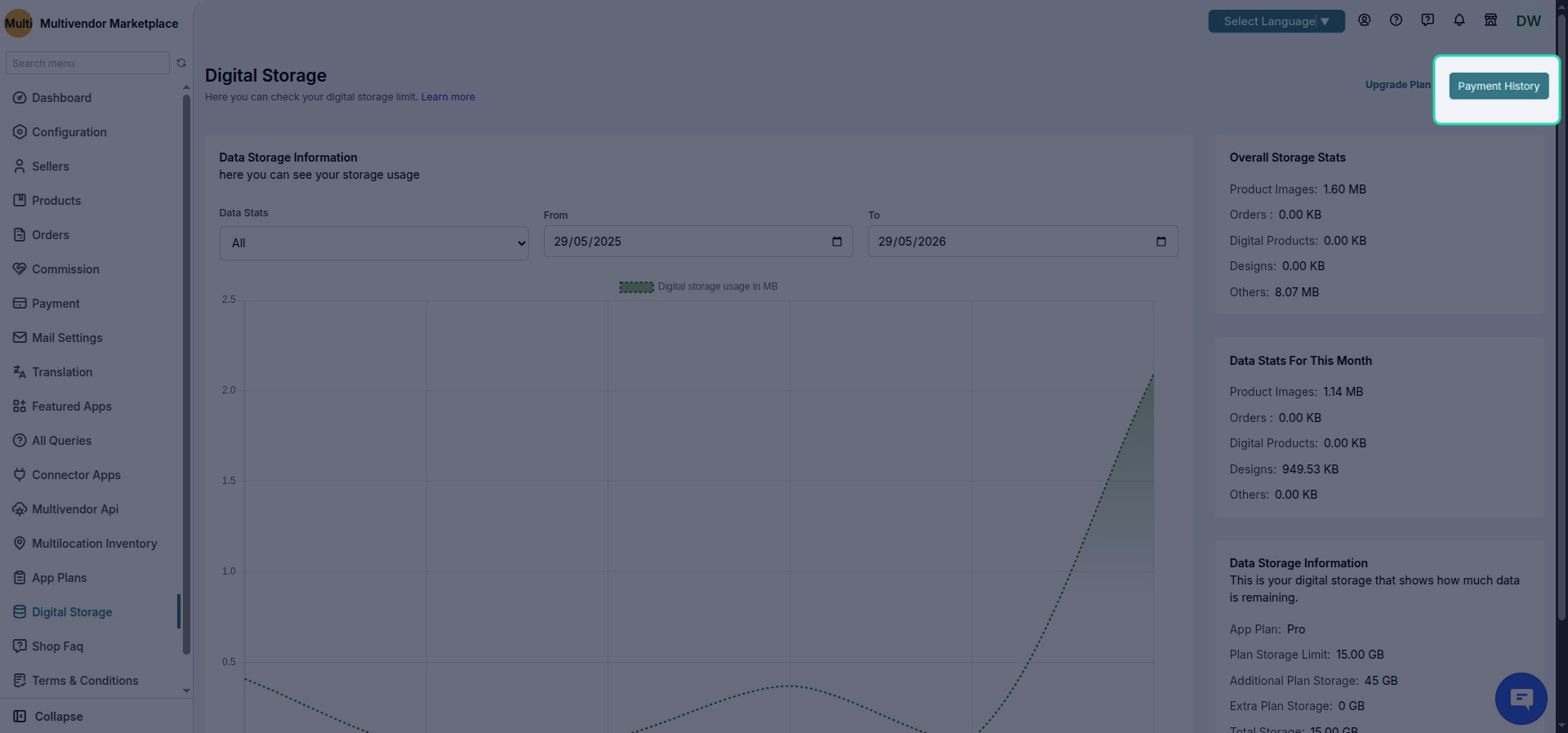
You can check the payment history by clicking on the ‘Payment History‘ button. Refer:
The redirected page:
Digital storage is used to store the following files:
- Product Image
- Store Logo
- Shop Logo
- Store Banner
- Checkout Image
- Shipping Label
- Seller Shop Logo
- Icon Image
- Favicon Image
- Badge Image: Used to store seller badges in case you are using the Seller Badge feature app.
Some More…
- Image CSV: This will store the images upload via CSV on your marketplace.
- Image Zip: This will store the images uploaded via a zip file on your marketplace.
- Seller CSV: This will store the CSV file used to upload sellers on your marketplace.
- Product CSV: This will store the CSV file used to upload products on your marketplace.
- Product Properties: Any file you use in your product’s properties will be stored here.
- Custom Fields: The files used in the created custom fields will be stored here.
- Product Design: The initial replacement value proof will be stored here. (Only for merchants using the ‘Artist Product Design‘ feature app.)
- Digital Order File: This will store the order files for the digital products in your store.
- Digital Order File Service: The order files in case of digital products as service.
- Logo Image: This will store the logo of the merchant.
- Fulfillment: This will store the other files related to order fulfillment.
- Manifest: This will store the manifest details. (Only for merchants using ‘PWA for Sellers‘ feature app.)
- Manifest Icon: This will store the image used in the manifest configuration. (Only for merchants using ‘PWA for Sellers‘ feature app.)
- PWA Icon: This will store the PWA icon used in your marketplace. (Only for merchants using ‘PWA for Sellers‘ feature app.)
- OG Image: Will store the OG image used in ‘PWA for sellers‘ & ‘Create an app for sellers‘ feature app.
💡 Need Help?
Drop your query/suggestion at [email protected] or create your ticket at Webkul UV Desk

Be the first to comment.