Every time someone opens a WordPress page, a long chain of events fires behind the scenes. WordPress loads its configuration, plugins, theme, and query system before it sends back a single byte of HTML.
The WordPress bootstrap process runs on every uncached request, making it a critical factor in WordPress speed optimization and overall site performance.
Most performance advice focuses on images and scripts. However, the real story often starts much earlier, in the milliseconds before WordPress even decides which page to show.
In this blog, we will walk through the WordPress bootstrap process step by step, see where the time goes, and learn how to cut that time down.
What Is the WordPress Bootstrap Process?
The WordPress bootstrap process is the startup sequence that runs from the first line of index.php to the moment your theme template prints HTML.
In short, it does four big jobs: load the configuration, load all plugins, load the active theme, and run the main query.
Because this sequence repeats for every uncached request, even small inefficiencies multiply across thousands of page views.
The Bootstrap Flow, Step by Step
Here is the full journey of a request, from the browser to the final HTML:
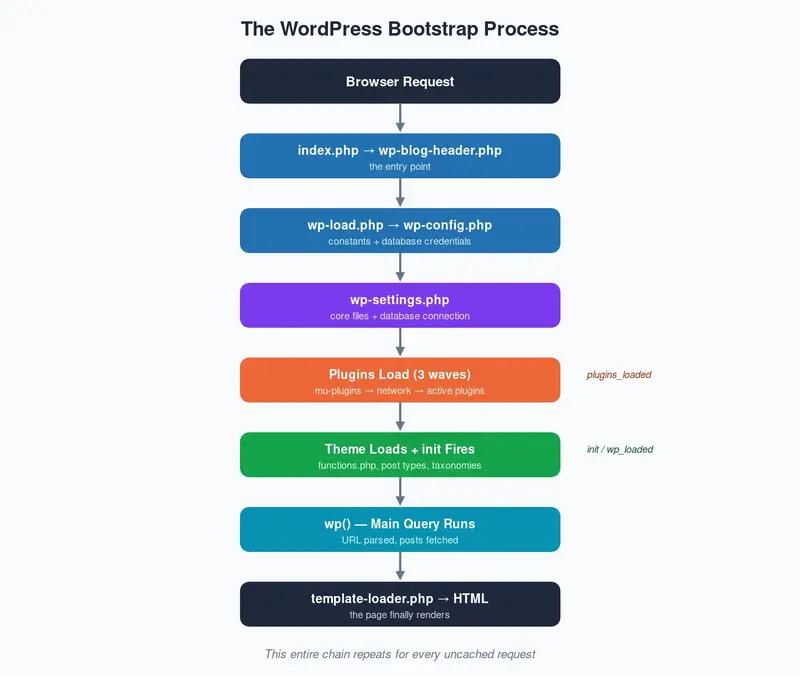
1. index.php Hands Off the Request
The journey starts in index.php, which contains almost nothing:
define( 'WP_USE_THEMES', true );

require __DIR__ . '/wp-blog-header.php';
After that, wp-blog-header.php takes over and does three things in order:
require_once __DIR__ . '/wp-load.php';   // boot WordPress

wp();                                    // run the main query

require_once ABSPATH . WPINC . '/template-loader.php';  // pick a template
These three lines summarize the entire WordPress bootstrap process: load, query, render.
2. wp-config.php and wp-settings.php
Next, wp-load.php finds your wp-config.php file and reads the database credentials and constants.
Then wp-settings.php takes charge. This is the heart of the bootstrap: it connects to the database, loads core files, and starts the plugin system.
3. Plugins Load in Three Waves
WordPress loads plugins in a strict order: must-use plugins first, then network plugins on Multisite, and finally the regular active plugins.
Most importantly, every active plugin’s main file runs on every request — whether the page needs that plugin or not.
On a Multisite network, WordPress also resolves which site to load during this phase. You can read more in our guide on setting up a WordPress Multisite network.
4. The Theme and the Hook Timeline
After the plugins, WordPress loads your active theme’s functions.php and starts firing its famous startup hooks.
The order is always the same, so it is worth memorizing:
muplugins_loaded   // must-use plugins are ready
plugins_loaded     // all active plugins are ready
setup_theme        // theme is about to load
after_setup_theme  // theme functions.php has run
init               // register post types, taxonomies, etc.
wp_loaded          // WordPress is fully loaded
For a deeper reference, the official WordPress Hooks documentation covers each of these in detail.
5. The Main Query and Template
Finally, the wp() function parses the URL, runs the main database query, and template-loader.php picks the right theme file.
Only at this point does WordPress start printing the actual page.
Why the Bootstrap Process Matters for Performance
Now for the important part: all of the steps above run again for every uncached request.
Three costs dominate the WordPress bootstrap process in real projects:
- Plugin loading — 40 active plugins means 40 main files run on every request.
- Autoloaded options — WordPress fetches every option marked “autoload” before any page logic runs.
- Database round trips — uncached lookups during init add up quickly.
For example, you can check how much autoloaded data your site carries with one query:
SELECT option_name, LENGTH(option_value) AS size
FROM wp_options
WHERE autoload = 'yes'
ORDER BY size DESC
LIMIT 10;
This query lists your ten heaviest autoloaded options. Anything over 1 MB in total deserves a cleanup.
How to Measure Bootstrap Time
You cannot improve what you do not measure. Fortunately, WordPress tracks its own startup time for you.
add_action( 'wp_footer', function () {
    echo '<!-- Page generated in ' . timer_stop() . ' seconds. ' .
         get_num_queries() . ' queries. -->';
} );
This snippet prints the total generation time and query count as an HTML comment in your footer.
For deeper analysis, the free Query Monitor plugin breaks down load time per plugin, per hook, and per query.
How to Reduce Bootstrap Overhead
1. Let Page Caching Skip the Bootstrap Entirely
The fastest bootstrap is the one that never runs. Page caching serves saved HTML before WordPress loads at all.
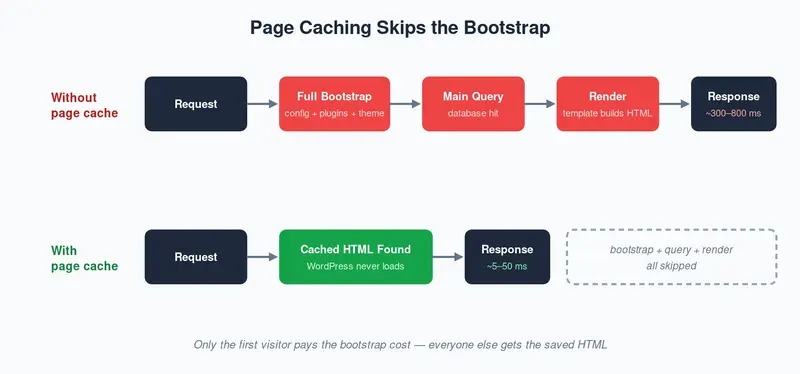
As a result, only the first visitor pays the full bootstrap cost. Learn how to set this up in our guide on enabling WordPress full page caching.
2. Add a Persistent Object Cache
By default, WordPress repeats the same option and query lookups on every request.
A Redis or Memcached object cache stores those results in memory, so the bootstrap reads them instantly instead of hitting MySQL.
3. Audit Your Plugins
Every active plugin adds weight to the bootstrap, even when its features go unused on a page.
Therefore, review your plugin list regularly and remove anything you can live without.
4. Clean Up Autoloaded Options
Old plugins often leave large autoloaded options behind after you delete them.
You can switch a heavy, rarely used option to manual loading with one query:
UPDATE wp_options
SET autoload = 'no'
WHERE option_name = 'old_plugin_settings';
This keeps the option available but removes it from the bootstrap’s startup query.
Wrapping Up
The WordPress bootstrap process loads configuration, plugins, the theme, and the main query on every uncached request.
Because it runs so often, small wins here pay off everywhere: fewer plugins, lighter autoloaded options, an object cache, and page caching on top.
So before you squeeze another kilobyte out of your images, take a look at what happens in those first few milliseconds.
Most of the time, that is where the biggest speed gains hide.

Be the first to comment.