Overview
SMS Alert App allows the admin to send SMS notifications about placing new orders and updating the order status to the customers.
The admin can send “Transactional Text Messages” to the customers.
An admin creates a message of their choice for marketing purposes.
Notifications via SMS are the most effective form of customer service.
For sending services and promotional SMS, the SMS Alert App for Wix was developed by Webkul.
Features
- Functionality to send SMS Notifications to the customer for events like “New Order Placed” and “Update Order Status”.
- Admin can send marketing SMS to multiple customers at a time.
- Supports popular SMS Gateway Twilio.
- Easy to set up “SMS Gateway” through API keys.
- Admin can create SMS templates for different events.
- A user guide to understanding the flow of the application is provided.
- Use the Campaign section to engage your audience, promote services, and track performance—all in one place
- Easily, SMS Alert Logs will be created for all campaigns, marketing activities, forms, and bookings.
- Easy to configure and manage at the admin end.
Installation
SMS Alert Installation:-
To install the app, follow the following steps –
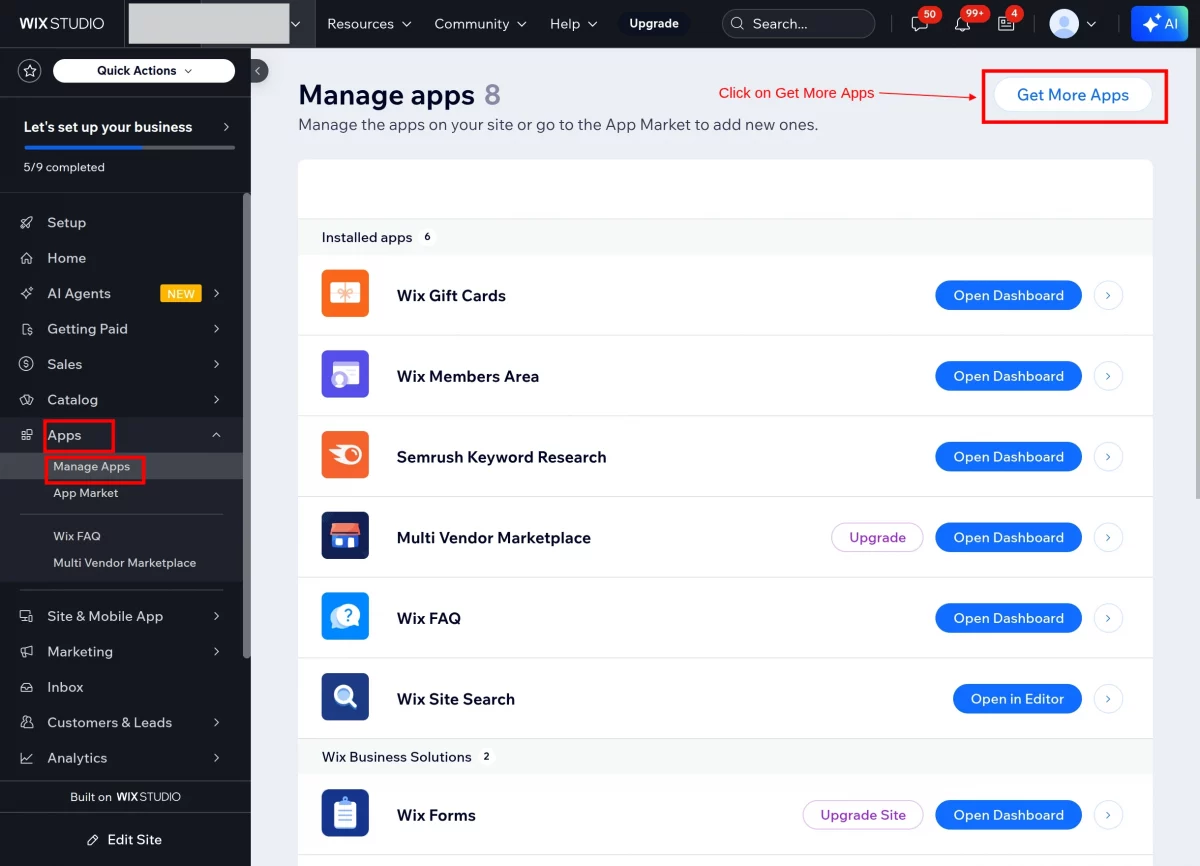
- Go to your Wix store, then click on Apps >> Manage Apps as shown.
- Now, click on Get More Apps.
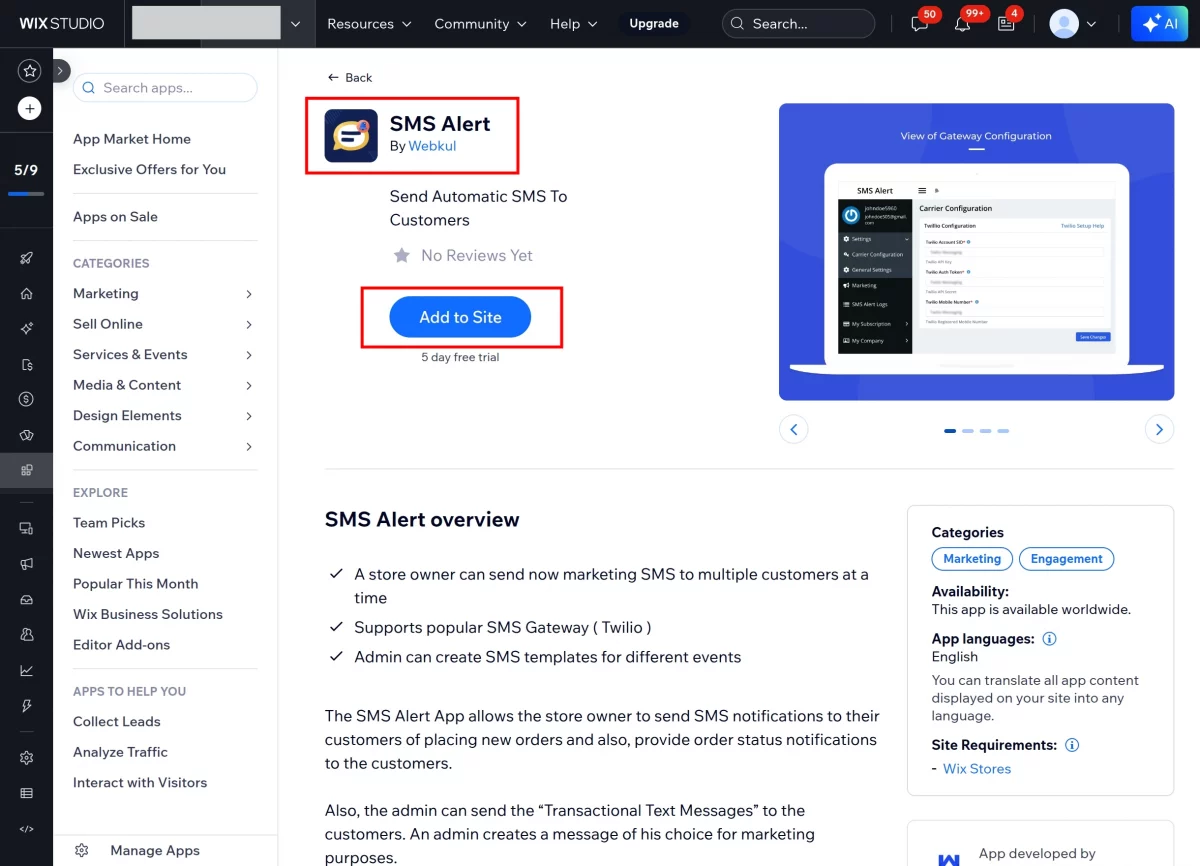
- Now, you’ll be redirected to the app market page from where you need to search for “SMS Alert”.
- Click on the ” Add to site” button to add the app to your site, as shown below.
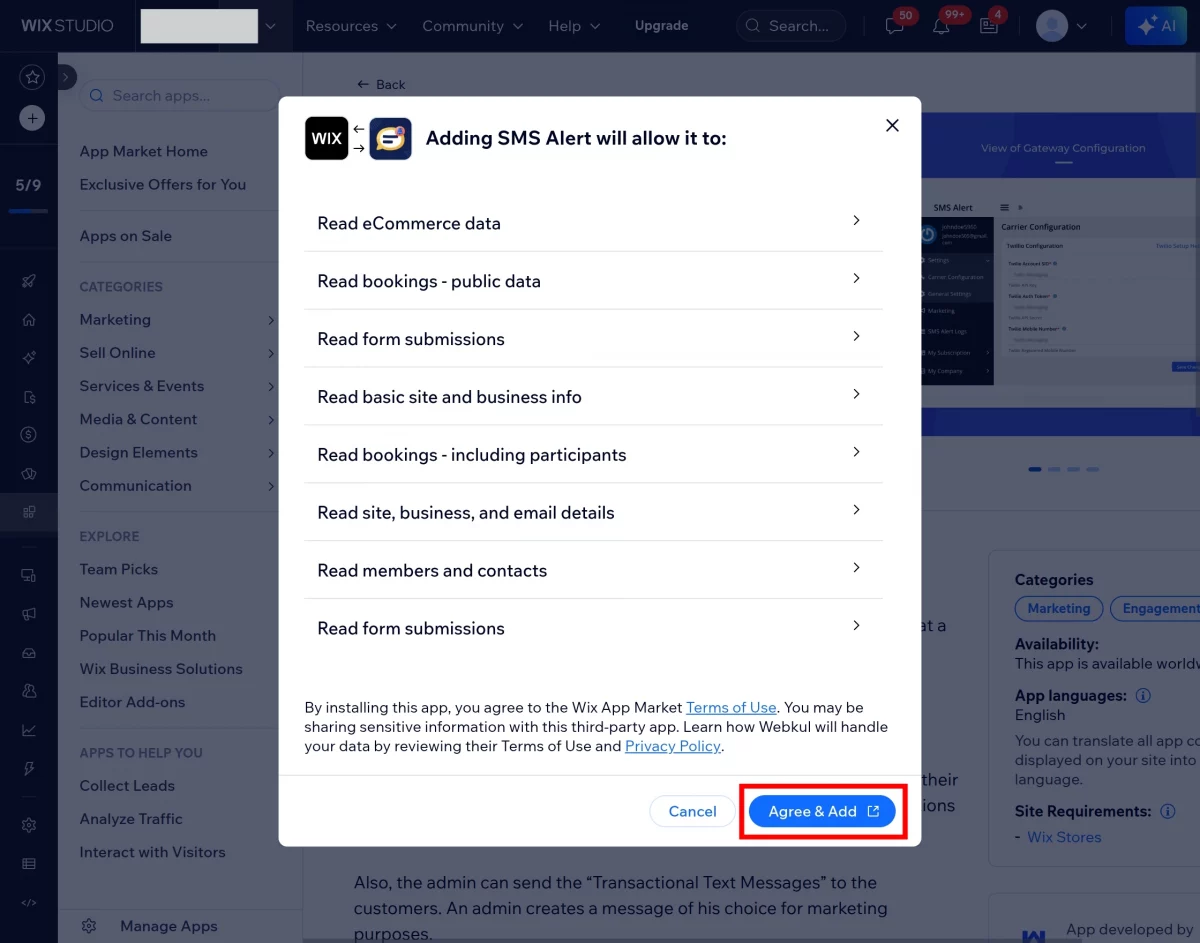
- Click on Agree & Add to move forward after reading the terms and conditions of the application.
After this, you will be redirected to Wix Studio. From there, click on “Publish” to save the changes and install the app on your site.
Configuration
Carrier Configuration
Go to Carrier Configuration.
Configure the settings as instructed in the user guide.

Now, enter the Twilio Configuration details –
Once you enter all the above details, click on Save Changes to save the changes:

Stores
Configuration for store settings :
Go to the Store and configure the instructions given in the user guide.
Turn on the Toggle button for the Wix events on which you want to send SMS Alerts to the customers.

Use the Edit Template button to edit the SMS template.
Set the template, as shown in the screenshot above:
Edit the template.
Click the Save button to save the template.

Got a pop-up of SMS Templates Setting Saved Successfully.

Forms
Go to Forms and click on Install Wix Forms Now to install the form:

Go to the Forms and configure the instructions given in the user guide.
Turn on the Toggle button by which you can send SMS Alerts to the customers.
Use the Edit Template button to edit the Forms template.

Click on the save button to save the edited template.

A pop-up will appear showing SMS Templates Setting Saved Successfully.

Bookings
Go to Bookings and click on Install Wix Booking Now to install the Wix Booking:
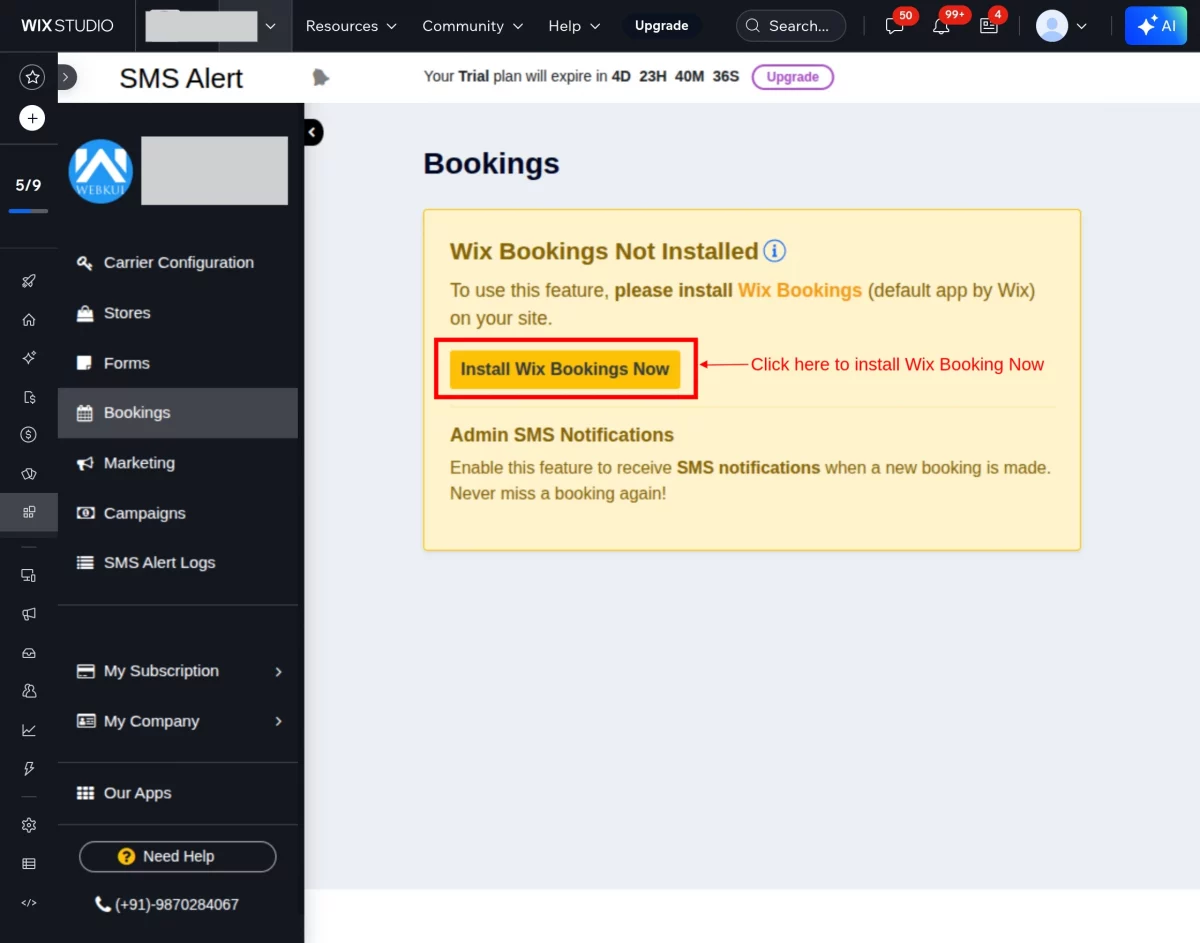
Go to Bookings and configure the instructions given in the user guide.
Turn on the Toggle button for the Wix events on which you want to send SMS Alerts to the customers.
Use the Edit Template button to edit the SMS template.
Set the template.

Edit the template.
Click on the Save button to save the template.


Select the Customers to send Marketing SMS as shown below.
Click on the checkbox, select the customers, and click on Save to save the selected list of customers.

Write the marketing SMS that you want to send to selected customers.
Click on send SMS.

Campaigns
Go to Campaigns and click on the New Campaign to create a campaign.

Click on Select Customer to select the customers.
Use the user guide to configure the instructions given in the user guide.

Click on ‘Save’ after selecting the customers.

Enter the required details and click on the Create button to create a campaign:

Here, the Campaign looks like this, as shown in the screenshot below
Click on “Send SMS” to send the campaign message.

Click on the checkbox, select the campaign.
Now go to “Delete Bulk Campaign” to delete the campaign in bulk.
You can delete any single campaign from its delete icon.
The campaign can be edited through the edit icon.

Click on the edit icon:
You can select more customers and edit the content of the campaign.

Click on the delete icon to delete the selected customers and click on Close.

Click on Update to save the edited campaign.

Filter :
Click on the ‘Filter’ to filter out specific campaigns from the list.

Write the campaign name and keywords to filter out the campaign.
Click on Submit.

The filtered campaign looks like this, whose screenshot is mentioned below:

Go to SMS Alert Logs.
Click on the “Select Option” and choose any option for which you want to see the SMS alert logs from the dropdown.

Once the SMS gets triggered on the events, you will be able to see all the SMS sent to your customers under the SMS Alert Logs, as shown below –
SMS is successfully sent or failed, all logs will be recorded and listed here.

Support
That’s all for the SMS Alert App For Wix. For any issues, feel free to generate a ticket at https://webkul.uvdesk.com/en/customer/create-ticket/
For More Development on Wix, contact us.

Be the first to comment.