Magento 2 VeriFactu extension connects directly with the apiverifactu.es API, enabling automated invoice submission, QR code generation, secure hash validation,
and real-time compliance with Spain’s VeriFactu electronic invoicing requirements.
As a result, the extension helps businesses remain fully compliant with Spanish anti-fraud regulations and digital invoicing standards.
Additionally, Magento 2 merchants can automatically generate VeriFactu-compliant invoices that include secure hash generation, digital signature validation, and mandatory QR codes.
Once Magento 2 generates an invoice, it immediately creates a tamper-proof VeriFactu record. Then, it securely prepares the record for transmission.
If required, it immediately sends the data to the Spanish Tax Authority.
Your store automatically maintains the transaction status and compliance logs, ensuring complete traceability and audit readiness.
Apart from this, if you want to customize or modify your invoice design and layout, you can also use the Magento 2 Invoice PDF Editor extension.
Features
- Automatic AEAT VeriFactu QR codes
- Real-time invoice validation
- Spain Verifactu–compliant invoice tracking
- Compatible with Magento 2 invoice PDFs
- Displays live responses
- Supports F1 (Standard) and F2 (Simplified) invoices.
- Builds trust.
- Saves time and reduces risk.
Installation
The installation is quite simple, just like the standard Magento 2 extensions.
#Download Module
Firstly, you need to log in to the Webkul Store, go to My Account>My Purchased Products section, verify, and then download and extract the contents of this zip folder on the system.
#Upload Folder
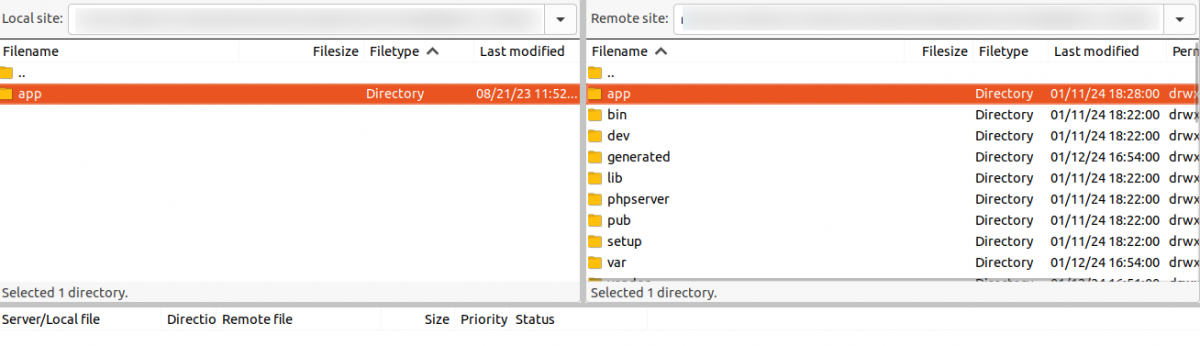
Once the module zip extracts, follow the path src>app and copy the app folder into the Magento 2 root directory on the server as shown below:
#Run Commands
php bin/magento setup:upgrade
php bin/magento setup:di:compile
php bin/magento setup:static-content:deploy
php bin/magento indexer:reindex
php bin/magento cache:flush
Language Translation
For translating the module language, navigate through the app/code/Webkul/VeriFactu /i18n and edit the en_US.csv file.
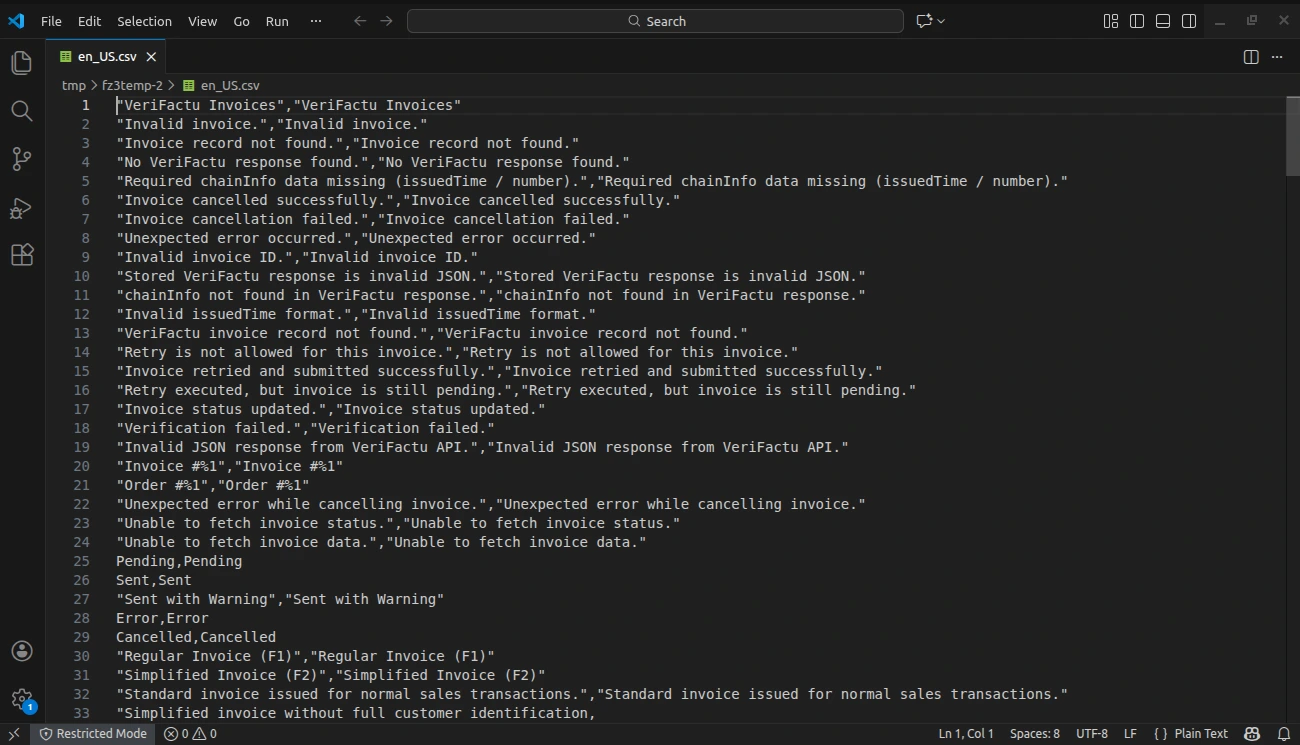
Thereafter, rename the CSV as “en_SA.csv” and translate all right-side content after the comma in the Arabic language. After editing the CSV, save it.
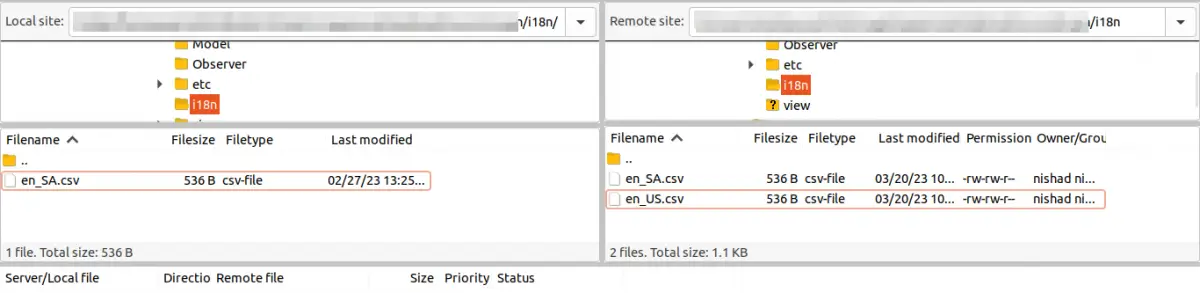
Now, upload it to the path app/code/Webkul/VeriFactu /i18n where the installation of Magento 2 is on the server.
Magento 2 VeriFactu Extension will support Arabic translation and both RTL and LTR languages.
The user can edit the CSV like the image below.
Engage and hire Magento developers to solely concentrate on your personalized e-commerce projects for a unique experience
Configuration – VeriFactu
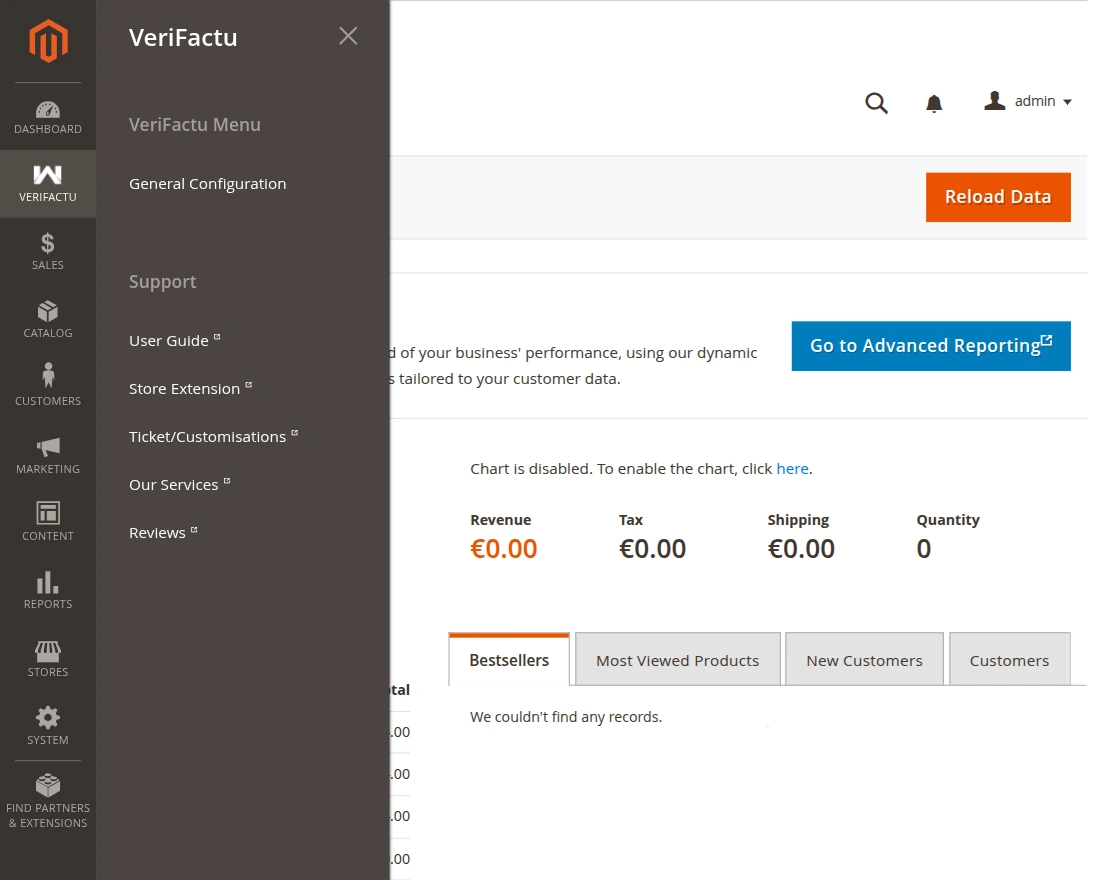
After installing the module, the admin can configure its settings. Next, the Magento admin navigates to VeriFactu > General Configuration to access the settings page.
Admin can configure the Webkul VeriFactu settings of the module by navigating to Stores > Configuration > Webkul > VeriFactu > General Settings
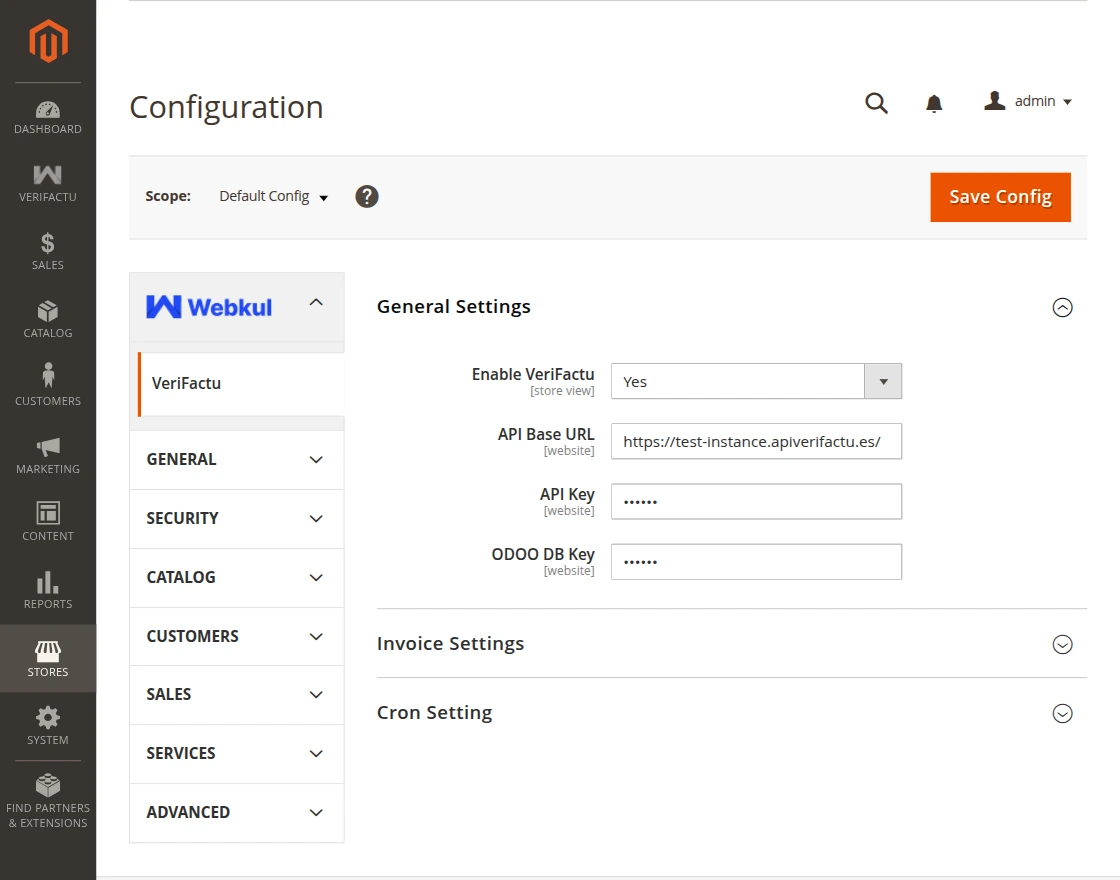
Enable VeriFactu: Enable or disable the module.
API Base URL: Enter the API endpoint URL.
API Key: Enter the API Key provided by the VeriFactu service provider.
ODOO DB Key: Enter the Odoo Database Key.
Note: The API URL, API Key, and Odoo DB Key can be obtained from API Verifactu
Invoice Settings:
In this section, the system controls how it generates and submits invoices to VeriFactu.
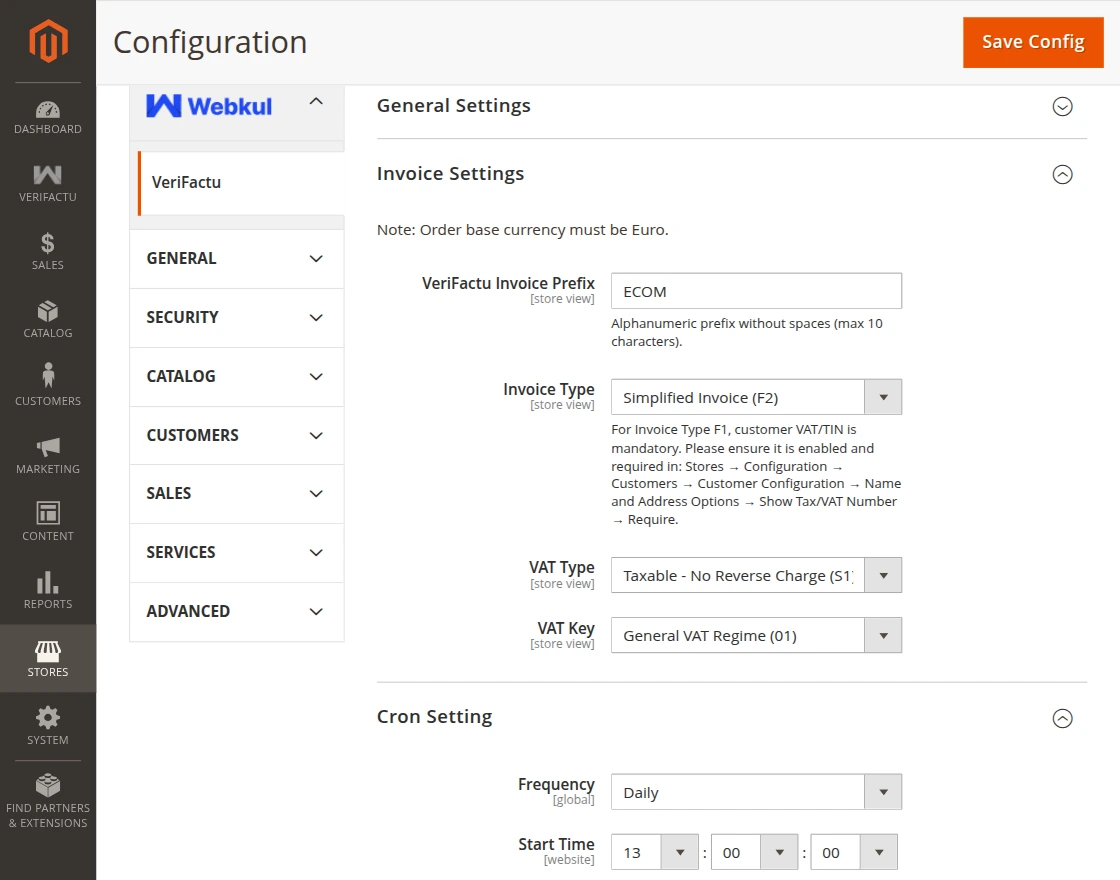
VeriFactu Invoice Prefix: Defines the prefix added to generated invoice numbers. Must be alphanumeric and without spaces.
Invoice Type: Determines the type of invoice generated. Some types may require mandatory customer VAT/TIN details.
VAT Type: specifies how the system applies VAT to the invoice transaction.
VAT Key: Defines the applicable VAT regime for the invoice.
Note: To ensure the VeriFactu integration works correctly, the order base currency must be set to Euro. This requirement is mandatory for compliance and successful invoice submission.
Cron Settings
Frequency: Sets how often the automatic invoice synchronization runs.
Start Time: Defines the scheduled time for the cron job execution.
Verifactu Workflow – Customer End
After successful installation and configuration, customers can visit your store.
Customers can add products to their cart and then proceed to checkout.
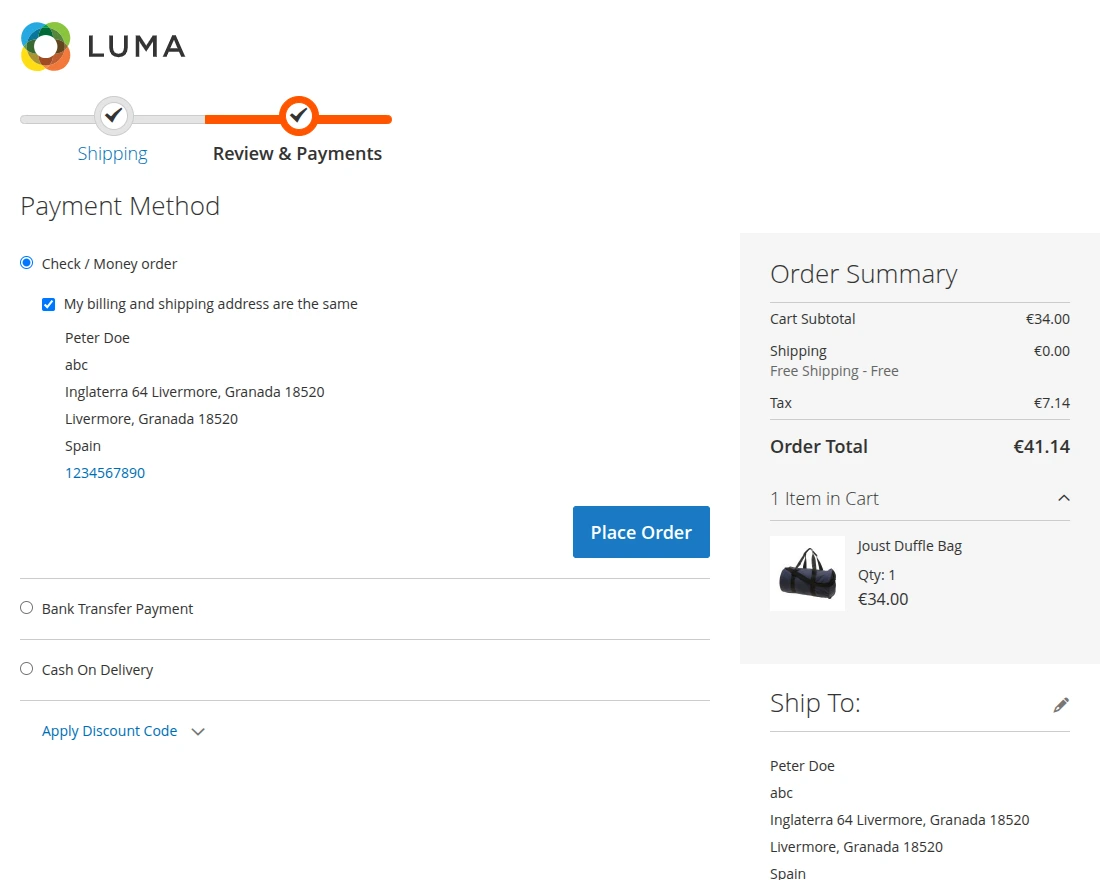
When a customer places an order in Magento and the admin creates an invoice, the process works just like the default Magento flow.
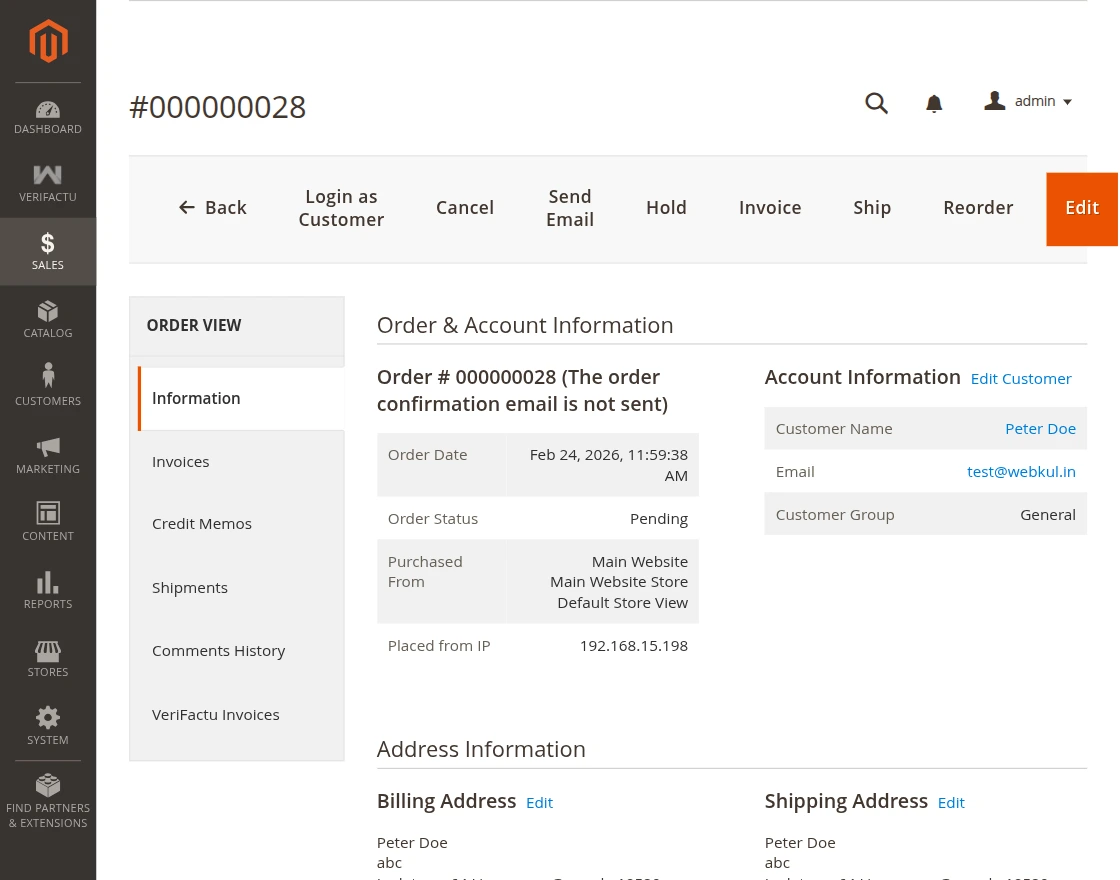
At this stage, the invoice contains all necessary order details such as customer information, products, taxes, and totals.
VeriFactu Posting
After the invoice is generated, the module automatically transmits the invoice data to the Spanish tax authority’s system (AEAT) in real time.
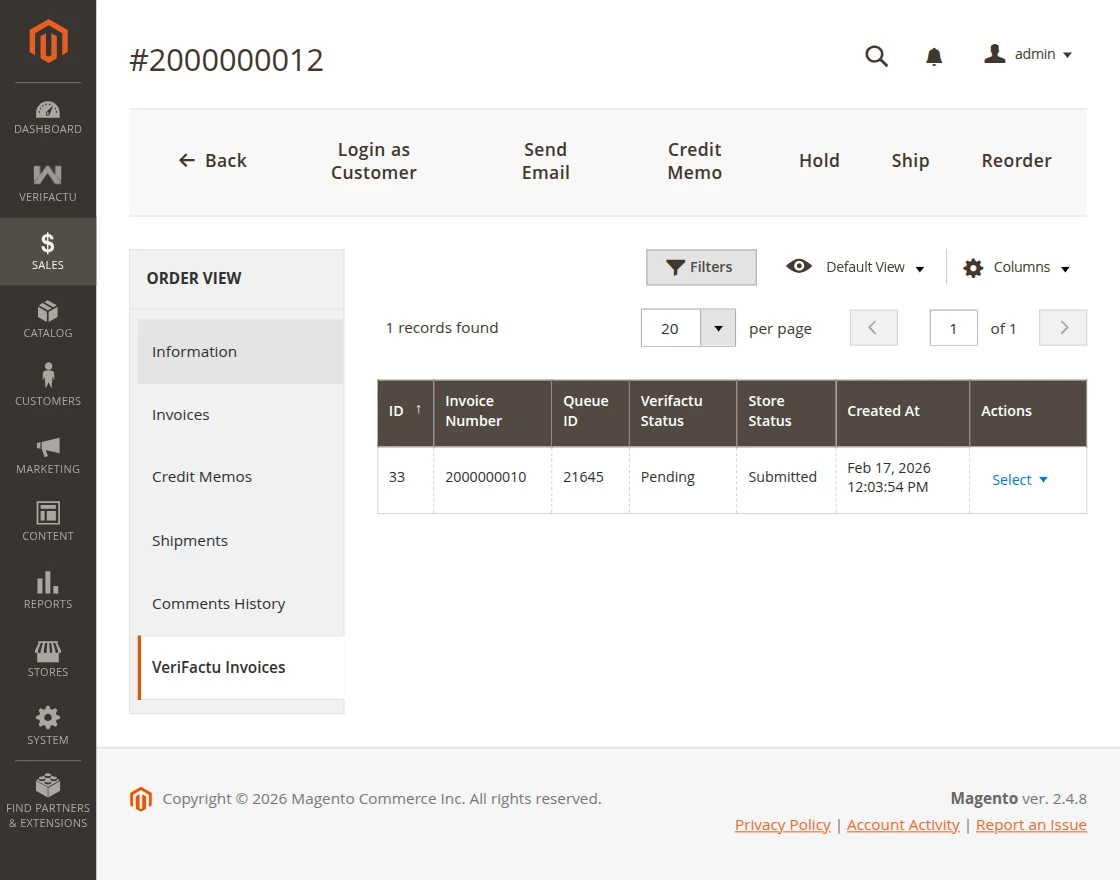
This happens in the background without any manual action from the admin.
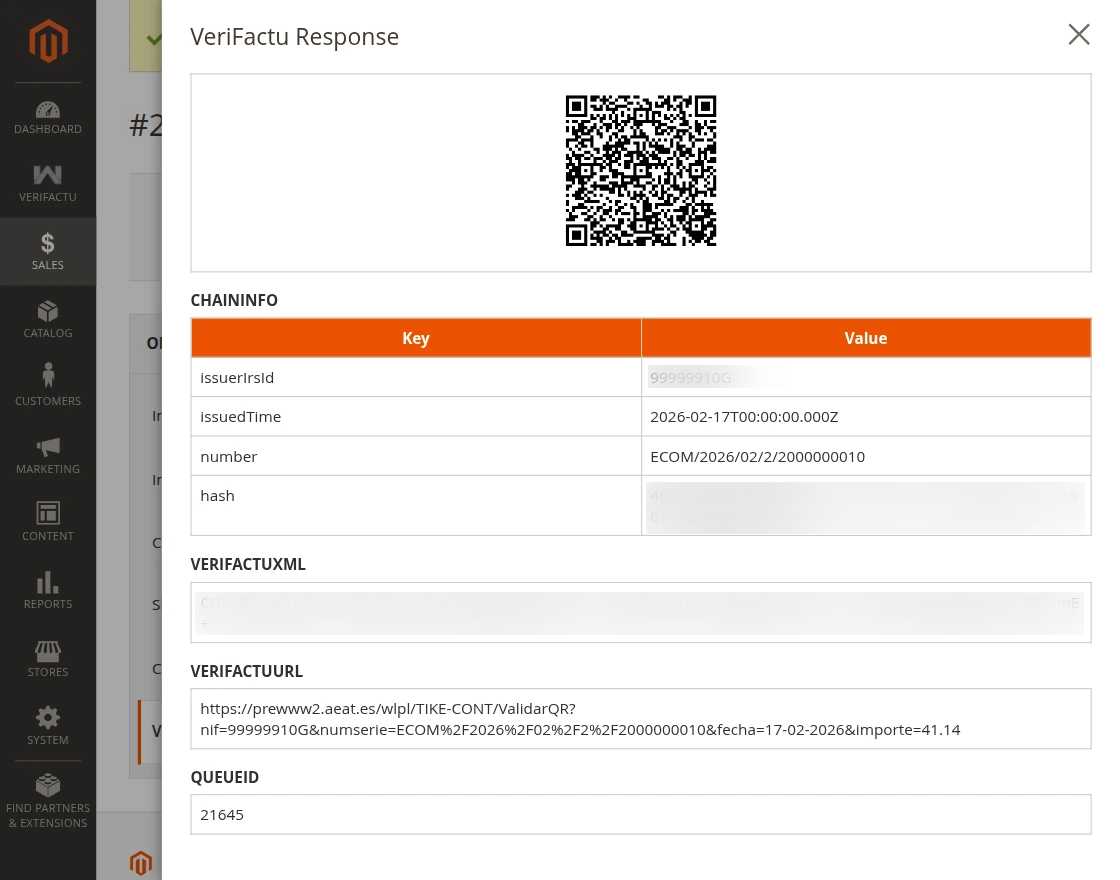
AEAT Validation
After receiving the invoice data, AEAT validates it according to Spanish legal requirements.
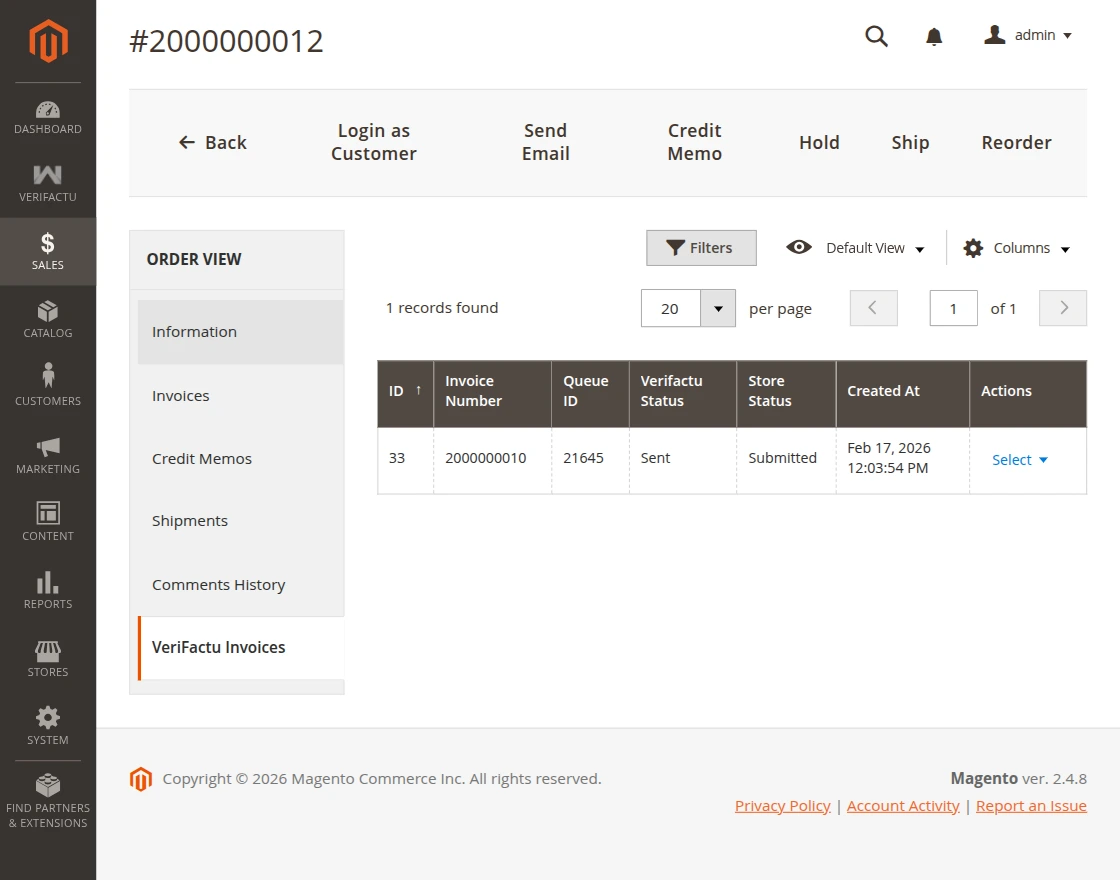
If everything is correct:
- AEAT returns a success response
- The system generates a unique verification record.
- A legally compliant QR code is provided
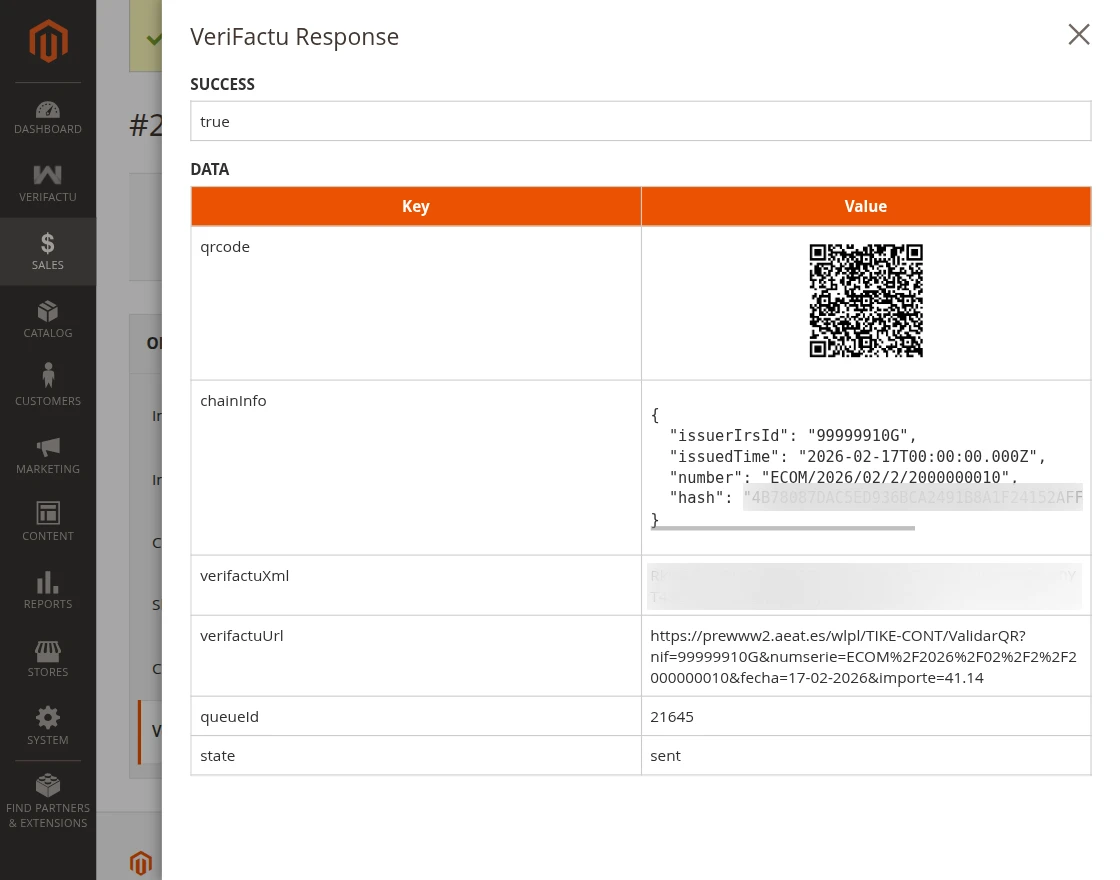
The system notifies the admin of any errors so they can correct them.
Magento 2 Verifactu – Invoice Finalization
Once validation is successful:
- The module embeds the QR code into the invoice PDF.
- The system adds the verification detail.
- The invoice becomes officially compliant
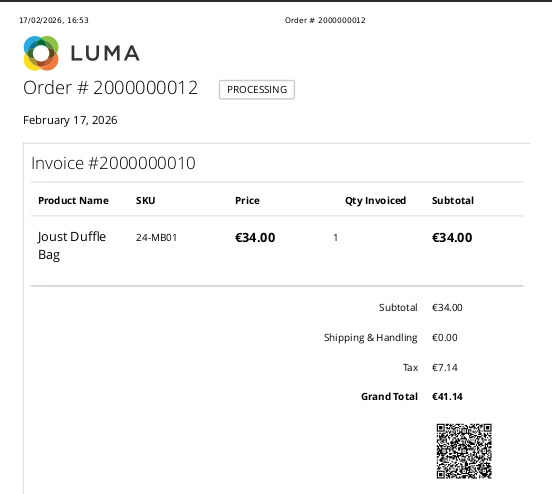
Customers receive an invoice that can be verified by scanning the QR code.
Supports
So that is all for the User Guide for Magento 2 VeriFactu extension guide.
For any further queries or assistance, you can drop us an email at [email protected].
Furthermore, there is no need to search elsewhere; seize the chance to initiate your projects with the accredited Magento 2 development company.
For a personalized touch, engage and hire Magento developers who are focused on delivering exceptional results for your custom e-commerce projects.
Current Product Version - 4.0.0
Supported Framework Version - Magento 2.0.x, 2.1.x, 2.2.x,2.3.x, 2.4.x

Be the first to comment.