Product Media Bulk Upload is an Odoo module that extends Odoo product image management functionality directly within Odoo’s product form.
For store managers, uploading product images one by one is slow work. This module lets you select and upload multiple files at once, set a thumbnail, and define the display sequence.
Whether you manage a small store or an Odoo marketplace, controlling how your media appears on the product page matters. This module makes that part simple and fast.
Features
- Bulk upload multiple product images in one action.
- Mark any uploaded file as the product thumbnail on Odoo store using a Boolean field.
- Set a sequence to control the display order of Odoo product media.
- Thumbnail image shown prominently on the product details page.
- The remaining media files are arranged and displayed in your specified order.
- Works directly within Odoo’s standard product form — no extra screens.
- No coding or technical setup required to use the module.
Installation Process
- Once you purchase the module from the Webkul Store, you will receive a download link for the module’s zip file.
- After the download finishes, extract the file on your system. You will see a folder named ‘product_media_bulk_upload’.
- Copy and paste this folder into your Odoo Add-Ons path.
- Open Odoo and go to the Settings menu. Click on Activate Developer Mode.
- Open the Apps menu and click on Update Modules List.
- In the search bar, remove all filters and search for ‘product_media_bulk_upload’.
- Click on Install when the module appears in the search results.
Workflow of Odoo Product Media Bulk Upload
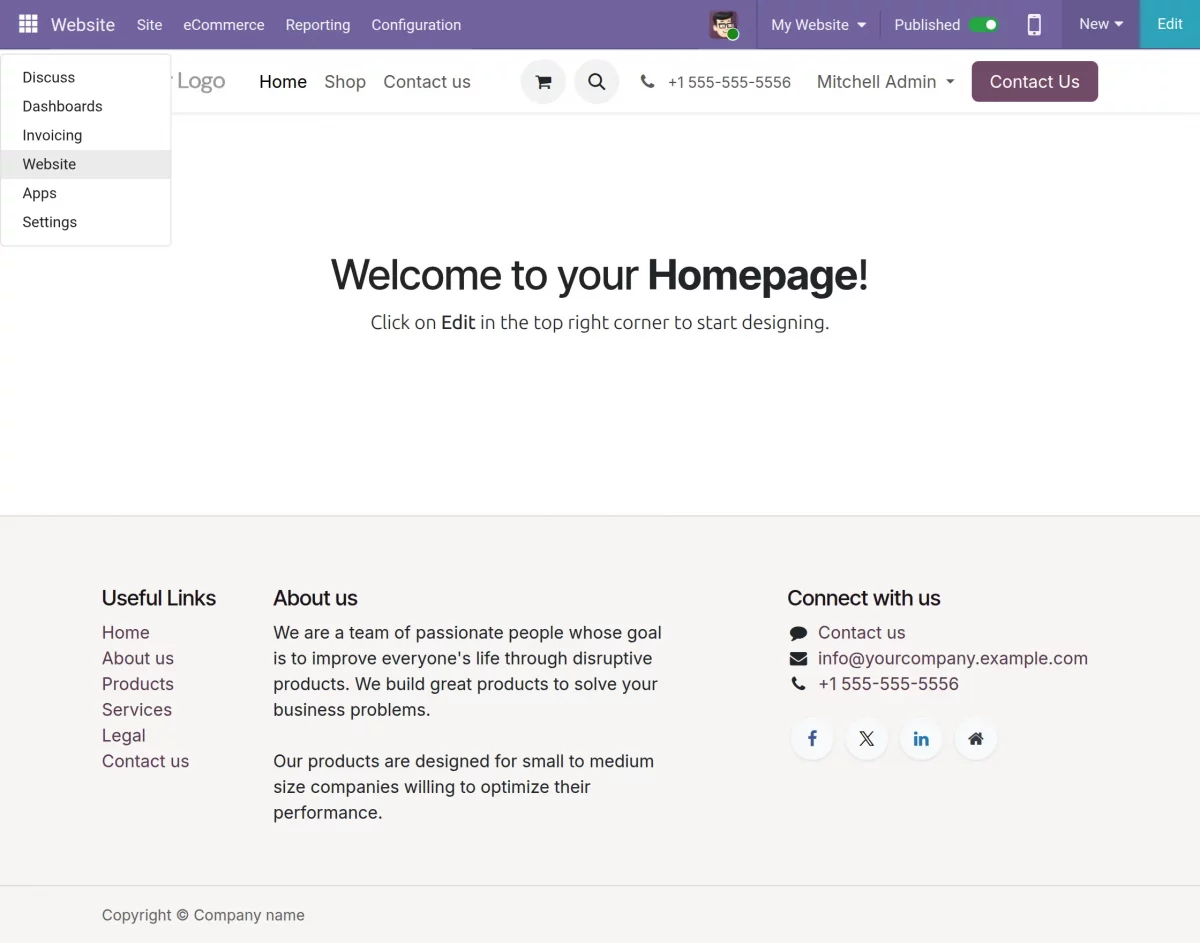
1. After completing the installation, users can access the module’s extended features and functionality directly from their Odoo e-commerce platform.
To do that, open the Home Menue icon (3*3 box on the left side of the menu) > Go to Website.
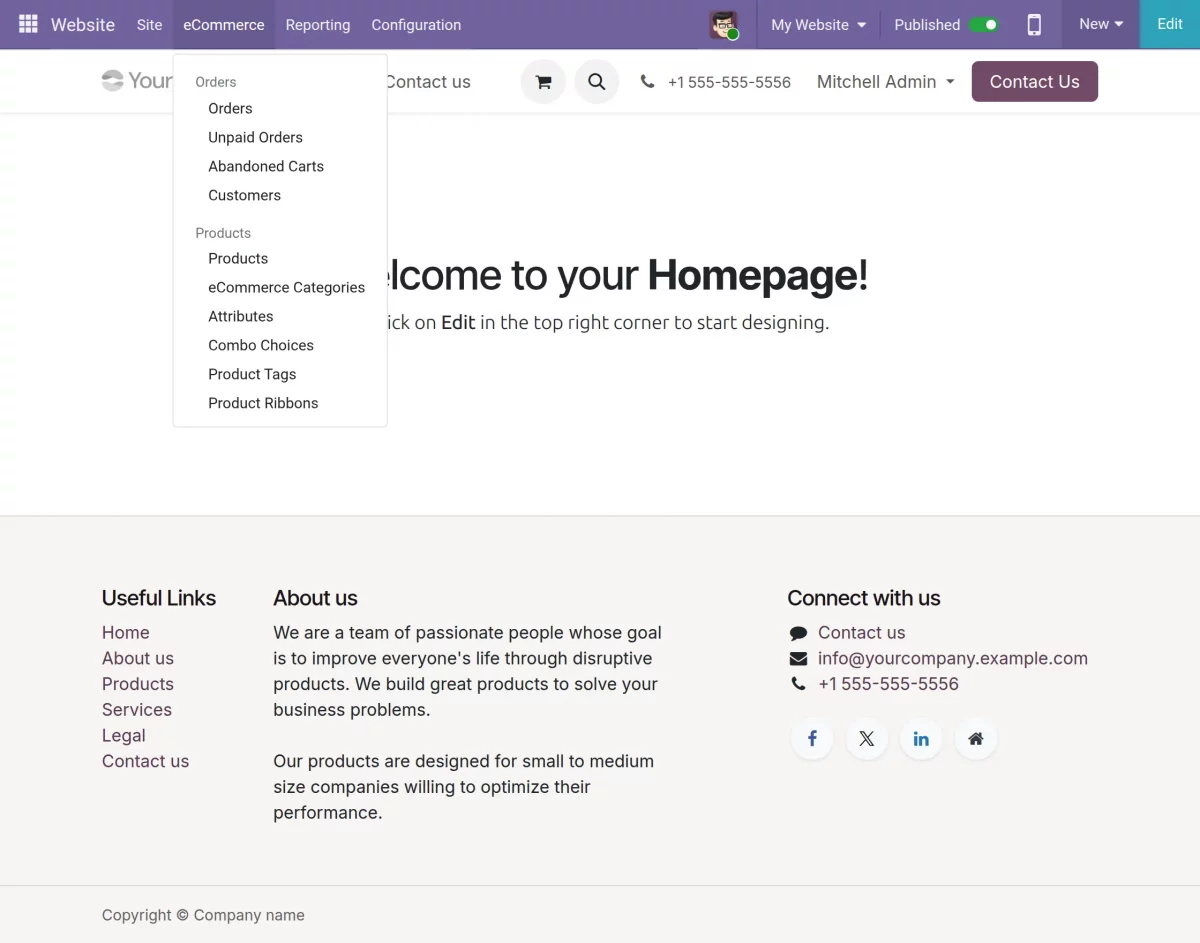
2. Next, go to the eCommerce tab and open Products to view all your products.
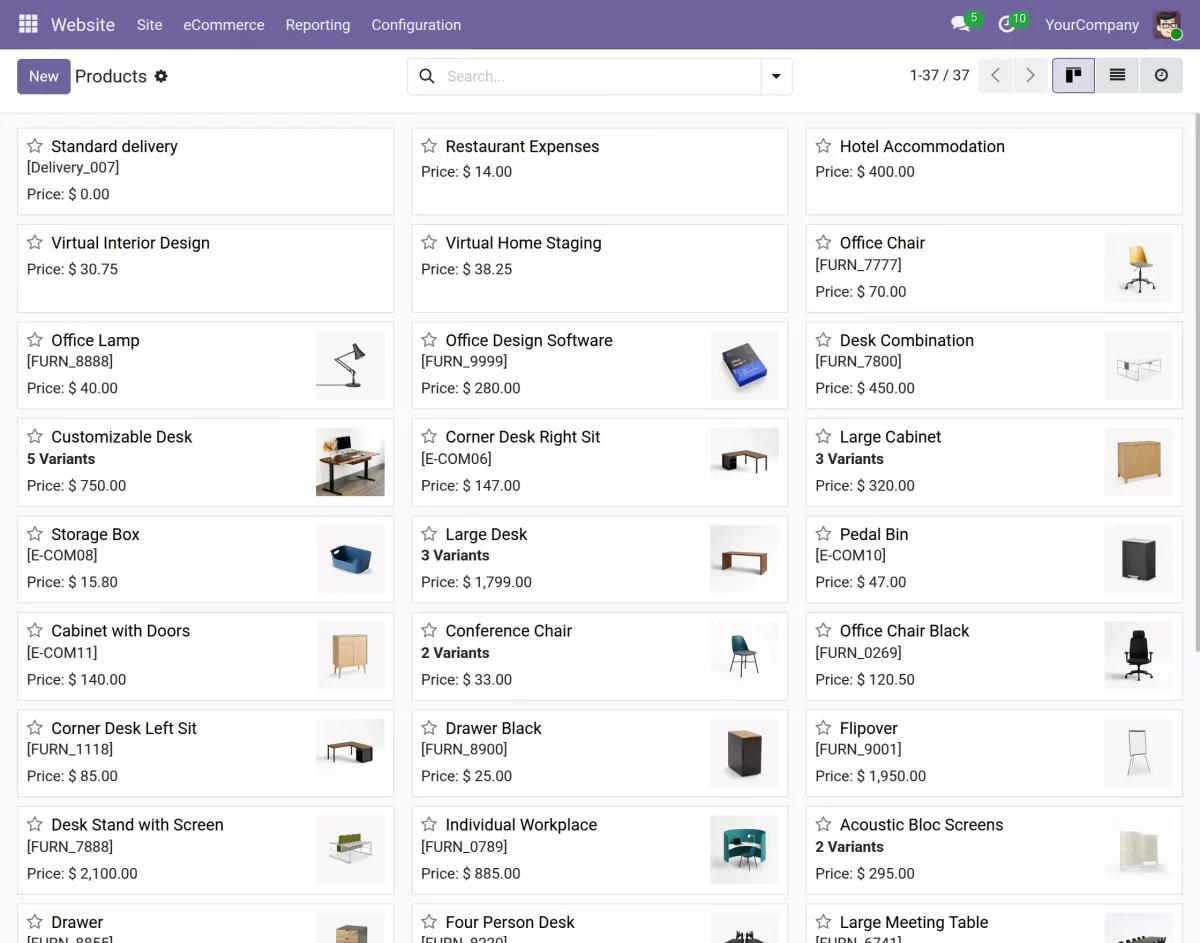
3. In this new product window, select your preferred product for media update.
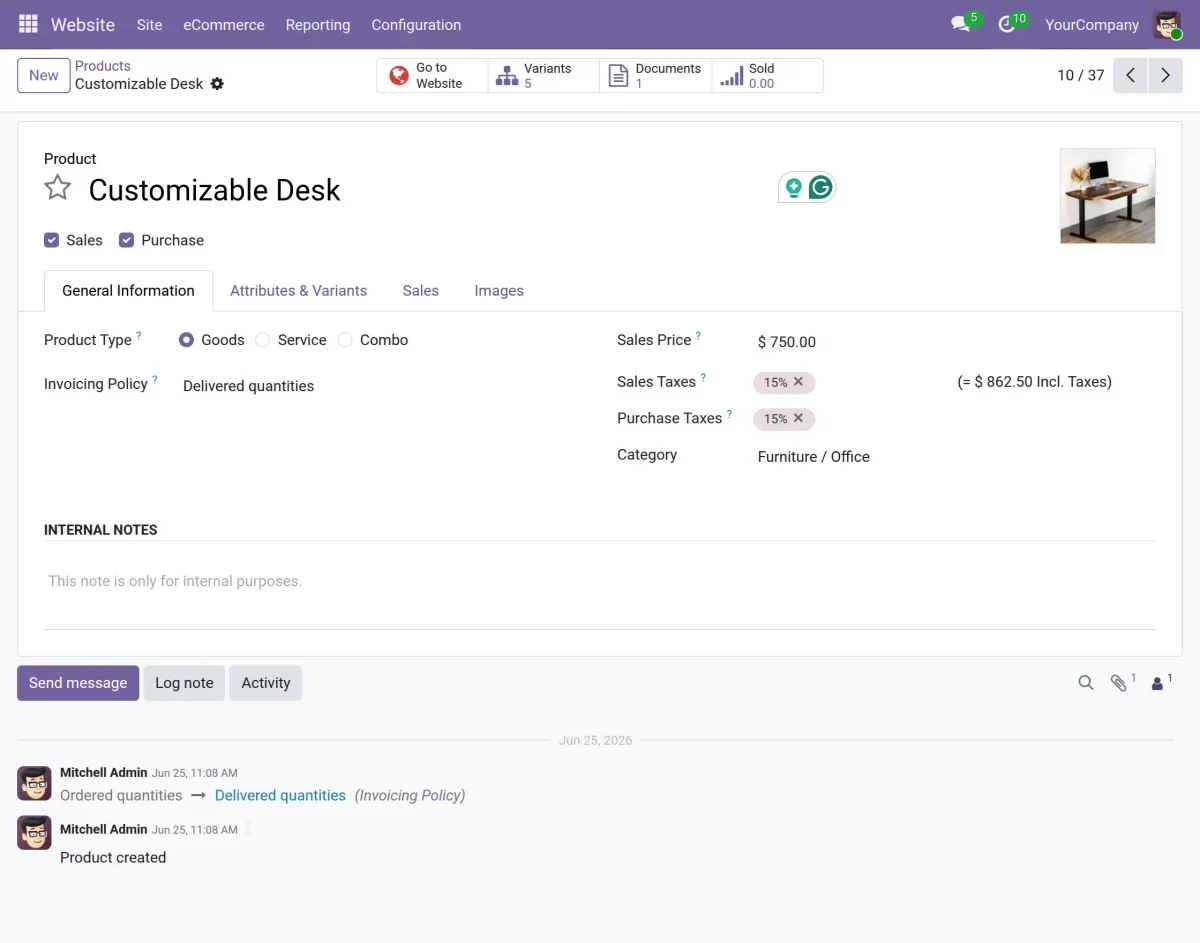
4. After selecting the preferred product, shift to the Images tab.
5. Now, in the Product Image section, you can see the newly added Boolean field. Select the preferred uploaded image to set as the product thumbnail in Odoo store.
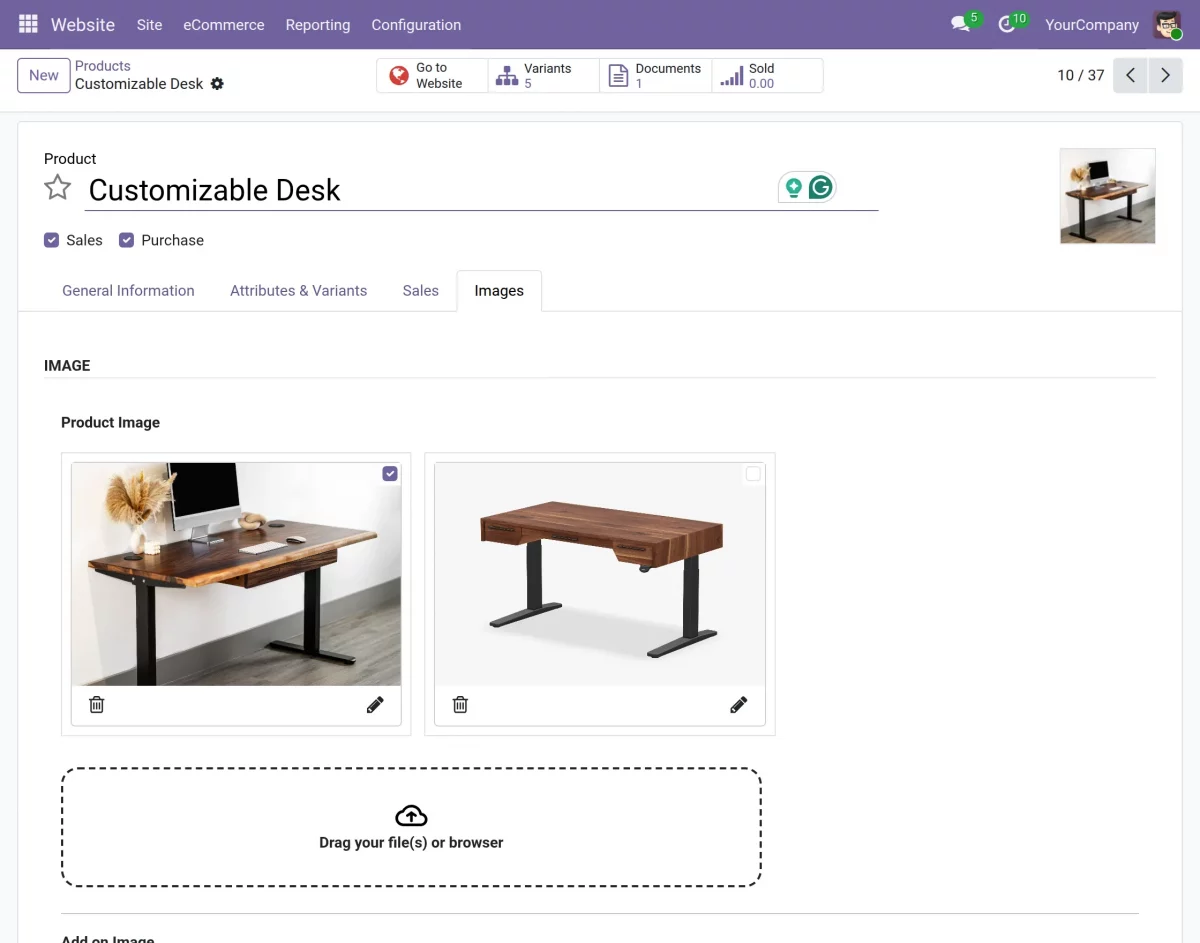
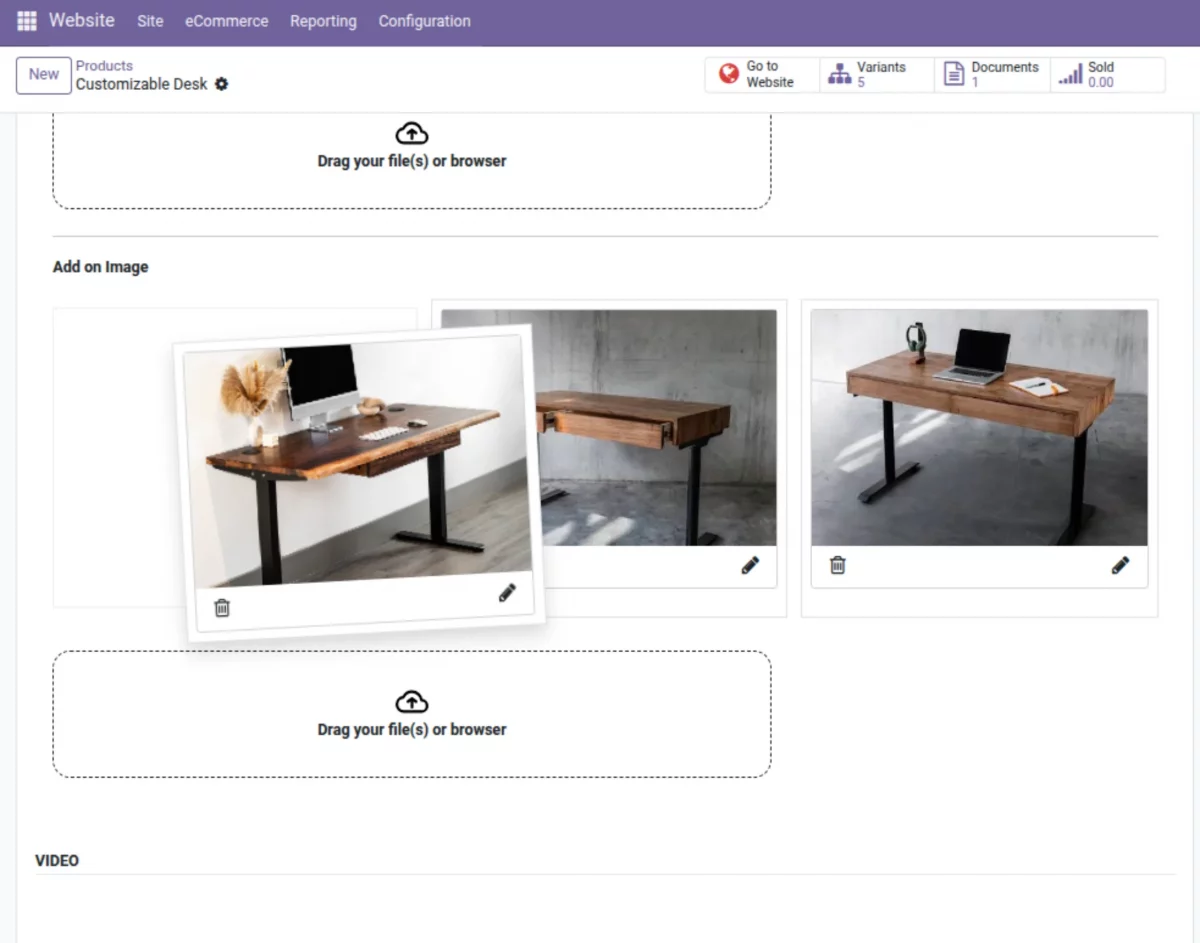
6. Then, scroll down to the Add-on Image section. Here, select and upload bulk images on your Odoo platform at once.
With the Product Media Bulk Upload extended functionality, you can also drag images in sequence and tell a better product story.
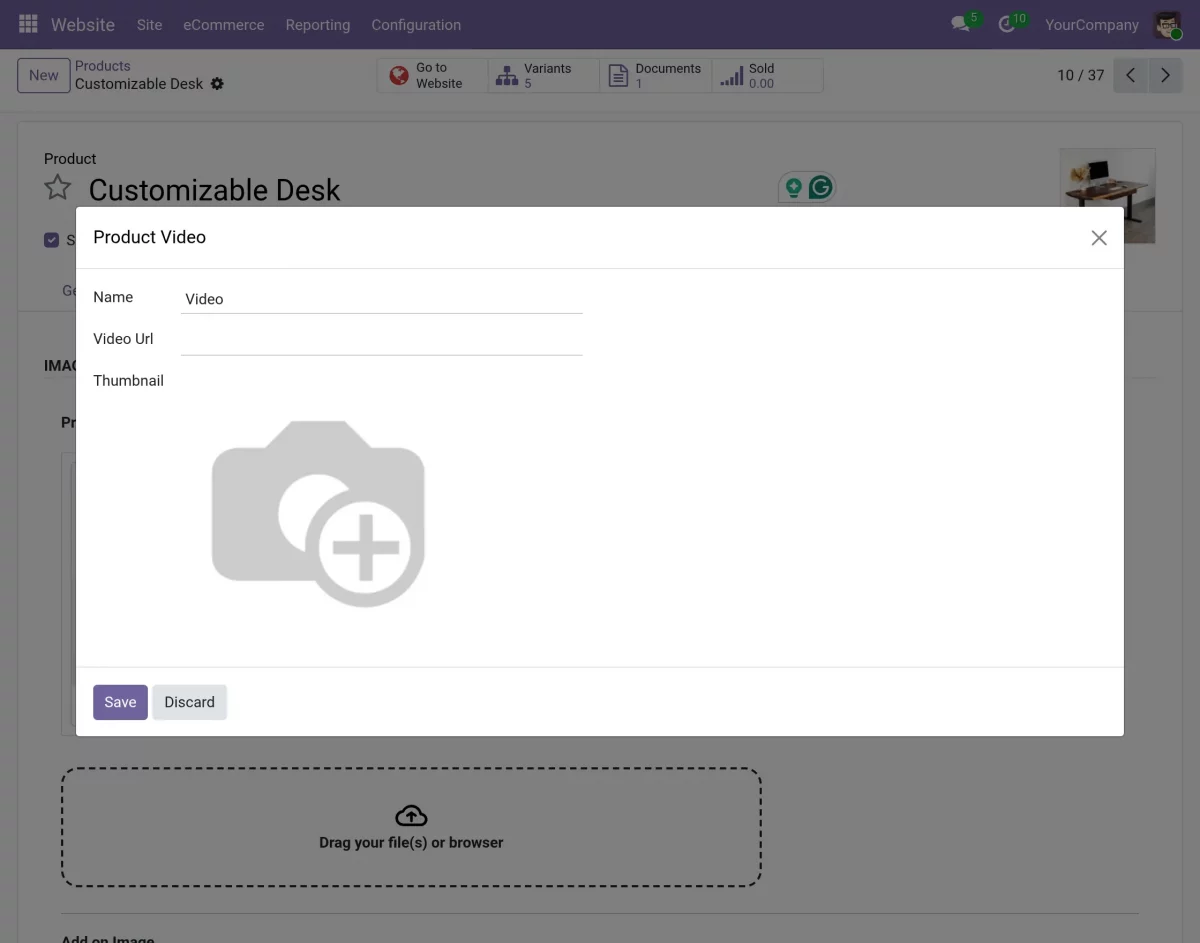
7. Further, under the video section, click on Add video, and a pop-up window will appear. Paste the video URL, upload its thumbnail, and save changes.
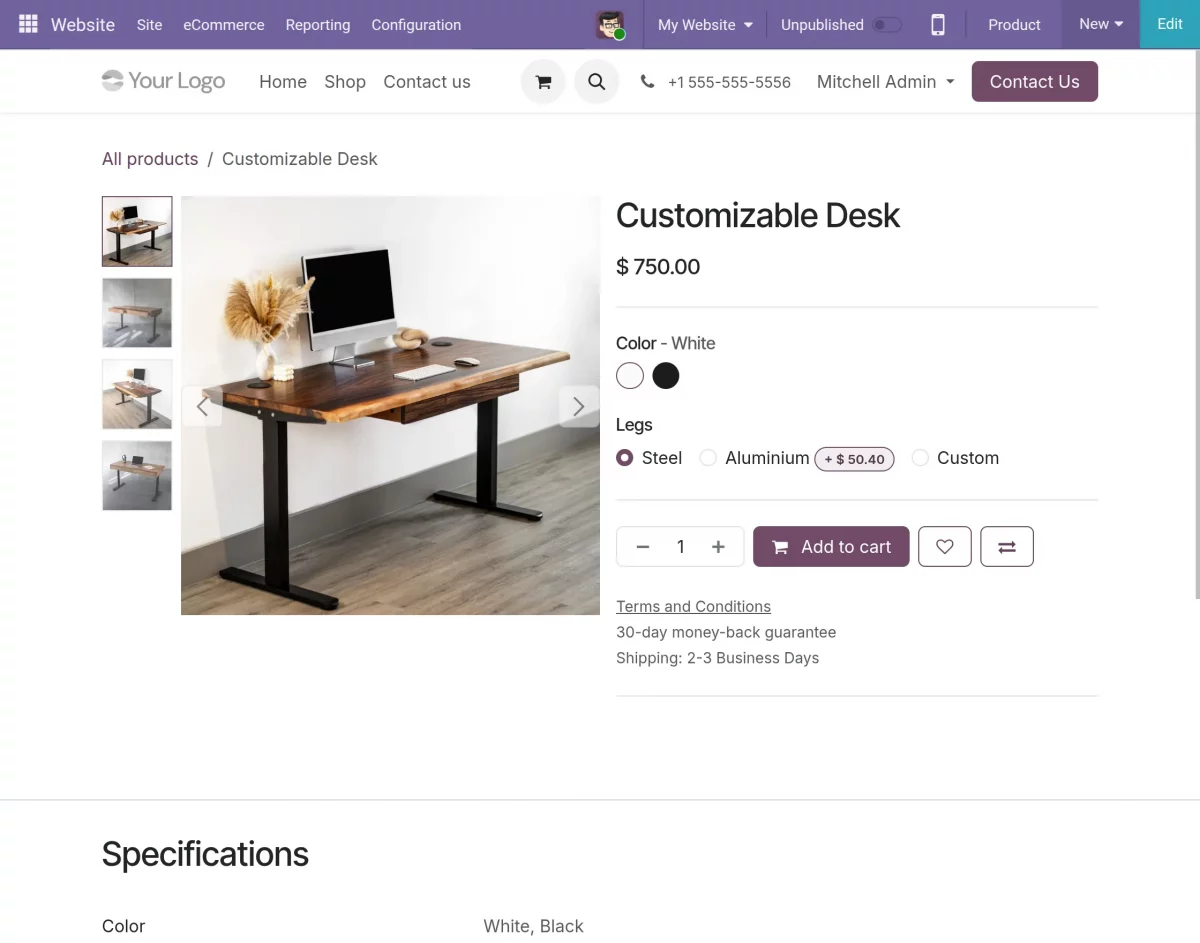
8. Finally, you can visit the product page and review the product media files in your defined sequence.
In this way, the module makes Odoo product image management easier for store managers, whether they manage 10 or 10,000 products.
Need Help?
Hope you find this guide helpful! Please feel free to share your feedback in the comments below.
If you still have any technical queries or need a custom feature, please raise a ticket or contact us at [email protected].
Current Product Version - 1.0.0
Supported Framework Version - 19, 18, 17, and 16

Be the first to comment.