INTRODUCTION
Odoo Product Advance Labels Builder Design Labels, Your Way!
Odoo Product Advance Labels Builder simplifies creating custom labels in the Odoo platform, allowing you to add detailed information, images, and barcodes.
This module lets businesses easily control label size, information, and design. The drag-and-drop interface simplifies repositioning blocks, making the process smooth.
Users can also check Odoo Print Product Label Directly Via Zebra Printer, It supports direct printing of product labels with zebra printers, eliminating the need for PDFs
Prerequisites For Using Odoo Product Advance Labels Builder
The module works in conjunction with the following modules,
You must install the mentioned module to use Odoo Product Advance Labels Builder
FEATURES
- The Odoo Product Advance Labels Builder allows users to create labels in any size.
- It includes dynamic data blocks, allowing users to add and adjust product details like images.
- The module supports multiple barcode formats, including UPC and EAN.
- Users can print labels directly from the Odoo platform without the need for additional software.
- The user-friendly interface includes a drag-and-drop feature, making repositioning easier.
- A preview option is available, allowing users to check label accuracy before printing.
INSTALLATION
- Once you purchase the App from the Webkul store, you will receive the link to download the zip file of the module.
- Extract the file on your system after the download finishes. As a result, you will be able to see a folder named- ‘product_barcode_labels_pro’
- Copy and paste this folder inside your Odoo Add-Ons path.
- Now, open the Odoo App and click on the settings menu. Here, click on Activate the Developer Mode.
- Then, open the Apps menu and click on ‘Update Modules List.’
- In the search bar, remove all the filters and search ‘product_barcode_labels_pro’
- You will be able to see the module in the search results. Click on ‘Install’ to install it.
WORKFLOW
- Once the installation is completed, log in as admin and visit the Odoo website app backend, go to inventory.
Click on barcode labels and go to pro configuration in the the dropdown menu.

2. Navigate through inventory>>barcodelabels>>pro configuration to go through the existing label templates . click on new to create a new label.

3. After clicking on new , enter the basic details of the label such as dimension, product , etc.
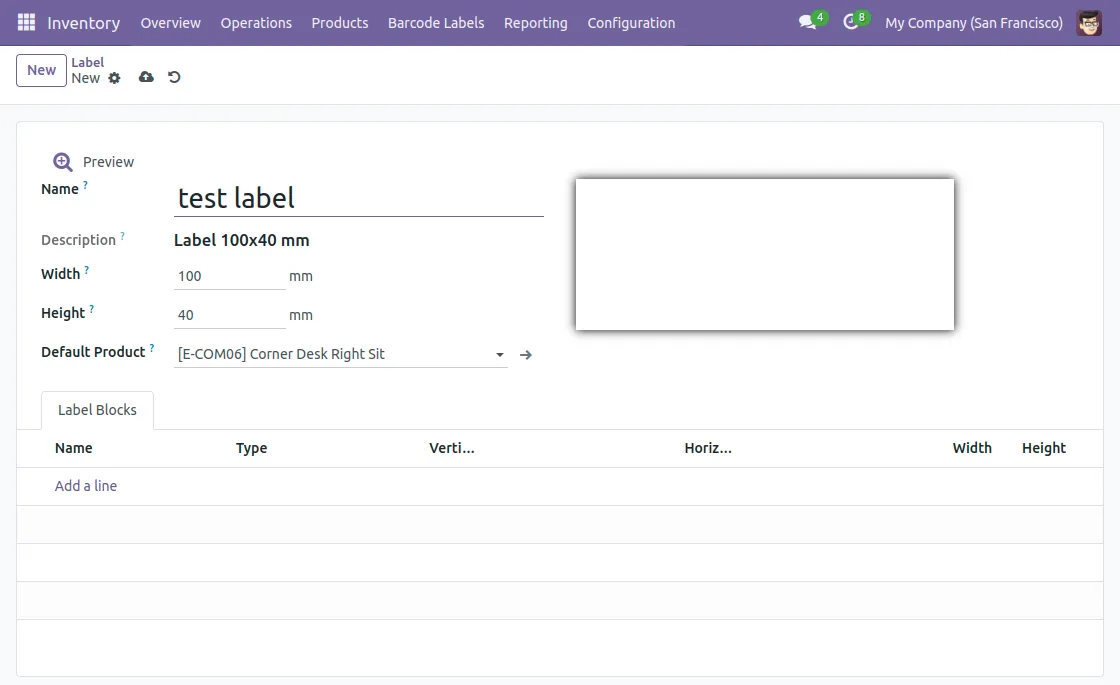
4. Add blocks to your label accordingly. Add data for various data types like text, images, barcode, etc.
ADDING IMAGE AS A BLOCK

TEXT AS A BLOCK

ADDING BARCODE AS A BLOCK

5. Odoo Product Advance Labels Builder provides a feature where the user can easily reposition the blocks using drag and drop functionality.
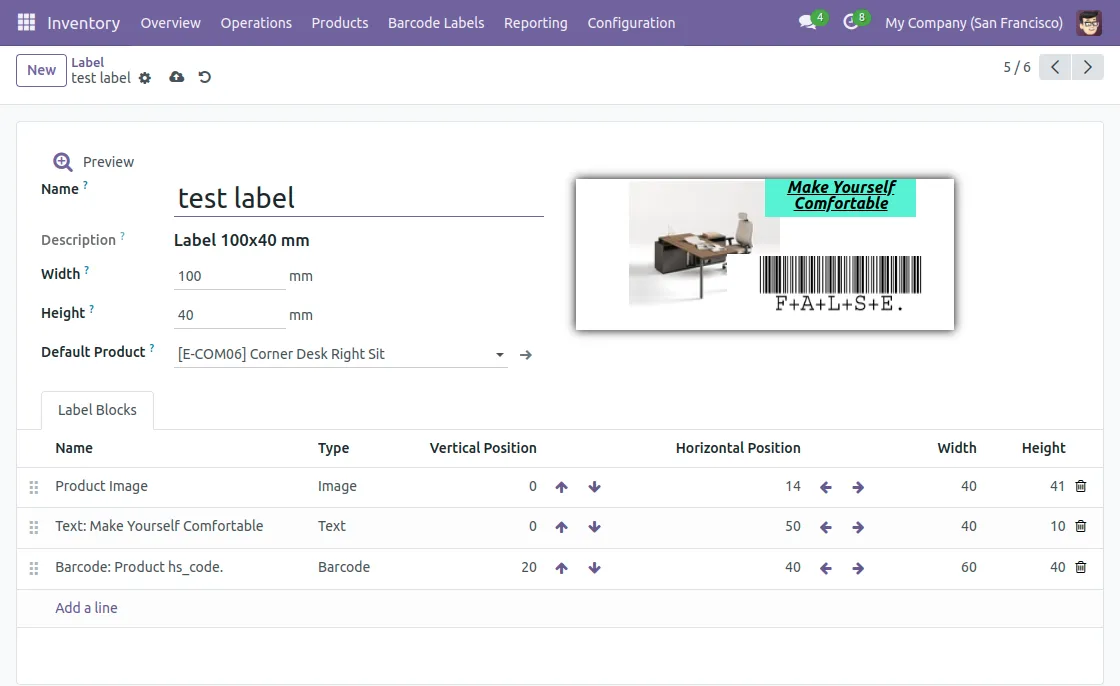
6. Users can also preview the label before printing it to check its accuracy. Click on the preview button to preview the label and print it directly .

NEED HELP?
Hope you find the guide helpful! Please feel free to share your feedback in the comments below.
If you still have any issues/queries regarding the same, please raise a ticket at the UV Desk.
I hope this helps. In case of any further queries, contact us at our support mail.
Thanks for paying attention!!
Current Product Version - 1.0.0
Supported Framework Version - V17, V16, V15

Be the first to comment.