INTRODUCTION
Odoo POS Restaurant Restrictions and Validations improve your restaurant’s POS by adding secure checks for critical actions.
It helps prevent order deletion, session closure, or changes without proper manager approval.
Odoo POS Restaurant Restrictions and Validations uses manager PINs and approval prompts to ensure only authorized staff can perform sensitive tasks.
This reduces errors, protects sales, and keeps operations running smoothly.
FEATURES
- Restricts deletion of order lines without manager approval.
- Blocks full order deletion unless a manager approves it first.
- Prevents KOT edits after the ticket is printed and sent to kitchen.
- Limit POS session closure to managers with proper rights.
- Requires PIN-based approval before doing sensitive actions.
- Logs deleted items and session closures for better tracking.
- Record staff activities clearly to increase accountability.
- Supports selecting any available manager for quick approval.
INSTALLATION
- Once you purchase the App from Webkul store, you will receive a link to download module’s zip file.
- Extract the file on your system after download finishes. As a result, you will be able to see a folder named- ‘pos_restaurant_restiction_and_validation(you can get the technical name from odoo app of the respective module)’
- Copy and paste this folder inside your Odoo Add-Ons path.
- Now, open Odoo App and click on the Settings menu. Here, click on Activate Developer Mode.
- Then, open Apps menu and click on ‘Update Modules List.’
- In the search bar, remove all the filters and search ‘pos_restaurant_restiction_and_validation’
- You will be able to see module in the search results. Click on ‘Install’ to install it.
WORKFLOW
After installing Odoo POS Restaurant Restrictions and Validations,
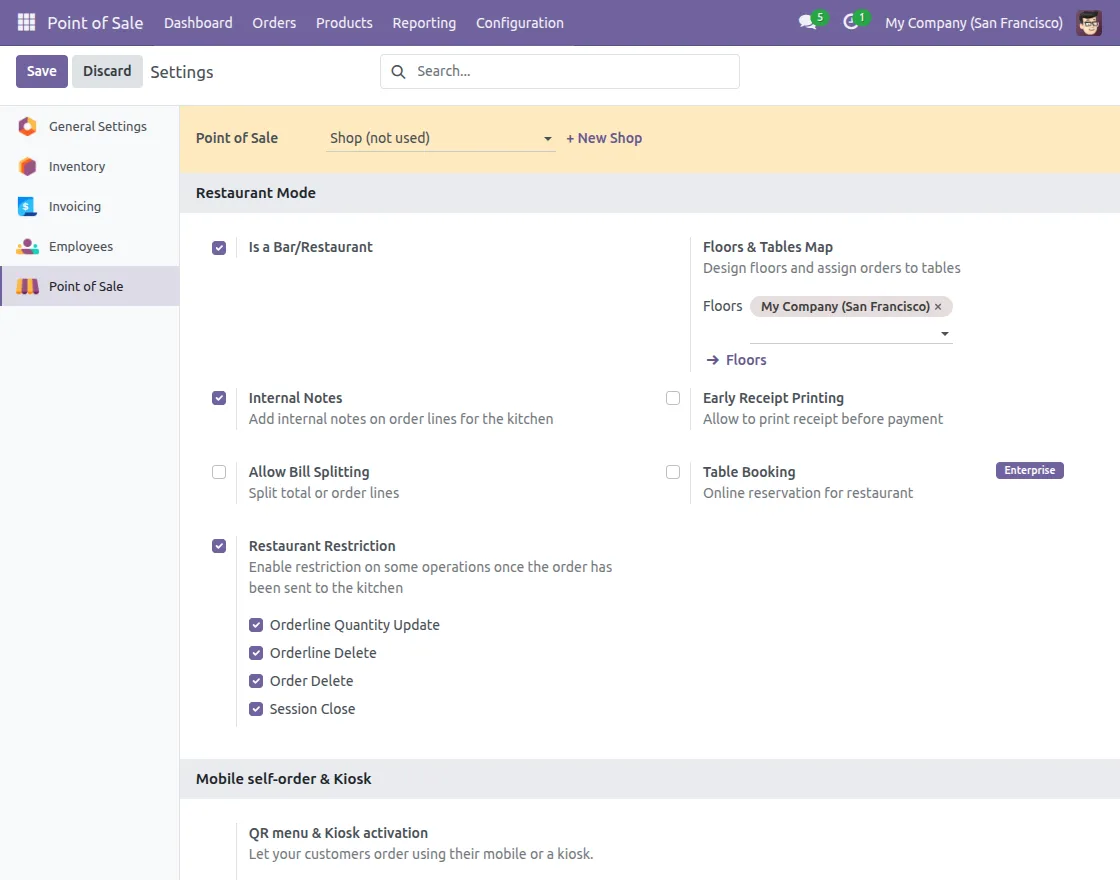
- Go to Point of Sale → Configuration → Settings → Restaurant Restrictions.
Here, you’ll find checkboxes to enable various restrictions like Orderline Quantity Update, Orderline Delete, Order Delete, and Session Close.
2. While placing an order in the POS, try deleting a product after it’s been added.
The system will display a manager approval pop-up to confirm the action.

3. If the user is not a manager, the system displays a list of managers to choose from.
After selecting a manager, a PIN prompt appears for secure approval.

4. If you try to delete an order from the Orders section after it’s sent to the kitchen, the system blocks it. Only a manager can approve the deletion by selecting their name and entering a valid PIN.

5. When trying to close a POS session, only users with manager access and a valid PIN can continue.
If a non-manager tries to close the session, the system denies the request.

6. Go to Point of Sale → Orders in the backend to view detailed logs.
The system shows receipt numbers, staff names, and actions taken for easy tracking.

NEED HELP?
Hope you find the guide helpful! Please feel free to share your feedback in the comments below.
If you still have any issues/queries, please create a ticket at the UV Desk.
I hope this helps. In case of any further queries, contact us at our support mail.
Thanks for paying attention!!
Current Product Version - 1.0.1
Supported Framework Version - Odoo V13, V14, V15, V16, V17, V18

Be the first to comment.