CS-Cart 3D Product View allows the buyers to see the product in 3D where customers get views of all the sides of a product.
It gives the buyer a more realistic and appealing view and allows them to make more precise decisions.
The customers can see the item and how it looks in the actual world. This module can help the admin increase the conversion rate.
Check the video mentioned below for an overview of the extension:
Features
- The admin and vendor both can enable or disable CS-Cart 3D Product View for the product page.
- With the help of 3D Product View, you can add the product’s 3D image to your online store.
- The Admin and vendor have to upload a .glb file, which contains the 3D image of the product.
- Allows the admin and vendor to add the 3D model to the product.
- The 3D image of a product will be shown to customers or buyers all over the store ( Add to Cart, Search, Quick view ) except on the checkout page.
- Allows the customer to Zoom In and Out with the help of the mouse wheel.
Installation – CS-Cart 3D Product View
When you download the add-on, you get a zip file and the install.txt file. Please follow the steps carefully:
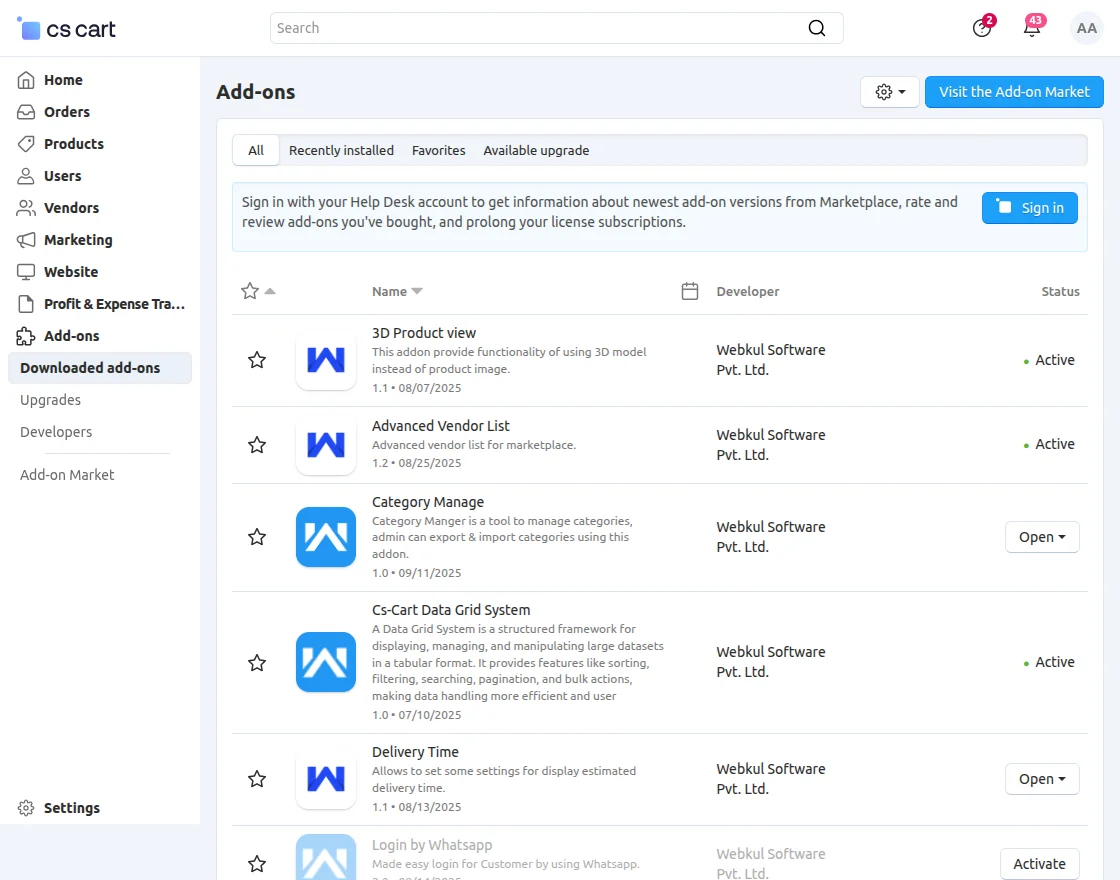
First, click on the icon and select manual installation to upload the zip file as per the screenshot below.
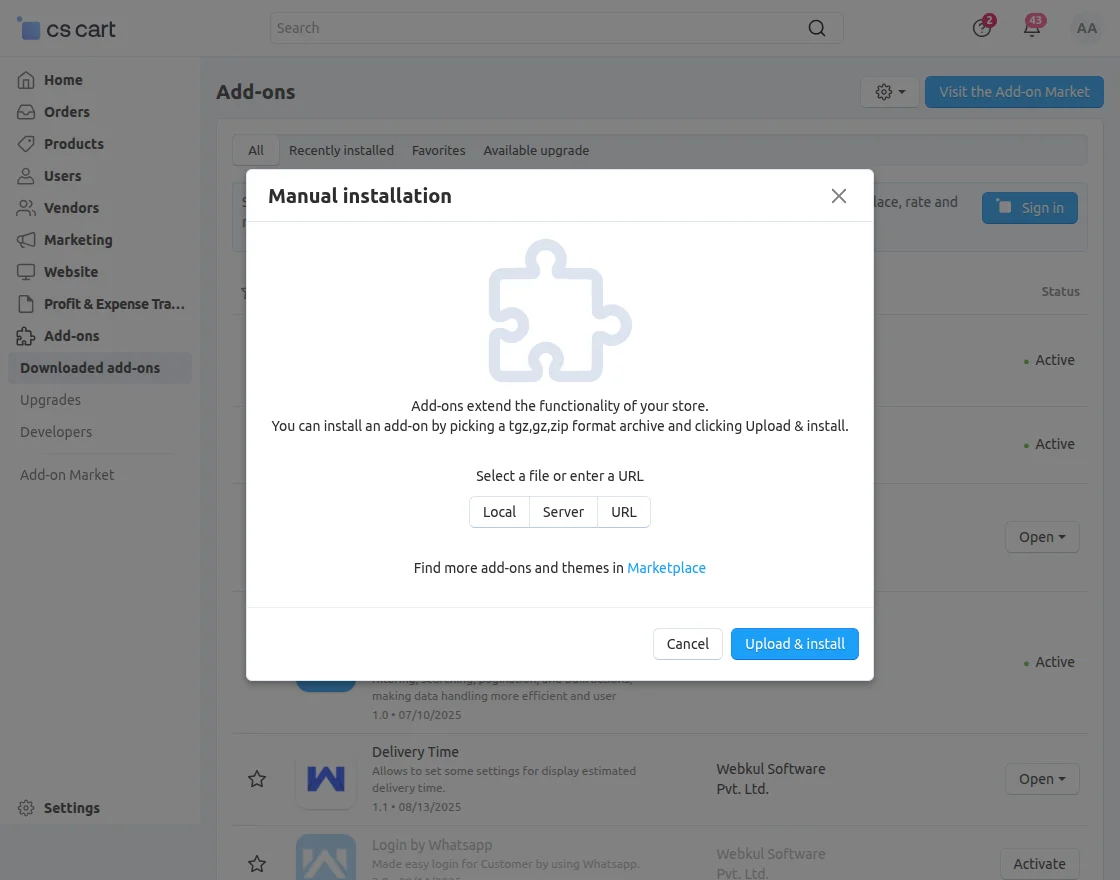
Now, click on “Local” to browse the zip file and then click on “Upload & Install”.
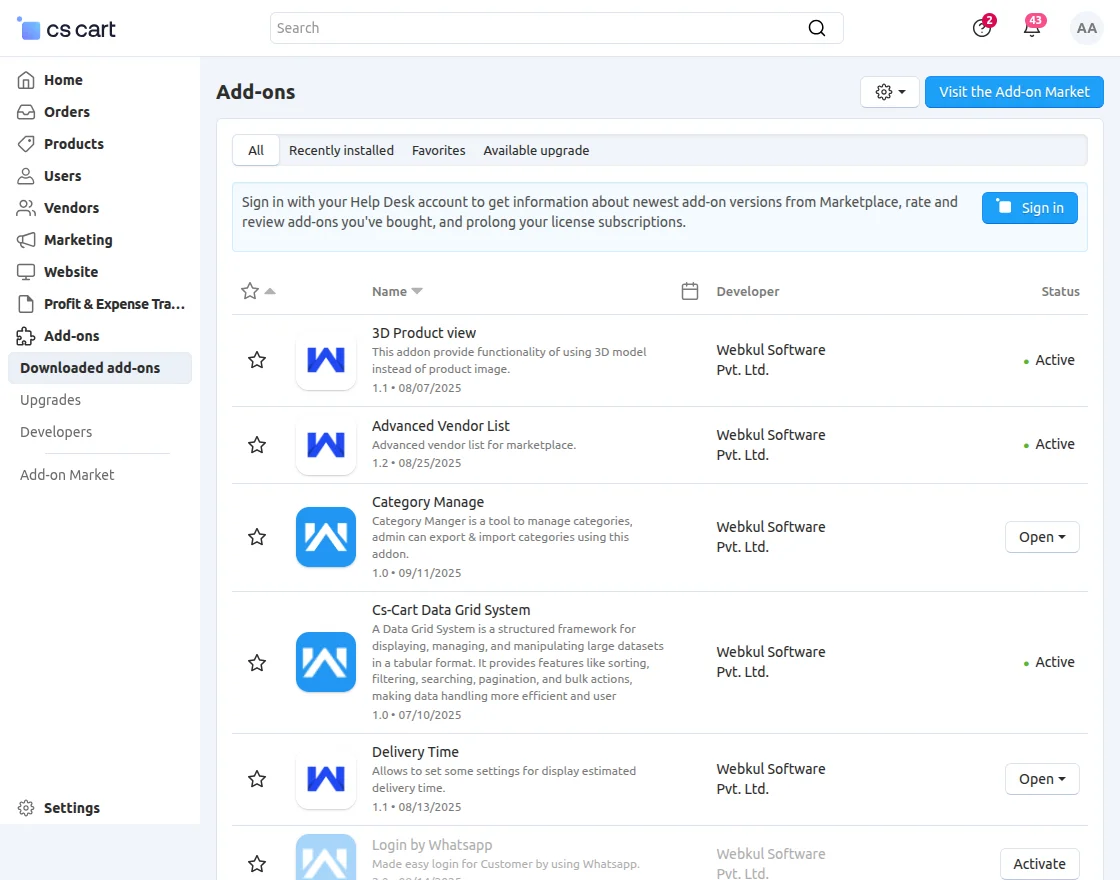
After installation of the add-on, you will find the “3D Product View” in the list of available add-ons.
Admin Configuration- CS-Cart 3D Product View
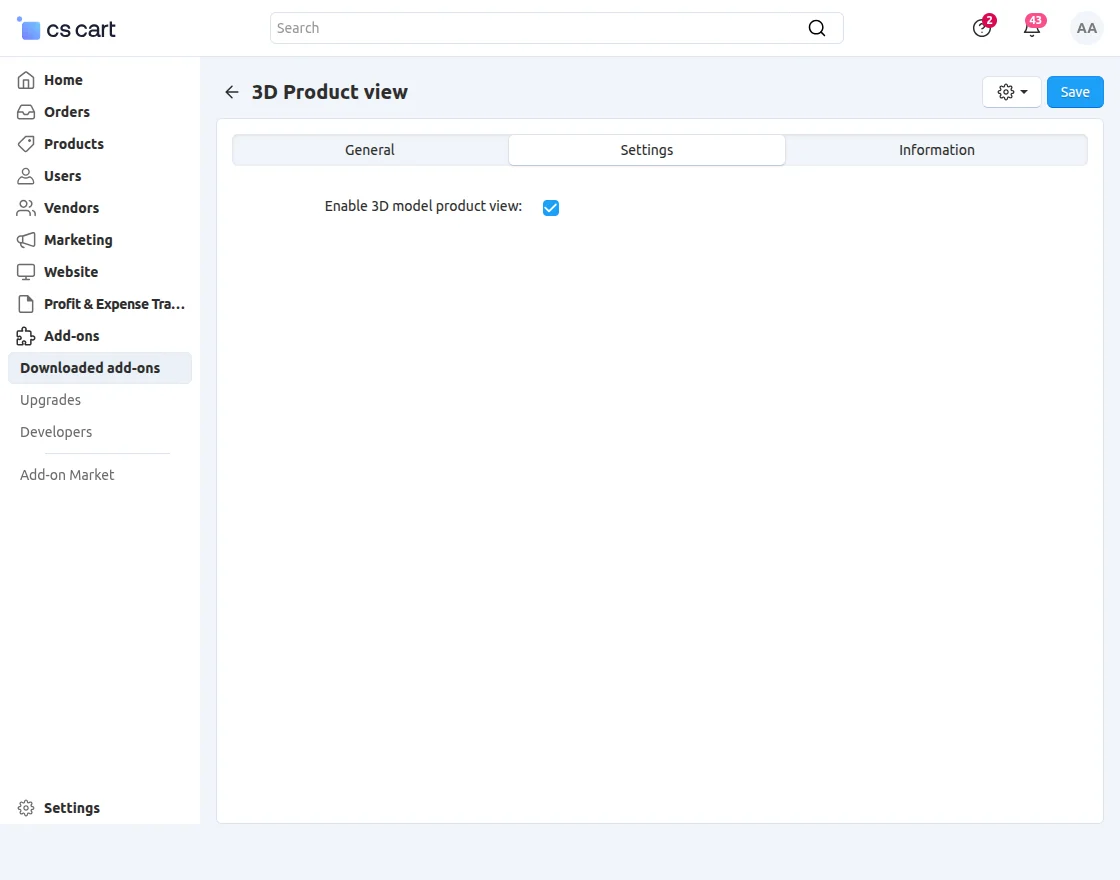
After installing the module successfully, now the admin has to click on the 3D Product View and go to the setting.
Now, click on Settings to make the module enable or disable on clicking the check mark option.
CS-Cart 3D Product Functionality on Admin End
After enabling the module, the customer will be able to see the product image in 3D on the storefront.
If a product is uploaded with the image .glb format then the image will be shown as follow.
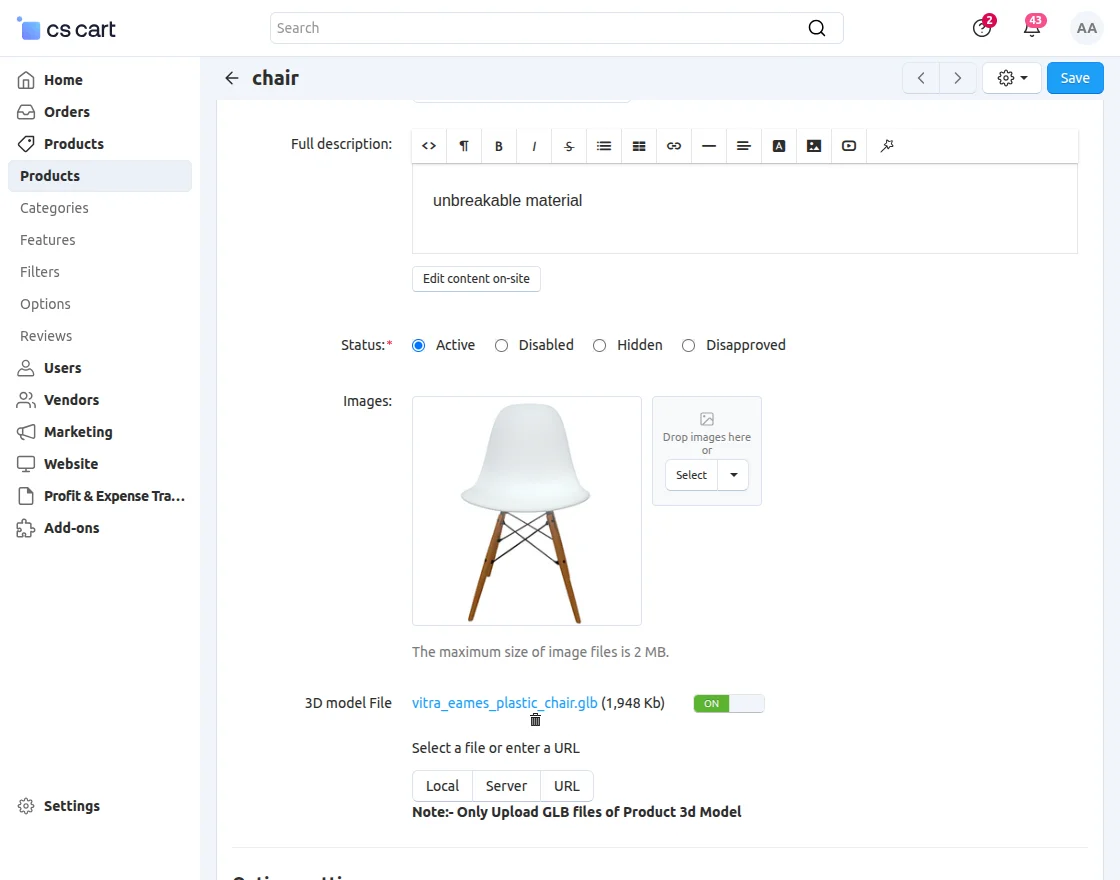
The admin has to click on Products>> Products and select the existing product to which he wants to add the 3D Model File.
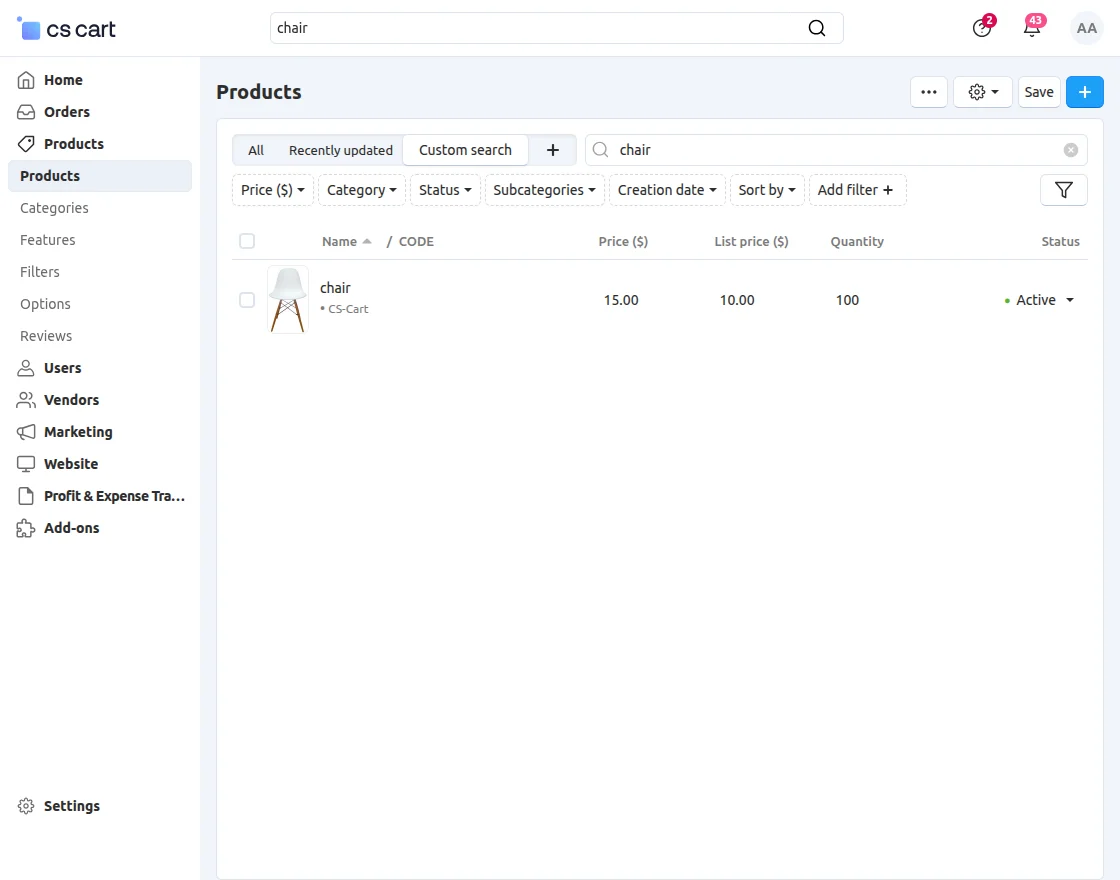
After selecting the product, upload the .glb file format by choosing the options (Local, Server, URL) as mentioned below.
CS-Cart 3D Product Functionality on Vendor End
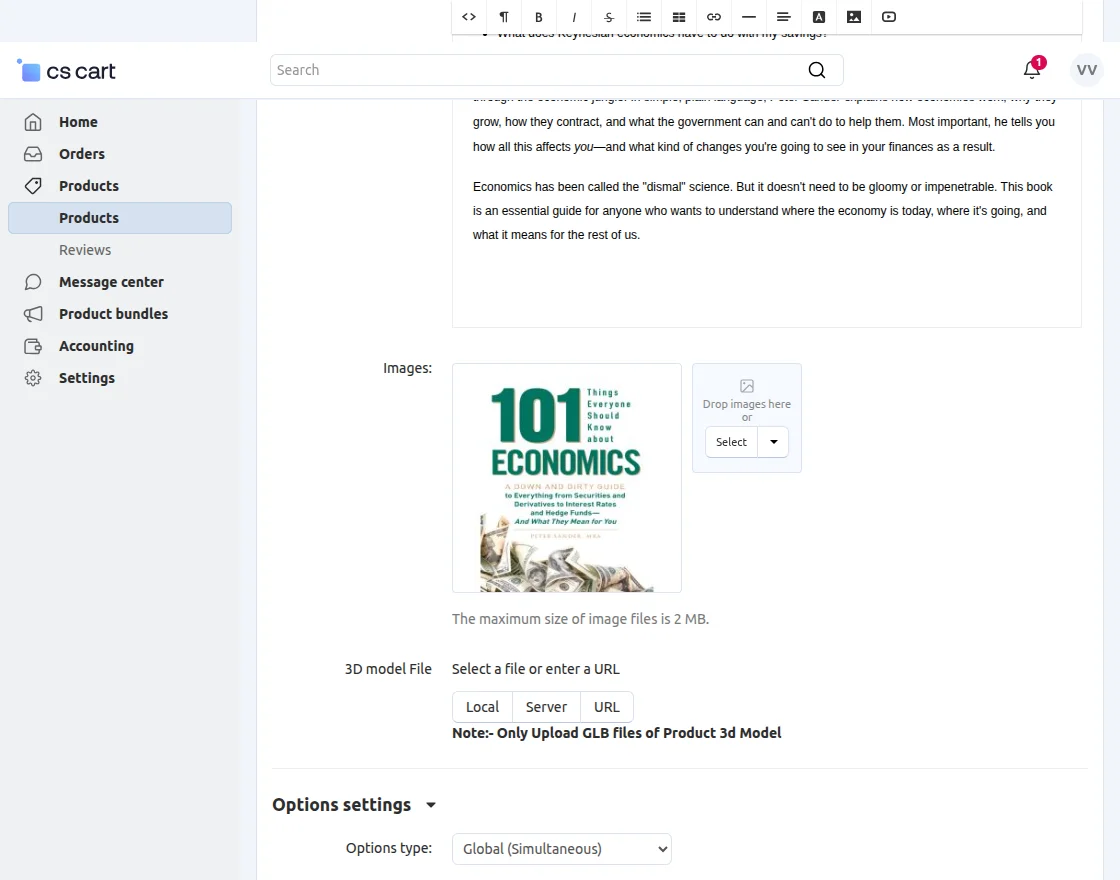
The Vendor has to click on Products >> Products and select the existing product to which he wants to add the 3D Model File.
Front End View
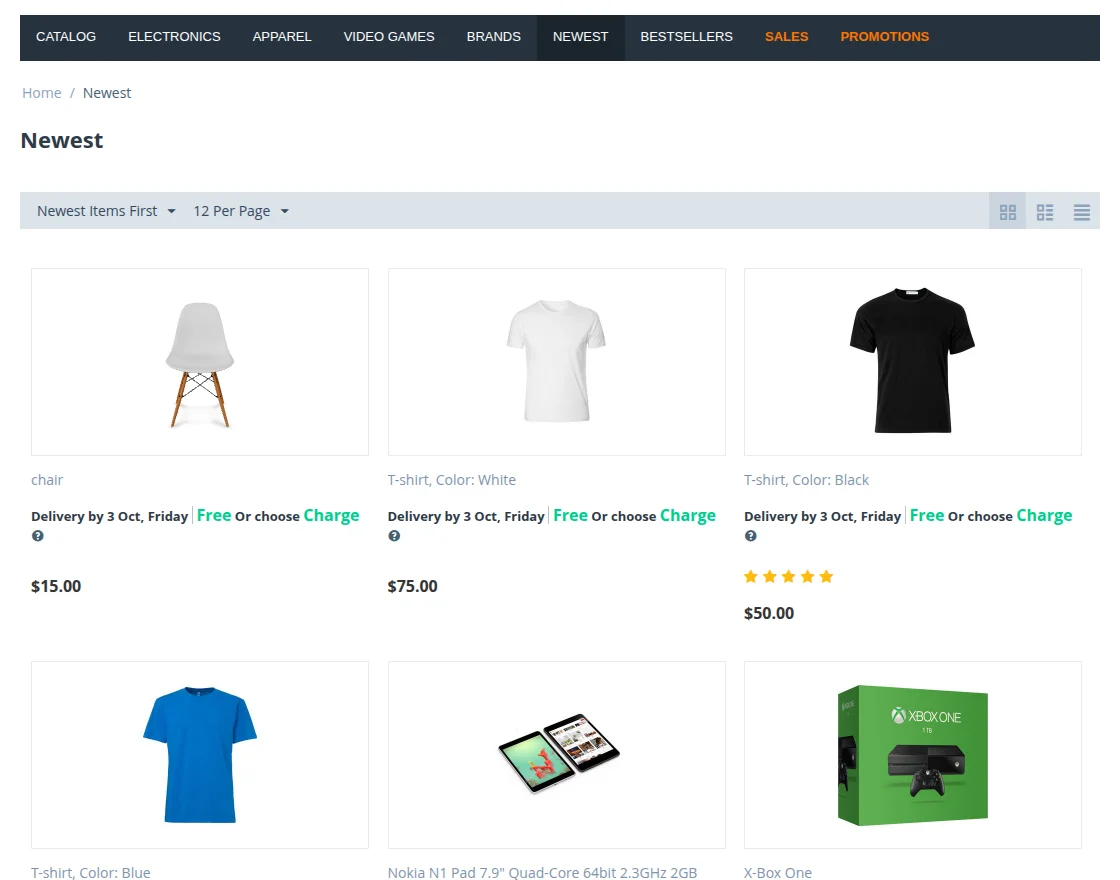
This is how the front end or customer view looks. Here, the customer can see all the products added by the admin.
3D Previews Of the Product Image
As the module has the feature to show the 3D image of the product in different places the previews are shown below.
Search View
This is how the product image looks in the search view.

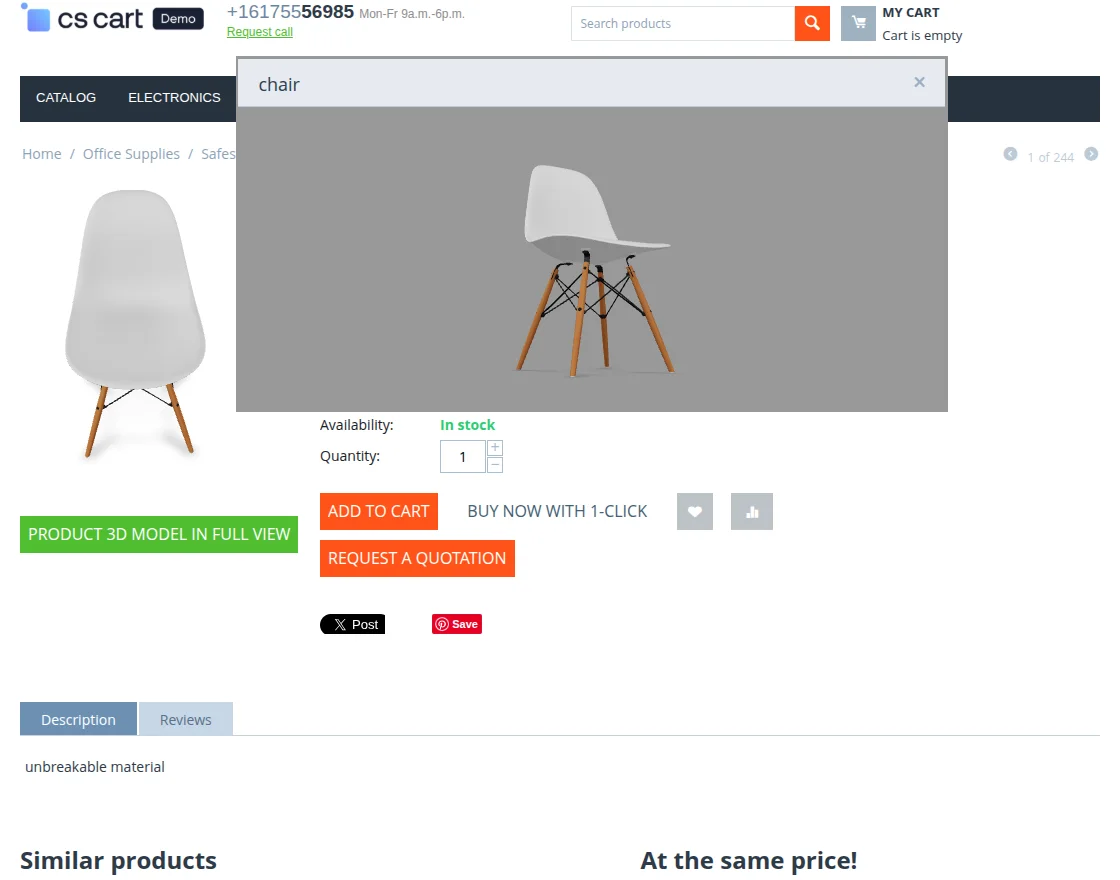
Product 3D Model in full view
With this Product 3D Model In Full View, customers can see full 3D imaging of the product
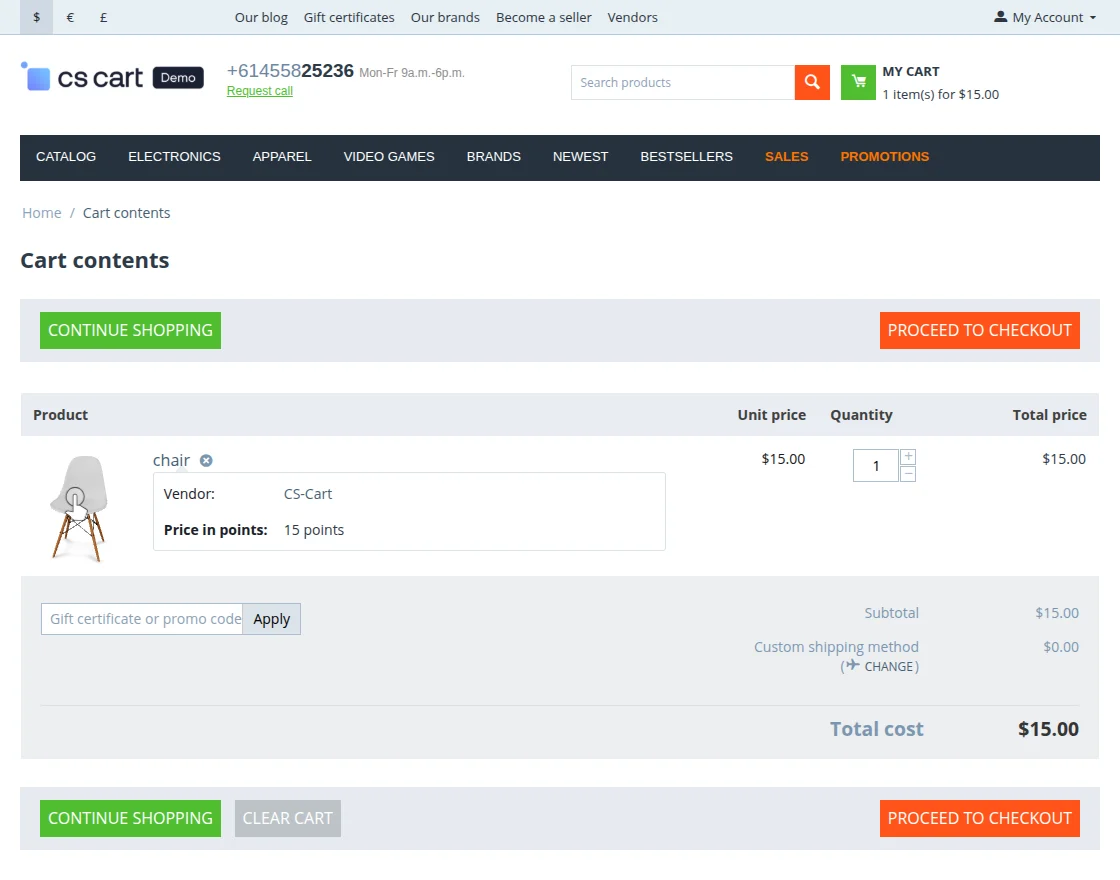
Add To Cart View
When the customer adds the product to the cart, the view will be as follows.
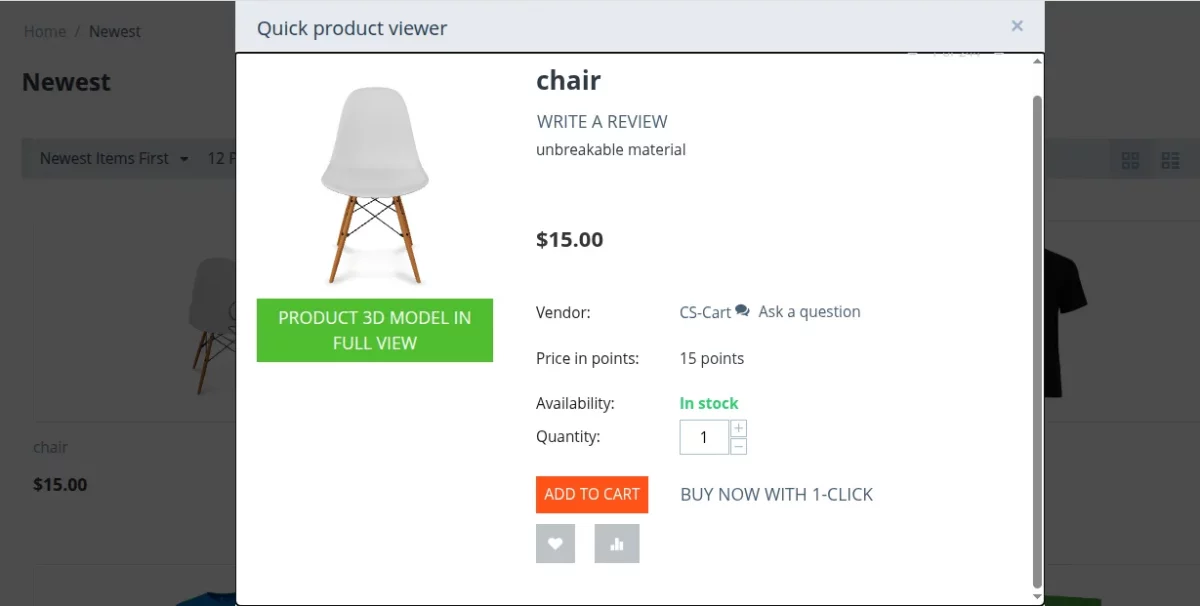
Quick View
The Preview of the Quick View.
Zoom In or Out Feature
3D Product View gives the customer to zoom-in or out feature for exploring the detailing of the product as shown below.
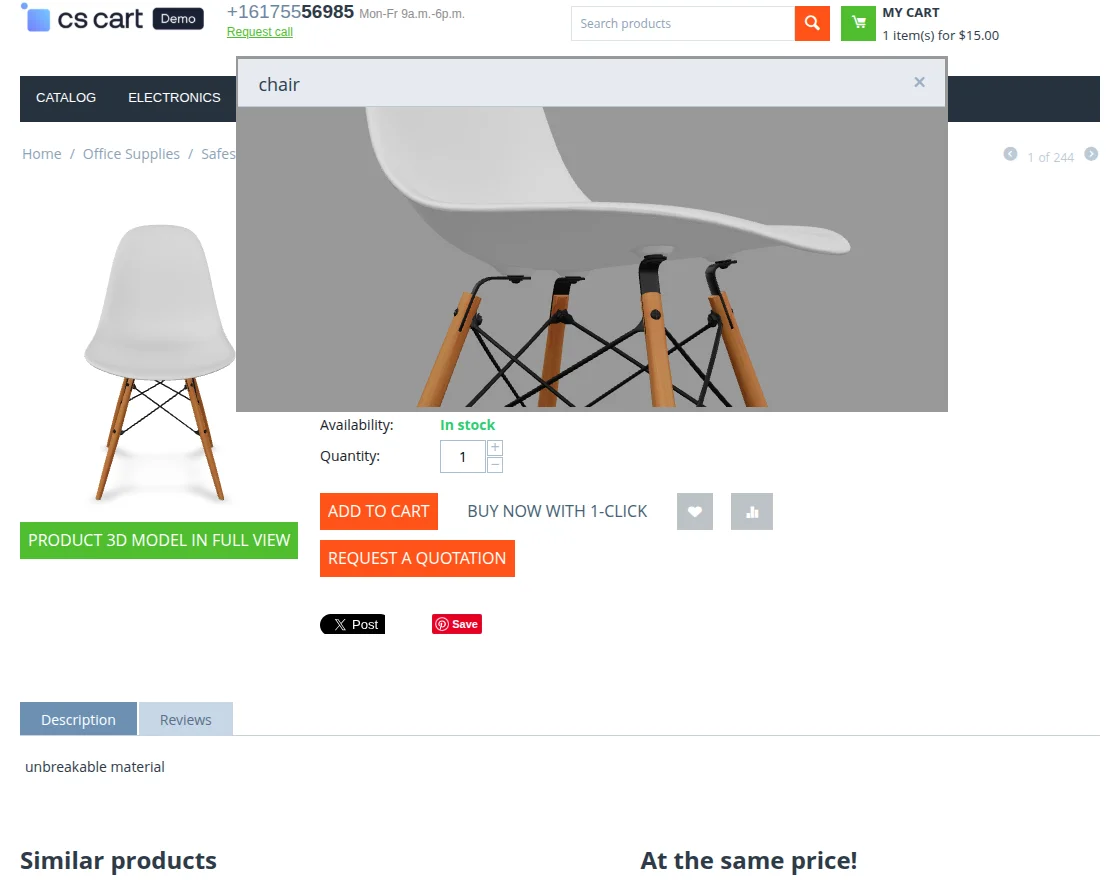
The zoom in and out feature works on all the mentioned views. ( Add to cart, search view, quick view)
Support
If you have any questions, suggestions, or customization requests, feel free to contact us at [email protected] or submit a ticket at webkul.uvdesk.com.
Explore our premium-quality CS Cart Extensions to enhance your store functionality.
You can also explore our CS-Cart Development Services and Quality CS-Cart add-ons.
Current Product Version - 1.0
Supported Framework Version - 4.18

Be the first to comment.