Multivendor Marketplace for Shopify: Handling & Transaction Charges
In many marketplace scenarios, the admin has to bear the handling and transaction charges applied to each transaction or transfer. As a result, these charges directly impact overall profitability.
To address this, we have introduced a feature in the app that allows these charges to be added to the product price during product creation.
Now, let’s understand the complete workflow in detail.
The workflow of the Multivendor Marketplace: Handling & Transaction Charges
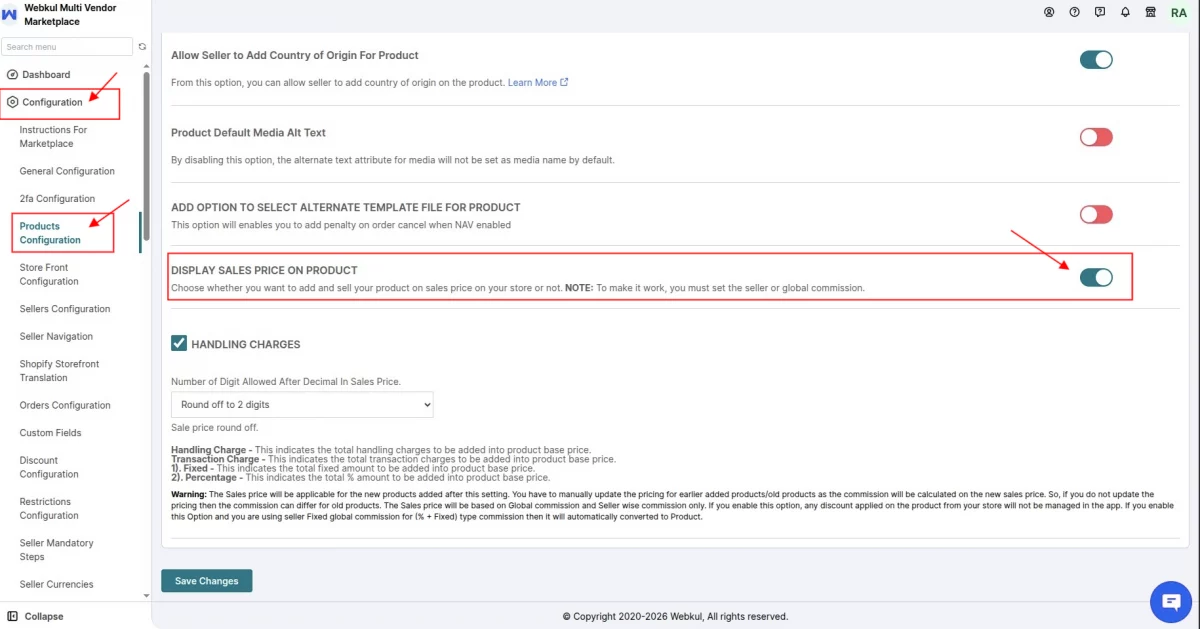
Before using this feature, make sure that the Sales Price option is enabled from the Product Configuration settings. Otherwise, the handling and transaction charges will not reflect properly.
To enable it, follow the steps below:
- First, go to Configuration.
- Then, click on Product Configuration.
- After that, enable the “Display Sales Price on Product” option.
- Finally, click Save.
1. Handling Charges
Handling charges allow the admin to add an additional fixed cost to the product price. As a result, this cost is automatically included in the final price displayed to the customer.
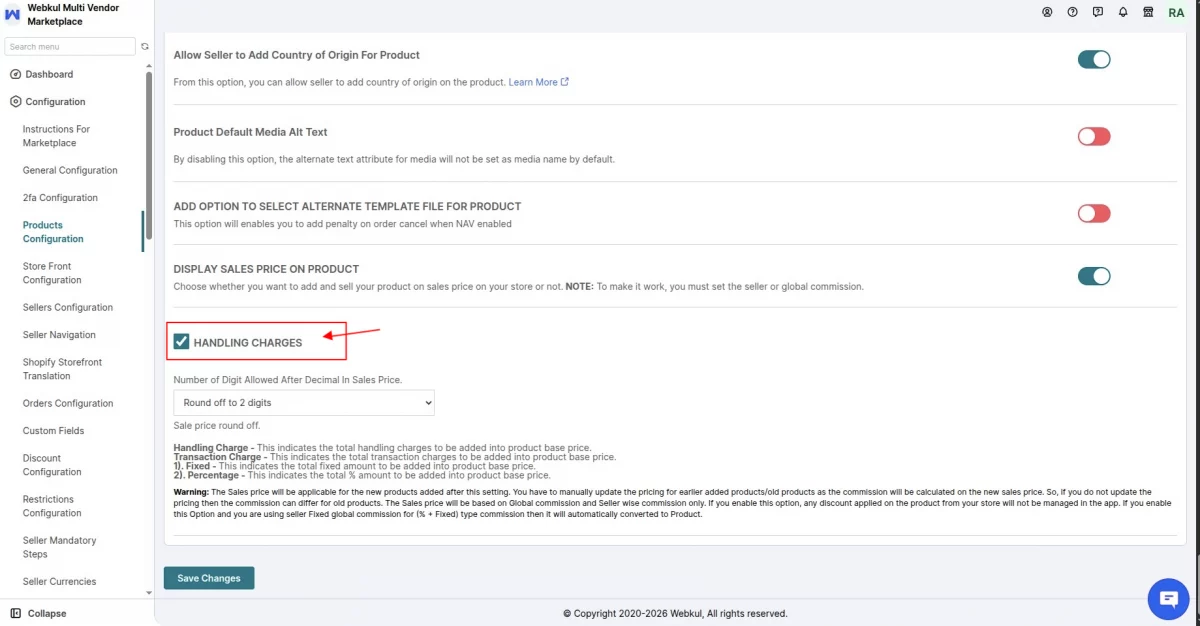
Step 1: Enable Handling Charges
To activate this feature, follow the steps below:
First, navigate to Configuration.
Then, open Product Configuration.
After that, enable the “Handling Charges” checkbox.
Finally, click Save Changes to apply the settings.
Step 2: Set Handling Charge on Product
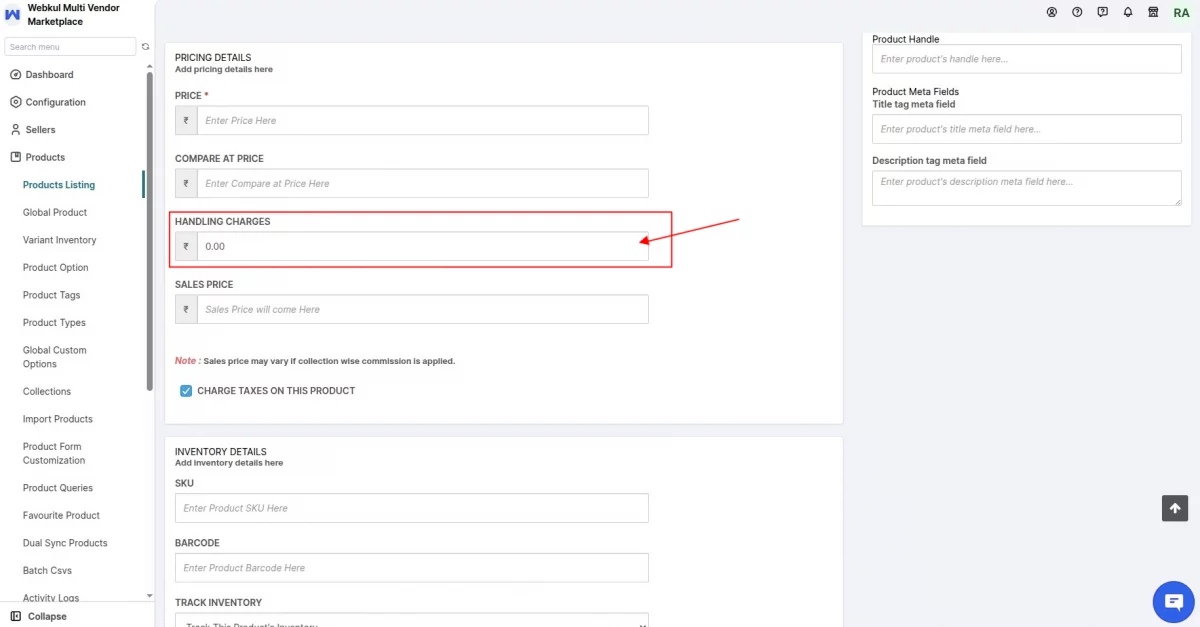
Once the feature is enabled, you can configure the handling charge for individual products.
To do so, follow the steps below:
Finally, save the product to apply the changes.
First, go to the Product Edit Page.
Then, enter the required Handling Charge value for the respective product.
How Handling Charge Works
The handling charge is added to the product’s base price. As a result, the final price increases accordingly.
Moreover, this charge is applied per quantity. Therefore, if a customer purchases multiple units of the same product, the handling charge will be multiplied based on the ordered quantity.
Example:
Product Price = $100
Handling Charge = $10
Orderd Quantity = 3
Final calculation:
($100 + $10) × 3 = $330
2. Transaction Charges
Transaction charges represent the payment processing fee applied to marketplace orders. In other words, this fee reflects the cost associated with processing payments through a gateway.
Therefore, the configured transaction charge will be added to the product’s base price, depending on the selected settings.
Step 1: Enable Transaction Charge
Before configuring the transaction settings, you must first enable the transaction charge option.
To do so, follow the steps below:
Finally, save the changes to activate the feature.
First, go to Configuration.
Then, open Product Configuration.
After that, enable the “Transaction Charge” option.
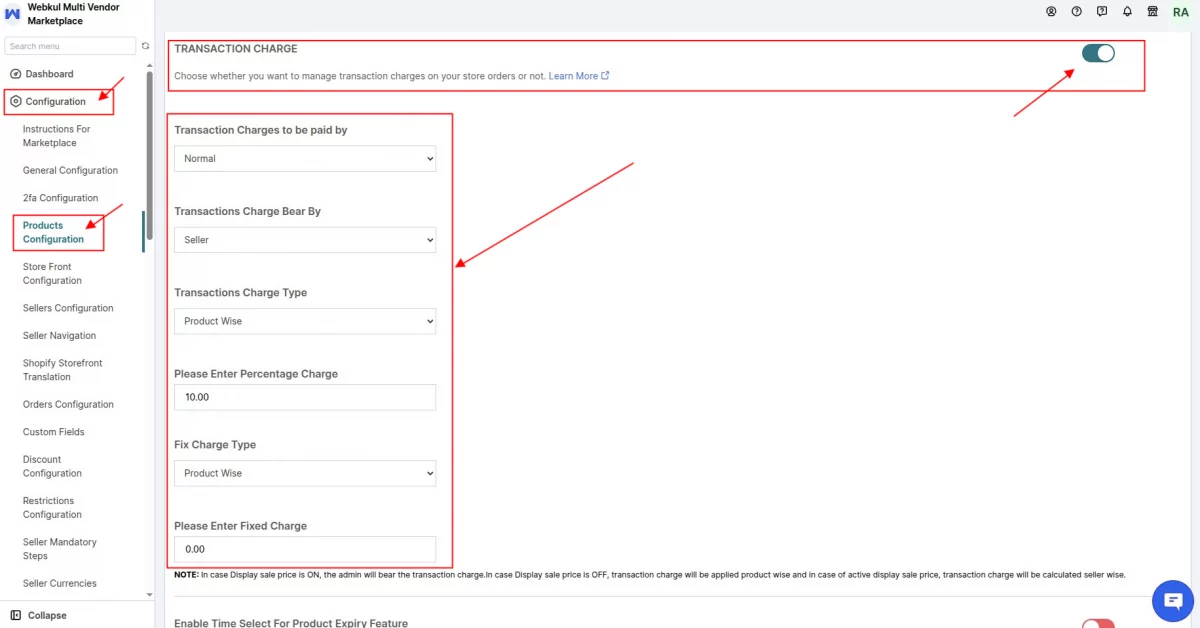
Step 2: Configure Transaction Charge Settings
> Transaction Charges to be Paid By
Under this setting, you can choose how the transaction fee should be determined.
Normal
If you select Normal, the transaction charge will be calculated based on the percentage and/or fixed values entered manually in the configuration.
In other words, the admin has full control over defining the charge structure.
Stripe Fees
On the other hand, if you select Stripe Fees, the system will follow Stripe’s default payment processing structure.
Therefore, the transaction charge will be calculated according to Stripe’s predefined fee model.
> Transaction Charge Bear By
This setting determines who will bear the transaction fee applied to the order.
Option: Admin
If the Admin option is selected, the marketplace owner will bear the transaction charges instead of the seller.
For example, consider the following scenario:
- Order Total = $1000
- Transaction Charge = 10%
In this case, 10% of $1000 equals $100. Therefore, the seller will receive the full $1000 amount (minus commission, if applicable). However, the admin will absorb the $100 transaction cost.
Use Case:
This option is suitable when the marketplace wants to encourage sellers by internally covering the payment gateway fees.
Option: Seller
On the other hand, if the Seller option is selected, the transaction charge will be deducted directly from the seller’s payout.
Using the same example:
- Order Total = $1000
- Transaction Charge = 10%
Here, 10% of $1000 equals $100. As a result, $100 will be deducted from the seller’s payout. Consequently, the seller will receive $900 (before commission or other deductions, if applicable).
Use Case:
This option is ideal when the marketplace intends to pass the payment processing cost to the sellers.
> Transaction Charge Type
This determines how the charge is calculated.
🔹 Product Wise
The charge is calculated individually for each product.
Scenario:
Product A = $500
Product B = $500
Transaction = 10%
Product A charge = $50
Product B charge = $50
Total transaction charge = $100
Use Case: When each product’s value should affect the transaction fee independently.
🔹 Order Wise
The charge is calculated once on the total order amount.
Scenario:
Order Total = $1000
Transaction = 10%
Total charge = $100
Use Case: When transaction fee should apply once per order instead of per product.
> Please Enter Percentage Charge
Admin enters percentage value.
Example: 10%
If order total = $2000
Transaction charge = $200
> Fixed Charge Type
Defines how the fixed amount will apply.
🔹 Order Wise
Fixed amount applied once per order.
Example:
Fixed Charge = $20
Order Total = $1000
Total transaction = $20 (fixed only)
🔹 Product Wise
Fixed amount applied per product.
Example:
Fixed Charge = $10
Customer buys 3 different products
Total fixed charge = $30
🔹 Seller Wise
Fixed amount applied per seller involved in the order.
Scenario:
Order contains:
Seller A’s products
Seller B’s products
Fixed charge = $15
Total fixed = $30
($15 per seller)
> Please Enter Fixed Charge
Enter the fixed amount value.
Combining Percentage + Fixed Charge
If both are enabled:
Scenario:
Order Total = $1000
Percentage = 10% → $100
Fixed (Order Wise) = $20
Total transaction charge = $120
Practical Marketplace Scenarios
Scenario A: Marketplace absorbs all fees
Bear By = Admin
Type = Order Wise
Percentage = 2%
Fixed = $0
Result: Admin absorbs gateway cost.
Scenario B: Seller pays the exact payment gateway fee
Bear By = Seller
Type = Order Wise
Percentage = 2%
Fixed = $3
Result: Seller payout is reduced by the actual payment processing cost.
Scenario C: Per Product Transaction Cost
Bear By = Seller
Type = Product Wise
Percentage = 5%
Fixed Type = Product Wise
Fixed = $10
Use Case: High-value individual product-level fee control.
Calculation
It is calculated like:
{(Base price + commission) + handling fee} + transaction fee = sales price
Let’s say the Base price is = 100$
Commission = 10%
Handling fee = 10$
Transaction Fee = 10% + 5$
{(100$+ 10% commission)+ 10$ handling} + (10% + $5)
=120$ + 12$ + 5$
=$137
Guide on how to manage transaction charges on orders
Multivendor Marketplace for Shopify: Handling & Transaction Charges: Demo
Moreover, use below link to use the demo of the multivendor marketplace App for Shopify:-
https://multivendor-marketplace-5.myshopify.com/admin
Support
In case of any kind of support/consultancy then please raise a ticket at http://webkul.uvdesk.com/ or drop an email at [email protected]
Thanks for reading this blog!!! 🙂

Be the first to comment.