


















Introduction
Odoo Google Drive Integration (Enterprise) connects Google Drive with the Odoo Documents application, allowing you to manage all your business documents from one place.
This module automatically synchronizes files and folders between Odoo Documents and Google Drive. It also lets you import existing Google Drive folders while maintaining the same folder structure.
With this integration, you can safely store documents in Google Drive, reduce Odoo server storage usage, and keep files organized for your entire team.
Features
- Connect Google Drive seamlessly with Odoo Documents application.
- Automatically synchronize document changes across both connected platforms.
- Import complete Google Drive folders with existing subfolder hierarchy.
- Mirror identical folder structures between Google Drive and Odoo.
- Upload, rename, move, update, and delete documents effortlessly.
- Configure the Google Drive Root Folder using simple setup steps.
- Reduce Odoo server storage by storing files in Drive.
- Manage all business documents directly from the Odoo interface.
- Keep teams working with the latest synchronized document versions.
Installation
- Once you purchase the App from the Webkul store, you will receive a link to download the module’s zip file.
- 2. Extract the file on your system after the download finishes. As a result, you will be able to see a folder named ‘wk_google_drive_integration_enterprisee’.
- Copy and paste this folder inside your Odoo Add-Ons path.
- Now, open Odoo App and click on the Settings menu. Here, click on Activate Developer Mode.
- Then, open the Apps menu and click on ‘Update Modules List.’
- In the search bar, remove all the filters and search ‘wk_google_drive_integration_enterprise’.
- You will be able to see the module in the search results. Click on ‘Activate’ to install it.
Workflow
1. After installing Odoo Google Drive Integration (Enterprise) module, authenticate your Google Drive account. Complete the authorization process to establish a secure connection between Google Drive and Odoo Documents.
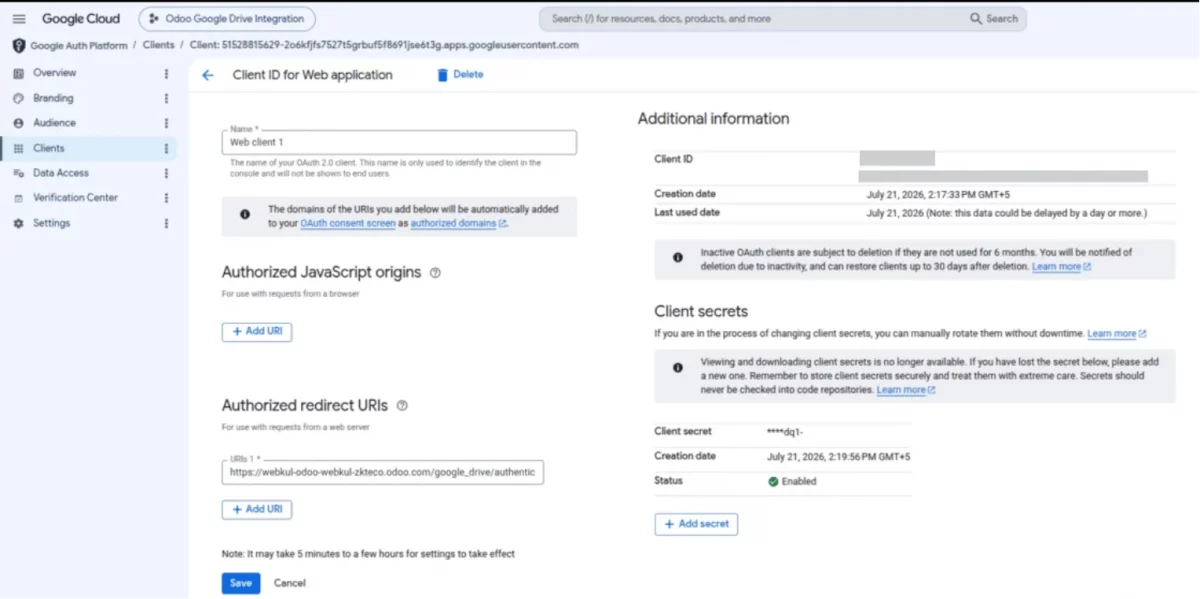
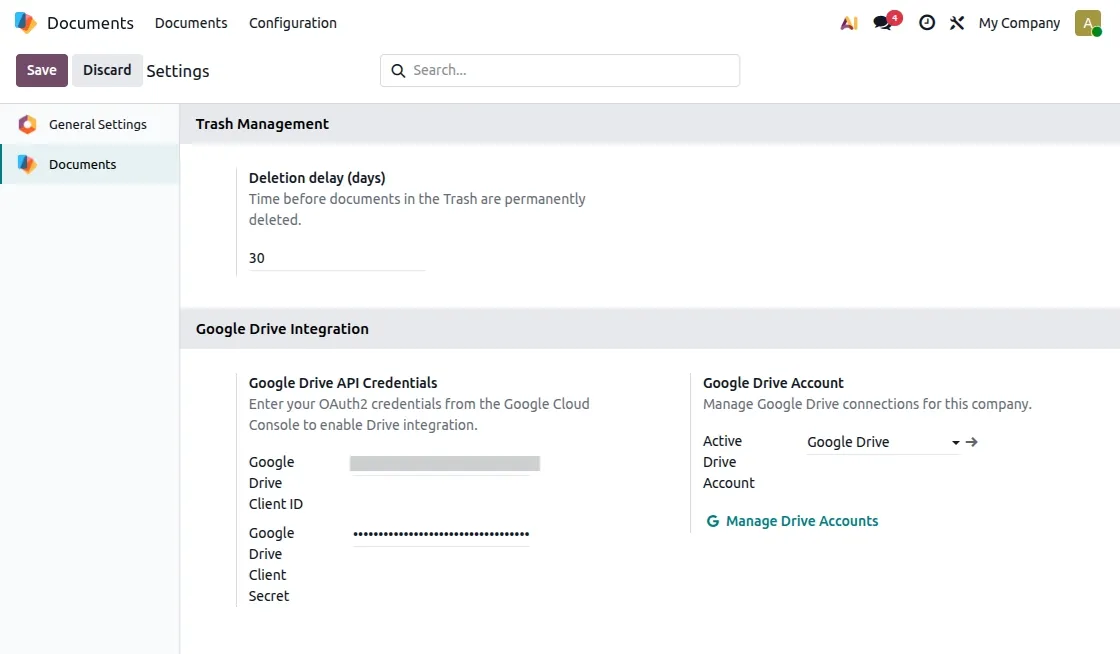
2. Navigate to Documents → Configuration → Settings. Configure the Google Drive API Credentials, then add your Google Drive account to authenticate the connection. Once the configuration is saved, Odoo is ready to synchronize documents with Google Drive.
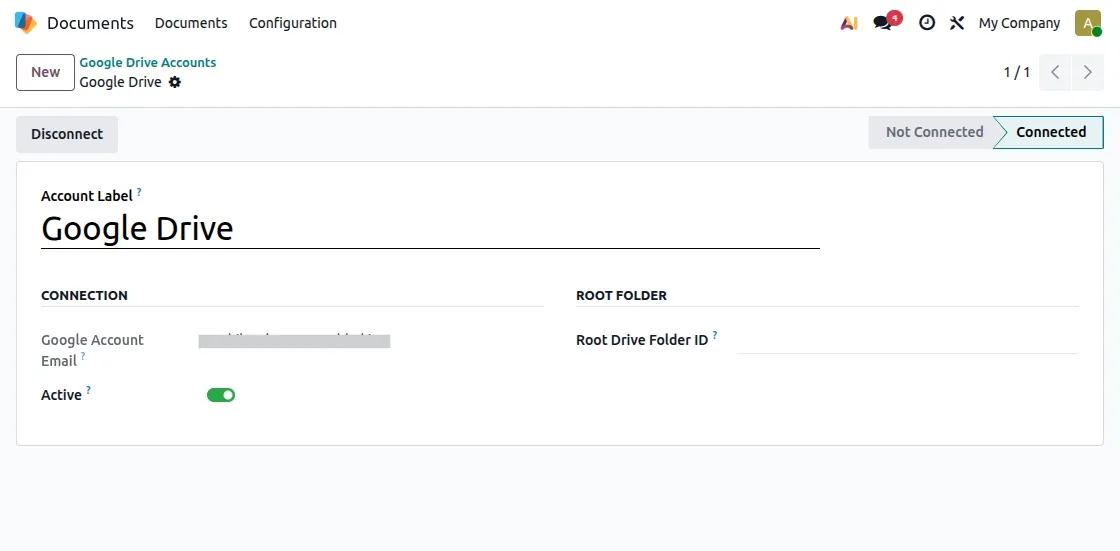
3. Navigate to Documents → Configuration → Google Drive Accounts. Create a new Google Drive Account by entering the required details. Enable the account and save the configuration to establish the connection between Google Drive and Odoo Documents.
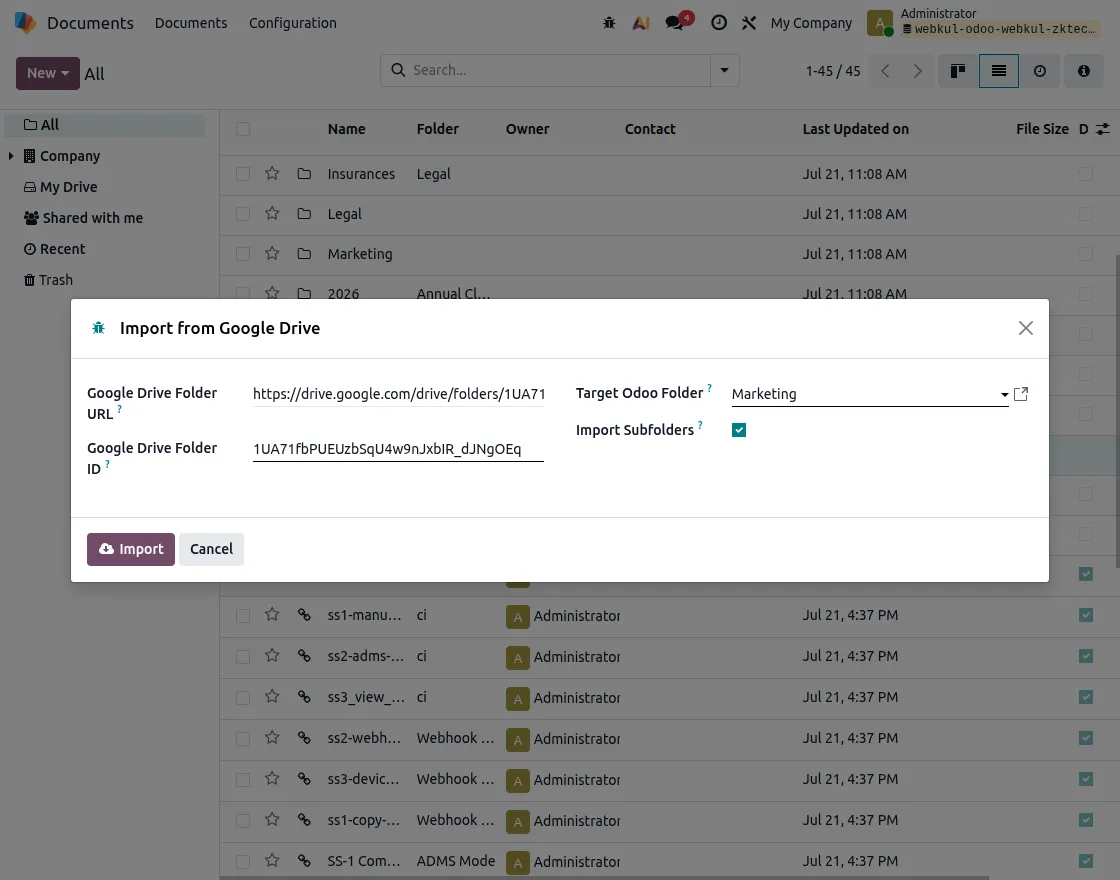
4. Navigate to the Configuration → Import from Google Drive and enter the Google Drive Folder URL or Folder ID. Select the destination folder in Odoo Documents, then import the complete folder structure, including all subfolders.
5. The module automatically maintains the same folder hierarchy in both Google Drive and Odoo Documents.
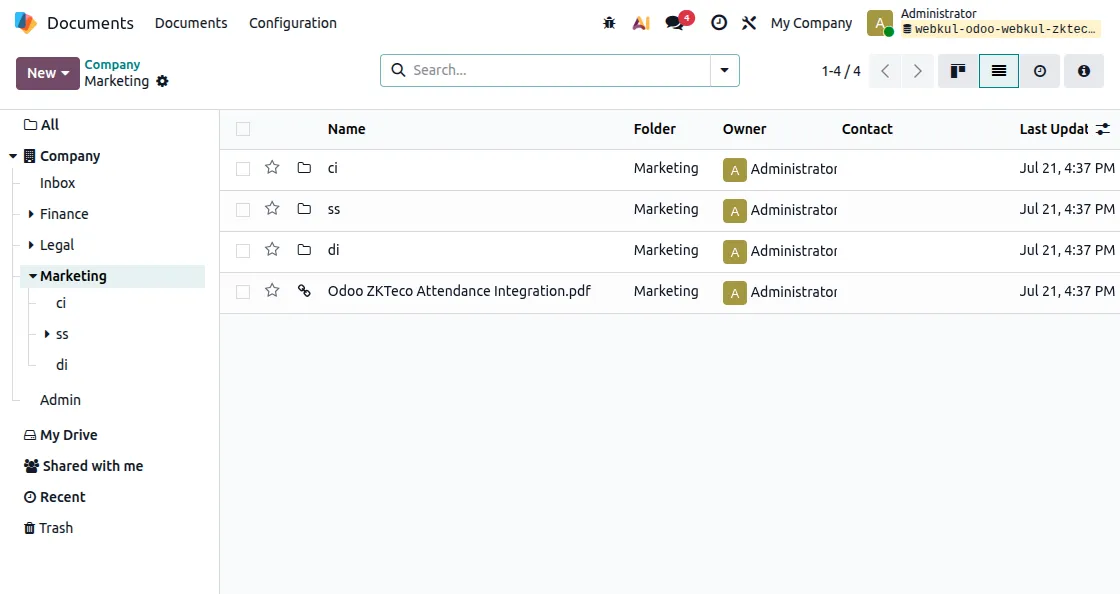
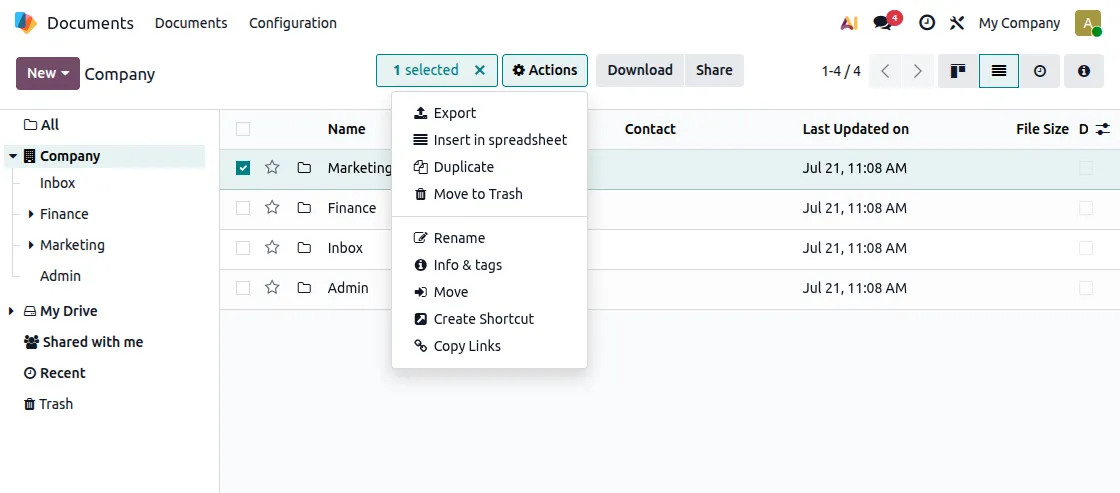
6. Click on the Actions button to upload, rename, move, or delete documents in Odoo Documents. The module automatically applies the same changes to Google Drive, ensuring both platforms always remain synchronized.
Need Help?
Hope you find the guide helpful! Please feel free to share your feedback in the comments below.
If you still have any issues/queries, please create a ticket at the UV Desk.
I hope this helps. In case of any further queries, contact us at our support mail.
Thanks for paying attention!!
Current Product Version - 1.0.0
Supported Framework Version - Odoo V19

Be the first to comment.