


















Introduction
Website Gift Cards adds gift cards to your ERPNext store. You create each ERPNext gift card from the standard Coupon Code screen. You do not need a new screen or a new workspace.
Each card holds an amount. Shoppers type the card’s code at webshop checkout, and the app takes the card value off the order.
It then tracks the gift card balance, so a card can pay for more than one order.
This guide is for store admins and sales staff. By the end, you will create a gift card, redeem it on the website, and check its balance.
Prerequisites for using Website Gift Cards
Website Gift Cards works in conjunction with the following module:
Webshop
You must install the above-mentioned module to use the Website Gift Cards.
Prerequisites for using Website Gift Cards
- Create an ERPNext gift card from the Coupon Code screen with the Gift Card type.
- Set a fixed amount for each card.
- Let ERPNext make a unique coupon code for every card.
- Send the card by email or hand it over as a physical card.
- Add a recipient, a sender and a gift message.
- Redeem the card at webshop checkout with the Apply button.
- Show the total, the gift card amount and the net payable in the cart.
- Track the redeemed amount and the gift card balance after each order.
- Restore the balance when staff cancel an order paid with the card.
Installation
- After purchasing the app from Webkul Store, you will receive a link to download the module ZIP file.
- Extract the ZIP file. You will see a folder named ‘website_gift_cards’.
- Set up the module in your git repository, then fetch it using:
bench get-app --branch main https://git.webkul.com/erpnext-apps/erpnext-website-gift-cards.git
(Replace “main” with your branch name and replace the “HTTPS URL” with your HTTPS clone URL.)
- Install the app on your site:
bench --site <your-site-name> install-app website_gift_cards
- Run bench migrate to complete the setup.
Workflow
Creating a Gift Card
- Open Selling and click Coupon Code. The list shows every coupon, including your gift cards.
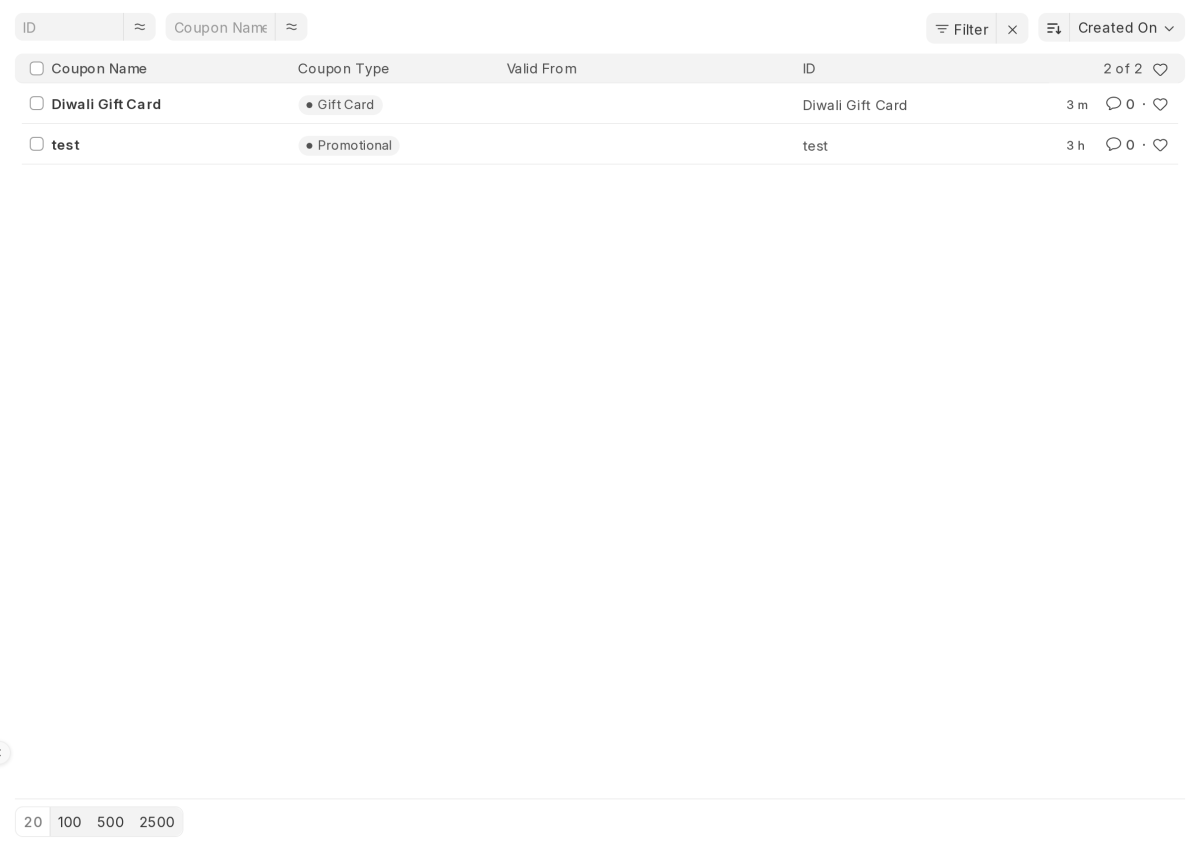
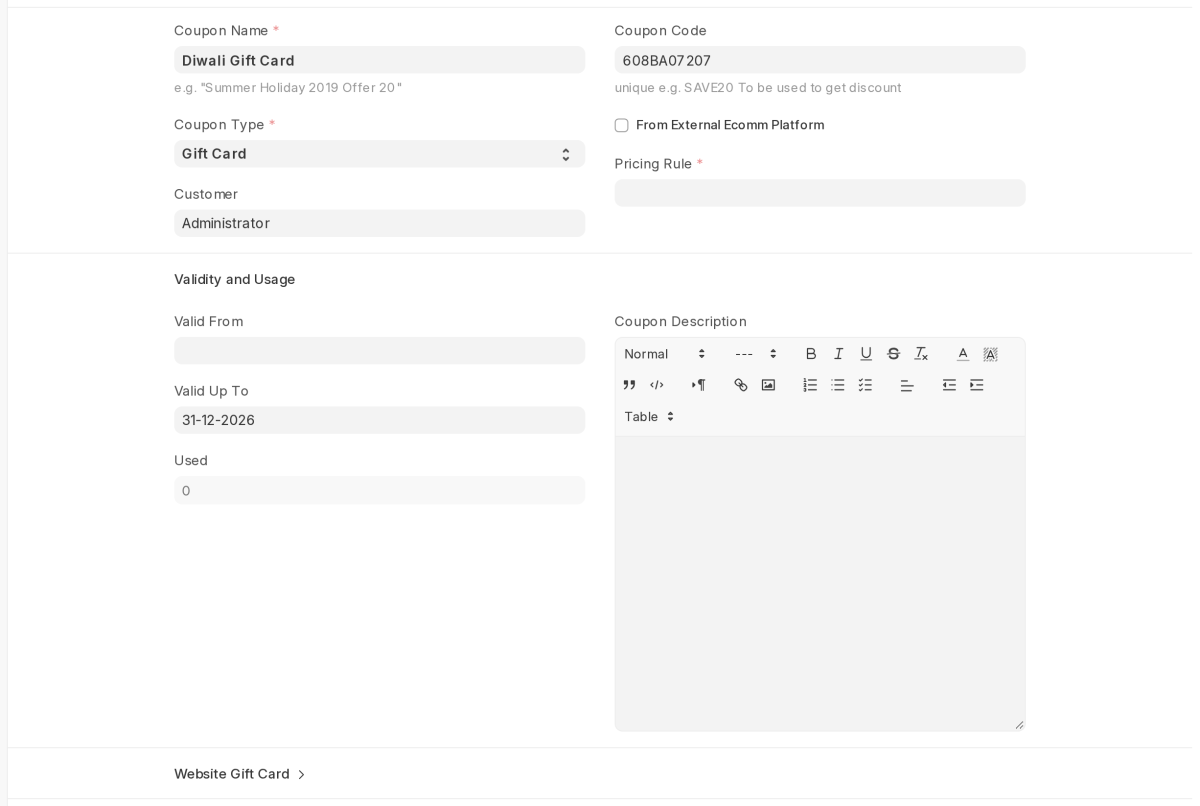
- Click Add Coupon Code. Enter a Coupon Name.
- Set Coupon Type to Gift Card. A new Website Gift Card section now appears.
- Pick the Customer who owns the card. ERPNext needs a customer for every gift card. Only that customer can redeem it.
- Set Valid Up To if the card should expire. Leave Coupon Code blank, and ERPNext will make one when you save.
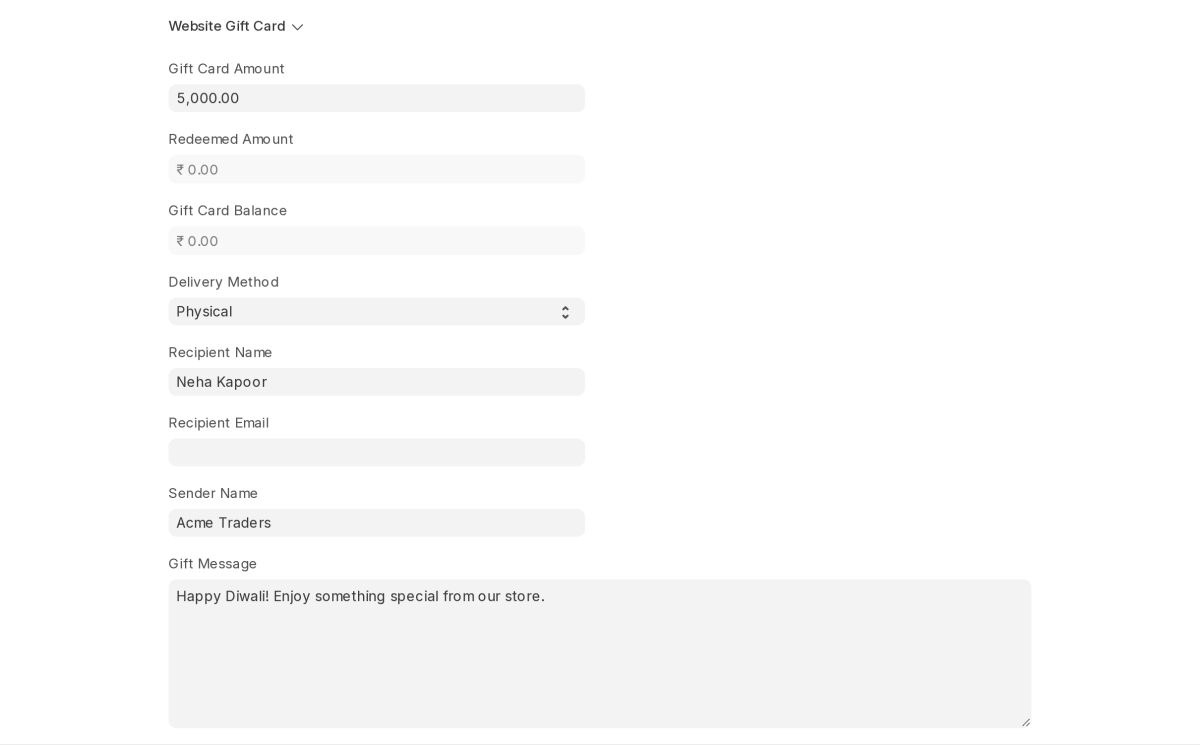
- Open the Website Gift Card section. Enter the Gift Card Amount.
- Choose a Delivery Method: Email or Physical.
- Fill in Recipient Name, Sender Name and Gift Message. For an email card, also fill in Recipient Email.
Warning: An email card needs an outgoing email account. Set one up in Email Account first. Without one, ERPNext will not save the card.
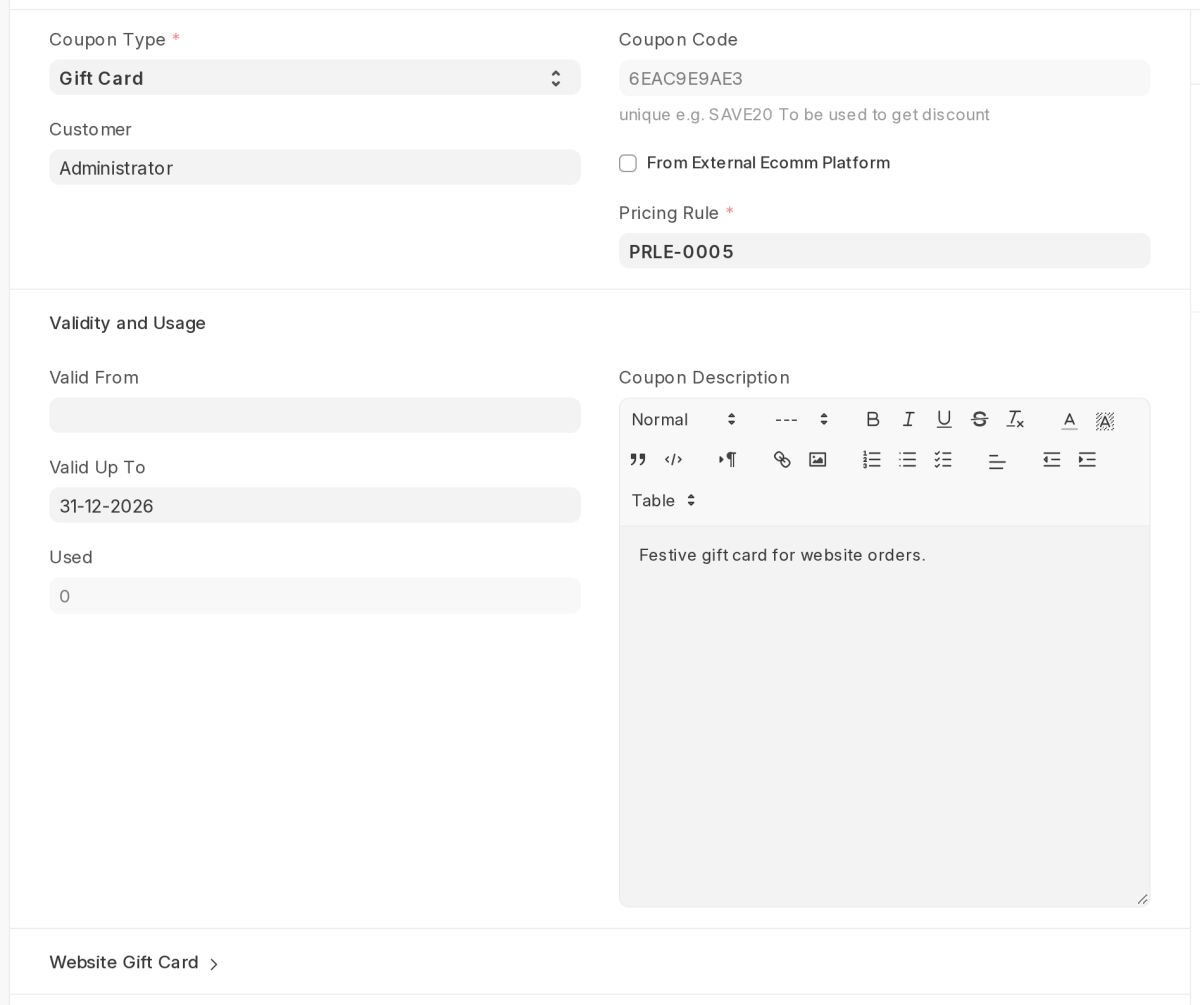
- Click Save. ERPNext fills in the Coupon Code and links a Pricing Rule for the card. For an email card, it also sends the code to the recipient.
Redeeming a Gift Card at Webshop Checkout
- The customer signs in and adds items to the cart.
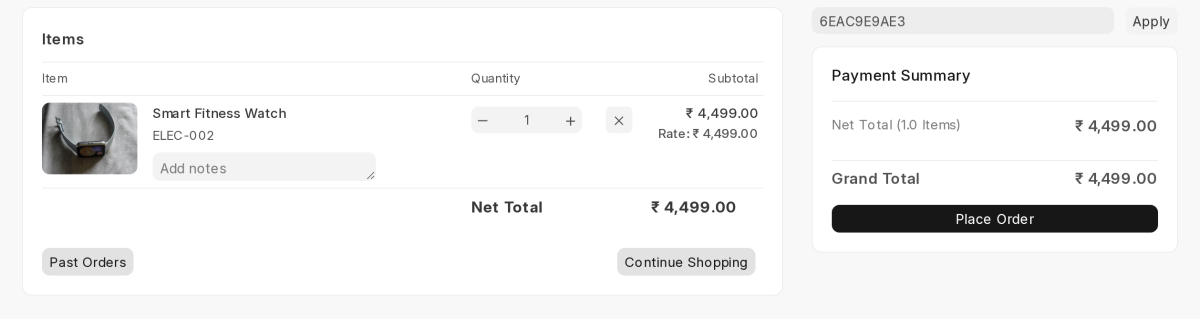
- In the cart, they type the gift card’s coupon code in the Enter coupon code box. Then they click Apply.
- The cart now shows the card’s name under Coupon code. The Payment Summary lists the Total Amount, the Gift Card Amount and the Net Payable.
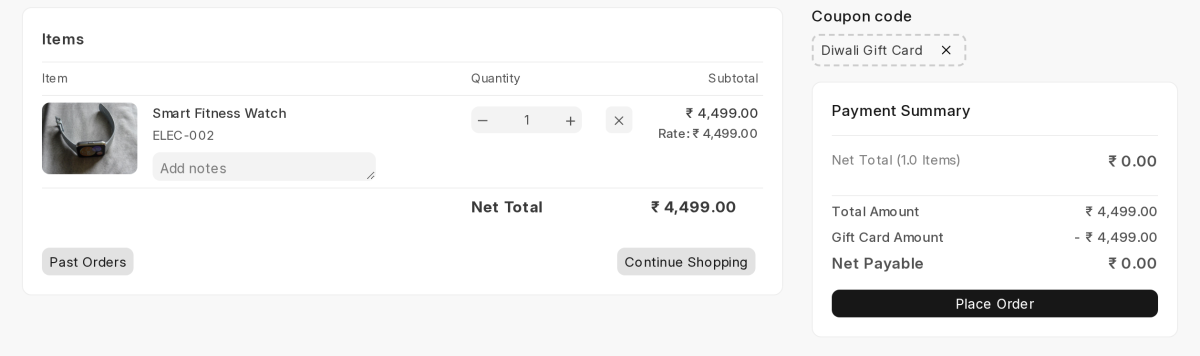
Note: The app never takes off more than the order total. Here, a ₹5,000 card pays a ₹4,499 order in full, and ₹501 stays on the card.
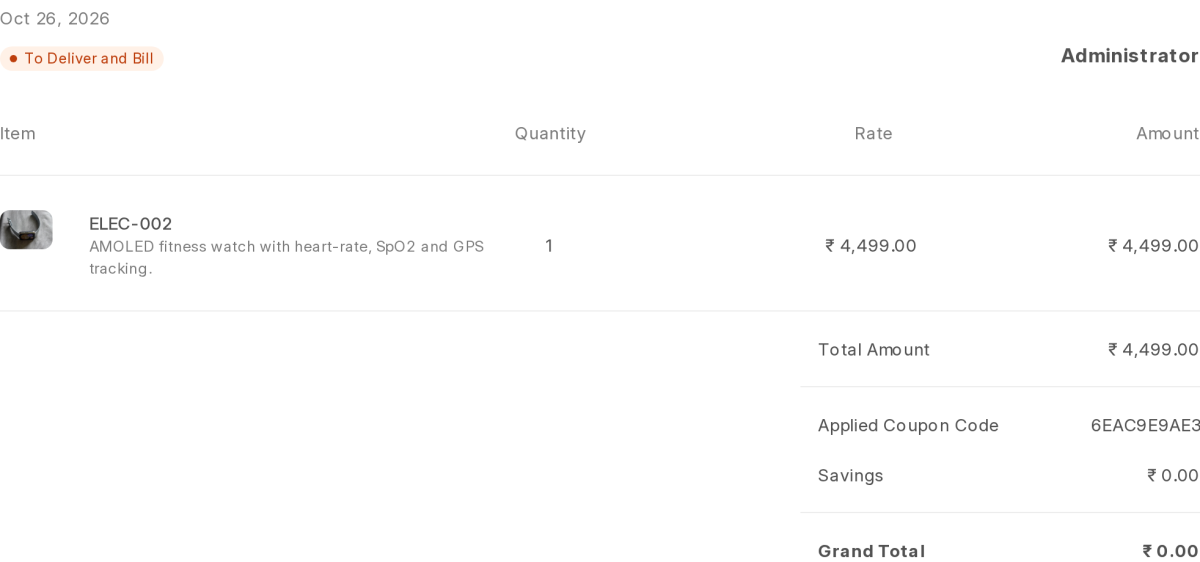
- The customer clicks Place Order. The order page shows the Applied Coupon Code and the new Grand Total.
Tracking the Gift Card Balance
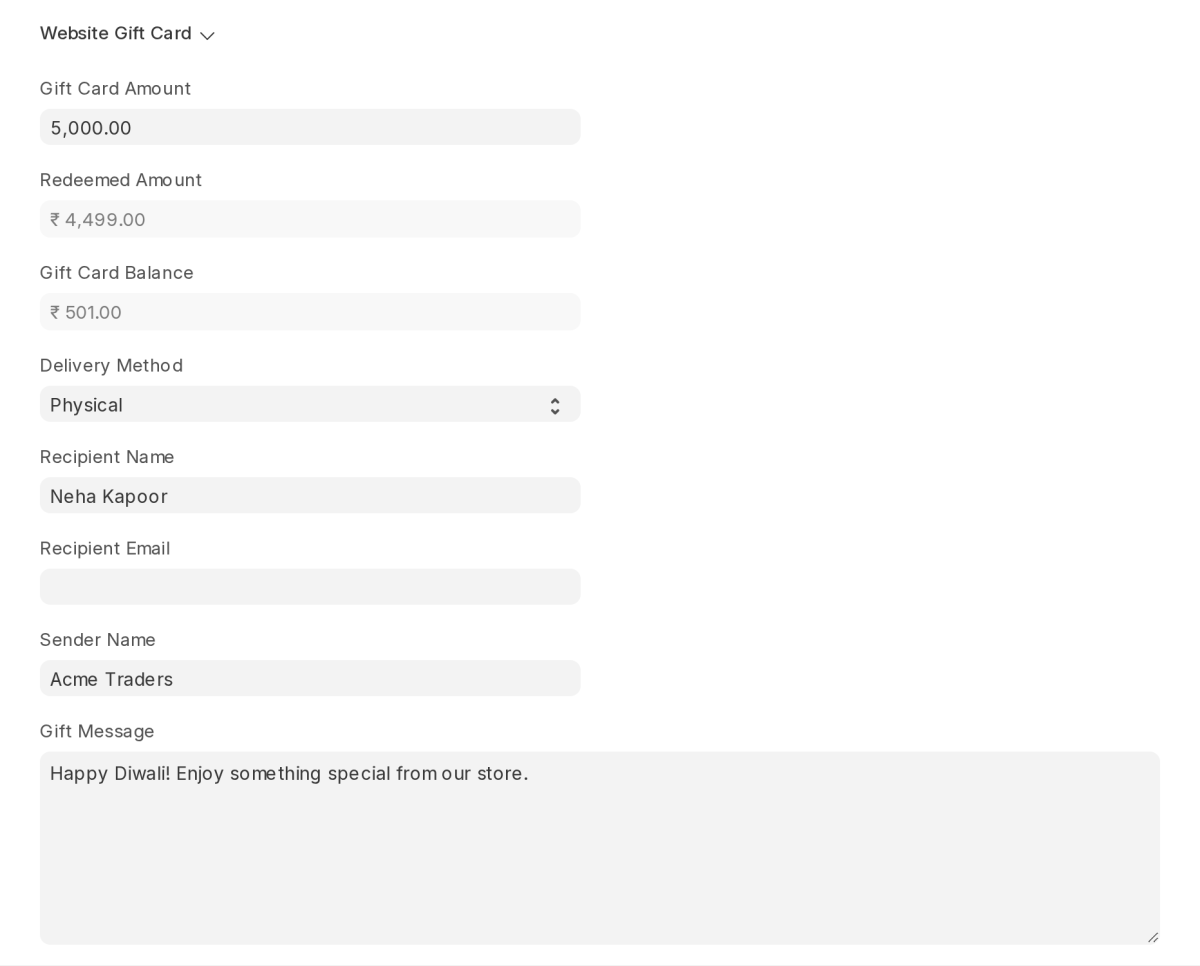
- Open the gift card from the Coupon Code list again. Open the Website Gift Card section.
- Check Redeemed Amount and Gift Card Balance. ERPNext updates both when someone submits a sales order or invoice that uses the card.
- To see how ERPNext applied the card, open the Sales Order. Open its Additional Discount section. The Coupon Code field names the gift card. The Additional Discount Amount shows the value taken off the Grand Total.
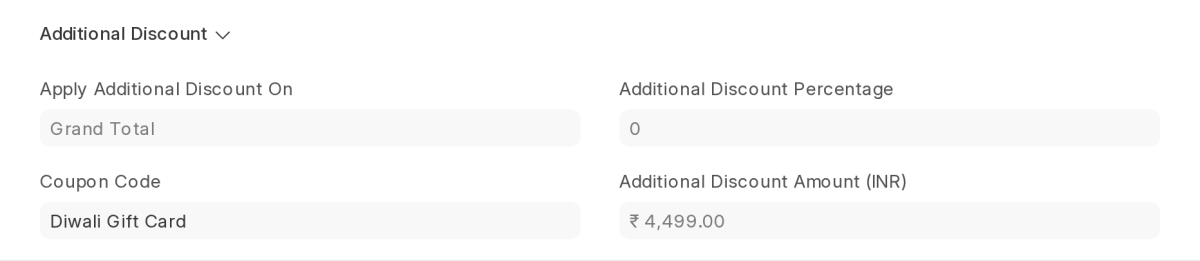
- If you cancel that sales order, ERPNext adds the amount back to the gift card balance. When the balance reaches zero, ERPNext no longer accepts the card.
Need Help?
Hope you find this guide helpful! Please feel free to share your feedback in the comments below.
If you still have any issues/queries, please create a ticket at the UV Desk.
I hope this helps. In case of any further queries, contact us at our support mail.
Thanks for paying attention!!
Current Version – 0.0.1
Supported Framework Version – ERPNext v16

Be the first to comment.