Introduction
Odoo POS Doctor Commission automates doctor commission tracking and payments, ensuring accurate calculations based on product sales or total cart value. This reduces manual effort and errors.
Pharmacies can easily set up, track, and manage commissions with flexible configurations and automated calculations. Detailed records enhance transparency and efficiency.
Odoo POS Doctor Commission simplifies commission handling, improves payment accuracy, and allows pharmacies focus on customer service instead of manual calculations.
Prerequisites for Using Odoo POS Doctor Commission
Odoo POS Doctor Commission works in conjunction with the following module:
You must install this module before using Odoo POS Doctor Commission.
Features
- Manage doctor commissions effortlessly with a user-friendly menu in Odoo POS Doctor Commission.
- Set up commissions quickly and efficiently in Odoo POS settings.
- Automatically apply commissions on sales without manual intervention.
- Calculate commissions based on individual product sales or total cart value.
- Maintain clear and detailed records of all doctor commissions for easy tracking.
- Access a doctor’s complete commission history with a single click.
- Add commissions directly from the payment screen for seamless transactions.
- Enjoy a flexible and straightforward commission setup process.
- Set different commission rates for each doctor based on their agreements.
Installation
- Once you purchase the App from Webkul store, you will receive a link to download the module’s zip file.
- Extract the file on your system after the download finishes. As a result, you will be able to see a folder named- ‘pos_doctor_commission’
- Copy and paste this folder inside your Odoo Add-Ons path.
- Now, open Odoo App and click on the Settings menu. Here, click on Activate the Developer Mode.
- Then, open the Apps menu and click on ‘Update Modules List.’
- In the search bar, remove all the filters and search ‘pos_doctor_commission’
- You will be able to see the module in the search results. Click on ‘Install’ to install it.
Workflow
- After installing Odoo POS Doctor Commission module, navigate to Pharmacy > Commission > Doctor Commission in Odoo backend.

2. Enable “Doctor Commission in POS” and “Auto Apply Commission” in Point of Sale settings to automatic commission application in Odoo POS Doctor Commission.

3. Go to Pharmacy > Commission > Commission Config to manage commissions. Click New to create, name, activate, and set its duration.
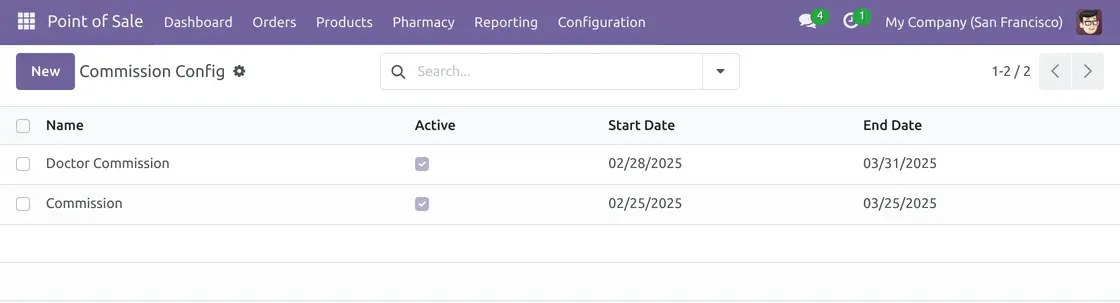
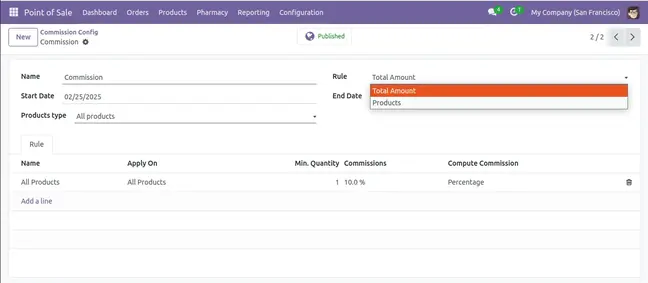
4. In Commission Configuration, set the Start Date, end date, and select a Rule based on Total Amount or Products.
5. In Commission Config, select the Product Type to apply doctor commission.
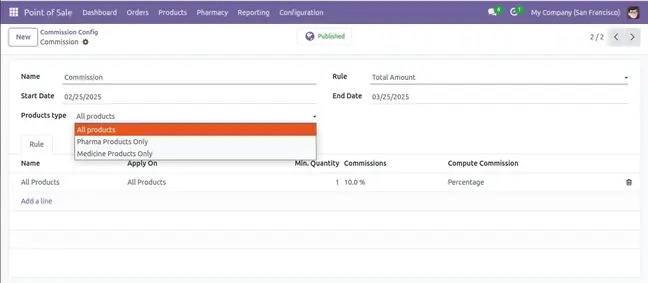
6. In Commission Lines, choose whether to apply commission to All Products, Categories, or specific Products. Then, set commission type as Fixed or Percentage-Based.

7. Monitor doctor commissions with details such as Doctor Name, Date, Status, and Commission Amount to track payments efficiently.
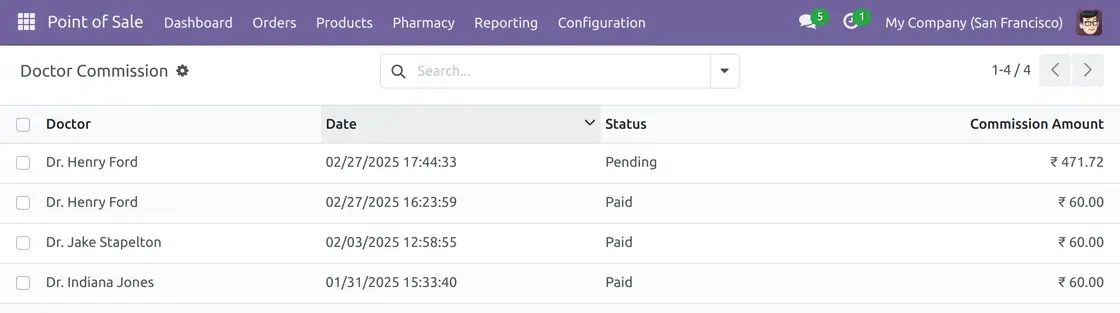
8. View detailed commission records, including Commission ID, Amount, Doctor Name, POS Session, and Payment Status to track payouts.
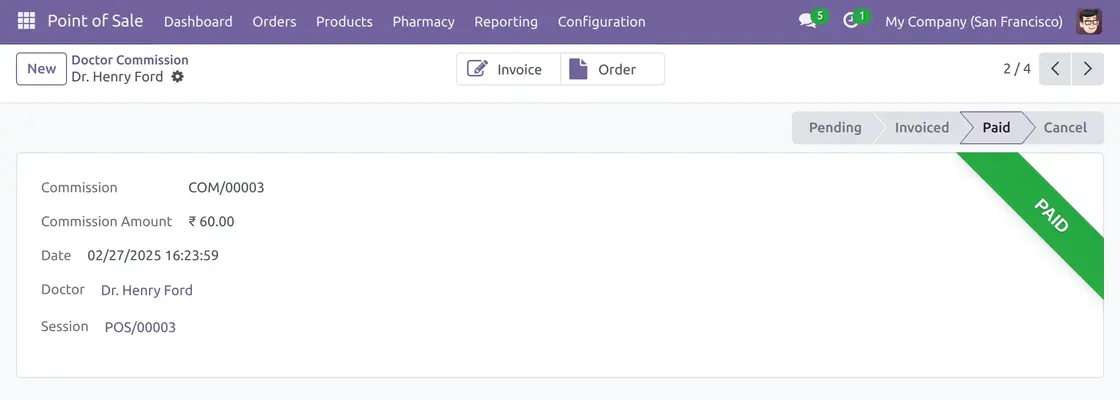
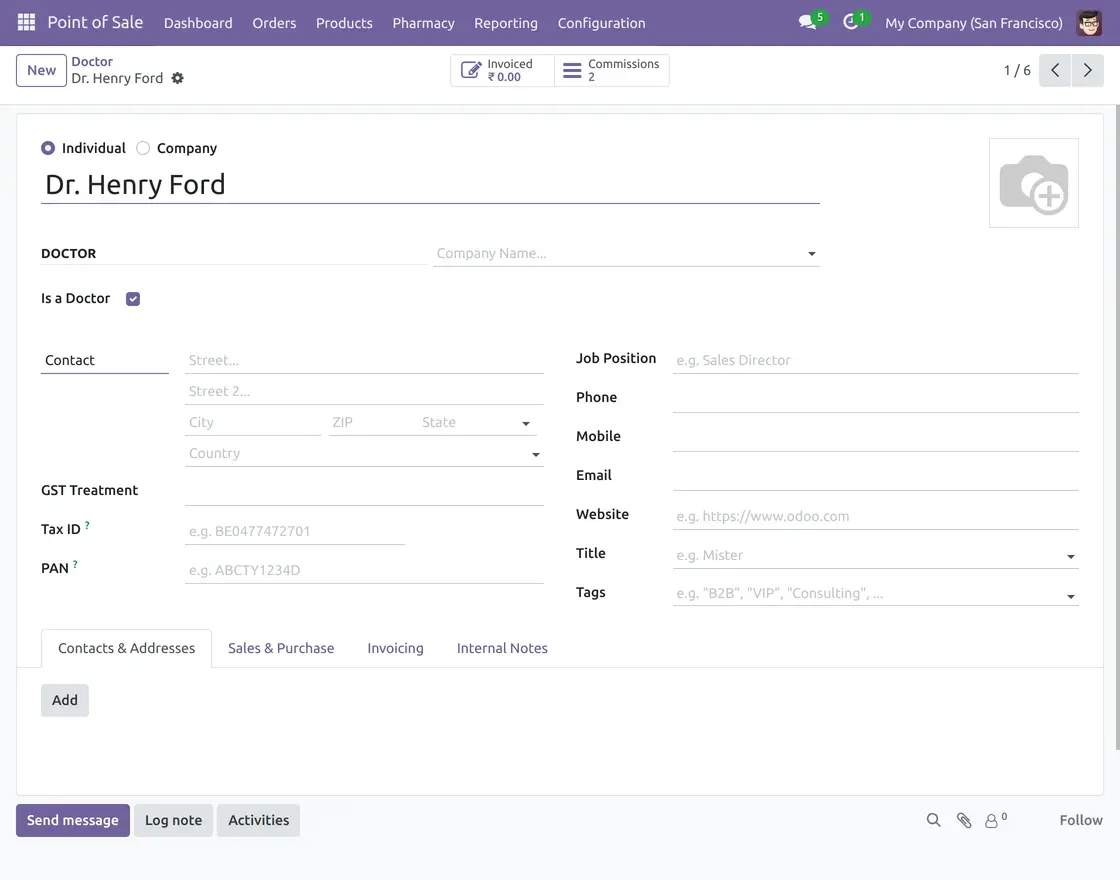
9. In Commission tab, manage doctor commissions with complete invoicing and payment details. Easily track commission history and related transactions.
10. On the POS screen, users can select both Doctor and Customer during a transaction.

11. On the POS payment screen, users can select a payment method and view the doctor’s commission, ensuring transparent calculations.

Need Help?
Hope you find the guide helpful! Please feel free to share your feedback in the comments below.
If you still have any issues/queries regarding the same, please raise a ticket at the UV Desk.
I hope this helps. In case of any further queries, contact us at our support mail.
Thanks for paying attention!!
Current Product Version - 1.0.0
Supported Framework Version - v19, v18, v17

Be the first to comment.