INTRODUCTION
Odoo Marketplace Sub Accounts enables sellers and admins to create and manage sub-accounts. Sellers can assign specific roles to sub-accounts, streamlining their workflow.
Admins have full visibility and control over all sub-accounts, ensuring smooth marketplace operations. They can approve sub-accounts manually or enable auto-approval for quicker access.
While sellers can monitor the activities of their sub-accounts, only admins have complete oversight. This ensures a secure and well-managed marketplace environment.
FEATURES
- Sellers and admins can create and manage sub-accounts.
- Both can assign job roles to their sub-accounts as needed.
- Admins have the option to approve or auto-approve sub-account requests.
- While sellers can monitor the work of their sub-accounts.
- Only admins have full visibility for security purposes.
- Odoo Marketplace Sub Accounts enables admins to approve or deny sub-account requests
INSTALLATION
- Once you purchase the App from Webkul store, you will receive a link to download the module’s zip file.
- Extract the file on your system after the download finishes. As a result, you will be able to see a folder named- ‘marketplace_sub_accounts’
- Copy and paste this folder inside your Odoo Add-Ons path.
- Now, open Odoo App and click on the Settings menu. Here, click on Activate the Developer Mode.
- Then, open the apps menu and click ‘Update Modules List.’
- In the search bar, remove all the filters and search ‘marketplace_sub_accounts’.
WORKFLOW
- Once installation is completed, Admin can log in and navigate to Website > Seller Dashboard > Sellers > Sub Accounts.
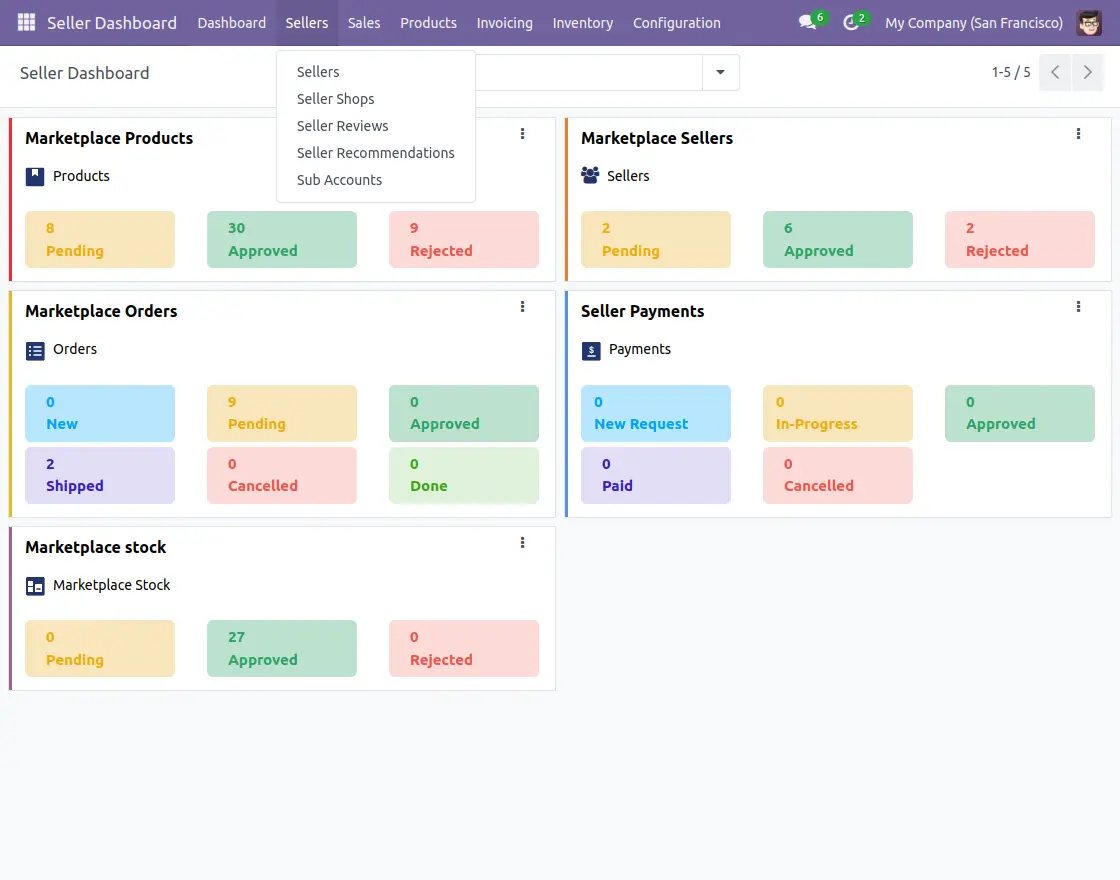
- Admin can create new sub-accounts for the marketplace.
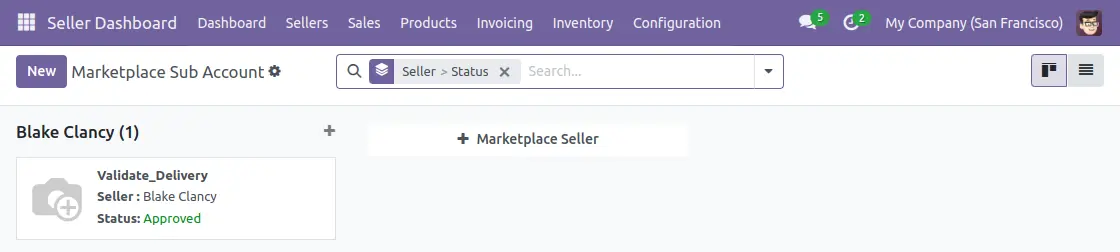
- Admin creates Sub-accounts by adding the name, email, marketplace seller, & job responsibilities.
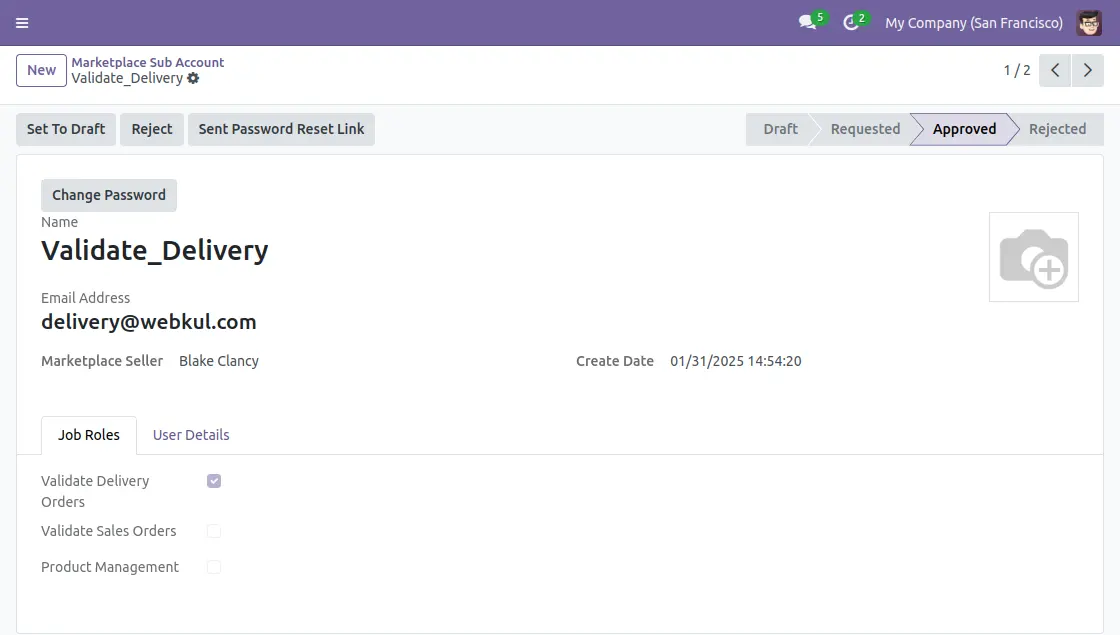
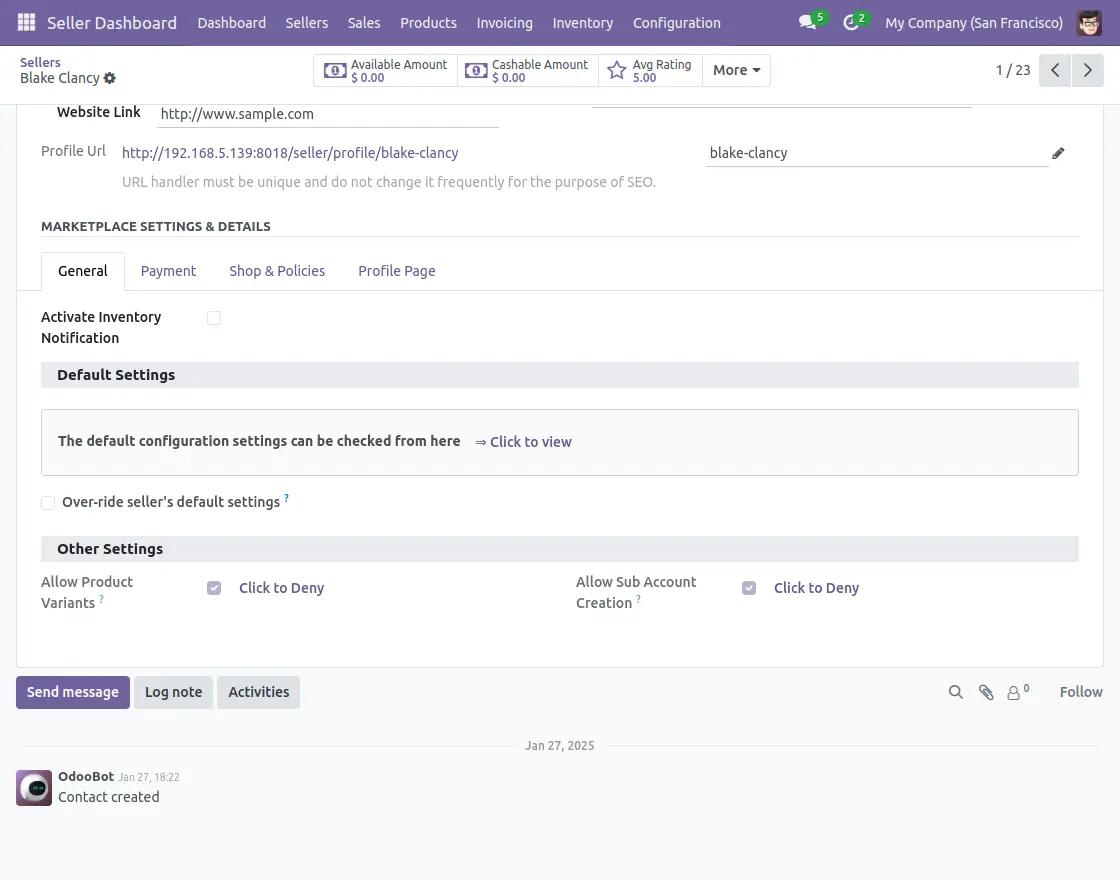
- Admins can enable auto-approval for different requests as shown.
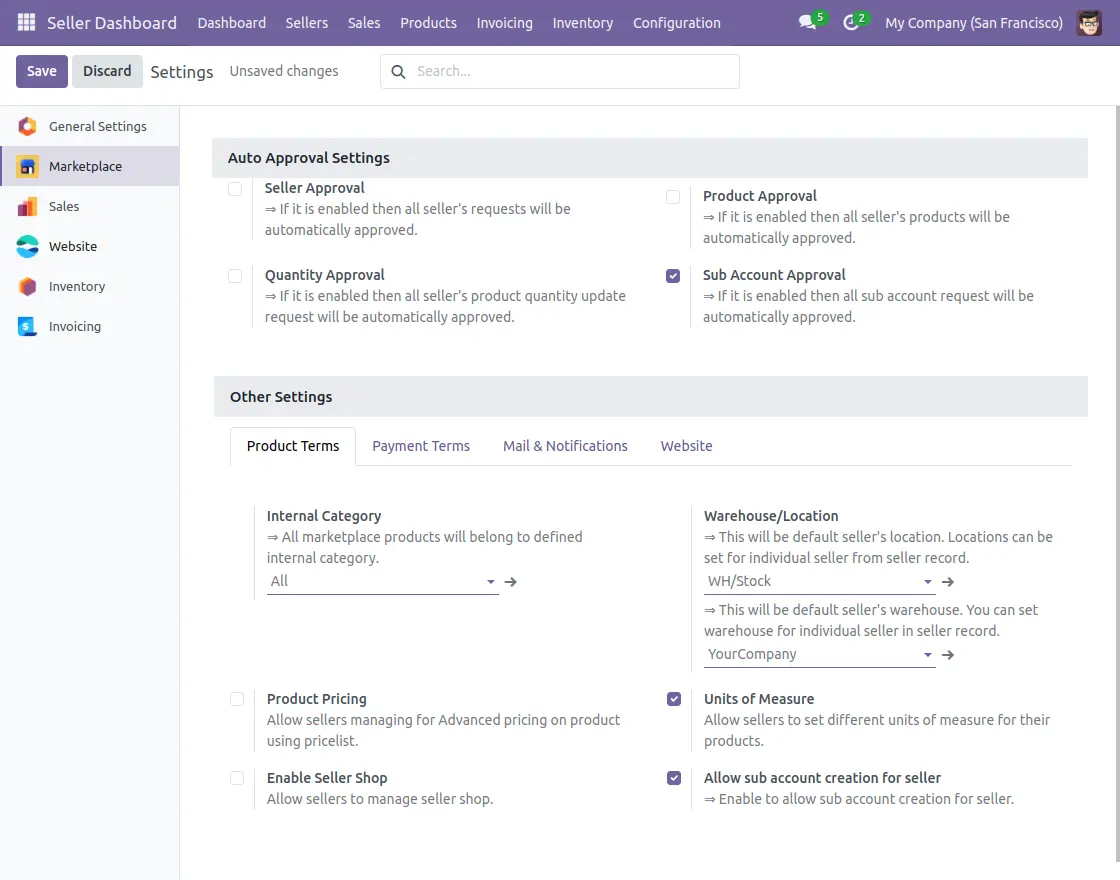
- Admins can allow sellers to create sub-accounts.
- After login, the seller can create sub-accounts by navigating to Seller Dashboard > Sellers > Subaccounts.
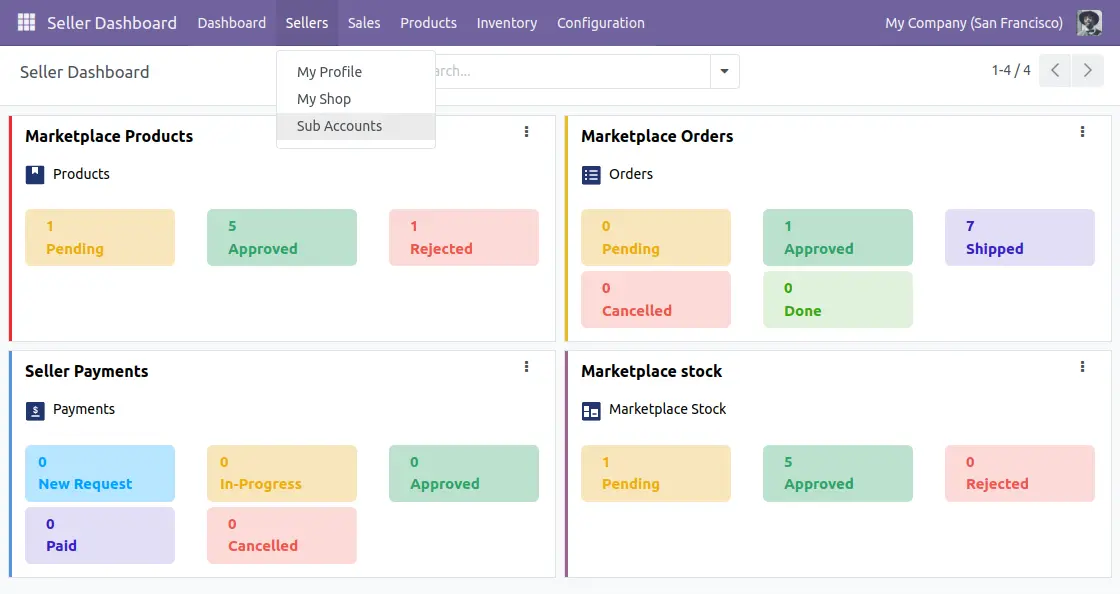
- In Odoo Marketplace Sub Accounts, Seller can create and manage sub-accounts for the marketplace.

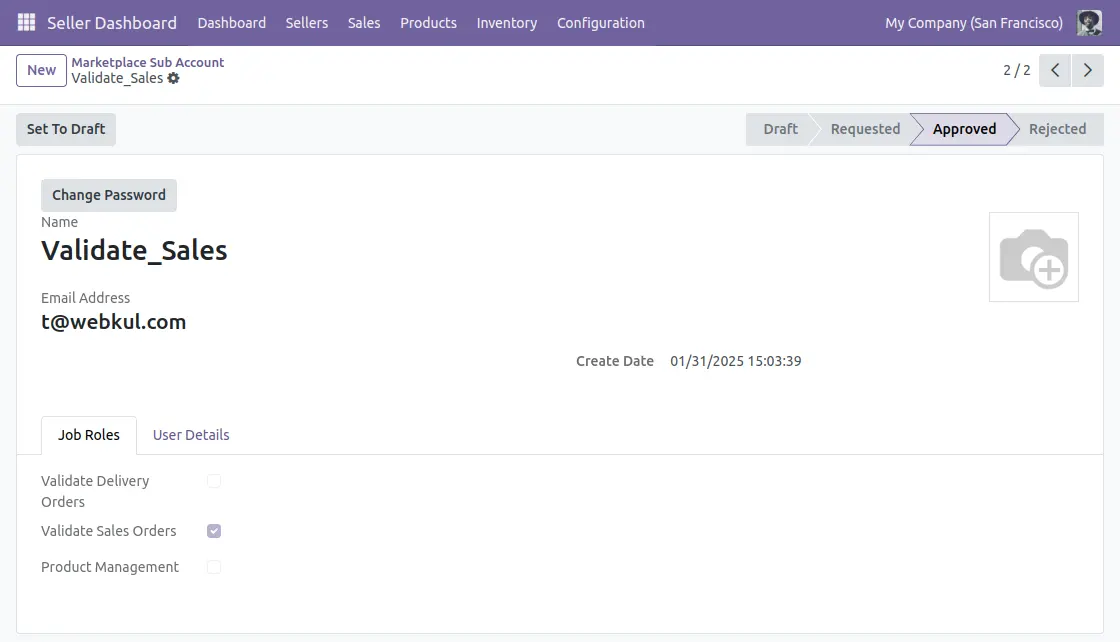
- Sellers can add sub-accounts by specifying details such as name, email, marketplace seller, & job responsibilities.
- Sub-account holders have access to their dedicated dashboard.
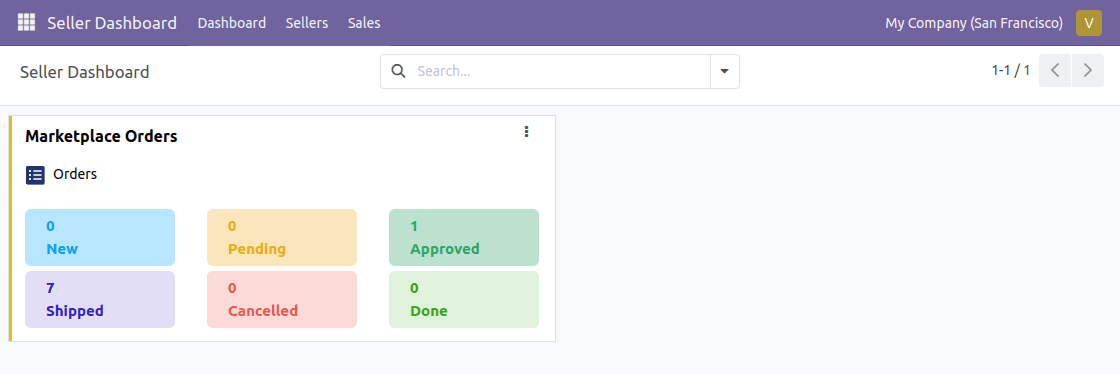
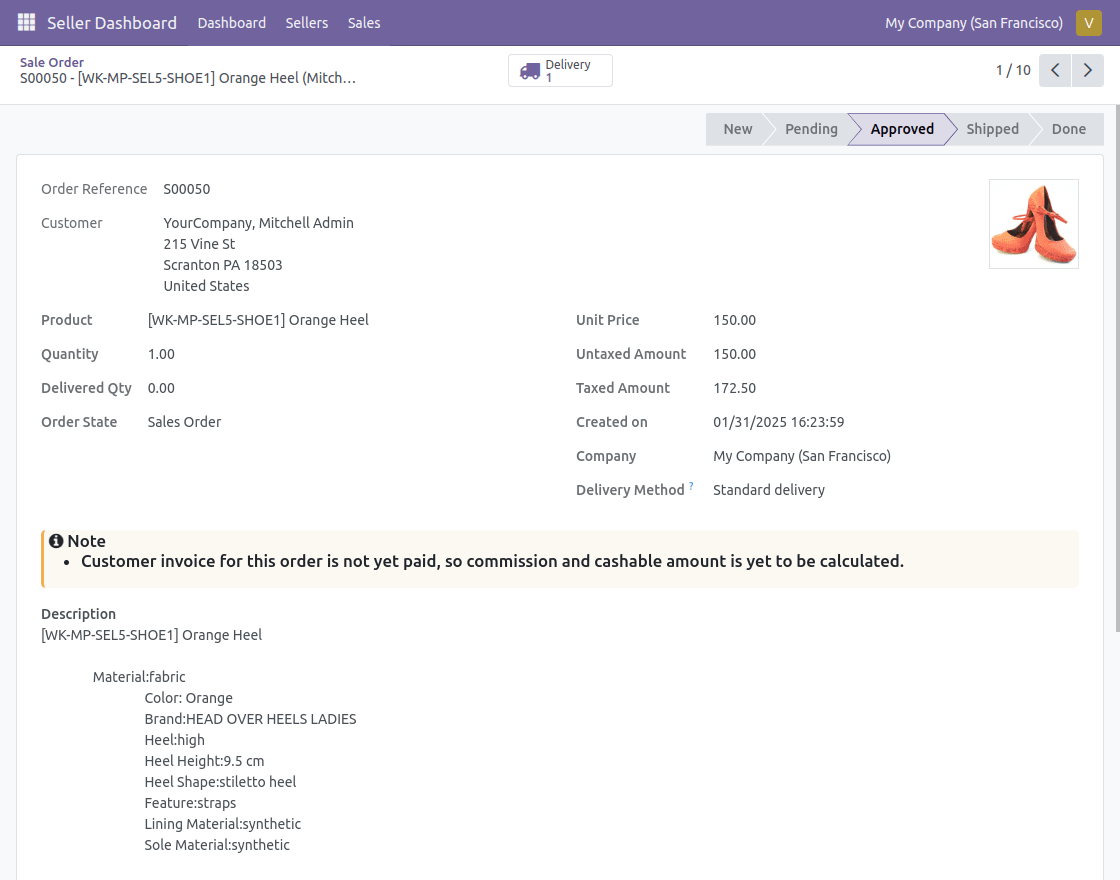
- In Odoo Marketplace Sub Accounts, sub-account holders can approve tasks based on assigned responsibilities.
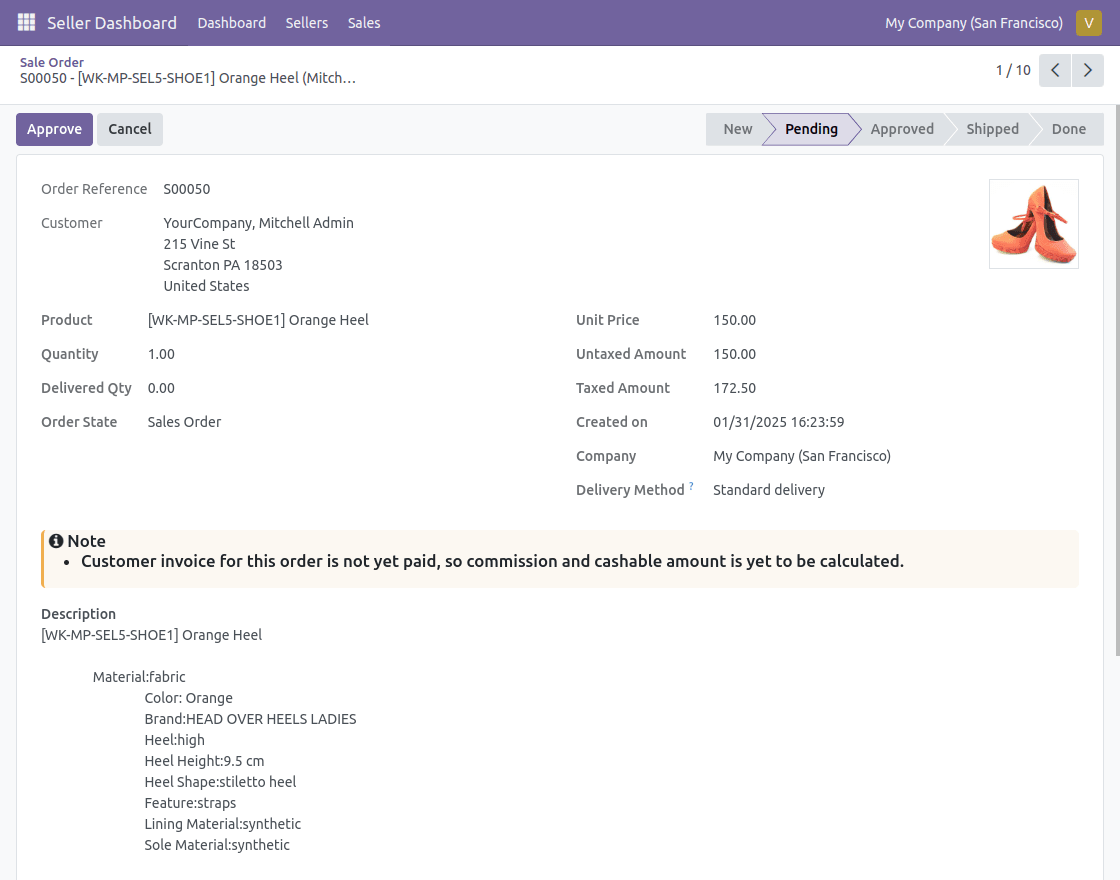
- Approval requests submitted by sub-account holders are processed from their end.
NEED HELP?
Hope you find the guide helpful! Please feel free to share your feedback in the comments below.
If you still have any issues/queries regarding this, please create a ticket at the UV Desk.
I hope this helps. In case of any further queries, contact us at our support mail.
Thanks for paying attention!!
Current Product Version - 1.0.0
Supported Framework Version - V14, V15, V16, V17, V18

Be the first to comment.