Laravel eCommerce USPS Shipping module lets store owners offer USPS shipping methods for fast, reliable, and convenient order delivery.
The module supports both domestic (US-based) and international shipping services.
Features
- The admin can enable or disable the Usps Shipping method.
- The admin can set the Usps shipping method name that will be shown from the front side.
- Allows admin to choose shipping methods under USPS shipping services.
- Dynamic shipping method for freight calculation.
Installation
Step 1: Extract Package
Unzip the extension package and merge the packages folder into your project root.
Step 2: Register Service Provider
Go to: bootstrap/providers.php file and add the following line under ‘providers’
use Webkul\UspsShipping\Providers\UspsShippingServiceProvider;

return
[
 UspsShippingServiceProvider::class,
 ]
Then goto composer.json file and add following line under ‘psr-4’
"Webkul\\UspsShipping\\": "packages/Webkul/UspsShipping/src"
Run these commands below to complete the setup
composer dump-autoload

php artisan optimize:clear
Admin Configuration
After the successful installation of the module, the admin will have to configure the module.
Go to:
Admin Panel → Configure → Sales → Shipping Methods
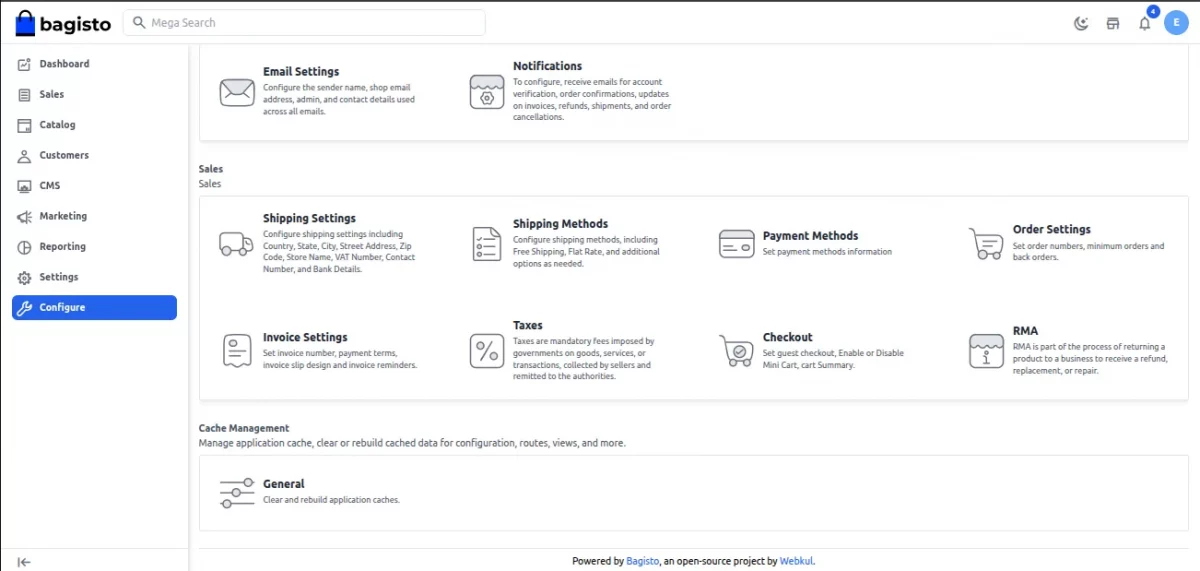
Under the Shipping methods, all the shipping methods are visible in the admin panel including the USPS shipping.
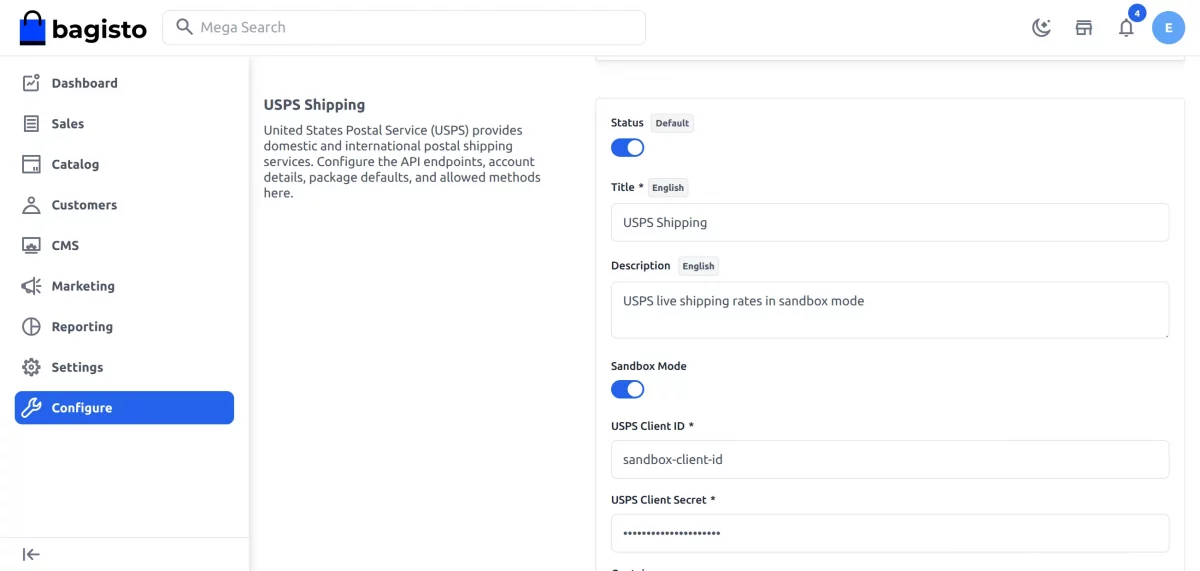
Under the USPS there are several fields:-
Status: The admin can active or inactive the module from this field.
Title: Set the title displayed to customers during checkout.
Description: Add a description for the shipping method.
Sandbox Mode: Enable Sandbox Mode to test USPS shipping rates in the development environment.
USPS Client ID: Enter the User ID from your USPS account.
USPS Client Secret: Enter the USPS Client Secret provided by USPS.
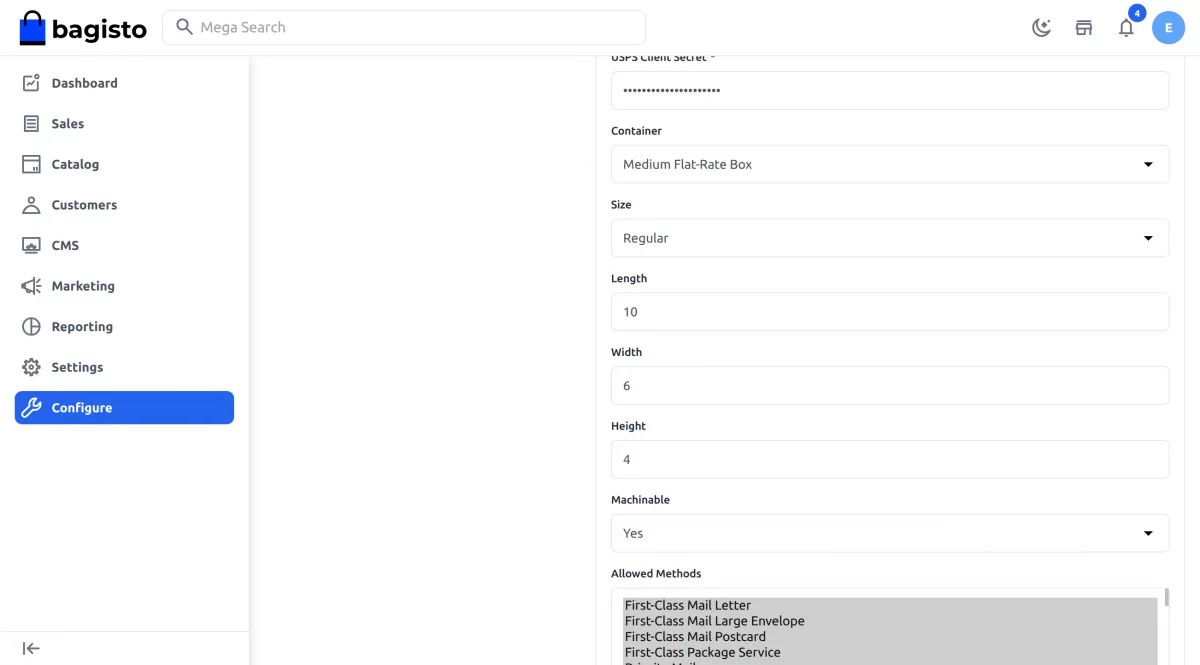
Container: Select the packaging container type.
Size:- Choose the package size.
- Regular
- Large
Package Dimensions:
Enter the package dimensions.
- Length
- Width
- Height
Machinable: Choose whether the package can be processed through USPS machines.
Allowed Methods: Select the USPS shipping services that will be available to customers during checkout.
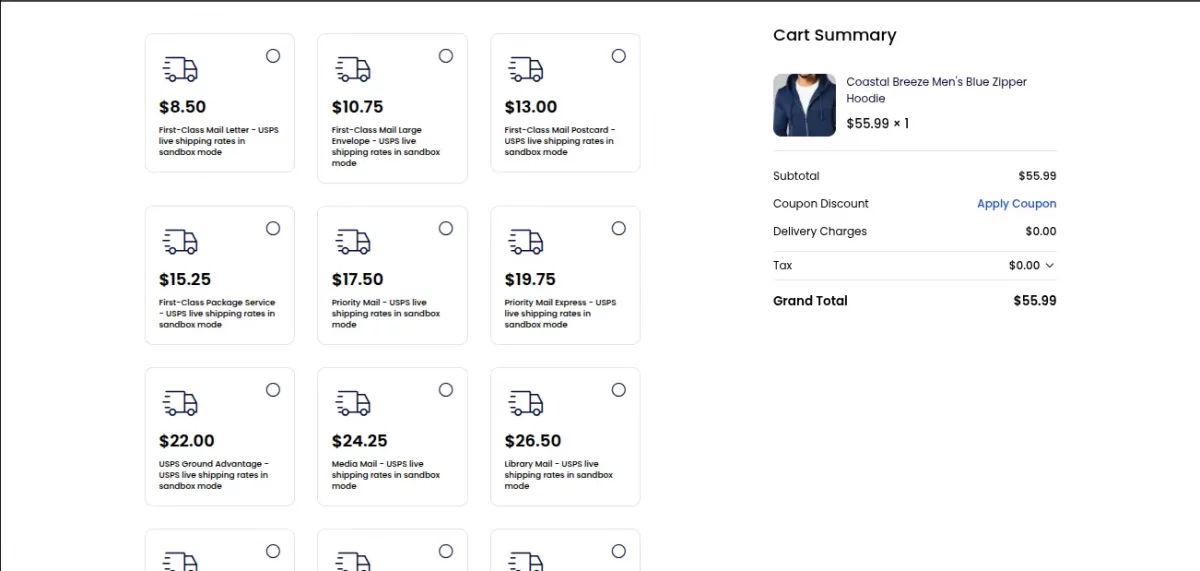
Front End
After successful configuration, customers can select USPS shipping methods during checkout.
Customers can:
- Place orders using USPS delivery methods
- View available USPS shipping services
- Choose their preferred shipping option
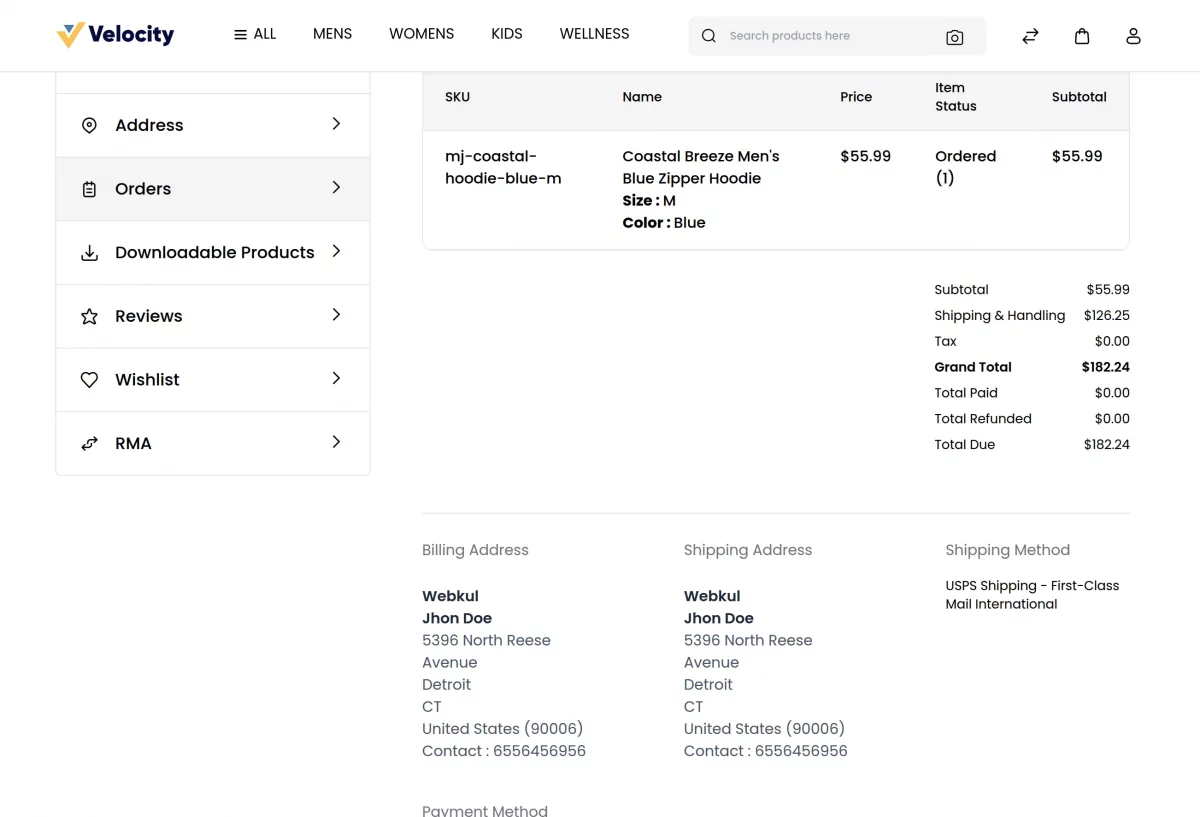
Once the order has been placed the customer can see all the details regarding the order in the order summary page including the shipping method used by the customer for the delivery of the package.
Order Management
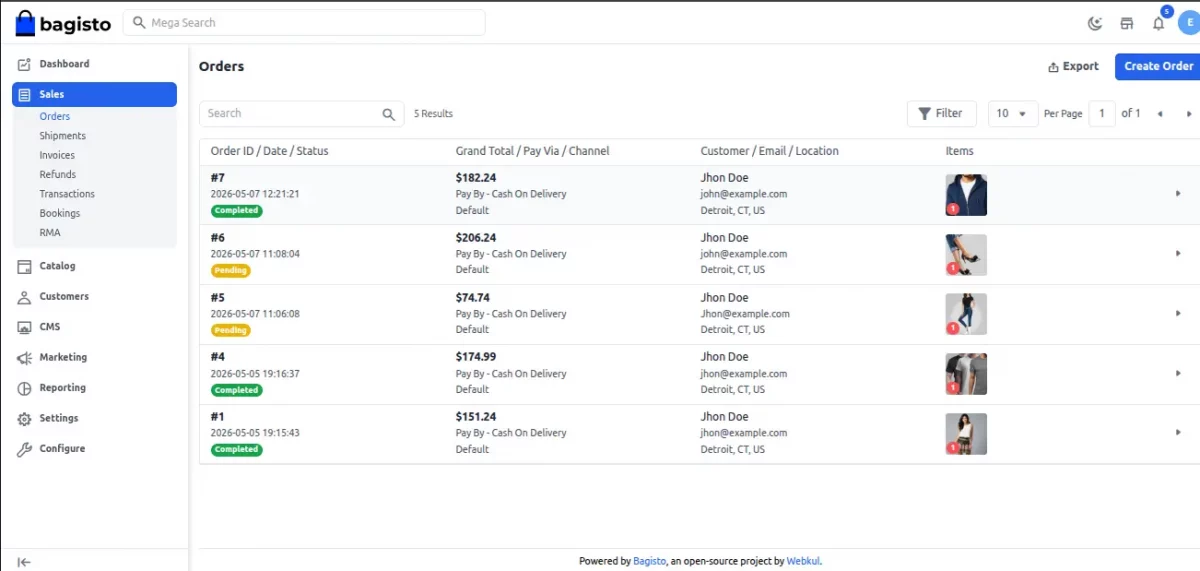
The admin can see all the orders that have been placed under the admin panel by navigating to Sales>>Orders as shown in the image below:-
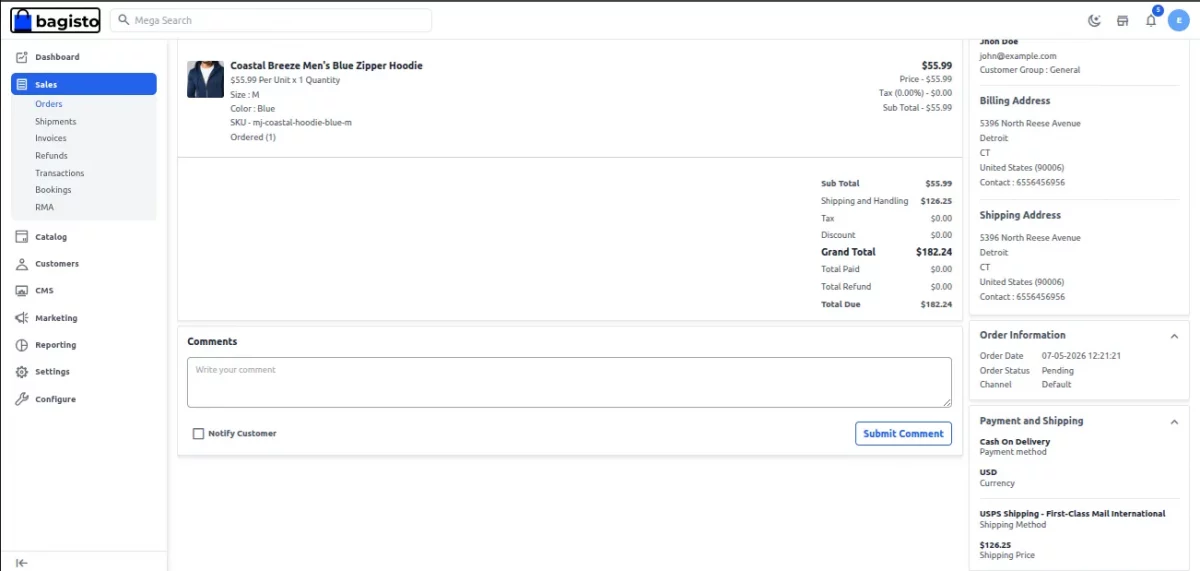
To view the details of any particular order the admin needs to click on the eye button.
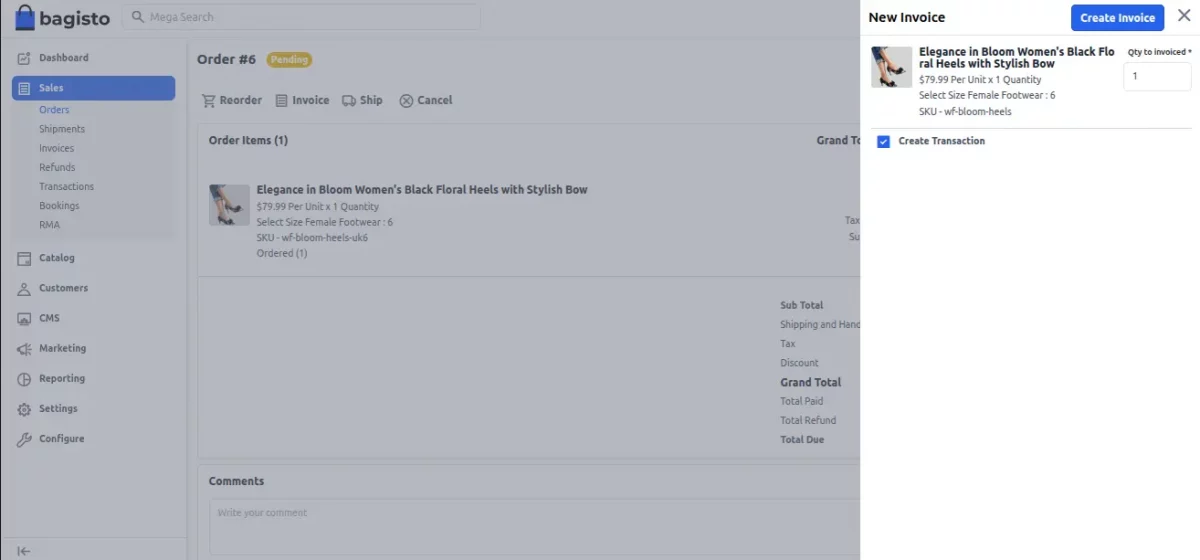
After Clicking on the Invoice button the admin can create the invoice for that order as shown below:-
Here the admin also need to enter the quantity to invoice and click on the Save Invoice button.
To create a shipment click on the ship button in the order detail page.
The admin needs to enter the Carrier Title, Tracking Number, Quantity to Ship and also needs to select the inventory source of the product.
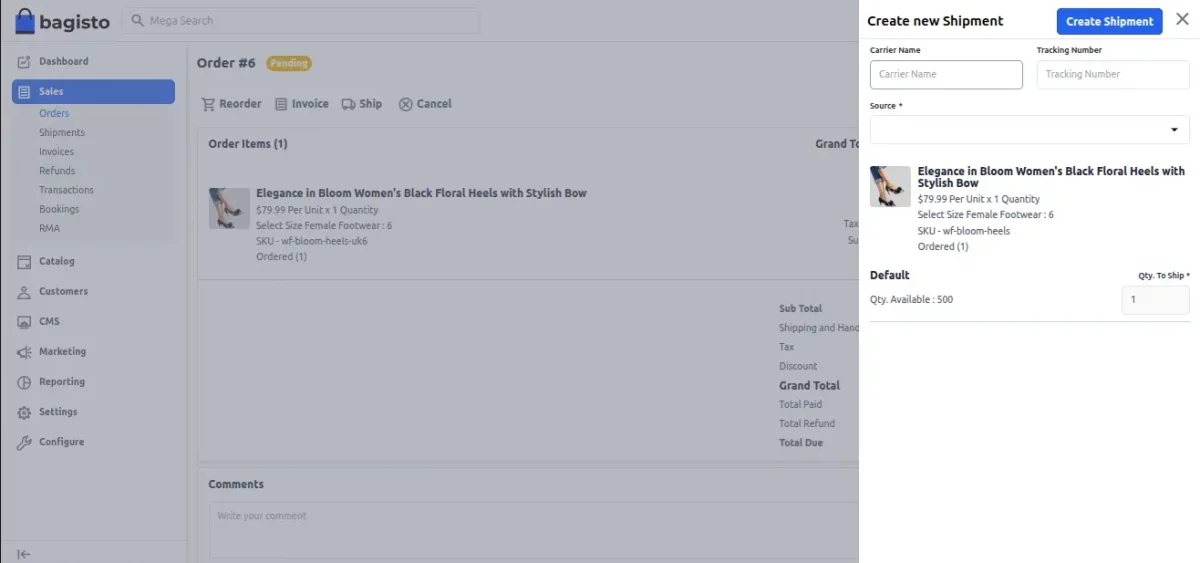
Click on the Save shipment button.
Support
So, that was much about the User Guide of Laravel eCommerce USPS Shipping for any queries or doubts reach out to us at [email protected]. You can also raise a ticket at our HelpDesk System.
Please explore our Laravel Development Services and Quality Bagisto Extensions.
Current Product Version - v2.4.10
Supported Framework Version - Bagisto v2.4.10

Be the first to comment.