Laravel Marketplace UPS Shipping module enables UPS (United Parcel Service) shipping for products, offering reliable, world-class delivery service directly through your marketplace.
Note:- This module is an add-on of Bagisto Marketplace Module. To use this module you must have installed Bagisto Marketplace Module first.
Complete Features List of Laravel Marketplace UPS Shipping
- The admin can enable or disable the UPS Shipping method.
- The admin can set the UPS shipping method name that will be shown from the front side.
- Admin can allow sellers to save their own credentials.
- The admin can define the allowed methods and weight units.
- The admin can set packaging type and drop off type.
- The seller can add Invoice.
- The dynamic shipping method for freight calculation.
- Ability to download Invoice.
How to install the module Laravel Marketplace UPS Shipping?
- Bagisto Version:
v2.4.4 - Marketplace Version: v2.4.4
Step 1: Extract Package
Unzip the extension package and merge the packages folder into your project root.
Step 2: Register Service Provider
Customers will get a zip folder after purchasing the extension and Unzip the extension zip and then merge the “packages” folders into the project root directory.
Go to: bootstrap/providers.php file and add the following line under ‘providers’
use Webkul\MarketplaceUspsShipping\Providers\MarketplaceUpsShippingServiceProvider

return
[
 MarketplaceUpsShippingServiceProvider::class,
 ]
Goto composer.json file and add the following line under ‘psr-4‘
"Webkul\\MarketplaceUpsShipping\\": "packages/Webkul/MarketplaceUpsShipping/src"
Run these commands below to complete the setup
composer dump-autoload
php artisan mp-ups-shipping:install
php artisan optimize:clear
php artisan config:cache
php artisan route:cache
Admin Configuration
After the installation of the module, the admin needs to configure the module. Click on Configure>>Sales>>Shipping methods.
Under the Shipping methods, all the shipping methods are visible in the admin panel.
Under the Marketplace UPS there are several fields:-
Title:-The title which will appear on the front-end for the buyers on the website during the checkout process
Description:- The admin can also input the description regarding the shipping method.
Status:- The admin can active or inactive the module from this field.
Mode:- The admin sen select the mode between Development and Live.
Access License Key:- The admin need to enter the access key after the successful account creation at UPS.
Client ID:- Enter the Client ID provided by UPS after you create an app or integration in the UPS Developer Portal. This identifies your application when connecting to UPS services.
Client Secret :- Input the Client Secret Key associated with your UPS app. This key works like a password for your application, so keep it secure and never share it publicly
Account Number:– Enter your UPS Account Number here. This is the unique number assigned to your UPS shipping account.
Container:- The admin can select the container in this field such as Package, UPS Letter, UPS Tube, UPS Pak, UPS Express Box.
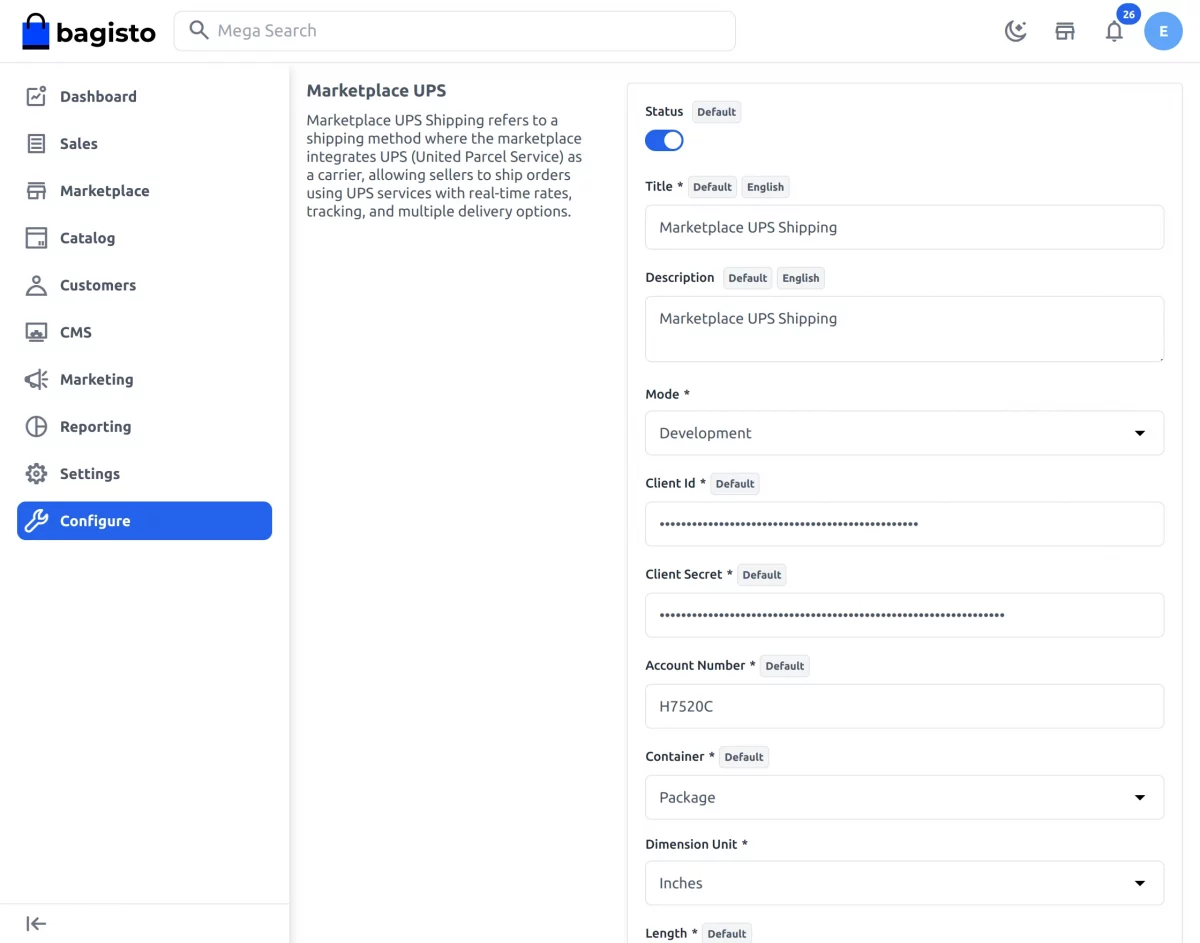
Dimension Unit: Select the unit of measurement used for package dimensions. UPS supports inches (IN) and centimeters (CM). Make sure the values you enter for length, width, and height match this unit.
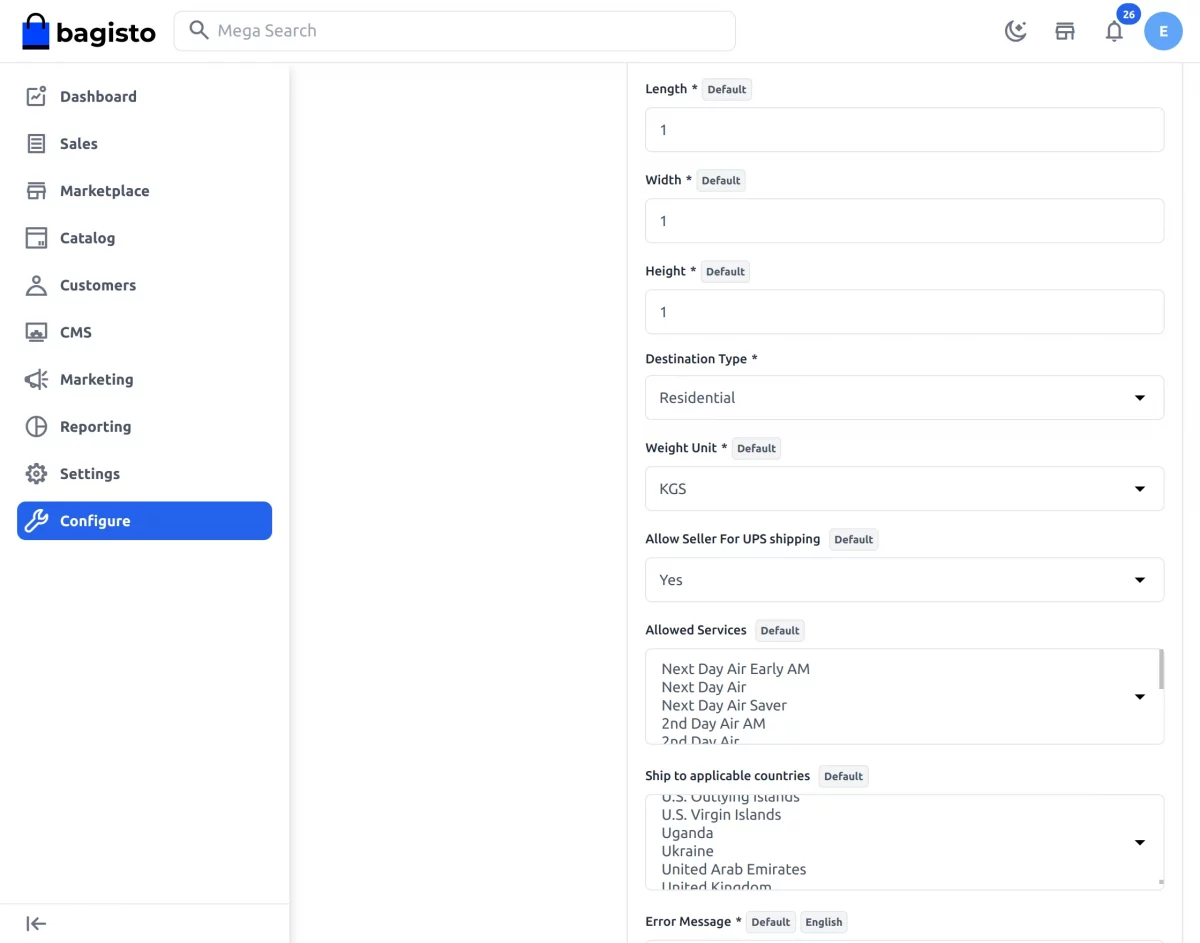
Weight Unit:- The admin can select the weight for the package between LBS and KGS.
Allow Seller To Save Ups Details:- Set Yes for the seller to save UPS Details.
Allowed Services:-Choose UPS method offered to your customers from the Allowed Services list.
Ship to Applicable Countries:– Choose where UPS shipping will be available
Error Message:- Enter a message to notify customers when UPS shipping is unavailable at checkout.
Seller’s Profile
After all the configuration have been saved by the admin regarding the shipping method.
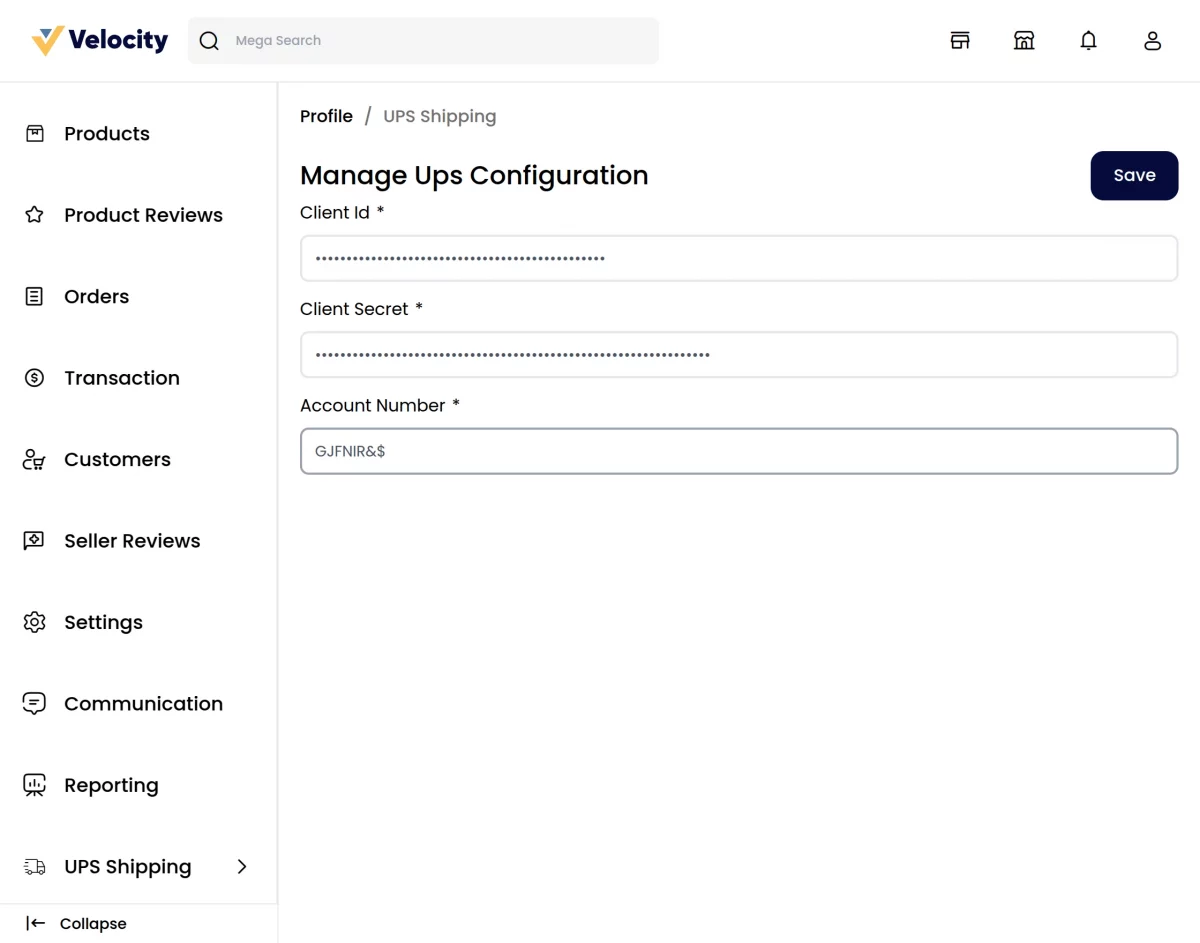
The seller can see the option of the UPS shipping under the marketplace section, where the seller can manage the UPS configurations.
The Sellers needs to enter several fields regarding the configurations of the UPS shipping method such as:-
Client ID: The seller needs to input the Client ID for their UPS account.
Clinet Secret: The seller needs to input the Client Secret for their UPS account.
Account Number: The seller needs to input the UPS Account Number here for their account.
Customers End
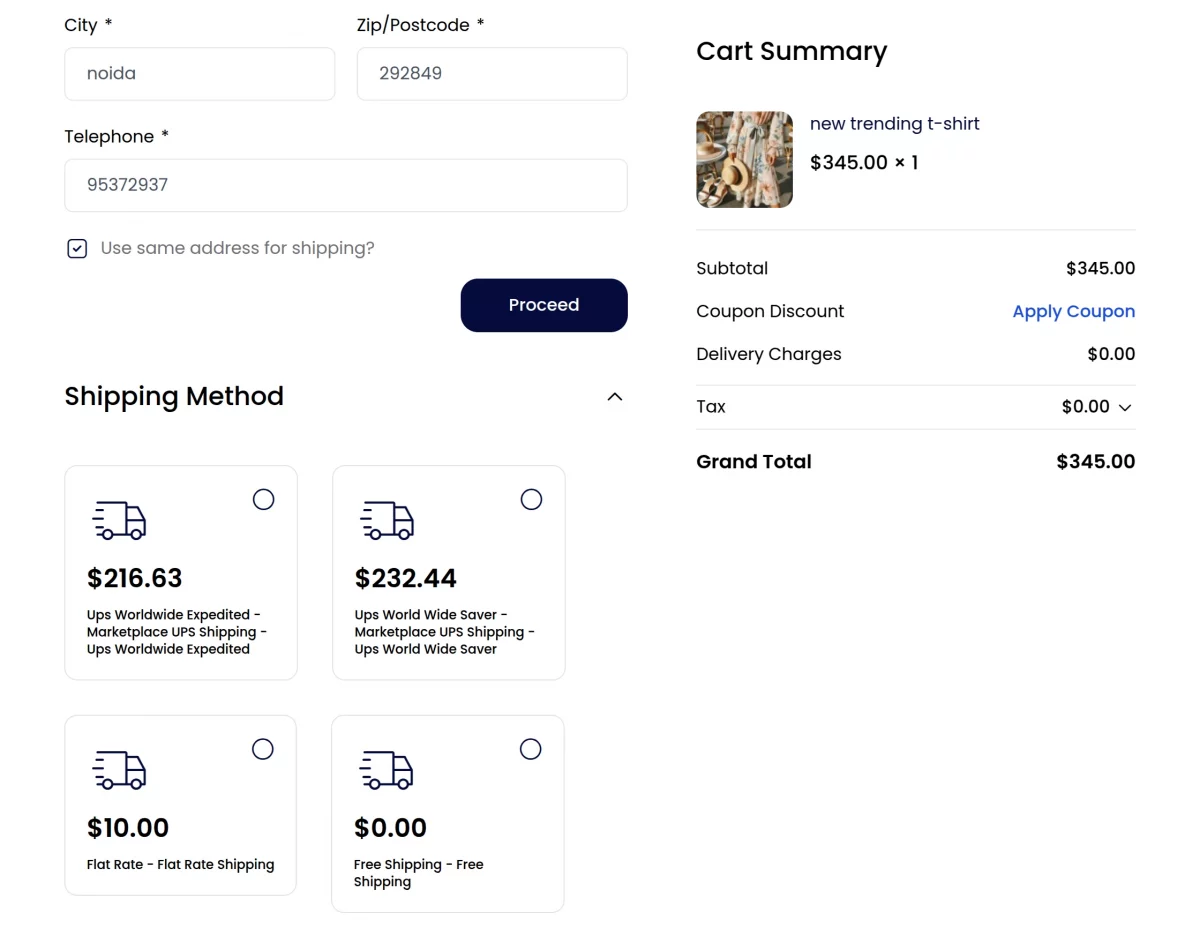
After successfully configuring the UPS shipping, the customers can use the UPS shipping method for the delivery of their products.
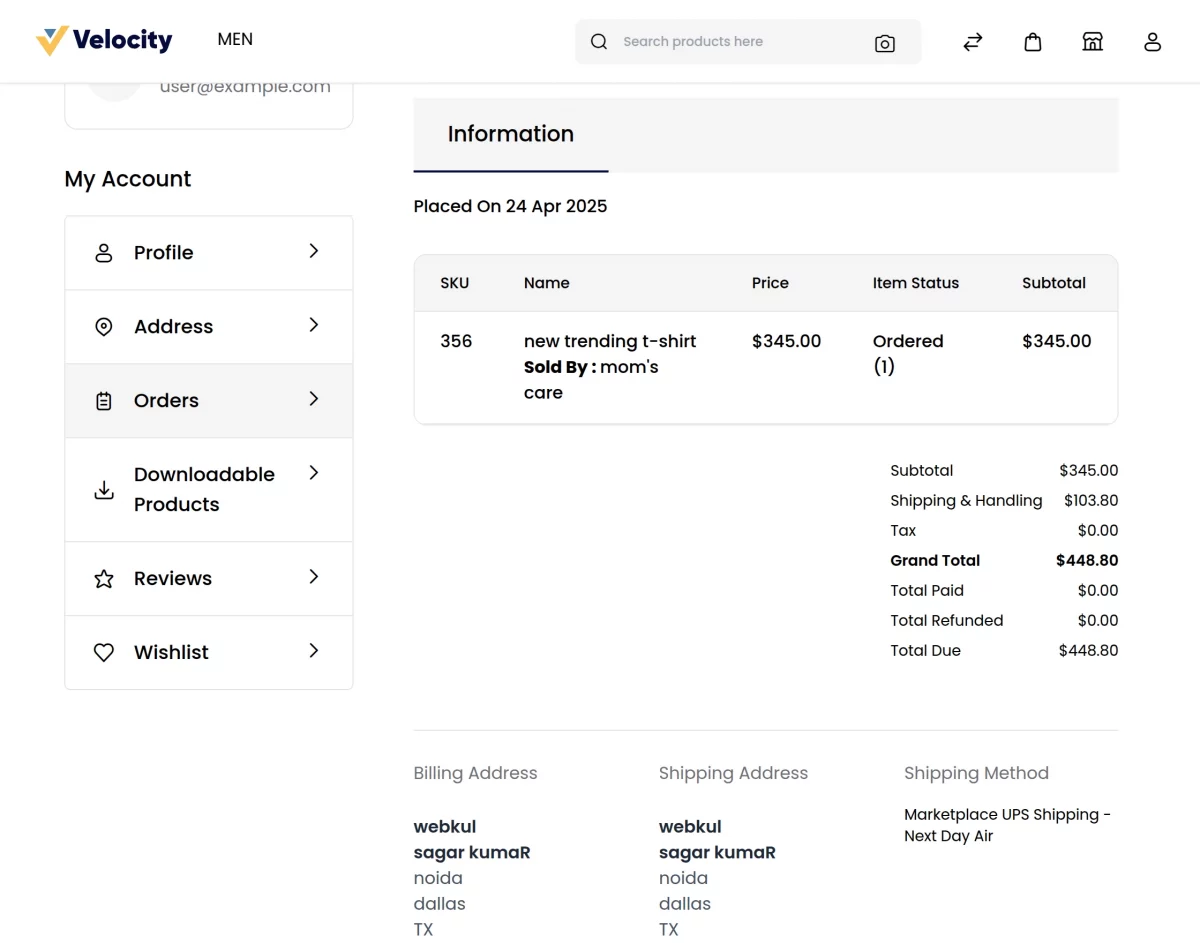
Once an order is placed, customers can view full order details, including the seller’s chosen shipping method, on the order summary page, as shown below :-
UPS Shipping management by the seller
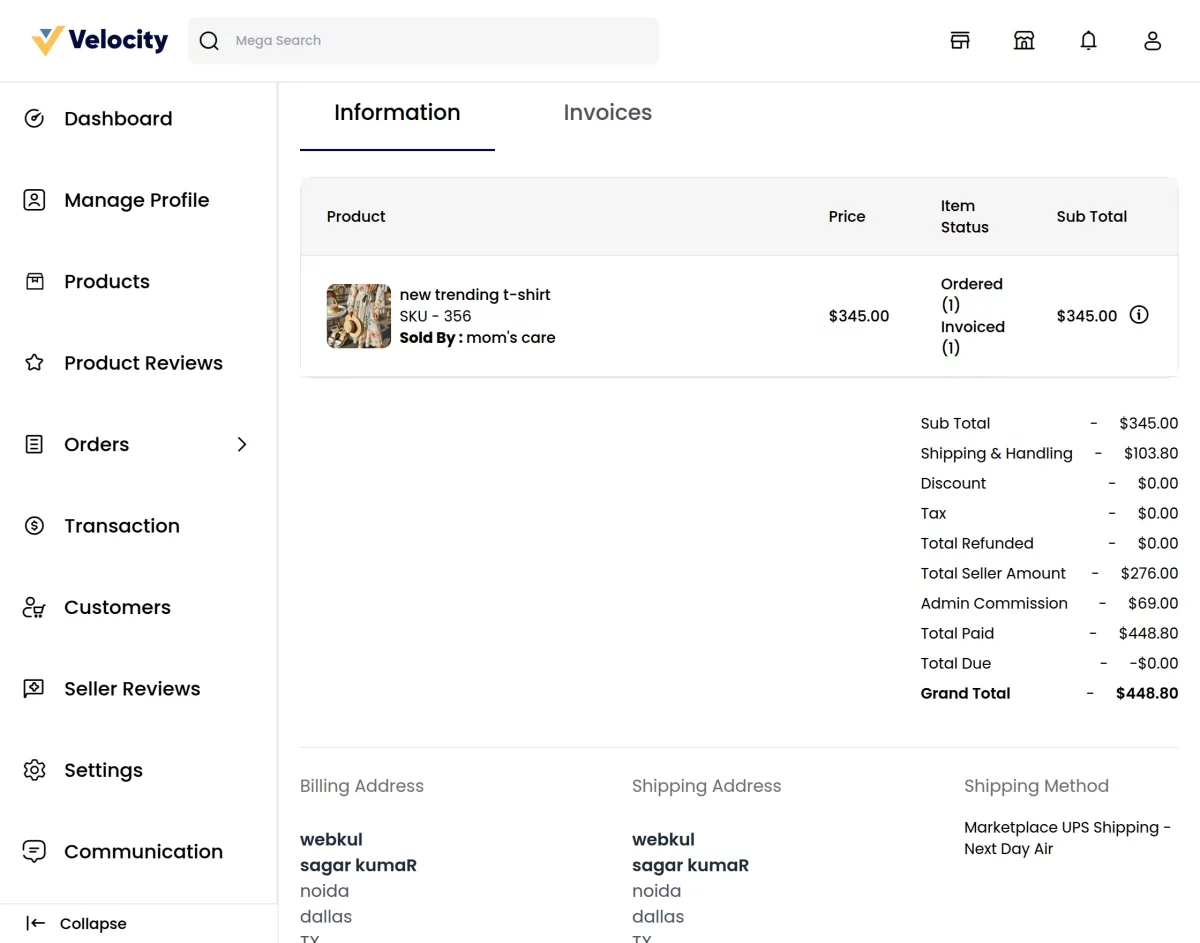
The seller can see the orders that have been placed by the customer under the marketplace section where the seller can see the details regarding the order as shown below:-
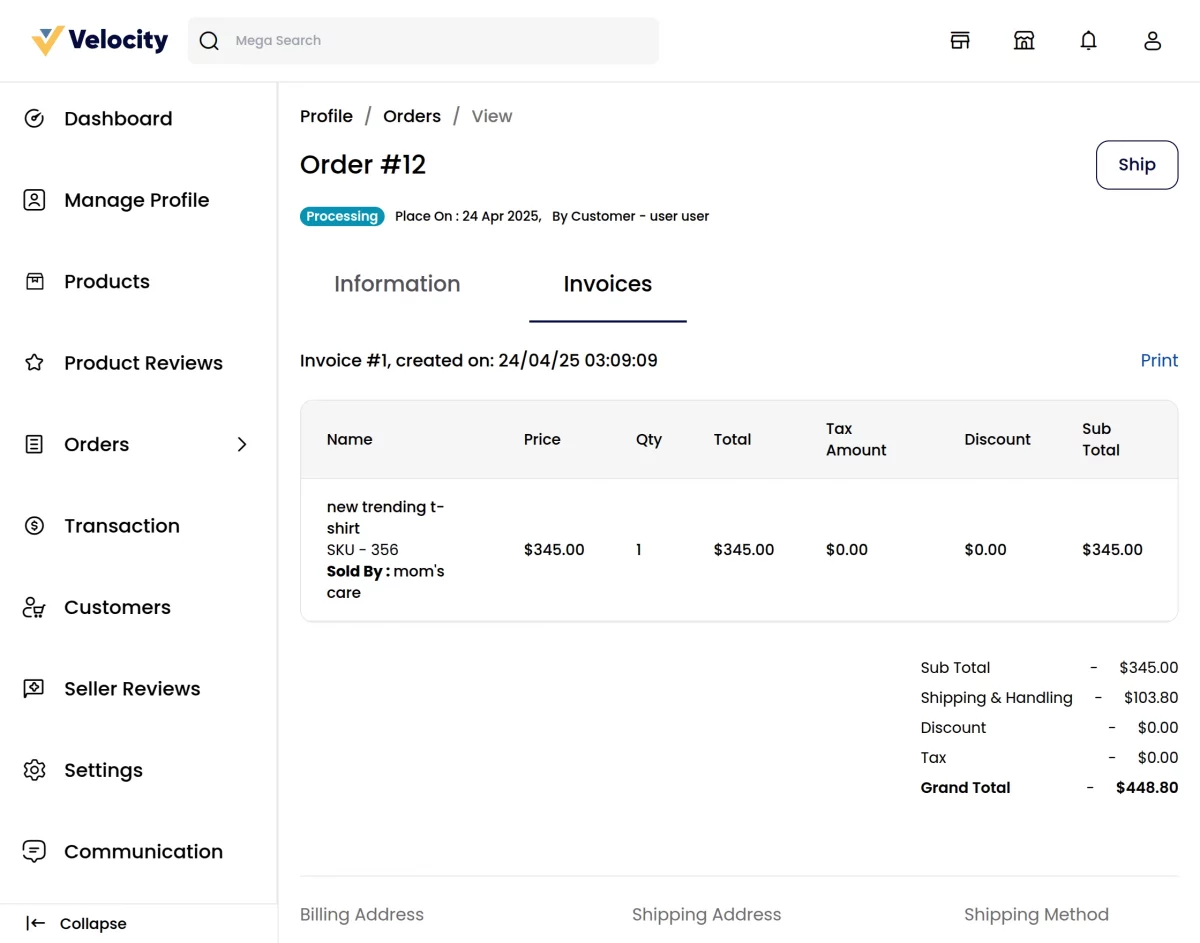
By hitting the invoice button the seller can generate the invoice for the order as shown below:-
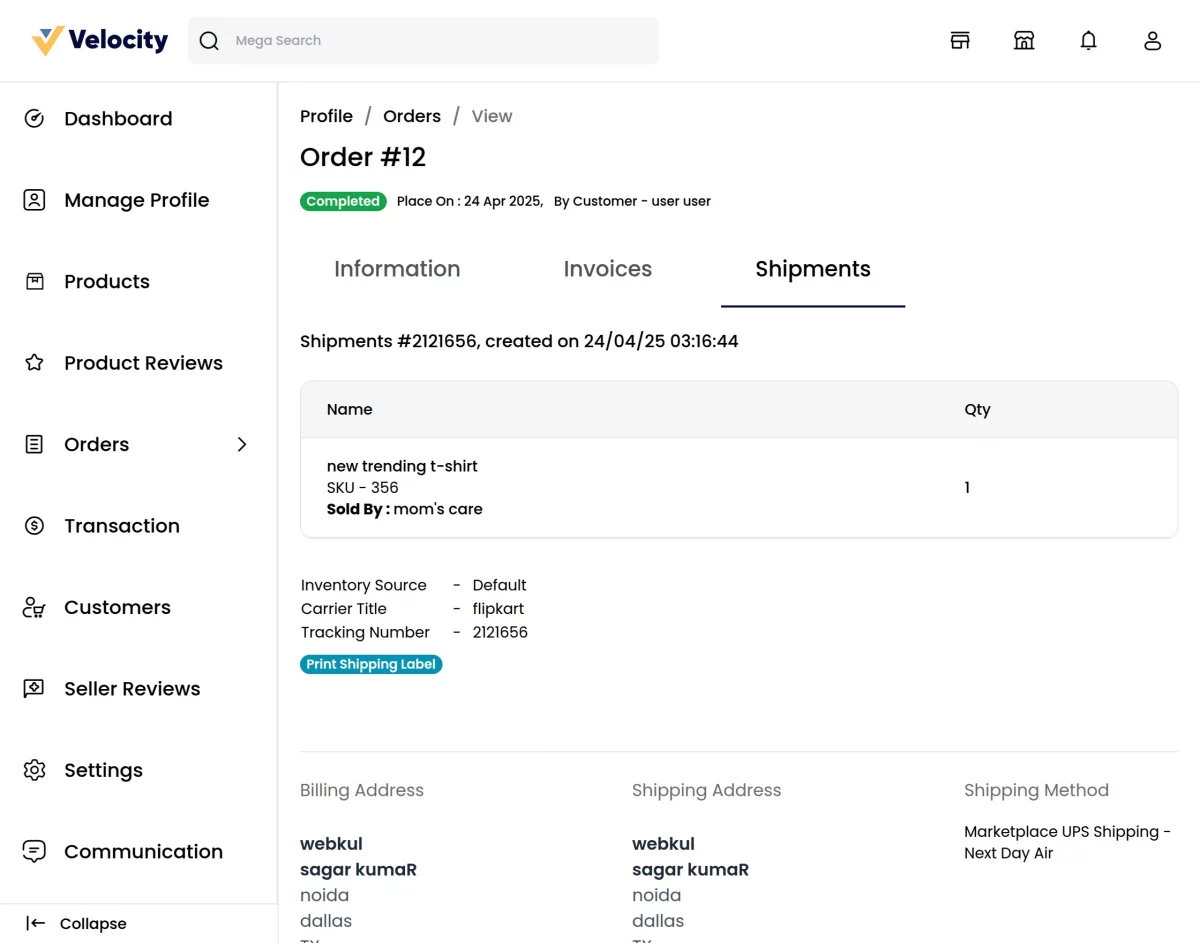
By hitting the ship button the seller can generate the shipment for the order as shown below:-
Support
So, that was much about the User Guide of Laravel Marketplace Multishipping for any queries or doubts reach out to us at [email protected]. You can also raise a ticket at our HelpDesk System.
Please explore our Laravel Development Services and Quality Bagisto Extensions.
Current Product Version - 2.4.4
Supported Framework Version - 2.4.4

Be the first to comment.