


















INTRODUCTION
Stock management is more than behind the curtain job. By, default in POS you don’t have any feature to check the stock in multiple session at the same time. Odoo POS Double Stock Validation is missing currently!
Let us take an example a customer ordered a product, the 1st POS user has delivered him the products and now the same product is delivered by the 2nd user to another customer. In this scenario, the 2nd user is not aware of the stock unavailability of the ordered product. This is the situation that is faced by every POS user usually.
Validating stock from multiple POS Sessions is not havoc with our POS software. Odoo POS Double Stock Validation is an easy solution for POS Users. This module notifies the POS user if the selected product goes out of stock during running POS session. This would be the best module to manage the product’s stock efficiently when there are multiple POS Sessions running simultaneously and you need to keep track of the available product’s quantity.
Odoo POS Double Stock Validation provides a tight control on the validation and management of stock. It avoids the havoc which generally comes while using multiple session on POS. This will be the best module to manage and validate your stock efficiently while working on multiple POS sessions.
Dependent Module
This module is dependent on POS Stock in order to use Odoo POS Stock Double Validation module you need to purchase this module also.
FEATURES
1. This module implements a second quantity validation check in the POS Stock module.
2. A user has the authority to manage the product’s quantity in POS when multiple sessions are running at a time.
3. POS User gets the notification if the selected product goes out of stock during a running POS session.
4. The stock will be validated when the user presses the Payment button or the Validate button at POS end.
INSTALLATION
- Once you have purchased the module from our Webkul store, you will receive a link to download the zip file of the module.
2. Extract the file on your system after the download finishes. You will be able to see a folder named- ‘pos_stock_double_validation’.
3. Copy and paste this folder inside your Odoo Add-Ons path.
4. Now, open the Odoo and click on the Settings menu. Here, click on Activate the Developer Mode. You can activate the developer mode by typing ‘debug’ after ‘web?’ in the URL as well.
5. Now, open the Apps menu and click on ‘Update Modules List’.
6. In the search bar, remove all the filters and search ‘pos_stock_double_validation’.
7. You will be able to see the module in the search result. Click on ‘Install’ to install it.
WORKFLOW
Back-end
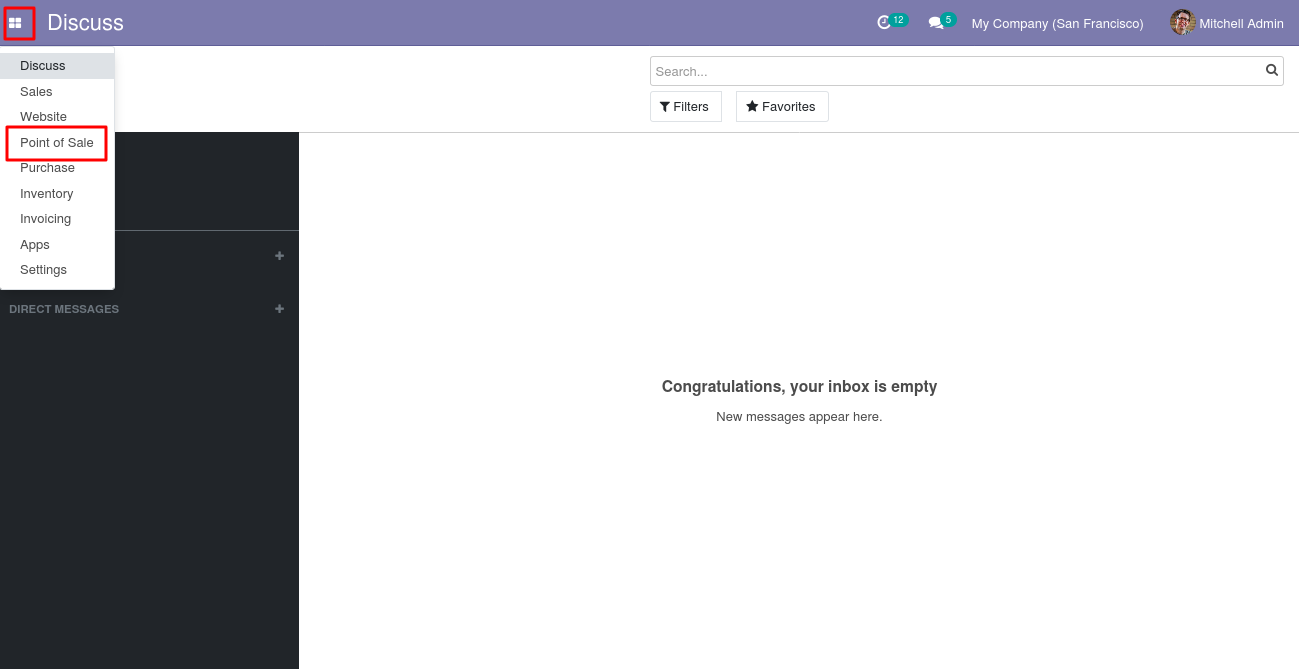
1. Using Odoo POS Double Stock Validation, initially, login to your Odoo database and navigate to the Point Of Sale app.
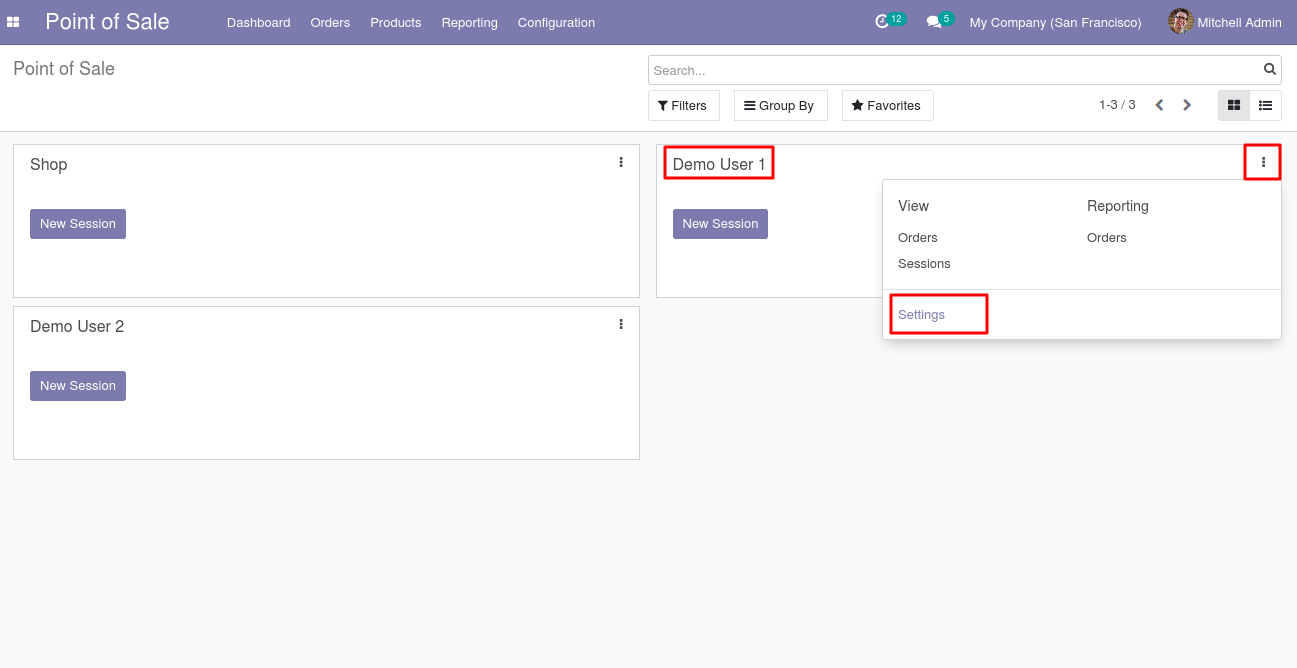
2. Now, navigate to the settings of the POS session of the Admin user by clicking on the ellipsis.

3. Here, scroll down under the inventory section.
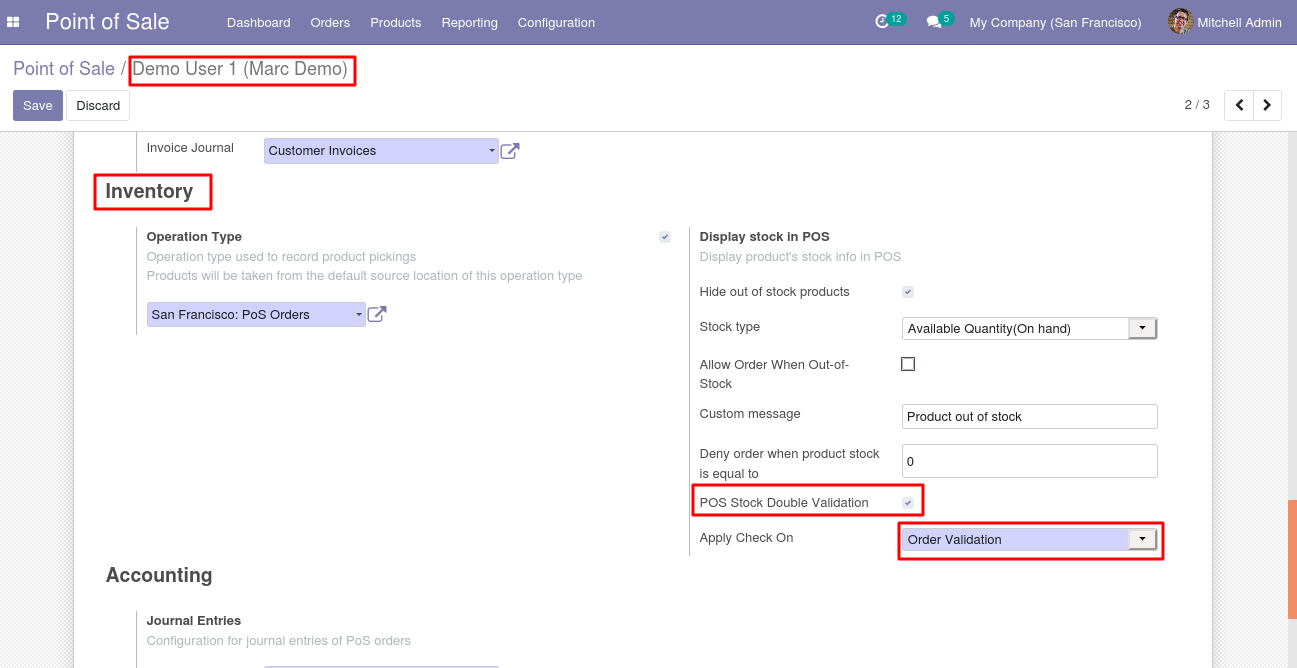
Enable the ‘POS Stock Double Validation’ checkbox. Now, you can select when you want to get the pop-up of remaining stock of the products.
(A). Payment.
(B). Order Validation.

4. Now, navigate to the settings of POS session of Demo user1 by clicking on the ellipsis.
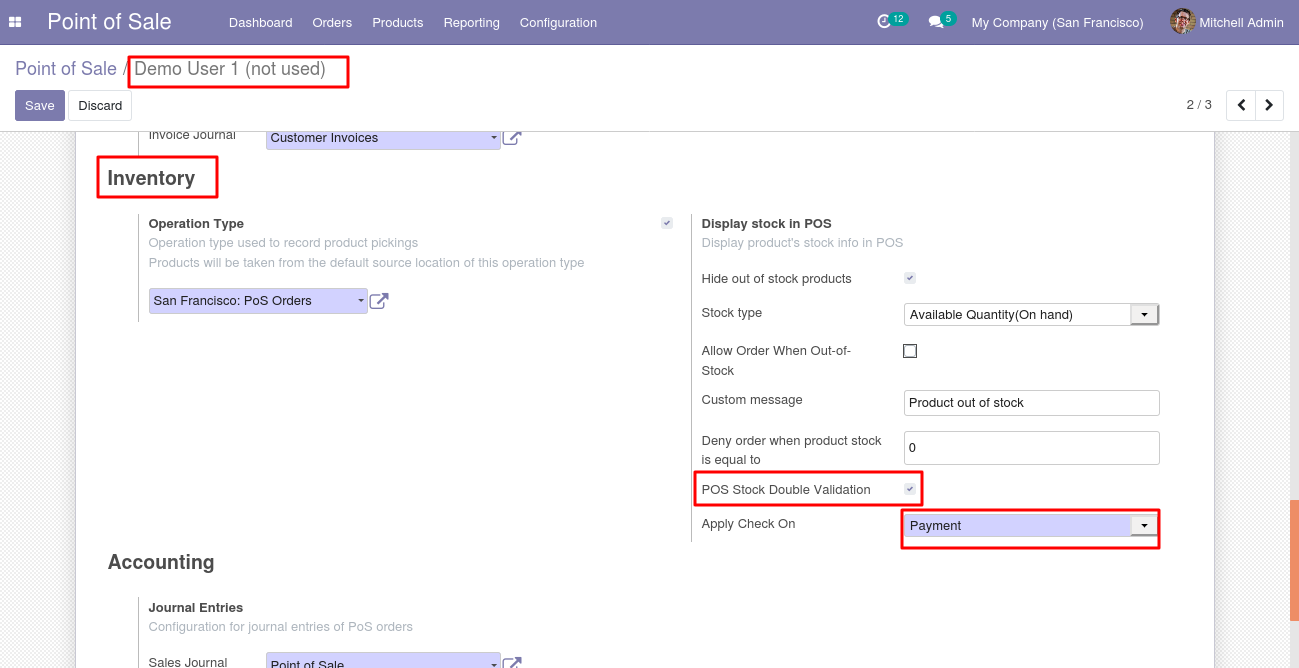
5. Here, scroll down under the inventory section.
Enable the ‘POS Stock Double Validation’ checkbox. Now, select the ‘Payment’ option.
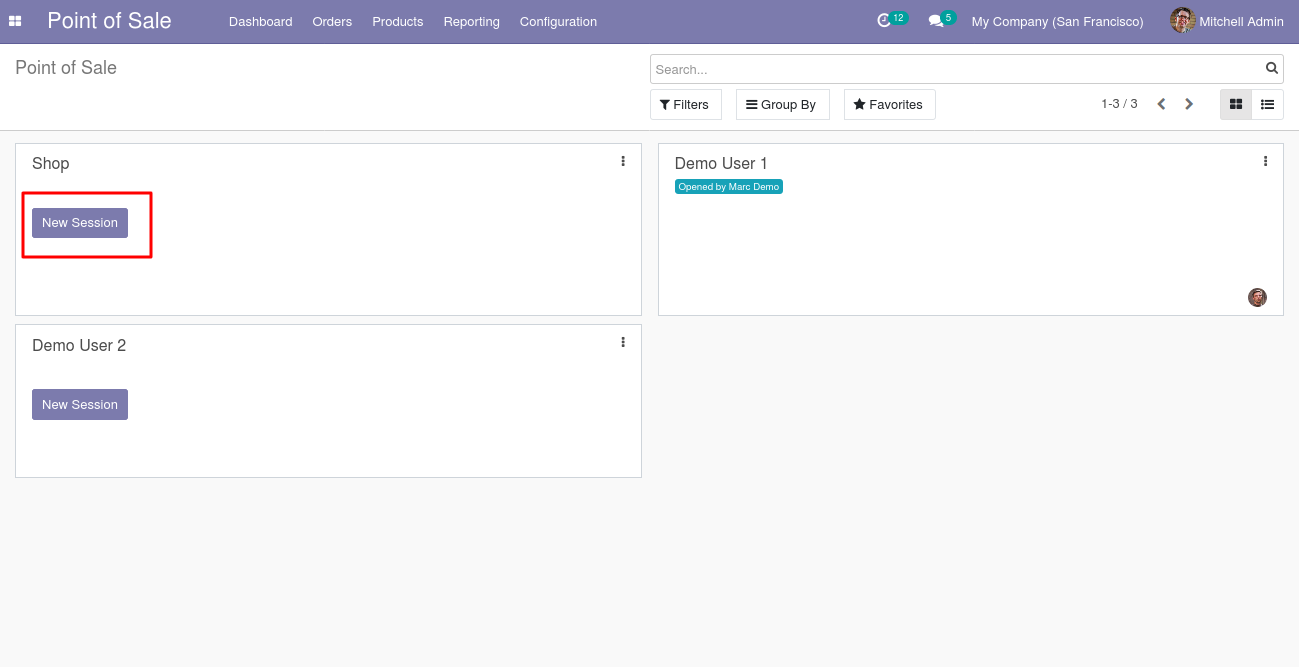
6. Now, you can start the POS session of Admin.
Front-end
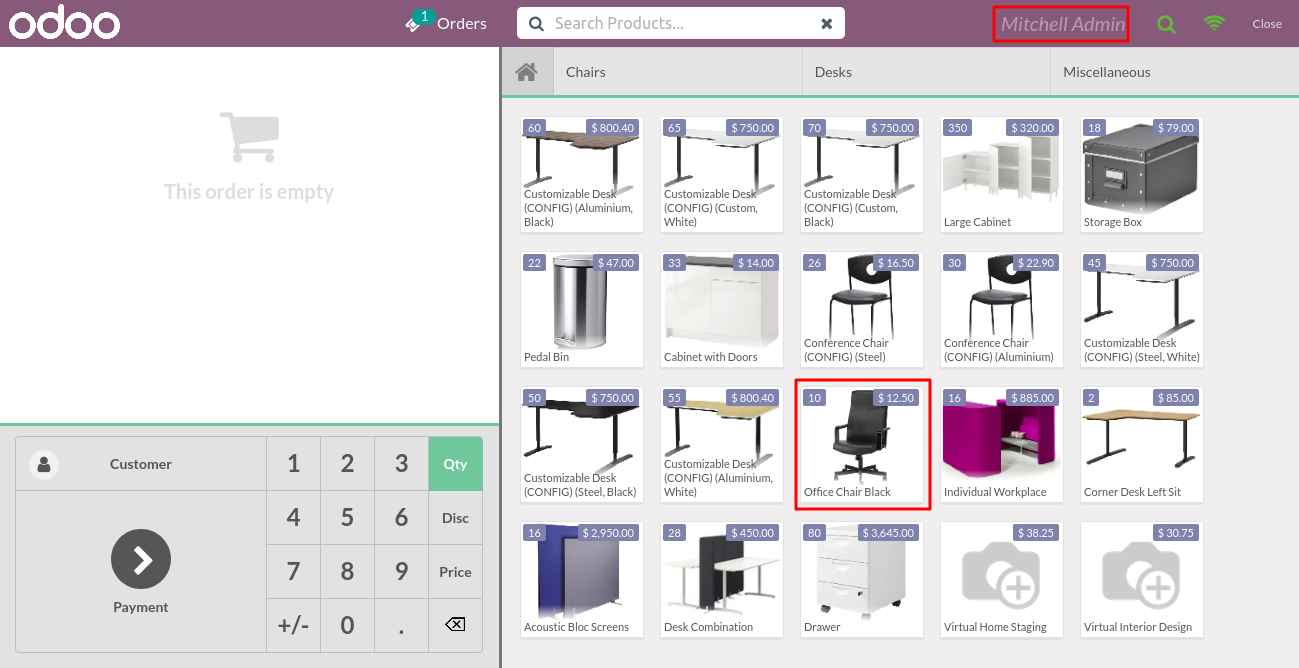
7. On the Admin’s session, there’s a product named Office Chair Black having 10 units quantities currently.
8. Now, we have added this product to the cart with 8 units. Hence the remaining units are 2 only of this product.
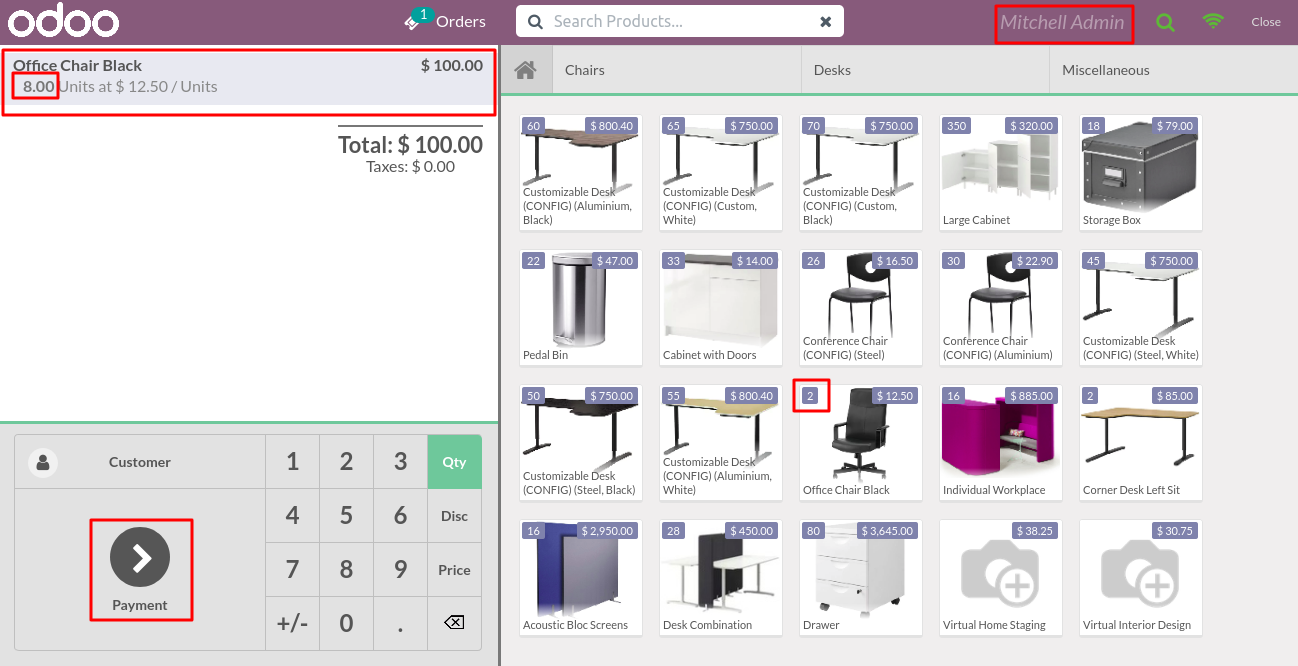
9. The order has been validated with 8 units.

Back-end
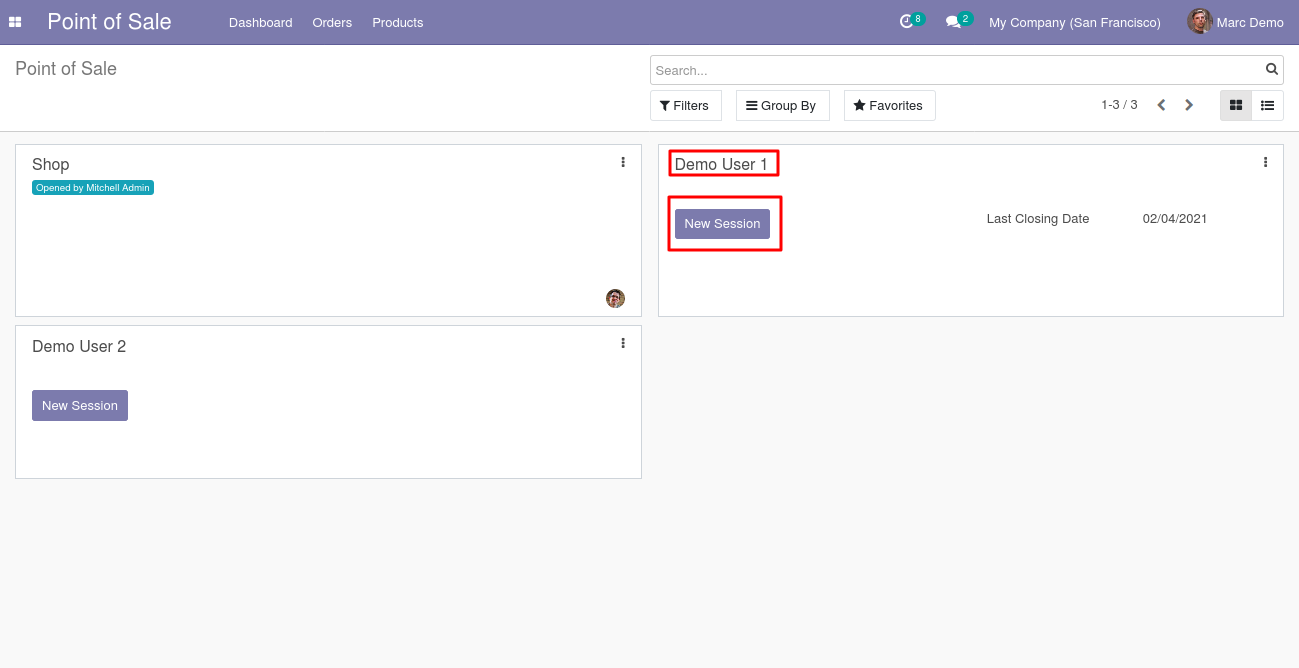
10. Now, we can start the POS session of another user.
Front-end
11. Now, this session is of Demo user, here is the same product named Office Chair Black and the quantities are still showing 10.

12. Now, we are placing the order of the same products. Note: initially, this product had 10 quantities, but we sold 8 units of the same products on the Admin user’s POS session. So, as of now the remaining units are 2 only.
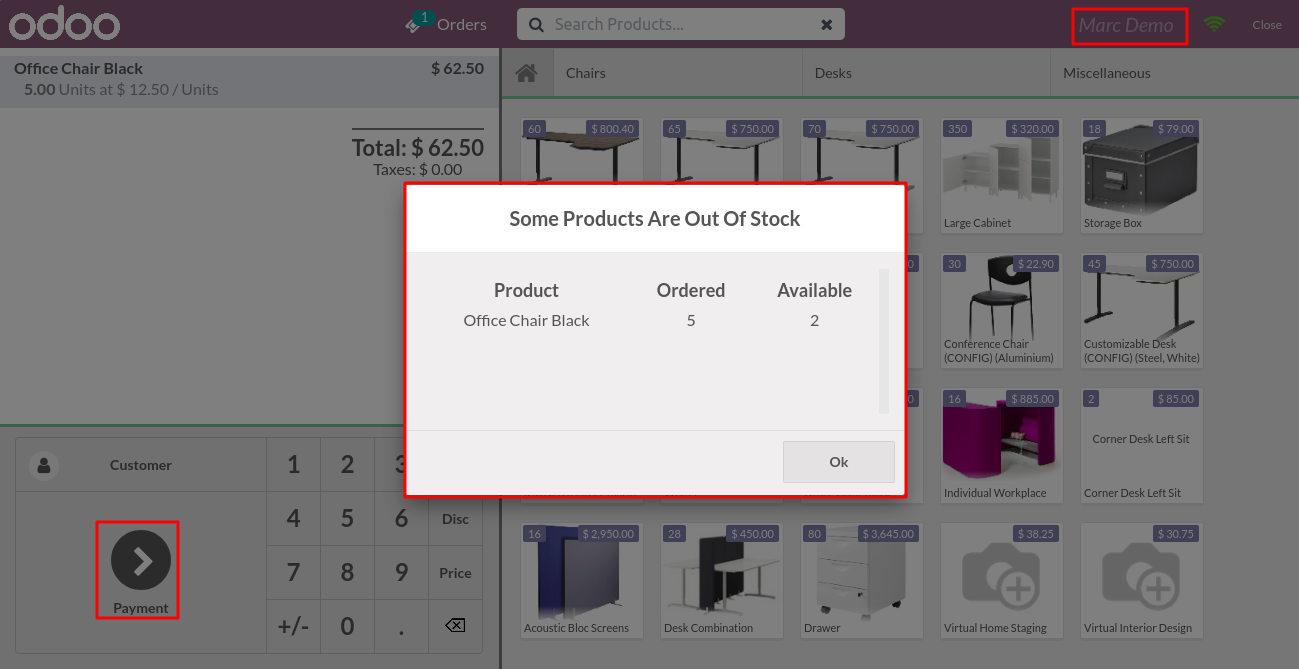
However, here the Demo user wants to sell 5 units of this product. Here, if user clicks on the Payment button.
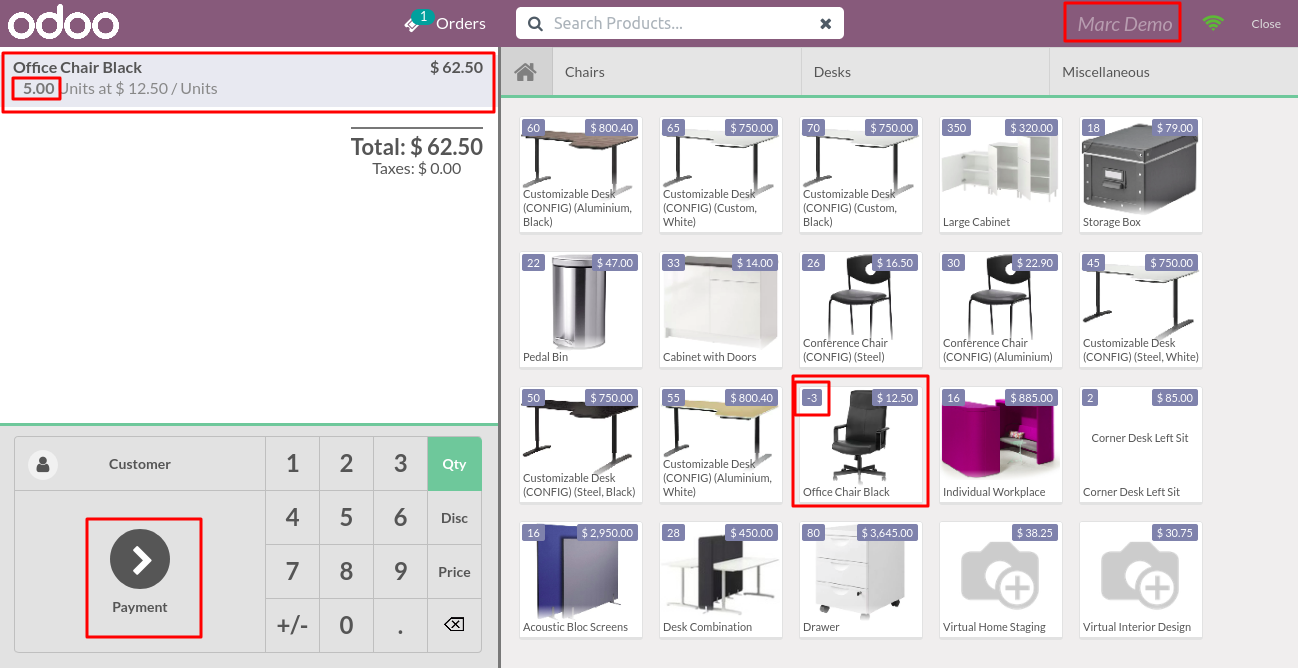
13. This Pop-up will arise on clicking the Payment button, reminding that this product has only 2 units remaining
Back-end
14. In a different case, if you want that the pop-up should be shown on the validation page.
So now, on Admin POS session’s settings select the second option as Order validation. Now, the pop will

15. Also, select the same option in the Demo user’s POS session.
Note: The configuration should be the same for both users.
Front-end
16. Now, the reminding Pop-up is appearing on the validation page i.e, when the user hit the Validate button.

Checkout Dependent Module User Guide
Need Help?
Was this guide helpful? Please share your feedback in the comments below.
If you have any issues/queries regarding the module please raise a ticket at
https://webkul.uvdesk.com/en/customer/create-ticket/
For any doubt contact us at [email protected].
Thanks for reading!!
Current Product Version - 1.0
Supported Framework Version - Odoo V14, V13, V12, V11

Be the first to comment.