Introduction
ERPNext Website Customer Group lets you show a different storefront to each customer group. A guest, a retail buyer and a trade buyer can each see their own products, prices, menus and pages.
You set every rule on the normal ERPNext Customer Group form. You do not need a new record type. The app adds a Website Customer Group section to that form.
This guide shows how to set up a guest customer group and a trade group with its own wholesale price list. It then shows the result on the live storefront.
Prerequisites for using ERPNext Website Customer Group
ERPNext Website Customer Group works in conjunction with the following module:
Webshop
You must install the above-mentioned module to use the ERPNext Website Customer Group.
Features
- Pick one guest customer group for visitors who have not signed in.
- Pick one default group for signed-in shoppers who have no group of their own.
- Put new customers into the right group when they sign up.
- Control storefront visibility for each product and each item group.
- Rename a product or hide its price for one group only.
- Give each group its own wholesale price list and pricing rules for customer group pricing.
- Replace the website menu for each group.
- Hide or show web pages for each group.
- Add banners, featured products and homepage content for each group.
- Compare webshop sales by group in the Customer Group-wise Sales report.
Installation
- After purchasing the app from Webkul Store, you will receive a link to download the module ZIP file.
- Extract the ZIP file. You will see a folder named ‘website_customer_group’.
- Set up the module in your git repository, then fetch it using:
bench get-app --branch main https://git.webkul.com/erpnext-apps/erpnext-website-customer-group.git
(Replace “main” with your branch name and replace the “HTTPS URL” with your HTTPS clone URL.)
- Install the app on your site:
bench --site <your-site-name> install-app website_customer_group
- Run bench migrate to complete the setup.
Workflow
Setting Up the Guest Customer Group
- Go to Customer Group in the desk. The app works on the groups you already have. In this example, Retail Shoppers is for guests and Wholesale Buyers is for trade buyers.
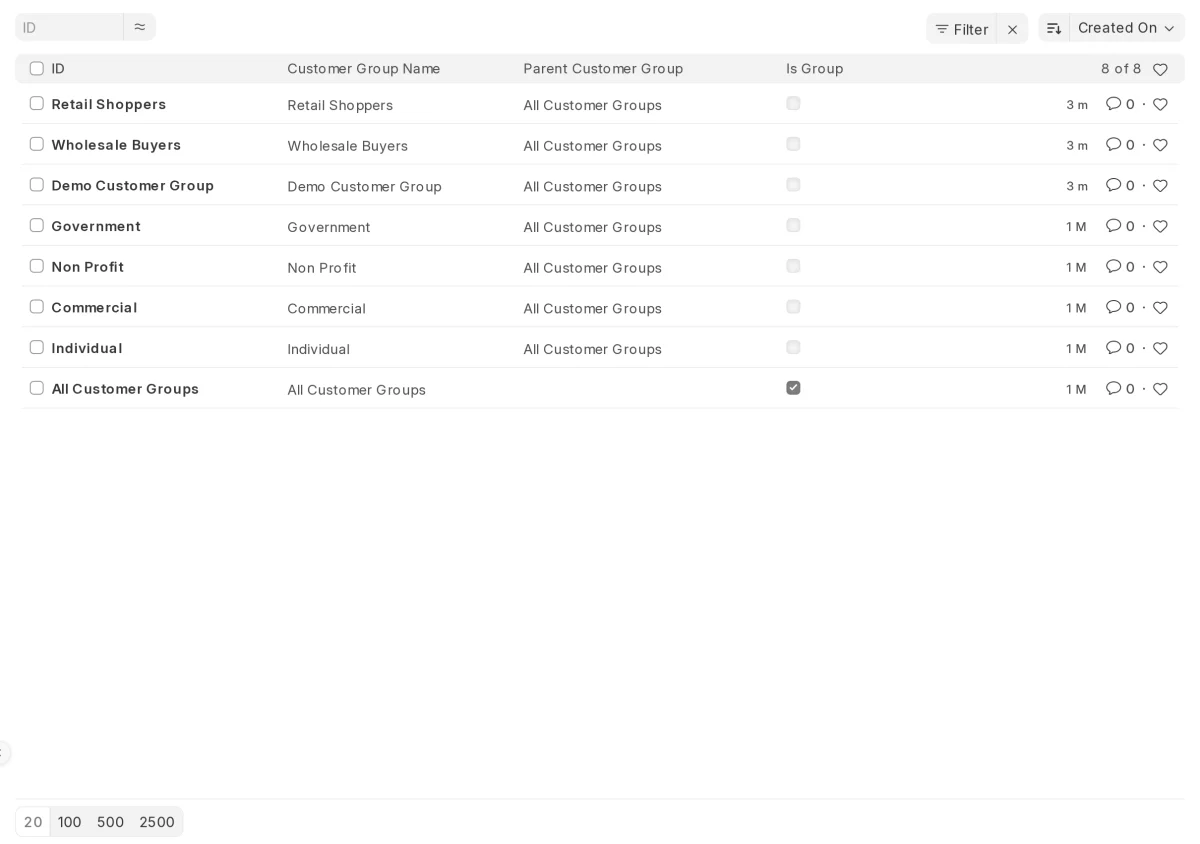
- Open Retail Shoppers and scroll to the Website Customer Group section.
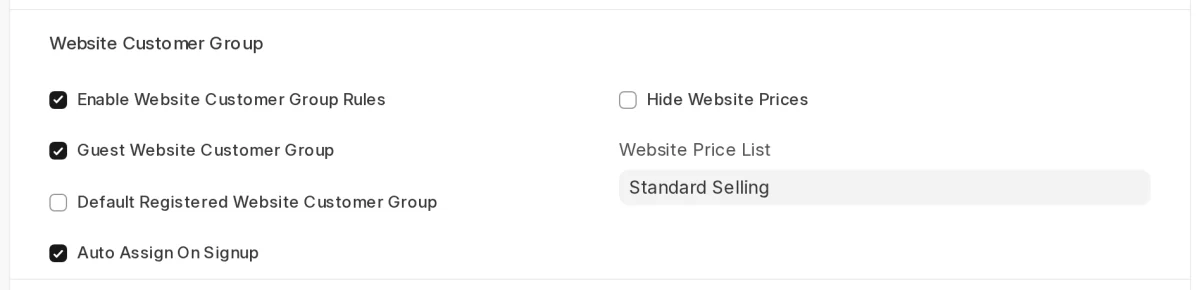
- Tick Enable Website Customer Group Rules.
- Tick Guest Website Customer Group. Visitors who have not signed in now use this guest customer group.
- Keep Auto Assign On Signup ticked to put new customers into this group.
- Choose a Website Price List. Tick Hide Website Prices if guests should not see any prices.
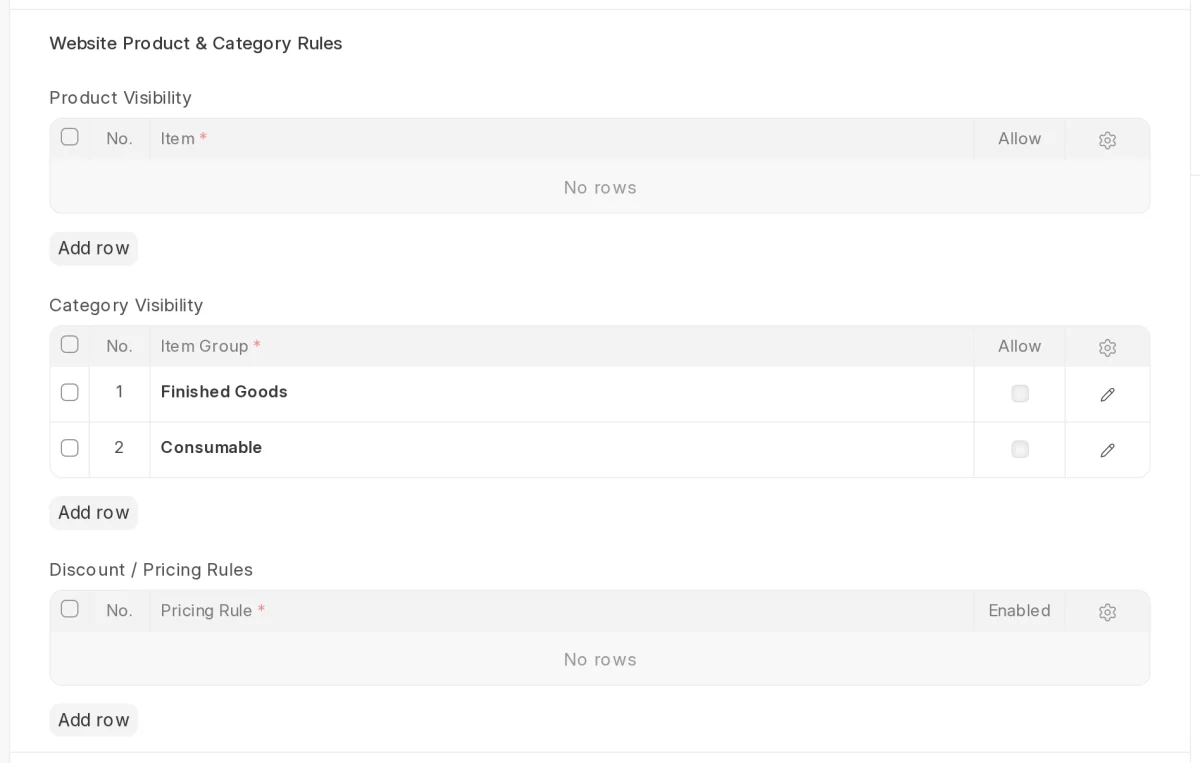
- Go to Website Product & Category Rules. Add item groups to the Category Visibility table for storefront visibility by category.
- Clear Allow on a row to hide that item group. Tick Include Descendants to hide its child groups too. Here, guests do not see Finished Goods or Consumable.
- Go to the Website CMS Pages table. CMS stands for content management system. Add the route of a web page and clear Allow to hide it. Here, guests cannot open the wholesale-terms page.

- Click Save.
Setting Up a Trade Customer Group
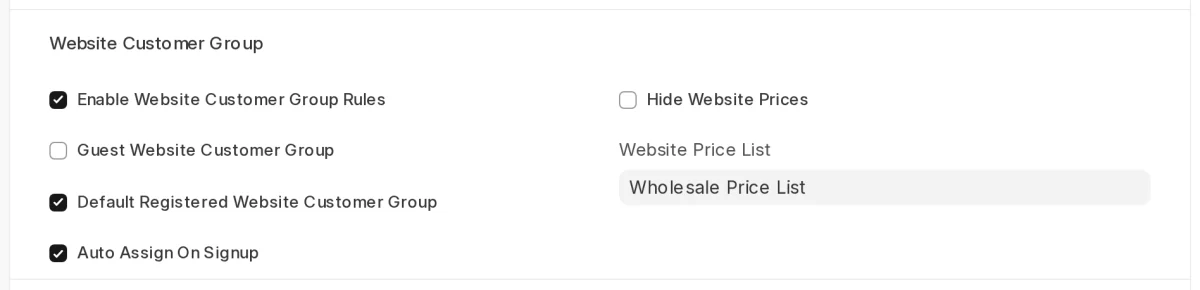
- Open Wholesale Buyers and tick Enable Website Customer Group Rules.
- Tick Default Registered Website Customer Group. Signed-in shoppers with no enabled group of their own now use this group.
- Set Website Price List to your wholesale price list. Here it is Wholesale Price List, so trade buyers see trade prices.
- Add products to the Product Visibility table. Tick Allow on each one the group may see. Once you allow some products, the group sees only those products.
- Add a pricing rule to Discount / Pricing Rules and tick Enabled. This links customer group pricing, such as a volume discount, to the group.
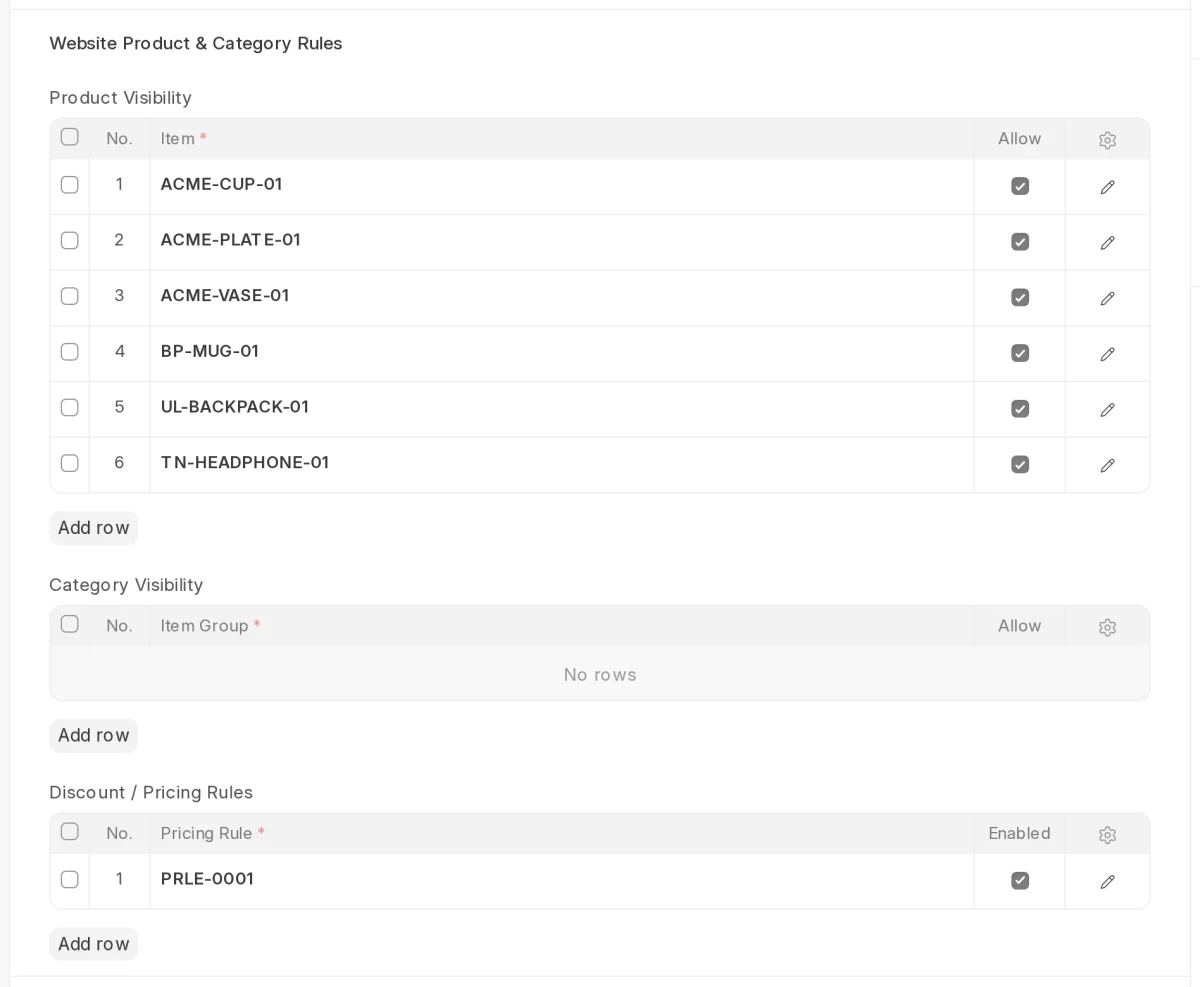
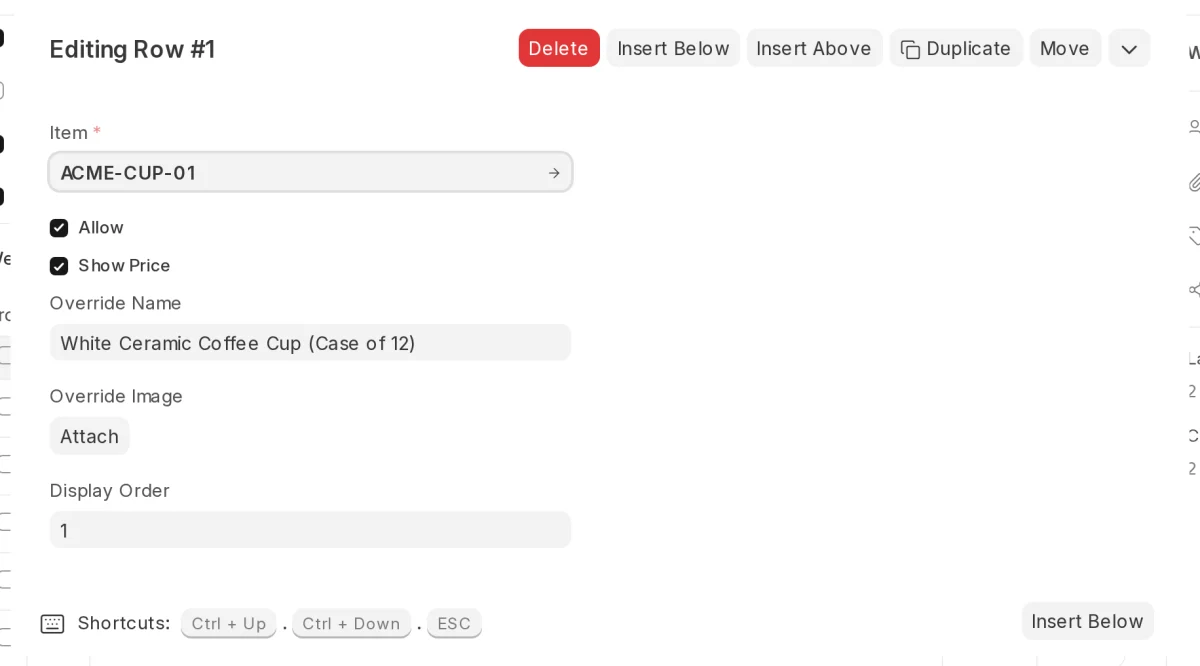
- Click the edit icon on a product row to see all its fields.
- Type an Override Name to rename the product for this group. Use Override Image to swap its picture.
- Clear Show Price to hide the price of that product for this group.
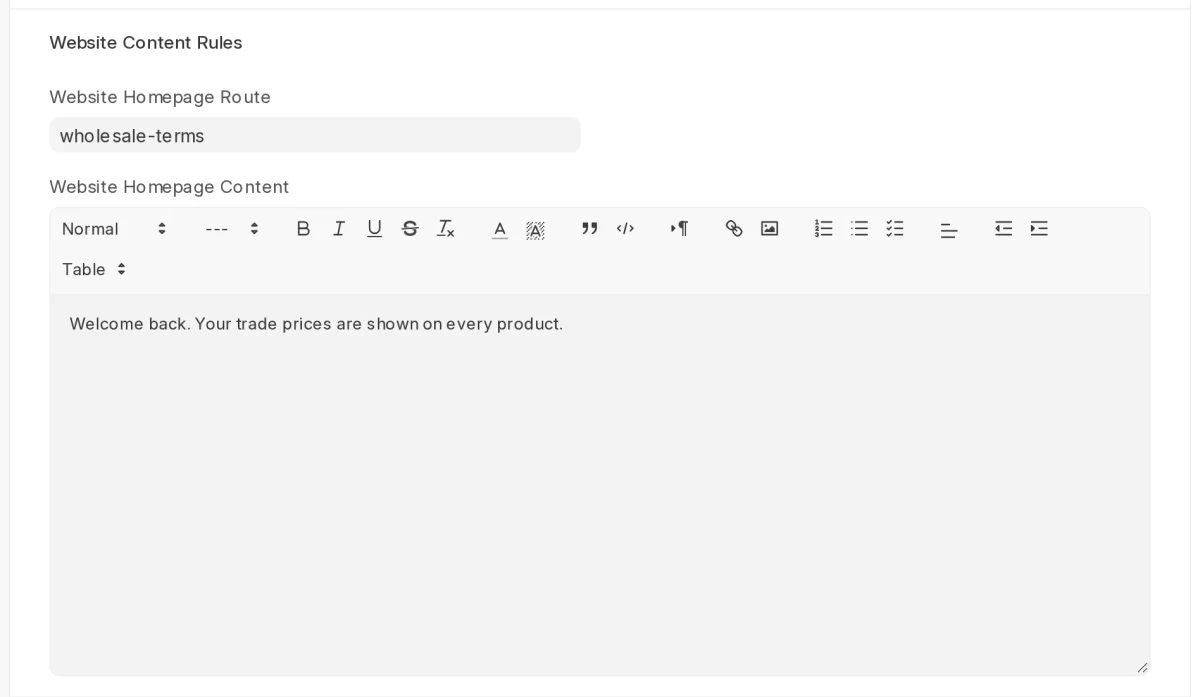
- Go to Website Content Rules. Fill in Website Homepage Route and Website Homepage Content for this group.
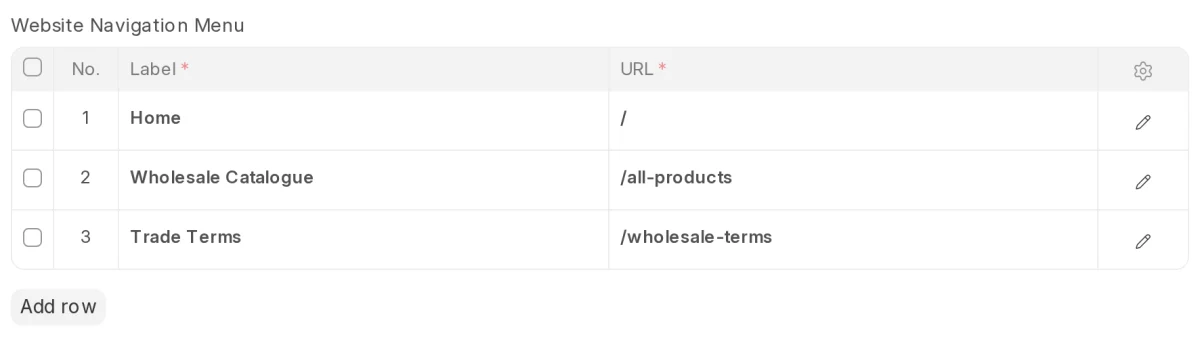
- Add rows to Website Navigation Menu. Each row has a Label, a URL and an Enabled box. These rows replace the normal website menu for this group.
- Add a banner to Website Promotional Banners with a title, image and link.

- Add items to Website Featured Products, then click Save.
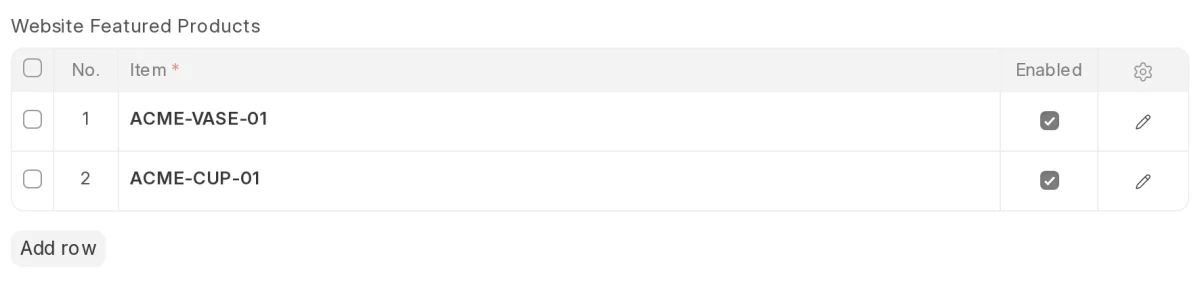
Note: The app passes the homepage content, banners and featured products to your website templates. The standard Webshop theme does not show them by itself, so add them to your theme to display them.
Checking the Storefront
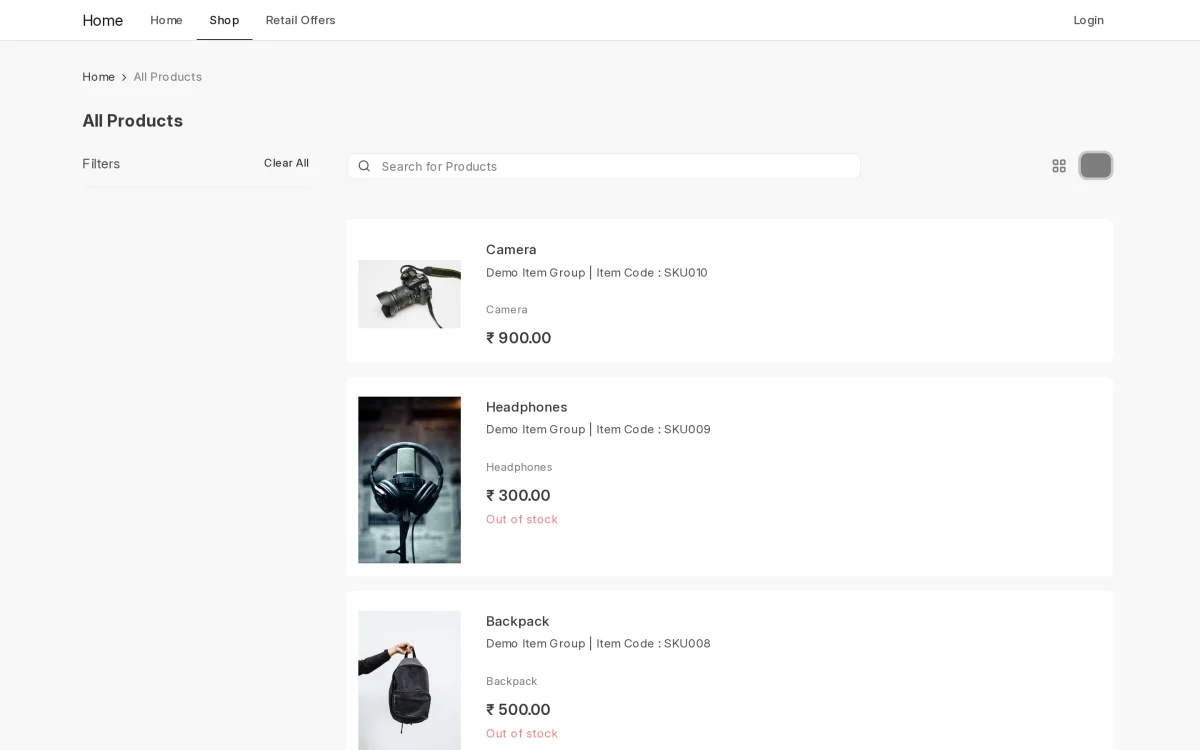
- Open the shop in a private window, without signing in. The menu shows the Retail Shoppers rows: Home, Shop and Retail Offers. Products from the hidden item groups do not appear.
- Open the wholesale-terms page as a guest. The page shows Not Found, because the guest customer group blocks it.

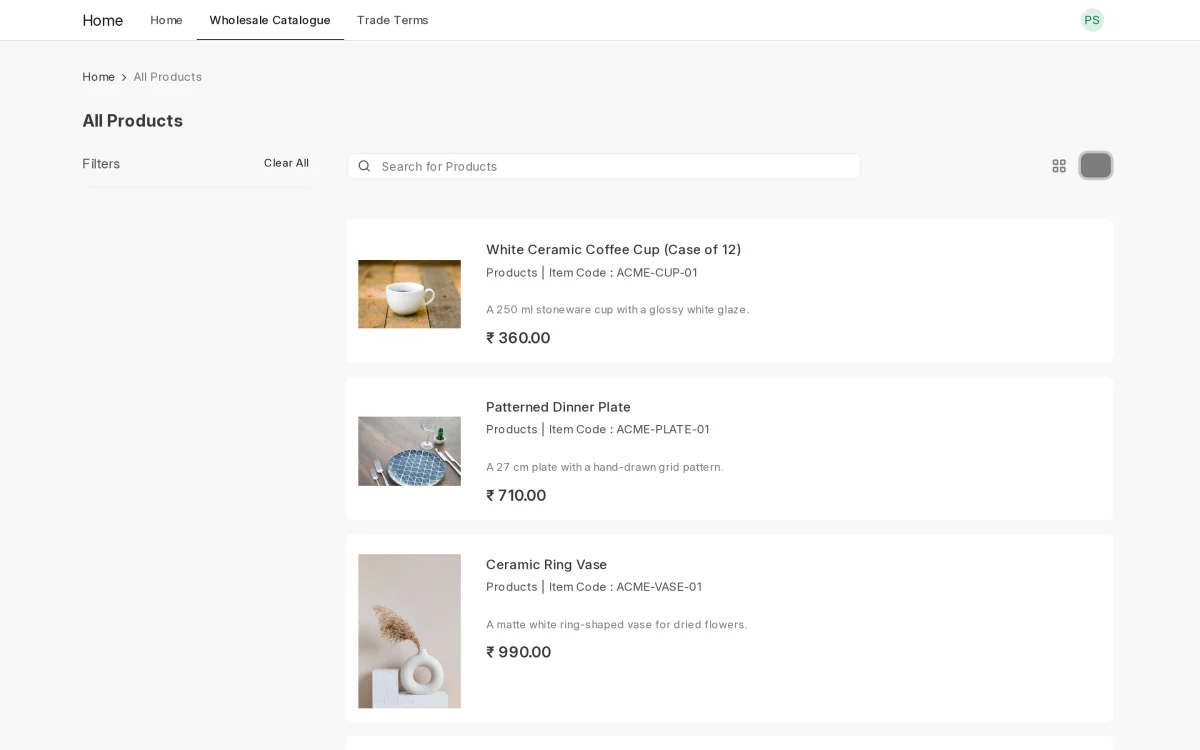
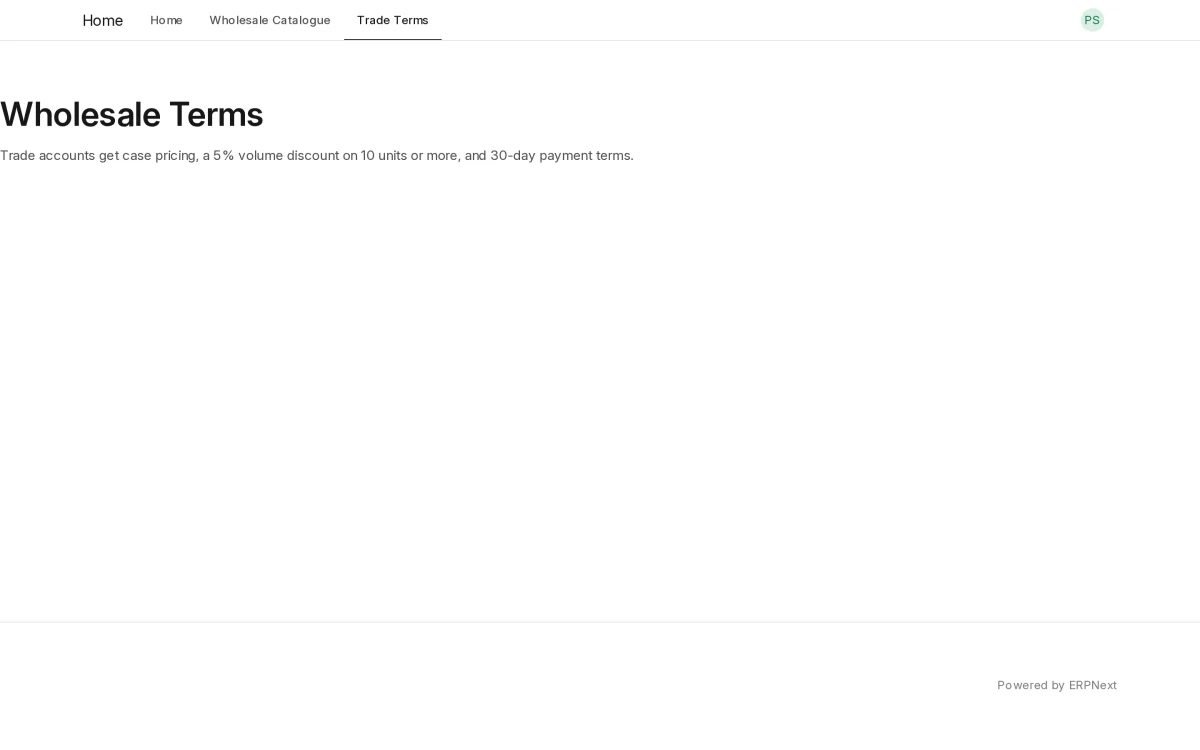
- Sign in as a customer in Wholesale Buyers. The menu now shows Wholesale Catalogue and Trade Terms. Only the allowed products appear, at wholesale price list rates. The cup shows its override name.
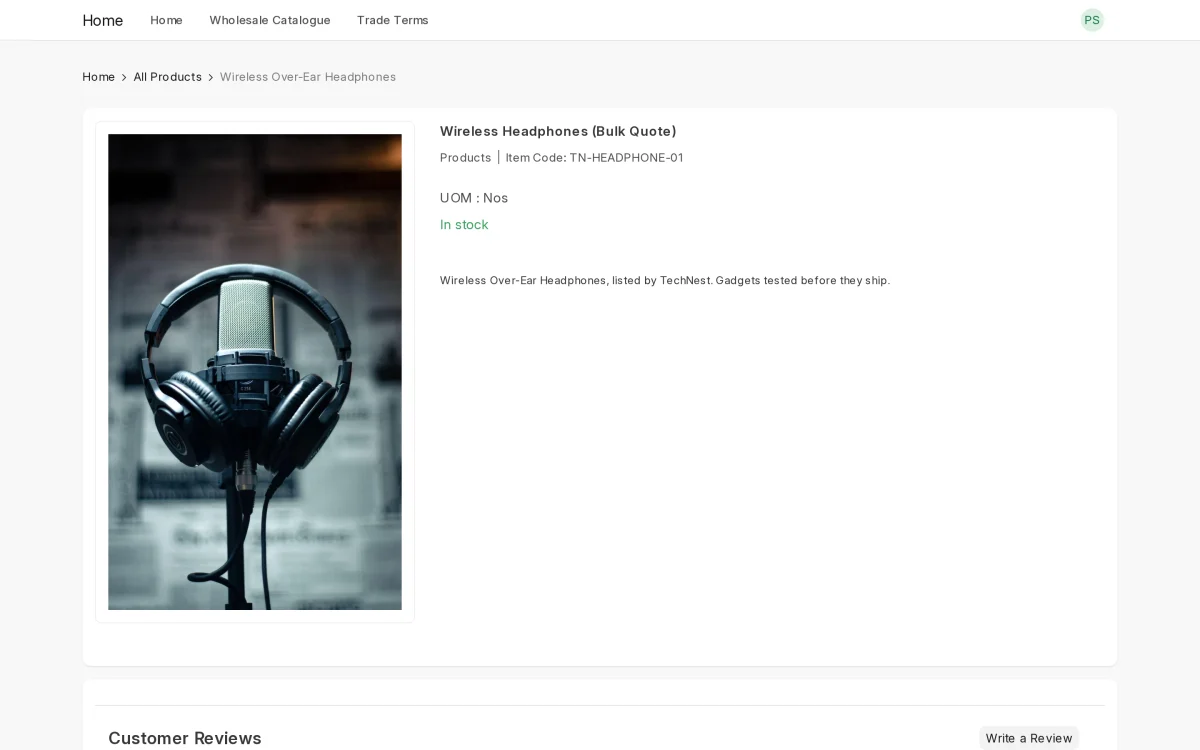
- Open a product with Show Price cleared. The product page shows the override name and no price.
- Open Trade Terms. The page opens, because Wholesale Buyers allows it.
Rules and Reports
- Only one group can be the guest customer group. If you tick Guest Website Customer Group on a second group and save, ERPNext shows an error. The same rule applies to Default Registered Website Customer Group.

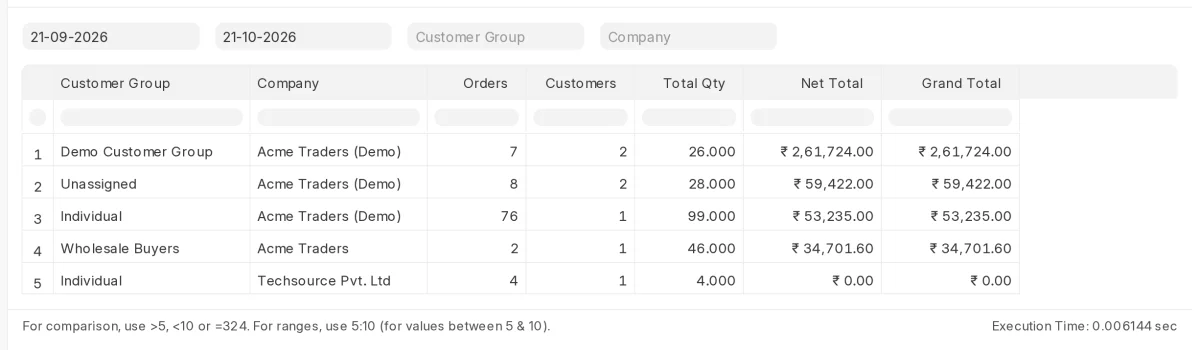
- Open the Customer Group-wise Sales report. It totals orders placed through the webshop cart for each group. Filter it by From Date, To Date, Customer Group and Company.
Need Help?
Hope you find this guide helpful! Please feel free to share your feedback in the comments below.
If you still have any issues/queries, please create a ticket at the UV Desk.
I hope this helps. In case of any further queries, contact us at our support mail.
Thanks for paying attention!!
Current Version – 0.0.1
Supported Framework Version – ERPNext v16

Be the first to comment.