


















Introduction
Odoo Shipping Per Product lets customers choose different delivery methods for each product in the same order.
This module allows businesses to set product-wise delivery methods and shipping costs. Customers can select the required delivery option during checkout.
It also supports separate delivery for products with different shipping needs while keeping them in the same order.
Features
- Assign different delivery methods to individual products.
- Let customers select a delivery method for each product.
- Calculate shipping costs separately for each product.
- Add Dynamic Delivery Charges to sales orders.
- Configure Delivery Order Grouping for the same delivery method.
- Select product-wise delivery methods from the checkout page.
- Combine shipping costs for grouped deliveries.
- Keep different deliveries within the same customer order.
Installation
- Once you purchase the App from the Webkul store, you will receive a link to download the module’s zip file.
- Extract the file on your system after the download finishes. You will see a folder named ‘shipping_per_product’.
- Copy and paste the folder inside your Odoo Add-Ons path.
- Open Odoo and click on the Settings menu. Then, activate Developer Mode.
- Open the Apps menu and click on Update Apps List.
- Remove all filters from the search bar and search for ‘shipping_per_product’.
- The module will appear in the search results. Click ‘Activate’ to install it.
Workflow
BACKEND VIEW-
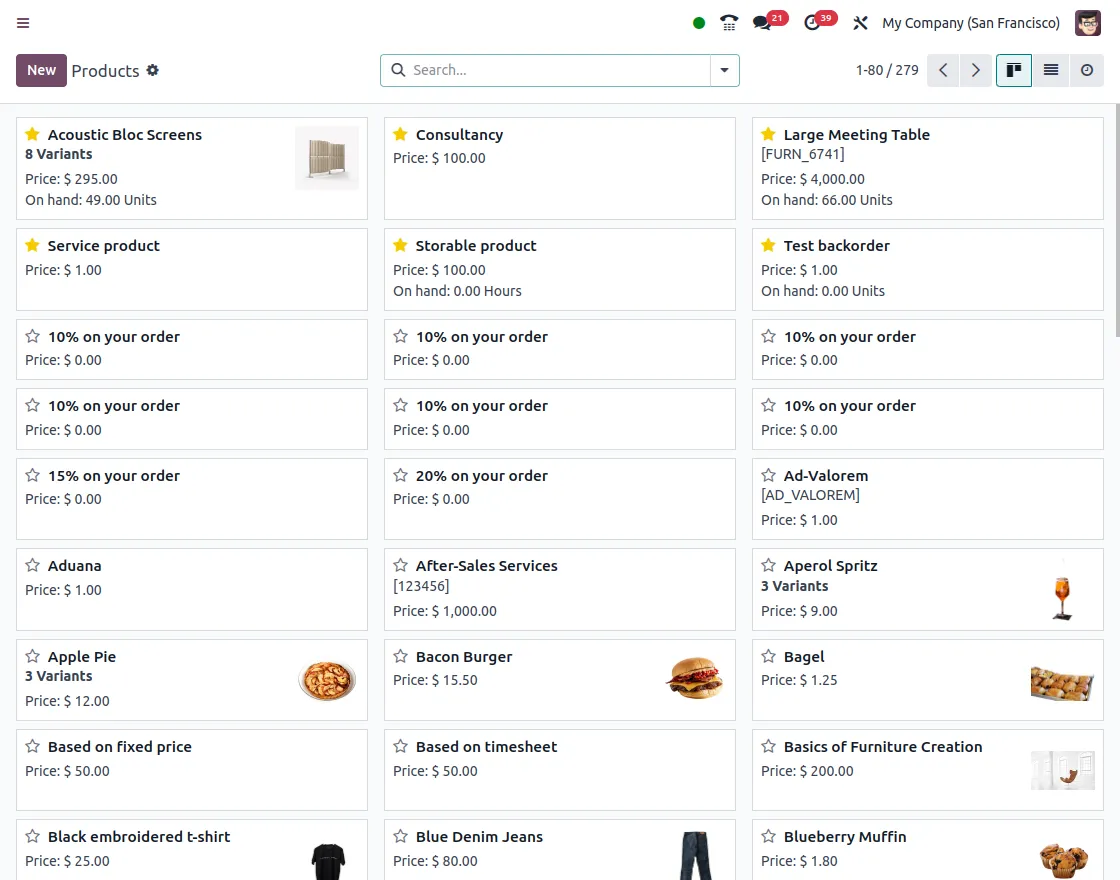
1. After installing the module, go to Sales → Products → Products. The Products page displays the available products. Open the product for which you want to configure delivery options.
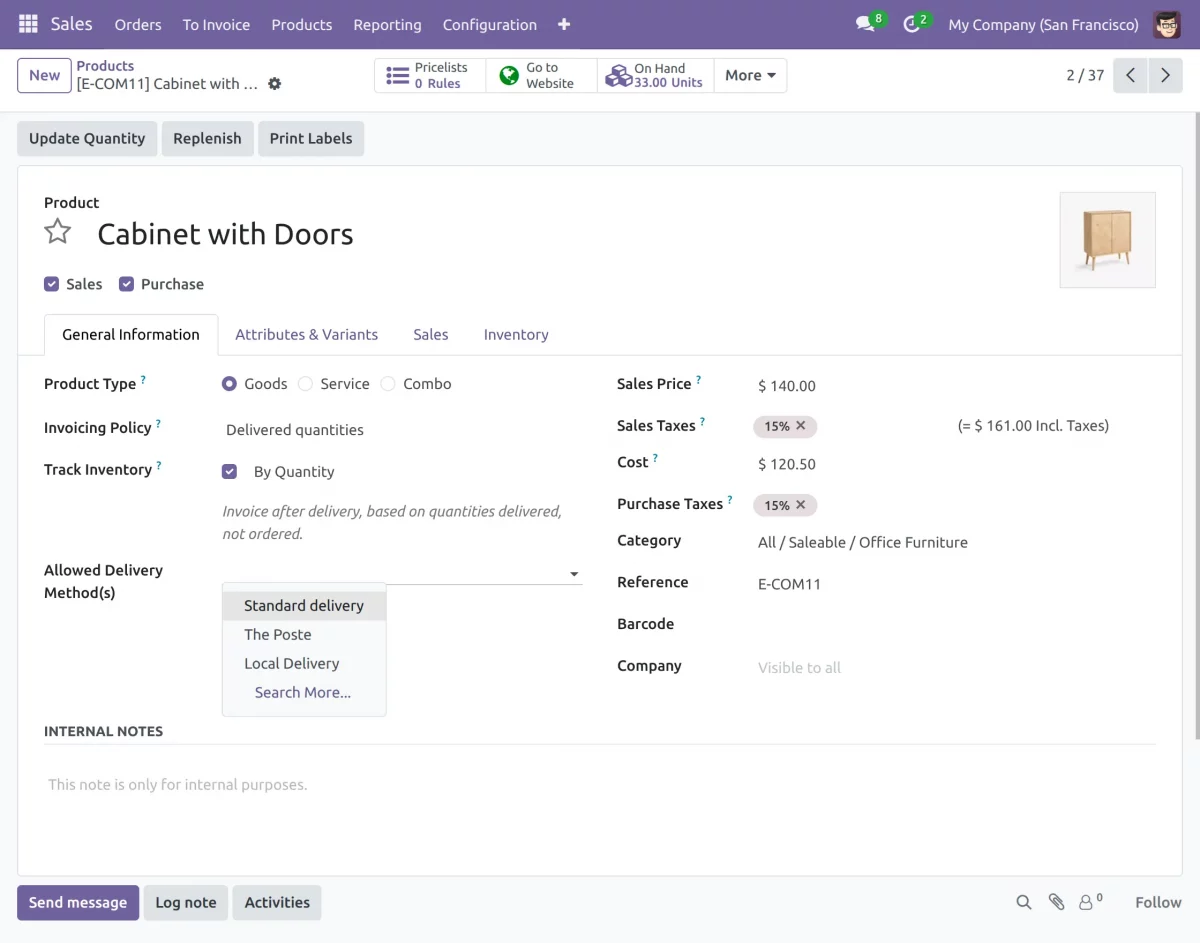
2. Open the required product and configure the Allowed Delivery Method(s). Add the delivery methods that can be used for shipping this product.
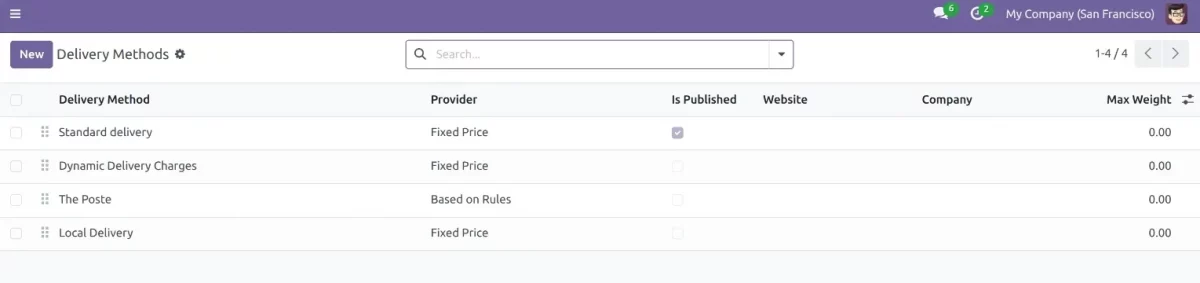
3. Now, go to Sales → Configuration → Delivery Methods to view the available delivery methods.
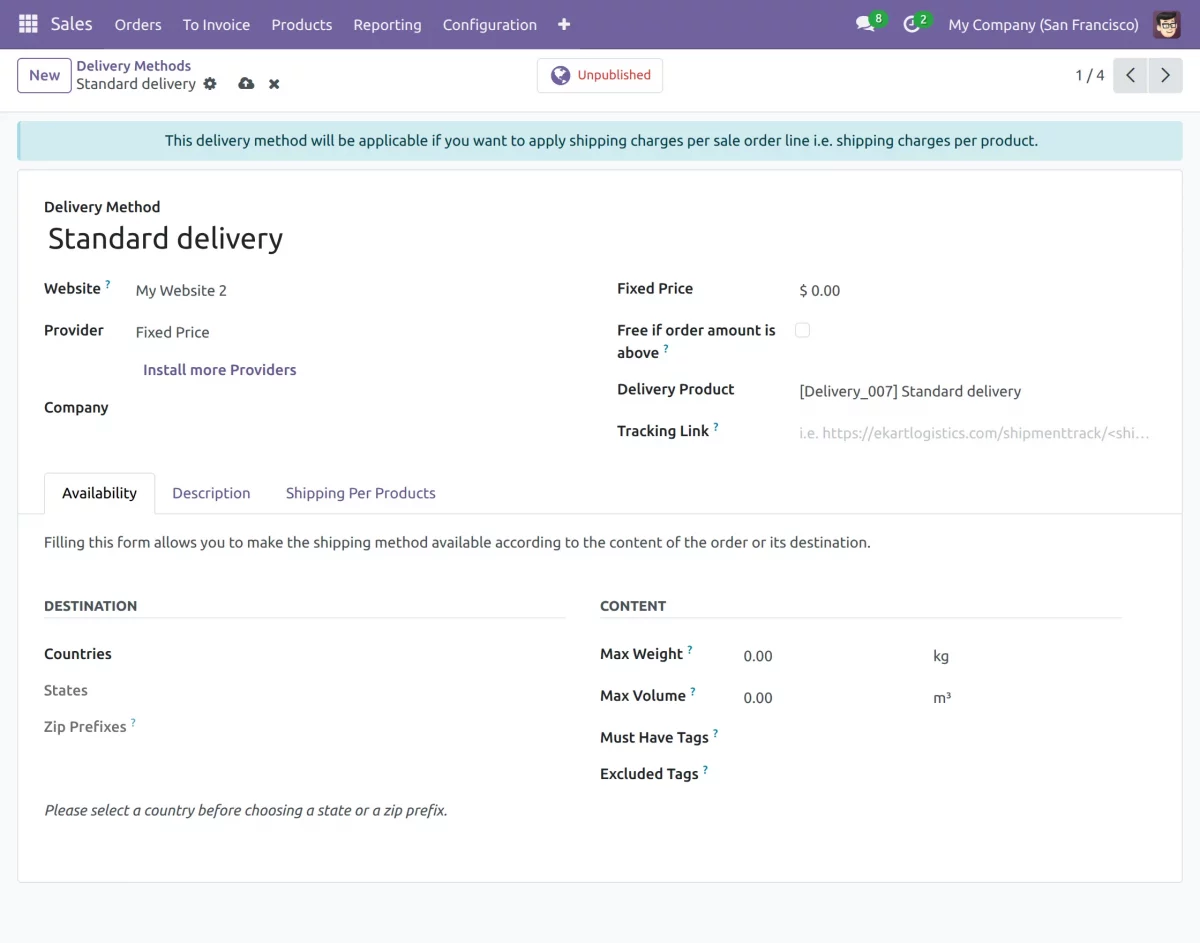
4. Open the required delivery method to configure its shipping settings. You can set the Website, Provider, Fixed Price, Delivery Product, Tracking Link, and other available options.
5. Open the required delivery method and go to the Configuration tab. Enable Delivery Order Grouping to group products that use the same delivery method.
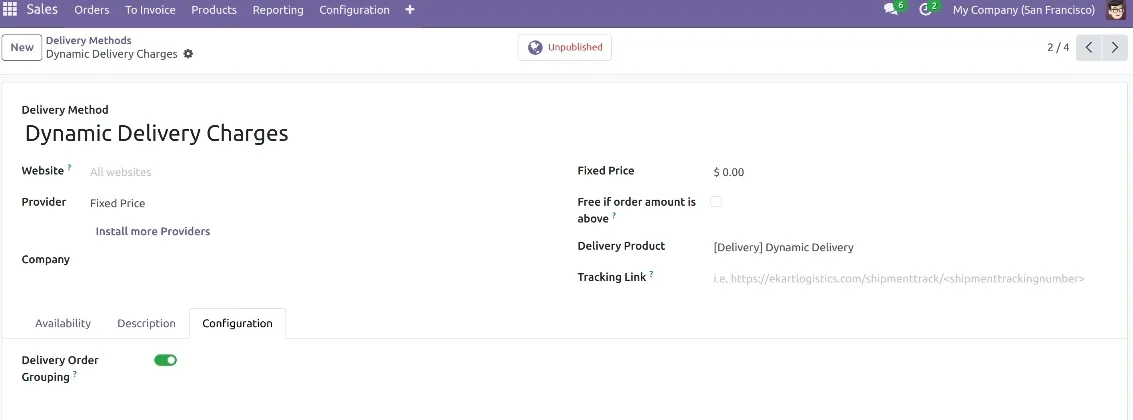
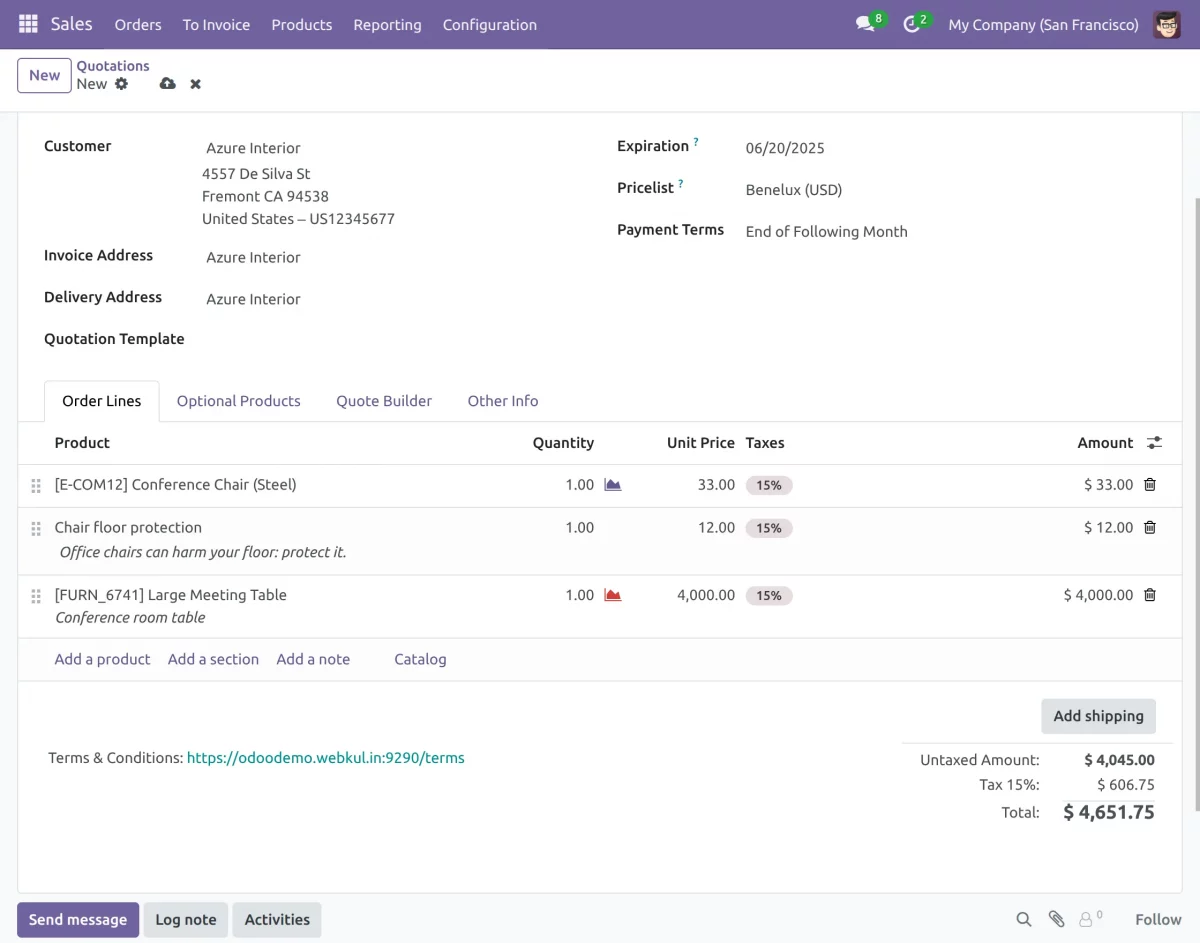
6. To create an order from the backend, go to Sales → Orders → Quotations and click New. Select the customer and add the required products to the order lines.
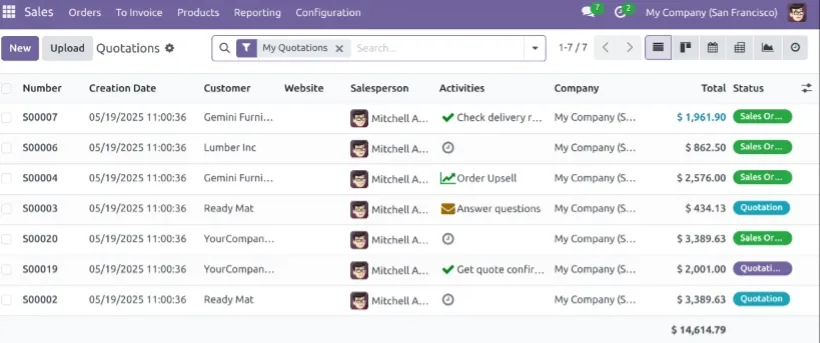
7. After adding the products, click Add Shipping to configure the delivery charges for the order.
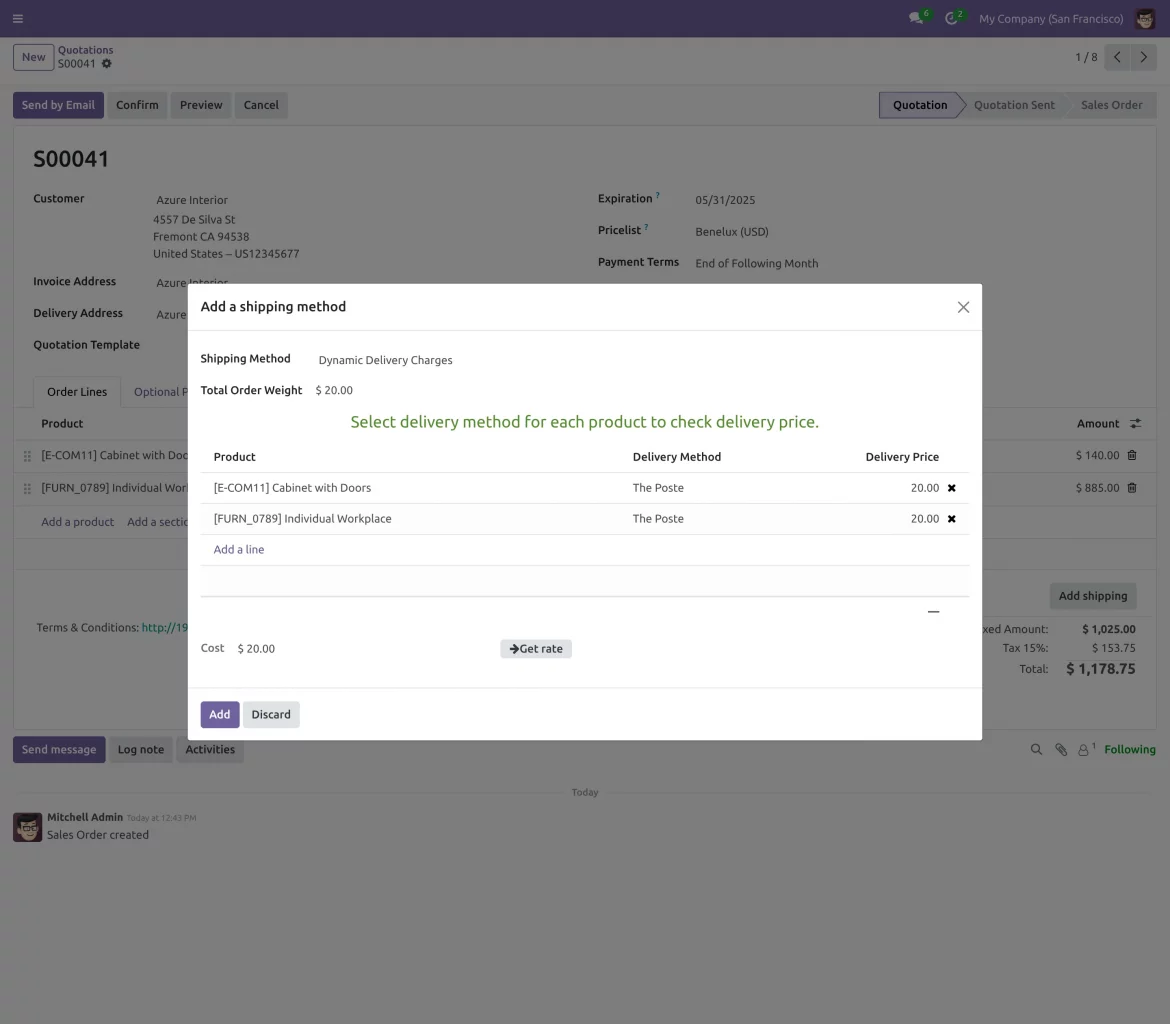
8. In the Update Shipping Cost window, select the required delivery method for each product. For Dynamic Delivery Charges, choose the delivery method and click Get Rate to calculate the shipping cost.
When Delivery Order Grouping is enabled for products using the same delivery method, Get Rate combines their shipping charges into a single shipment price.
WEBSITE VIEW-
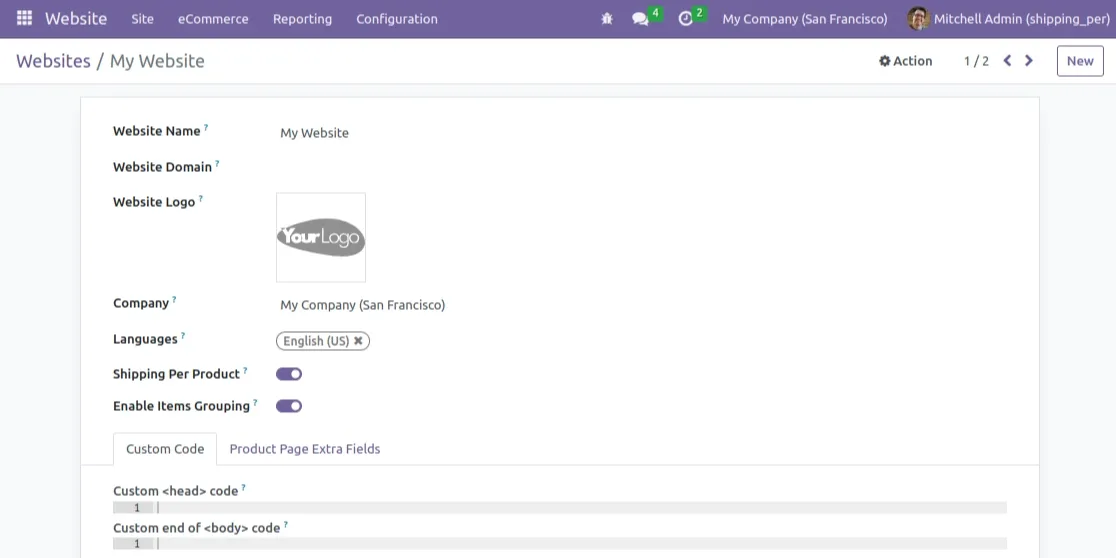
1. Go to Website → Configuration → Websites and open the required website. Enable Items Grouping to combine shipping charges for products using the same delivery method.
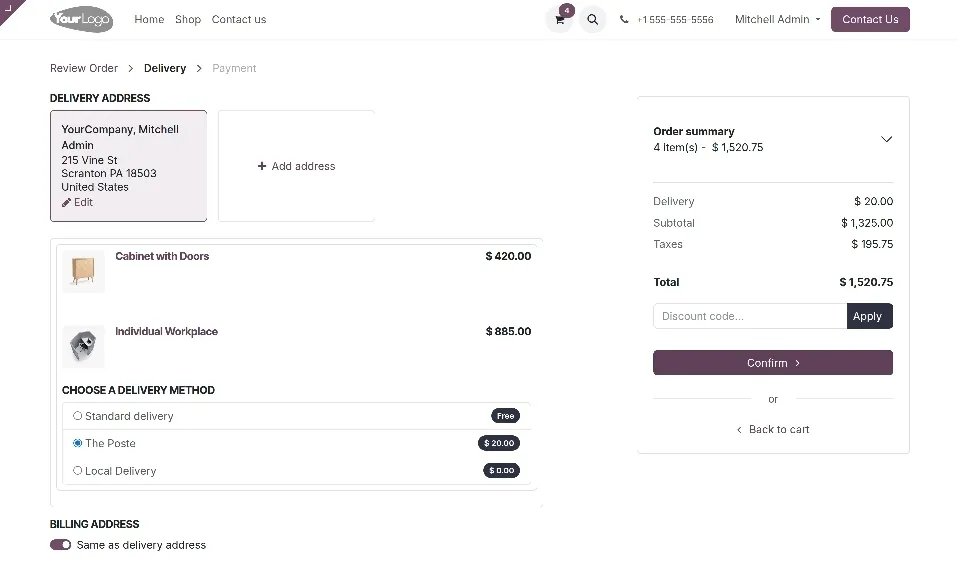
2. Add products to the cart and proceed to checkout. Customers can choose a delivery method for each product. With Items Grouping enabled, products using the same method are grouped, and their charges are combined.
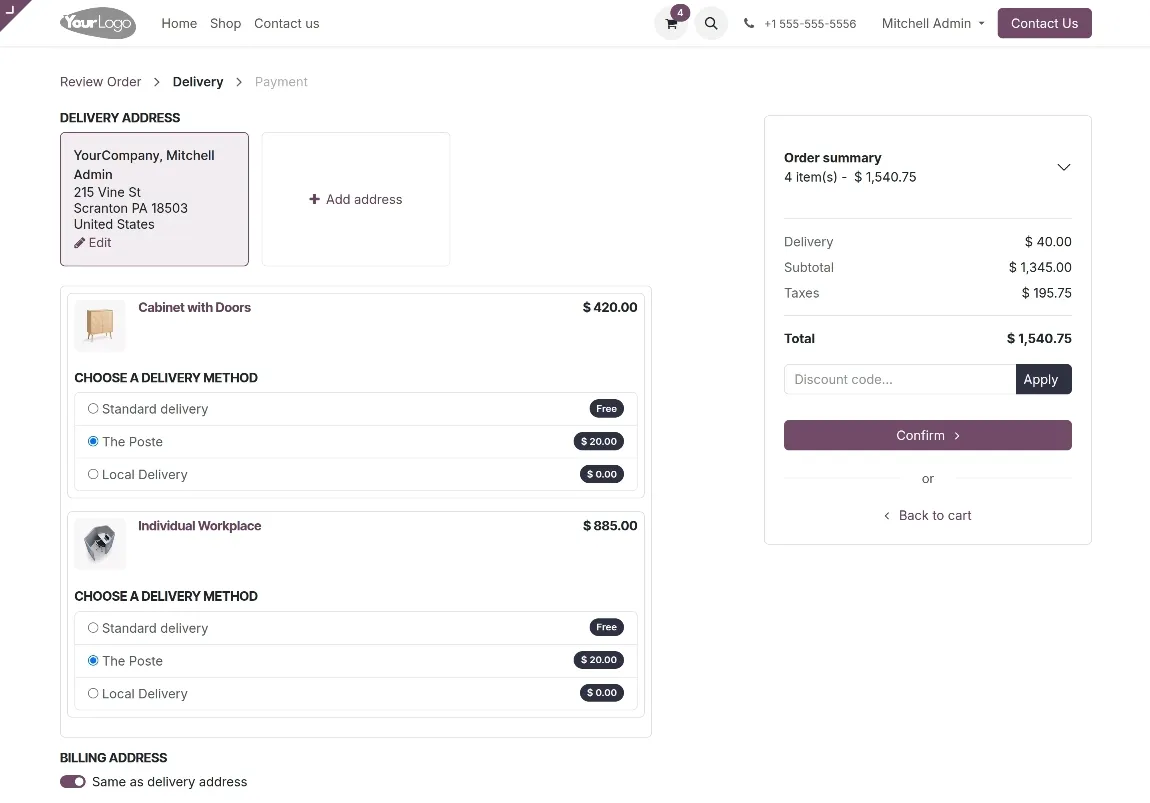
3. When Items Grouping is disabled, products using the same delivery method are not grouped. Their delivery charges are added separately to the order total.
Need Help?
Hope you find guide helpful! Please feel free to share your feedback in the comments below.
If you still have any issues/queries, please create a ticket at the UV Desk.
I hope this helps. In case of any further queries, contact us at our support mail.
Thanks for paying attention!!
Current Product Version - 1.0.1
Supported Framework Version - Odoo V19, V18, V17

Be the first to comment.