


















“Can I get the 1 kg bag of decaf for under $30?” A shopper looking at your store can select the larger bag and see the price change.
An AI shopping agent answering the same question might read the $12 starting price for the 250 g bag. It has found the right coffee, but it could still give the shopper the wrong answer.
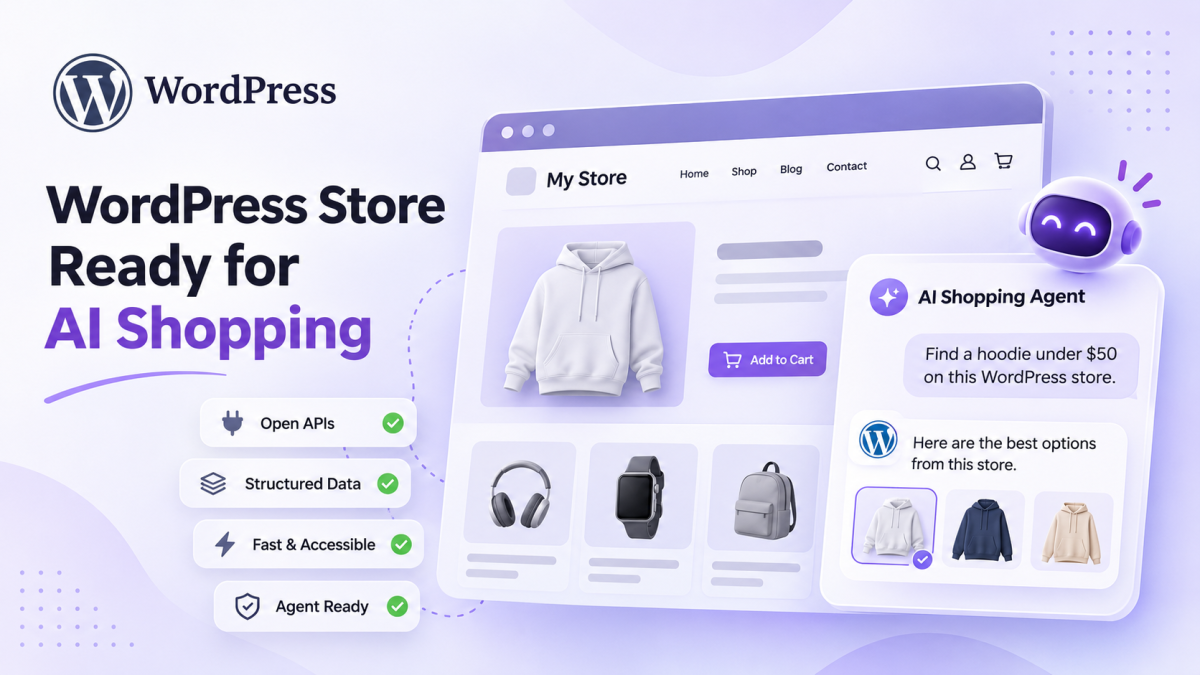
An AI shopping agent uses product information to answer questions and help someone choose what to buy. For your WordPress store, readiness starts with three practical questions.
Can an agent find the product? Can it match a price and stock status to the exact option the shopper wants? Can it find the next step, whether that’s reading the shipping policy or adding that option to a cart?
What Webkul’s WordPress agent checker does
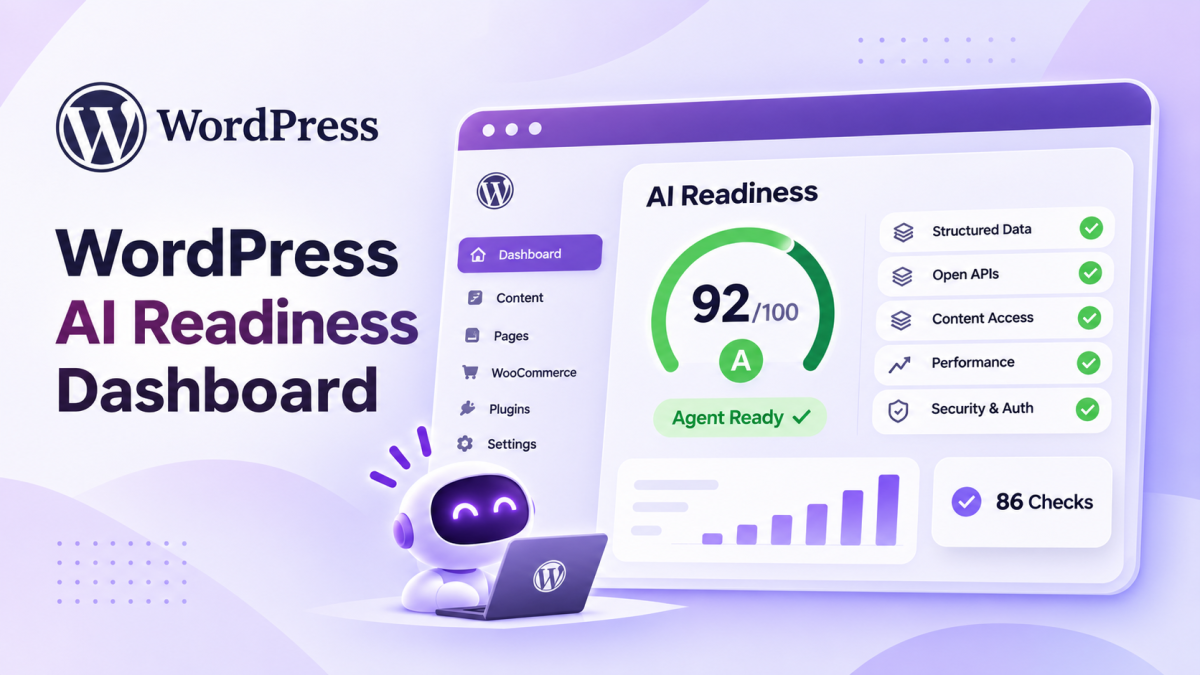
Our WordPress AI Agent Checker reads the pages and public data your store serves to a visitor who hasn’t signed in. You enter your store URL and get a readiness score from 0 to 100, an A–F grade, and findings you can open to inspect the evidence. You can run it without an account.
If you’re choosing a website agent checker for a WordPress store, look for one that can read both sides of a shopping question. WordPress might hold the page explaining your coffee subscription terms. WooCommerce holds the bag sizes, prices and stock. Our report shows how it identified each platform and checks the public information each one supplies.
How to check your WordPress store
- Enter your store URL. Open the checker and paste your public storefront address into Website URL.
- Choose your checks. Leave Everything selected for a first scan. Its library lists 86 checks, and the scanner runs those that apply to your site. To investigate a particular issue, open Customize scan and select a group such as Product data or WooCommerce.
- Complete the verification and select Scan. When the report opens, read the assessment beside your grade. It summarizes what an agent could access and where it ran into trouble.
- Open a finding that affects a purchase. For a price or stock issue, look for the product and variation in the evidence. The report can show the relevant HTML, a response header or data from a public API.
- Follow the fix guide and scan again. Use the steps yourself or share the evidence and copy-ready prompt with whoever maintains your store. Run the same URL with the same checks, then reopen the finding to verify the change.
What we check on WordPress and WooCommerce
| Question about your store | What the checker looks at |
|---|---|
| Can an agent find a published page? | The scanner reads your XML sitemap, samples its links and checks redirects, preferred page addresses and crawler rules in robots.txt. |
| Can it read your guides and policies? | It inspects the WordPress REST API, which can supply published posts and pages to other software. It also samples a post or page to see whether its block text arrives in the initial HTML. |
| Can it tell what an item costs? | It looks for names, prices, availability and variants in product HTML. On a detected WooCommerce store, it also inspects the catalog data exposed by the Store API. |
| Do your plugins describe the same offer consistently? | It inspects structured data, the machine-readable descriptions embedded in a page. Two plugins can identify the same product yet publish different prices for it. |
| Can an agent follow the purchase path? | It examines search and variation controls, add-to-cart actions, the anonymous cart, checkout links and whether store policies are discoverable. |
| Can an automated visitor access and navigate the site? | It checks for login gates and bot challenges, examines HTTPS and response headers, and looks at headings, image descriptions, page language and links to API documentation. |
The two APIs answer different questions. WordPress can expose the page where you explain when coffee orders ship. The WooCommerce Store API can supply the product data for the bag a shopper wants to order.
How to use a finding when two prices disagree
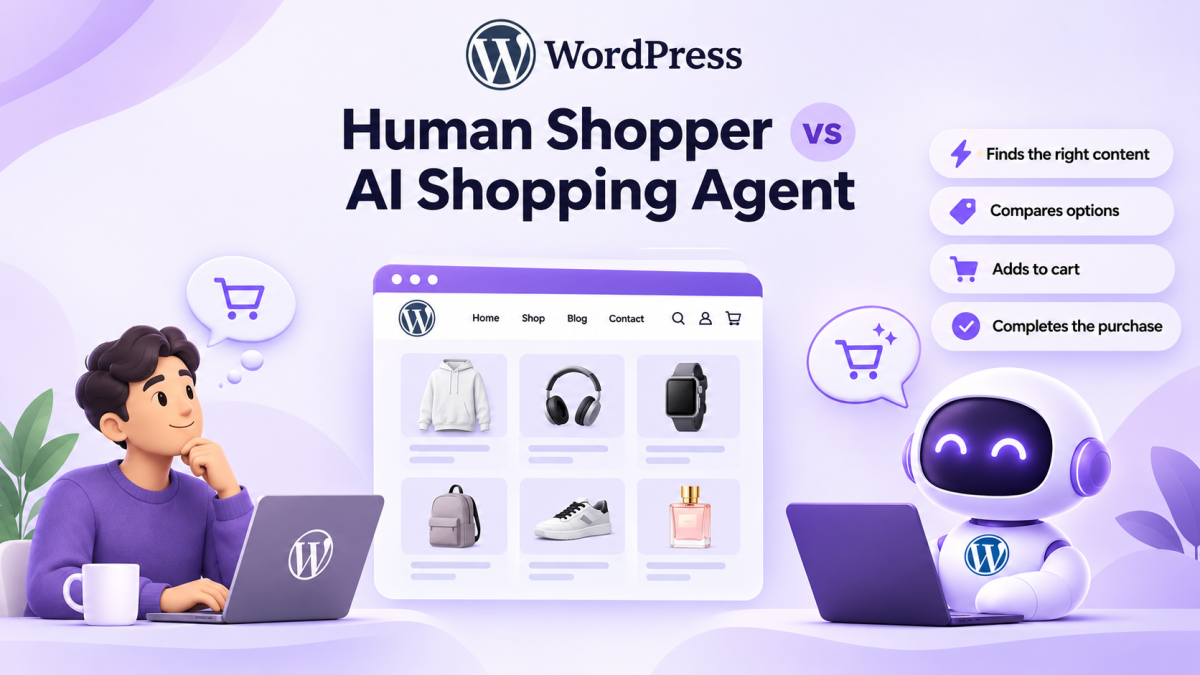
Webkul’s sample report gives a store 84/100 and a B, with 52 of 59 applicable checks passing. An agent can browse the catalog, yet the product page and the Store API quote different prices. That single finding matters to anyone asking whether a purchase fits their budget.
Suppose the 1 kg bag costs $32. Select that size on the storefront and confirm the current price in WooCommerce. Then open the evidence for the flagged page. If the page’s machine-readable offer pairs the 1 kg size with the $12 price for the smaller bag, you have a specific correction for your developer.
Ask them to update the theme or plugin generating that offer so it uses the selected variation’s price. After the next scan, verify that both public sources identify the 1 kg bag at $32. An agent now has a consistent answer to the shopper’s under-$30 question.
Pick one question your customers regularly ask about price, stock or shipping. Run the scan, open the finding closest to that question, and see whether the evidence supports the answer you would give across the counter.

Be the first to comment.