Overview
With the Option & Variant Swatches App for Wix, store owners can enhance product pages with visually appealing colour swatches, image tiles, and textured patterns.
Integrate patterned backgrounds and image-based options that align perfectly with your store’s branding and design.
Easily customize product option templates with different colours, sizes, and tile patterns to create an engaging and user-friendly shopping experience.
Workflow
Go to the Templates section of the Option & Variant Swatches App. Here, you can find multiple templates.
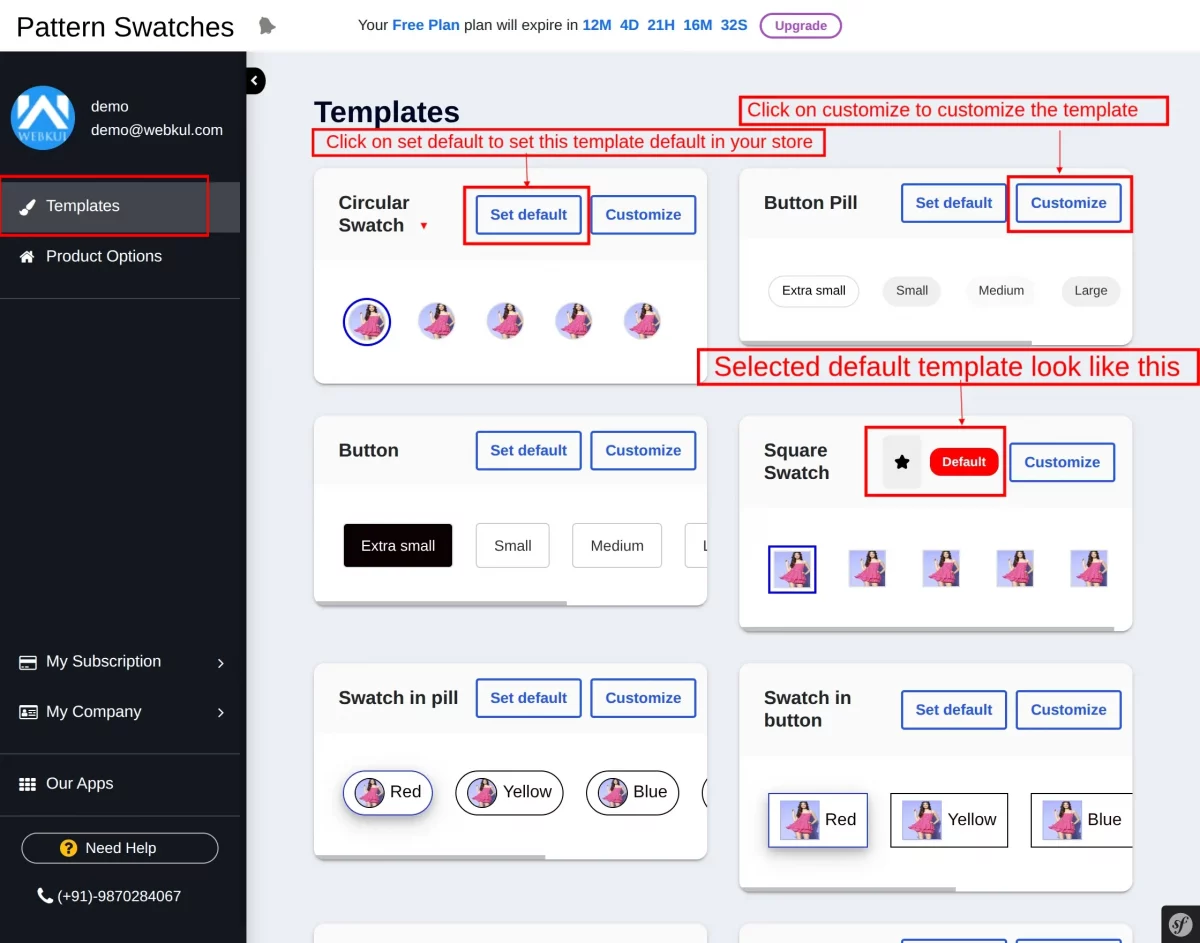

Choose a compatible template and click on “Set default” to apply that template to the product option.
Customize the Template
Click on Customize to customize or edit the template and add features according to our requirements.
Customize the template and click on Create to save the changes in the template.

Product Options in Wix
Go to Wix >> Catalog >> Product >> Add product option
Important Note: Kindly ensure that the colour option is selected when creating the Add Product Options.
The swatch functionality works only when the option type is set to Colour. Ensure you select Colour while creating the product option.

Go to Product Options, and click on the “More actions” dropdown, where two options are available, “Create Options” and “Import Options”, you can choose any one.
- Click on Create Options to create the options for particular products. i.e., colours, size, etc
- Click on Import Options to import a file from the browse or a folder.

Write the option name in the first input field, then choose a template from the dropdown.
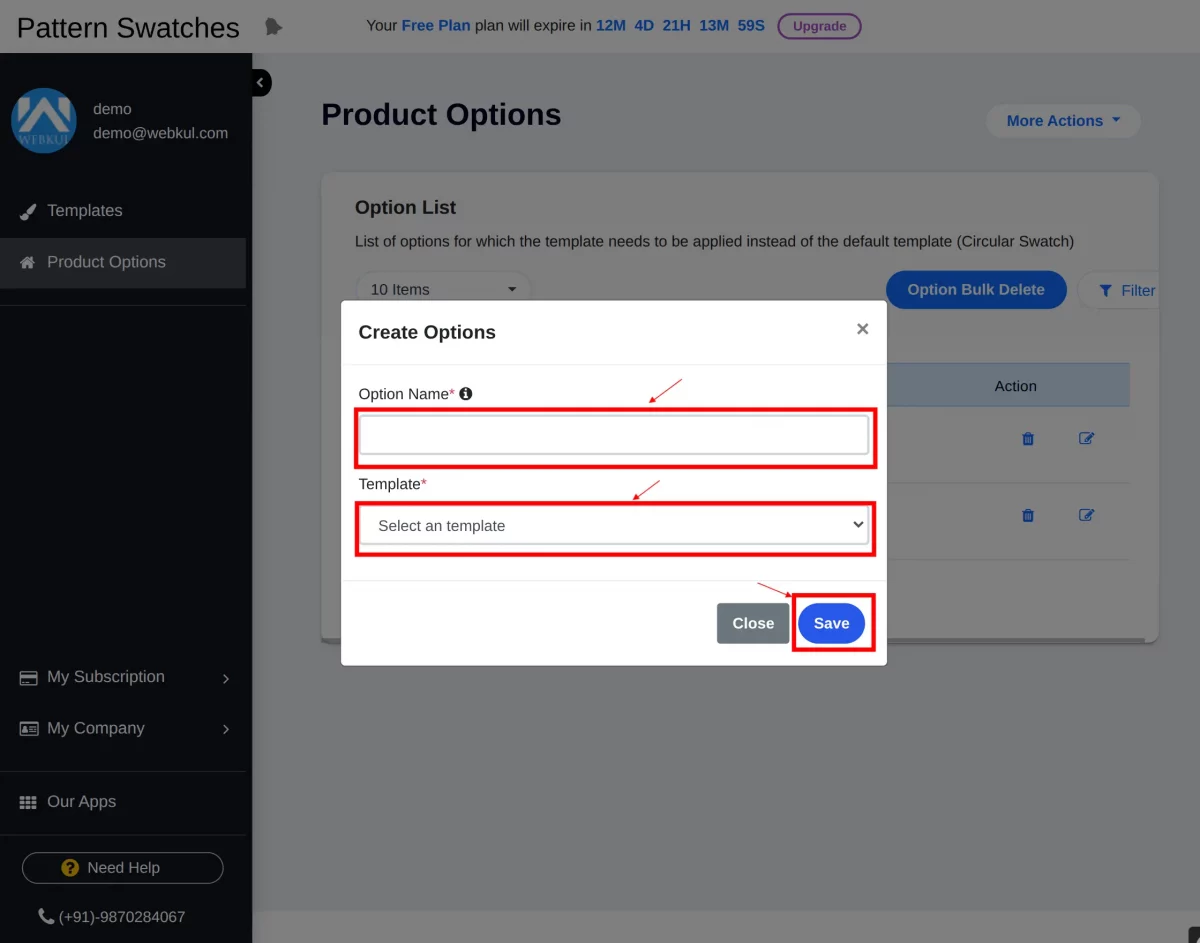
Then click on “Save” to create options for the product.
You will get a pop-up that shows the option was saved successfully.
The list of options is visible as shown in the screenshot below.

Choose a delimiter from the dropdown to auto-generate product combinations (like size + colour).
Then choose your file from the browser.

Click on Import to import the selected files.
Got a message of Option Created successfully, and then click on the “Close” button.

File imported successfully and is visible on the list of product options as shown in the screenshot below.

Delete Options
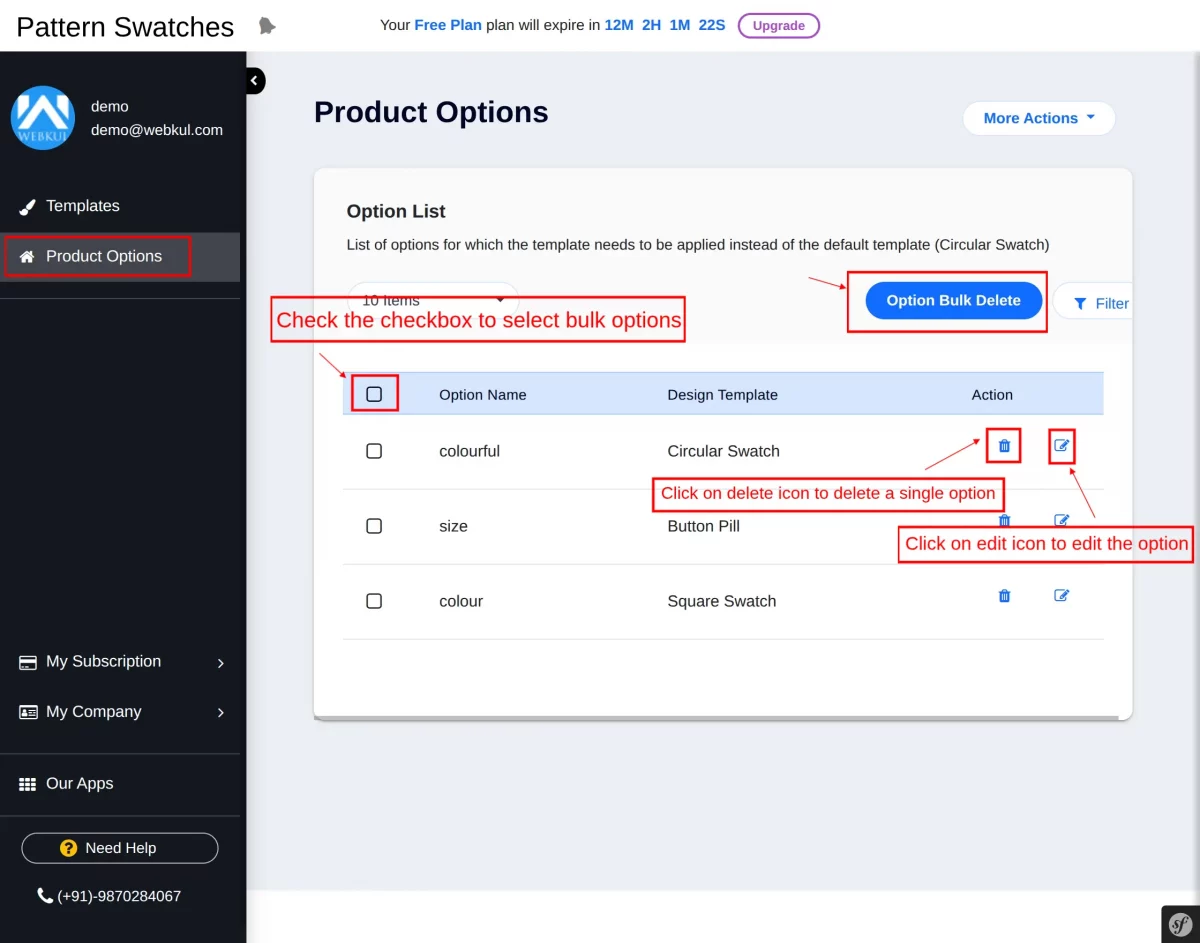
Delete options in bulk by selecting multiple options using the checkboxes and clicking the “Bulk Delete” button to remove them all at once.
- Click on the delete icon to delete a single option.
- Click on the edit option to edit product options.
Product Storefront View
The storefront view of the product after applying the Option & Variant Swatches App is displayed as shown in the screenshot below.

WEBKUL SUPPORT
I hope this blog will help you understand the complete process involved in the Option & Variant Swatches App for Wix. If you have any queries, please generate a ticket at https://webkul.uvdesk.com.
For More Development on Wix, contact us.

Be the first to comment.