Introduction
Odoo Website Monetico Payment Acquirer helps businesses accept secure online payments through Monetico on their Odoo website. Customers can select Monetico during checkout and complete payments using a secure payment process.
Odoo Website Monetico Payment Acquirer connects your Odoo website with the Monetico payment gateway. It helps businesses manage website payments, monitor transactions, and keep payment records organized from the Odoo backend.
Features
- Accept secure online payments through Monetico.
- Add Monetico as a payment option during website checkout.
- Support multiple currency payments for website orders.
- Manage Monetico settings from the Odoo backend.
- Control payment availability for website transactions.
- Track payment details for website orders.
- Keep payment records linked with sales orders.
- Update payment status after successful transactions.
- Review payment activities from one place.
Installation
- Once you purchase the App from Webkul store, you will receive a link to download module’s zip file.
- Extract the file on your system after download finishes. As a result, you will be able to see a folder named- ‘wk_payment_monetico’.
- Copy and paste this folder inside your Odoo Add-Ons path.
- Now, open Odoo App and click on the Settings menu. Here, click on Activate Developer Mode.
- Then, open Apps menu and click on ‘Update Modules List’.
- In the search bar, remove all the filters and search ‘wk_payment_monetico’.
- You will be able to see module in the search results. Click on ‘Activate’ to install it.
Workflow
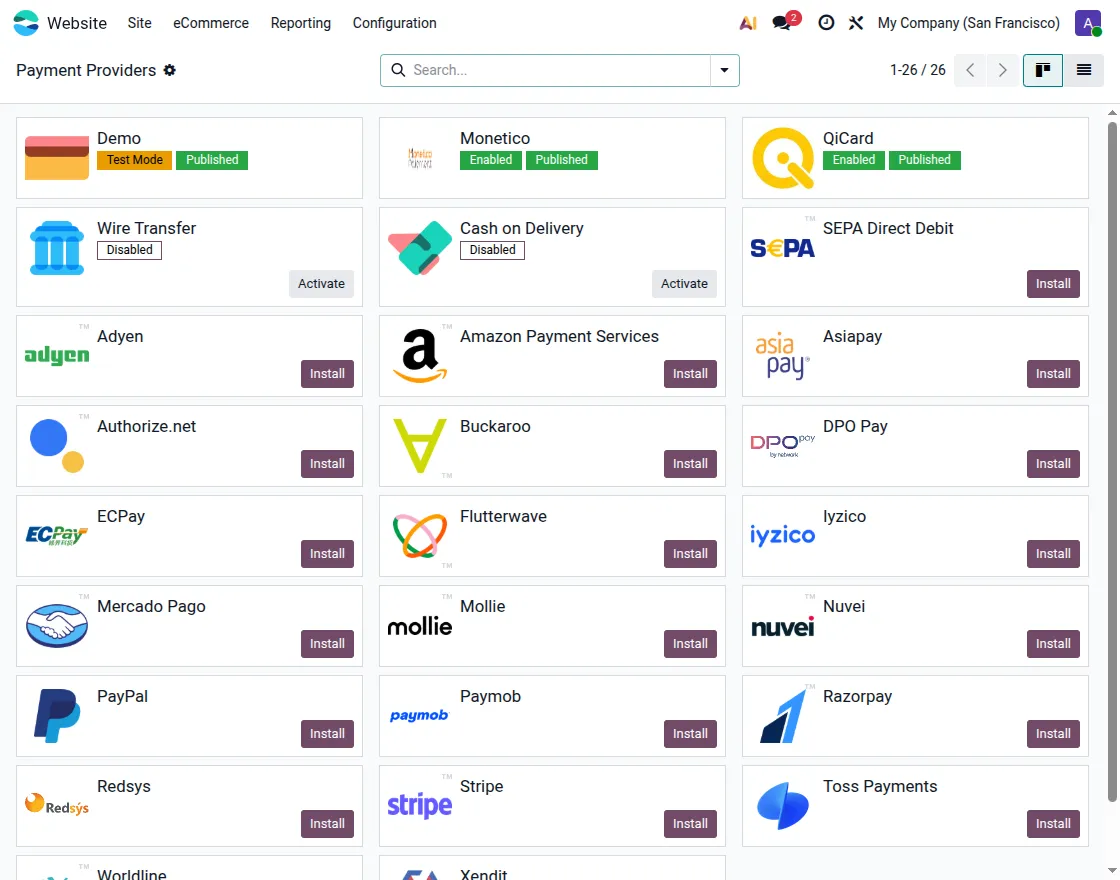
1. Payment Providers List
Go to Website > Configuration > Payment Providers. Then, open the Monetico payment provider from the available payment methods.
This lets you access the Monetico settings and prepare the payment provider for website transactions.
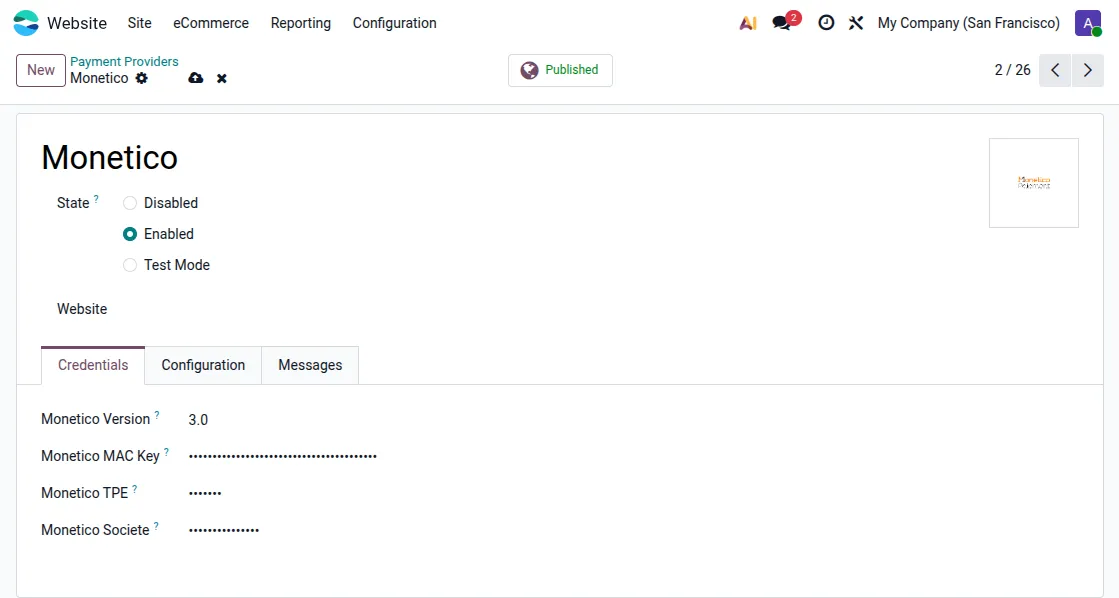
2. Monetico Credentials Configuration
Open the Credentials tab in the Monetico payment provider. Then, enter the required Monetico account details and payment credentials.
Finally, save the information to connect Monetico with your Odoo website.
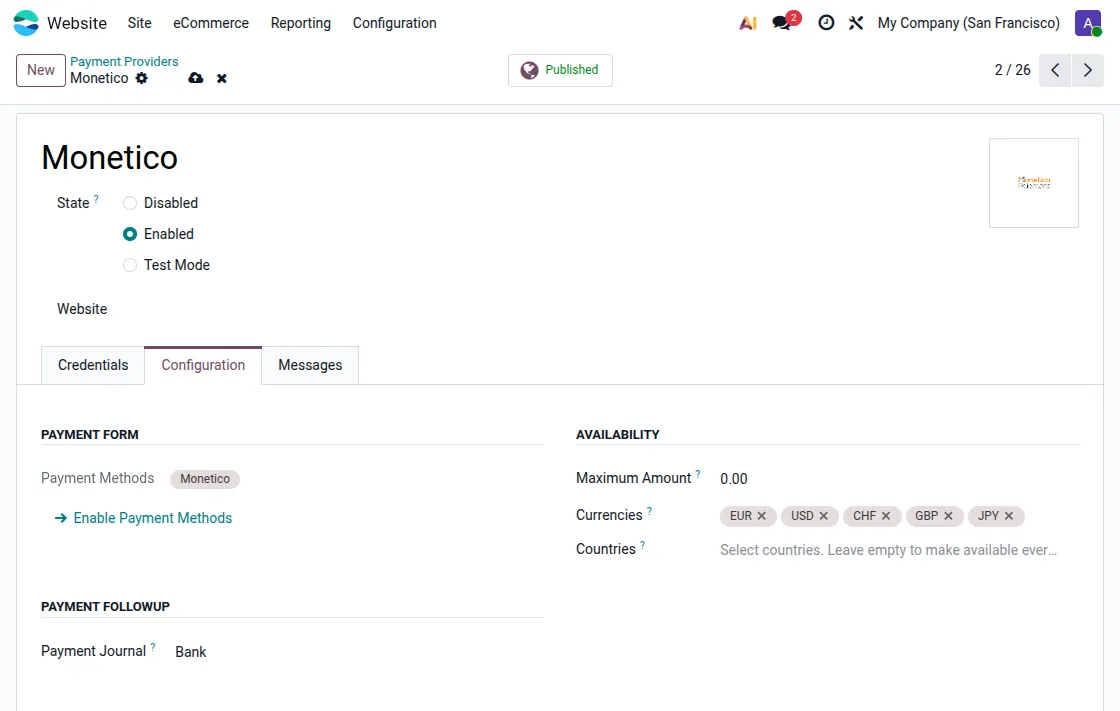
3. Monetico Configuration Tab
Open the Configuration tab in the Monetico payment provider. Then, manage payment methods, supported currencies, and website availability.
Furthermore, configure the payment journal and save the settings for website payments.
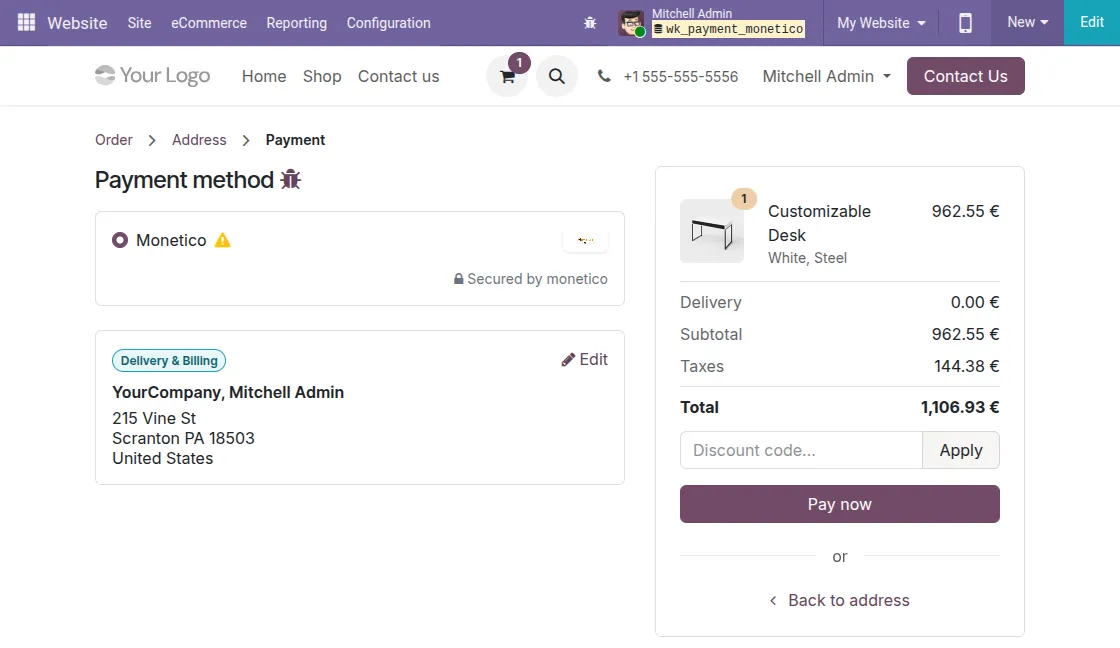
4. Payment Method Selection
Add products to the cart and proceed to the website checkout page. Then, select Monetico as the preferred payment method.
Finally, click Pay Now to continue with the payment process.
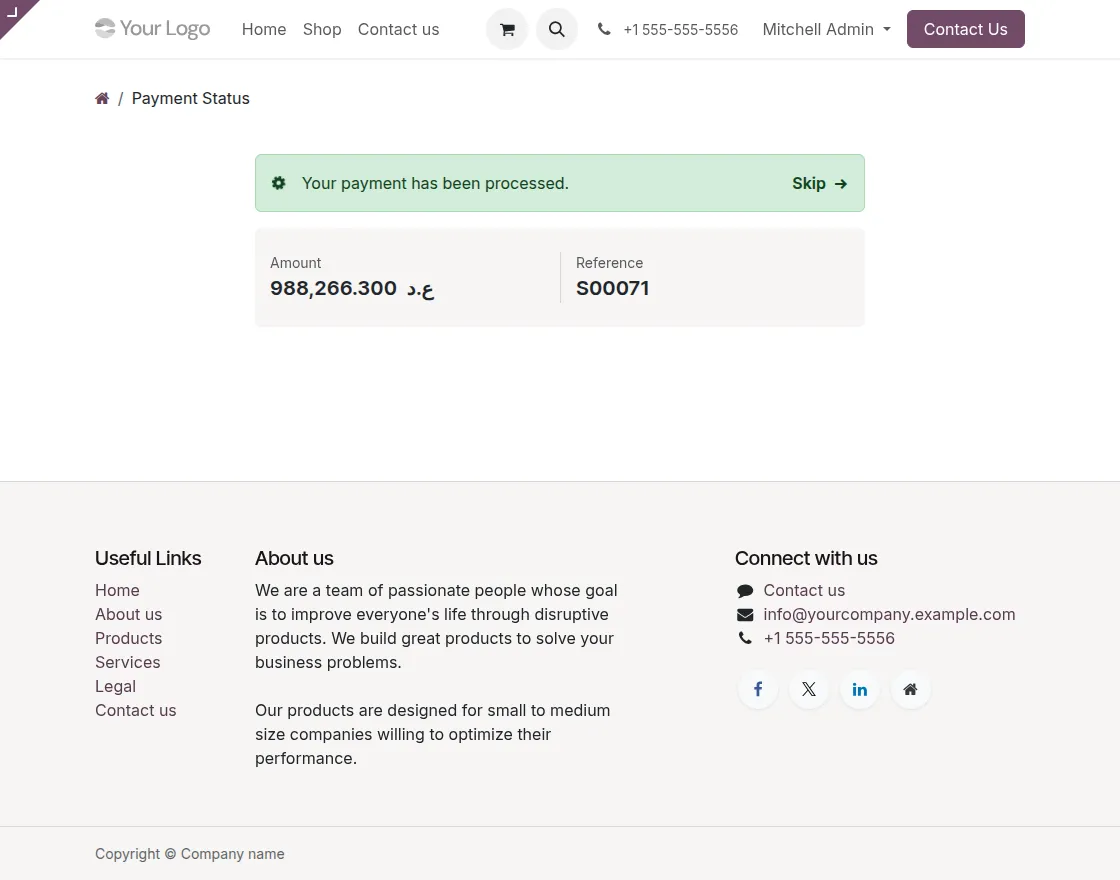
5. Payment Status Page
After clicking Pay Now, customers are redirected to the Monetico payment page. Then, enter the required card details and complete the payment process.
Once the payment is done, the Payment Status page opens automatically. It displays the payment result along with the transaction amount and reference number.
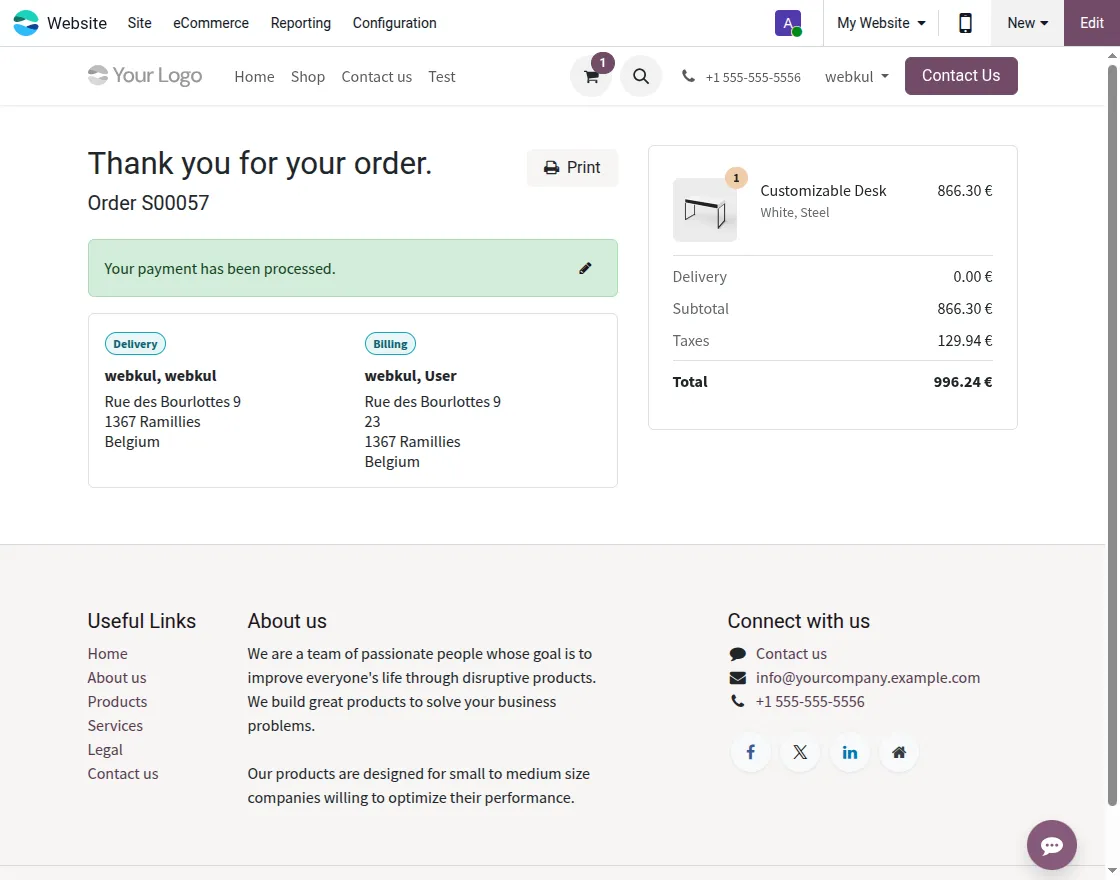
6. Order Confirmation Page
After a successful payment, the website displays the order confirmation page. Customers can review the order summary and payment details.
The processed payment message confirms that the transaction was completed successfully.
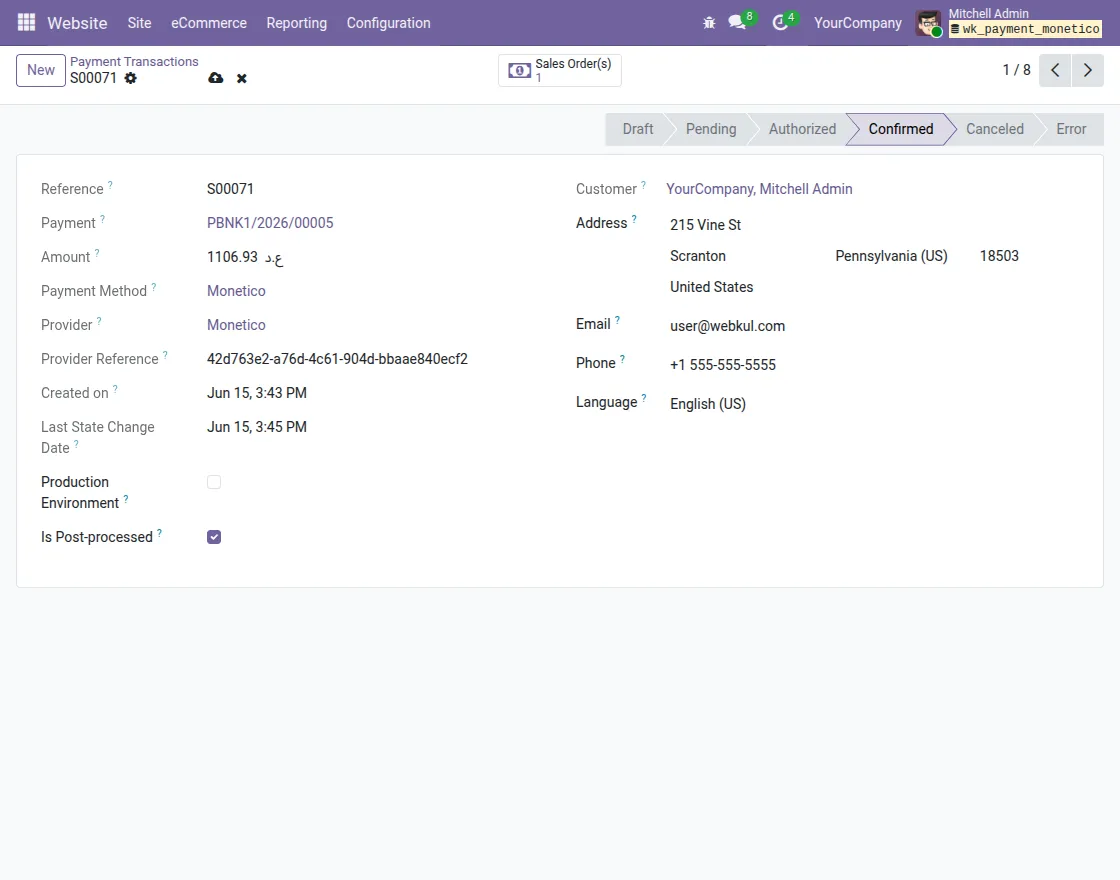
7. Backend Payment Details
Open the payment transaction record from the Odoo backend. Then, review the payment reference, customer information, provider details, and transaction status.
Furthermore, payment records remain available for future tracking and management.
Note: You must enable Developer Mode in Odoo to access and view payment transaction records from the backend.
Need Help?
Hope you find guide helpful! Please feel free to share your feedback in the comments below.
If you still have any issues/queries, please create a ticket at the UV Desk.
I hope this helps. In case of any further queries, contact us at our support mail.
Thanks for paying attention!!
Current Product Version - 1.0.0
Supported Framework Version - Odoo V19, V18, V17, V16

Be the first to comment.