INTRODUCTION
Odoo Employee Loan Management (Enterprise) helps companies manage employee loans in Odoo. Employees can request loans, while HR can approve, disburse, and track repayments.
This module automatically generates EMI schedules and deducts installments from employee payslips. It also maintains complete loan records and repayment history for future reference.
FEATURES
- Create multiple employee loan types with custom repayment rules.
- Define term & conditions and maximum loan amount limits easily.
- Set employee eligibility based on company experience policies.
- Submit employee loan requests through a simple application process.
- Review, approve, or reject employee loan requests quickly.
- Generate loan EMI schedules automatically after loan disbursement.
- Deduct monthly loan installments directly from employee payslips.
- Regenerate EMI schedules for missed or canceled installments.
- Track the complete loan lifecycle from request to settlement.
INSTALLATION
- Once you purchase the App from the Webkul store, you will receive a link to download module’s zip file.
- Extract the file on your system after the download finishes. As a result, you will be able to see a folder named- ‘hr_loan_enterprise’
- Copy and paste this folder inside your Odoo Add-Ons path.
- Now, open Odoo App and click on the Settings menu. Here, click on Activate Developer Mode.
- Then, open the Apps menu and click on ‘Update Modules List.’
- In the search bar, remove all the filters and search ‘hr_loan_enterprise’
- You will be able to see the module in the search results. Click on ‘Activate’ to install it.
WORKFLOW
1. After installing Odoo Employee Loan Management module, navigate to Employee Loans → Configuration → Loan Types and create different loan types for employees.
Configure the loan amount limits, tenure, and terms according to your company policy.
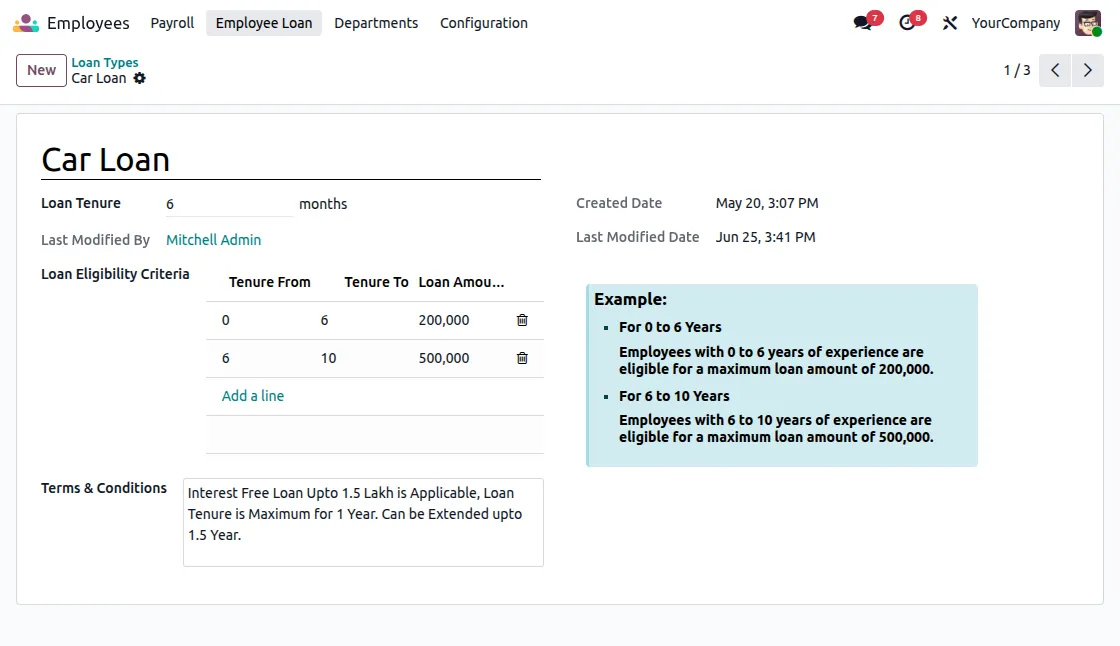
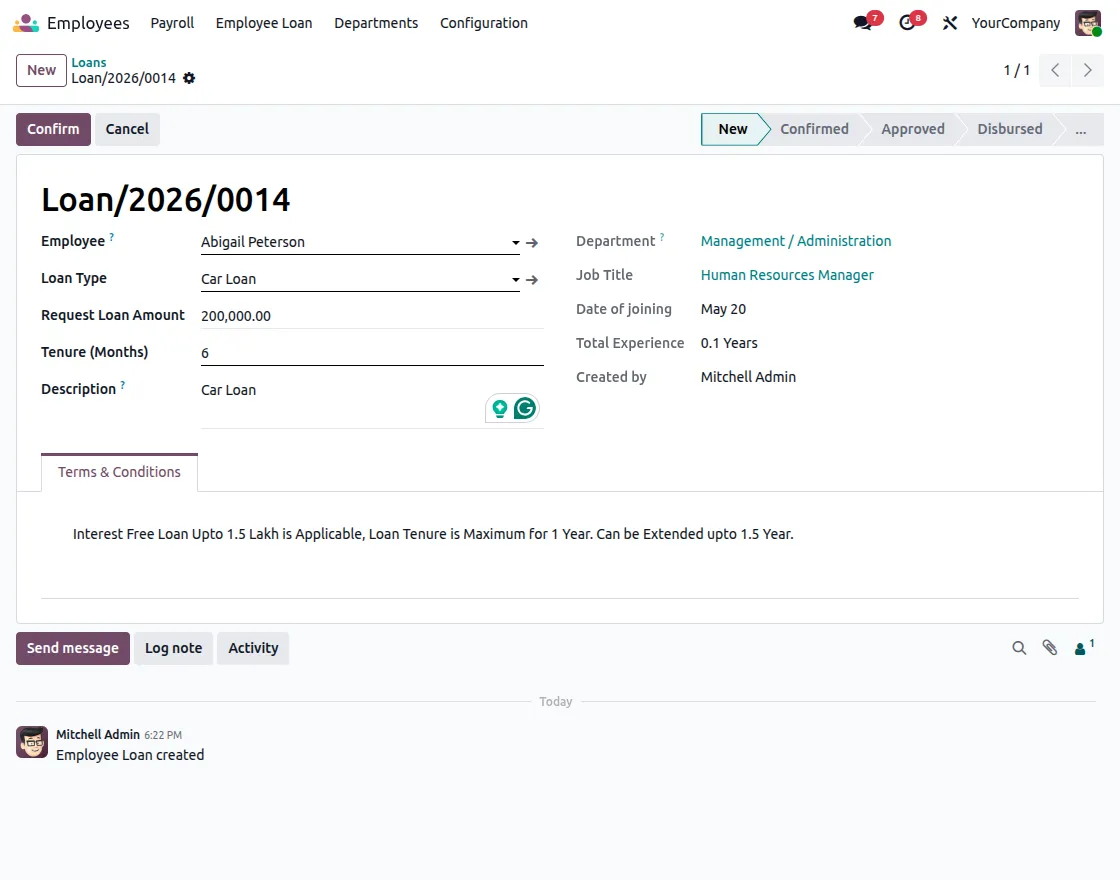
2. Employees can create a new loan request by selecting the loan type, entering the loan amount, and specifying the repayment period.
After submitting the request, they can track its status directly from their dashboard.
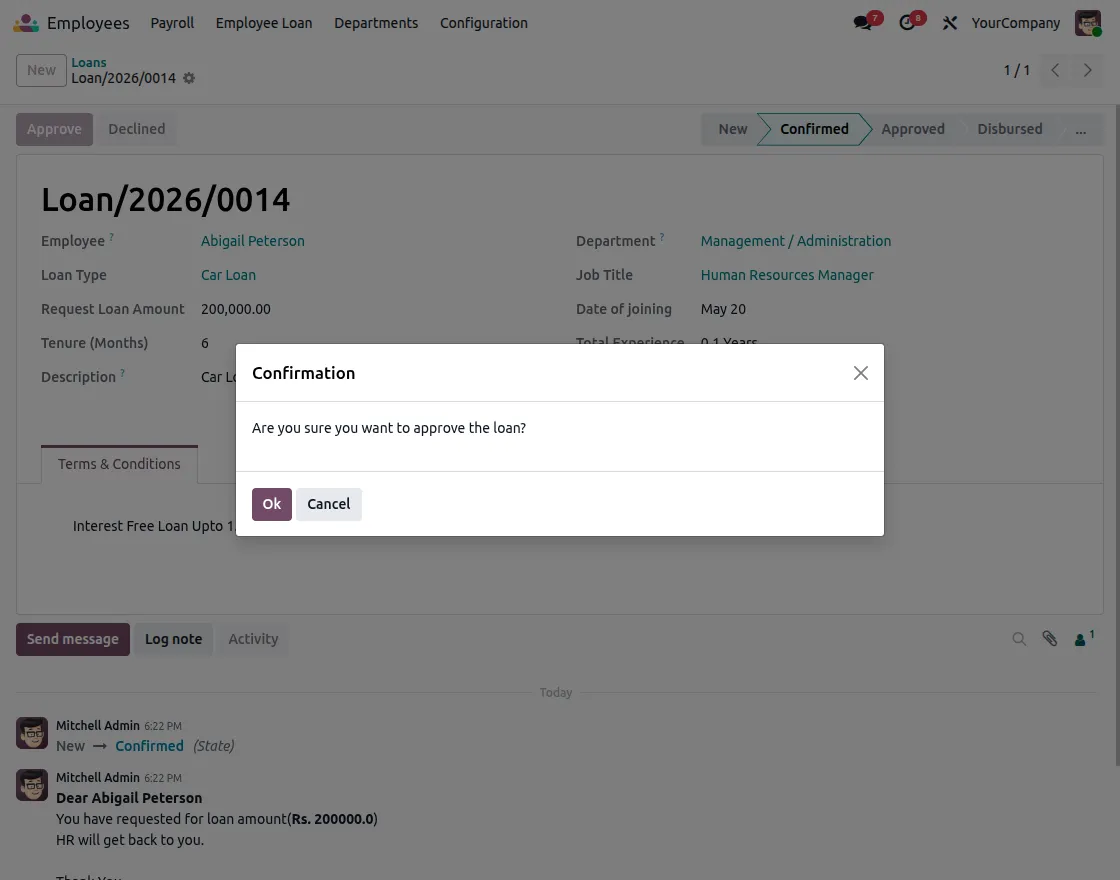
3. HR can review the submitted loan request and verify whether the employee meets the company’s policies.
The request can then be approved or rejected while maintaining a complete record of every application.
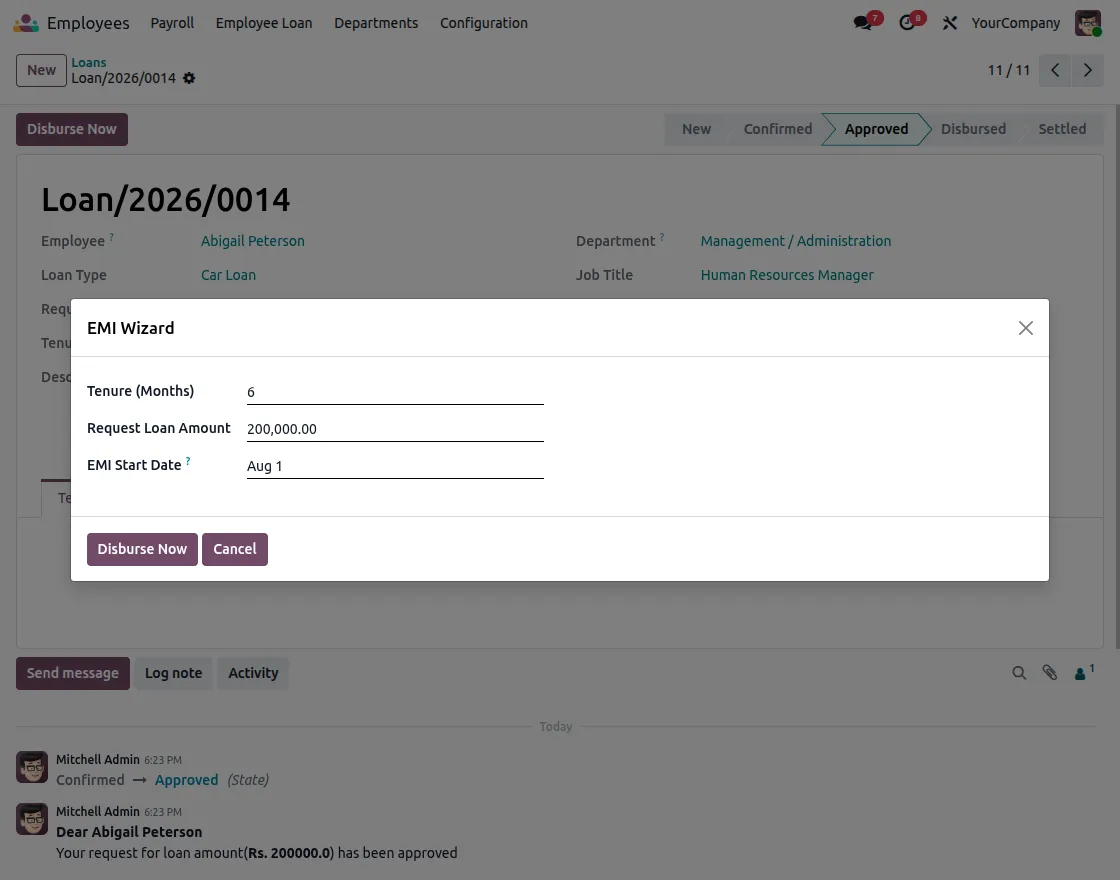
4. Once the request is approved, click Disburse Now and select the installment start date. The system processes the loan disbursement and prepares it for repayment.
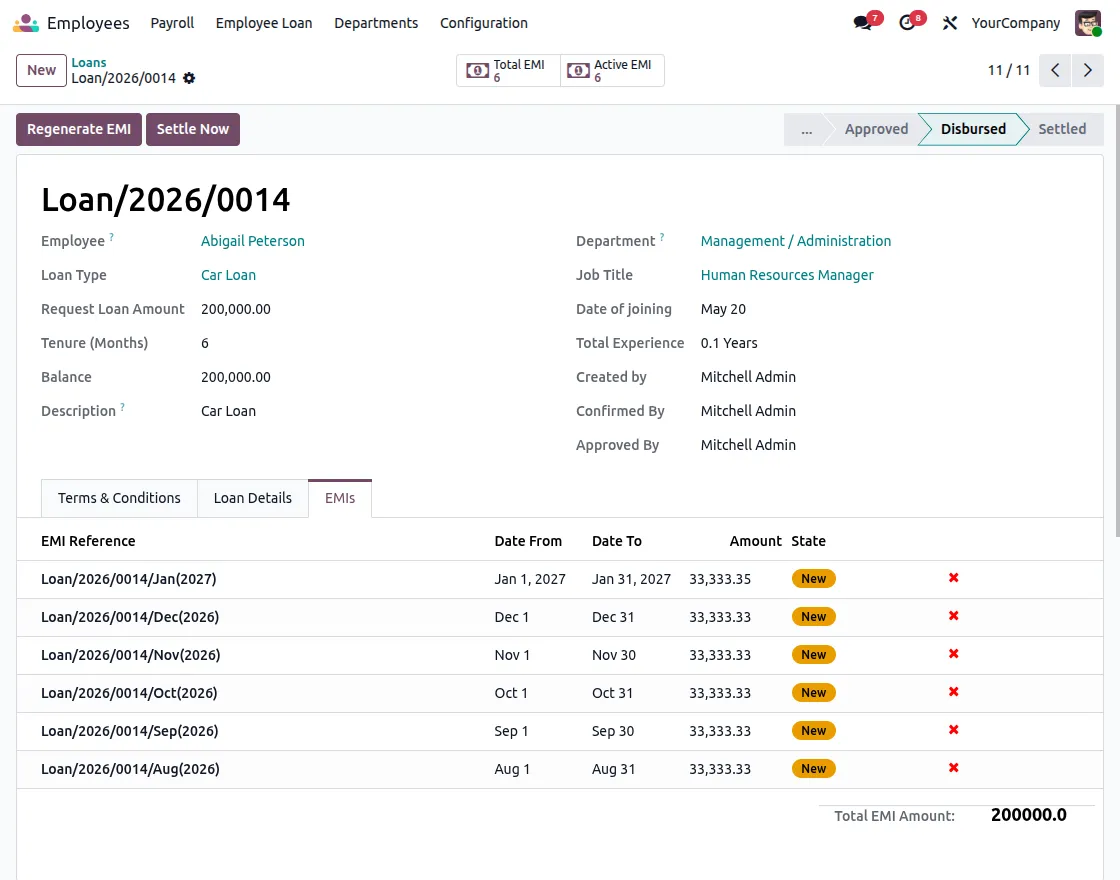
5. After loan disbursement, the module automatically generates the EMI schedule based on the selected repayment period.
The loan record includes smart buttons to quickly access Active EMIs and Total EMIs, along with the Loan Details and EMIs tabs for managing and tracking every installment.
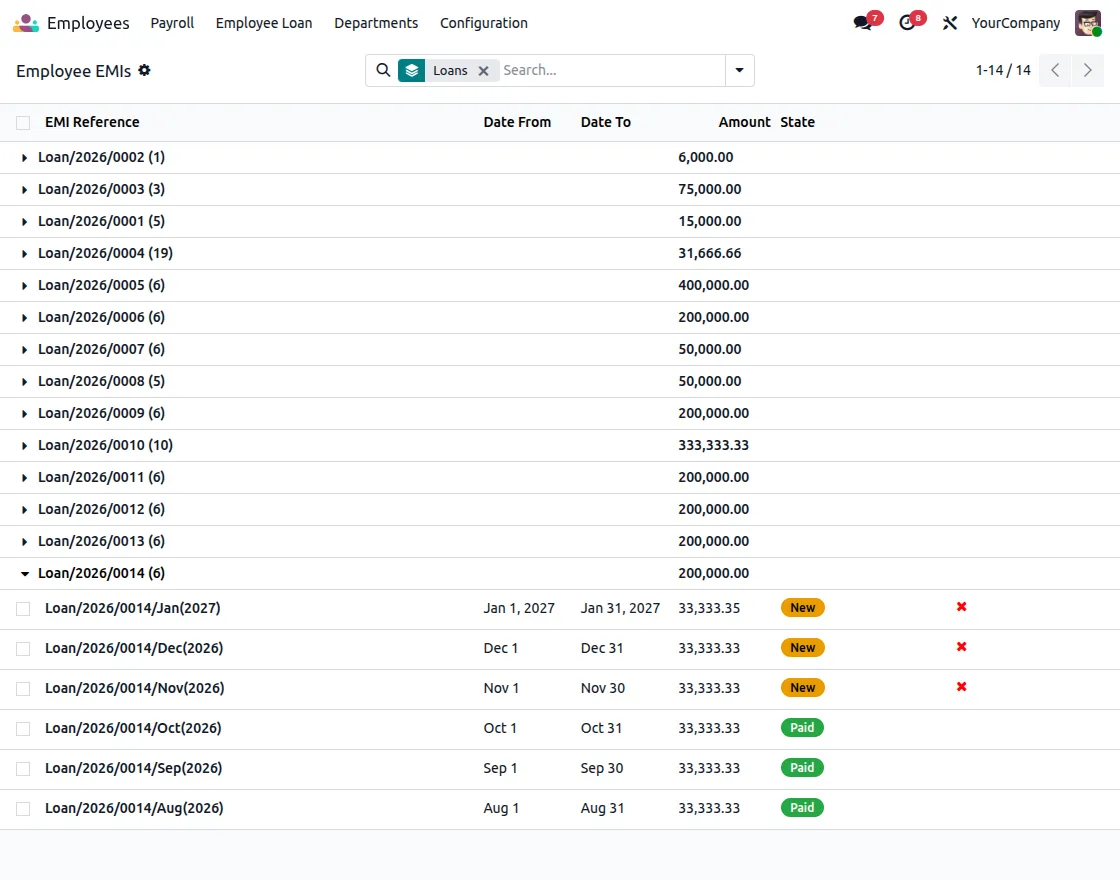
6. Navigate to the Employee EMIs option to view all loan installments. Each record displays the EMI Reference, along with its current status.
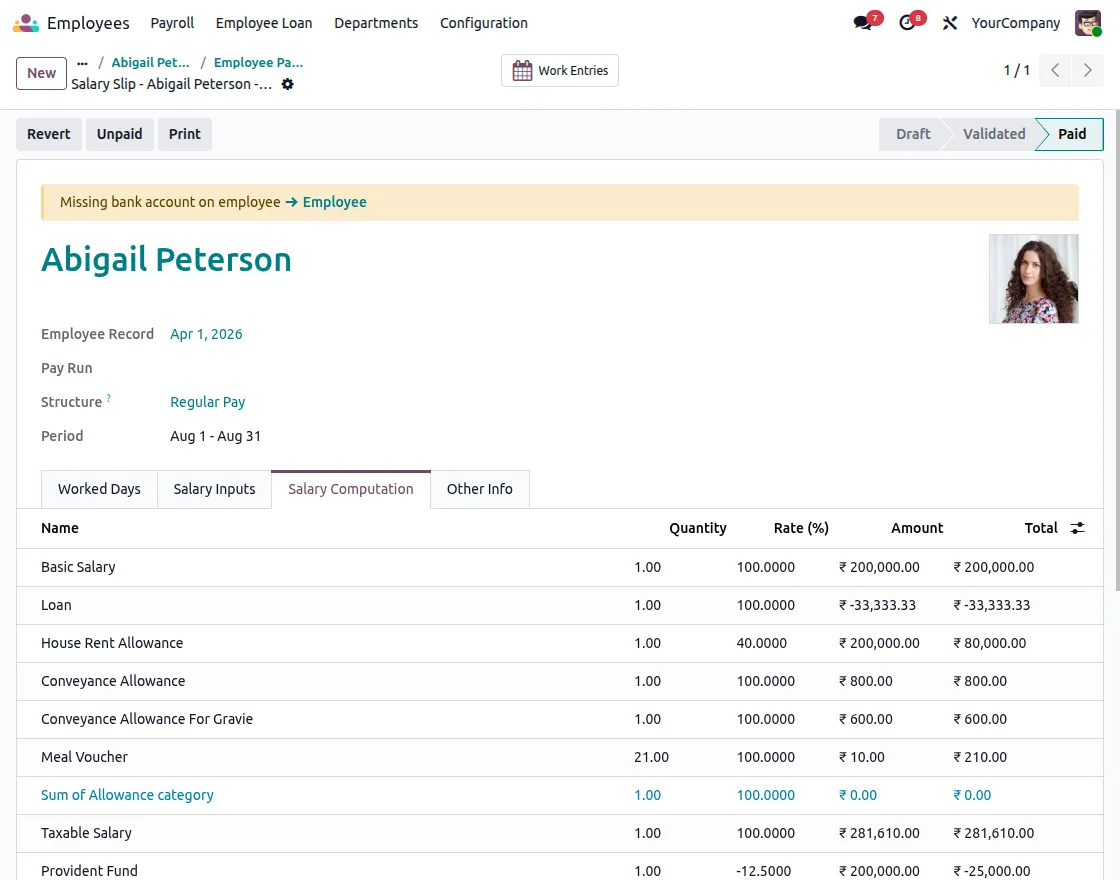
7. During payroll processing, the system automatically deducts the EMI amount from the employee’s payslip. This ensures timely repayments without any manual calculations.
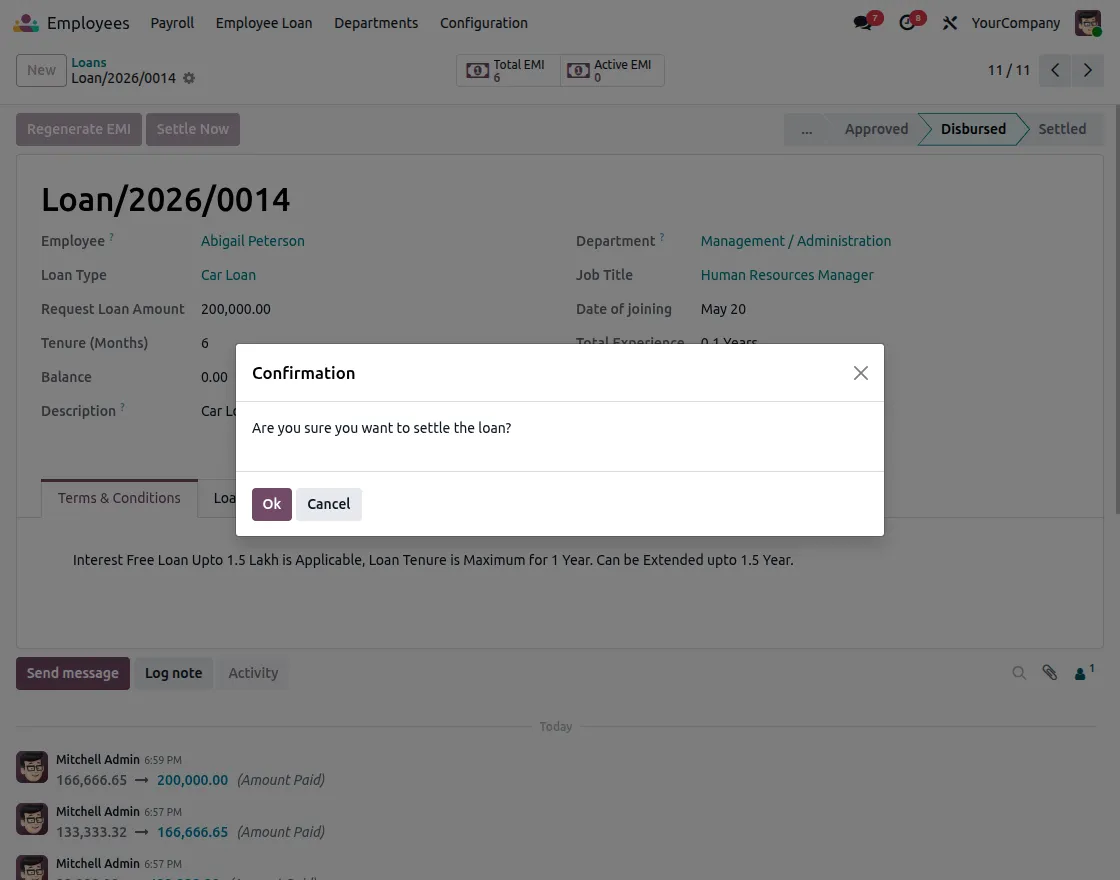
8. Once all loan installments have been paid, open the respective loan record and click the Settle Now button. The loan is marked as settled.
NEED HELP?
Hope you find the guide helpful! Please feel free to share your feedback in the comments below.
If you still have any issues/queries, please create a ticket at the UV Desk.
I hope this helps. In case of any further queries, contact us at our support mail.
Thanks for paying attention!!
Current Product Version - 1.0.1
Supported Framework Version - Odoo V17, V18, V19

Be the first to comment.