Introduction
Odoo AI Semantic Search helps users find relevant products and records by understanding the meaning behind their search queries instead of relying only on exact keywords.
This module uses AI-powered embeddings to provide more accurate search results, instant search suggestions, and related product recommendations within Odoo.
It helps businesses improve product discovery, enhance user experience, and deliver smarter search results directly from the Odoo backend.
Features
- Enable or disable semantic search directly from the Odoo backend.
- Search products based on meaning and intent instead of exact keywords.
- Manage all reservations from one centralized system
- Display instant search suggestions while users type.
- Generate AI-powered embeddings for improved search accuracy.
- Configure search threshold values to control result relevance.
- Save and track customer search terms for analysis.
- Improve product discovery with AI-powered search results.
Installation
- Once you purchase the App from the Webkul store, you will receive a link to download the module’s zip file.
- Extract the file on your system after the download finishes. As a result, you will be able to see a folder named ‘odoo_semantic_search’.
- Copy and paste this folder inside your Odoo Add-Ons path.
- Install pgvector
The module requires the pgvector extension for PostgreSQL to store and search image embeddings.
apt update
apt install -y git build-essential postgresql-server-dev-<postgres_version>
cd /tmp
git clone --branch v0.4.4 https://github.com/pgvector/pgvector.git
cd pgvector
make
make install
- Install Python Dependencies
pip3 install -r odoo_ai_semantic_search/requirements.txt
- Note:
The sentence-transformers package will download the all-mpnet-base-v2 model on first use and cache it locally inside the module directory. An internet connection is only needed for this one-time download.
- Now, open Odoo App and click on the Settings menu. Here, click on Activate Developer Mode.
- Then, open the Apps menu and click on ‘Update Modules List.’
- In the search bar, remove all the filters and search ‘odoo_semantic_search’.
- You will be able to see the module in the search results. Click on ‘Activate’ to install it.
Workflow
- After installing the module, navigate to Configuration → Settings → Website.
Under the Product Semantic Search section, enable the Enable Semantic Search option to activate semantic search functionality
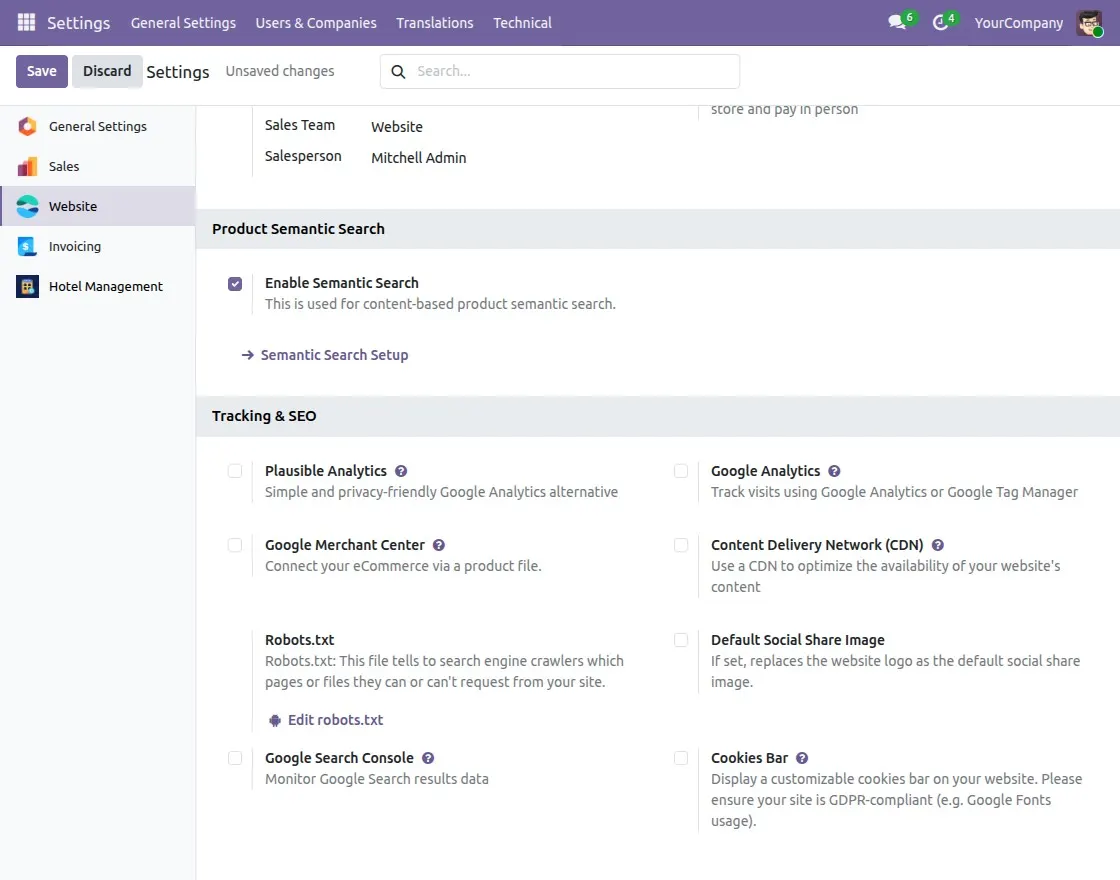
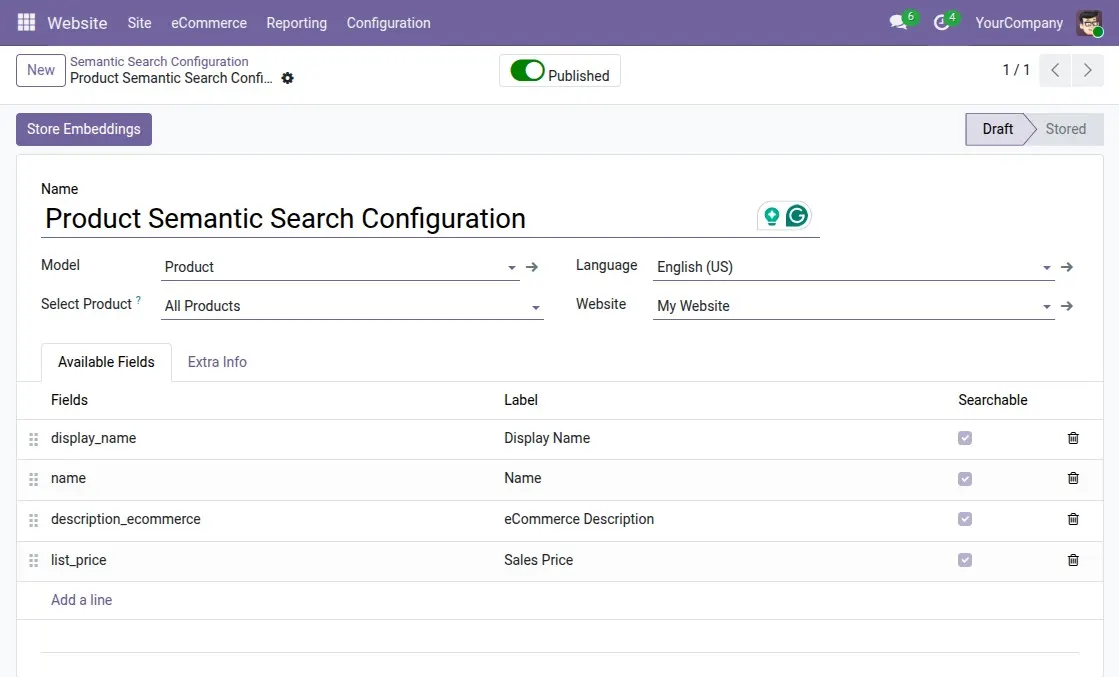
- Navigate to Website → Configuration → Semantic Search Configuration.
Create a configuration, select the model, language, website, and fields to index.
Mark the required fields as searchable, then click Store Embeddings to let AI process the data. Once the status becomes Stored, publish the configuration to enable AI-powered semantic search on your website
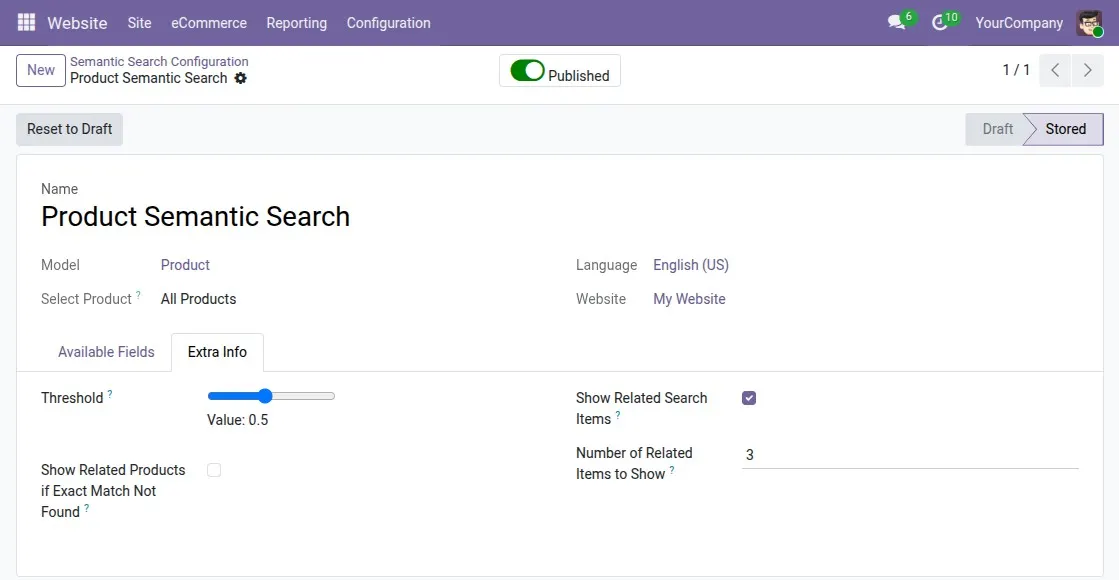
- Navigate to the Extra Info tab
Configure the threshold value to control search relevance.
You can also enable related products and search suggestions to improve customer search results.
Adjust the number of suggested products as needed, and use Reset to Draft if you want to update the configuration and regenerate embeddings.
- Now navigate to Odoo shop page. When a customer enters a search term in the search bar, the AI-powered search dropdown automatically shows matching details and related suggestions in real time.

- Now navigate to Website → Configuration → Related Search Items.
This section provides a record of the search terms entered by website visitors, along with their Frequency, indicating how often each search term has been used.

Need Help?
Hope you find the guide helpful! Please feel free to share your feedback in the comments below.
If you still have any issues/queries, please create a ticket at the UV Desk.
I hope this helps. In case of any further queries, contact us at our support mail.
Thanks for paying attention!!
Current Product Version - 1.0.0
Supported Framework Version - Odoo V17, V18, V19

Be the first to comment.