Medusajs Mobile App Builder transforms your Medusajs store into a Flutter Native mobile application, enabling a seamless shopping experience on both Android and iOS devices.
The MedusaJS Mobile App provides features and functionality similar to your online MedusaJS store.
All essential eCommerce features are integrated into the mobile application to ensure a consistent shopping experience across web and mobile platforms.
The Medusajs Mobile App Builder enables businesses to create a feature-rich mobile shopping application that works seamlessly across Android and iOS devices.
This is a ready-made mobile application solution that allows store owners to expand their business reach, increase customer engagement, and drive more sales through mobile commerce.
The MedusaJS Mobile App with source code helps businesses strengthen their competitive advantage by delivering a fast, secure, and seamless mobile shopping experience.
The Medusajs Mobile App Builder provides all essential eCommerce features required for a seamless shopping experience.
A modern mobile application powered by MedusaJS can help create a strong mobile presence, offering advanced features and an enhanced user experience for your customers.
The Flutter Native Mobile App for your MedusaJS store includes all the essential features and functionalities required for a successful mobile commerce strategy.
Mobikul simplifies the mobile commerce journey by providing a feature-rich mobile app solution for your MedusaJS store, enabling you to effectively engage customers on mobile platforms.
The MedusaJS Mobile App is built to provide a smooth, responsive, and reliable shopping experience, helping businesses grow their mobile sales and strengthen customer relationships.
Features
- Supports Simple Products and Configurable Products (Variants).
- Interactive promotional banners.
- Supports Product Carousel for Enhanced Product Discovery.
- Fast, responsive, and intuitive user interface built with Flutter Native technology.
- Supports default MedusaJS shipping methods.
- Supports multiple payment gateways integrated with the MedusaJS backend.
- Easy-to-configure admin management and synchronization with the MedusaJS store.
- Full Flutter Native application built using Dart for Android and iOS platforms.
- Related Products recommendations.
- Mobile and Tablet support.
- Fast and streamlined checkout process.
- Support for product variants.
- Multi-currency support.
- Real-time order status updates and push notifications.
- Customer Account Management.
- Order History.
- Multi-language support.
Mobikul Module Installation Guide for Medusa
This guide explains how to install and configure the Mobikul module in an existing Medusa backend.
Once installed, the module allows administrators to manage the customer app homepage, banners, featured categories, and push notifications directly from the Medusa Admin Panel.
Setting up the Medusajs Mobile App Builder is simple and requires minimal configuration.
Prerequisites
Before starting the installation, ensure the following requirements are met:
- Medusa backend is already installed and running.
- Server access is available.
- Node.js and npm are installed.
- Database connection is working properly.
- Admin access to the Medusa backend is available.
Step 1: Navigate to the Medusa Backend
Open your terminal and move to the client’s Medusa backend directory.
Example:
cd /path/to/client-medusa-backend
Replace /path/to/client-medusa-backend with the actual location of the Medusa backend project.
Examples:
cd /var/www/client-medusa-backend
cd /home/ubuntu/client-medusa-backend
cd /opt/apps/client-medusa-backend
Step 2: Copy Mobikul Module Files
Copy the Mobikul module files into the client’s Medusa backend project.
Required directories:
src/modules/mobikul
src/api/store/mobikul
src/api/admin/mobikul
src/admin/routes/mobikul
If additional widgets are included in your implementation, also copy:
src/admin/widgets/
After copying the files, verify that all directories exist in the target project.
Step 3: Install Required Dependencies
Install the Firebase Admin package required for push notification functionality.
npm install firebase-admin
Wait for the installation process to complete successfully.
Step 4: Register the Module in Medusa
Open the Medusa configuration file:
medusa-config.ts
Add the Mobikul module configuration according to your implementation.
After saving the configuration, Medusa will recognize the Mobikul module during startup.
Step 5: Add Environment Variables
Open the .env file and add the required configuration values.
Example:
MEDUSA_BACKEND_URL=https://your-domain.com
MEDUSA_ADMIN_BACKEND_URL=https://your-domain.com
Depending on your infrastructure and integrations, additional environment variables may also be required, such as:
- Database configuration
- Redis configuration
- Storage provider credentials
- Base URL settings
- Firebase configuration for push notifications
Make sure all required values are correctly configured before proceeding.
Step 6: Run Database Migrations
Apply the required database migrations.
npm run migrate
This command creates the necessary database structures required by the Mobikul module.
Step 7: Build the Backend
Build the Medusa backend to include the newly added module.
npm run build
Ensure the build process completes without errors.
Step 8: Restart the Server
Start or restart the Medusa backend server.
Production:
npm run start
Development:
npm run dev
The development mode enables automatic reloading whenever changes are made.
Step 9: Access the Mobikul Admin Panel
After the server starts successfully, open the Medusa Admin Panel.
Example:
https://your-domain.com/app/mobikul
You should now see the Mobikul management section inside the admin panel.
Step 10: Configure the Mobikul Module
After installation, configure the module using the Mobikul section available in the Medusa Admin Panel.
The Medusajs Mobile App Builder includes the Mobikul module, which provides homepage management, banners, featured categories, and push notifications.
Dashboard
The dashboard provides an overview of the Mobikul module, homepage tools, push notification tools, and configuration status.
Features:
- Module summary
- Homepage management overview
- Push notification status
- Quick configuration guidance

Homepage Configuration
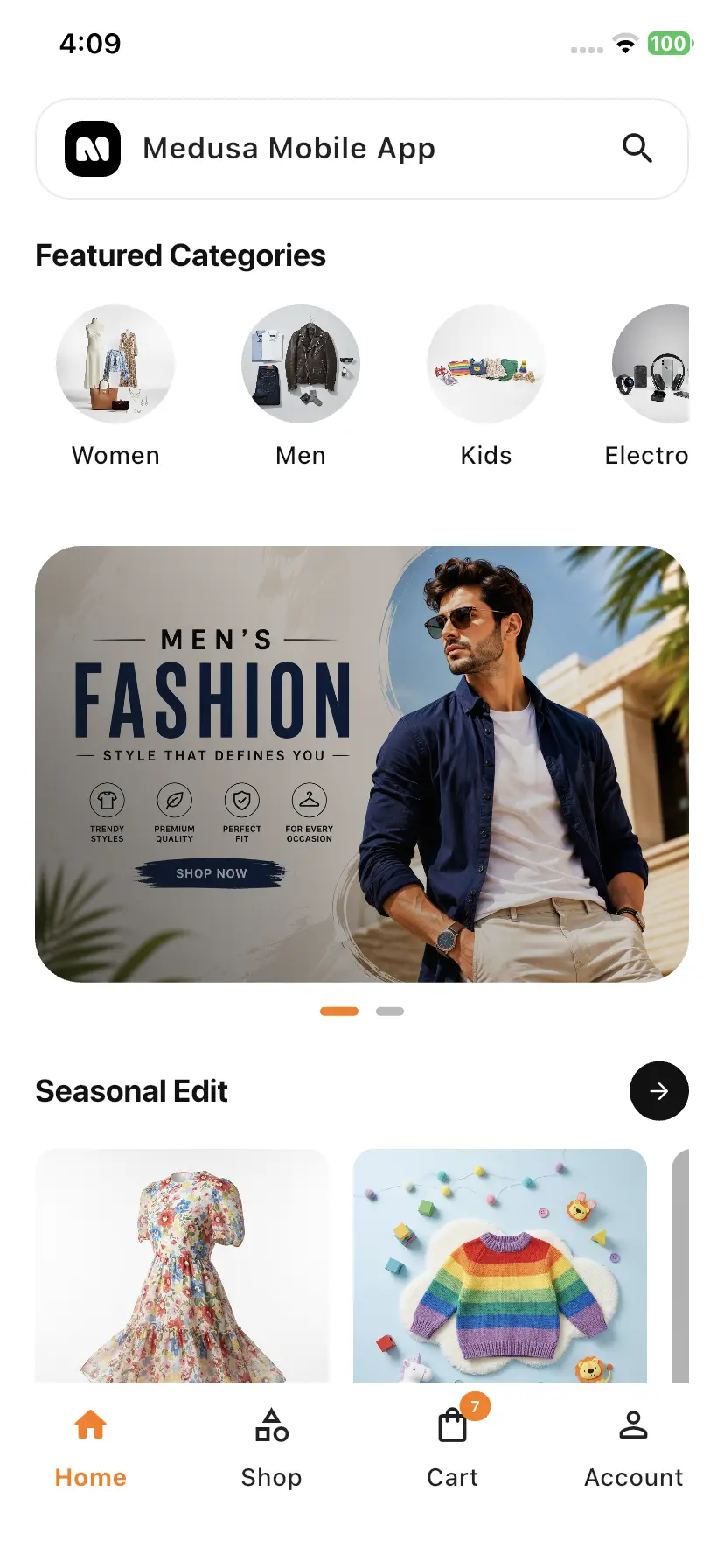
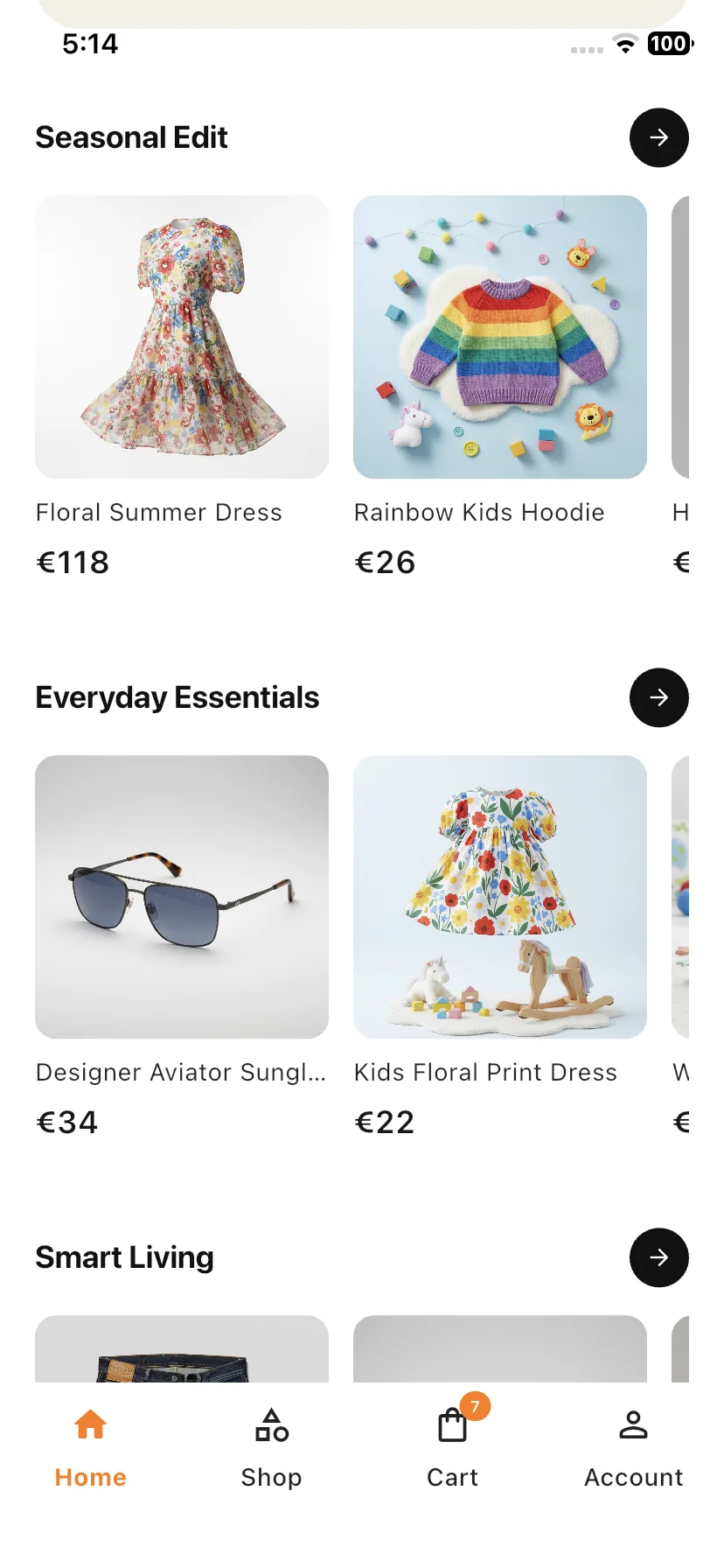
The Homepage section allows administrators to create and manage the customer app homepage layout.
Features:
- Drag-and-drop homepage sections
- Manage collection sections
- Reorder homepage blocks
- Configure featured content
- Live homepage structure preview
The configured order is automatically reflected in the mobile application.
To do this, the admin needs to click on the Mobikul option from the Extensions menu and then navigate to Extensions > Mobikul > Homepage.
From there, the admin can easily arrange Featured Categories, Banner Images, Collections, and other homepage sections using the drag-and-drop functionality.
The configured order is automatically reflected in the mobile application.

Frontend View
Banners
The Banners section is used to manage promotional banners displayed within the customer application.
Features:
- Add new banners
- Upload banner images
- Configure banner targets
- Set banner sort order
- Enable or disable banners
- Redirect users to products or categories
These banners appear prominently on the homepage and help promote products and campaigns.


Featured Categories
Featured Categories allow administrators to create quick-access category shortcuts for customers.
Features:
- Add category icons
- Select category destinations
- Configure display order
- Enable or disable categories
- Manage category visibility
Featured categories appear on the home screen for easier customer navigation.
Featured categories are managed from Extensions > Mobikul > Featured Categories in the Medusa Admin Panel.
Each featured category can be assigned a custom image, display order, and status, giving merchants complete control over how categories appear in the mobile application.
Features
- Display selected categories prominently on the Home screen.
- Assign custom category images/icons for visual appeal.
- Configure display order using sort priority.
- Enable or disable categories without deleting them.
- Automatically sync changes from Medusa Admin to the mobile app.
- Link featured categories directly to category product listings.
Admin Configuration
Administrators can manage featured categories by:
- Selecting an existing MedusaJS category.
- Uploading a category image.
- Setting the display order.
- Enabling or disabling visibility.
- Updating category configurations at any time.
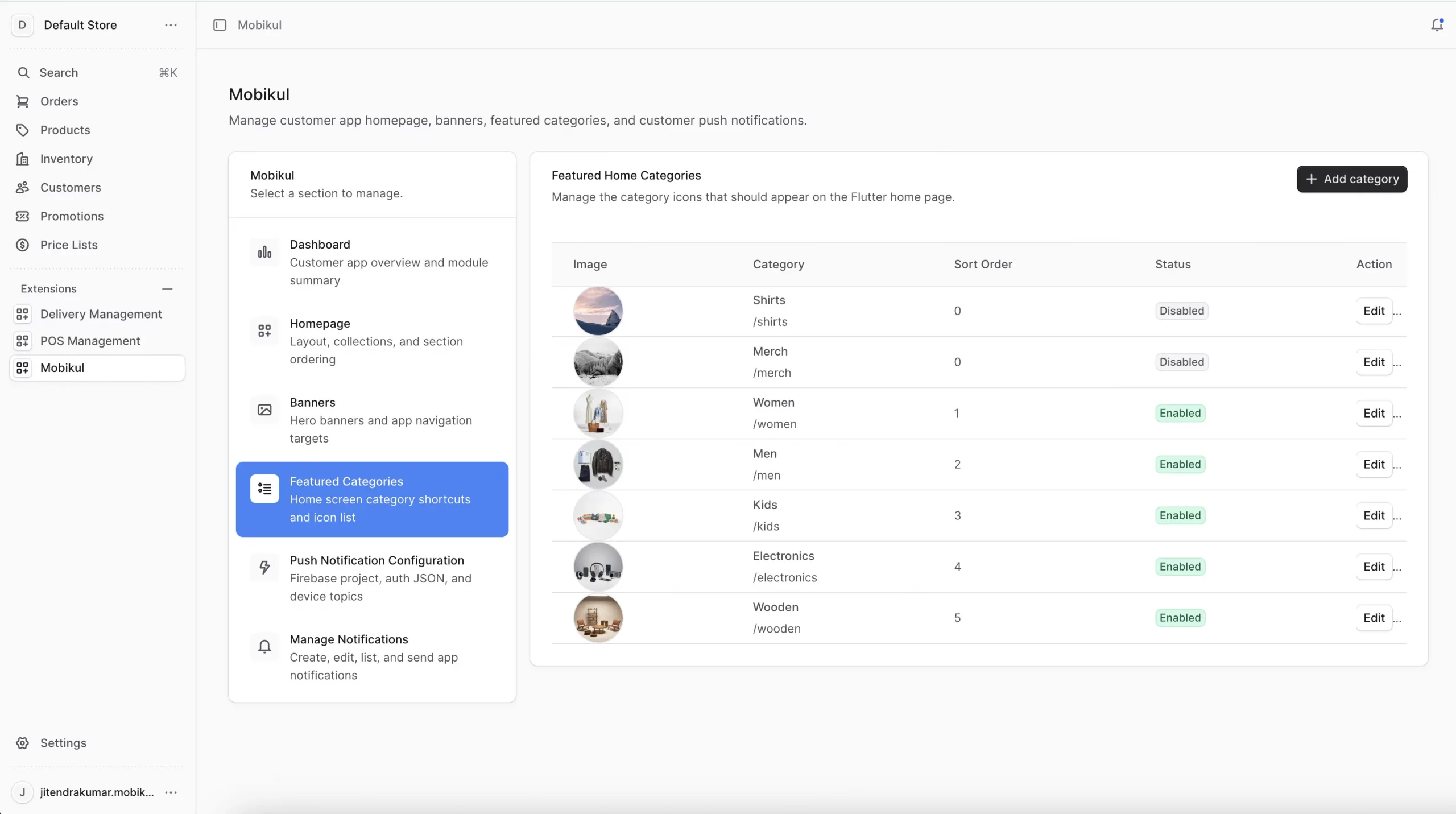

Frontend View
Push Notification Configuration
Configure Firebase settings required for sending push notifications.
Required fields:
- Firebase Project ID
- FCM Authentication JSON File
- Android Topic
- iOS Topic
The uploaded Firebase credentials are used to communicate with Firebase Cloud Messaging (FCM) and deliver notifications to customer devices.

Manage Notifications
The Manage Notifications section allows administrators to create and send customer app notifications directly from the Medusa Admin Panel.
Supported notification types:
- Product notifications
- Category notifications
- Promotional offers
- General announcements
Features:
- Create notifications
- Edit notifications
- Enable or disable notifications
- Send notifications instantly
- Manage notification history
- Review previously delivered notifications

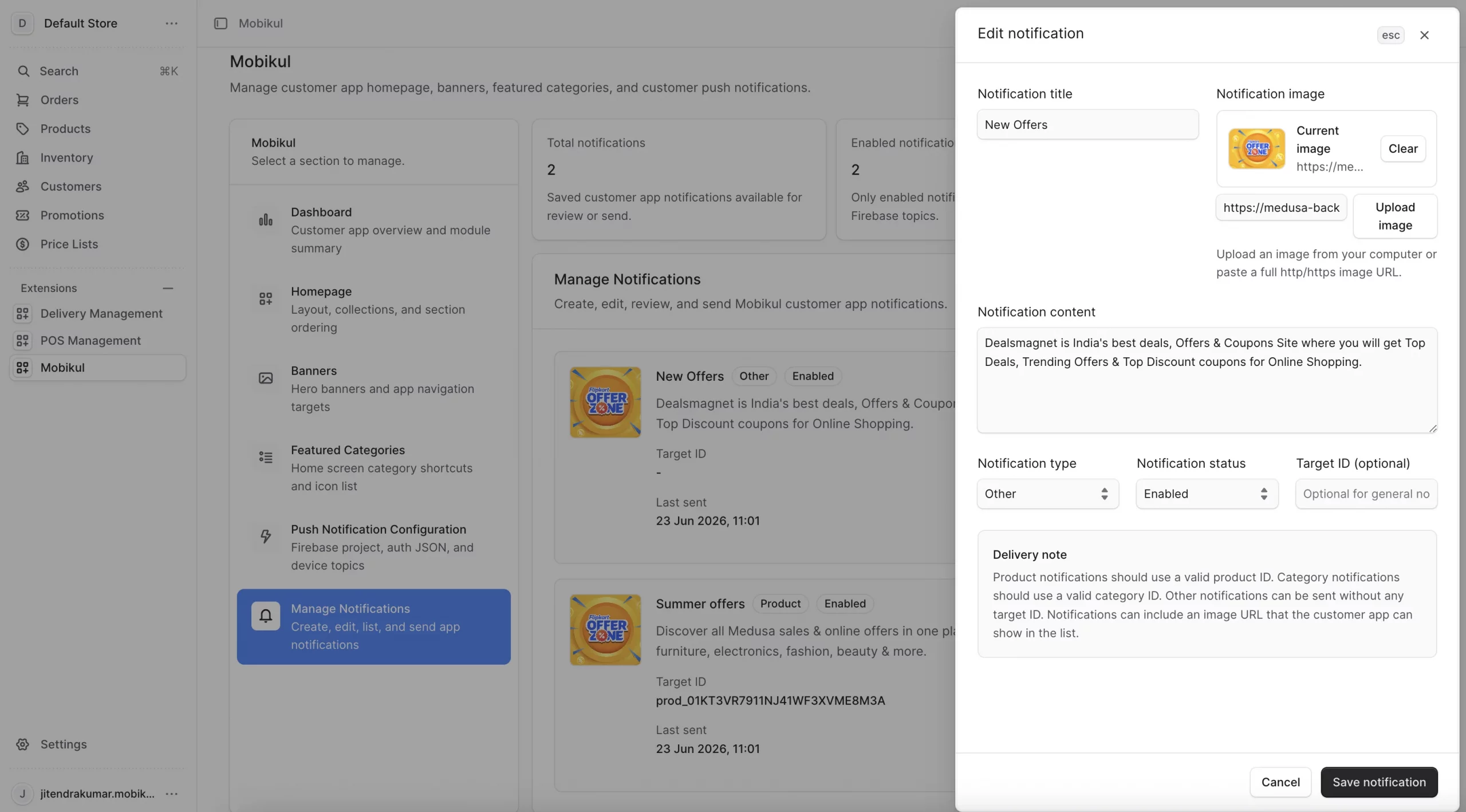
Frontend View


Step 11: Connect the Customer Application
Configure the mobile application to communicate with the client’s Medusa backend.
Update the app configuration with the correct backend URL.
Example:
BASE_URL=https://your-domain.com
After updating the configuration, rebuild and launch the application.
Step 12: Verify the Installation
Once the installation and configuration are complete, verify all major functionalities.
Test the following:
Homepage
- Homepage sections load correctly
- Homepage order matches admin configuration
- Collections display properly
Banners
- Banners appear correctly
- Banner images load successfully
- Banner redirections work as expected
Featured Categories
- Category icons are visible
- Category navigation works correctly
- Category ordering matches admin settings
Customer Authentication
- Customer registration
- Customer login
- Account management
Shopping Features
- Product listing
- Product details
- Cart functionality
- Checkout process
- Order placement
- Order history
Push Notifications
- Firebase configuration is working
- Notifications are delivered successfully
- Product notifications work correctly
- General notifications work correctly
Admin Notification Management
- Notification creation
- Notification editing
- Notification sending
- Notification history tracking
Perform complete end-to-end testing before moving the application into production.
Quick Installation Commands
Run the following commands from the Medusa backend root directory.
# Navigate to Medusa backend project

cd /path/to/client-medusa-backend

# Install required package

npm install firebase-admin

# Run database migrations

npm run migrate

# Build backend

npm run build

# Start server

npm run start
For development mode:
npm run dev
Important Notes
- Standard commerce functionality, such as products, carts, checkout, customers, and orders, continues to be handled by Medusa.
- The Mobikul module provides mobile app-specific features such as homepage management, banners, featured categories, and push notification management.
- Firebase configuration is mandatory if push notification functionality is required.
- Ensure all environment variables and Firebase credentials are properly configured before deployment.
- The Medusajs Mobile App Builder works alongside Medusa to deliver a complete mobile commerce solution.
Note:-> After completing these steps, the Mobikul module will be fully integrated with the client’s Medusa backend and ready for customer app usage.
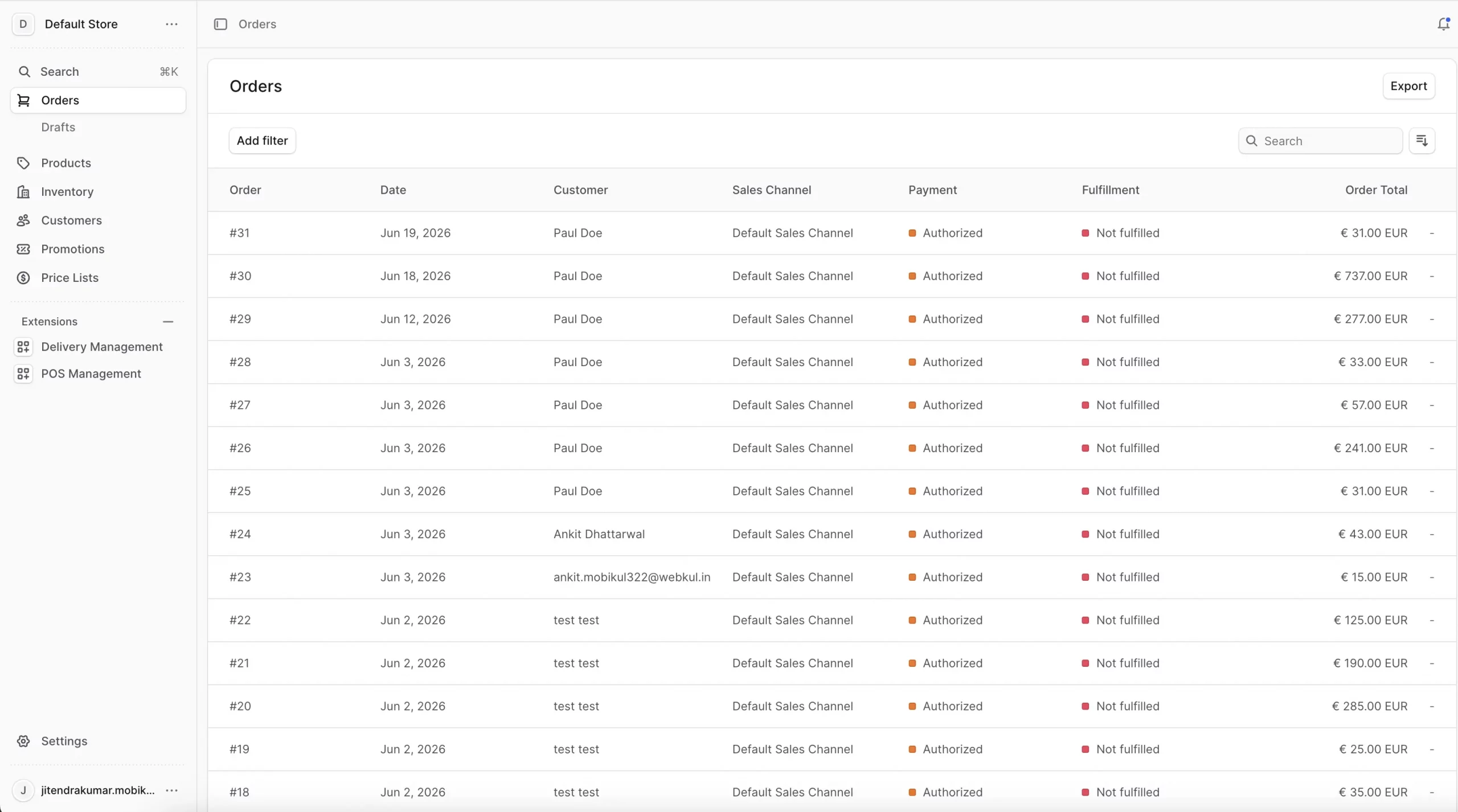
Order Management
The admin can view and manage all customer orders by navigating to Orders in the MedusaJS admin panel.
For reference, an image is shown below:
Categories
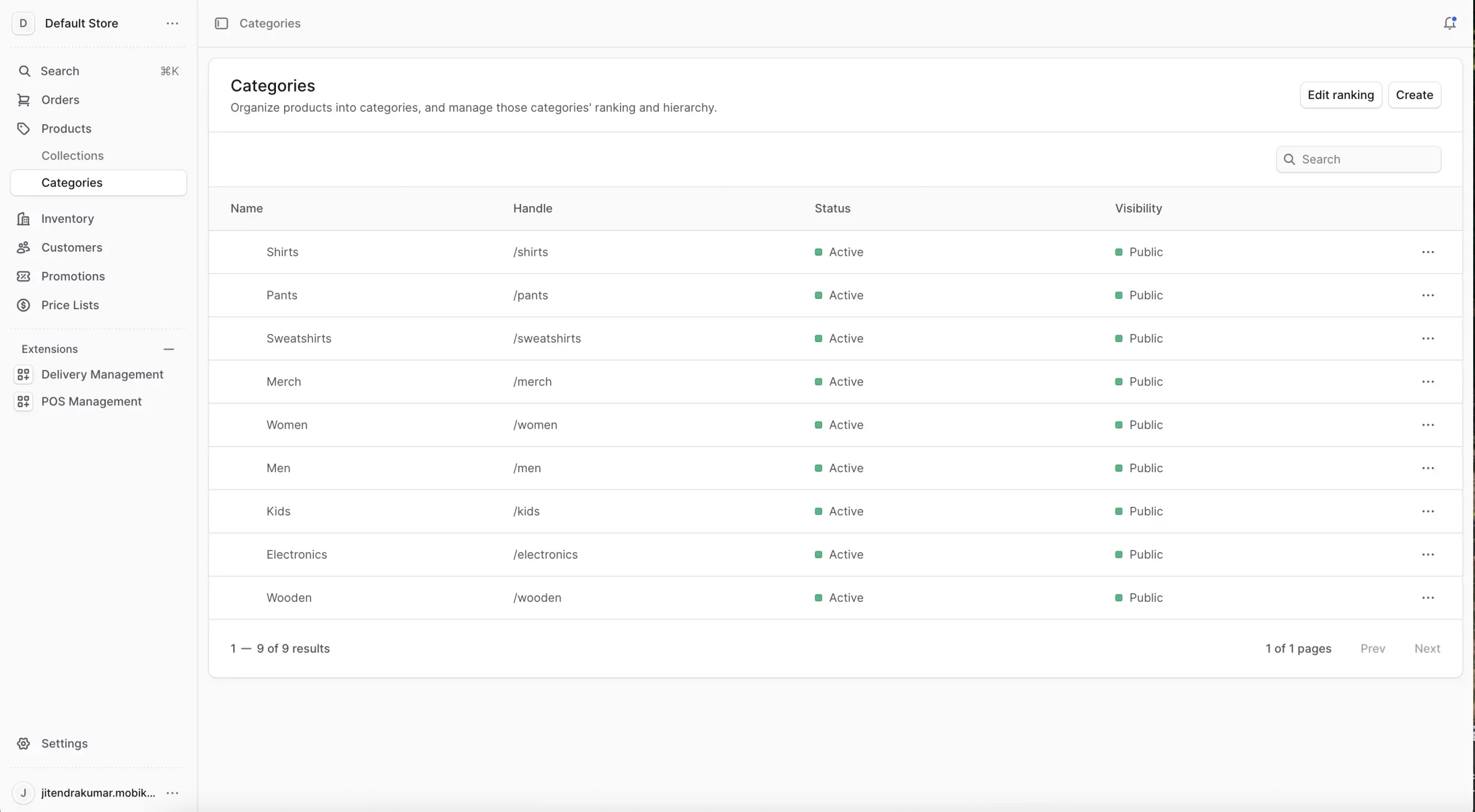
The Categories feature in the MedusaJS Mobile App Builder enables customers to browse products using the category structure configured in the MedusaJS Admin Dashboard.
Categories created and managed in Medusa Admin → Products → Categories are automatically synced and displayed in the app’s Shop tab.
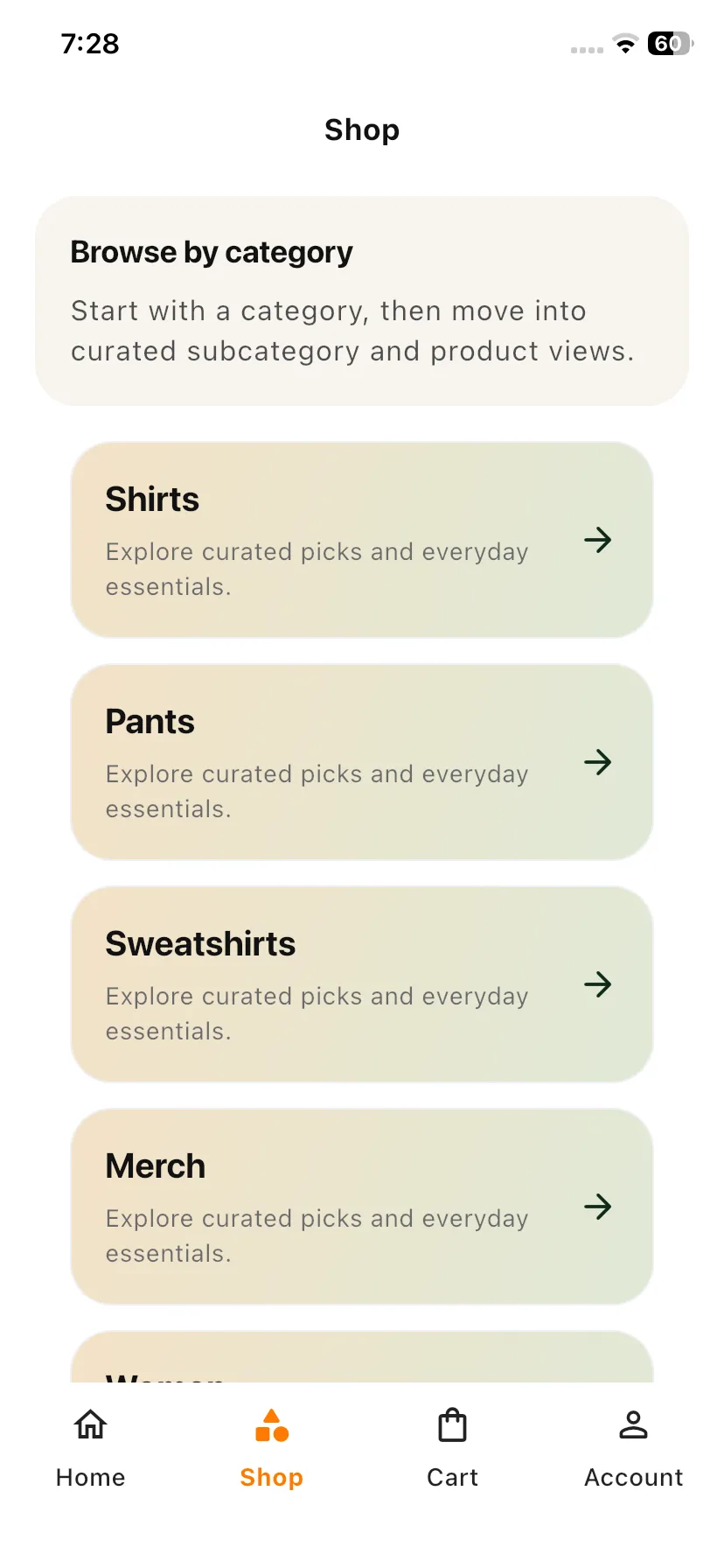
Customers can easily navigate through parent categories and sub-categories to discover relevant products.
Note: Any category created, updated, reordered, or removed in the MedusaJS Admin Dashboard will be reflected in the mobile application after synchronization.
Frontend View

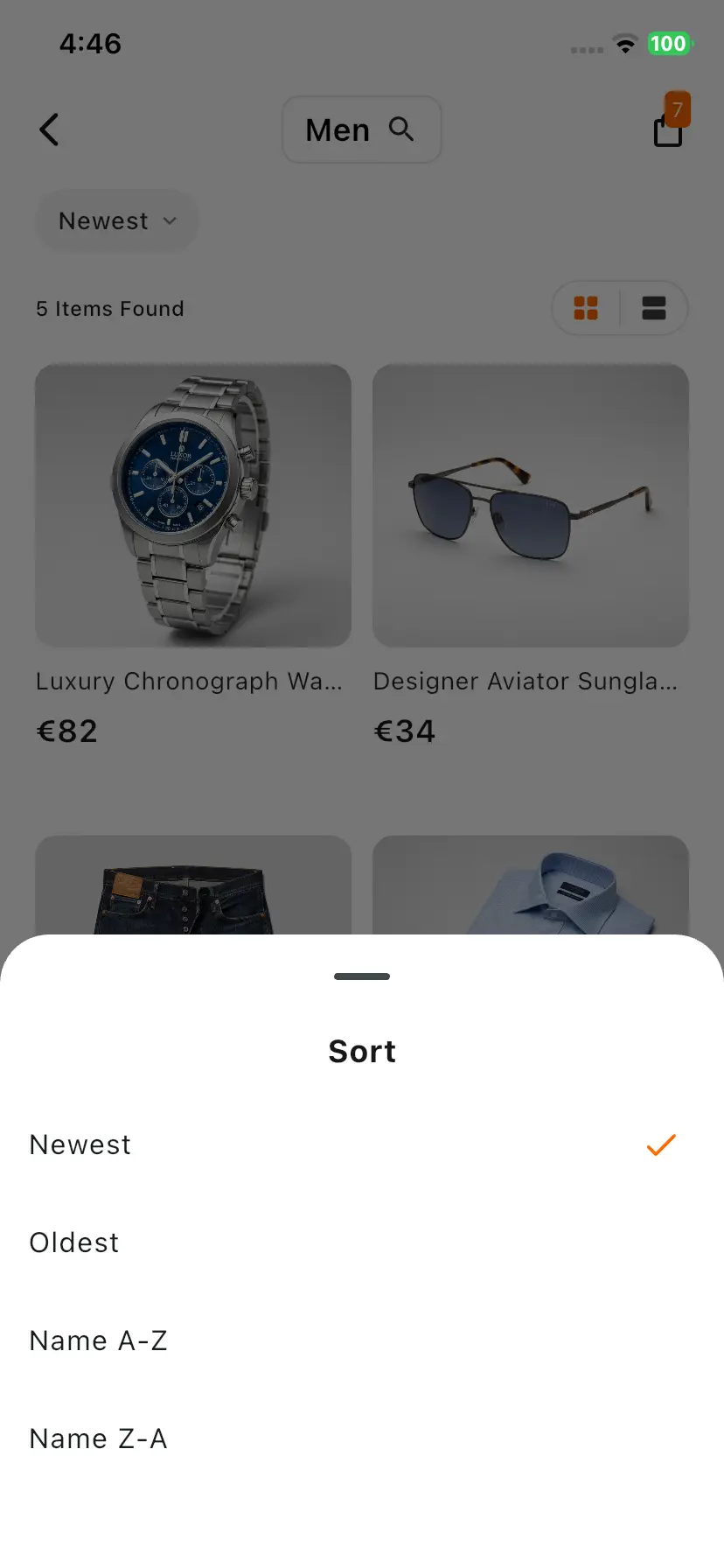
Sort- The app user can sort the order of the products appearing in the collection page to easily view the desired options.
So, the app user can click on Sort, which opens a list of options to re-order the products.
Sort
The app user can sort the order of the products appearing on the collection page to easily view the desired options.
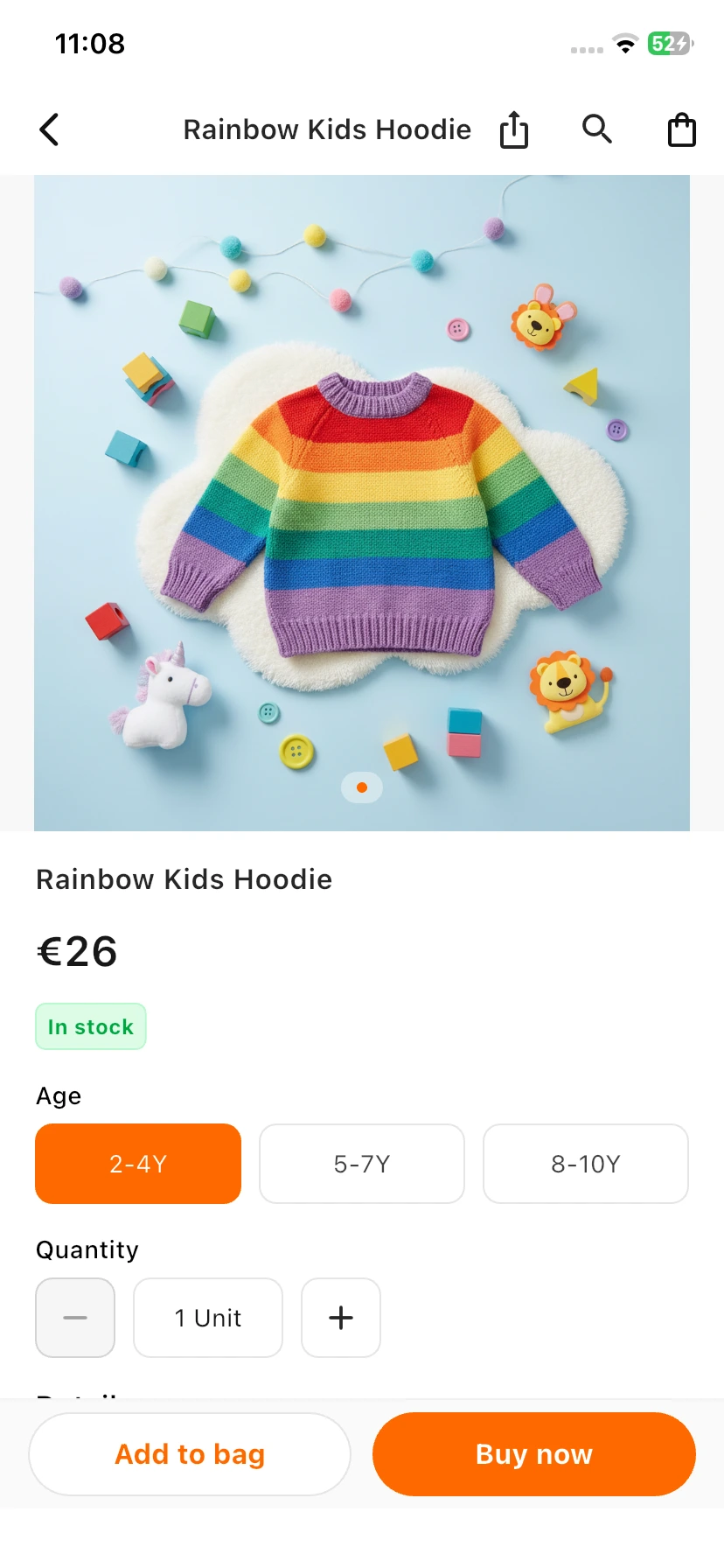
Product View
The Page will display the details related to the products that the app user can scan through. Thus, the page has the following details.
- Share Product option- The app user can even share the product on social media by clicking on the share button.
- Edit quantity- The app user can append the quantity to purchase of the product from here.
- Add to bag– The app user can click on the Add To bag button to add the product to the cart for checkout.
- Buy Now- The customer can click on the Buy Now Button in order to directly move to the checkout.
- Choose Options- If the product has multiple options associated with it, the app user can select them and add the product to the cart.
- Description/details of the product- The product’s complete details are also mentioned in this page for the app user to refer to before purchase.
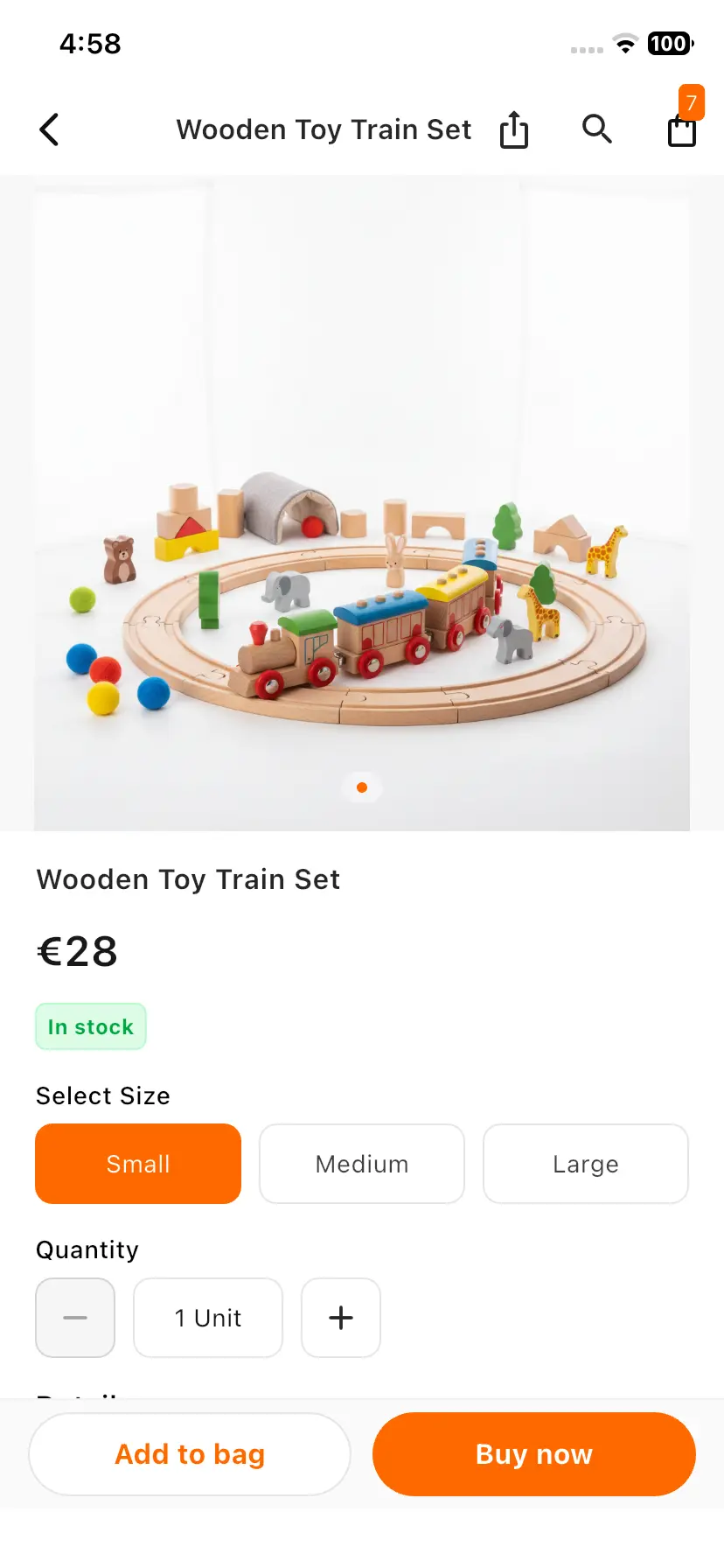
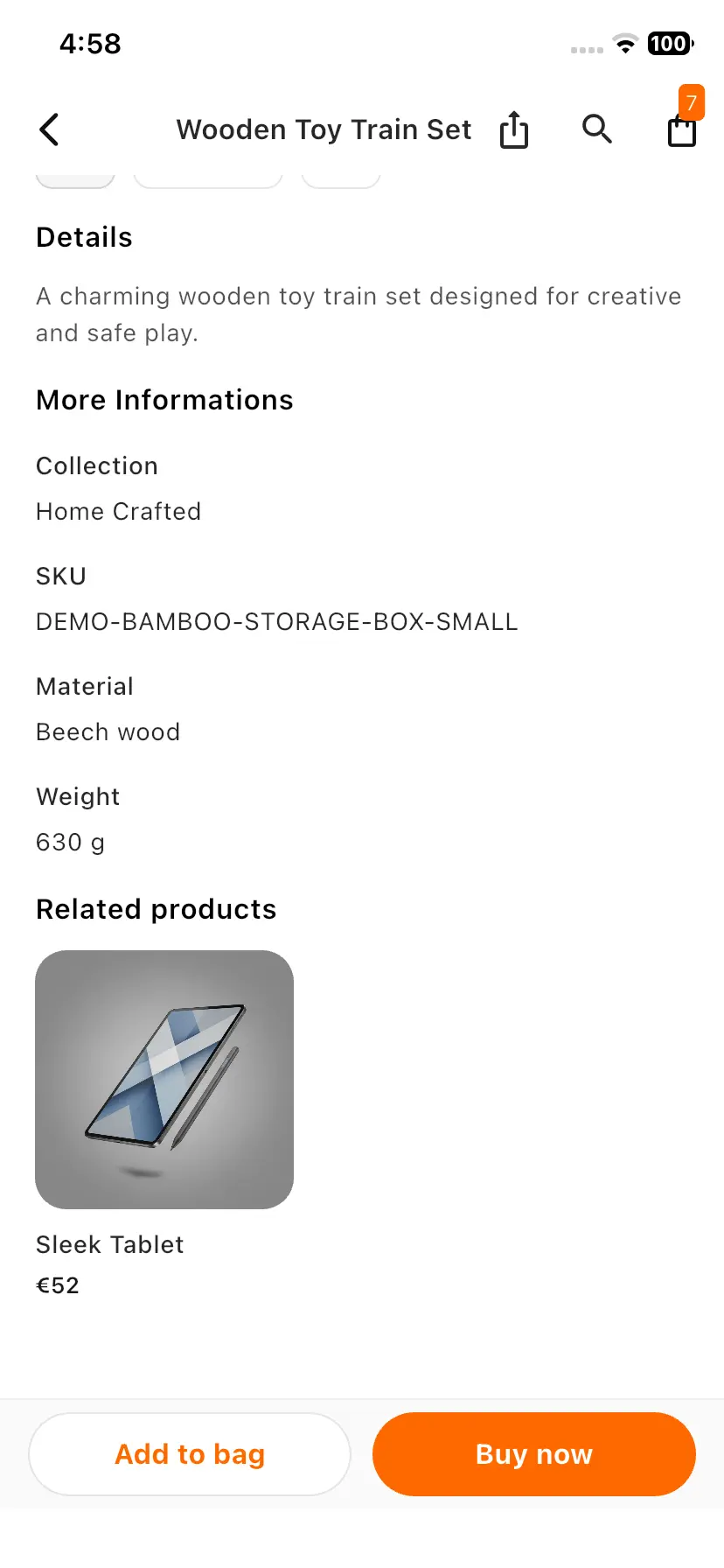
Frontend Of Medusajs Mobile App Builder
Splash
The launching screen of the app can be amended from the code end, which will appear to the users as they open up the app.
Splash Screen
A clean and minimal splash screen displaying the Mobikul branding with a modern light theme for a smooth app launch experience.
Homepage
The homepage of the app has multiple sections to divide it into usable sections. The
- Featured Category – It is situated at the top of the homepage, where the customer can find a product according to the categories.
- Banner Slider – View promotional banners showcasing offers, discounts, featured products, and seasonal campaigns. Tap a banner to explore related products or collections.
- Collections – Discover curated product collections grouped by themes, trends, or campaigns, making it easier to find products that match your interests.
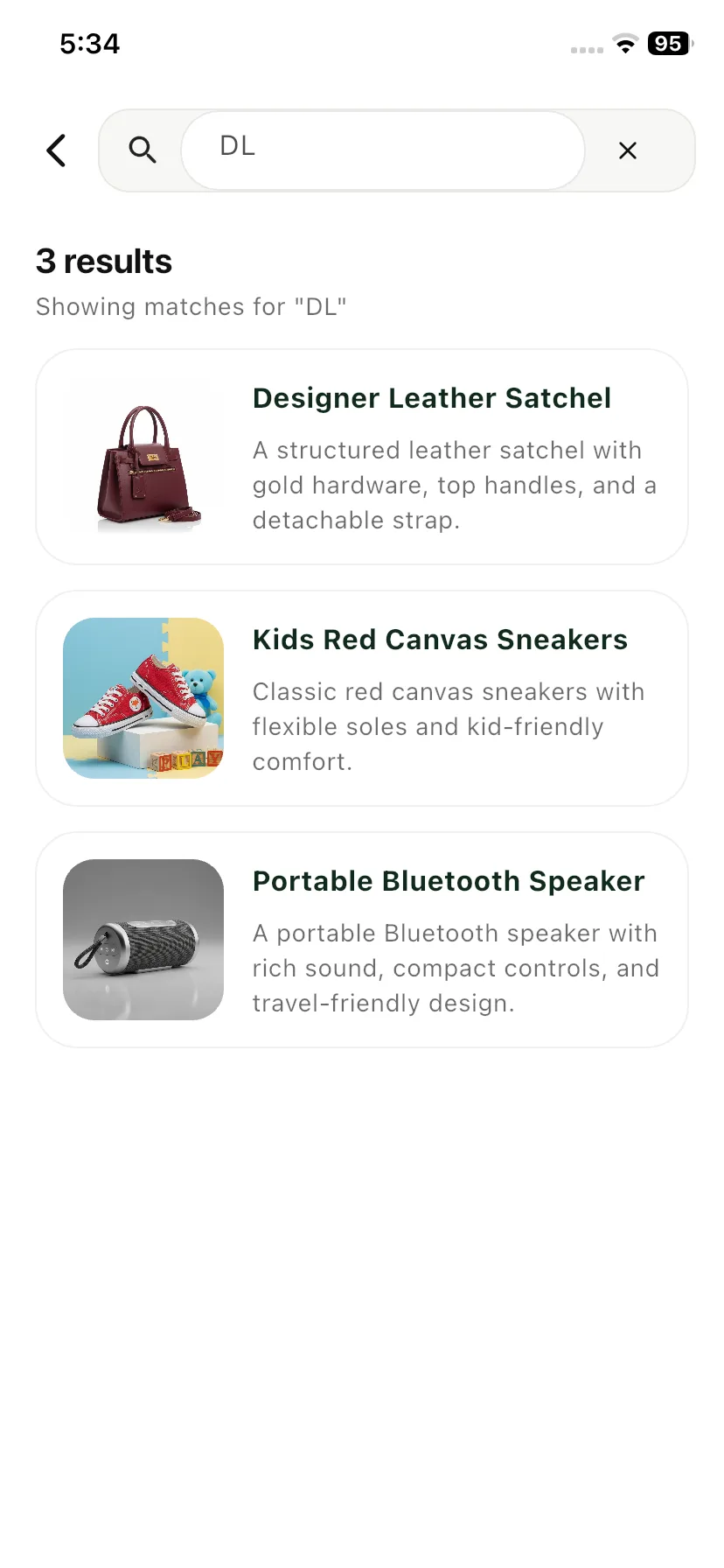
Search
Quickly find products across the store using the search feature. Enter product names, keywords, or related terms to discover products instantly and navigate directly to product details.
Search
Quickly find products across the store using the search feature. Enter product names, keywords, or related terms to discover products instantly and navigate directly to product details.
Sign In/ Sign Up
The app allows customers to sign in to an existing account or create a new one.
The Sign In / Registration page provides the following account-related options:-
- Sign in with your email address
- Create An Account
Login / Sign Up
Easily create a new account or log in to access personalized shopping, order history, and a seamless app experience.

Create Account
Sign up with your email and password to get started.
Enjoy a personalized shopping experience, easy order tracking, and faster checkout.
Manage your orders and account details in one place.
Create Account
Create a new account using your email address and password to enjoy a personalized shopping experience, order tracking, and faster checkout.
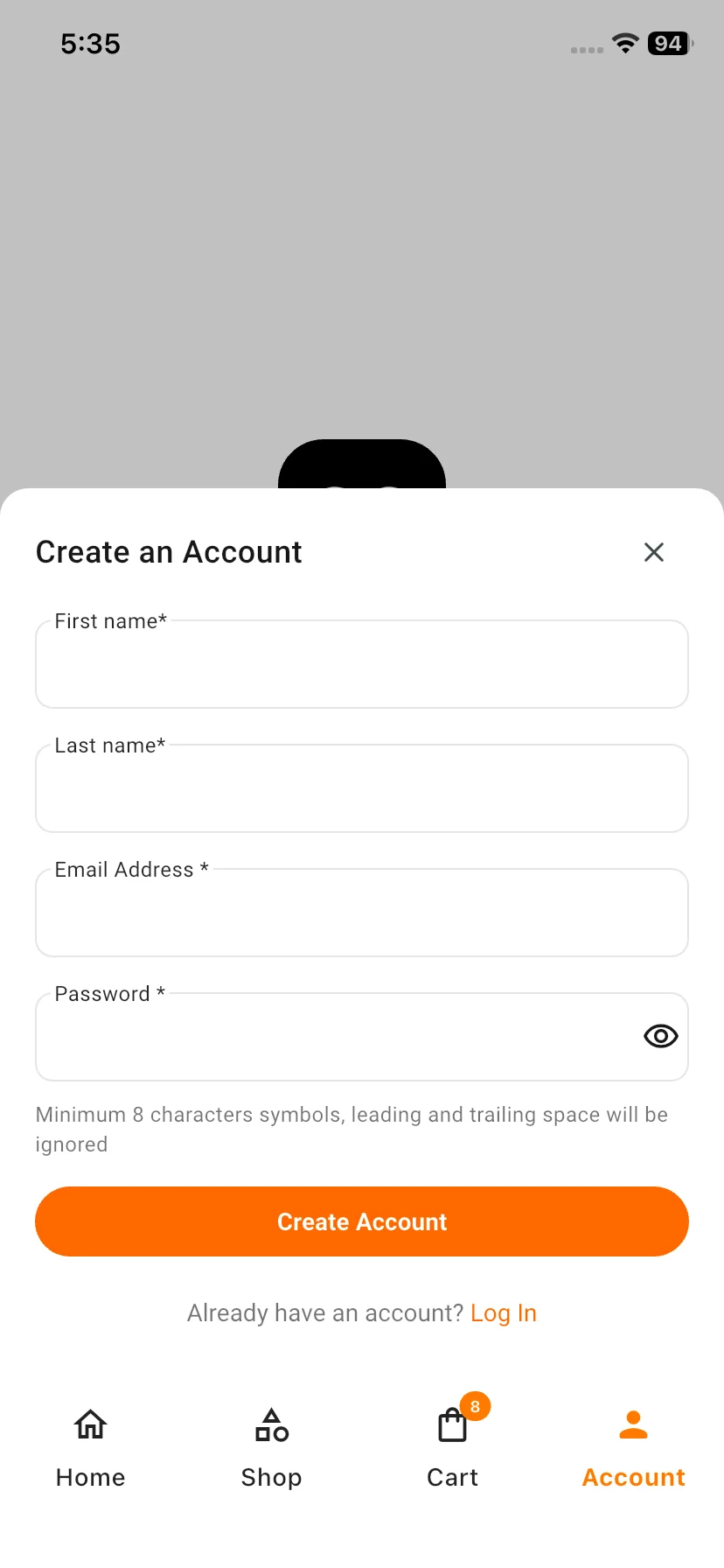
Sign In
Log in to access your account securely.
View your orders, manage your profile, and continue shopping with ease.
Enjoy a seamless experience across all your devices.
Sign In
Sign in to your account to access saved addresses, view order history, manage your profile, and continue shopping seamlessly across devices.
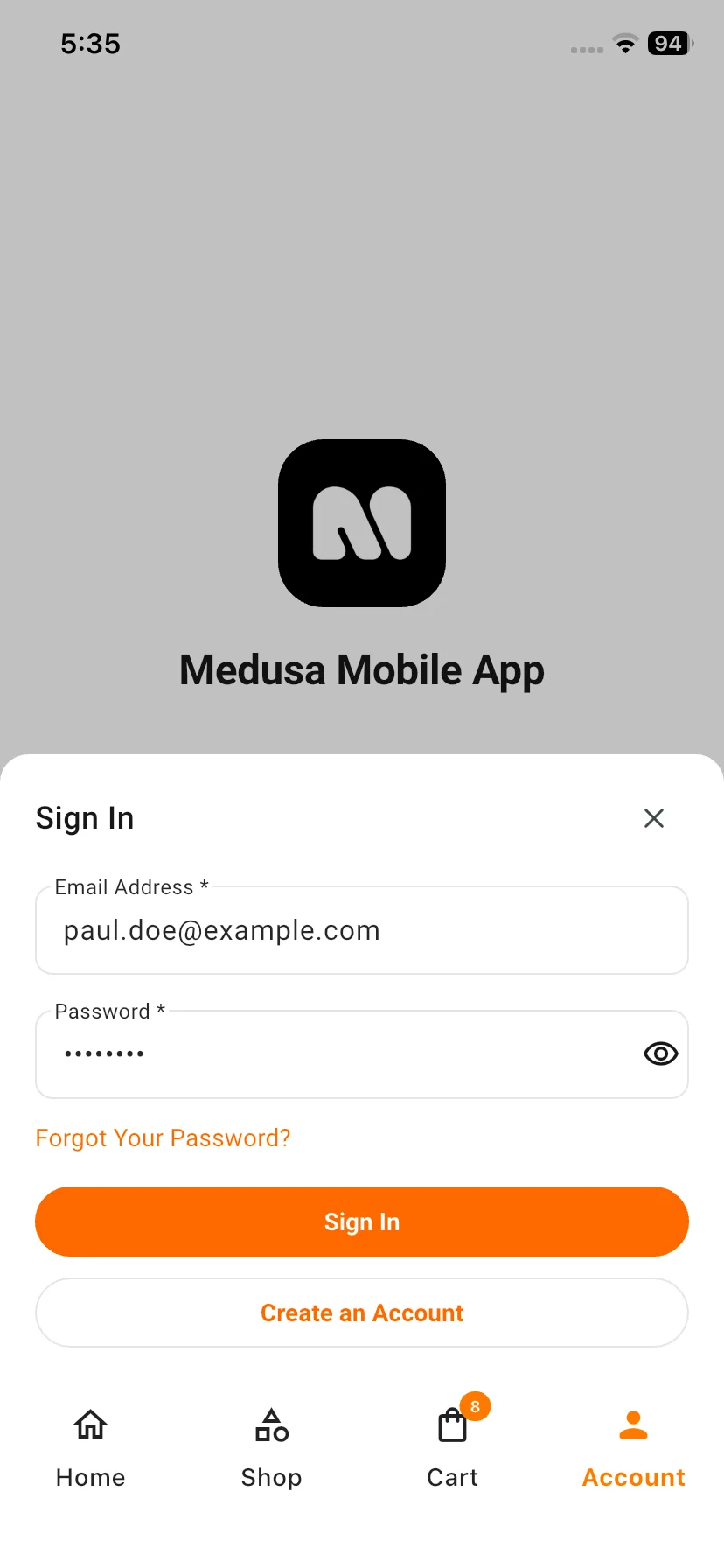
Forgot Password
Reset your account password securely by entering your registered email address and following the password recovery instructions sent to your inbox.
Forgot Password
Reset your account password securely by entering your registered email address and following the password recovery instructions sent to your inbox.
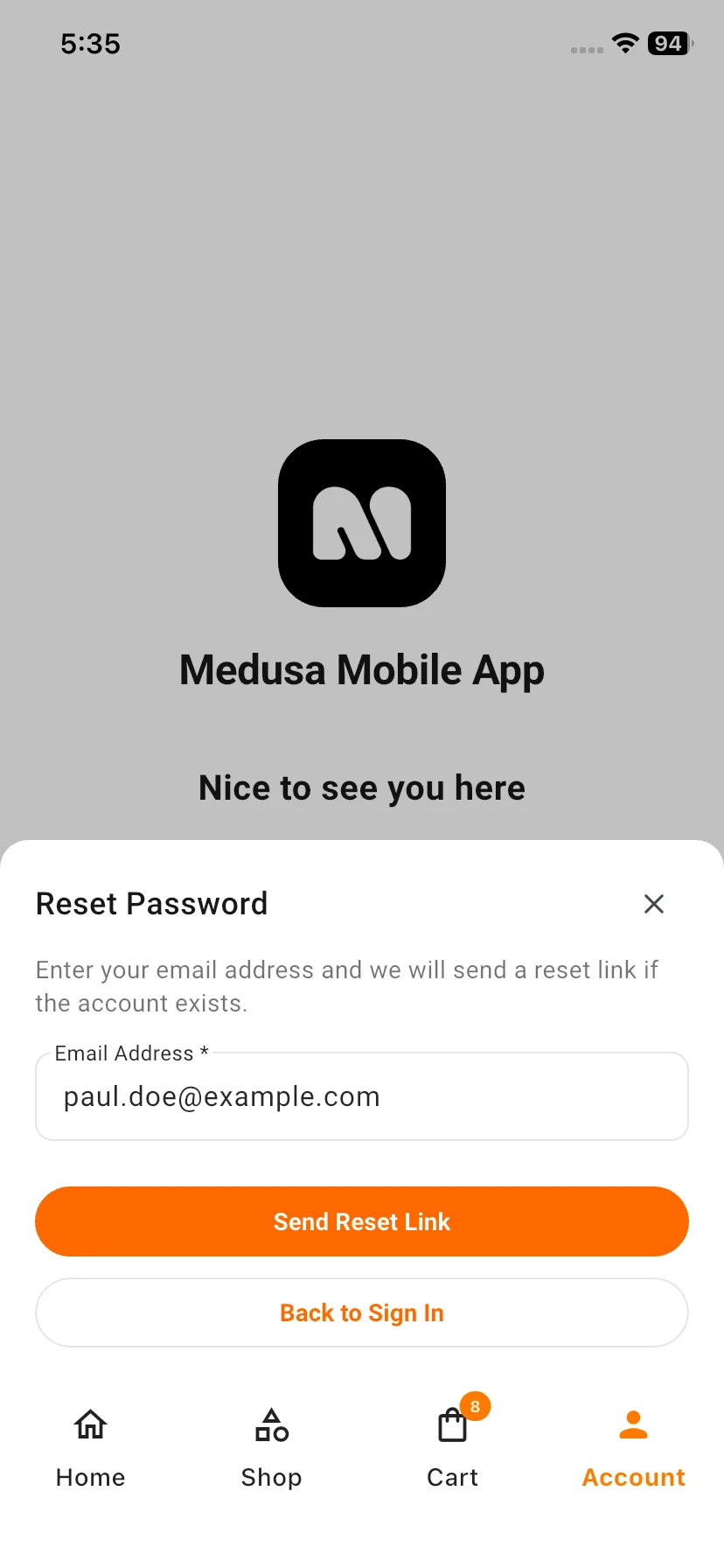
Account Dashboard
The AccountDashboard serves as a central hub for managing customer information, orders, addresses, and account preferences.
Customers can quickly access their shopping activity and account settings from a single screen.
Frontend View
Account Dashboard
The AccountDashboard serves as a central hub for managing customer information, orders, addresses, and account preferences.
Customers can quickly access their shopping activity and account settings from a single screen.
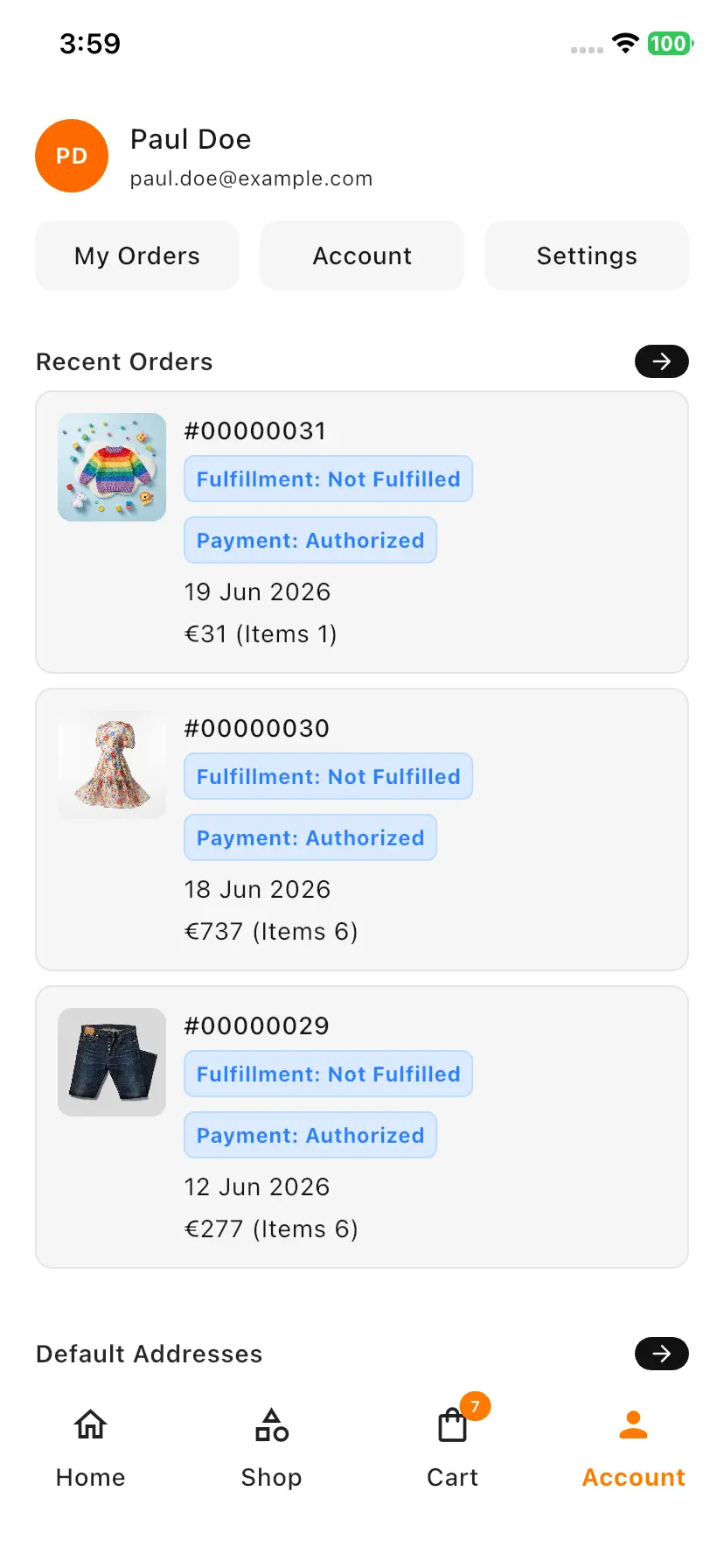
My Orders
View all placed orders with detailed information, including order status, payment status, purchased items, and order history.
Frontend View
My Orders
View all placed orders with detailed information, including order status, payment status, purchased items, and order history.
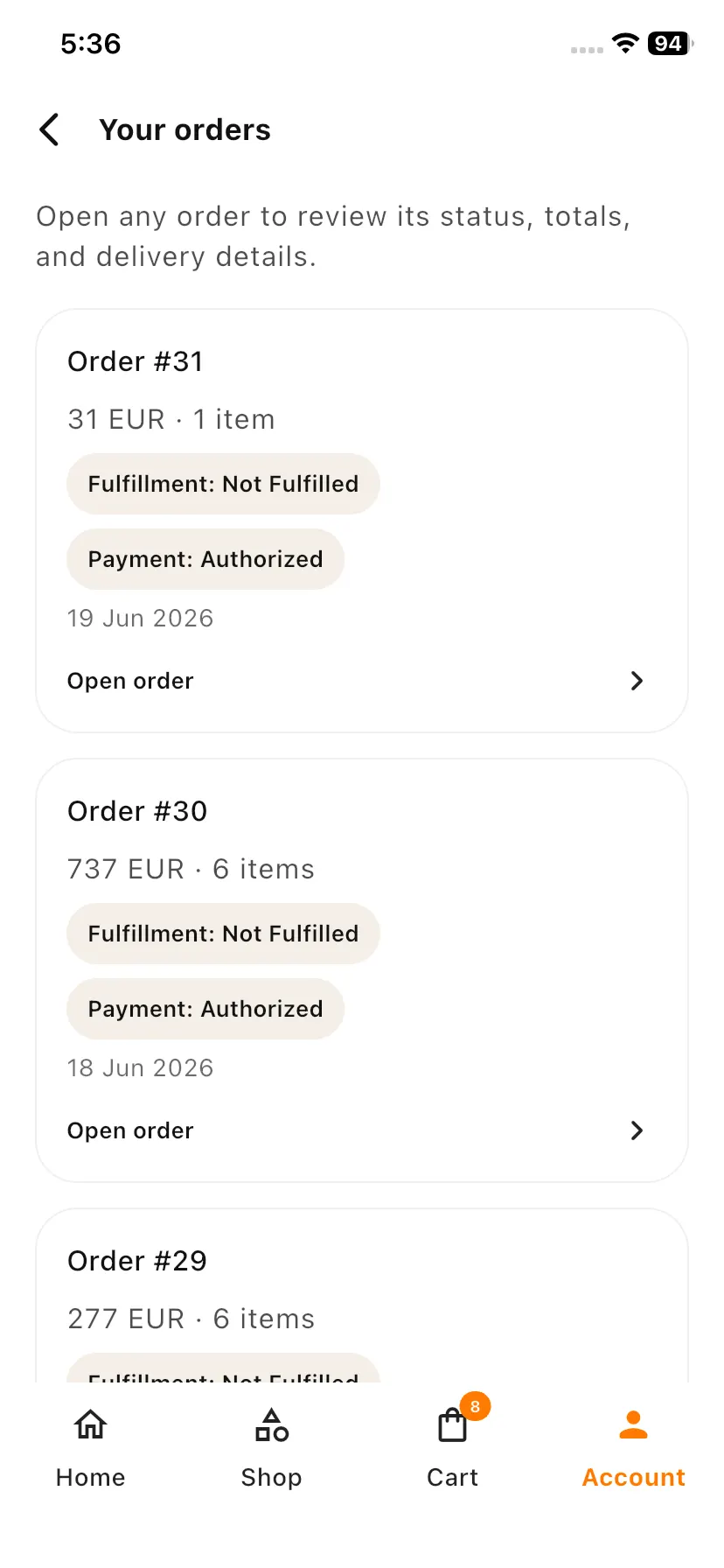
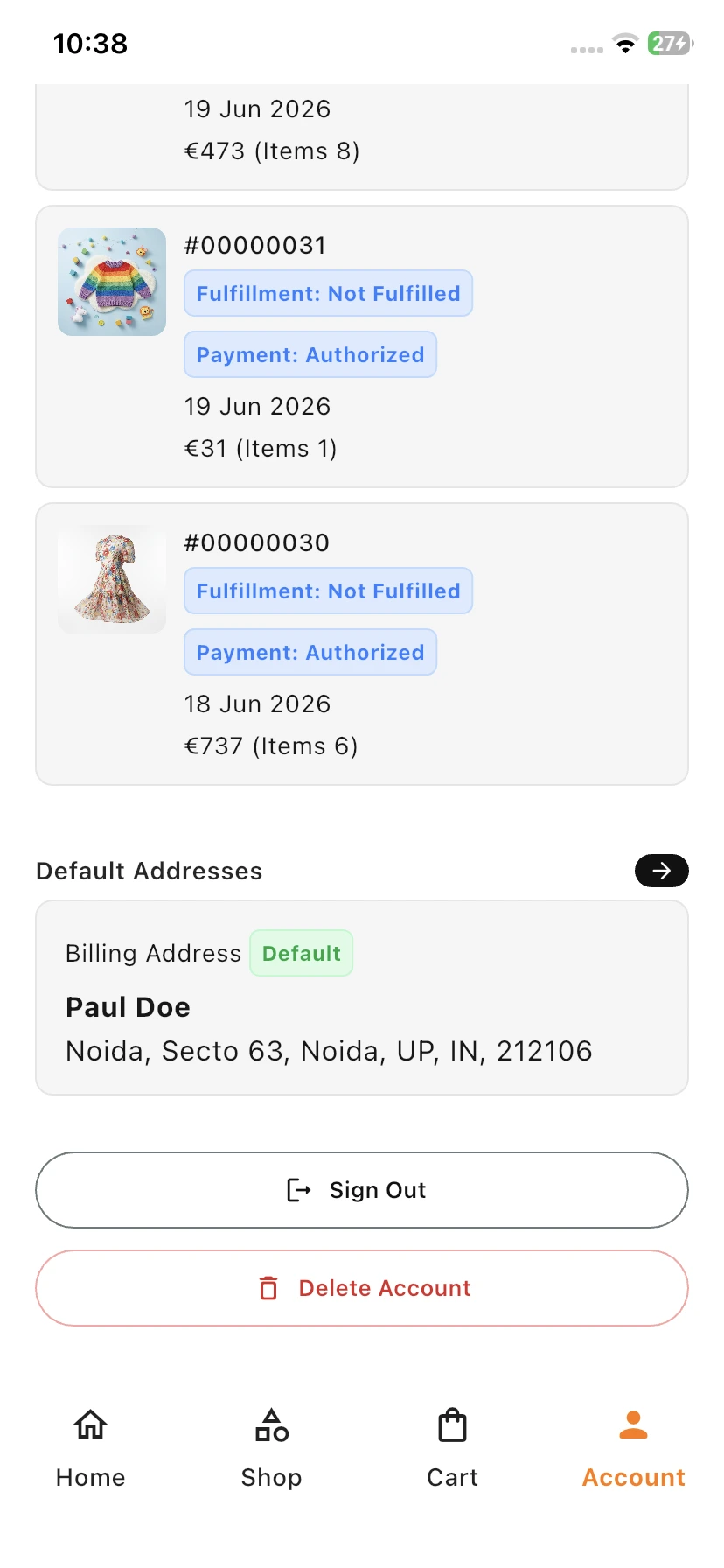
Recent Orders
Quickly access recently placed orders and monitor fulfilment status, payment status, order value, and item count without navigating through the complete order history.
Recent Orders
Quickly access recently placed orders and monitor fulfilment status, payment status, order value, and item count without navigating through the complete order history.
Default Addresses
Manage saved billing and shipping addresses used during checkout. Customers can review and update their default address information for faster future purchases.
Default Addresses
Manage saved billing and shipping addresses used during checkout. Customers can review and update their default address information for faster future purchases.
Account Details
View and manage personal account information, including customer name, email address, and profile details.
Account Details
View and manage personal account information, including customer name, email address, and profile details
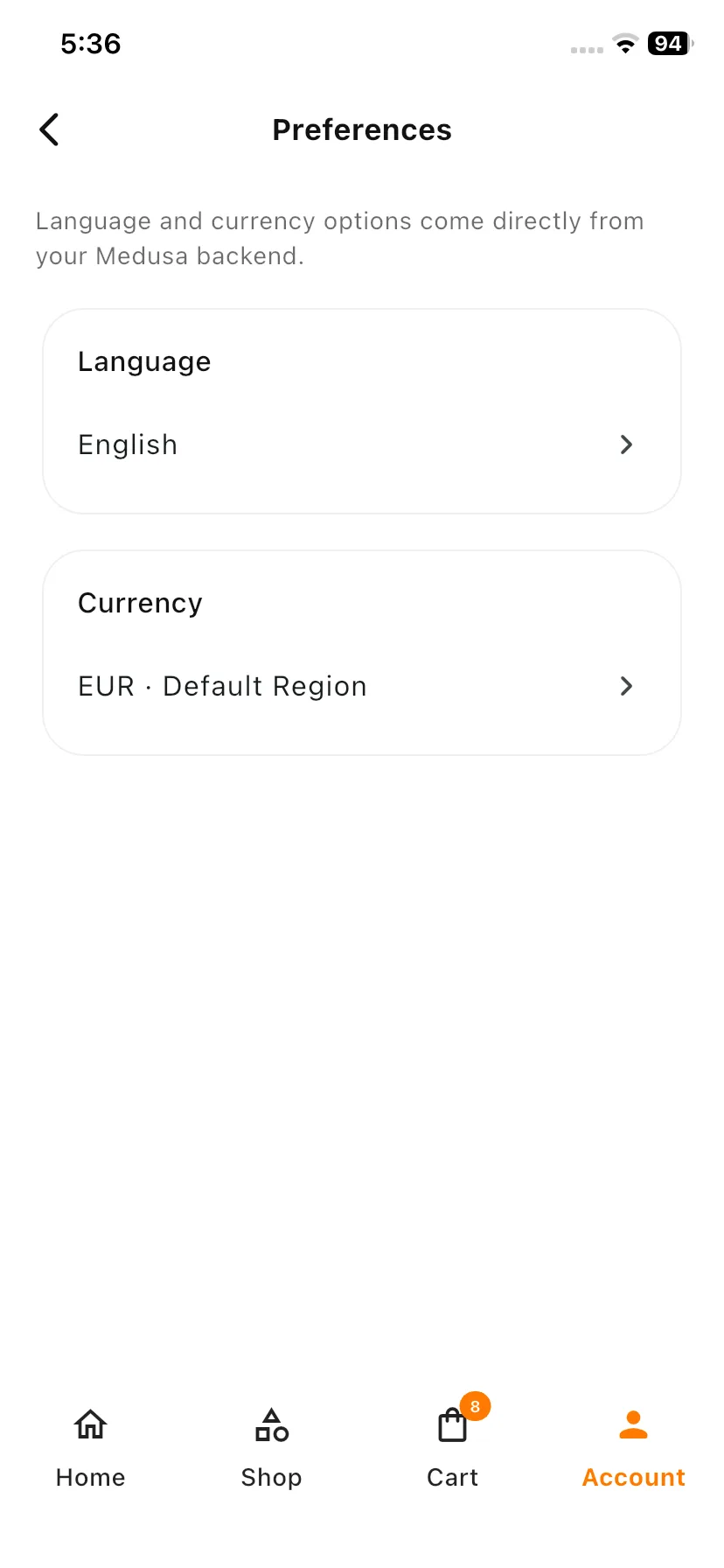
Preferences
Customize shopping preferences, such as language and currency settings, available from the Medusa backend configuration.
Language
Choose the preferred application language for browsing products and store content.
Currency
Select the preferred currency for displaying product prices and order totals throughout the application.
Note:-> Available language and currency options are managed through the Medusa backend and may vary based on store configuration.
Preferences
Customize shopping preferences, such as language and currency settings, available from the Medusa backend configuration.
Sign Out
Securely sign out of the application and end the current customer session.
Sign Out
Securely sign out of the application and end the current customer session.
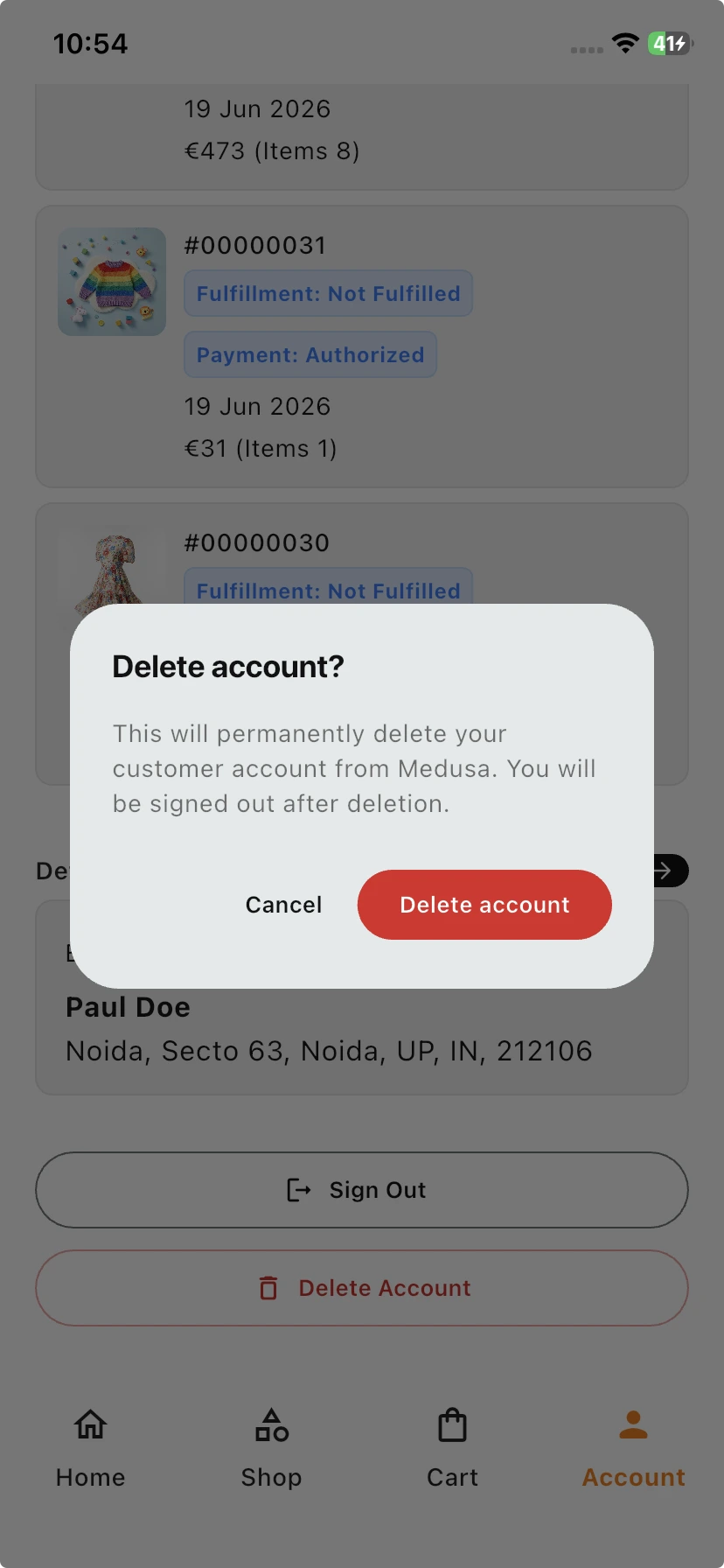
Delete Account
Permanently remove the customer account from the Medusa store. Upon confirmation, all account access will be revoked, and the customer will be automatically signed out.
Product Details Screen
Product Description
Discover a high-quality product designed to deliver comfort, style, and everyday convenience.
Options
Choose the option, size, color, or variant that best matches your needs.
Quantity
Select the quantity you would like to purchase before adding the item to your cart.
Availability
Available and ready to order. Check selected options for current stock status.
Add to Cart
Add this item to your shopping cart and continue browsing for more products.
Buy Now
Proceed directly to checkout and complete your purchase quickly and securely.
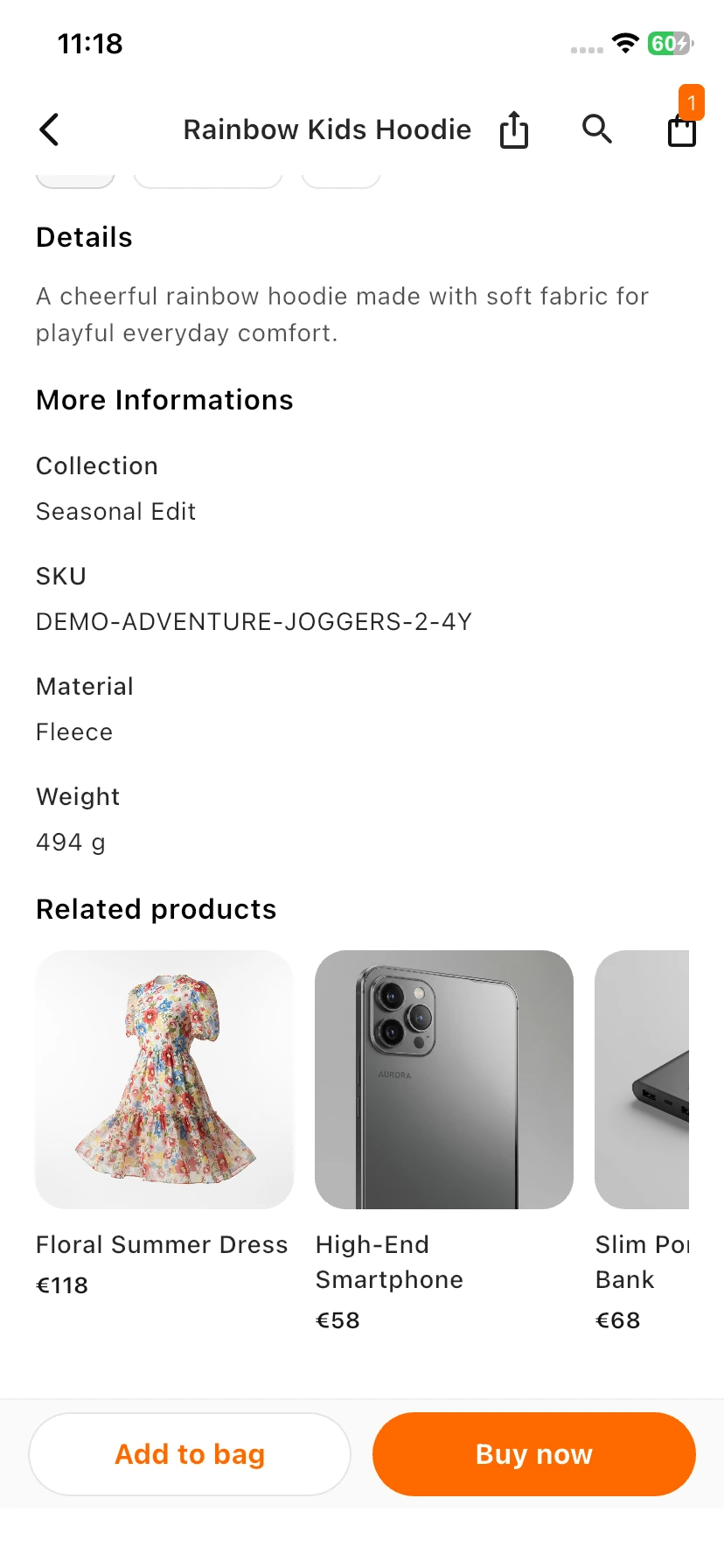
Details
Explore a product designed with quality, functionality, and everyday convenience in mind.
More Information
Collection
Part of our carefully curated collection, featuring products selected for quality, performance, and value.
SKU
A unique product identifier used for inventory tracking and product management.
Material
Made from high-quality materials chosen for durability, comfort, and long-lasting use.
Weight
Product weight may vary depending on the selected size, variant, or configuration.
Related Products
You may also like these similar products based on your interests and shopping preferences. Discover more options that complement your selection.
Cart Screen
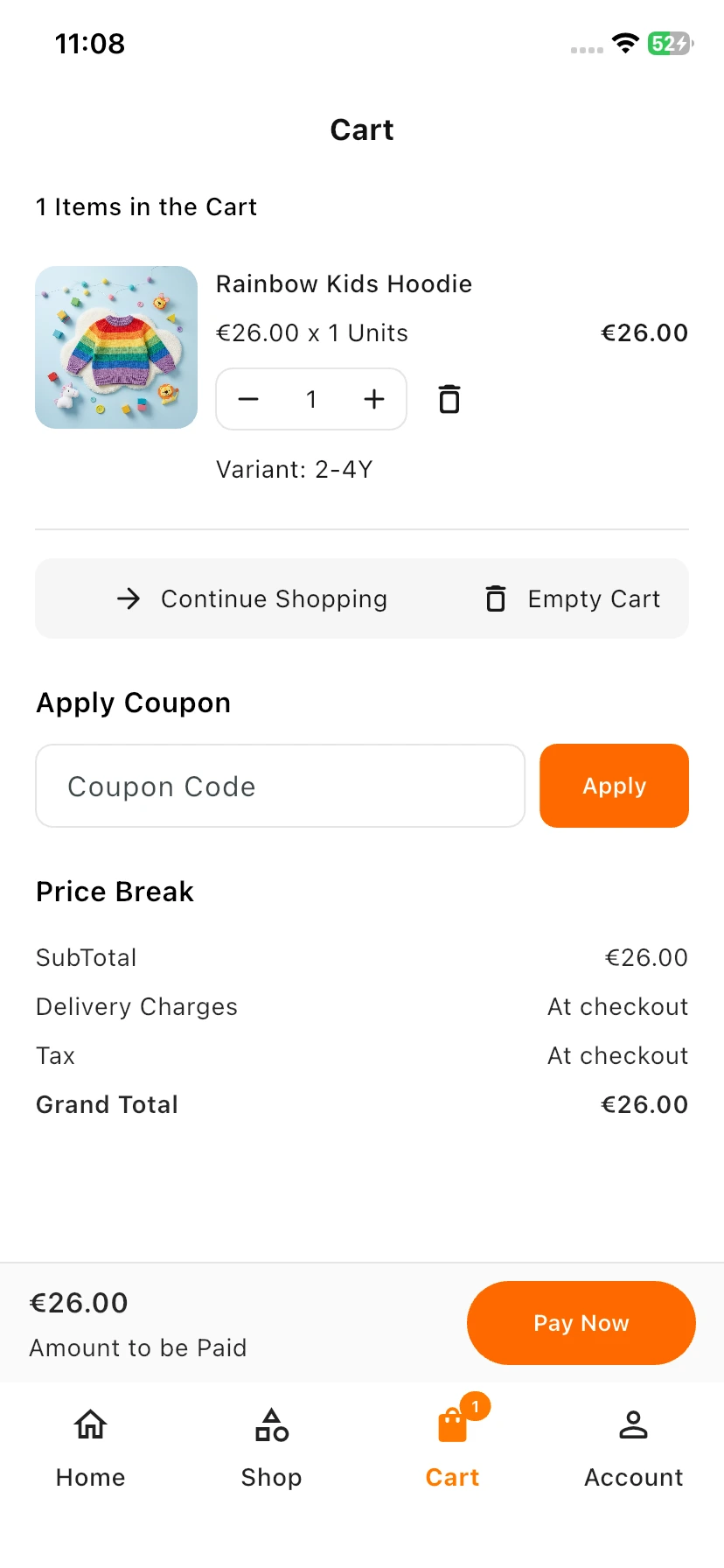
Cart Header
Review your selected items before checkout.
Quantity Update
Increase or decrease item quantity as needed.
Empty Cart
Remove all items from your shopping cart.
Continue Shopping
Browse more products and add new favorites.
Apply Coupon
Have a Coupon?
Enter your promo code below to receive available discounts.
Pay Now
Proceed to checkout and complete your order securely.
Cart Screen
Review your selected items before checkout.
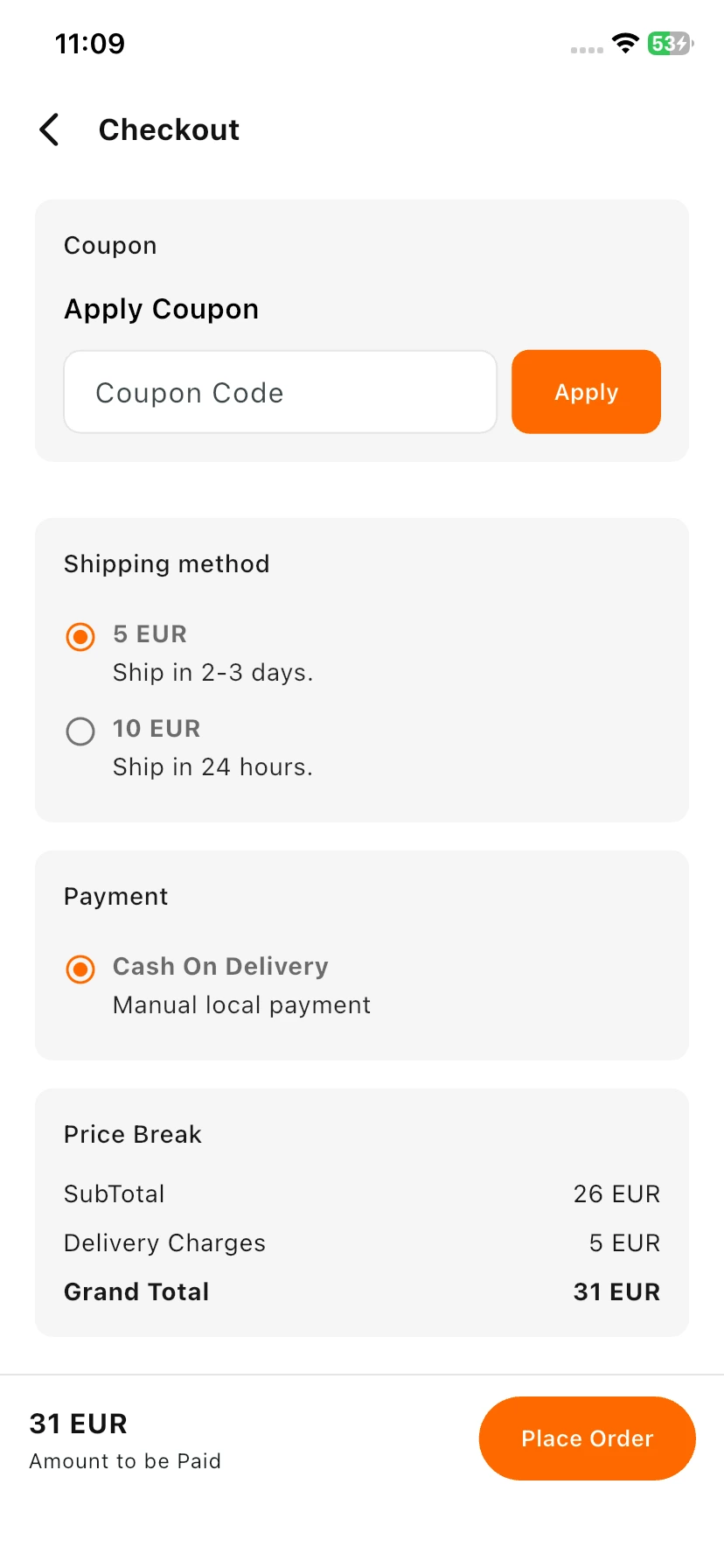
Checkout Screen
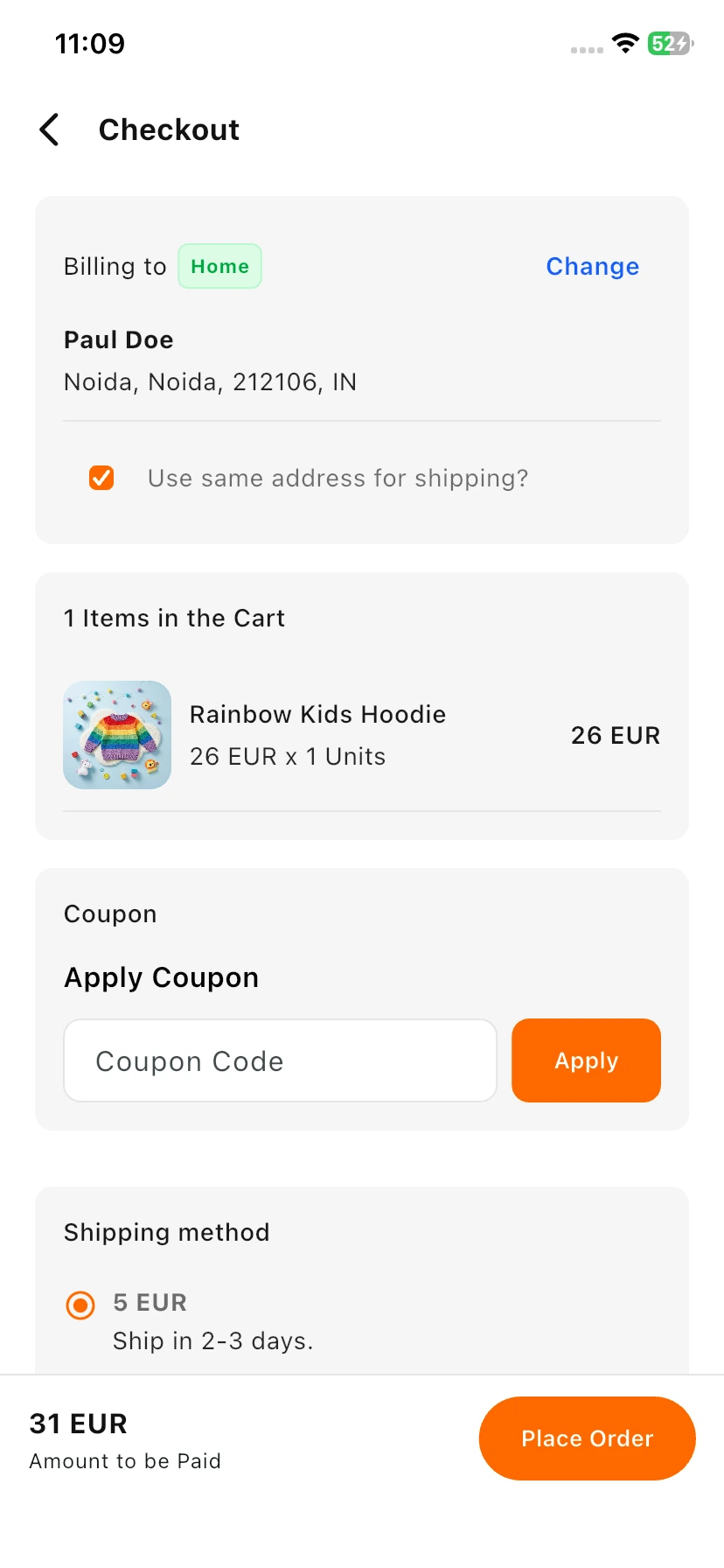
Manage Address
Choose or update the address where your order will be delivered.
Use Same Address
Deliver items to the selected billing address.
Coupon Section
Have a Coupon?
Enter your promo code below to receive available discounts.
Shipping Method
Select the delivery option that best fits your schedule.
Payment Method
Choose your preferred payment option for a secure checkout.
Order Summary
Review product cost, shipping charges, taxes, and final total.
Place Order
Confirm your order and proceed with payment.
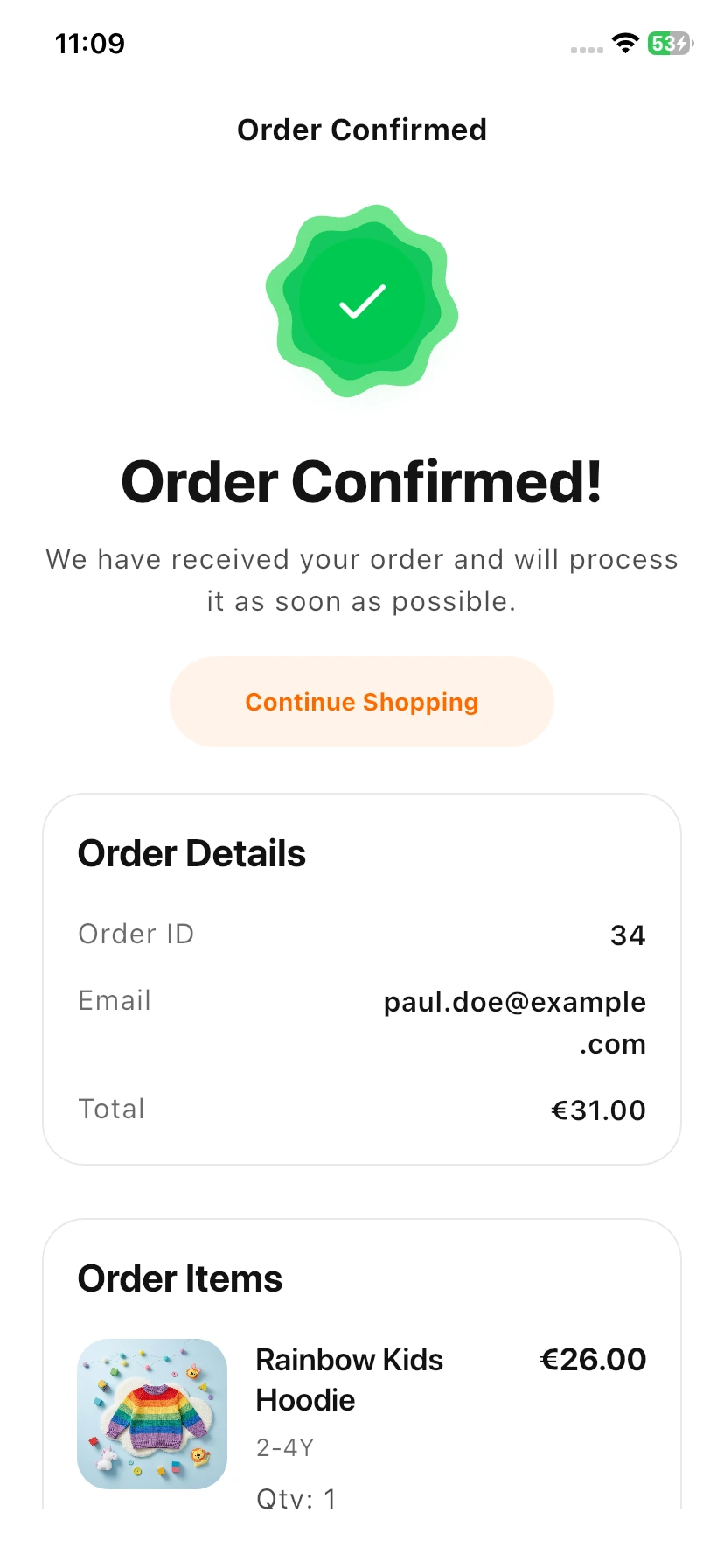
Order Confirmation Screen
Order Confirmed!
Thank you for your purchase. Your order has been successfully placed.
Description
We’ve received your order and are preparing it for shipment. You will receive updates via email.
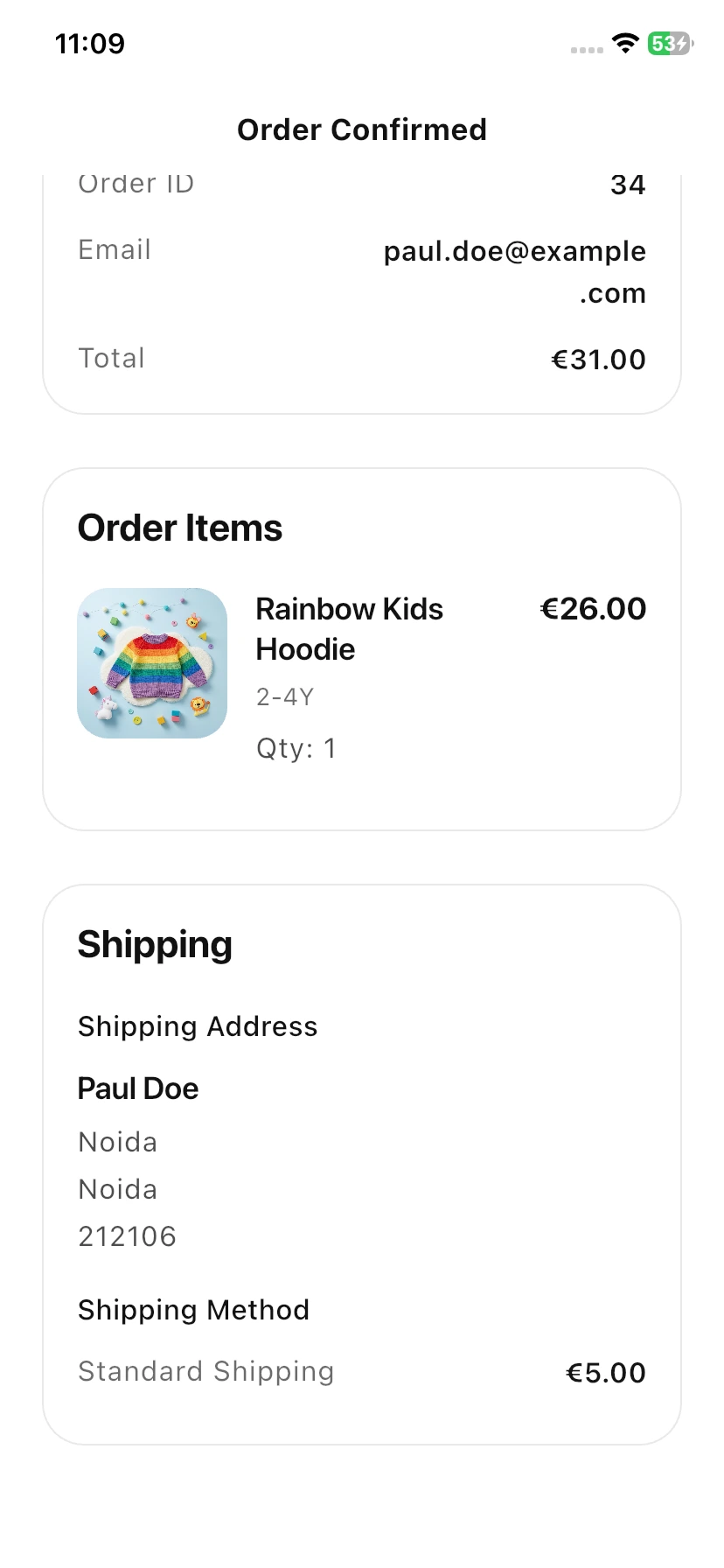
Order Details
View your order number, email, items purchased, and total amount.
Shipping Information
Review your delivery address and selected shipping method.
Continue Shopping
Explore more products and discover new arrivals.
Order List
The Order List page provides a complete overview of all customer orders placed through the store.
Features
- View complete order history.
- Check fulfilment and payment status.
- Review order dates and totals.
- Access detailed order information.
- Track current and previous purchases.
Customers can select any order to view detailed information about purchased products, shipping details, payment information, and order progress.
Frontend View
Order List
The Order List page provides a complete overview of all customer orders placed through the store.
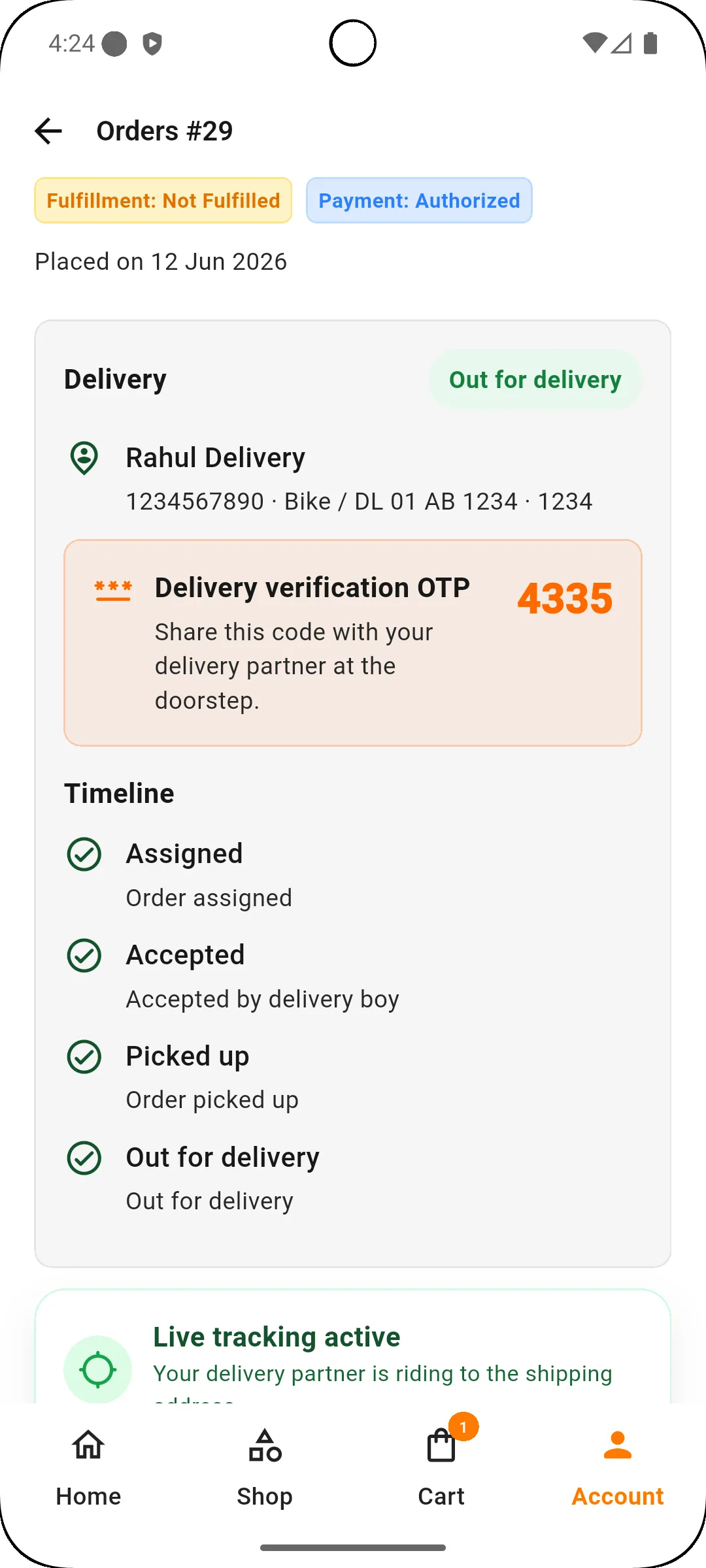
Order Details
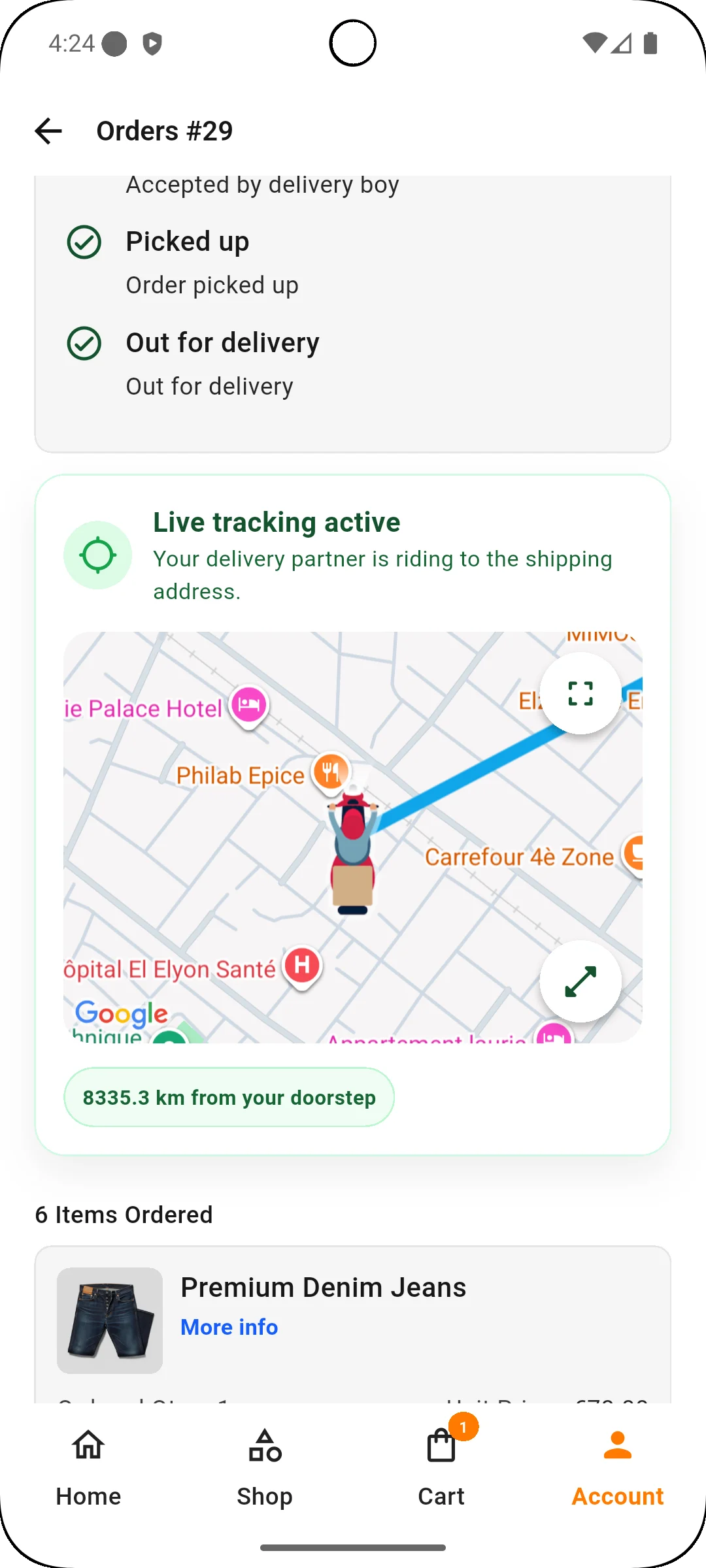
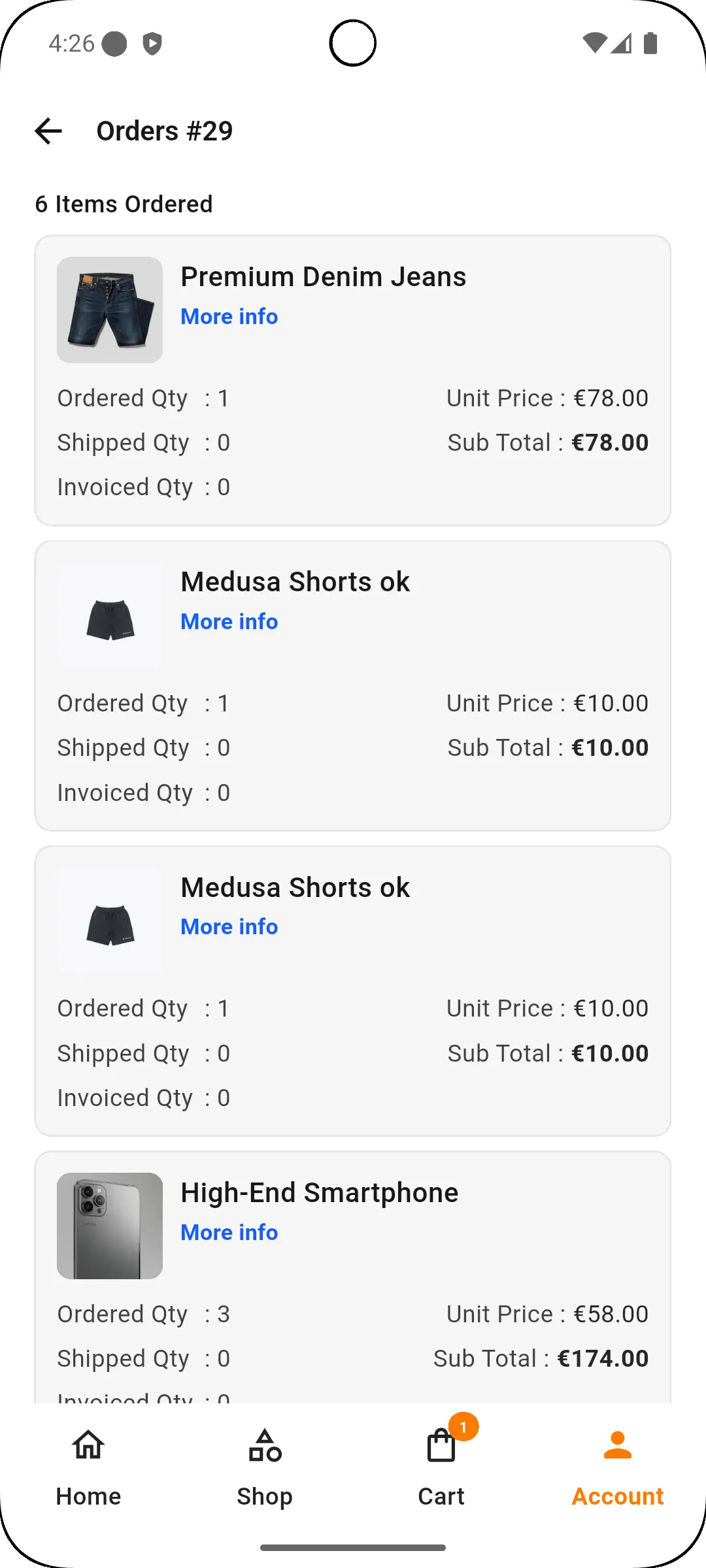
Track and manage your order with complete transparency. View order status, delivery progress, purchased items, payment information, and shipping details in one place.
Order Status
Stay updated with the latest status of your order, from placement to delivery. Real-time progress helps customers know exactly where their order is.
Live Tracking
Monitor your delivery in real time with an interactive map. Customers can view the delivery partner’s current location and the estimated distance to the destination.
Delivery Information
Access delivery partner details, shipment updates, and verification information when available for a smooth and secure delivery experience.
Order Timeline
Follow every stage of the order journey:
- Order Placed
- Order Confirmed
- Processing
- Shipped
- Out for Delivery
- Delivered
Items Ordered
Review all purchased products, including quantity, pricing, and order summary details.
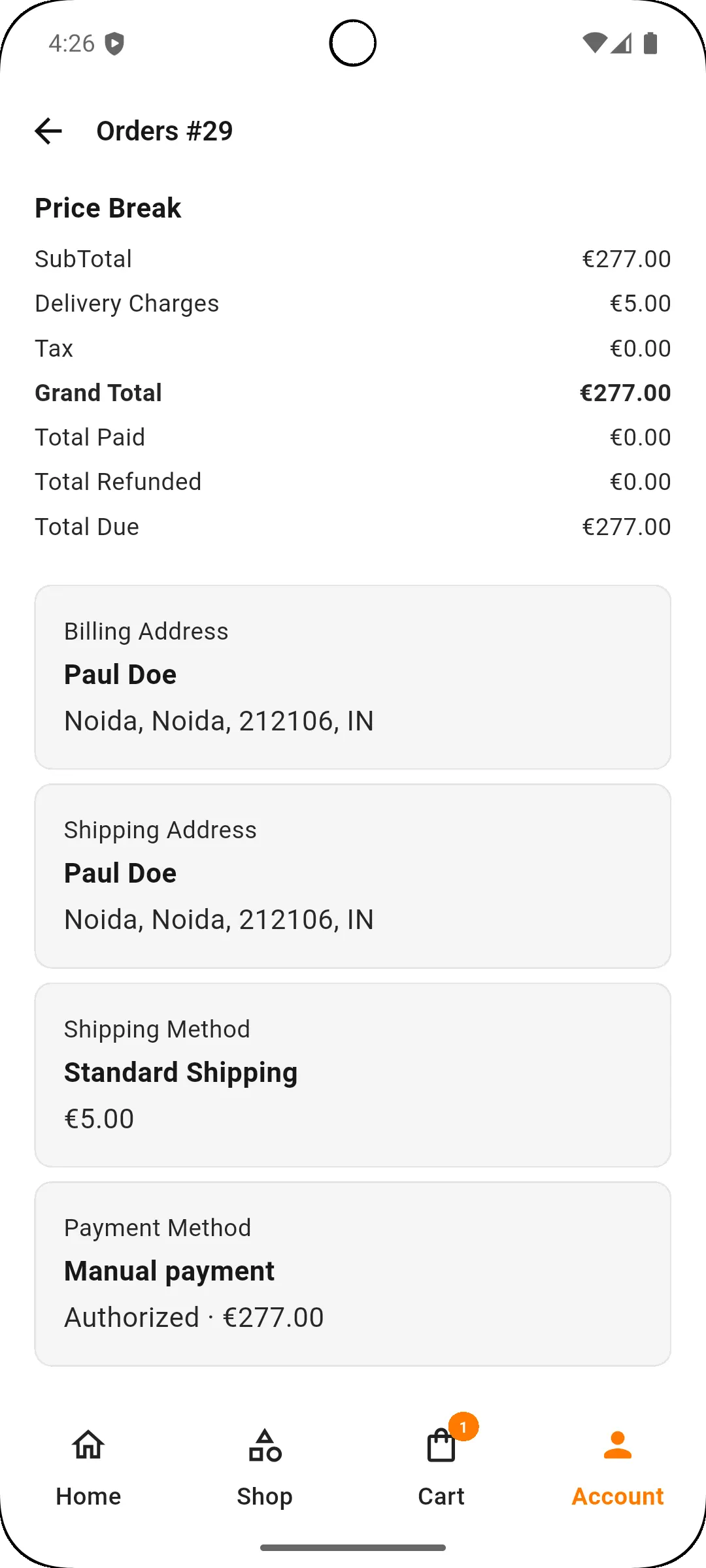
Payment Details
View payment method, payment status, and transaction information associated with the order.
Shipping Details
Check billing and shipping addresses, selected shipping method, and delivery preferences.
Price Summary
A detailed breakdown of charges, including:
- Subtotal
- Shipping Charges
- Taxes
- Discounts (if applicable)
- Grand Total
Order Management
Customers can easily monitor order progress, verify delivery details, and access all order-related information from a single screen.
Conclusion
The Medusajs Mobile App Builder is the ideal solution for converting a Medusajs store into a powerful mobile application.
If you still have any issues, feel free to add a ticket and let us know your views to make the module better https://webkul.uvdesk.com.

Be the first to comment.