


















Introduction
ERPNext PayPal Express & Direct Checkout adds a PayPal checkout to the ERPNext Webshop. Customers pay from the shopping cart with the PayPal smart button, or with a debit or credit card.
Store admins set up the connection once. After that, ERPNext saves each PayPal payment as a transaction and links it to the Sales Order, Sales Invoice and Payment Entry.
This guide shows you how to set up the app and how customers pay. It also shows how to track a PayPal payment and make a PayPal refund from the backend.
Prerequisites for using ERPNext PayPal Express & Direct Checkout
ERPNext PayPal Express Checkout works in conjunction with the following apps:
1. ERPNext
2. Webshop
3. Payments
You must install the above-mentioned apps to use ERPNext PayPal Express & Direct Checkout.
Features
- Add a PayPal checkout to the cart of your ERPNext Webshop.
- Let customers pay with the PayPal smart button or with a card.
- Switch between Test and Live mode with one setting.
- Choose the colour, shape and label of the PayPal smart button.
- Create and submit a Sales Invoice after each PayPal payment.
- Track every PayPal payment as a transaction with its status.
- Check the latest status of a PayPal payment from ERPNext.
- Make a full or partial PayPal refund from the transaction.
- See every refund in a table on the same transaction.
- Add a PayPal checkout to product pages with Direct Checkout.
Installation
- After purchasing the app from Webkul Store, you will receive a link to download the module ZIP file.
- Extract the ZIP file. You will see a folder named ‘paypal_express_checkout’.
- Set up the module in your git repository, then fetch it using:
bench get-app --branch main https://git.webkul.com/erpnext-apps/paypal_express_checkout.git
- Install the app on your site:
bench --site <your-site-name> install-app paypal_express_checkout.
- Run bench migrate to complete the setup.
Workflow
Setting Up PayPal Express Checkout
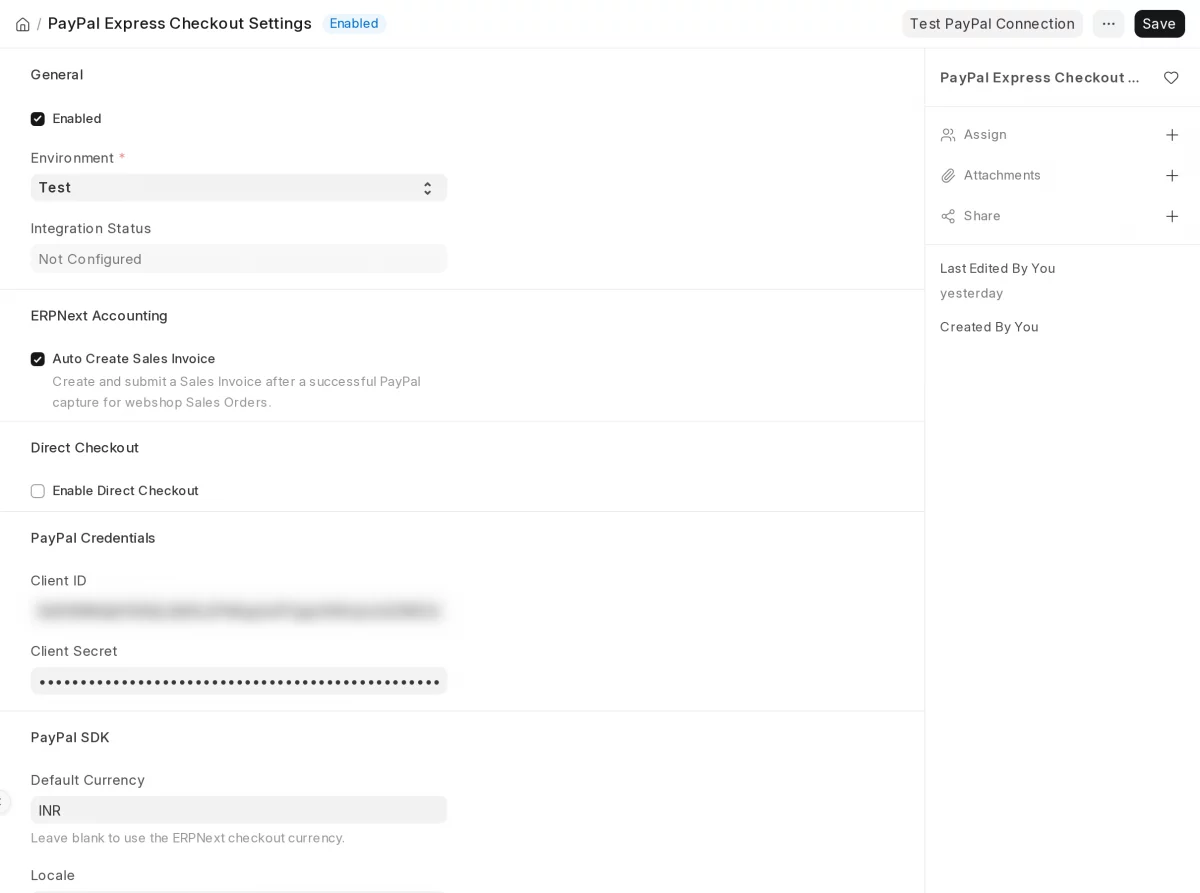
1. Open PayPal Express Checkout Settings from the Payments workspace. Tick Enabled and choose Test or Live in Environment.
2. Enter the Client ID and Client Secret from your PayPal app. ERPNext hides the secret once you save it.
3. Click Test PayPal Connection at the top of the page. ERPNext checks the keys with PayPal and updates Integration Status.
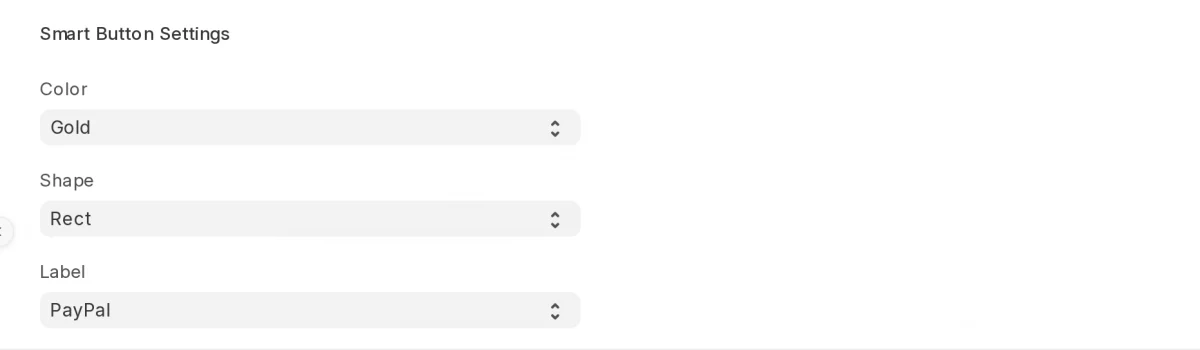
4. Set the Color, Shape and Label for the PayPal smart button, then click Save.
5. Keep Auto Create Sales Invoice ticked if you want ERPNext to create and submit a Sales Invoice after each PayPal payment.
6. Tick Enable Direct Checkout if you want a PayPal checkout on each product page as well as in the cart. Click Save.

Paying with PayPal on the Website
1. The customer adds items to the cart and opens the Shopping Cart page.
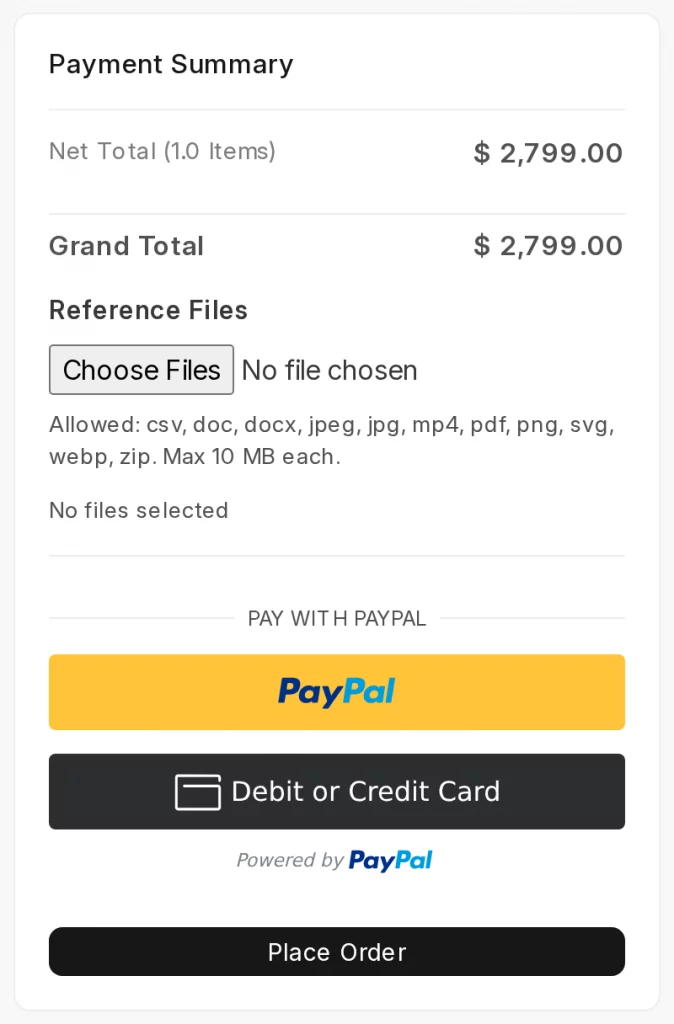
2. Under Payment Summary, the customer sees the PayPal checkout. The customer clicks the PayPal smart button, or Debit or Credit Card, and pays on the PayPal window.
3. After the PayPal payment, the customer lands on a page that says PayPal payment received
and can click View Order.
Direct Checkout from a Product Page
1. Open a product page on the website. With Enable Direct Checkout ticked, the PayPal smart button appears below Add to Cart.
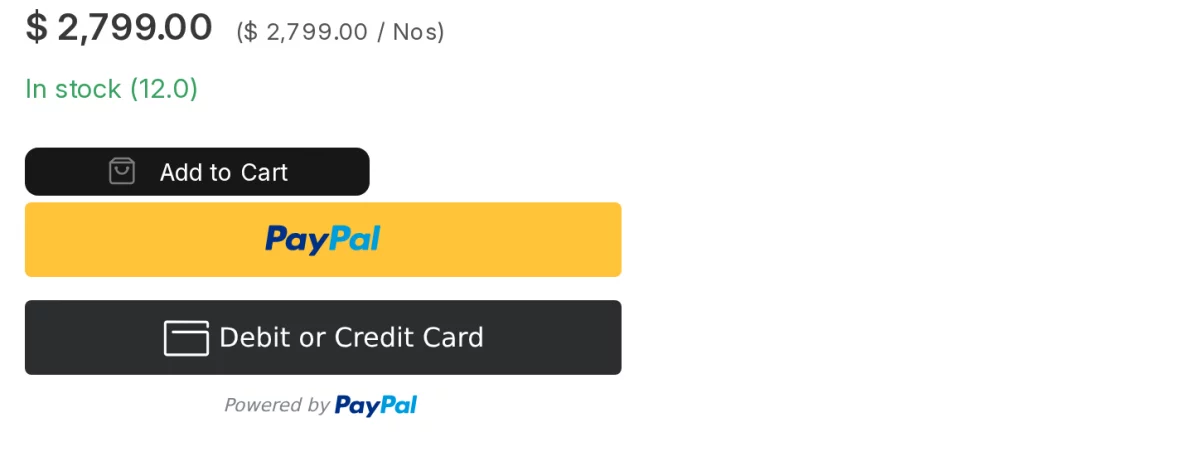
2. Click the PayPal smart button. ERPNext creates a Quotation for that one item and opens the PayPal payment, so the customer skips the cart.
Managing PayPal Payments from the Backend
1. Open PayPal Express Checkout Transaction to see one row for each PayPal payment. Each row shows the customer, Sales Order, amount and environment.
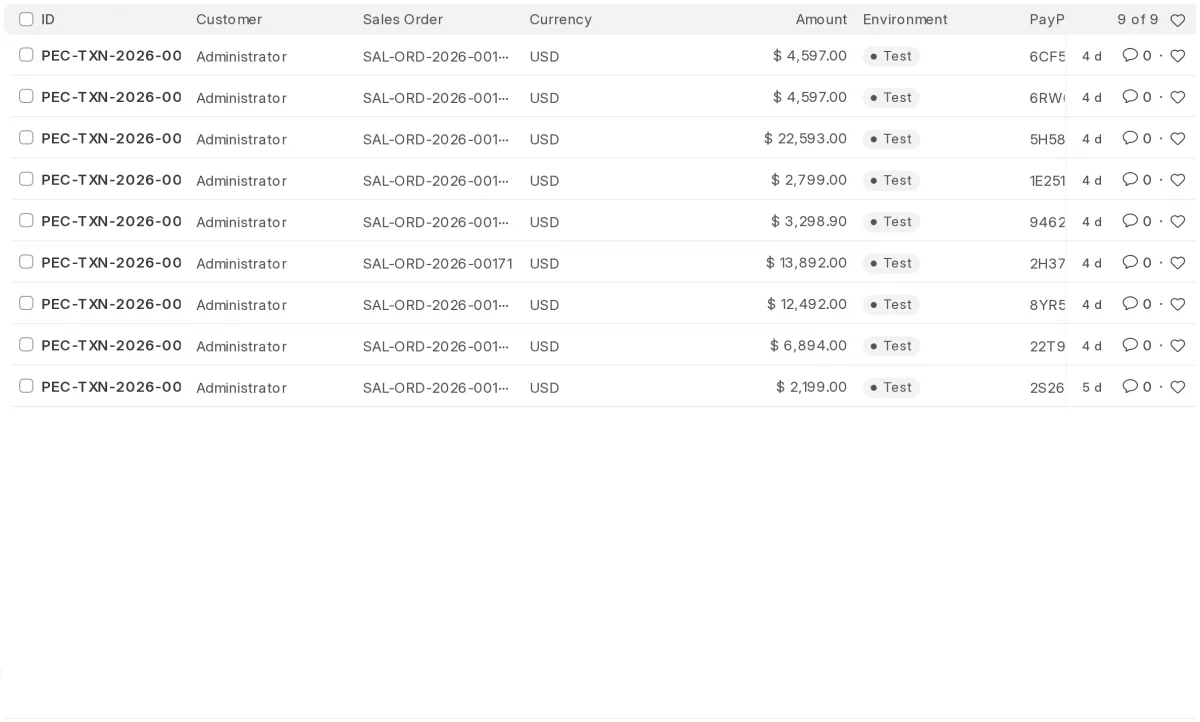
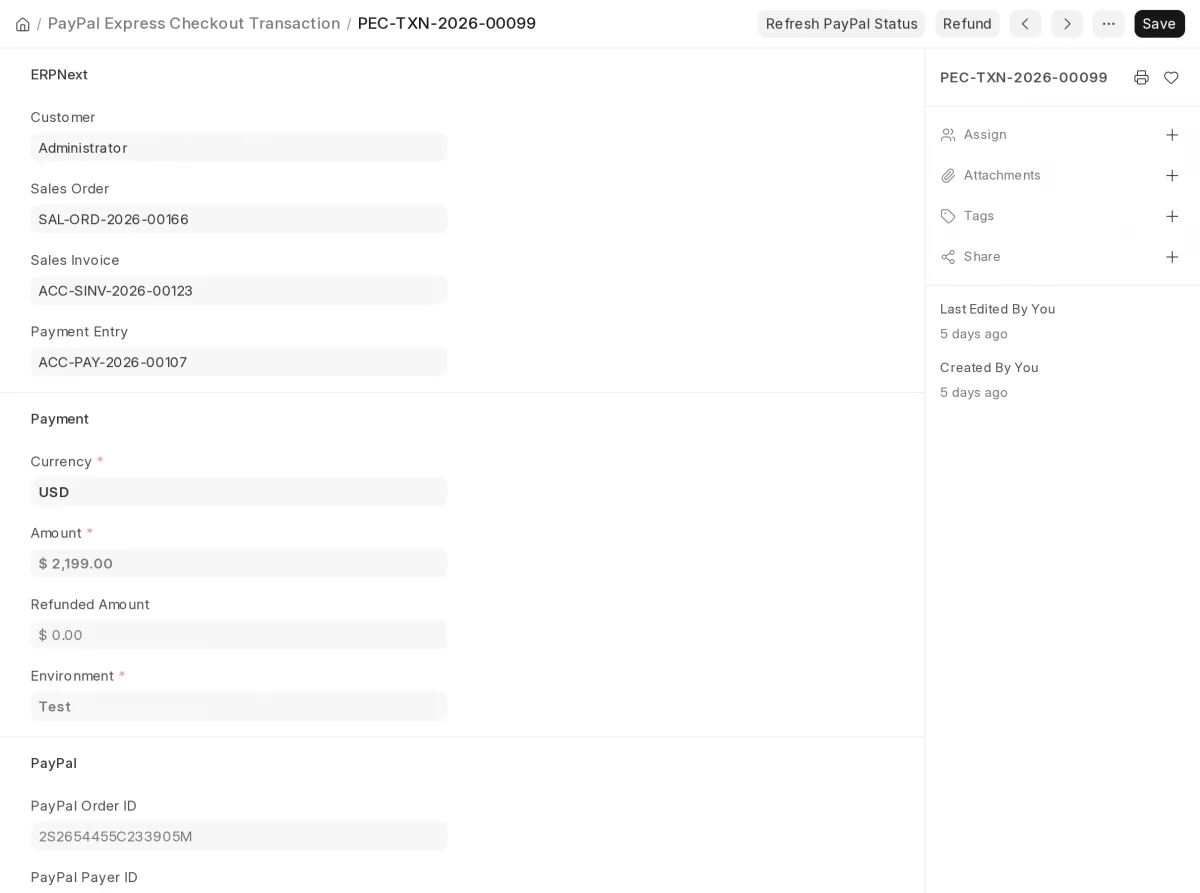
2. Click a transaction to open it. The form links the Sales Order, Sales Invoice and Payment Entry, and shows the Transaction Status.
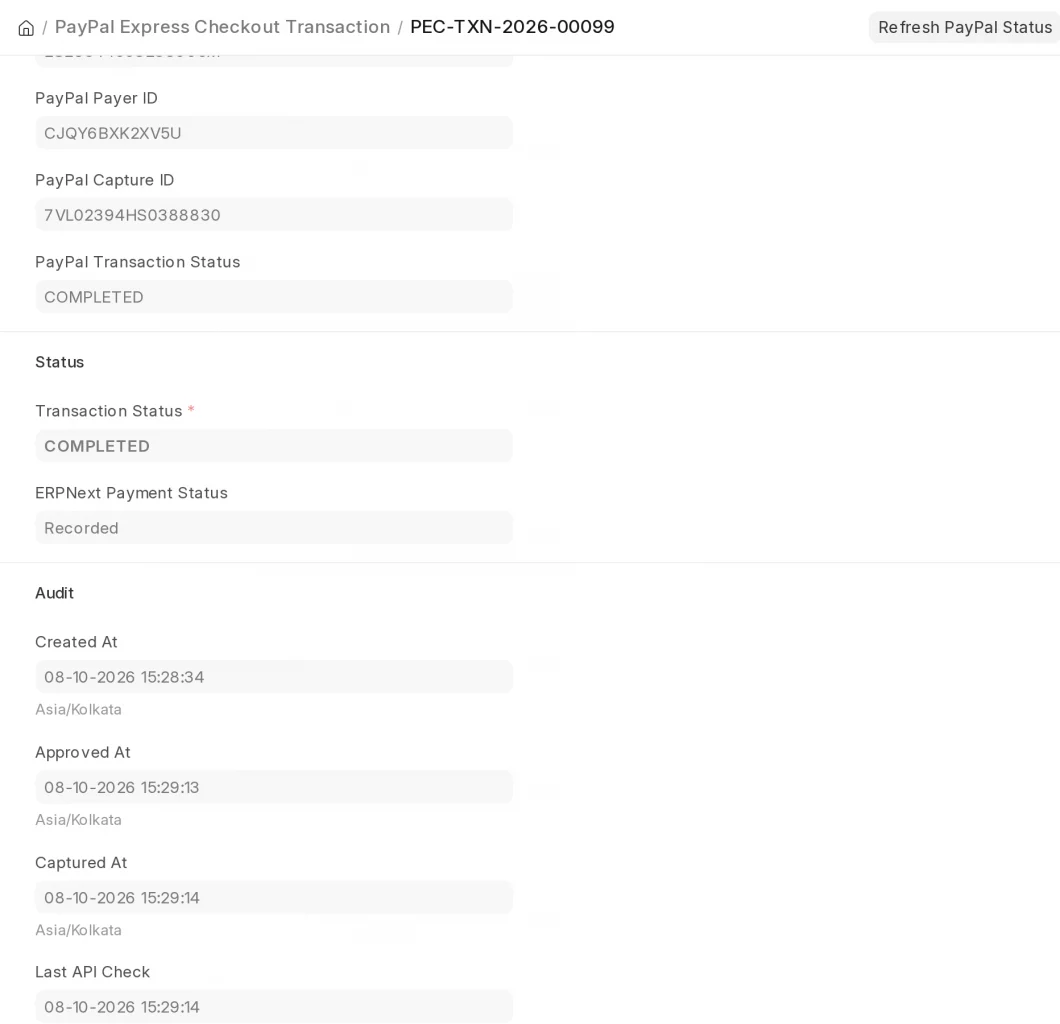
3. Scroll down to read the PayPal order and capture IDs and the ERPNext Payment Status. Click Refresh PayPal Status to get the latest status from PayPal.
4. If PayPal took the money but ERPNext has no Payment Entry yet, click Complete ERPNext Payment. ERPNext then creates the invoice and the payment entry.
Refunding a PayPal Payment
1. Open a captured transaction and click Refund. The Refund PayPal Payment dialog lists the items you can refund.
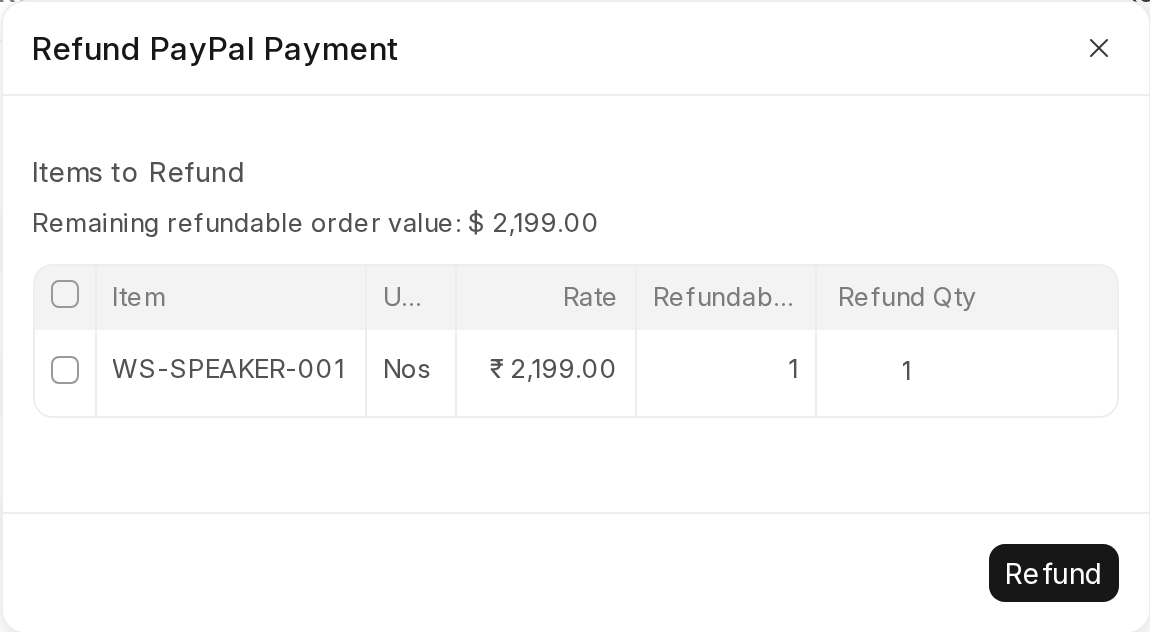
2. Enter the Refund Qty for each item, then click Refund. ERPNext sends the PayPal refund and creates the return credit note.
3. Open the transaction again. The Refunds table lists each PayPal refund with its date, amount and return documents.
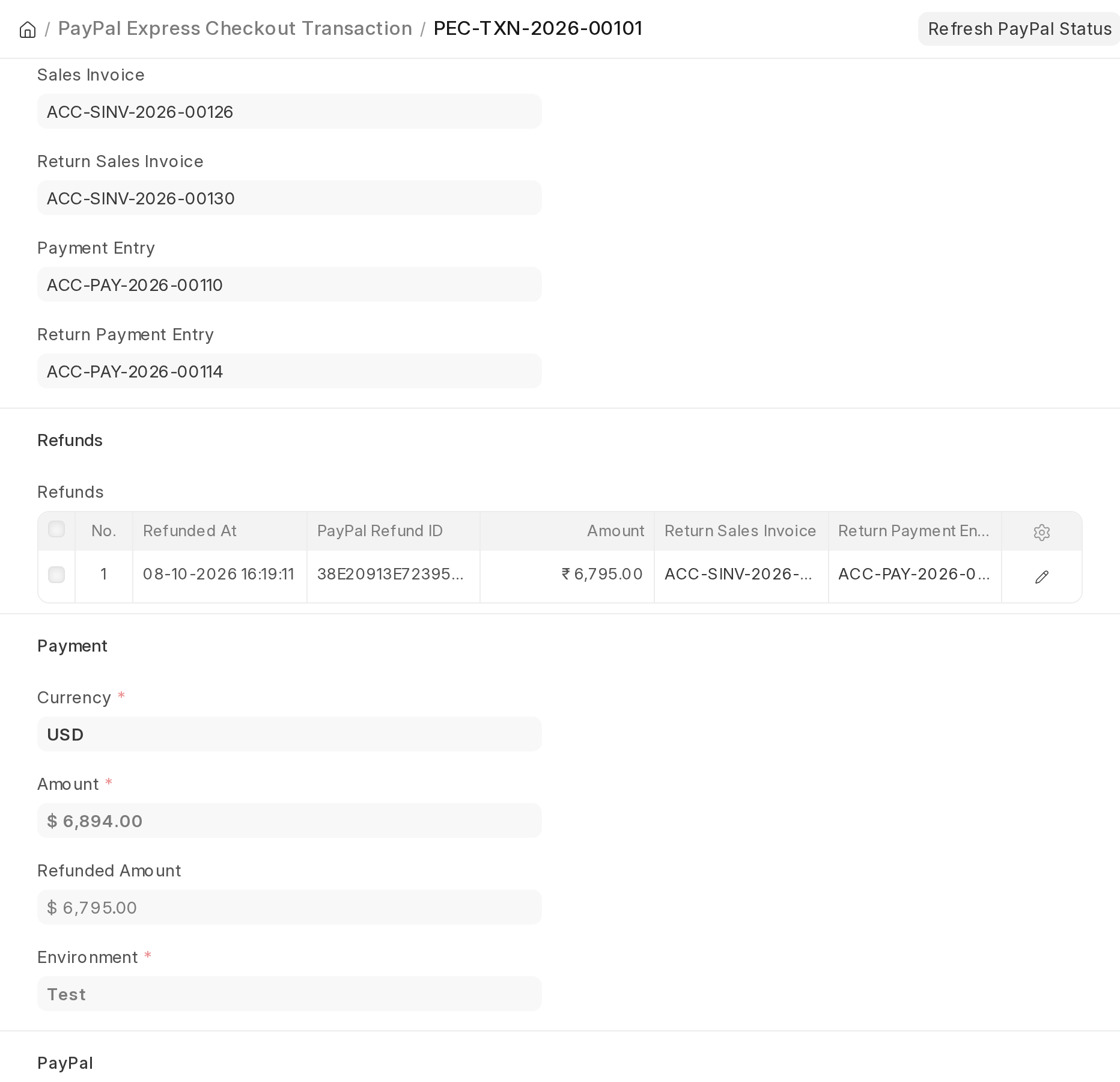
Note: A partial refund sets the status to PARTIALLY_REFUNDED. A full refund sets it to REFUNDED.
Need Help?
Hope you find this guide helpful! Please feel free to share your feedback in the comments below.
If you still have any issues/queries, please create a ticket at the UV Desk.
I hope this helps. In case of any further queries, contact us at our support mail.
Thanks for paying attention!!
Current Product Version - 0.0.6
Supported Framework Version - Erpnext V16

Be the first to comment.