


















CS-Cart Wix Connector connects your CS-Cart store with Wix to synchronize products, orders, and inventory.
The add-on provides a centralized workflow for managing product and order synchronization between CS-Cart and Wix.
Merchants can connect their Wix store with CS-Cart and manage product and order synchronization from the connector dashboard.
The add-on supports product import, product export, order import, and order export between both platforms.
It also provides synchronization history, configuration options, logs, and vendor connection management for better control.
Note:
- Install the add-on.
- Enter the license key.
- Follow the license activation steps.
Features
- Connects CS-Cart with Wix through the Wix authorization process.
- Synchronizes products between CS-Cart and Wix in both directions.
- Allows vendors to export individual CS-Cart products to Wix.
- Supports importing selected products from Wix into CS-Cart.
- Synchronizes orders between CS-Cart and Wix in both directions.
- Supports bulk order export from CS-Cart to Wix.
- Allows vendors to import selected Wix orders into CS-Cart.
- Provides product and order synchronization history.
- Displays pending and processed synchronization information.
- Provides default payment and shipping method configuration.
- Allows configuration of default order and product statuses.
- Provides automatic synchronization options for supported endpoints.
- Supports automatic inventory synchronization.
- Processes synchronization tasks through the CS-Cart Queue Handler.
- Allows administrators to manage vendor Wix connections.
- Provides Wix logs for monitoring integration activities.
Note: Follow the license activation steps to activate the license.
- Install the add-on.
- Enter the license key.
CS-Cart Wix Connector requires the Webkul Data Grid (wk_datagrid) add-on. Install the required dependency before installing the Wix Connector.
Installation
After downloading the CS-Cart Wix Connector, you can install the add-on through the CS-Cart admin panel.
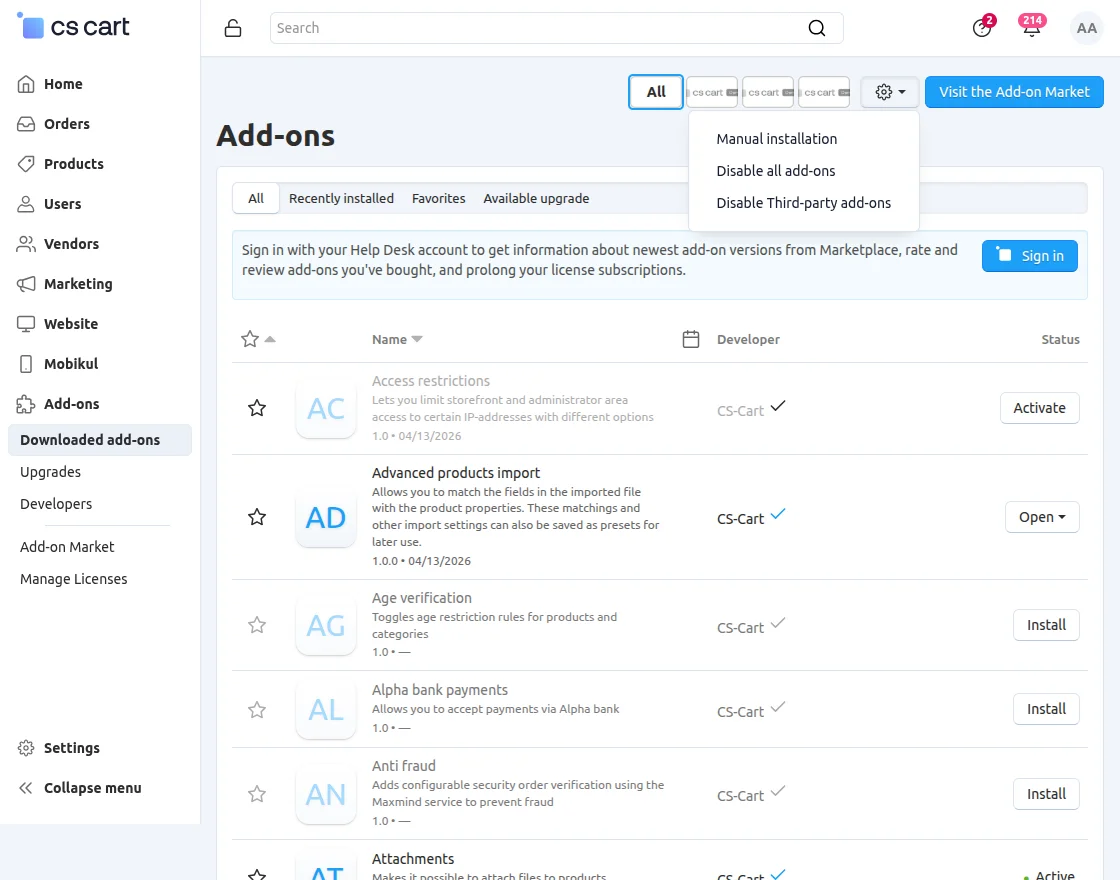
Go to Add-ons > Downloaded Add-ons from the CS-Cart admin panel.
Open the gear menu and select Manual Installation to upload the add-on package.
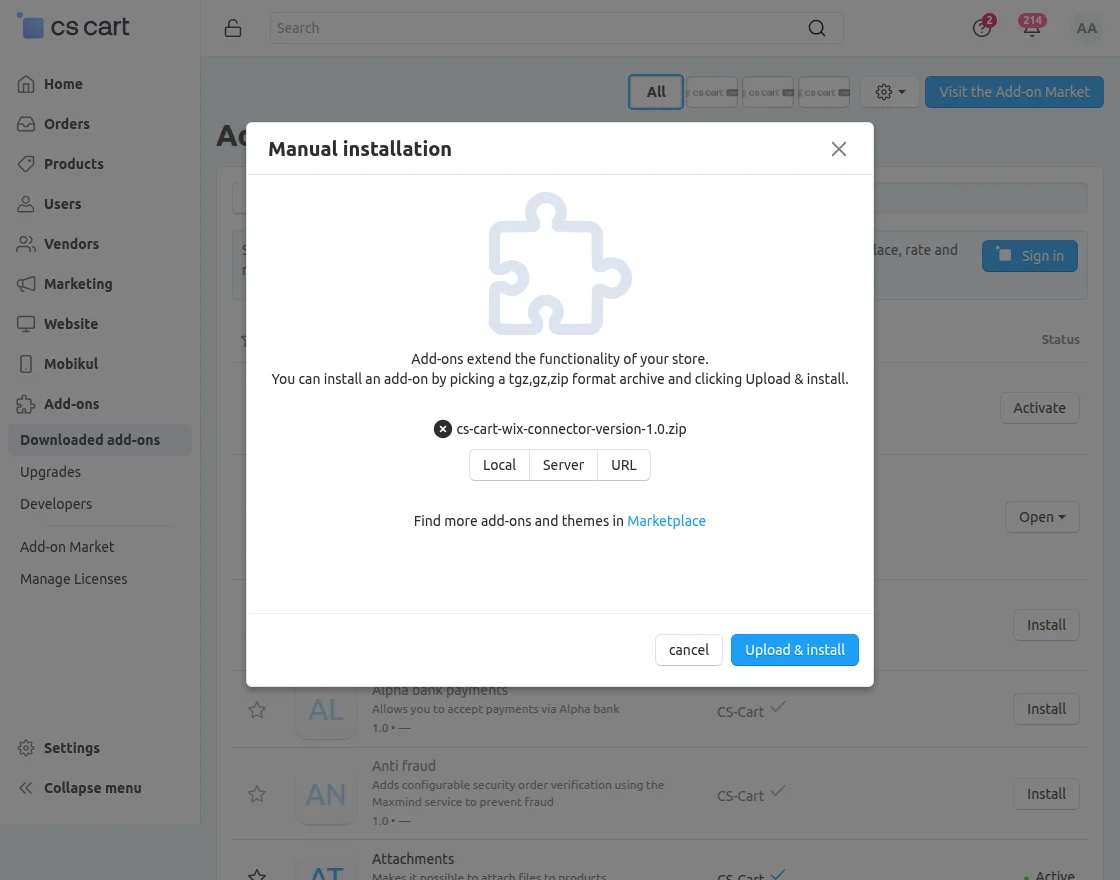
Click Local, select the Wix Connector ZIP file, and click Upload & Install.
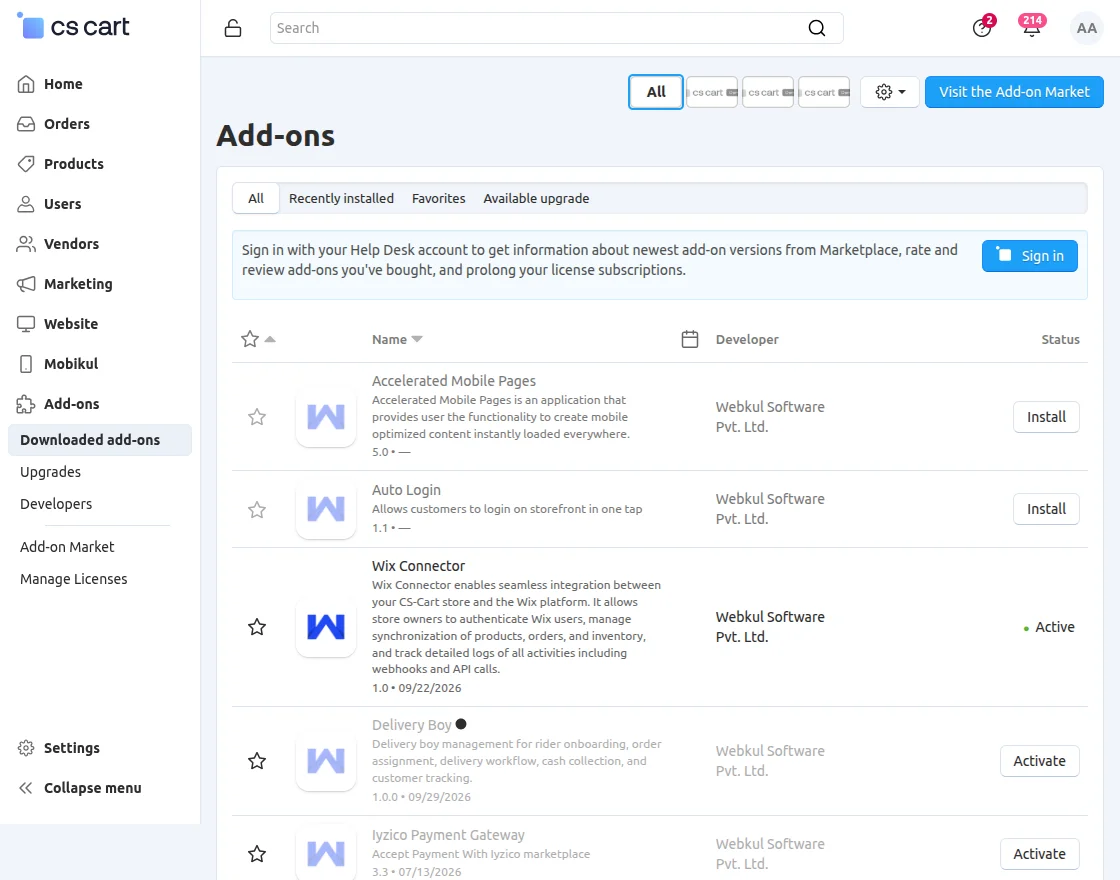
Once installed, the Wix Connector becomes available in the CS-Cart add-ons section.
Configure Wix Connector
After installation, open the Wix Connector configuration from the CS-Cart admin panel.
The configuration page provides the Wix application credentials and synchronization settings required for the integration.
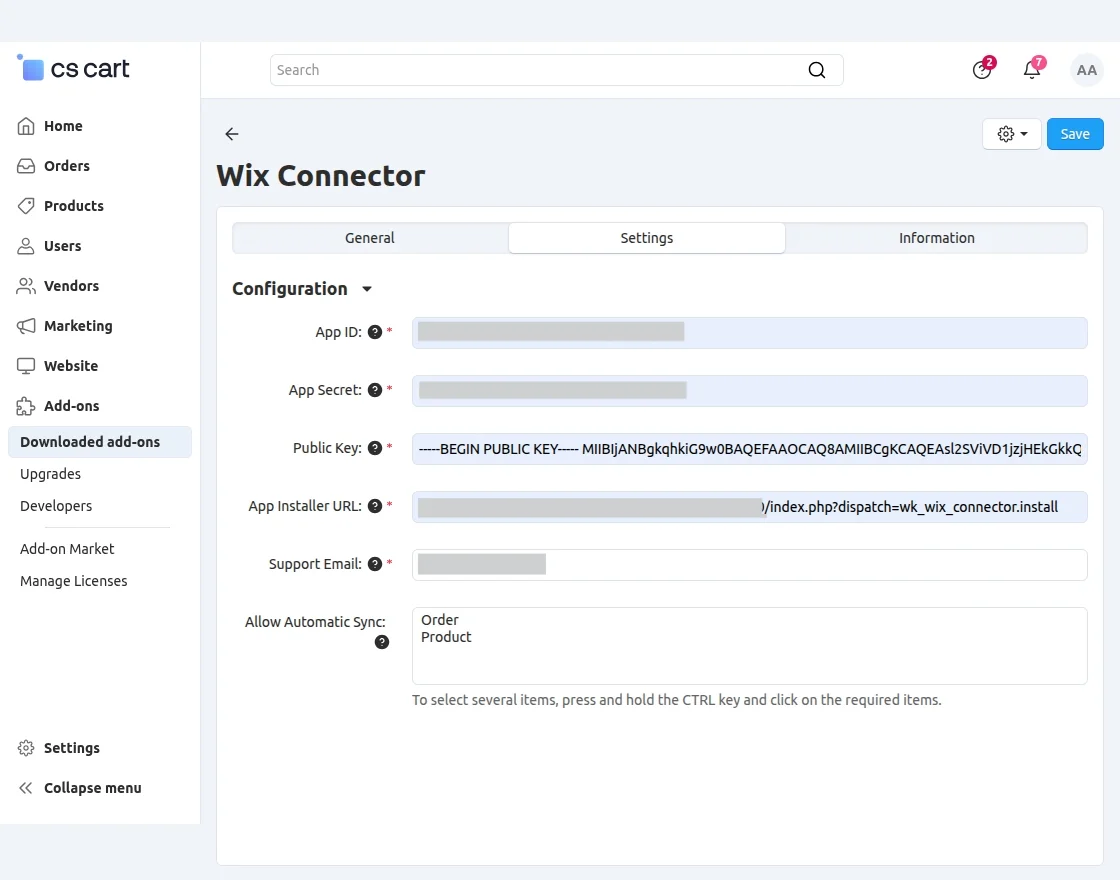
Admins can configure the Wix App ID, App Secret, Public Key, App Installer URL, and support email.
The configuration also provides automatic synchronization options for orders and products.
Note: The CS-Cart Queue Handler add-on is required to process Wix Connector synchronization tasks. Install and configure it before starting synchronization.
Connect Wix Store
Vendors can connect their Wix store directly from the Wix Connector section in the vendor panel.
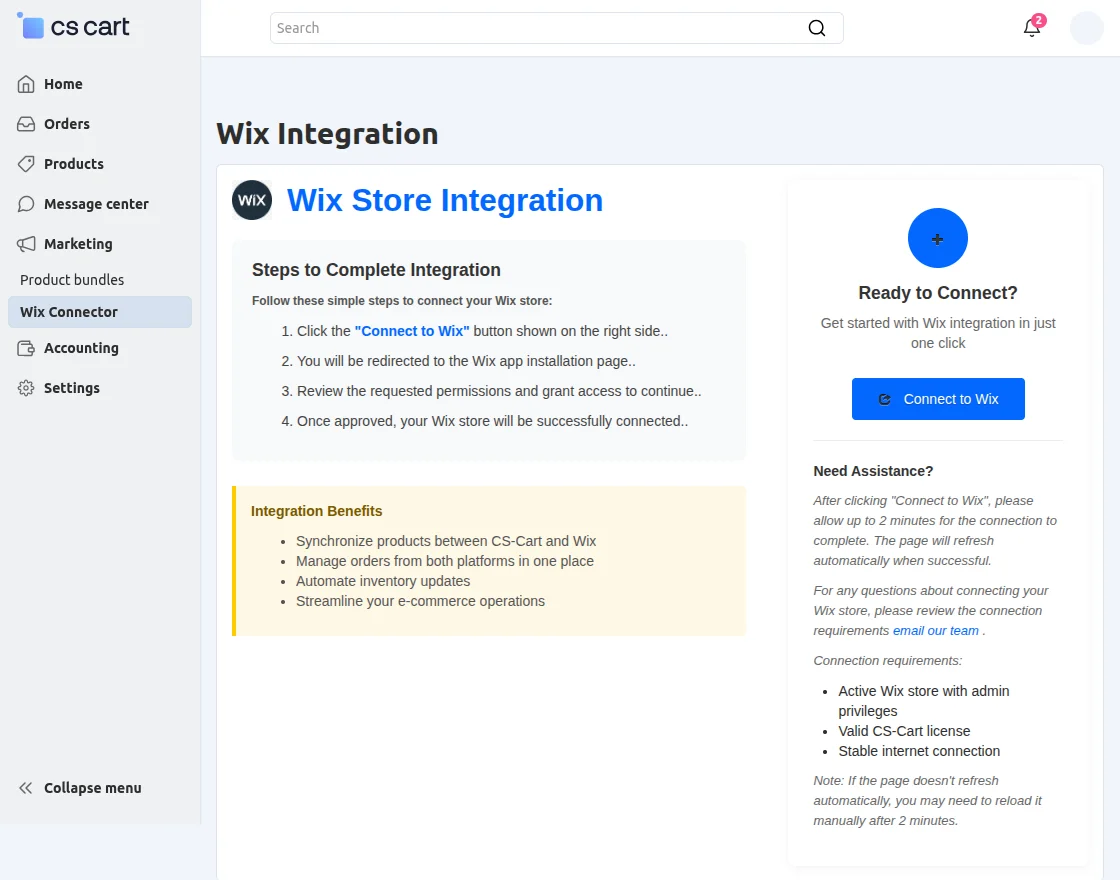
Click Connect to Wix to start the Wix authorization process.
The connector redirects the vendor to Wix, where they can select the required store for integration.
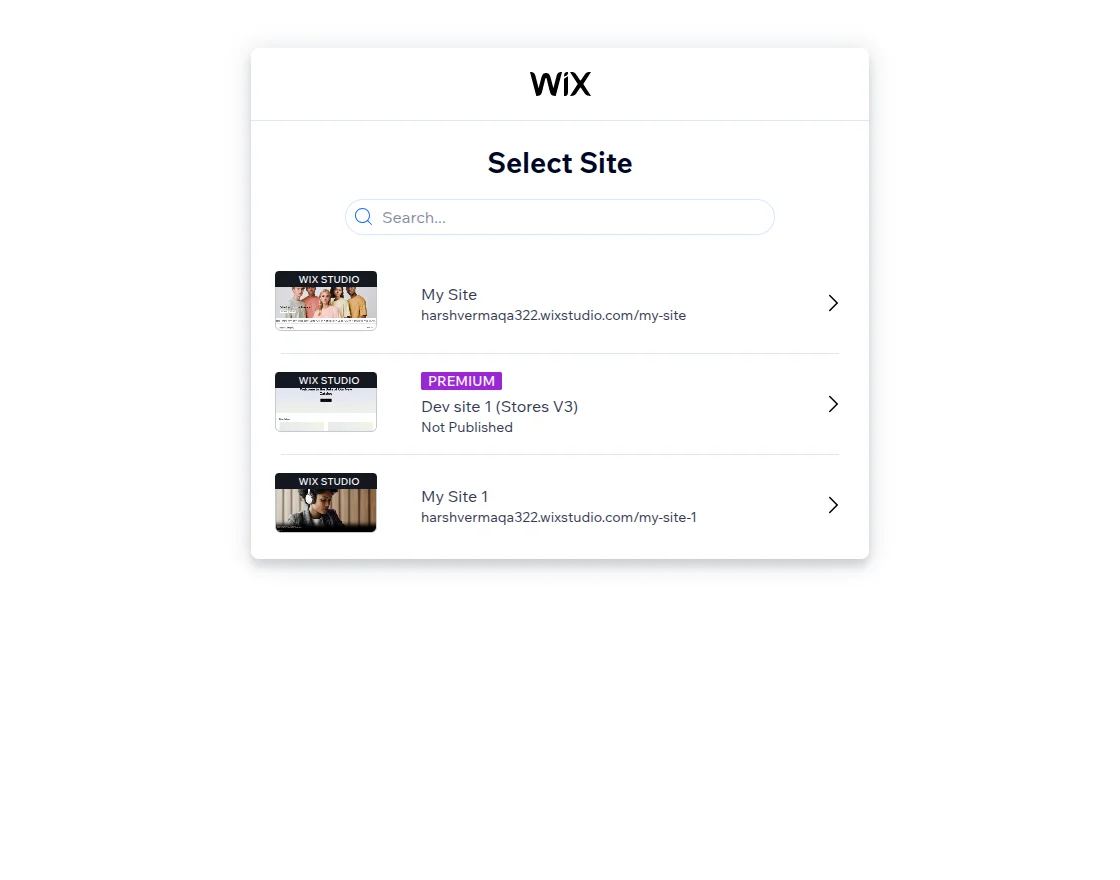
Select the Wix site that you want to connect with your CS-Cart store.
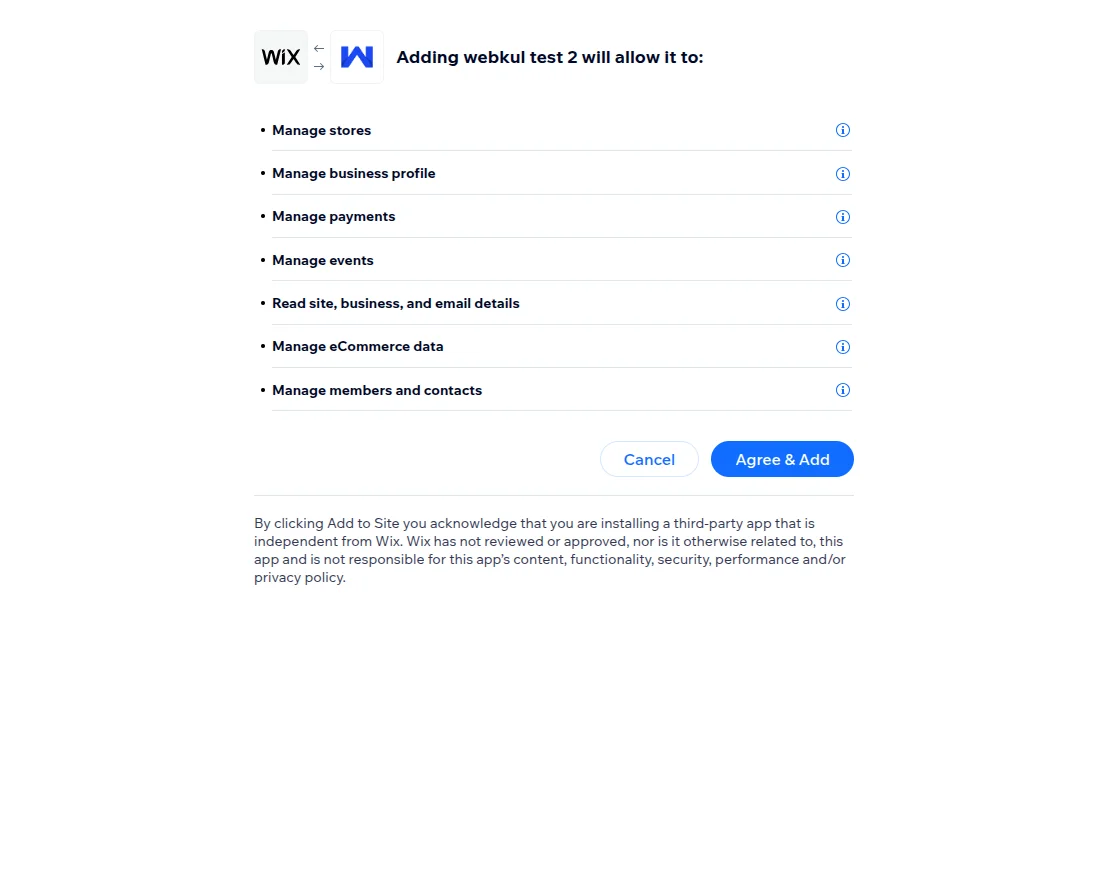
Review the requested permissions and click Agree & Add to authorize the Wix Connector.
After authorization, the Wix store is connected successfully with the CS-Cart vendor account.
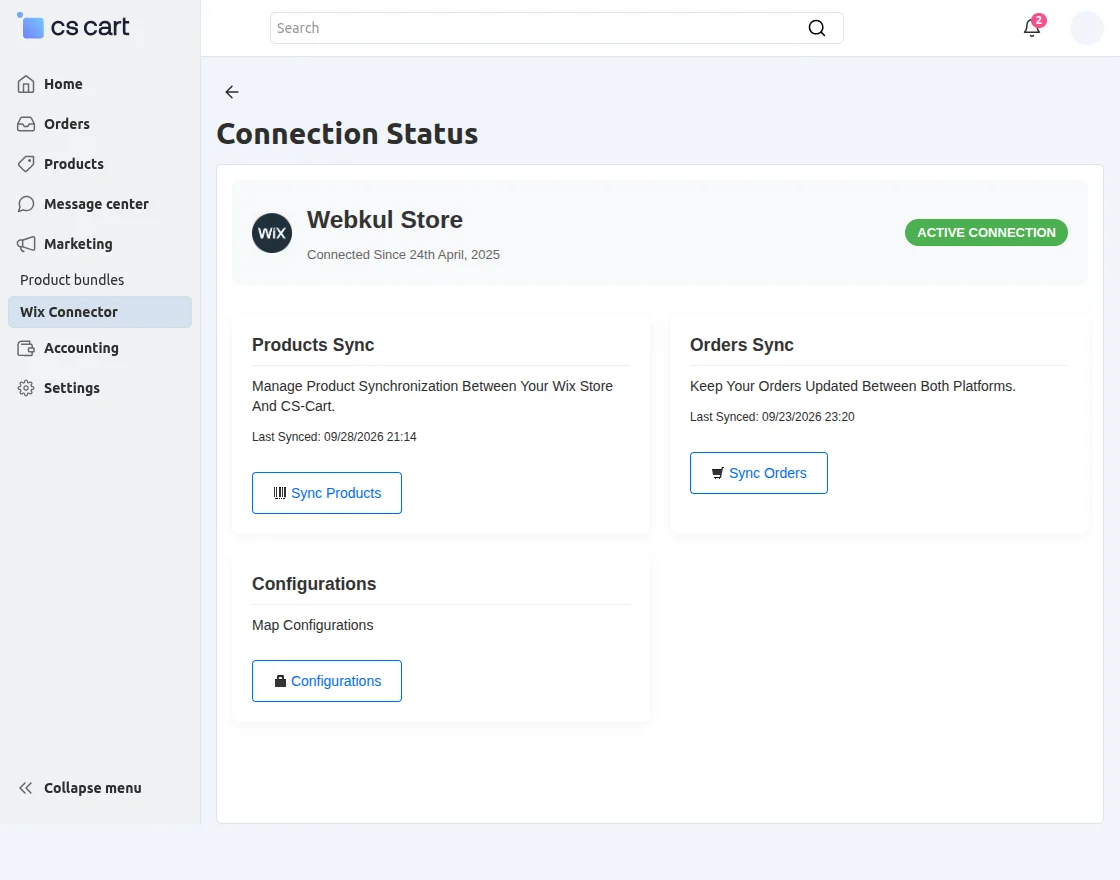
Wix Connector Dashboard
After connecting the Wix store, the vendor can access the Wix Connector dashboard.
The dashboard provides quick access to product synchronization, order synchronization, and configuration options.
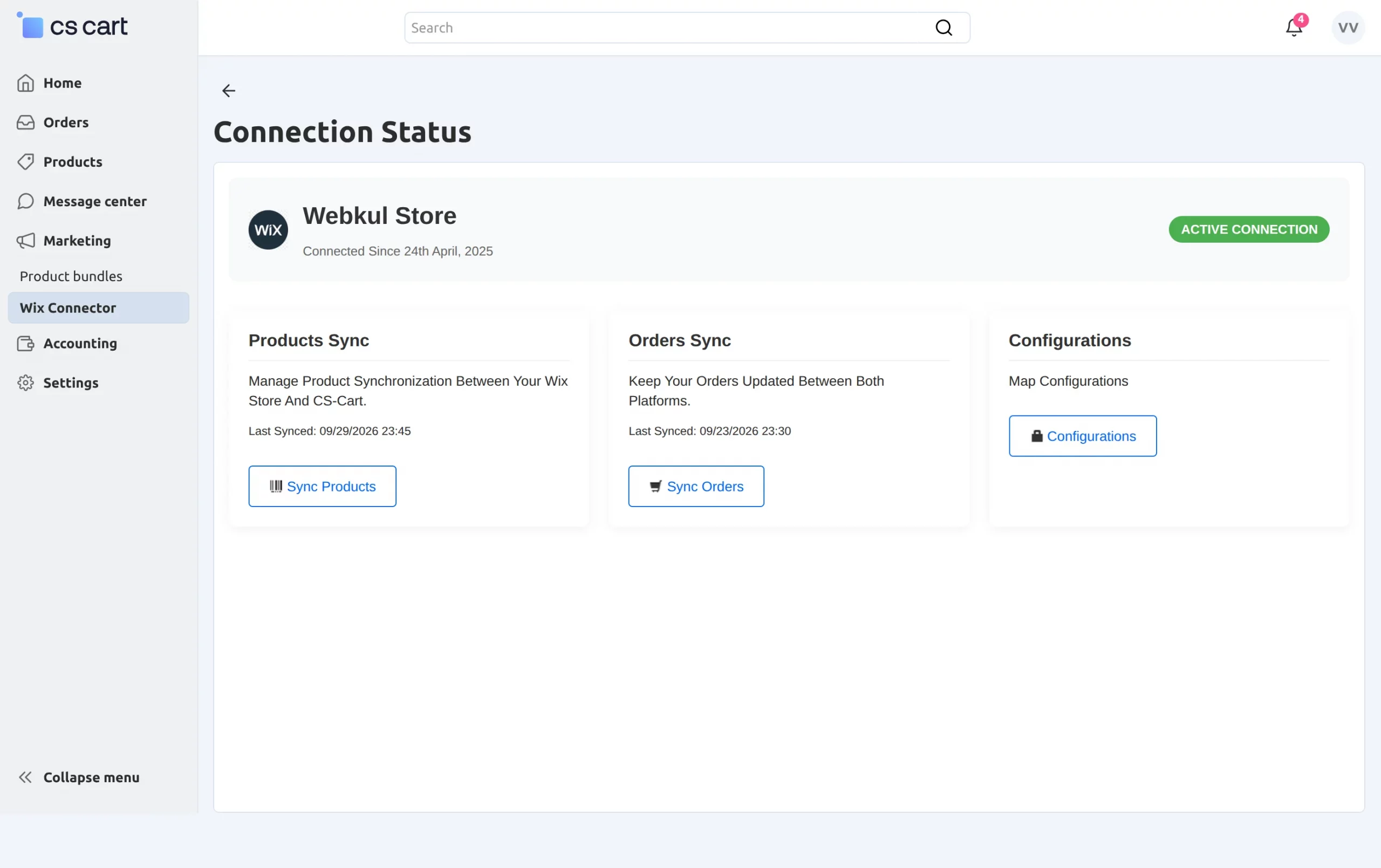
Vendors can also check the connected store status and synchronization information from the dashboard.
Wix Store Products
Once the integration is connected, synchronized products can be managed through the Wix store dashboard.
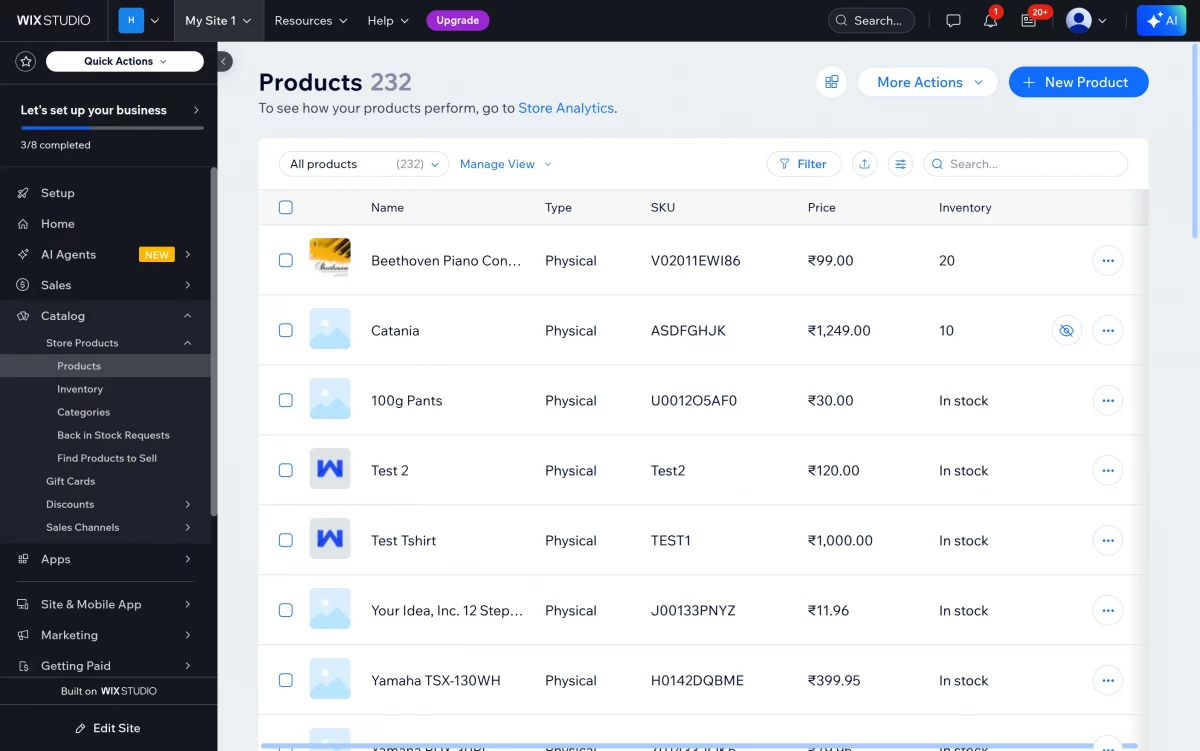
The Wix product section displays the available products with their product type and SKU information.
Wix Store Orders
The connected Wix store also provides access to its order records.
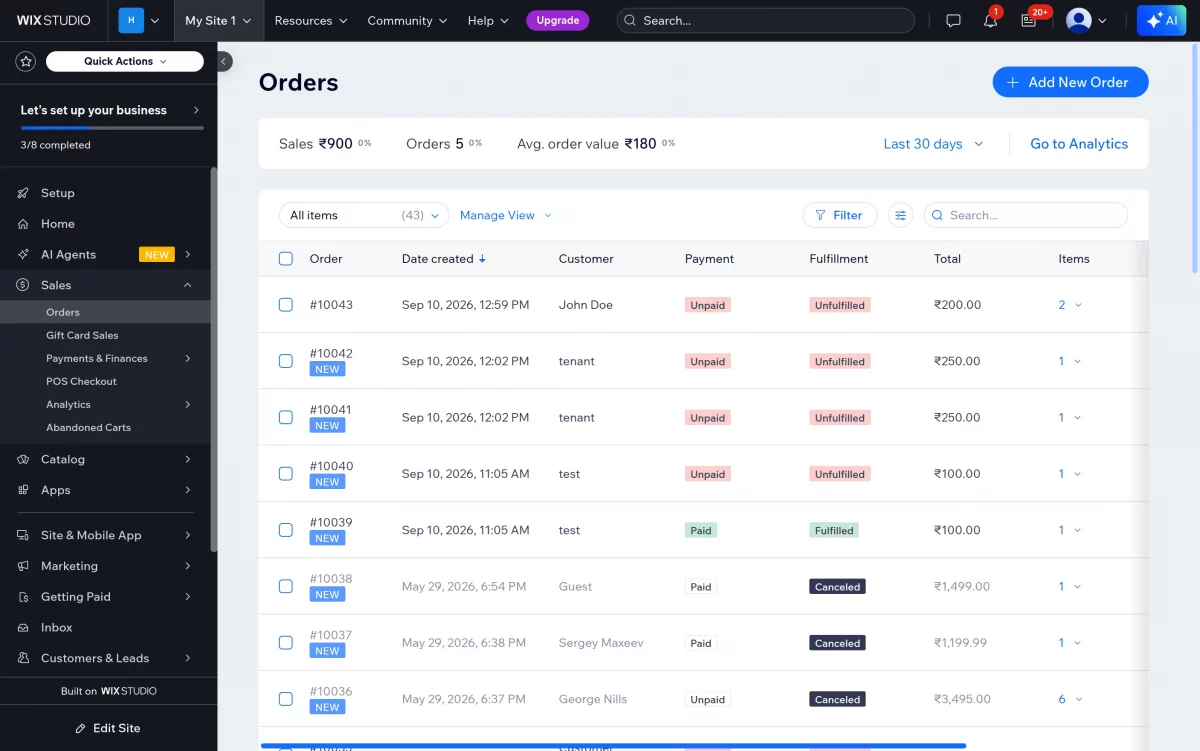
The Wix order page displays customer, payment, fulfillment, total, and item information.
Product Synchronization
The Wix Connector provides a dedicated product synchronization page for managing product data between both platforms.
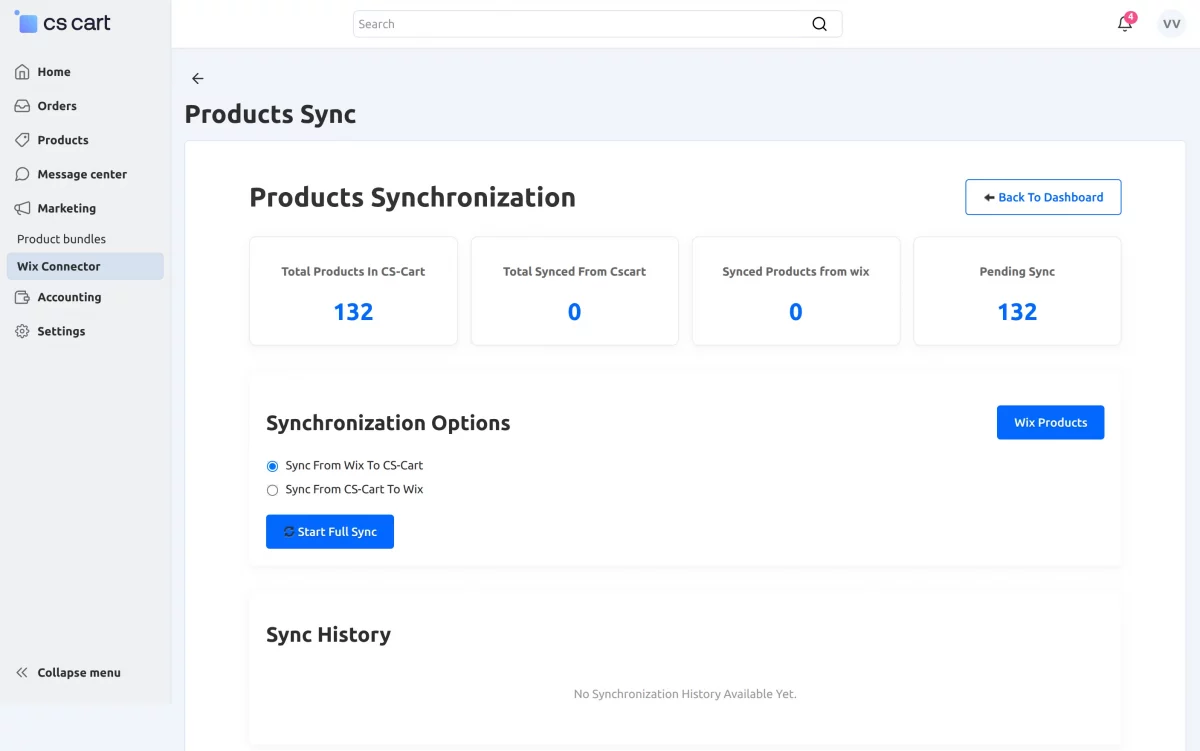
The synchronization dashboard displays product counts, synchronized products, pending products, and synchronization history.
Vendors can choose whether to synchronize products from Wix to CS-Cart or from CS-Cart to Wix.
Synchronize Products from Wix
Select Sync From Wix To CS-Cart to import products from the connected Wix store.
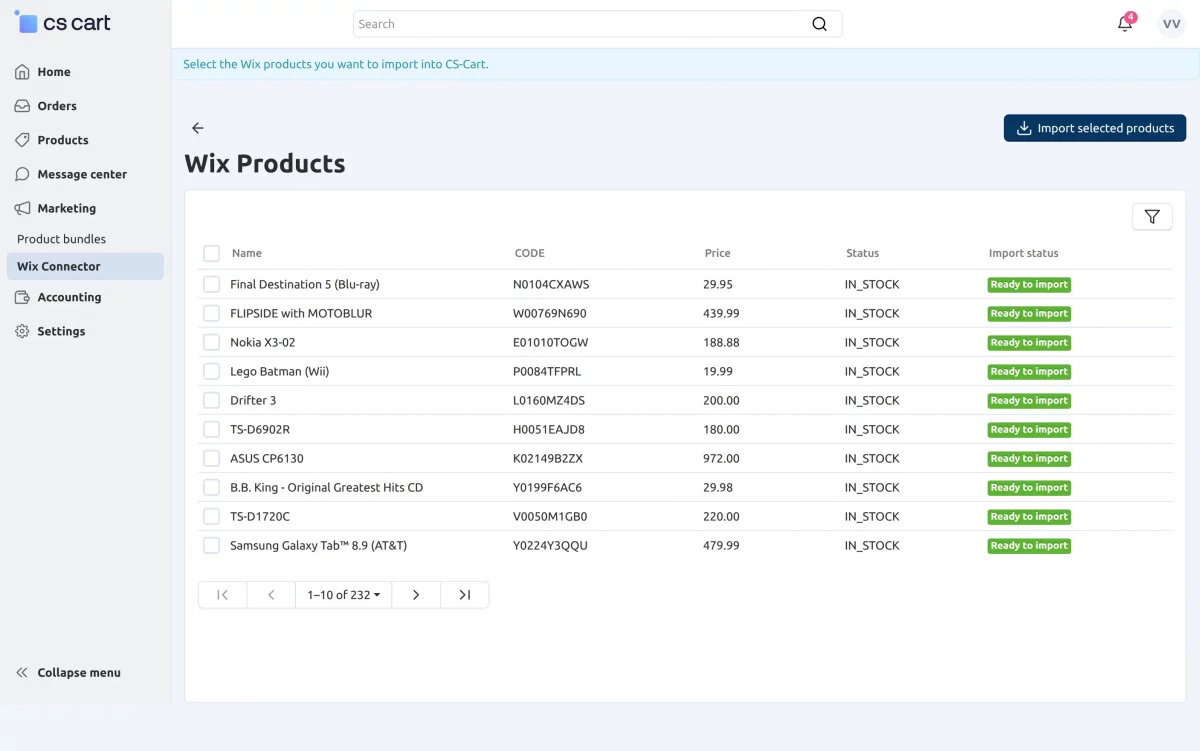
The product selection window displays available Wix products with their names, codes, and prices.
Vendors can select the required products and start the import process.
Synchronize Products to Wix
Select Sync From CS-Cart To Wix to export CS-Cart products to the connected Wix store.
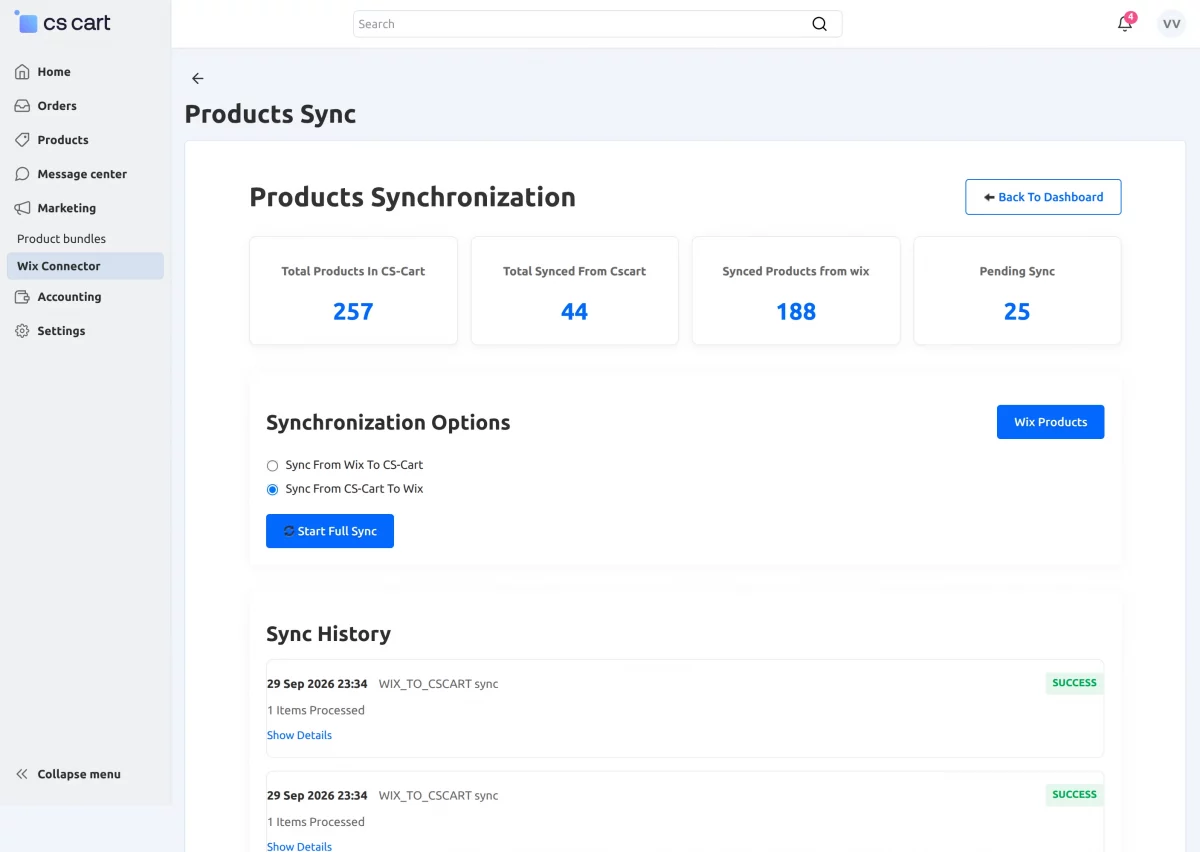
The product synchronization page displays processed products and synchronization history.
Click Start Full Sync to begin the full product synchronization process.
Export Individual Product
Vendors can export an individual product from CS-Cart directly from the product details page.
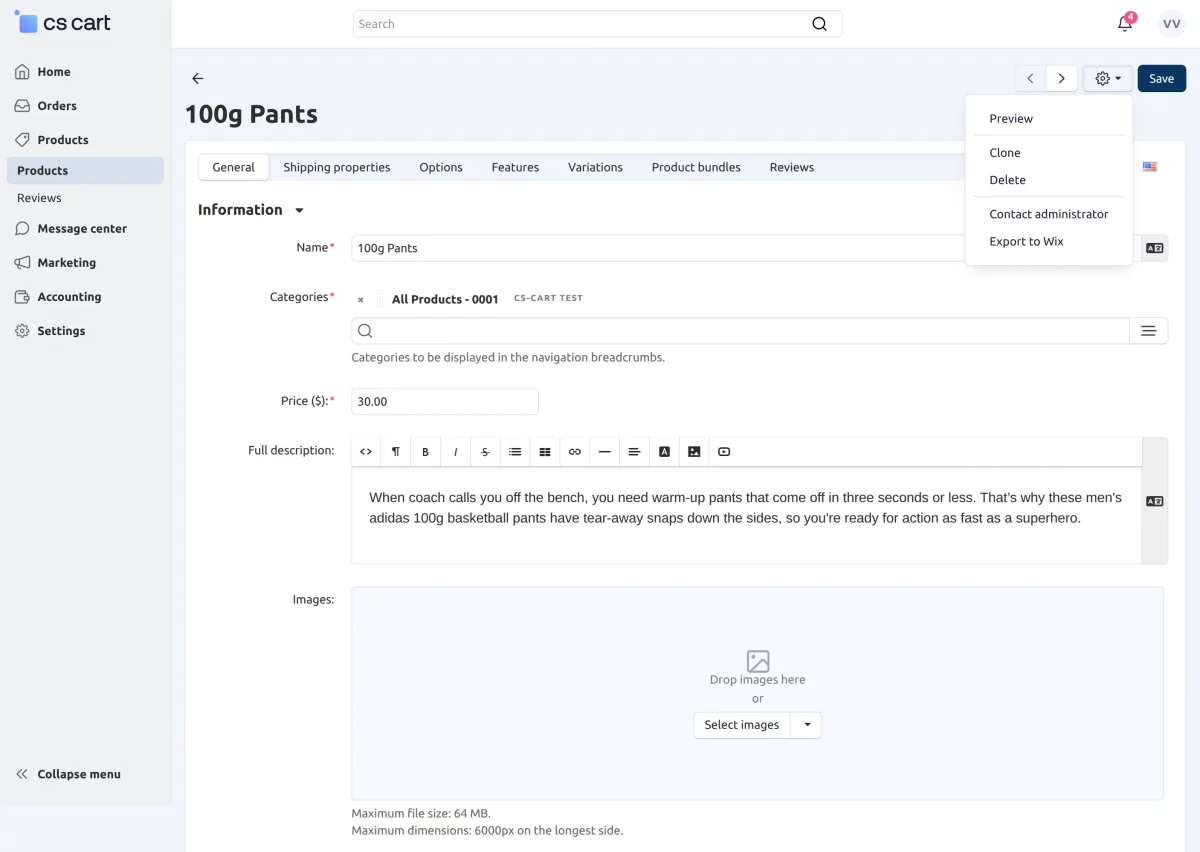
Open the required product and click Export to Wix to synchronize that product.
This option is useful when only one product needs to be synchronized with Wix.
Product Synchronization History
The connector maintains a history of product synchronization activities.
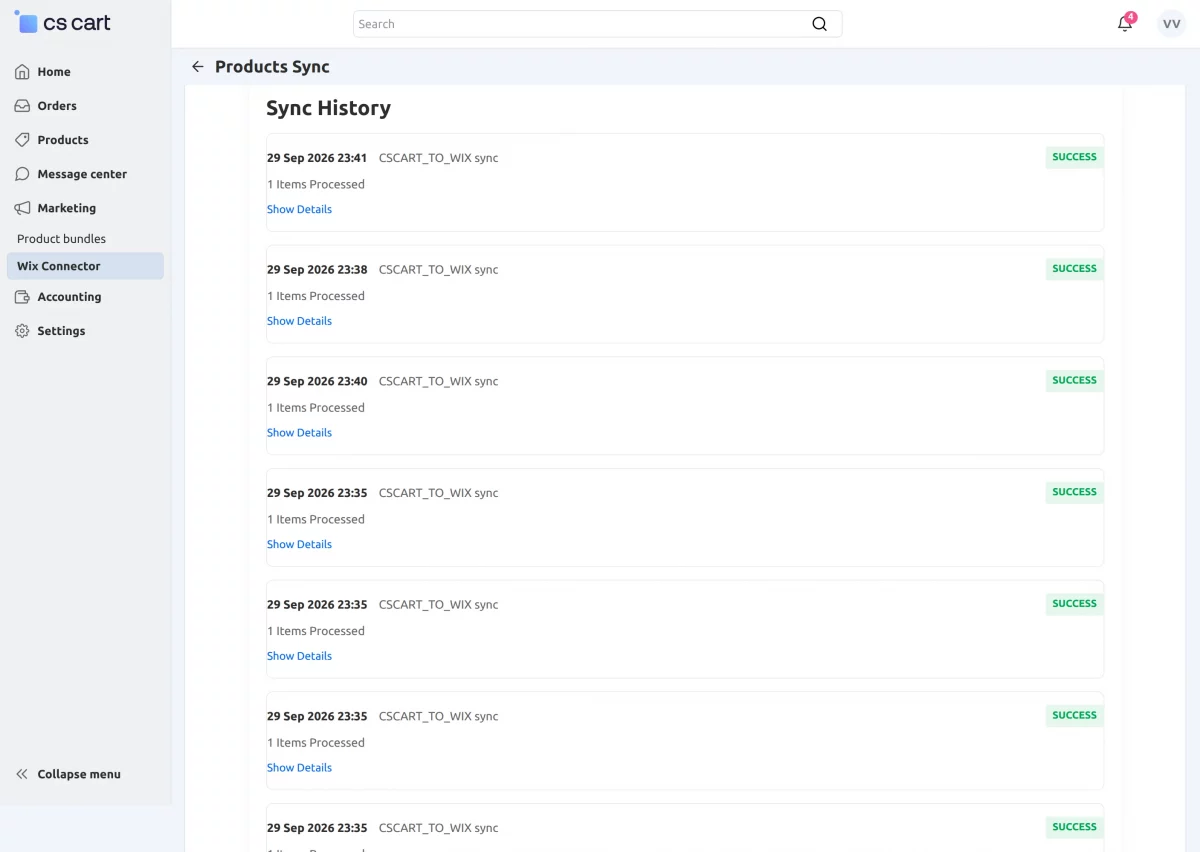
The history displays synchronization dates, processed items, synchronization direction, and status.
Vendors can use the history to review completed product synchronization operations.
Order Synchronization
The Wix Connector also provides a dedicated order synchronization section.
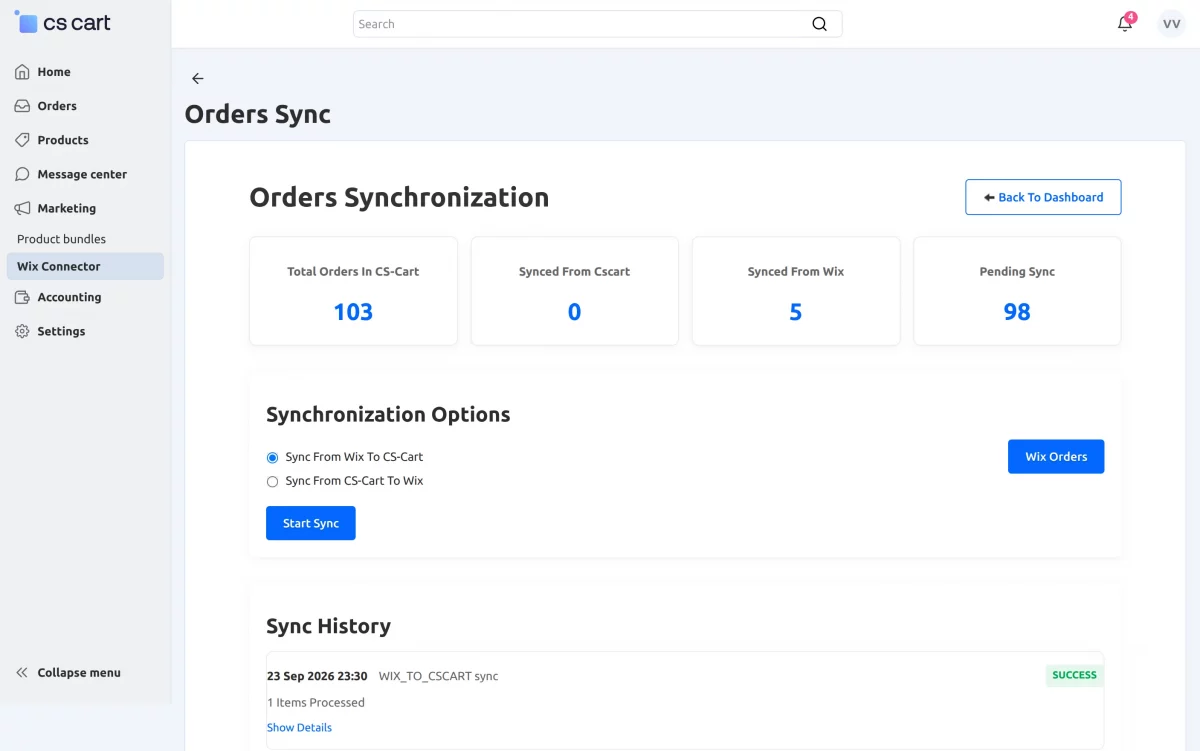
The order dashboard displays total orders, synchronized orders, pending orders, and synchronization history.
Vendors can synchronize orders from Wix to CS-Cart or from CS-Cart to Wix.
Import Orders from Wix
Select Sync From Wix To CS-Cart to import orders from Wix.
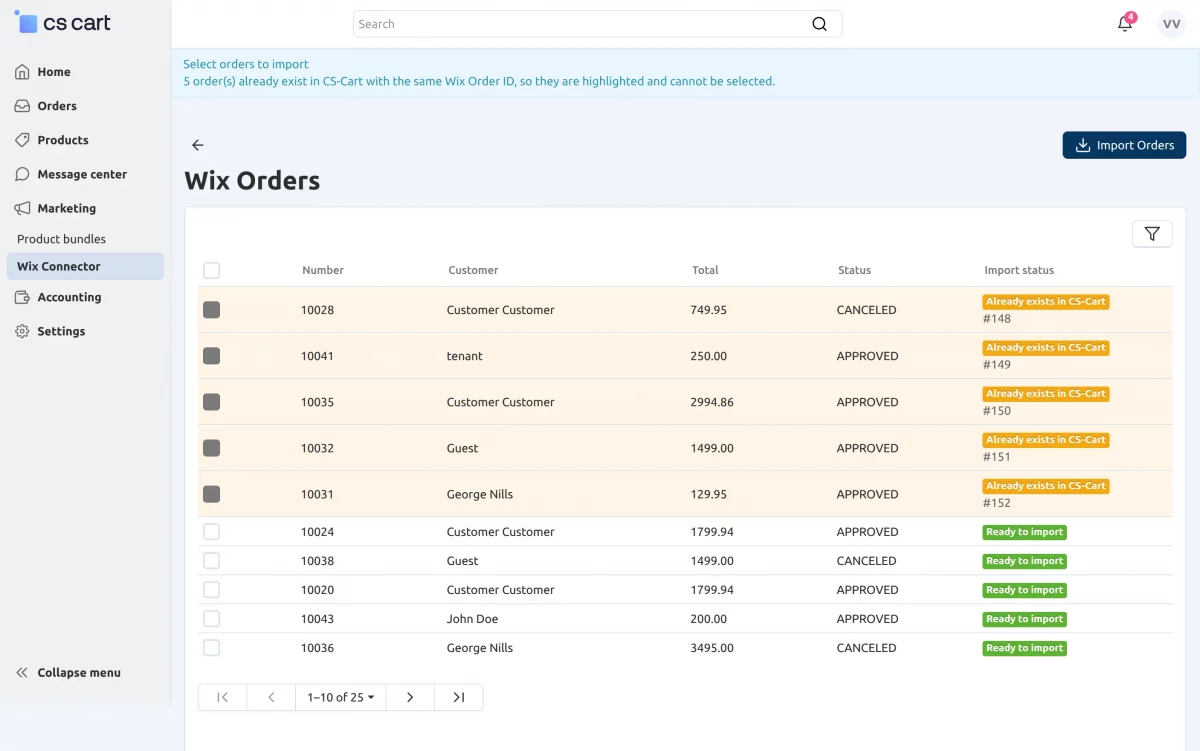
The order selection page displays Wix order numbers and customer information.
Orders that already exist in CS-Cart with the same Wix Order ID are highlighted and cannot be selected again.
Export Orders to Wix
Vendors can export CS-Cart orders to the connected Wix store.
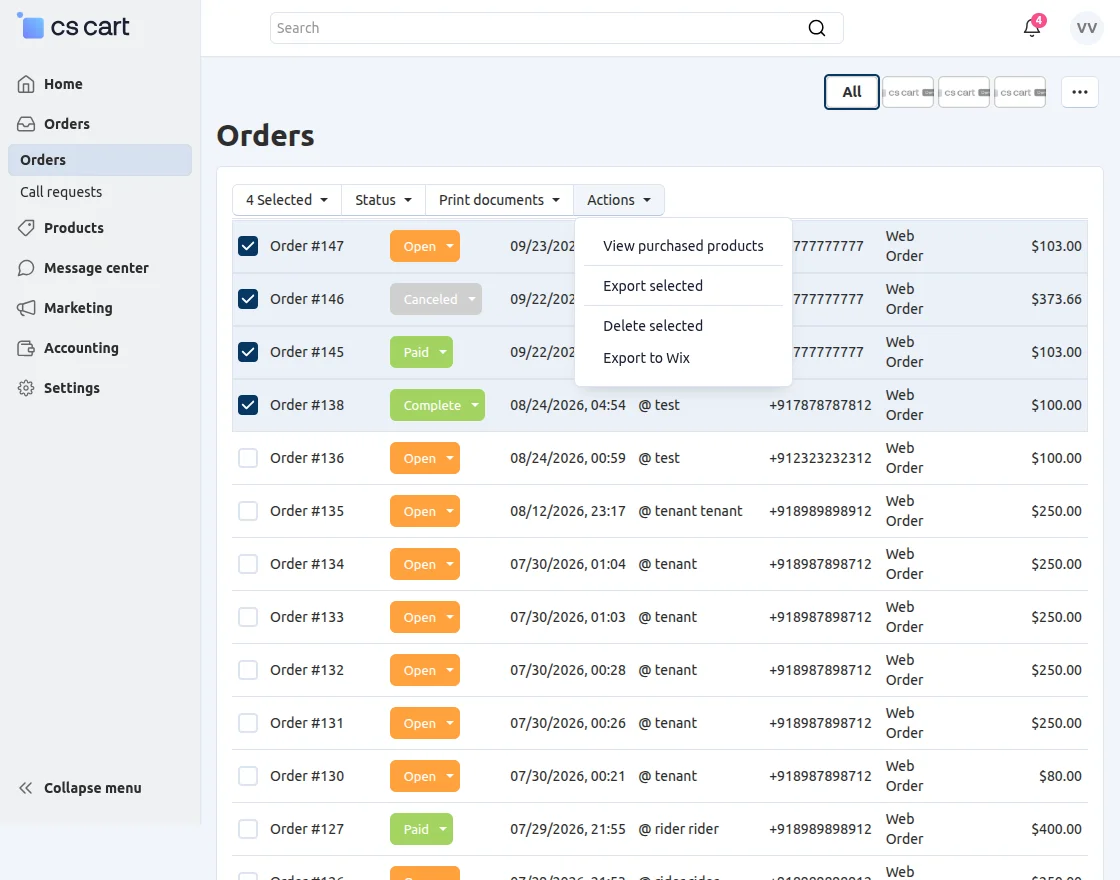
From the CS-Cart Orders page, select the required orders and use the Export to Wix action.
This allows multiple selected orders to be exported to Wix together.
Order Synchronization History
The connector records order synchronization activities in the synchronization history.
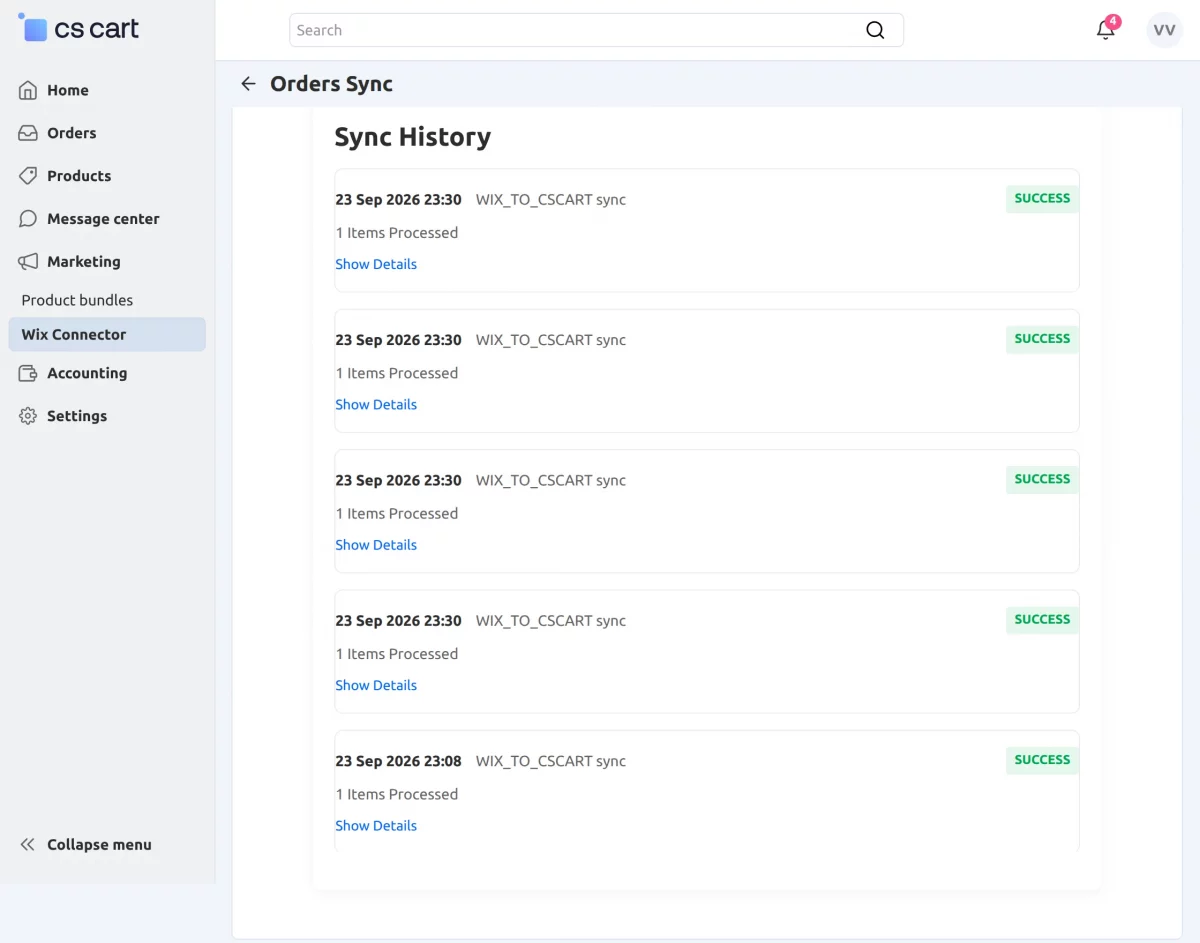
The history displays the synchronization direction, processed items, date, and synchronization status.
Vendors can use the history to review completed order synchronization operations.
Map Configurations
The connector provides configuration options for applying default values during synchronization.
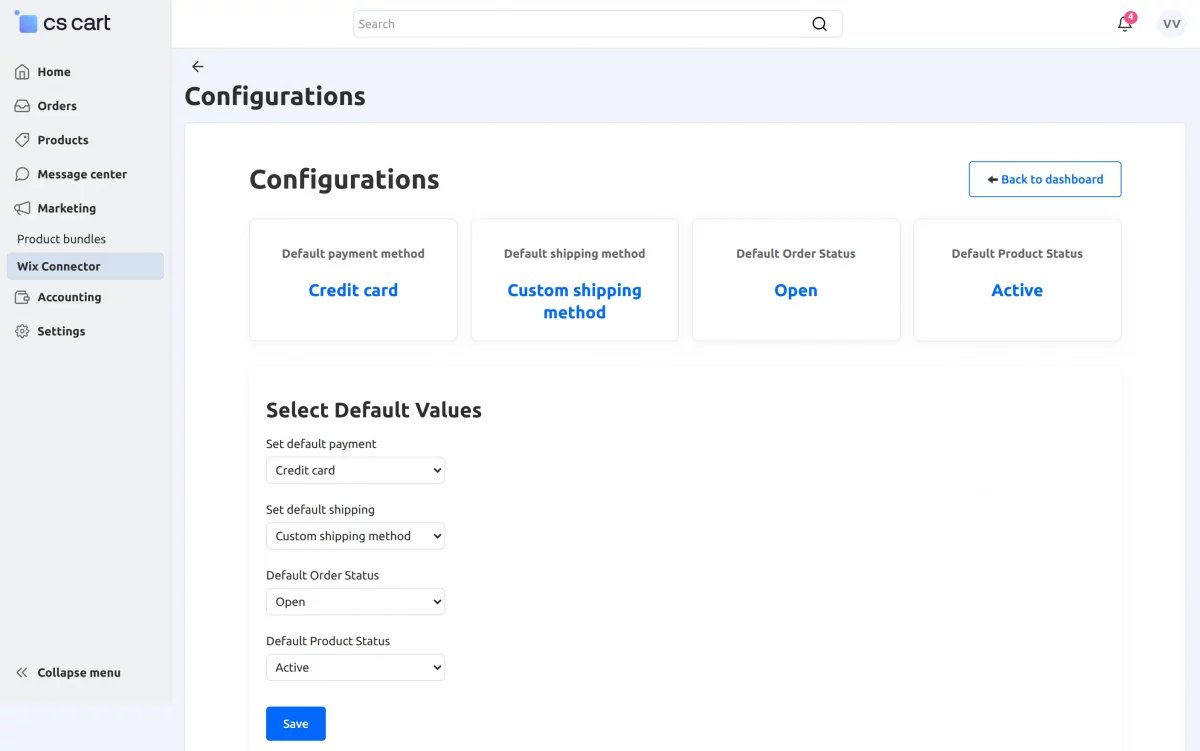
Vendors can select a default payment method and shipping method for synchronized orders.
They can also select the default order status and product status used during synchronization.
After selecting the required values, click Save to apply the configuration.
Admin Wix Vendor Connections
Administrators can monitor Wix connections created by vendors from the Wix Vendor Connections section.
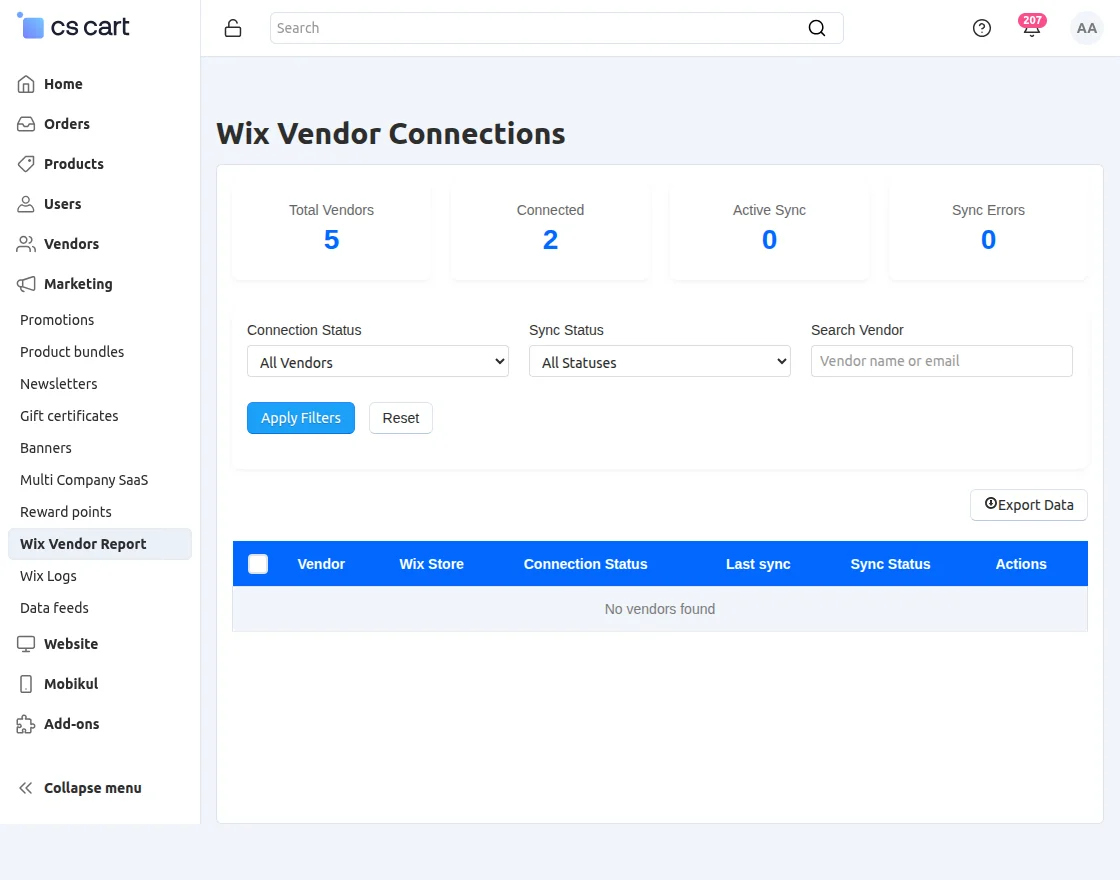
The page provides an overview of connected vendors and their Wix connection status.
Admins can filter vendor records by connection status and synchronization status.
The page also provides vendor search and data export options.
Wix Logs
Administrators can review Wix Connector activity through the dedicated Wix Logs section.
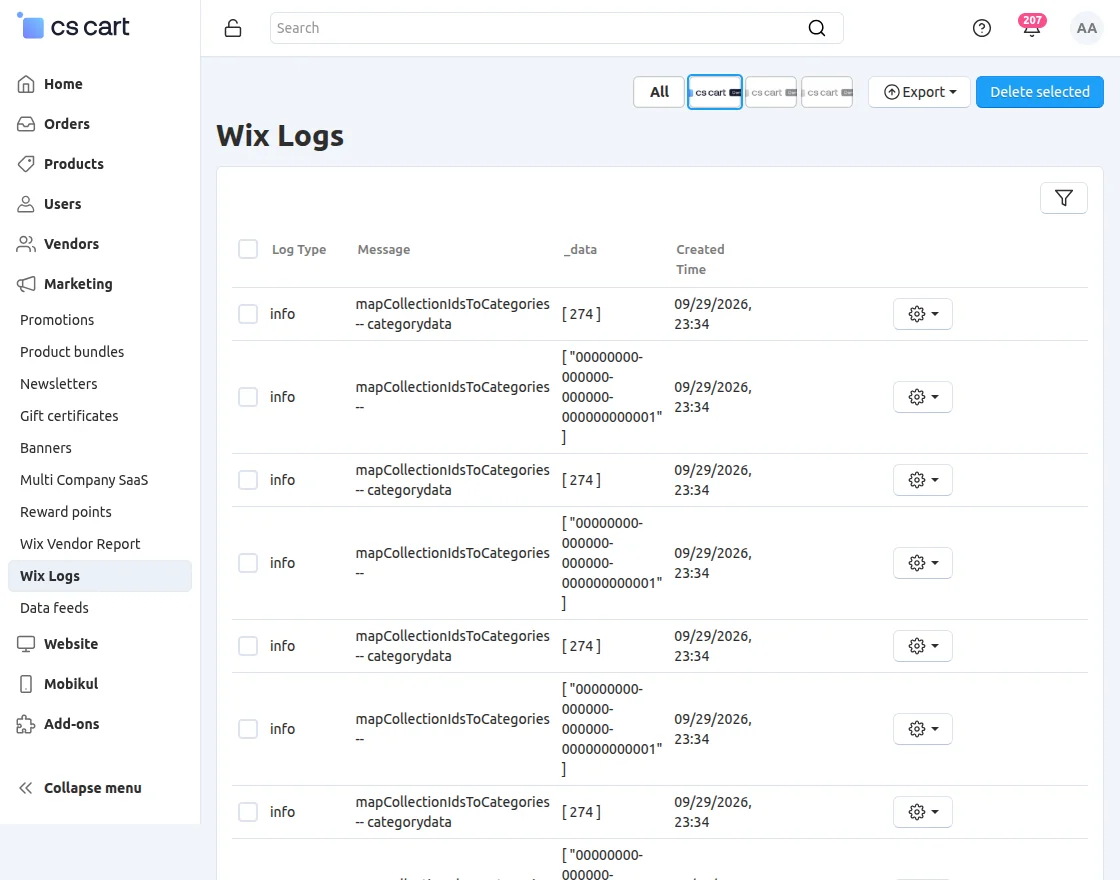
The logs display information such as log type, message, and related synchronization data.
These logs help administrators review connector activities and investigate synchronization-related operations.
Support
If you have any questions, suggestions, or customization requests, feel free to contact us at [email protected] or submit a ticket at webkul.uvdesk.com.
Explore our premium-quality CS Cart Extensions to enhance your store functionality.
You can also explore our CS-Cart Development Services and Quality CS-Cart add-ons.
Current Product Version - 1.0
Supported Framework Version - 4.18.x, 4.19.x, 4.20.x

Be the first to comment.