CS-Cart Scratch Card Add-on lets store owners run gamified reward campaigns using virtual scratch cards.
Moreover, customers can scratch and instantly earn reward points, wallet balance, or gift coupon codes.
In addition, admins can set eligibility rules, reward limits, and campaign conditions directly from the backend.
Furthermore, scratch cards appear on both storefront and checkout pages, which increases visibility and participation.
Moreover, vendors can create product-based campaigns. Additionally, automatic reward generation ensures a smooth user experience.
Finally, first-time customer offers and one-time claim rules help improve conversions and maintain fair usage.
Note: Before installing the add-on, extract the downloaded package.
- Install the License Manager add-on first.
- Then install the required add-on.
- Follow the license activation steps to generate your license key.
Features
- Creates virtual scratch card campaigns for customer rewards.
- Allows customers to scratch cards and reveal rewards instantly.
- Rewards customers with reward points through scratch cards.
- Offers wallet balance rewards for eligible customers.
- Generates gift certificate coupons as scratch card rewards.
- Displays scratch cards on the storefront and checkout page.
- Supports minimum order value requirements for reward eligibility.
- Allows admins to configure reward point and wallet reward limits.
- Supports reward threshold settings for higher-value rewards.
- Restricts scratch card participation to logged-in customers.
- Prevents customers from claiming the same reward multiple times.
- Supports vendor-level reward configuration and product eligibility settings.
- Allows vendors to create product-specific reward campaigns.
- Provides special rewards for first-time customers.
- Supports customer loyalty and retention campaigns.
- Helps increase customer engagement through gamified promotions.
- Encourages repeat purchases with points, wallet rewards, and coupons.
- Simplifies reward campaign management from the admin panel.
Installation
To install CS-Cart Scratch Card, follow these steps:
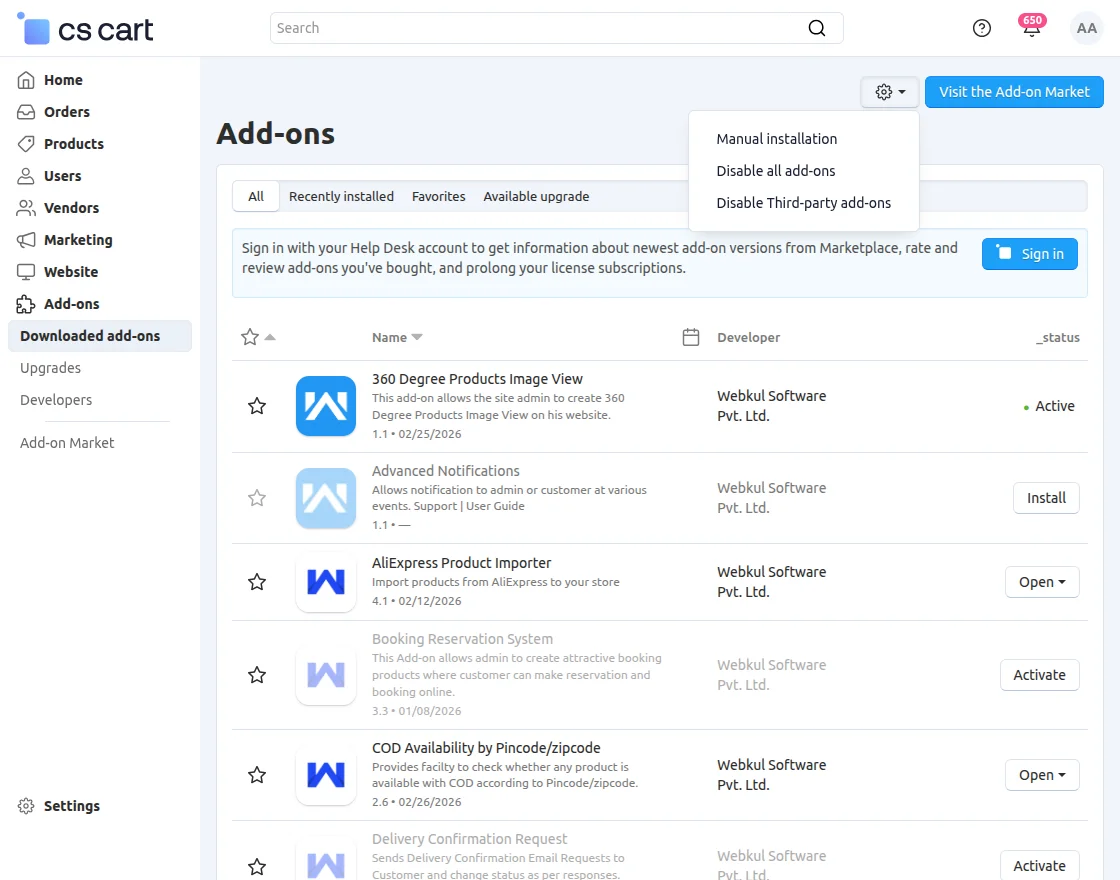
- Go to Manage Add-ons, click on the gear drop-down, and select Manual Installation.
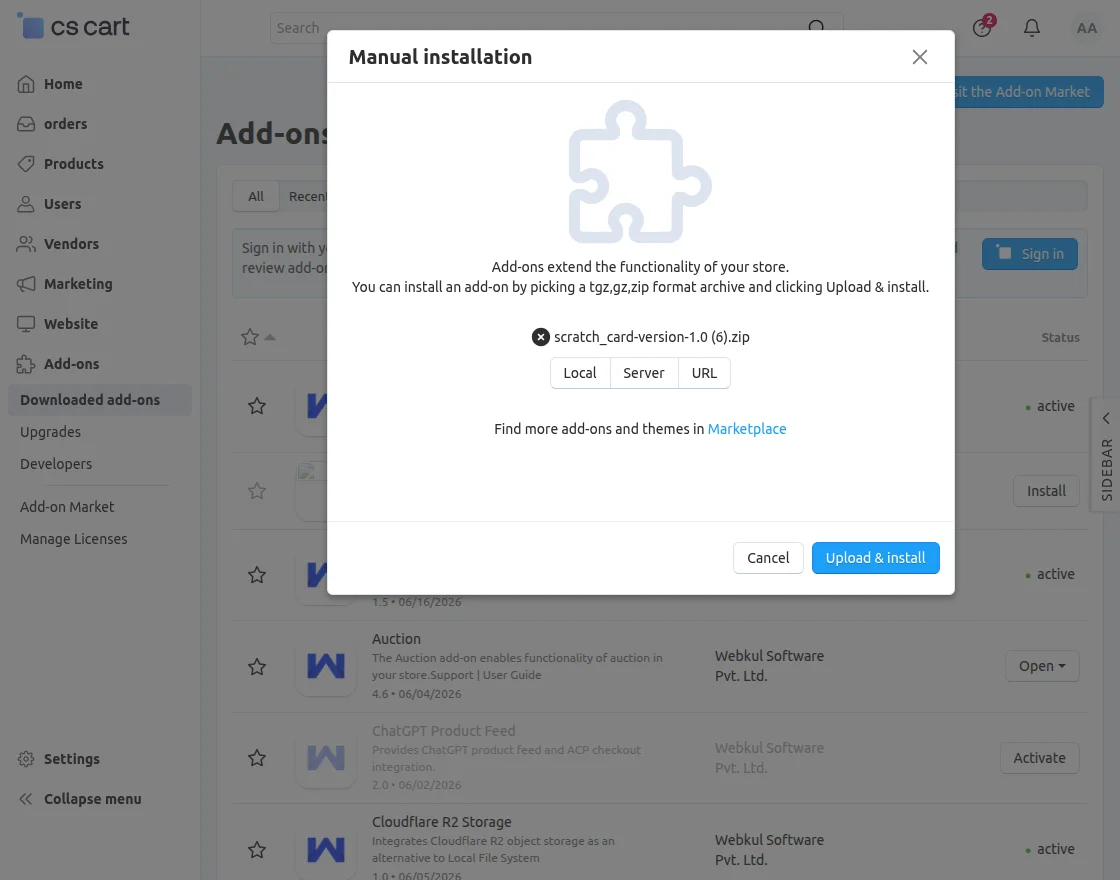
2. Select the zip File and click on Upload&install.
Add-on Configuration
After installation of the add-on, you will find CS-Cart Scratch Card in the list of available add-ons. Moreover, this makes it easy to locate and manage the add-on from the admin panel.
General Configuration
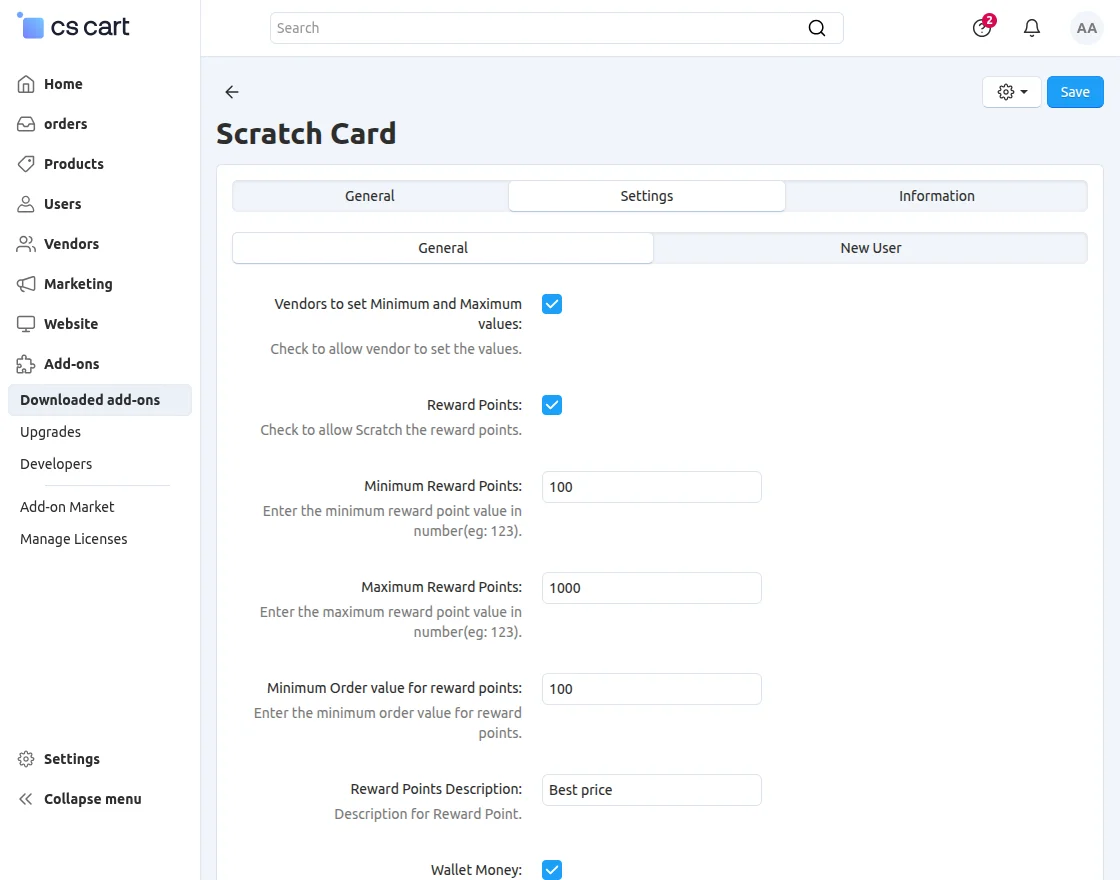
- Allow Vendors to Set Minimum and Maximum Values
- Enable this option to allow vendors to configure their own minimum and maximum reward values for scratch card campaigns.
- Reward Points
- Enable this option to allow customers to win reward points through scratch cards.
- Minimum Reward Points
- Specify the minimum number of reward points that can be awarded.
- Maximum Reward Points
- Specify the maximum number of reward points that can be awarded.
- Minimum Order Value for Reward Points
- Set the minimum order amount required for customers to become eligible for reward point rewards.
- Reward Points Description
- Enter a description that will be displayed with the reward point reward campaign.
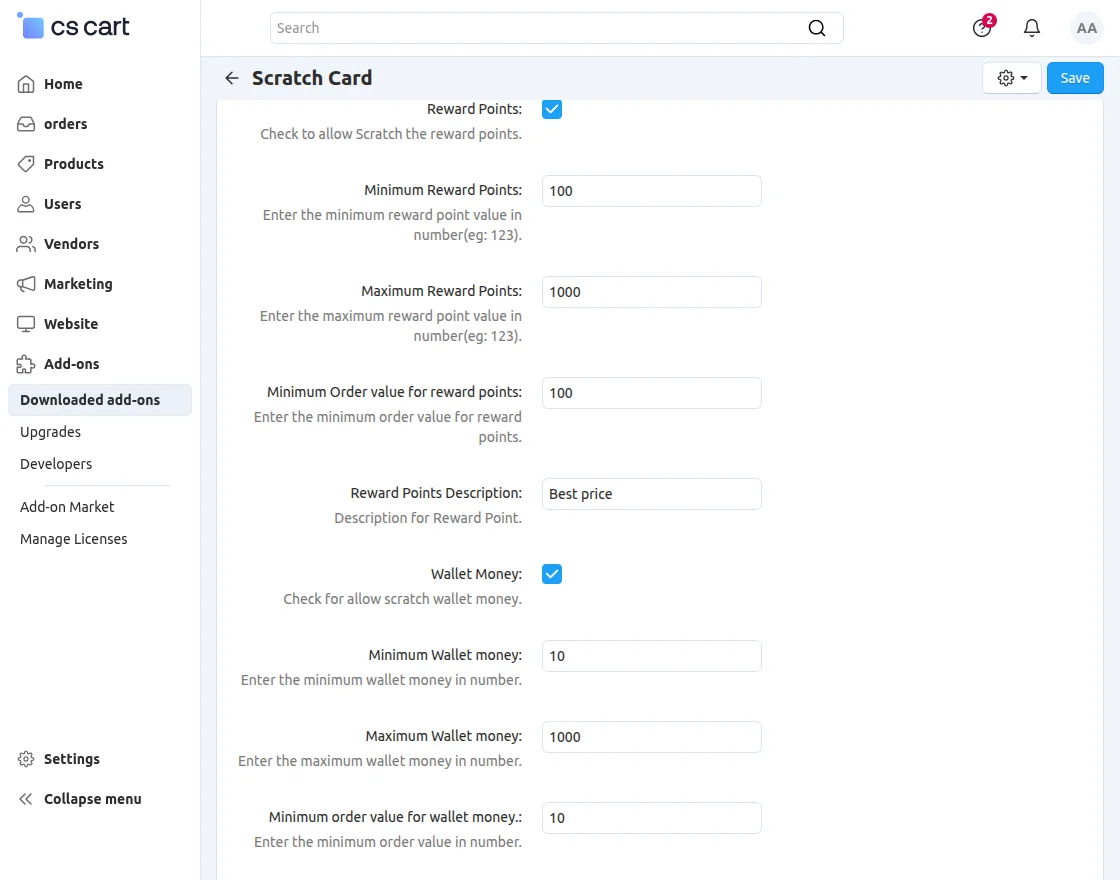
Also, configure these fields :
- Wallet Money
- Enable this option to allow customers to receive wallet balance rewards through scratch cards.
- Minimum Wallet Money
- Specify the minimum wallet balance amount that can be awarded.
- Maximum Wallet Money
- Specify the maximum wallet balance amount that can be awarded.
- Minimum Order Value for Wallet Money
- Set the minimum order amount required for customers to qualify for wallet balance rewards.
- Discount Offer
- Enable this option to provide discount coupon rewards through scratch cards.
- Discount Code
- Enter the coupon code that will be awarded to customers.
- Minimum Discount Amount
- Specify the minimum discount value associated with the coupon reward.
- Minimum Order Value for Discount
- Set the minimum order amount required for customers to qualify for discount coupon rewards.
- Set Limit of Maximum Amount at Which User Wins Big
- Configure the maximum reward threshold for high-value rewards to control promotional spending.
- Set Monthly Bonus Limit
- Define the maximum number of bonus rewards that can be distributed within a month.
Once the required settings are configured, the admin should save the changes. As a result, the scratch card reward campaign gets activated in the store.
Moreover, this ensures that customers can start receiving rewards without any delay.
New User Configuration
These rewards can be offered as reward points or wallet balance. As a result, new customers feel encouraged to place their first order.
Moreover, they are more likely to return for future purchases, which helps improve customer engagement and retention.
The available settings are:
- Reward Points
- Enable this option to allow new customers to win reward points through scratch cards.
- Minimum Reward Points for New User
- Specify the minimum number of reward points that can be awarded to a new customer.
- Maximum Reward Points for New User
- Specify the maximum number of reward points that can be awarded to a new customer.
- Reward Points Description
- Enter a description for the reward point campaign that will be shown to eligible new customers.
- Wallet Money
- Enable this option to allow new customers to receive wallet balance rewards through scratch cards.
- Minimum Wallet Money for New User
- Specify the minimum wallet balance amount that can be awarded to a new customer.
- Maximum Wallet Money for New User
- Specify the maximum wallet balance amount that can be awarded to a new customer.
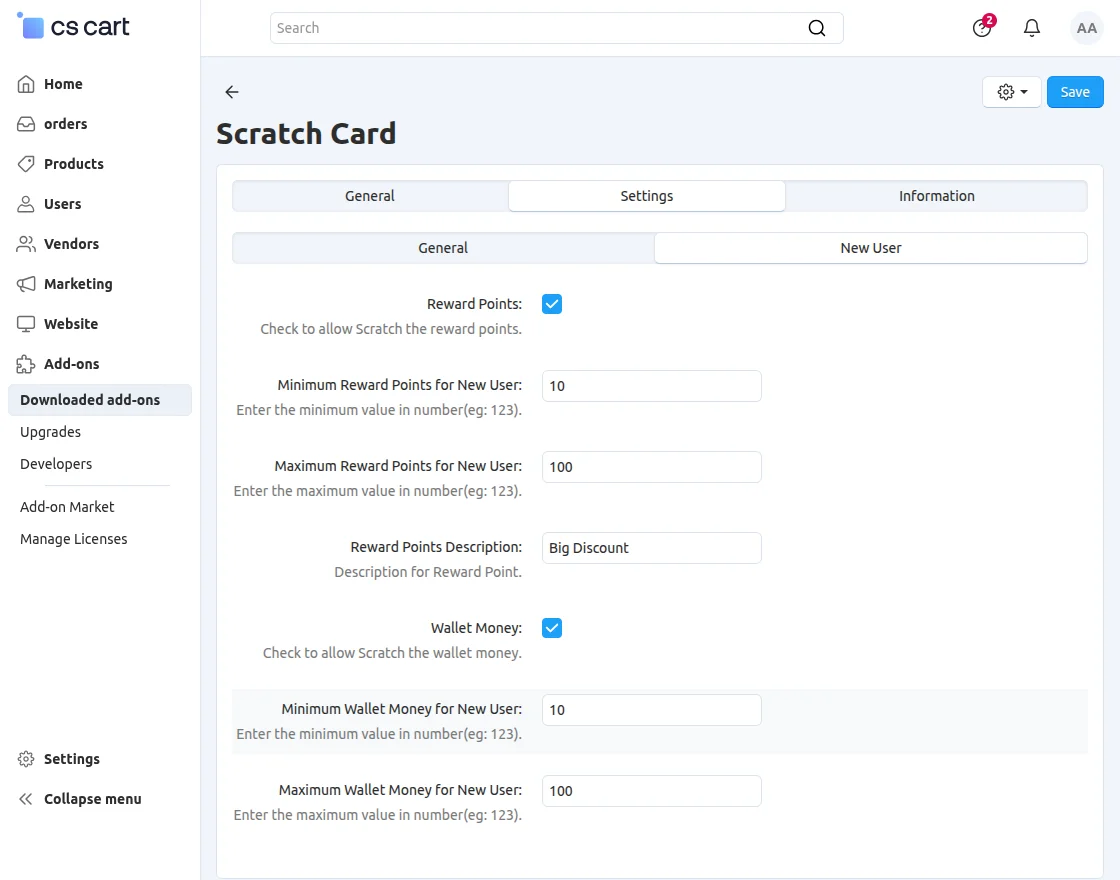
After configuring the required settings, the admin should save the changes. As a result, scratch card rewards become enabled for first-time customers.
Moreover, this ensures the reward system starts working as intended without any interruption.
After configuring the required settings, the admin should save the changes. Moreover, this action enables scratch card rewards for first-time customers.
As a result, the reward system becomes active and starts functioning as intended.
Creating a Gift Certificate
To use gift certificate coupons as scratch card rewards, the admin must first create a gift certificate in CS-Cart.
Follow the steps below:
- Navigate to Marketing → Gift Certificates from the CS-Cart admin panel.
- Click the + button to create a new gift certificate.
- Enter the required gift certificate details:
- Gift Certificate Name – Specify a name for the gift certificate.
- Amount – Enter the gift certificate value.
- Status – Set the gift certificate status to Active.
- Recipient Information – Add recipient details if required.
- Expiration Date – Configure an expiration date if needed.
- Configure any additional settings according to your business requirements.
- Click Create or Save to generate the gift certificate.
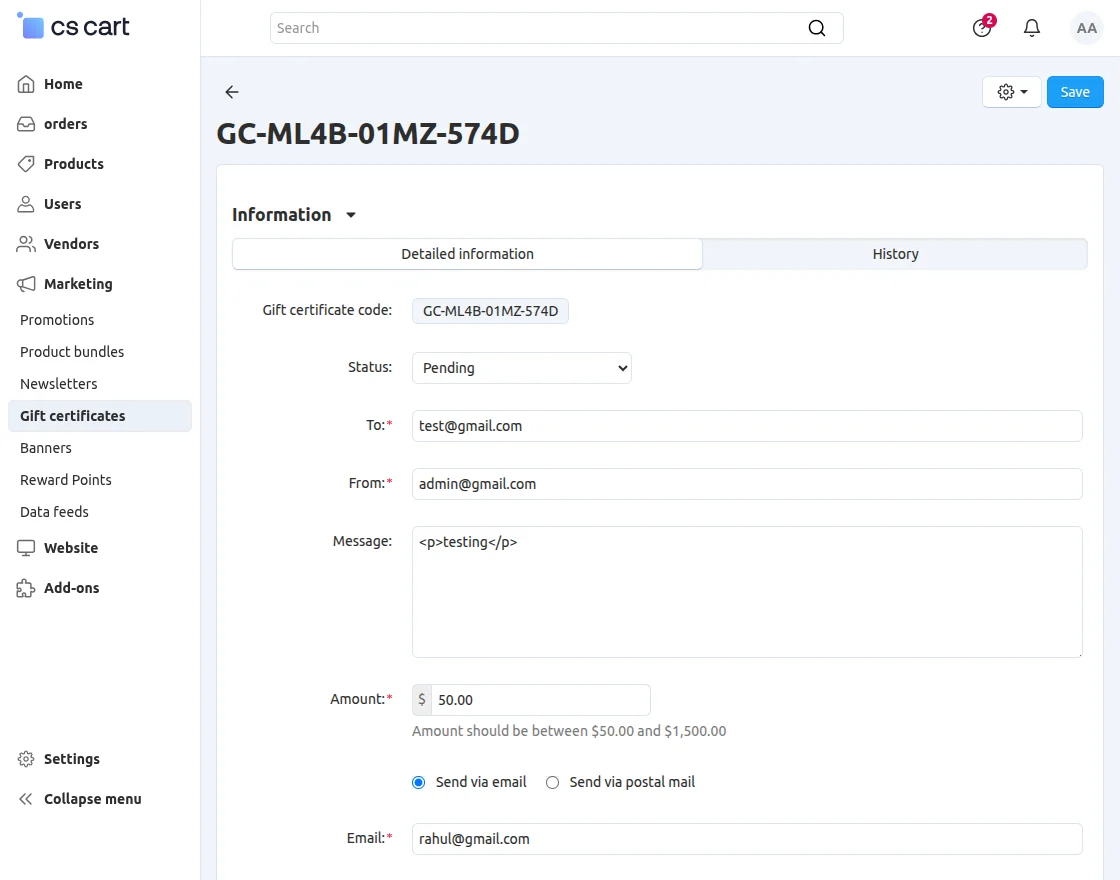
Once the gift certificate has been created, it can be used as a reward in the CS-Cart Scratch Card Add-on.
When customers win a gift certificate reward through a scratch card, they instantly receive a gift certificate coupon that they can use for future purchases.
As a result, customers have an added incentive to return to the store and shop again.
Moreover, this reward-based promotional strategy helps increase repeat purchases, strengthen customer loyalty, and improve overall customer retention.
Scratch Card Functionality During Checkout
Once the customer adds products to the cart and proceeds to checkout, the scratch card is displayed if the reward eligibility conditions configured by the admin are met.
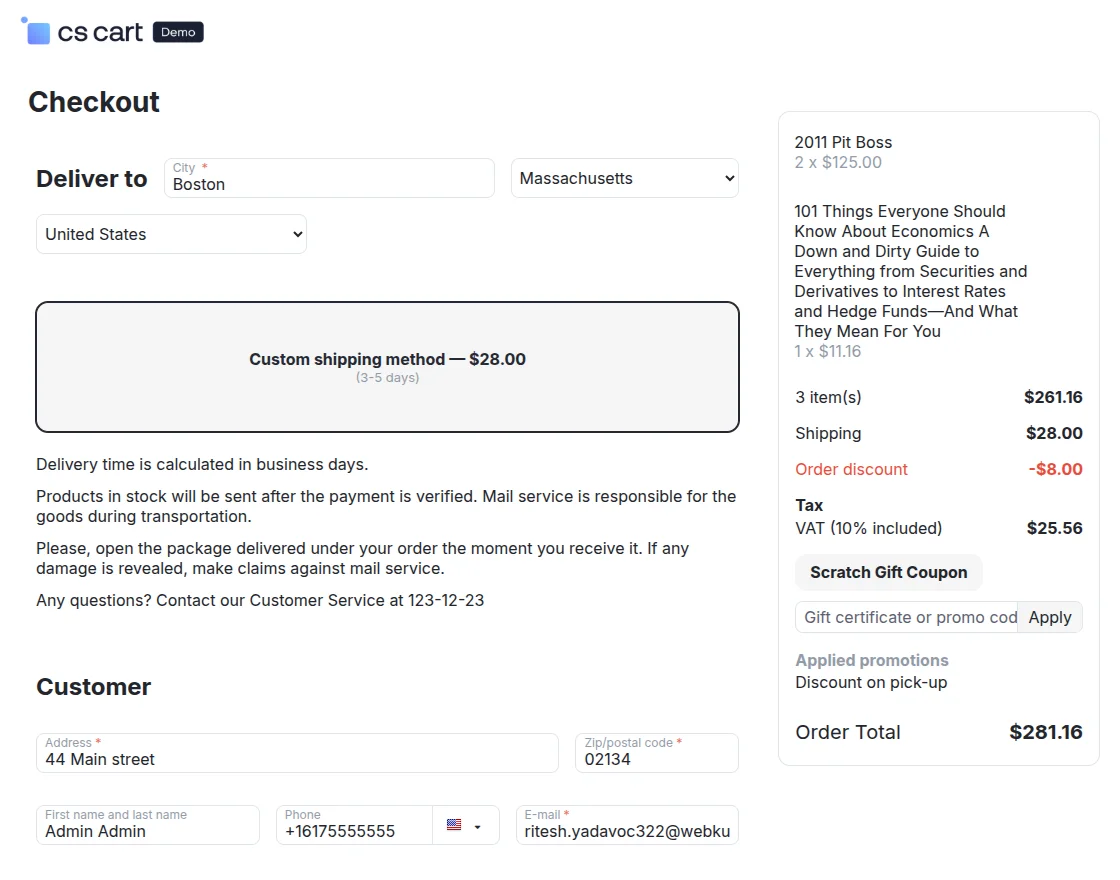
Now, click on Scratch Gift Coupon on the checkout page.
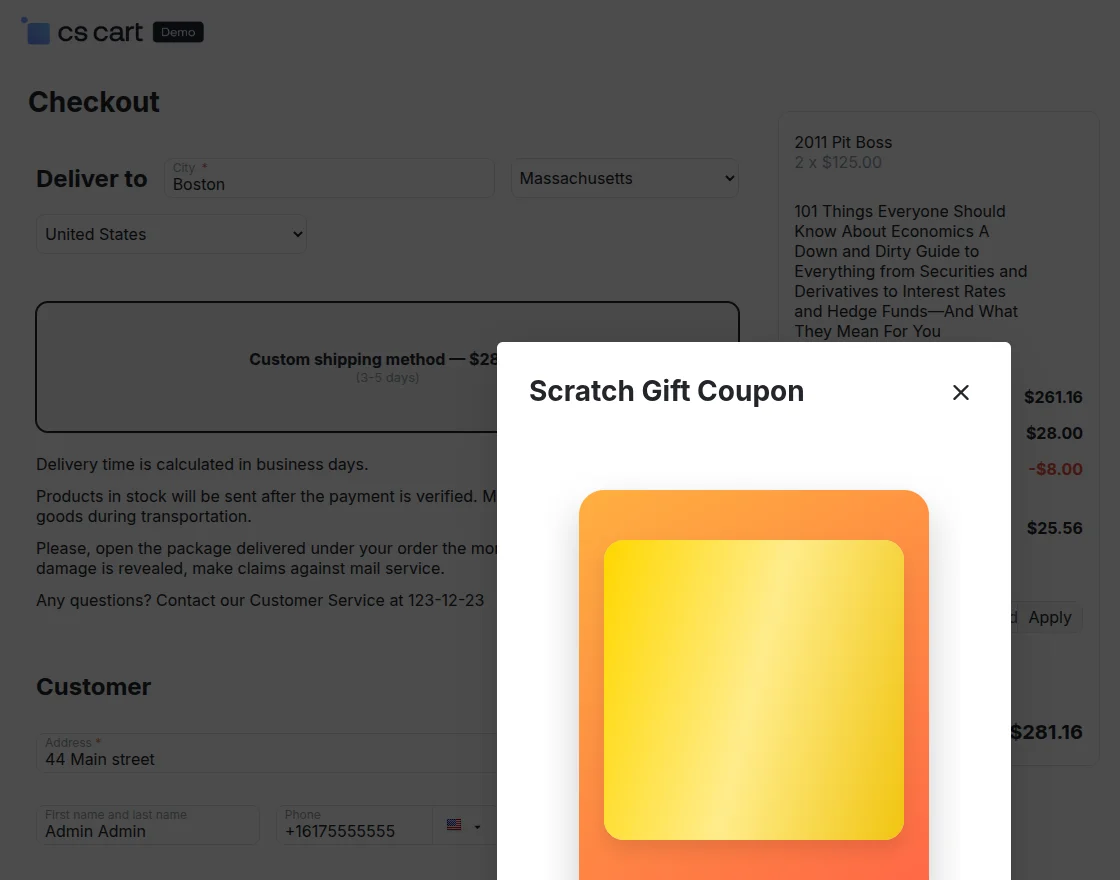
Now, scratch the visible card to reveal the discount coupon code.
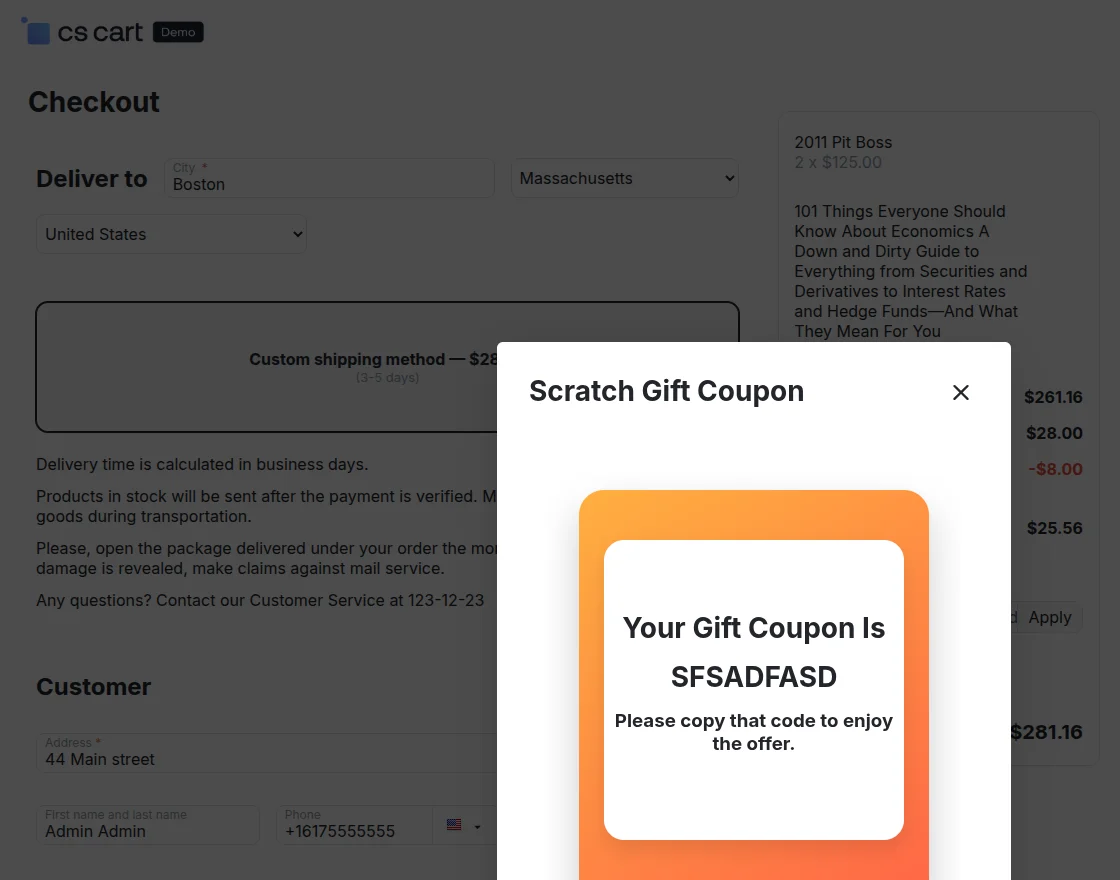
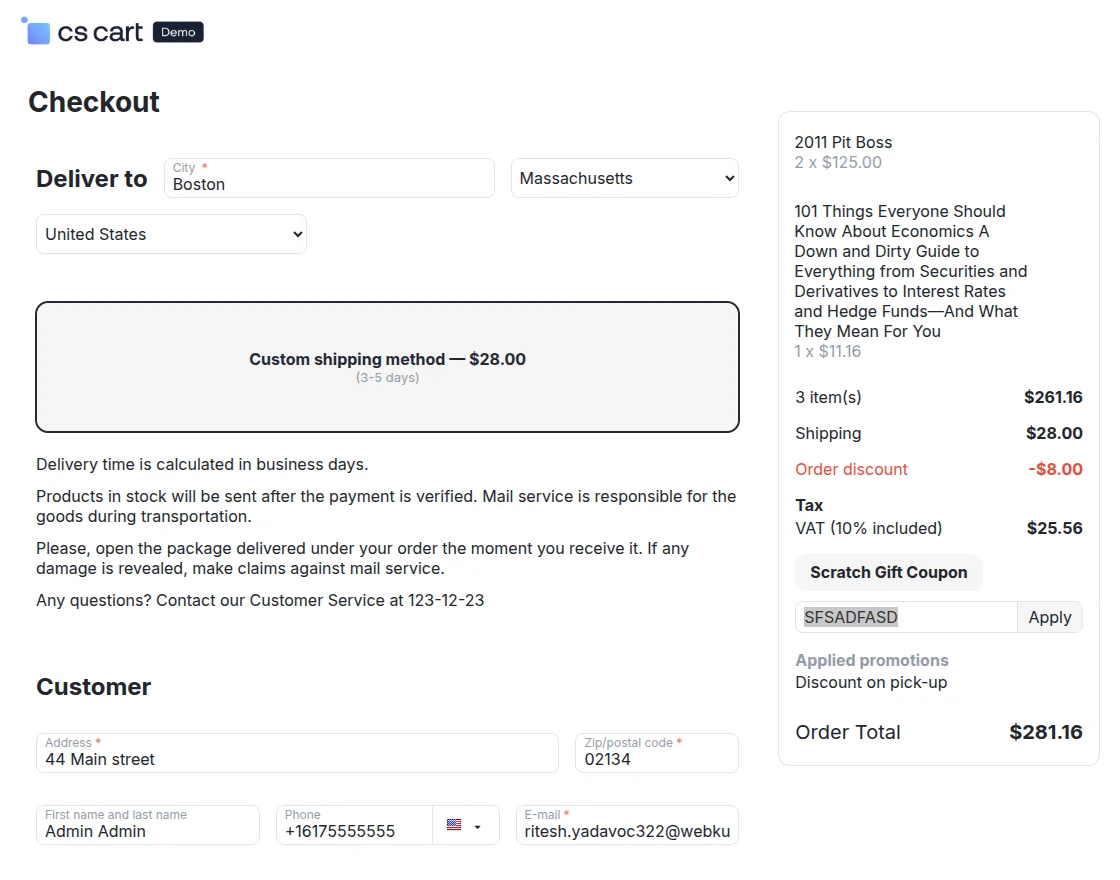
After revealing the coupon code, enter it in the Gift Certificate Promo Code field during checkout to apply the discount and complete your order.
That’s all about the CS-Cart Scratch Card Add-on. If you have any questions or need assistance with the add-on, feel free to contact our support team.
Support
For further any query feel free to contact us at http://webkul.uvdesk.com.
Please explore our cs-cart Development Services and Quality cs-cart add-ons .
Current Product Version - 1.0
Supported Framework Version - 4.18.x, 4.19.x, 4.20.x

Be the first to comment.