CS-Cart Direct Print is an advanced user-friendly solution designed to streamline the printing process for eCommerce store admins.
This module lets the admin print order invoices and shipping labels directly from the CS-Cart admin panel, ensuring a smooth and hassle-free order processing workflow.
Whether you are managing a small online store or handling large order volumes, CS-Cart Direct Print offers flexibility, efficiency, and simplicity.
The tool supports bulk printing and works with all types of printers, making it adaptable to various business needs.
This module is perfect for businesses looking to save time, reduce manual effort, and enhance productivity.
Features
- Start and manage the Direct Print server directly from the admin panel.
- Enable secure printer communication using SSL.
- Configure the printer service with domain and port settings.
- Automatically generate a unique system identifier for printer communication.
- Fetch and connect available printers using the Get Printer option.
- Upload SSL certificate and secret files from the local system or provide their URLs.
- Print invoices and packing slips directly from the CS-Cart admin panel.
- Support bulk printing to speed up order processing.
- Compatible with multiple printer types for seamless printing.
- Also, the module ensures faster and more accurate invoice and label printing to improve customer satisfaction.
Note: To access the module’s live demo, please contact the Webkul support team.
Explore the CS-Cart OpenAI ChatBot add-on that connects product data with ChatGPT to answer queries and share product links.
Installation
After downloading the CS-Cart Quick Print add-on, you’ll get one zip file, one install.txt file, and a relevant User Guide manual doc.
Read it carefully for proper configuration.
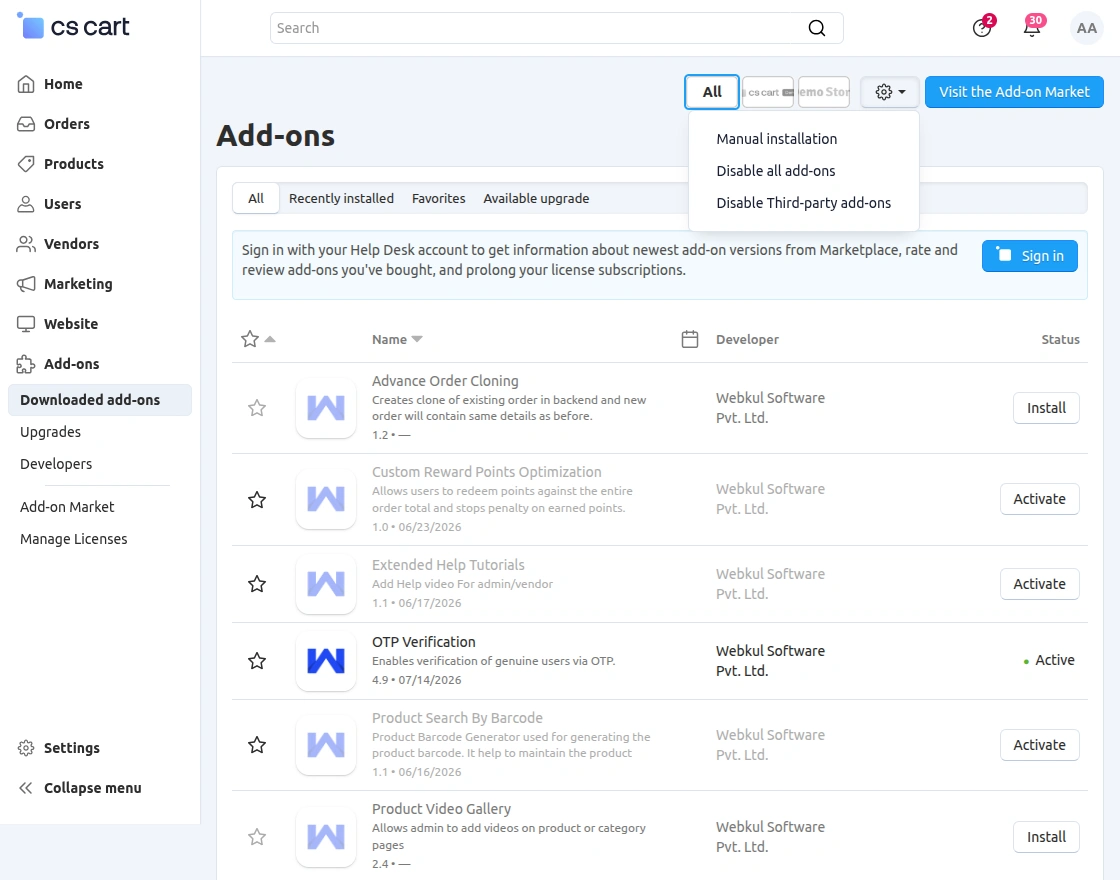
Go to Manage Add-ons, and click on “Manual Installation” as shown below in the snapshot.
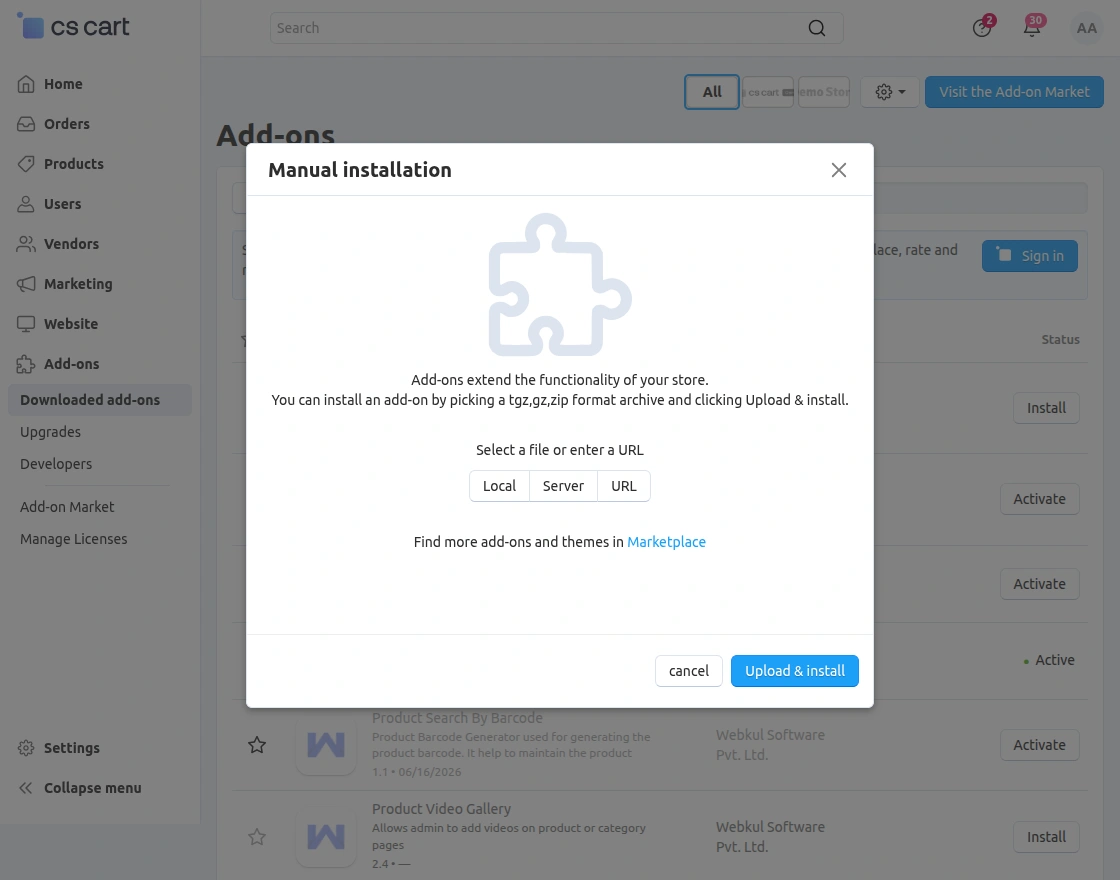
Click on “Local” to browse the zip file and then click on “Upload & Install” as shown below in the snapshot.
Add-On Configuration
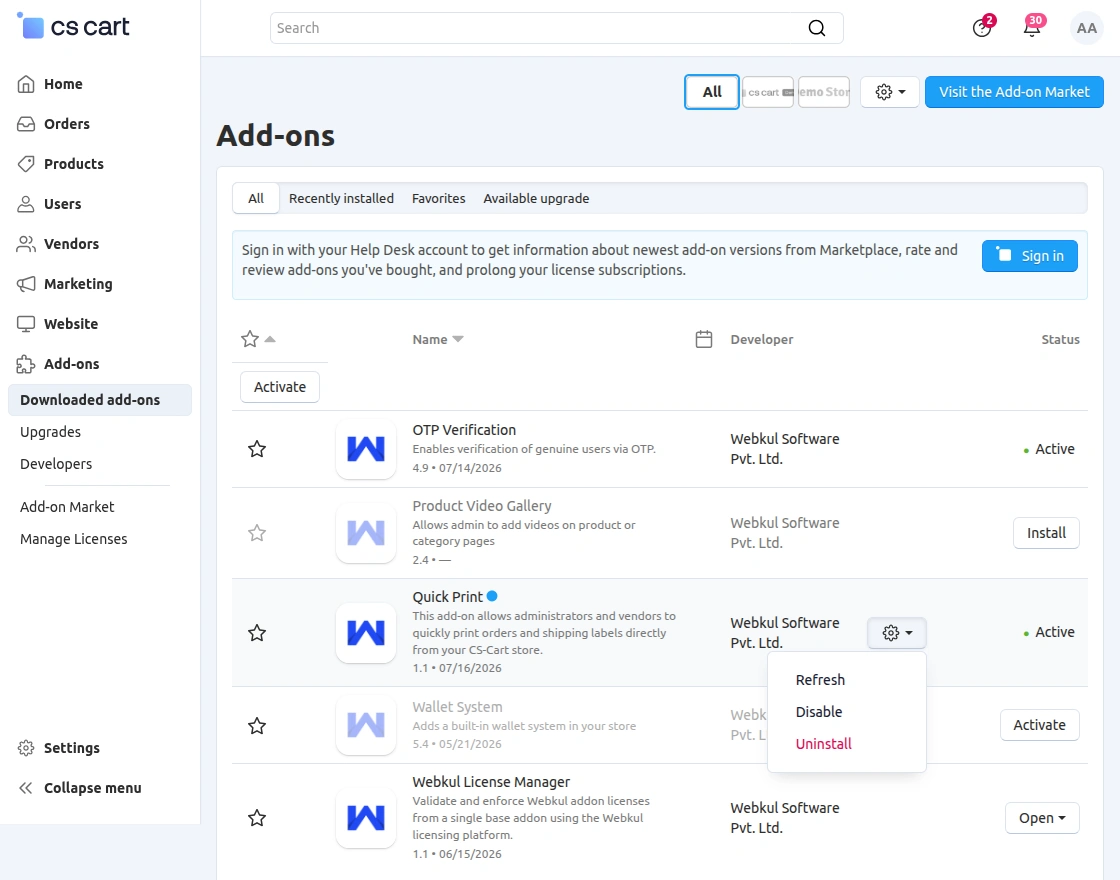
After installing the add-on, you will find CS-Cart Quick Print in the list of available add-ons.
Click on “Settings” to enable, disable, install, or refresh. Ensure you activate the add-on, as shown in the snapshot below.
Module Configuration | Admin
To configure the module, go to the Add-Ons >> Developers >> Webkul Software Pvt Ltd. >> Qucik Print >> Settings, as shown in the snapshot below.
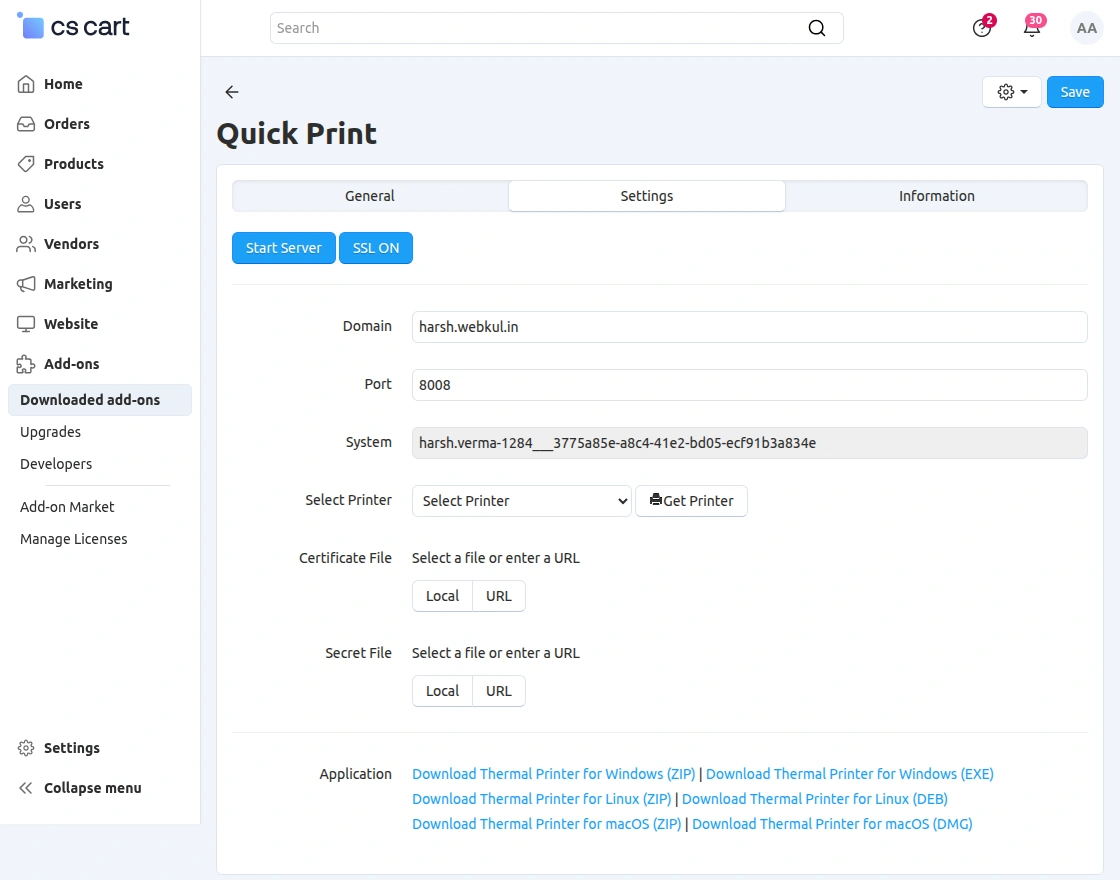
Here, the admin can configure the Direct Print settings to establish communication between the CS-Cart store and the printer service.
The available configuration options are:
- Start Server: Click this button to start the Direct Print server.
- SSL ON: Enable SSL to establish a secure connection between the store and the printer service.
- Domain: Enter your store’s domain name.
- Port: Specify the communication port for the printer service.
- System: The system name is generated automatically after the server is started.
- Select Printer: Click Get Printer to fetch the list of available printers and select the desired printer for printing.
- Certificate File: Upload the SSL certificate file from your local system or provide its URL.
- Secret File: Upload the SSL secret (private key) file from your local system or provide its URL.
Note:
- SSL keys will be different for different servers.
- This is not provided for the HTTP.
Once the configuration is complete, click Save to apply the settings. The add-on will then be ready to print invoices and packing slips directly from the CS-Cart admin panel.
Download Desktop Application
The admin can use this extension on their respective device after installing the app for Windows, Linux, and Darwin OS separately.
Windows OS
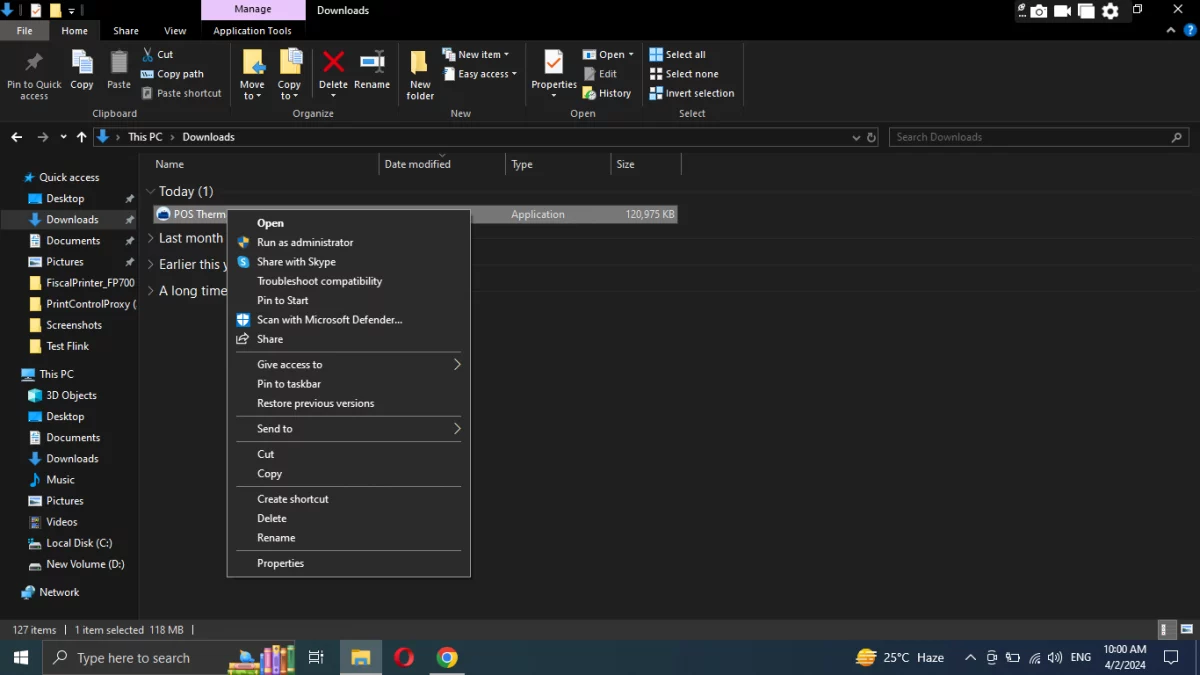
Click on the ZIP, EXE, or MSI button to download the application on your Windows system. Once you click on the button the file will download to your system.
When you download the exe file, the file will be directly downloaded to the system.
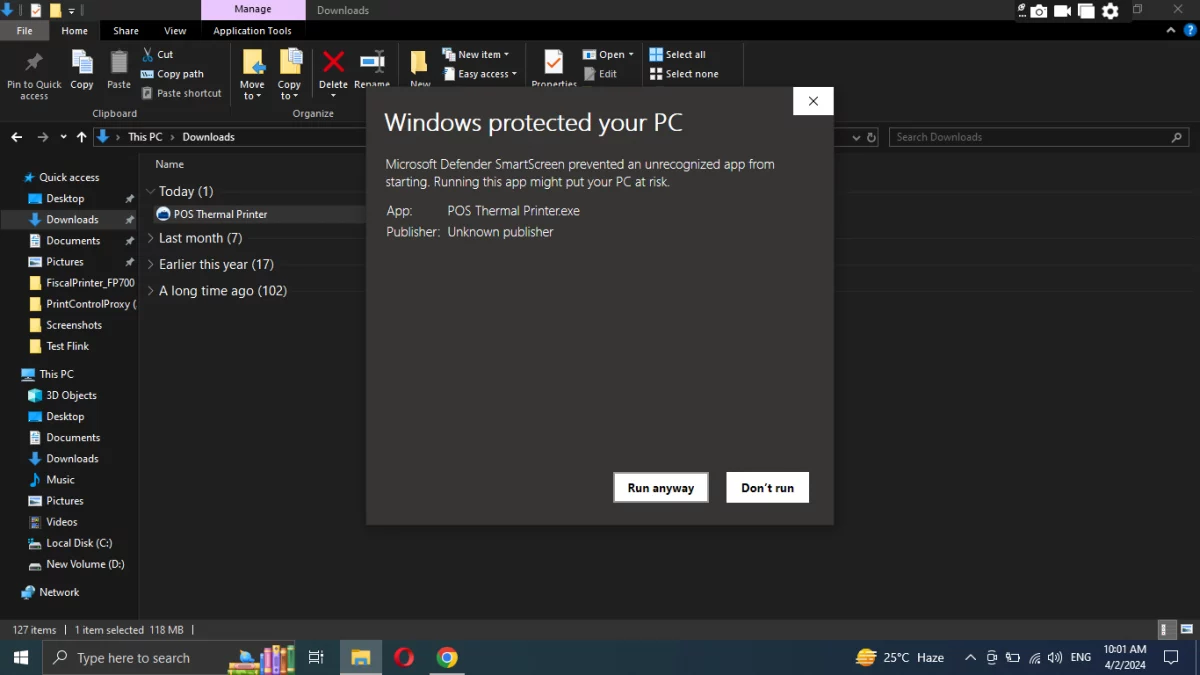
After that, a pop-up will appear and you can click on run anyway to proceed further
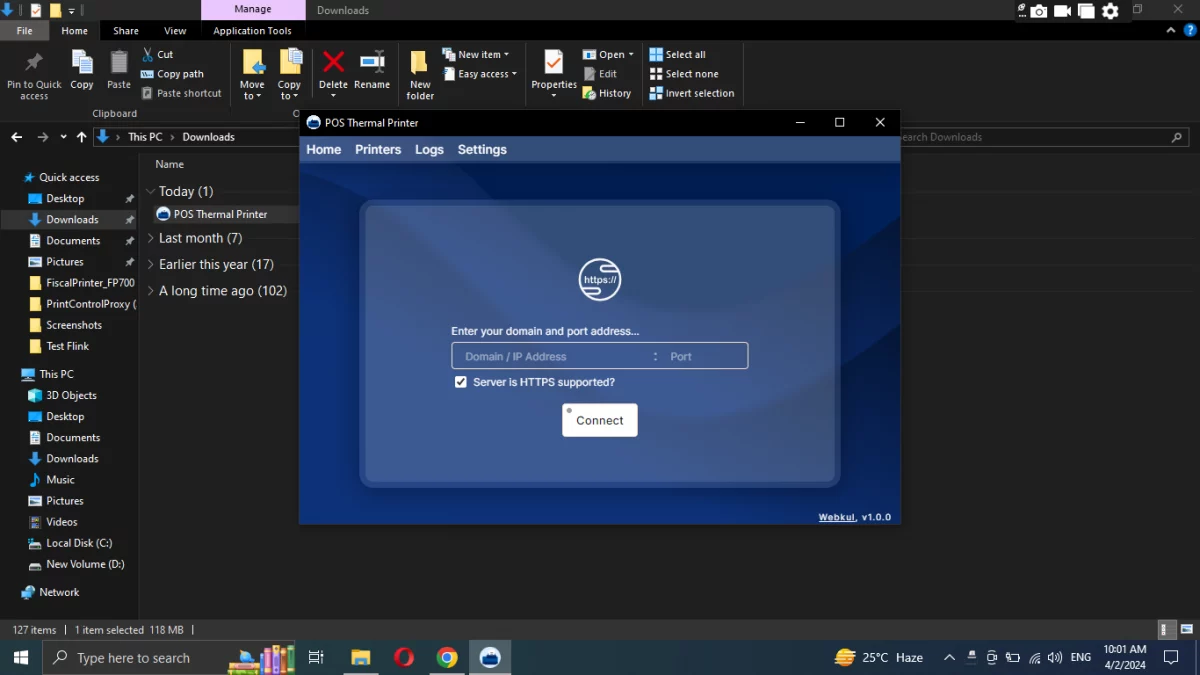
Then you have to enter the domain details.
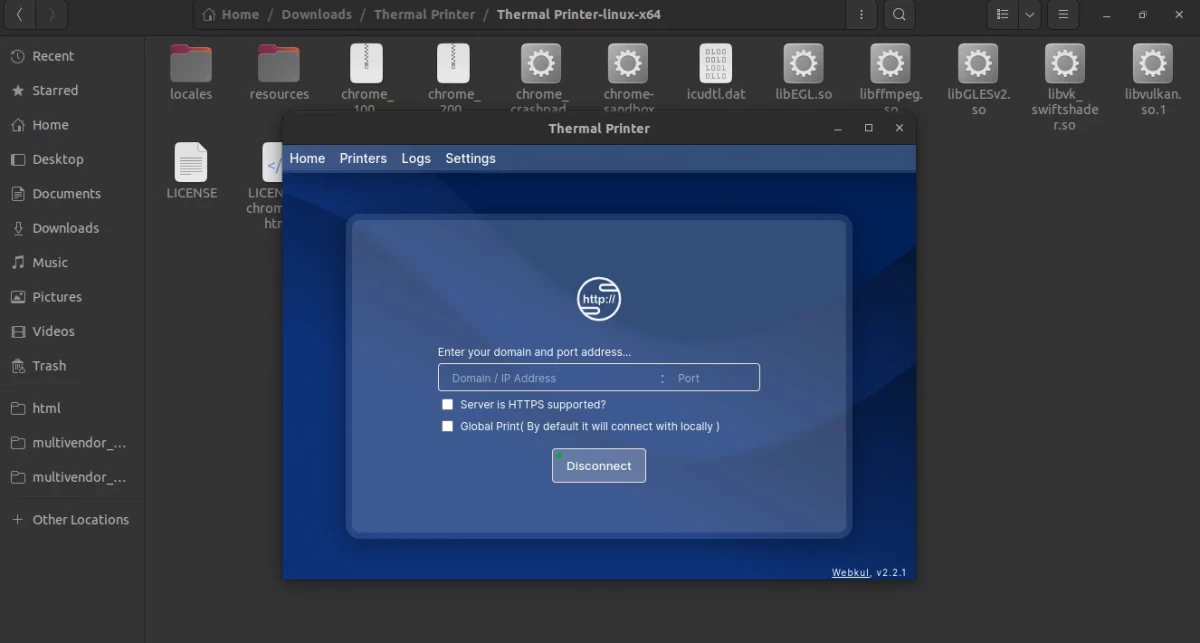
Linux OS
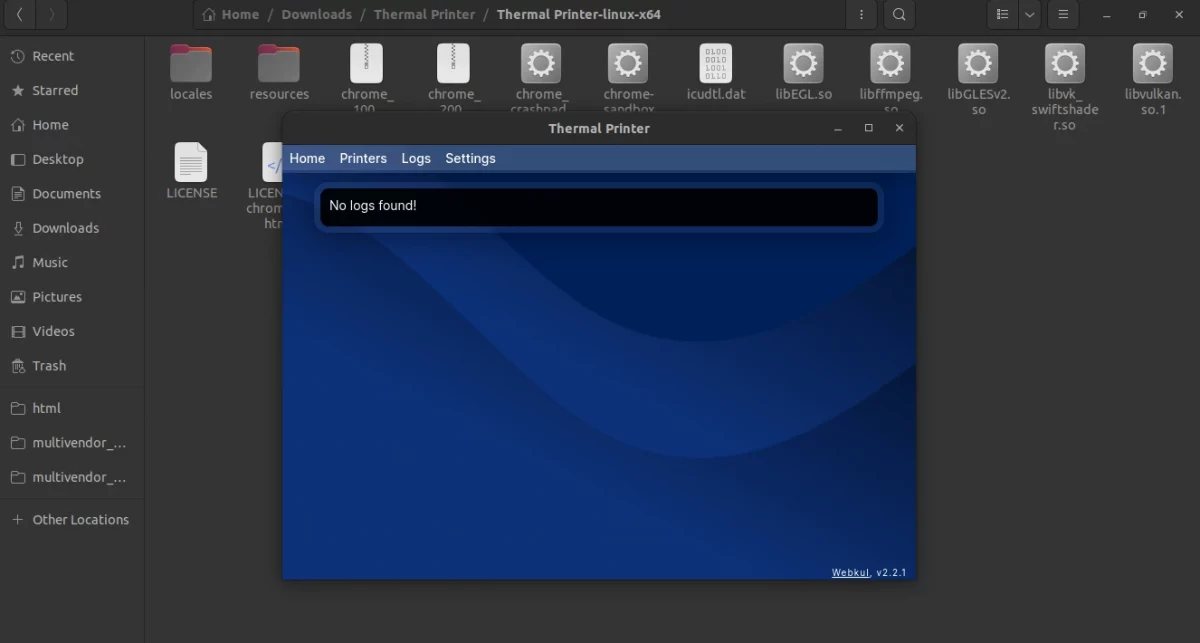
Similarly, the admin can download the app on their Linux OS.
Then extract the Zip file on your system.
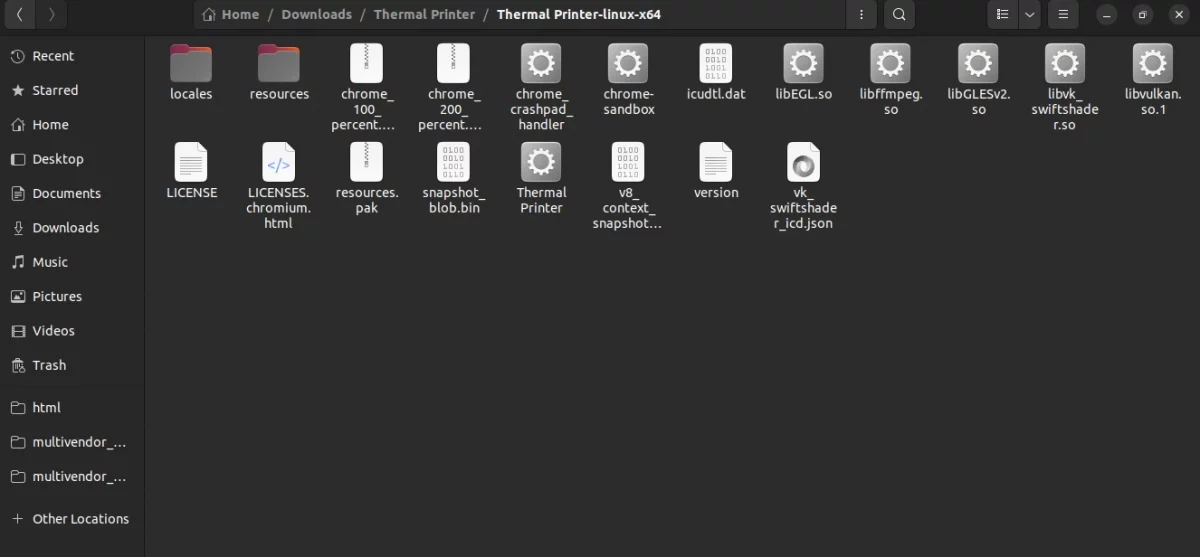
Now click on Thermal Printer.
After enabling execute permission, the admin launches the app on their system.
Drawin OS
Similarly, the admin can install the app for Apple desktop in Darwin OS.
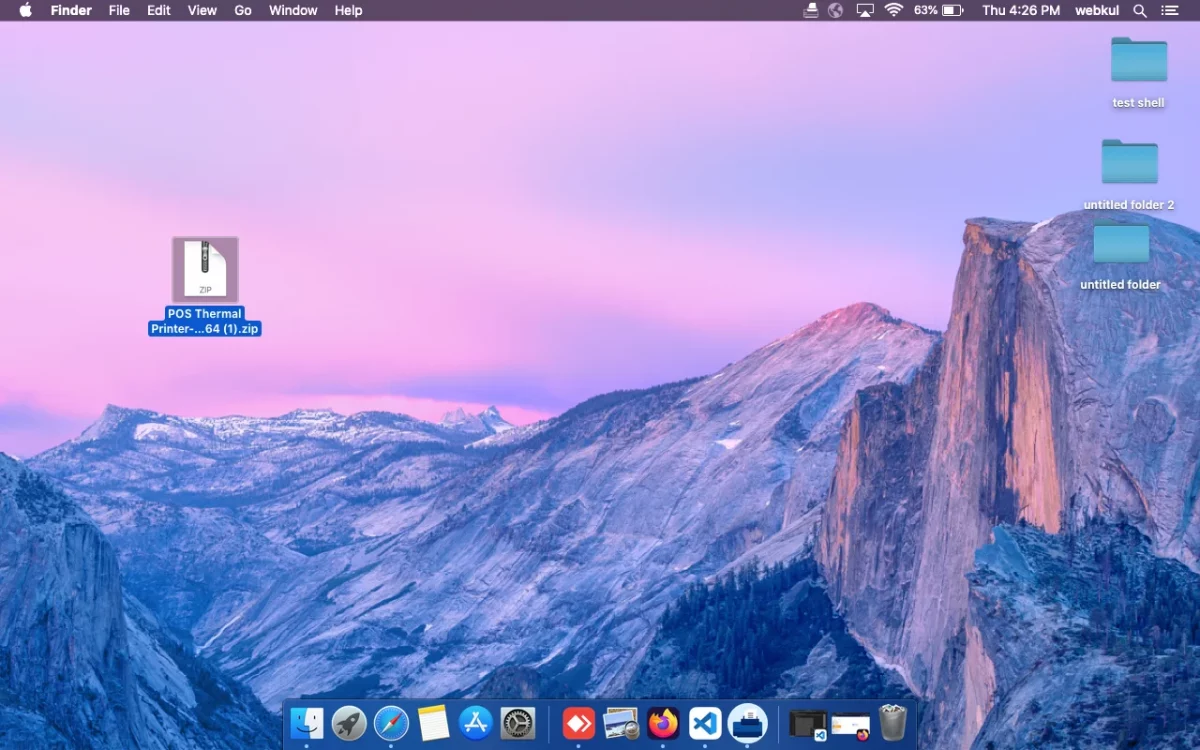
Once the Zip is installed extract and open it.
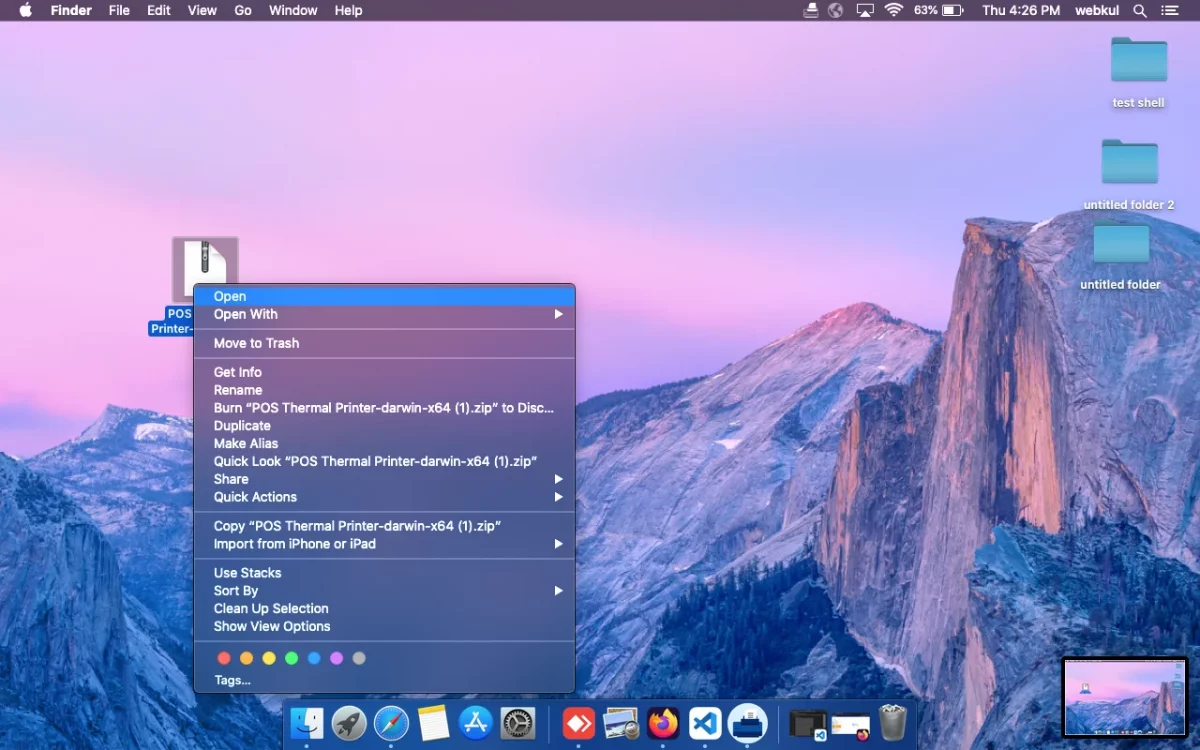
Click on the open icon and the process will run in the background.
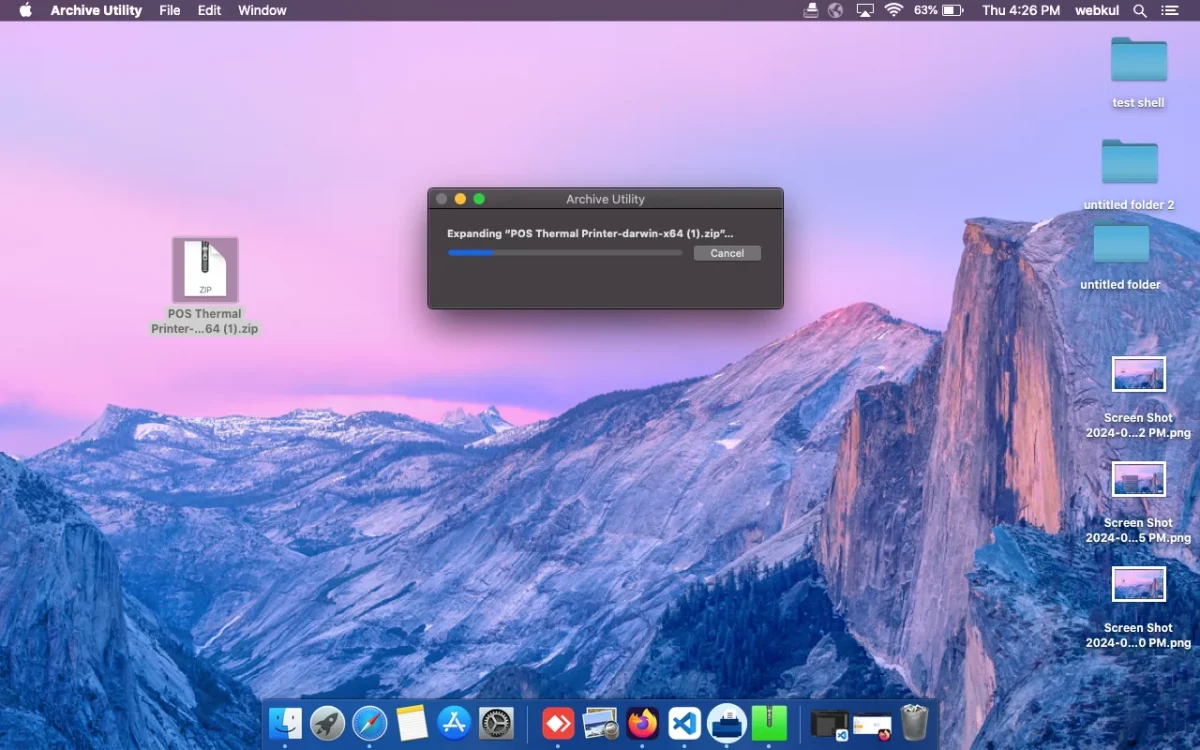
After installing the app, the admin sees the icon on their home screen.
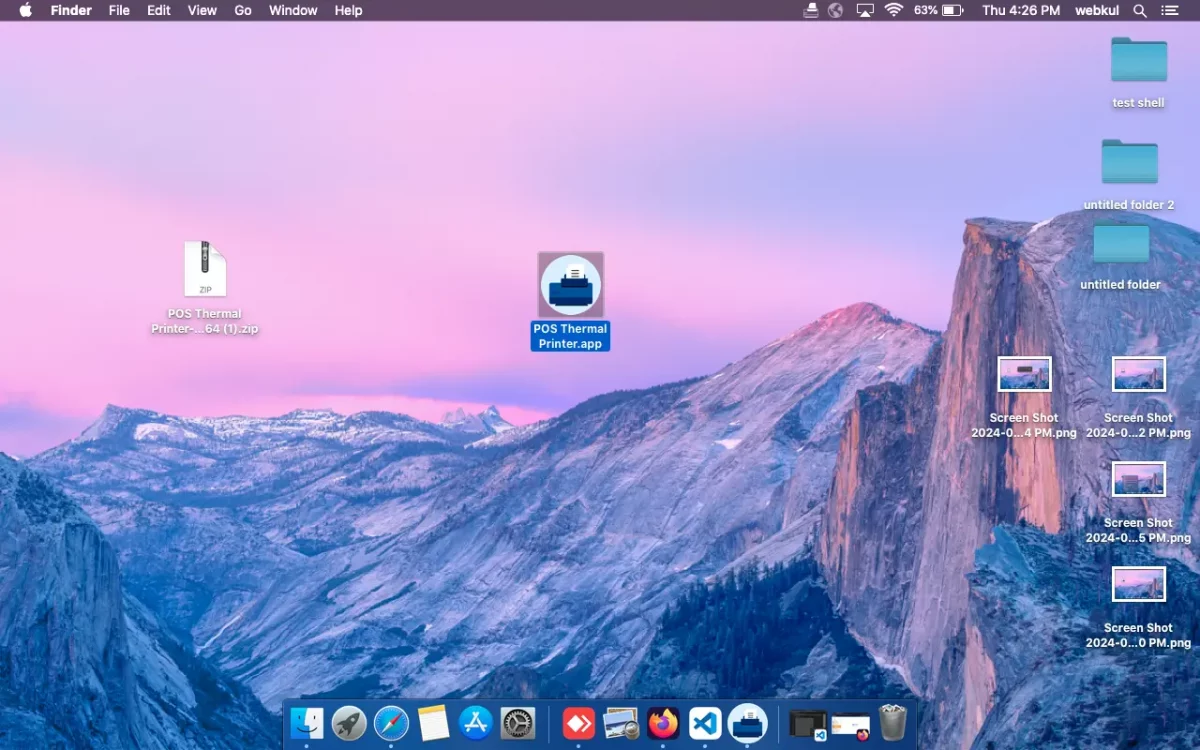
Click on the app, the app will open in your Darwin OS.
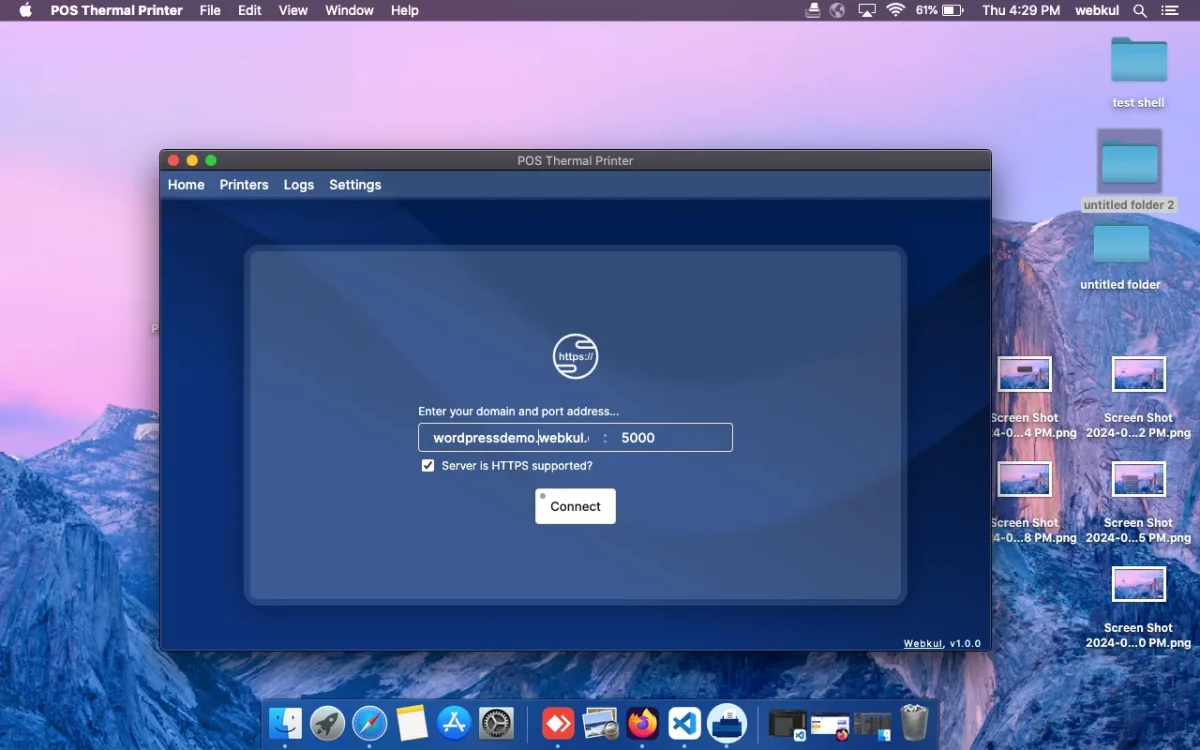
App Setting
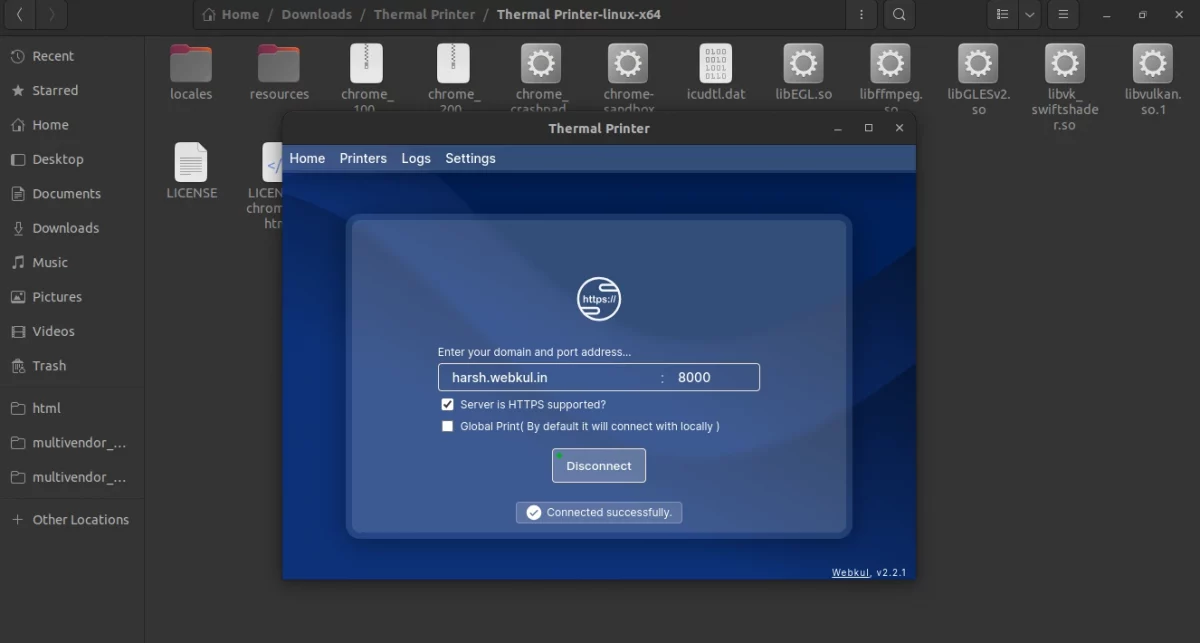
After installing the app, the admin configures the app settings.
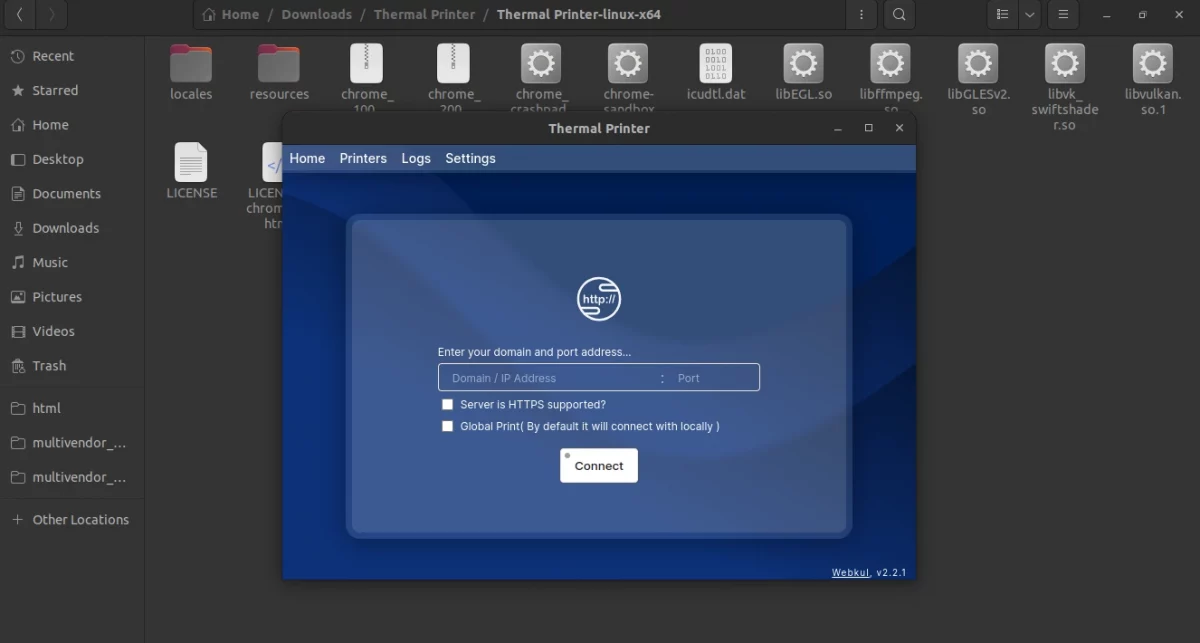
The admin will enter the domain URL or IP address and port number.
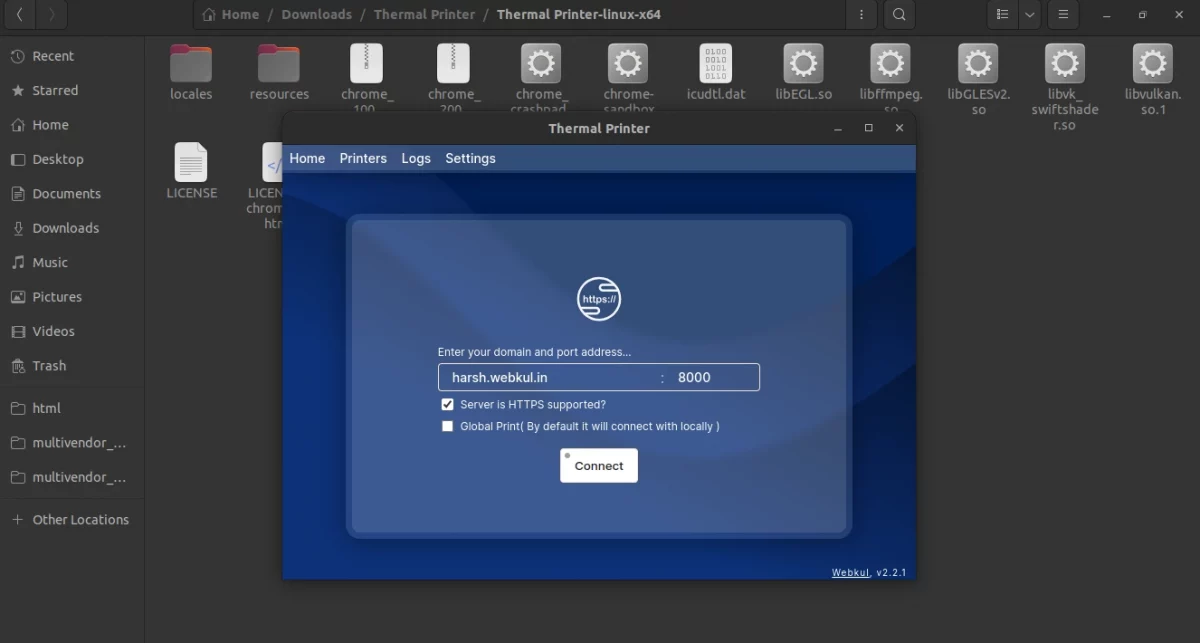
The admin needs to click on the connect button to connect the app to the server port.
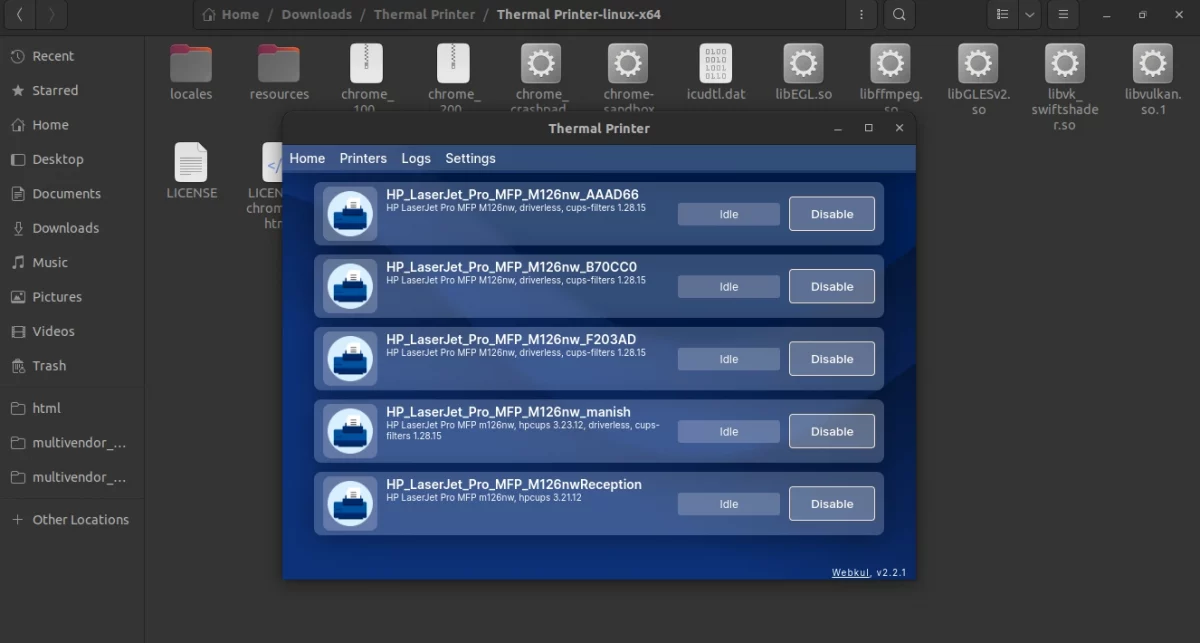
Click on the printer’s option to check the connected printers and connect new ones.
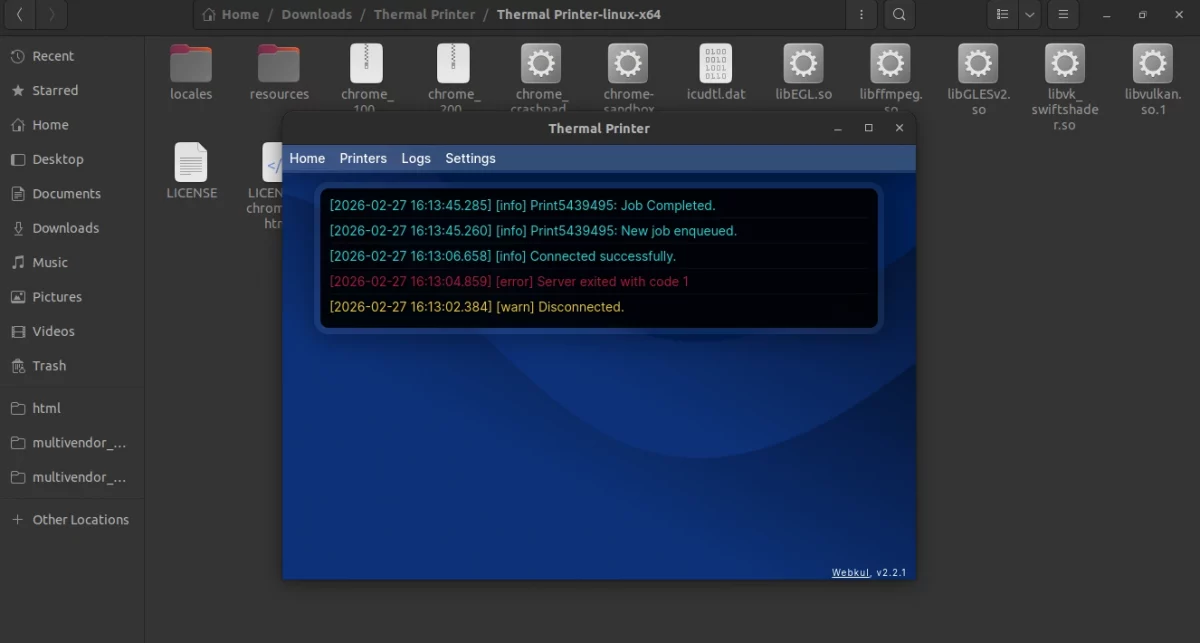
Check the log file directly on your system with every detail of the POS thermal printer app.
Check the log setting on the app and download or clear any logs from the POS thermal app.
Once you click on the download button the log file will download in your system.
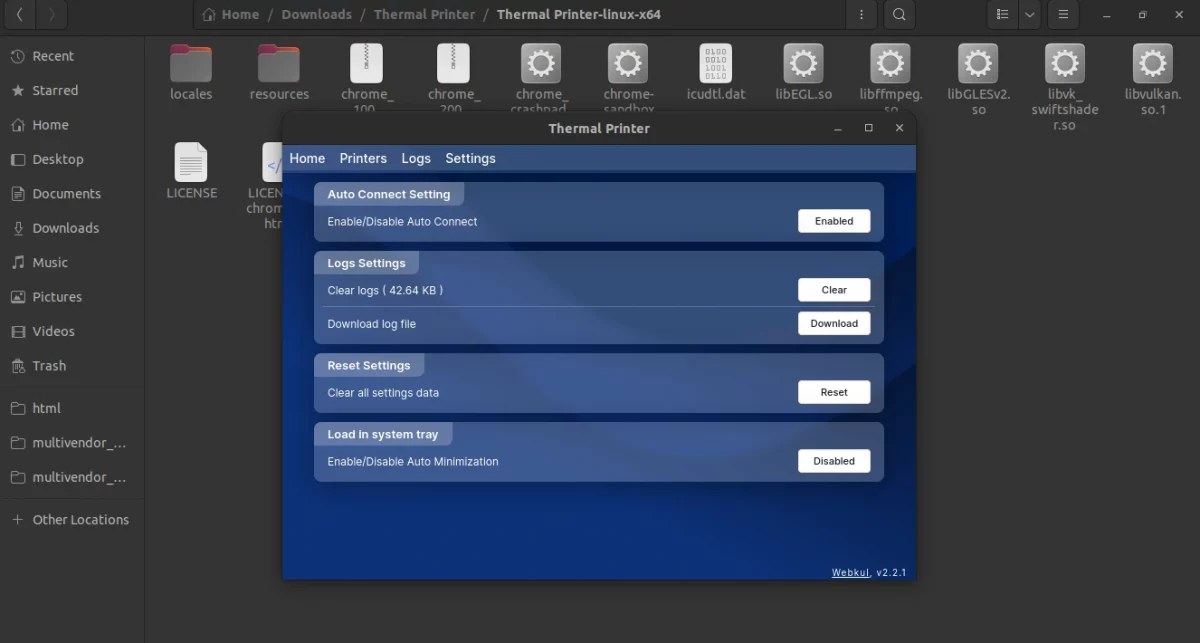
If the admin wants to clear the log they can simply click on the clear button and the log will be cleared from the app.
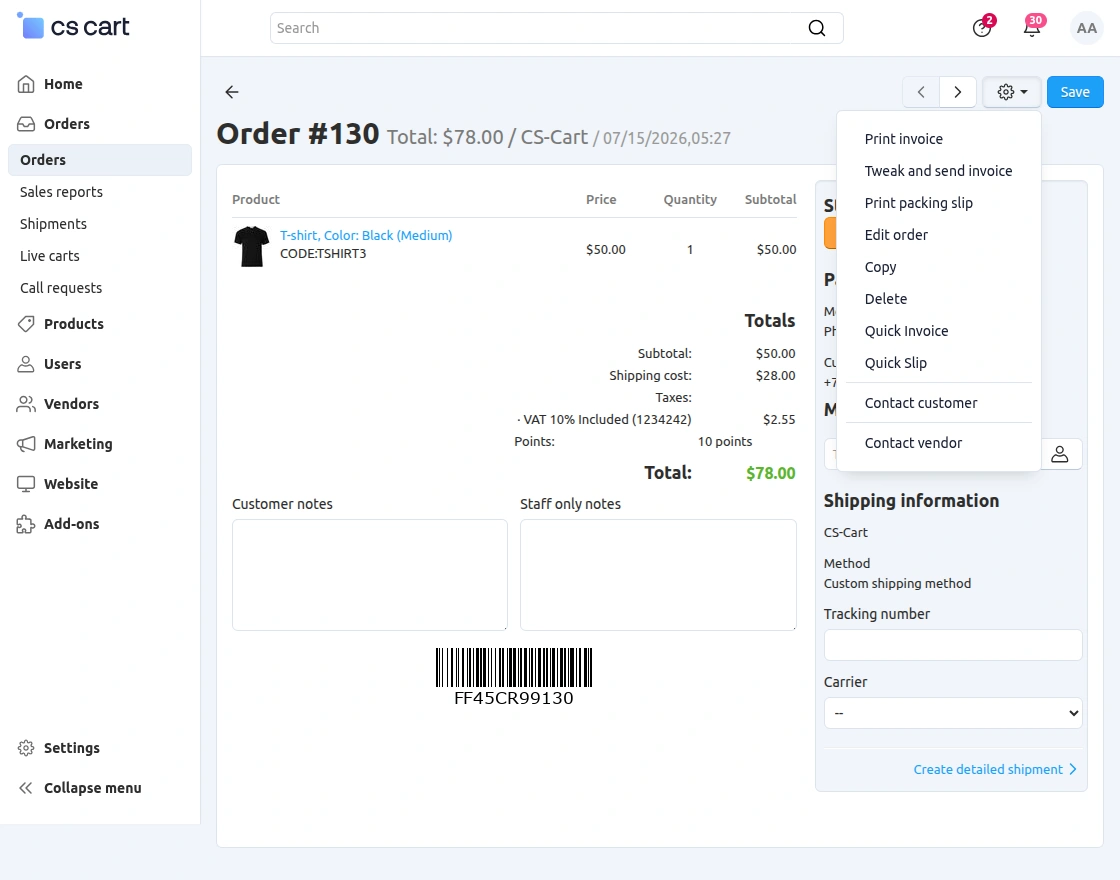
Admin Prints Single Invoice and Slip
In CS-Cart, the admin can directly print a single invoice or packing slip for an order. Here’s how:
- Go to Orders: Navigate to Admin Panel > Orders
- Open the Order: Click on the specific order you want to print.
- Find the Print Options: In the top-right corner, click the gear icon (Actions).
- Select Print Type:
- Click Quick Invoice to generate an invoice.
- Click Quick slip for a packing slip.
- Print or Save: The document opens in a new tab, ready for printing or saving as a PDF.
The admin can print invoices and shipping labels directly from the order grid page.
Admin Prints Bulk Invoice and Slip
In CS-Cart, Direct Print allows the admin to print bulk invoices and packing slips for multiple orders at once. Here’s how you can do it:
- Go to Orders: Navigate to Admin Panel > Orders
- Select Orders: Check the boxes for the orders you want to print invoices or slips for.
- Click the Gear Icon (Actions): Select Print invoices or Print packing slips
- Generate & Print: A new tab opens with the selected invoices/slips, ready for printing.
This saves time instead of printing each order separately. If you need customization, CS-Cart addons or templates can modify the invoice layout.
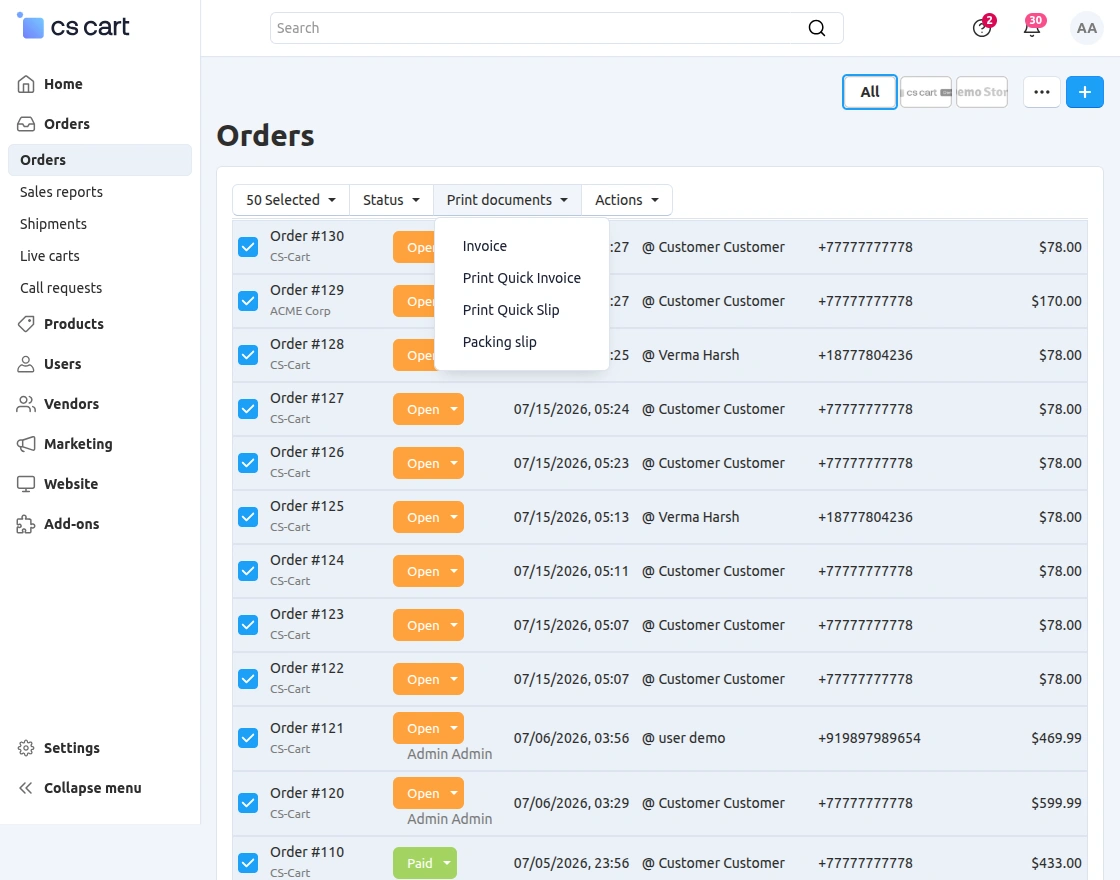
The admin can print invoices and shipping labels in bulk directly from the order grid page.
The admin can select order checkboxes and click the relevant icons.
Support
If you have any questions, suggestions, or customization requests, feel free to contact us at [email protected] or submit a ticket at webkul.uvdesk.com.
Explore our premium-quality CS Cart Extensions to enhance your store functionality.
You can also explore our CS-Cart Development Services and Quality CS-Cart add-ons.
Current Product Version - Version 1.1
Supported Framework Version - Version 4.16.x, 4.17.x, 4.18.x, 4.19.x, 4.20.x

Be the first to comment.