PrestaShop Quick Contact Form facilitates you to add the contact button on your store enabling customers to contact you quickly.
Customers can send their queries by entering their email id and requirements.
Get notified via email on selected email address whenever a customer submits an inquiry on your store. Add Google reCAPTCHA to your contact form for prevention against spam and bots.
Note: PrestaShop Quick Contact Form module is compatible with PrestaShop multi-store feature.
Features of PrestaShop Quick Contact Form
- Adds contact form on the PrestaShop store.
- Allows customers to send their queries instantly.
- Receive an email notification as soon as customer sends a query via quick contact form.
- Send an email to the customers when they submit their query.
- Enable Google reCAPTCHA on the contact form.
- Set custom text for contact form title.
- Select the email id on which you want to receive email notifications.
- Reply to customer queries from back office.
How to Install PrestaShop Quick Contact Form
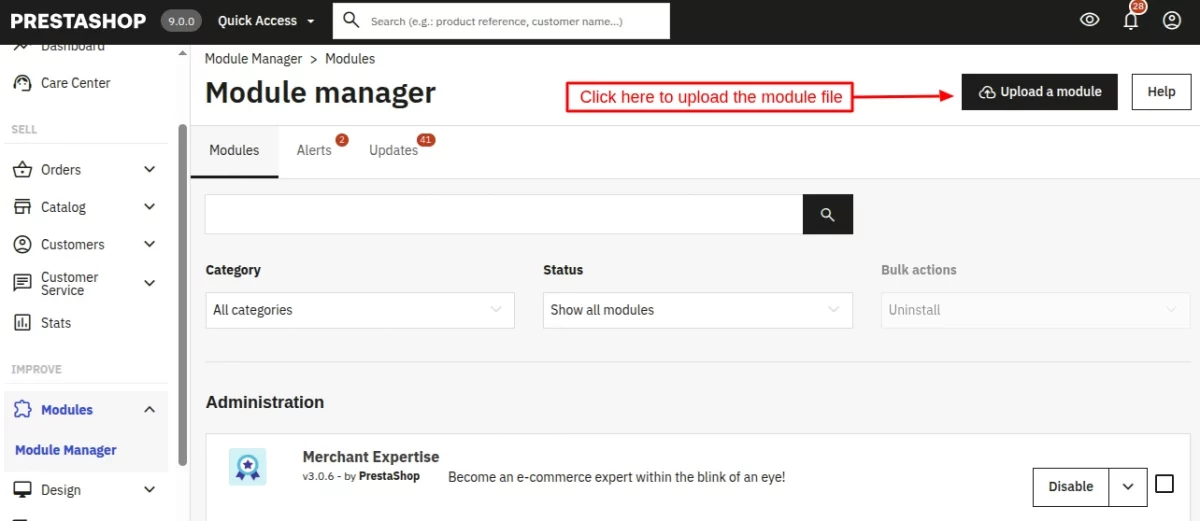
- Firstly, go to the module manager in the back office and click on ‘upload a module’.
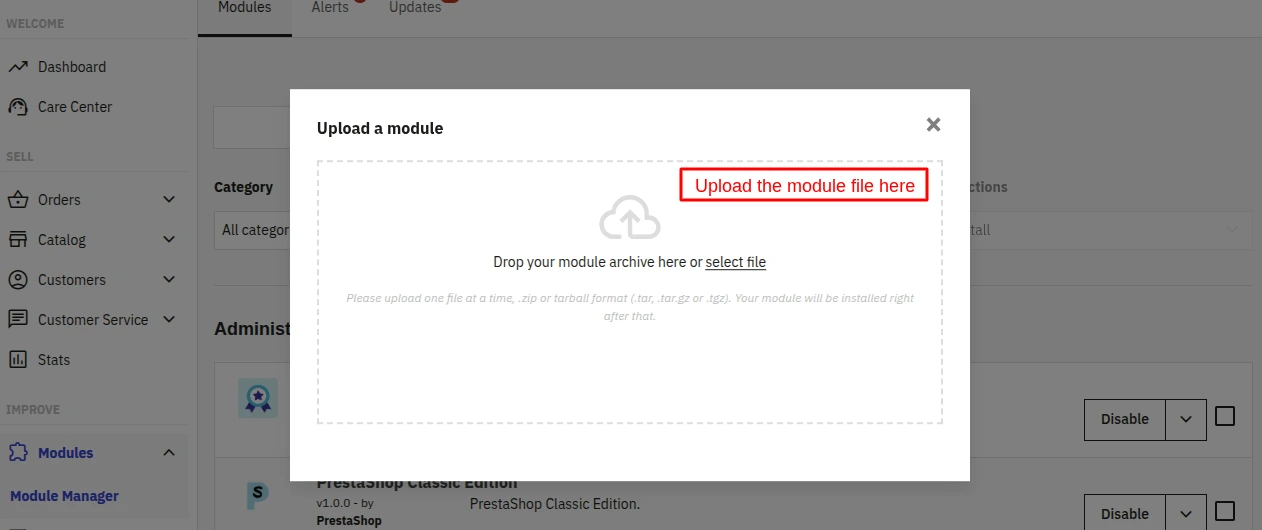
- After that, drag and drop the module file or select the file from the system.
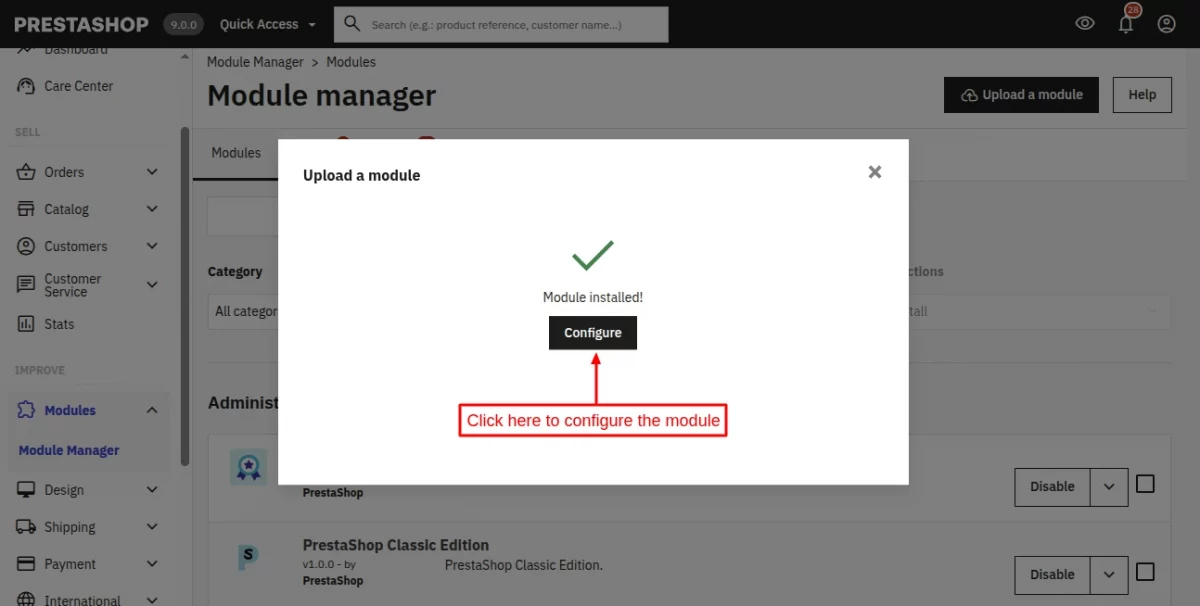
- In this way, the module installation will be successful.
Module Configuration

General Settings

Under General Settings, you can:
- Choose to show Google reCAPTCHA on the contact form.
- Set custom text form contact form title.
Mail Settings
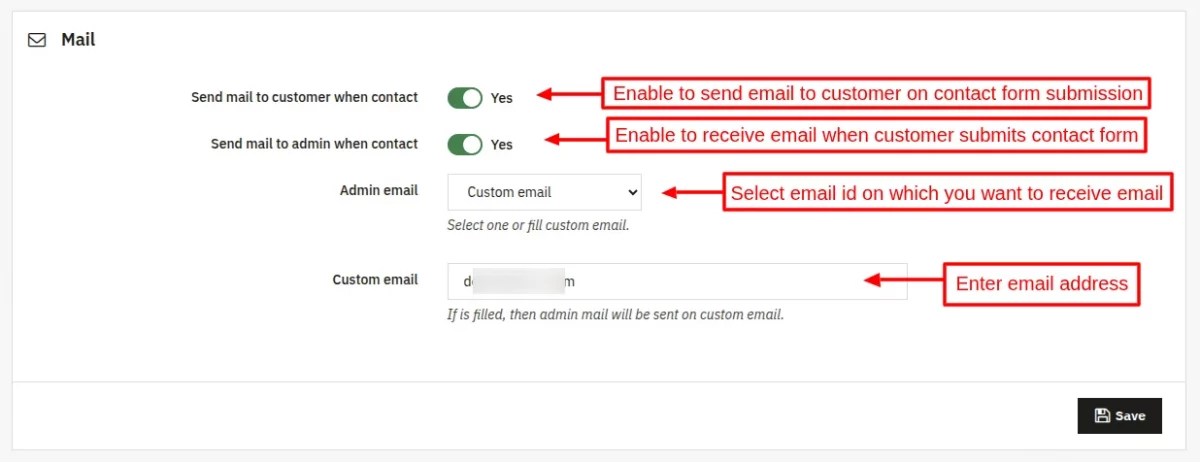
Under Mail Settings, you can:
- Choose to send an email to customer when he/she submits a contact form.
- Choose to receive an email when a customer submits the contact form.
- Select email id on which you want to receive an email.
Front End Workflow
When a user visits the store, he can view the contact us icon on the bottom-right position.

On clicking the icon, a contact form appears on the page. In the form, a user needs to specify email id, subject, and requirement.

On clicking the “Send Message” button, the contact form gets submitted.

Back End Workflow
From the back office, the admin can view the list of users who fill out the contact form.
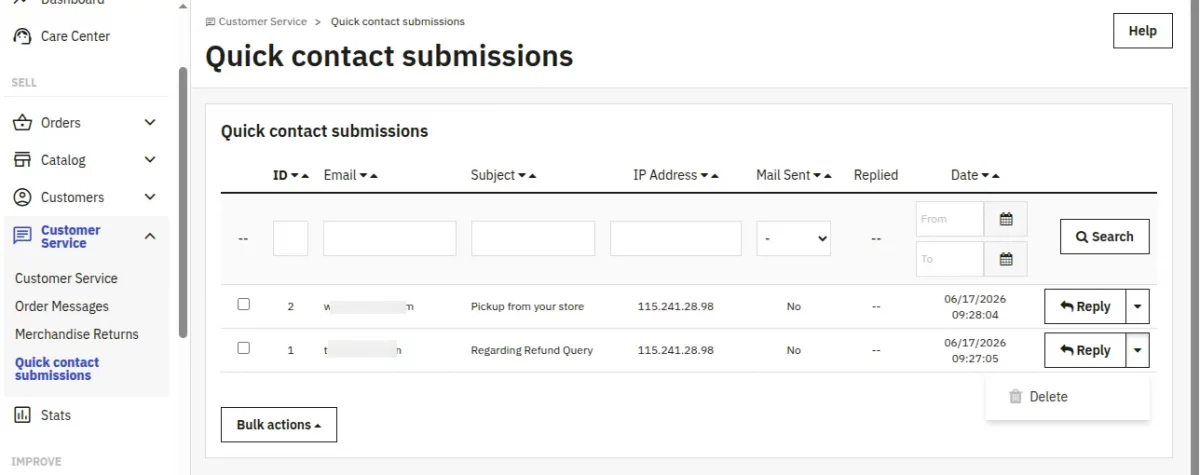
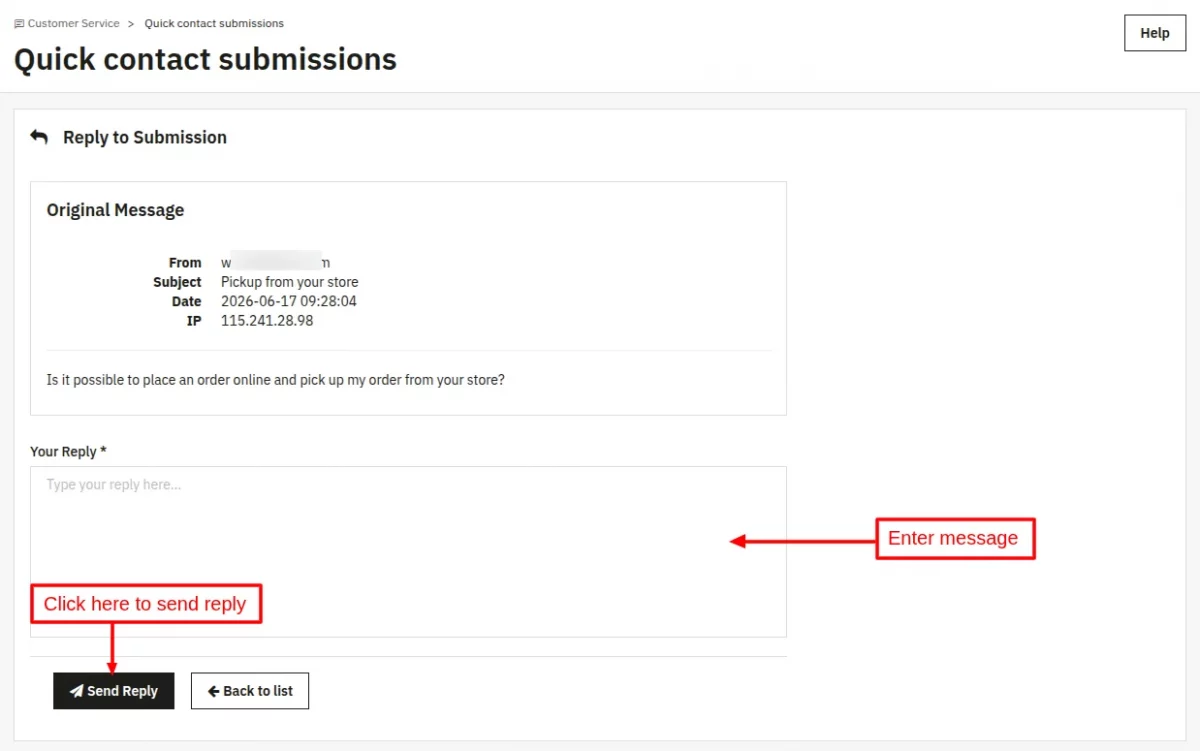
On clicking the “Reply” button, the admin will be able to reply to the customer only one time.
This was all about Prestashop Quick Contact Form Module. I hope this document will help you in checking the functionality of the module in a better way.
Also, do let us know about your views in the comments.
Support
For any kind of technical assistance or query, please raise a ticket or send us a mail at [email protected]
Also, please explore our Prestashop development services and a vast range of quality Prestashop addons.
Current Product Version - 1.0.2
Supported Framework Version - 9.x.x, 8.x.x, 1.7.x.x

Be the first to comment.