With the continuous developments in eCommerce, the need to integrate customer-centric features is also increasing.
The race to provide the best services is getting tougher day by day. But that doesn’t mean that you should opt yourself out from the race.
Instead, you need to look out more in the world in search of features that seemingly enhances your user experience.
That’s where the Prestashop Order Tracking module comes in. This module will provide more timely updates on orders and elevate the overall user experience.
These days, every customer wants to be updated of their order status.
By installing this module, you can update each & every step involved in the delivery of the order on the order details page.
In turn, it ensures customers with progress towards delivery & helps to instil confidence in the customer about the brand.
Note: Prestashop Order Tracking module is compatible with Prestashop version 9.x.x and multi-store feature.
Check the overview of the plugin in the video mentioned-below –
Features of the Prestashop Order Tracking module
- Buyers can easily track their order.
- Allow customers to track their orders without login.
- Create and configure the order state.
- Add icons to define the order state.
- Change the order state according to actual order status.
- Send email to customer when order status gets changed.
- Send tracking url in email to customers to track the shipment.
- Map the default order status with the tracking state.
- Choose to automatically update the tracking state based on the default order status.
- Four pre-defined order tracking states added in the module.
- Choose a template for order state that will be visible to buyers.
- User interacting interface at frontend to track the order.
- Update the tracking state from the order listing page too.
- Rearrange the position of tracking state from the list & observe that changes at front end too.
How to install the Prestashop Order Tracking module
- Firstly, go to the module manager in the back office and click on ‘upload a module’.
- After that, drag and drop the module file or select the file from the system.
- In this way, the module installation will be successful.


How to configure the Prestashop Order Tracking module
After the successful installation of module, admin can proceed to configure the module.
General Settings
Under General Settings, the admin can:
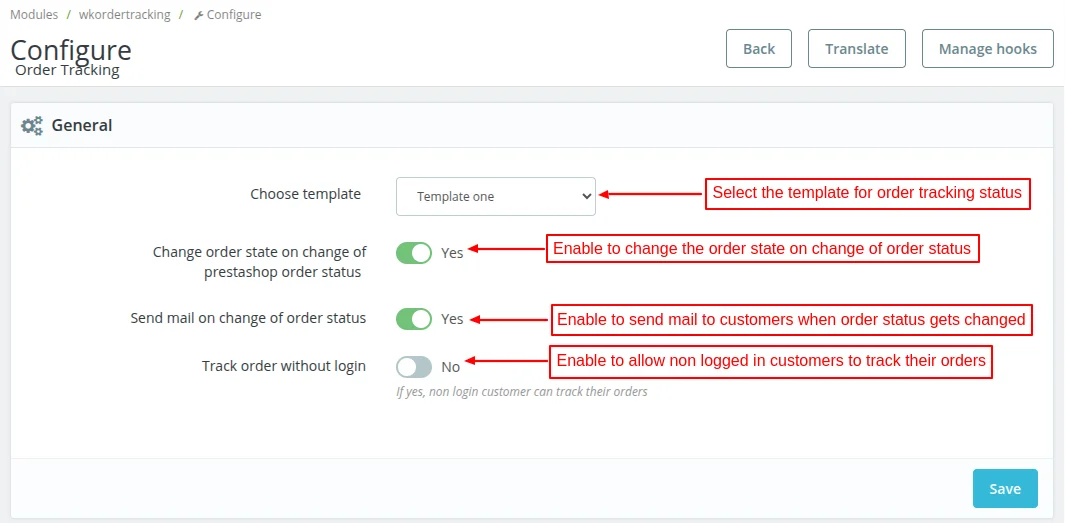
- Choose template for order tracking states that will be displayed to customers.
- Choose to update the order state when PrestaShop order status gets updated.
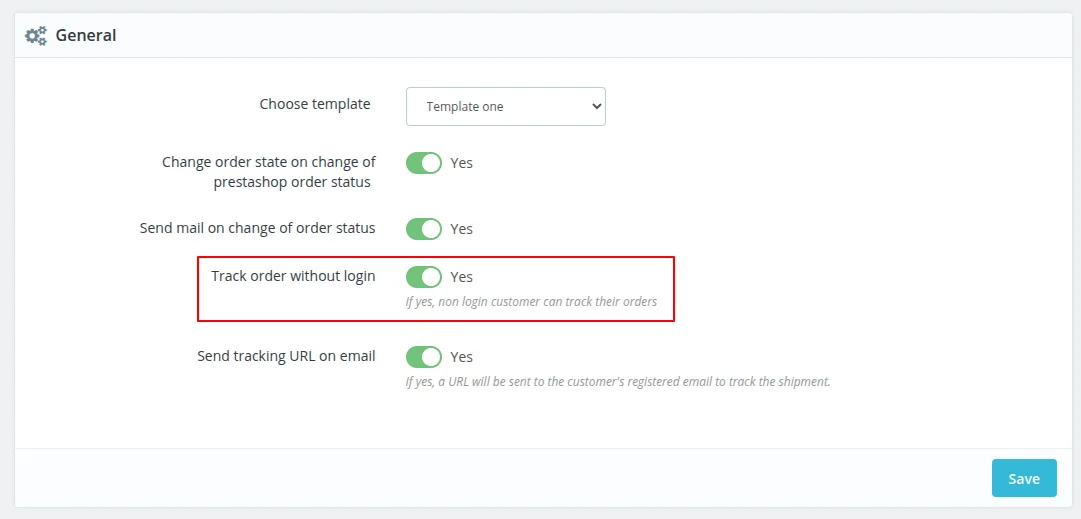
- Allow non-logged in customers to track their orders.
- Choose to send email tom customers when order status gets updated.
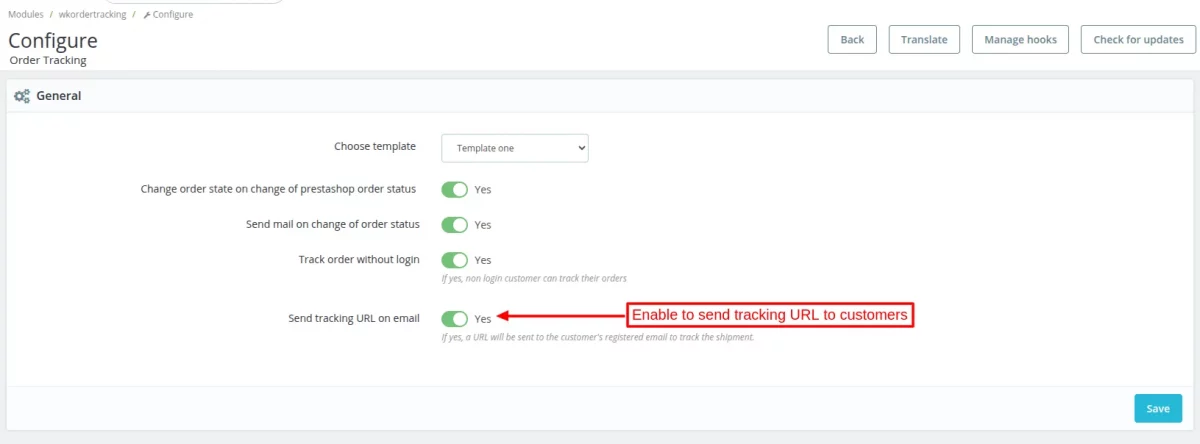
If “track order without login” is enabled, then the admin can choose to send tracking url to customers in email.
Template
Each Template has two views namely desktop view & mobile view.
- Desktop View: Visibility of order states in desktop/laptop screens.
- Mobile View: Visibility of order states in Mobile devices.
Template one

Template Two

Workflow
Backend
After the successful installation of the module, a new tab adds in orders section i.e. “Order Tracking State”.

Under “Order Tracking State” tab, you will see the list of tracking states. Either you can choose to create a new state or else edit the existing state.

Click on the “Add New State” button to create a new state. In order to create a new tracking state, you will need to enter the following information.
- Name of the tracking state
- Description of the tracking state
- Icon for both pending and achieved state
Also, select the default order status with which you want to map this order state. So that tracking state is automatically updated on change of order status.
To automatically update the tracking state, you will need to enable it from the configuration settings.

After creating the state admin can view the new state on the order list too. You can change the tracking state of any order from the order list & order details page too.


If the admin changes the tracking state then it will also reflect on the customer end.
Note: If the admin changes the state from “order placed” to “delivered” then in-between states will automatically be achieved.
Front-end

Rearrange the position of tracking state
Admin can also rearrange the position of tracking states and it will reflect on the customer end too.


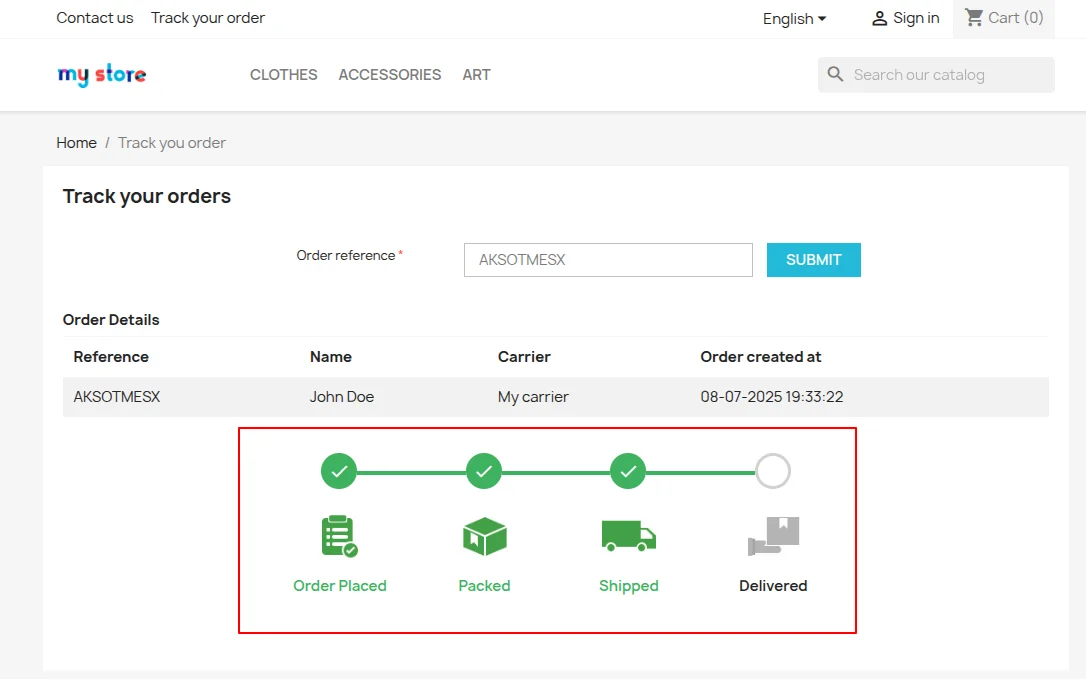
Front end view at customer order detail page

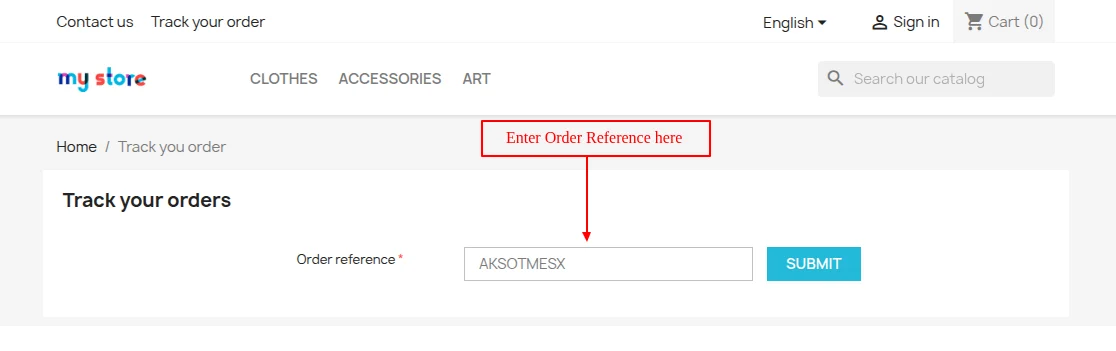
Track Order Without Login
If enabled by the admin, then “track your order” option will display in the header on the store.
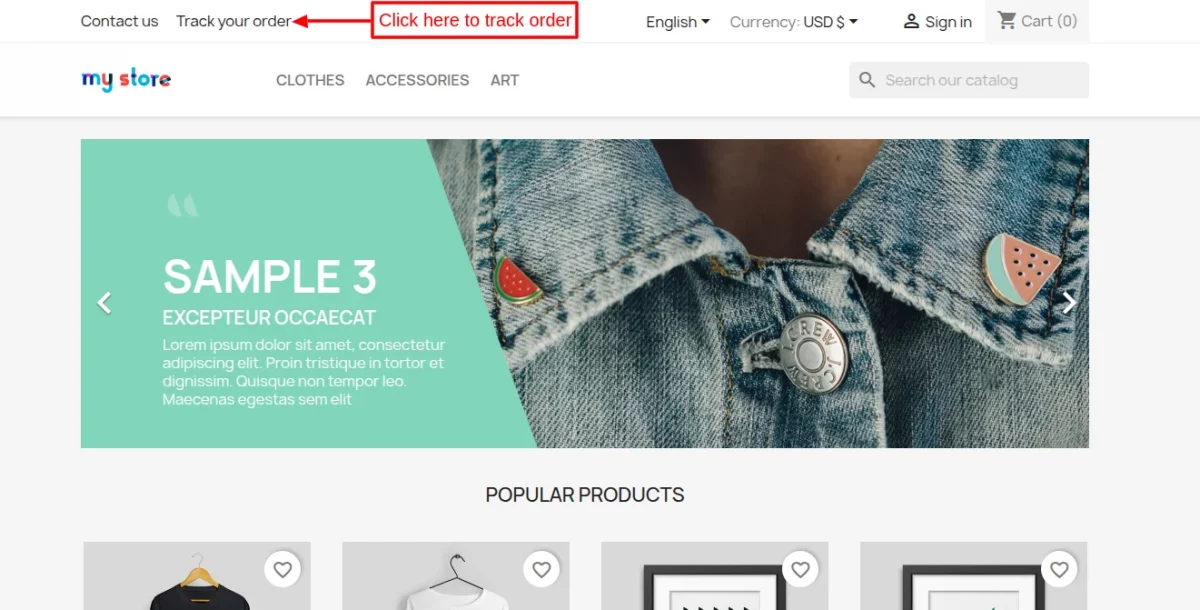
Click on track your order option.
Now, enter order reference and click on submit button.
Once submitted, order details and tracking states will display on the page.
If “send tracking URL on email” field is enabled, then an email containing tracking url is sent to customer’s registered email address.
This was all about the Prestashop Order Tracking Module. I hope this document will help you in checking the functionality of the module in a better way.
Also, do let us know about your views in the comments.
Support
For any kind of technical assistance or query, please raise a ticket or send us a mail at [email protected]
Also, please explore our Prestashop development services and vast range of quality Prestashop addons.
Current Product Version - 5.0.4
Supported Framework Version - 9.x.x, 8.x.x, 1.7.x.x

Be the first to comment.