Introduction
Odoo Website Salon Spa Management lets businesses offer online appointment booking for salons and spas through their Odoo website. Customers can book appointments at any time without contacting staff.
Odoo Website Salon Spa Management lets customers browse available services, choose a suitable appointment slot, review their booking details, and confirm the appointment directly from the website.
Every confirmed appointment is automatically synced with the Odoo backend. This reduces manual scheduling, simplifies appointment management, and provides a smooth booking experience for customers.
Features
- Accept online bookings directly through your website
- Seamlessly connect your website with your Odoo management system
- Show off your salon and spa services online
- Let clients select their preferred time slots easily
- Show a clear booking preview before final confirmation
- Fast, simple, step-by-step confirmation process
- Automatically save every confirmed booking in Odoo
- Cut down on manual scheduling and busywork
- Give clients a quick, hassle-free booking experience
Prerequisites for using Odoo Website Salon Spa Management
Odoo Website Salon Spa Management works in conjunction with the following module: Odoo POS Salon & Spa Management
You need to install the above module first for Odoo Website Salon Spa Management to work properly.
Installation
- Once you purchase the App from Webkul store, you will receive a link to download module’s zip file.
- Extract the file on your system after download finishes. As a result, you will be able to see a folder named- ‘wk_website_salon_spa_management.’
- Copy and paste this folder inside your Odoo Add-Ons path.
- Now, open Odoo App and click on the Settings menu. Here, click on Activate Developer Mode.
- Then, open Apps menu and click on ‘Update Modules List.’
- In the search bar, remove all the filters and search ‘wk_website_salon_spa_management.’
- You will be able to see module in the search results. Click on ‘Activate’ to install it.
Workflow
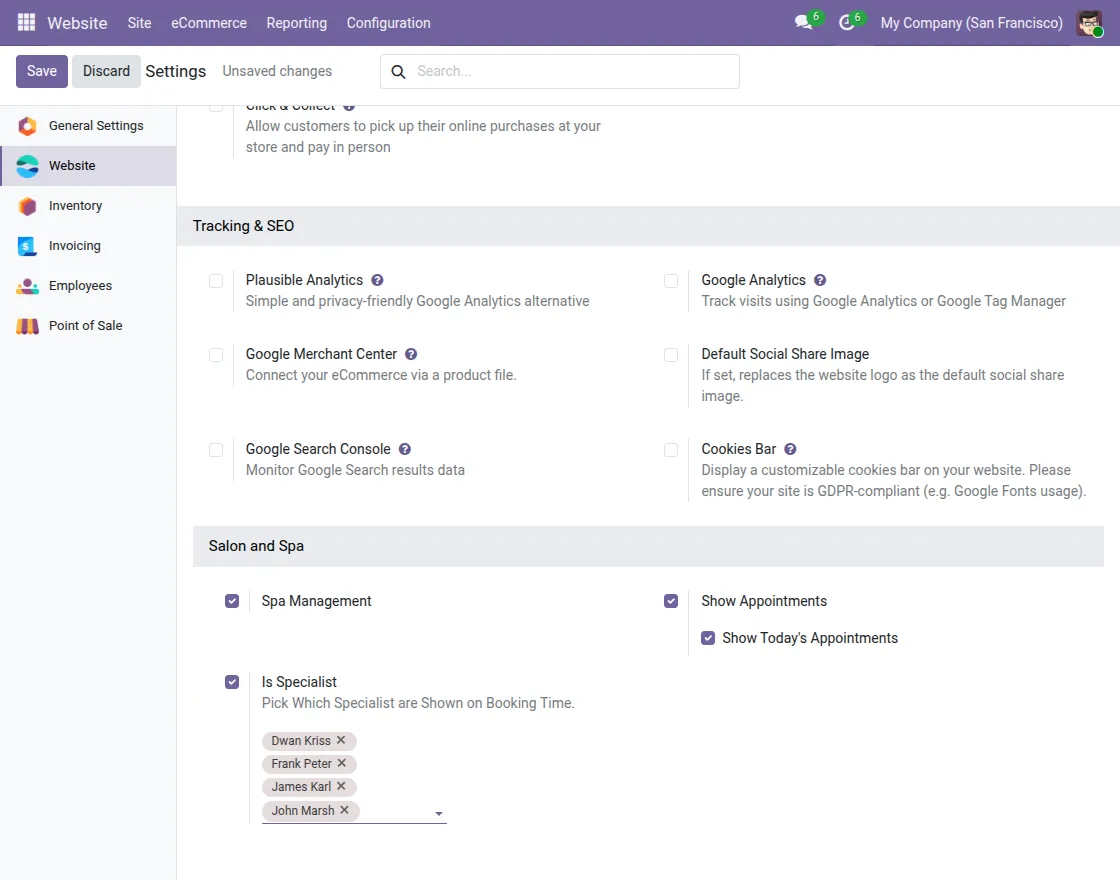
- After installing the Odoo Website Salon Spa Management module, enable the required Salon and Spa settings from the Website configuration to activate online appointment booking.
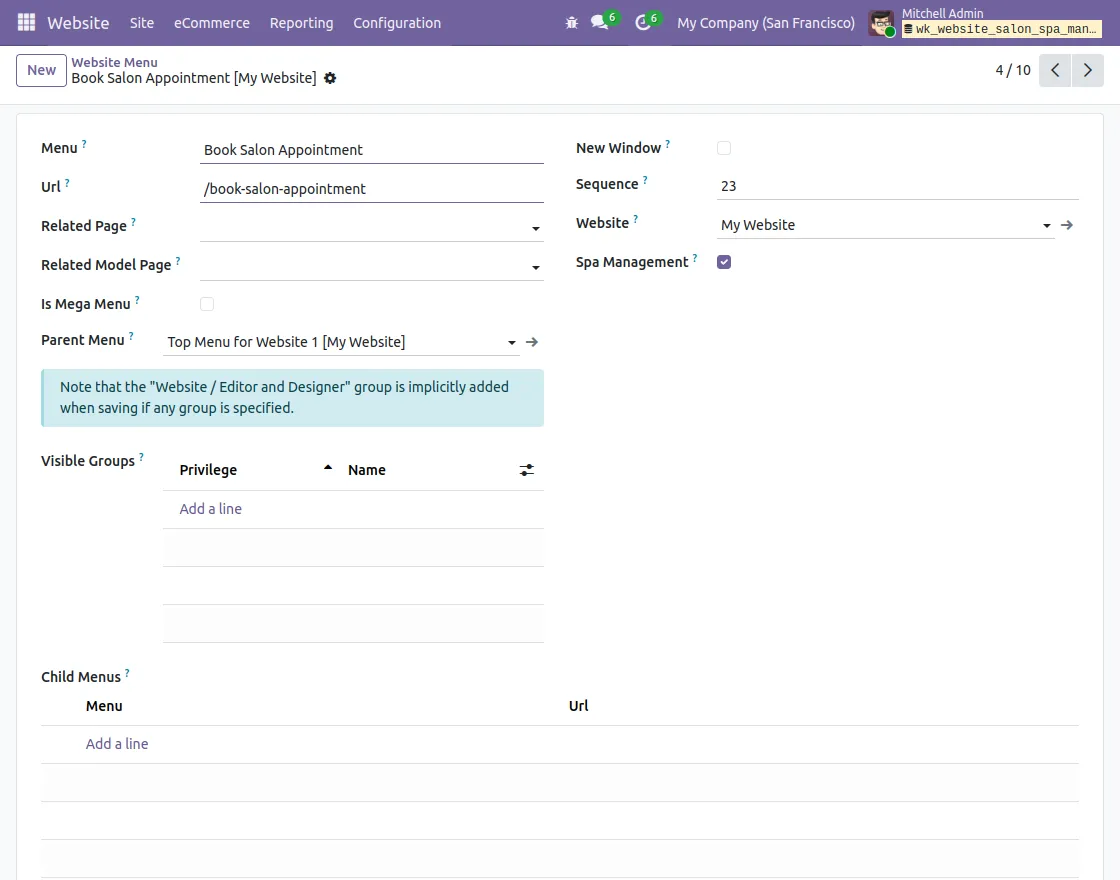
2. Configure the website menu by entering the required details, such as the menu name, URL, website, and parent menu, to make the appointment booking page accessible from your website.
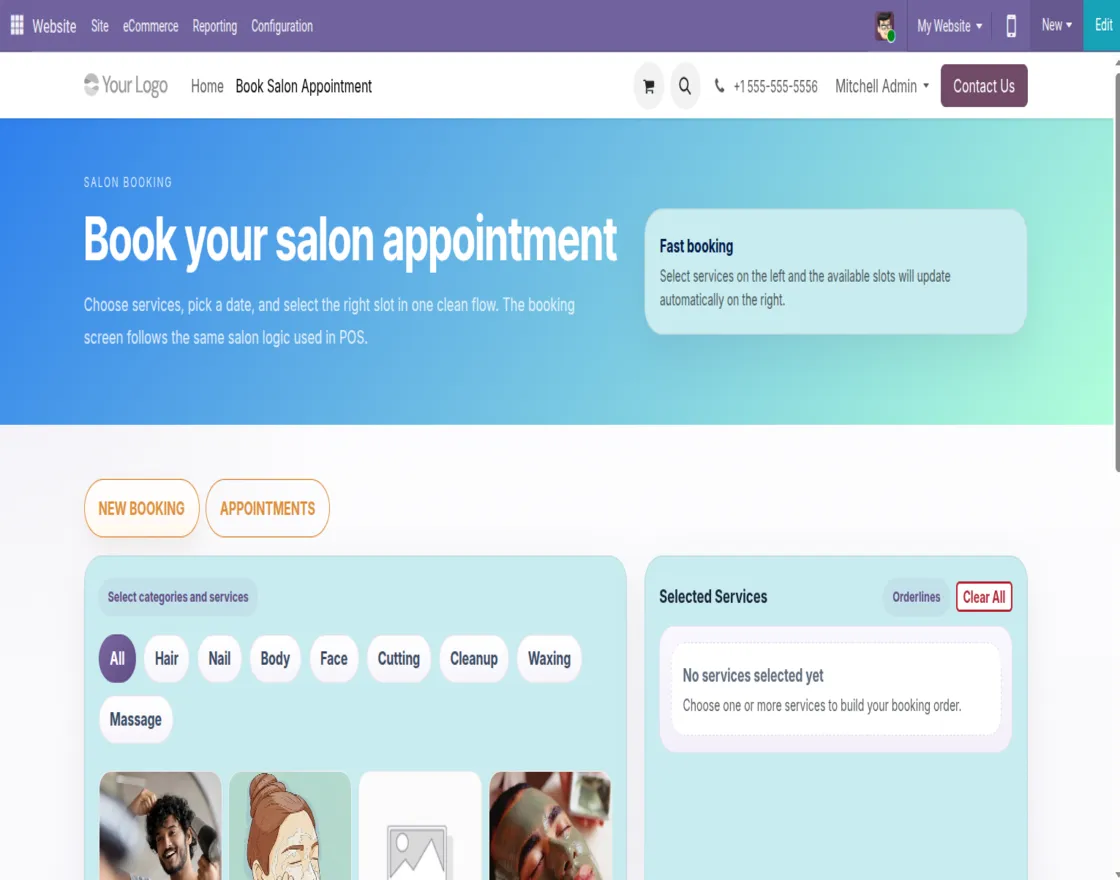
3. Customers can open the Book Salon Appointment page from the website to browse available services and start booking an appointment online.
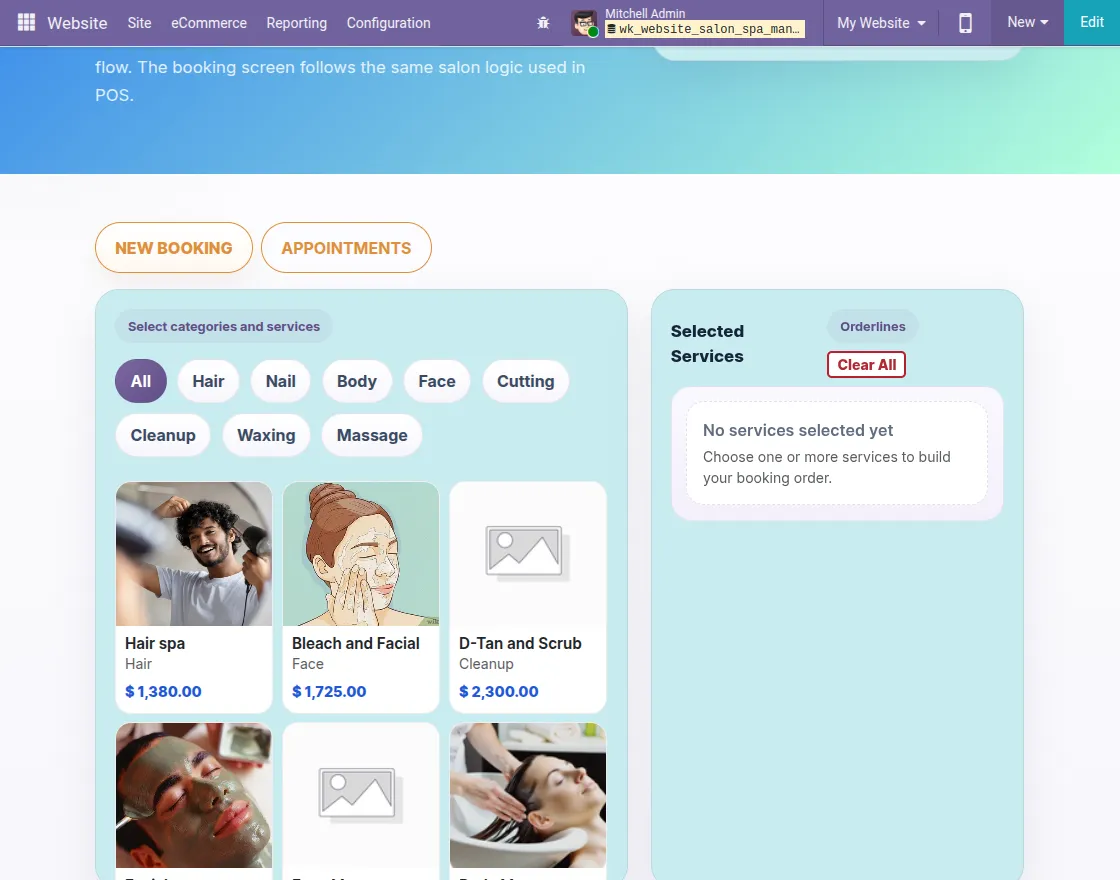
4. Select the desired salon or spa services from the available categories to add them to your booking before choosing an appointment slot.
5. Select an available date and appointment time slot for the chosen service, then continue to the next step to enter the booking details.
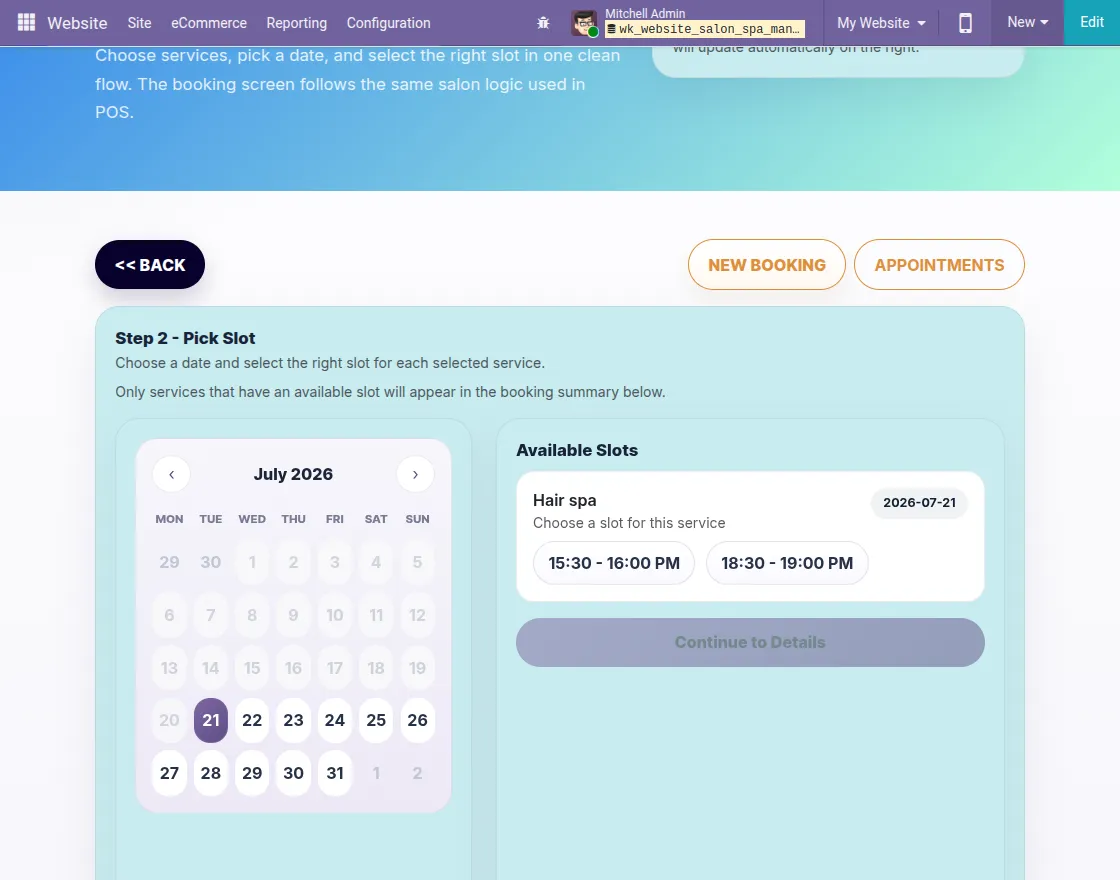
6. Review the booking summary, verify the selected service, appointment slot, customer details, and specialist, then click Book Appointment to confirm the booking.
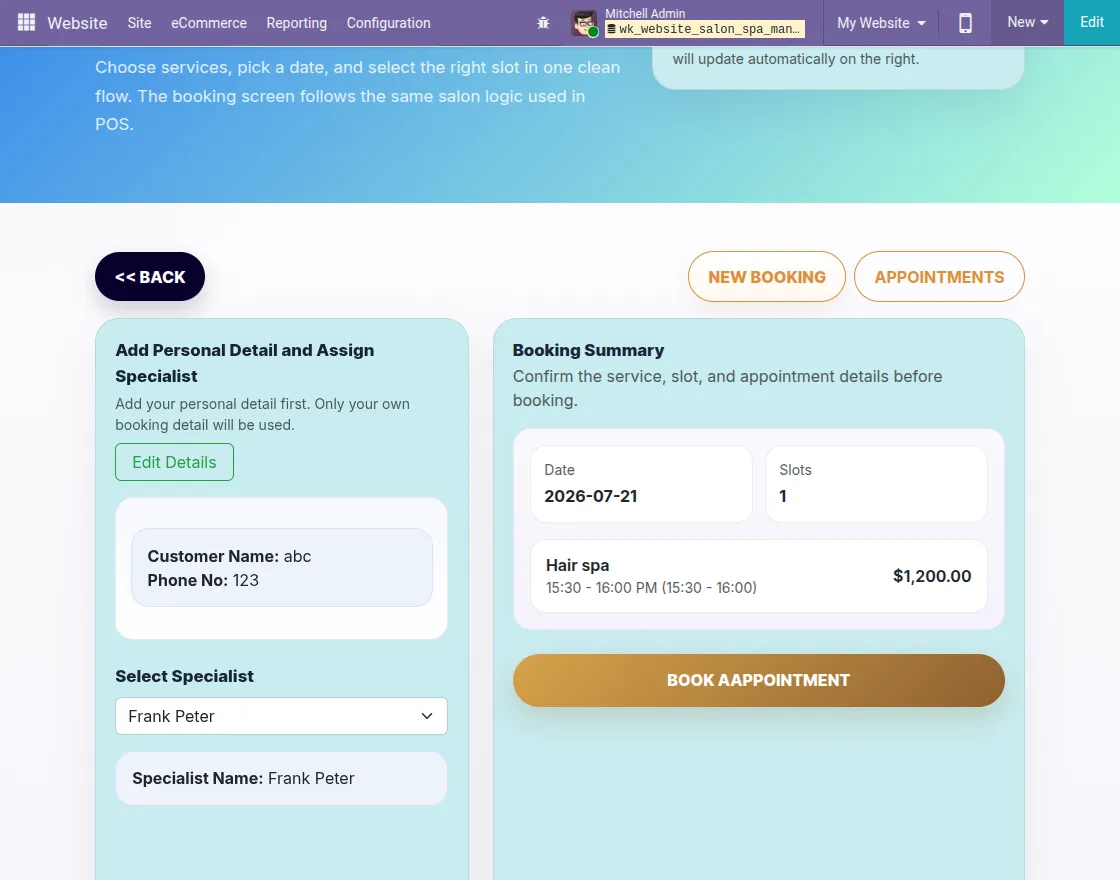
7. After the appointment is booked, customers can view the appointment details, check the booking status, update the appointment slot if needed, or cancel the appointment from the confirmation page.
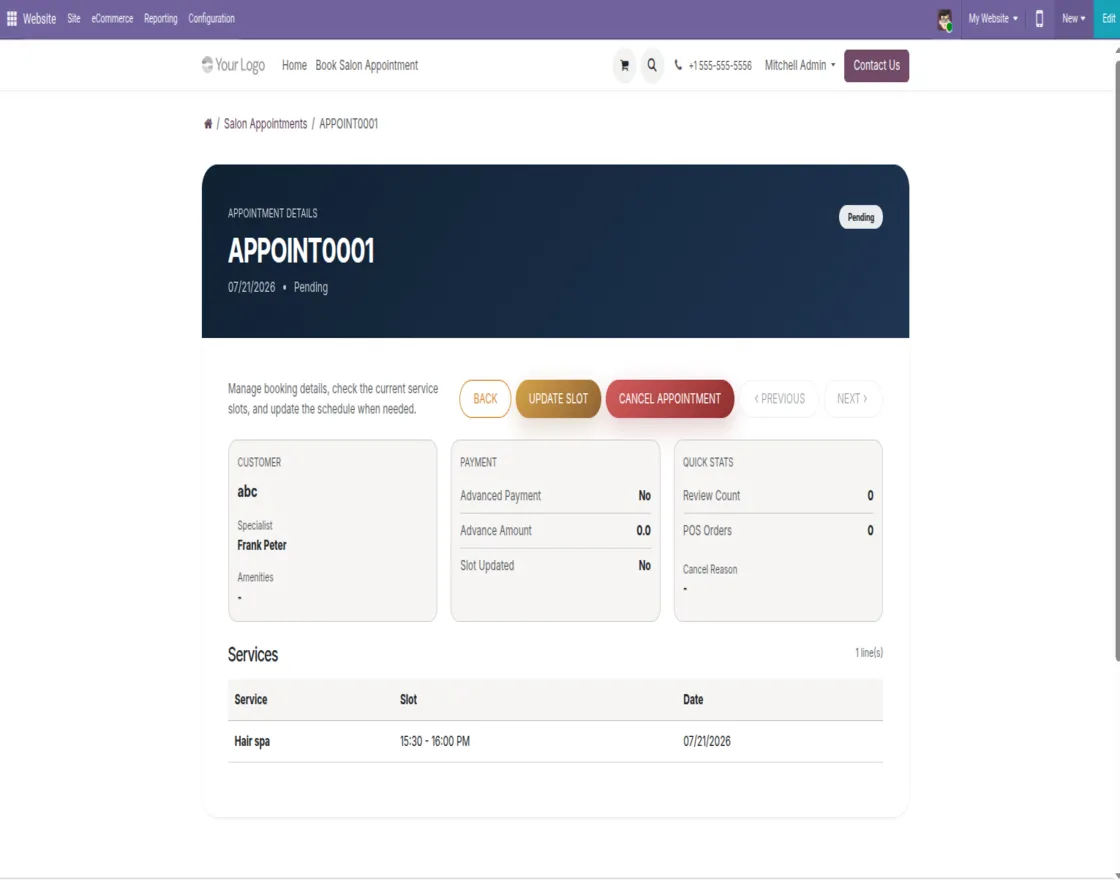
Need Help?
Hope you find the guide helpful! Please feel free to share your feedback in the comments below.
If you still have any issues/queries, please create a ticket at the UV Desk.
I hope this helps. In case of any further queries, contact us at our support mail.
Thanks for paying attention!!
Current Product Version - 1.0.0
Supported Framework Version - Odoo V19, V18, V17, V16

Be the first to comment.