Introduction
Odoo website Captcha Log-In Lockdown module for Odoo helps secure your website by preventing bot attacks and unauthorized access.
It ensures that only genuine users can interact with critical website actions.
Odoo website Captcha Log-In Lockdown integrates CAPTCHA validation across multiple areas like login, signup, checkout, and website forms.
This helps block automated activities such as fake registrations and spam orders.
With flexible configuration and support for reCAPTCHA V2 and V3, the module allows control over where and how verification is applied.
Odoo website Captcha Log-In Lockdown also strengthens security by limiting repeated invalid attempts.
Prerequisites for using Odoo Website Captcha Log-In Lockdown
Odoo module name works in conjunction with the following module:
website_webkul_addons
You must install the above-mentioned module to use the Module name.
Features
- Odoo website Captcha Log-In Lockdown enables CAPTCHA on login, signup, and password reset pages
- Adds CAPTCHA protection on website checkout to prevent bot orders
- Integrates CAPTCHA on website forms including product detail pages
- Supports Google reCAPTCHA V2 (visible) and V3 (invisible verification)
- Provides separate configuration for Website, Checkout, and Website Forms
- Restricts multiple invalid login attempts using login lockdown mechanism
- Helps prevent unauthorized access, spam submissions, and automated attacks
Installation
- Once you purchase the App from Webkul store, you will receive a link to download module’s zip file.
- Extract the file on your system after download finishes. As a result, you will be able to see a folder named- ‘odoo_captcha_login_lockdown(you can get the technical name from odoo app of the respective module)’
- Copy and paste this folder inside your Odoo Add-Ons path.
- Now, open Odoo App and click on the Settings menu. Here, click on Activate Developer Mode.
- Then, open Apps menu and click on ‘Update Modules List.’
- In the search bar, remove all the filters and search ‘odoo_captcha_login_lockdown’
- You will be able to see module in the search results. Click on ‘Activate’ to install it.
Workflow
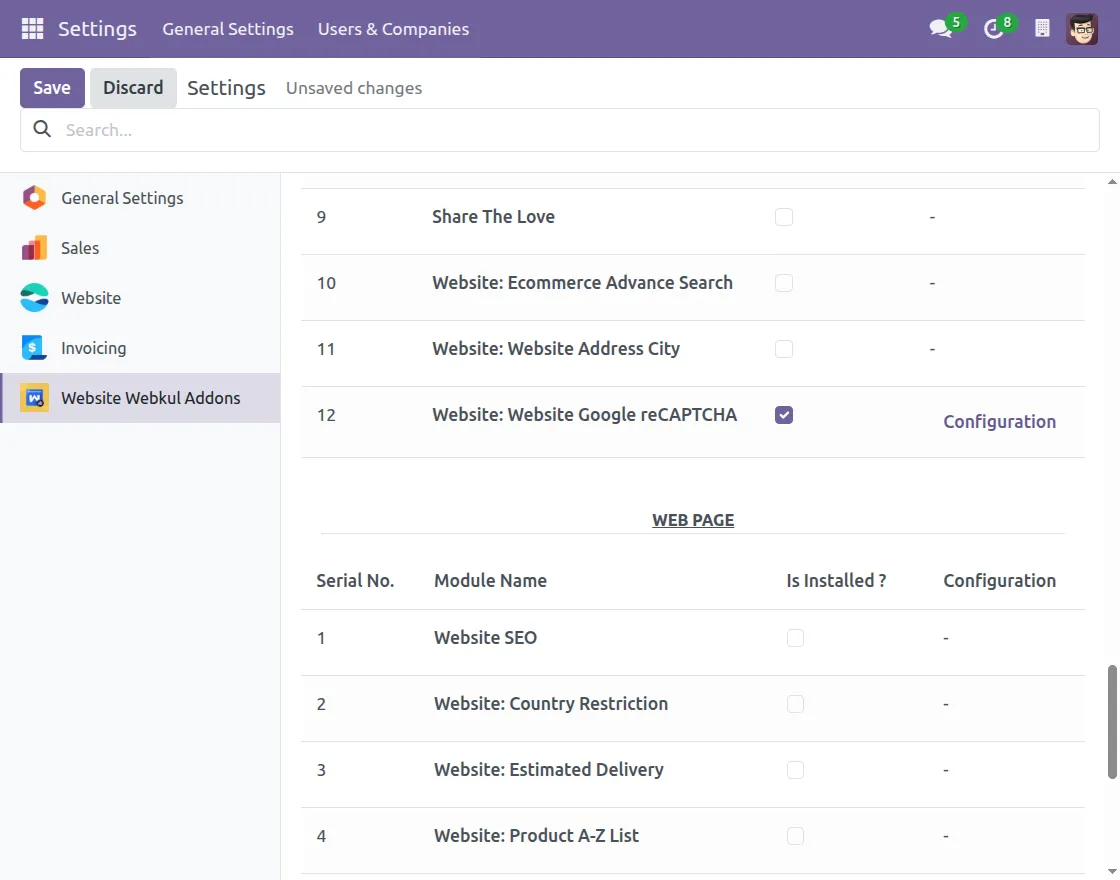
1. First, navigate to Settings > Website Webkul Addons, then select the Website Google reCAPTCHA checkbox to activate the Odoo website Captcha Log-In Lockdown on your website.
2. Next, click on Configuration, and then a pop-up will open for configuring the Website Google reCAPTCHA.
After that, select your preferred captcha type, V2 (visible captcha) or V3 (invisible captcha), by clicking on the Captcha Type.
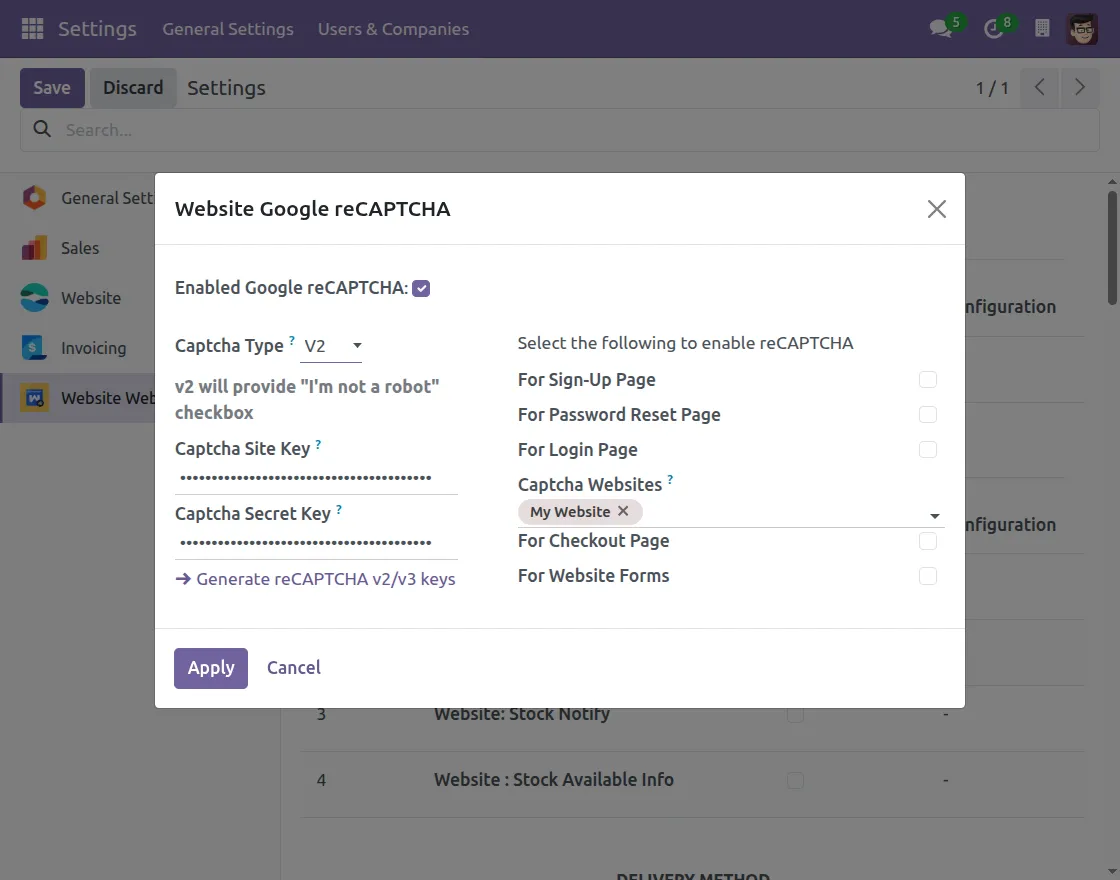
3. After selecting your preferred Captcha type, click on Generate reCAPTCHA v2/v3 Keys to set up your Captcha via Google reCAPTCHA.
4. Then, complete the Google reCAPTCHA registration by filling in the form with the label, type, domain, and other required details.
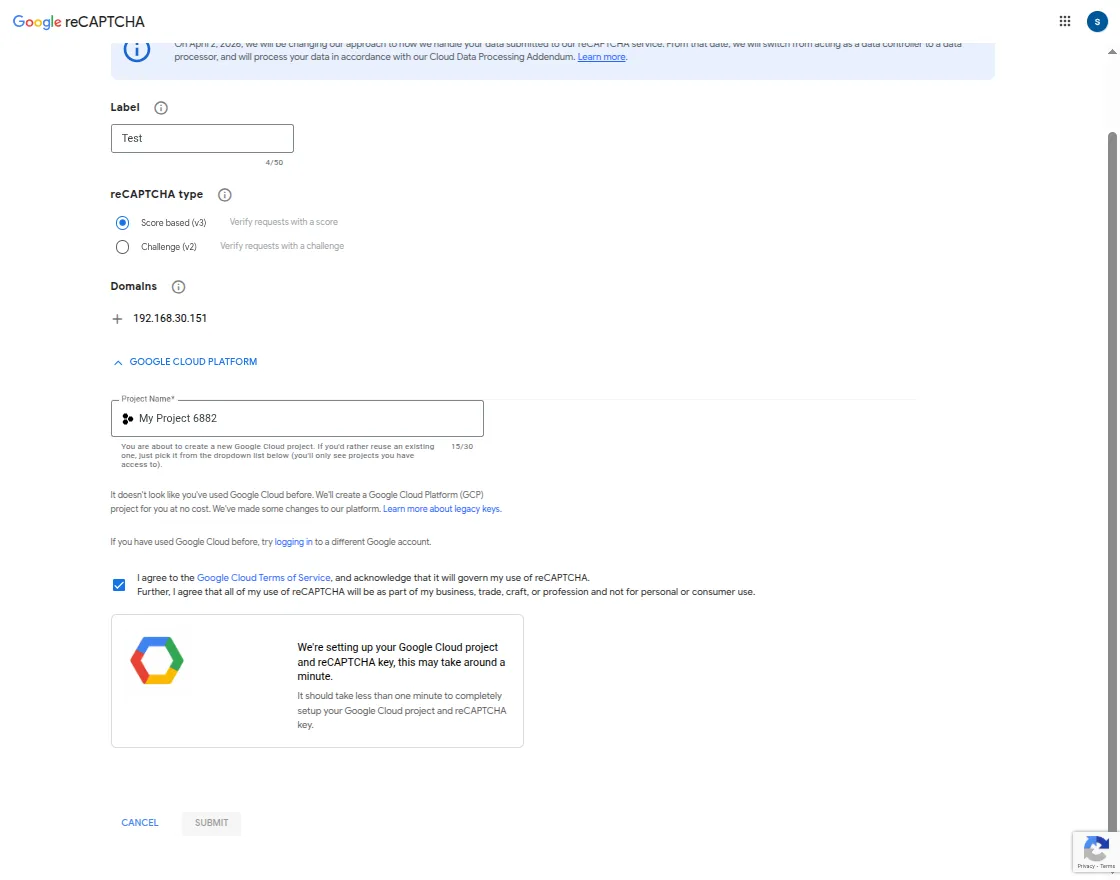
5. After completing the registration successfully, the Captcha Site Key and Captcha Secret Key are generated, which are used to set up your captcha.
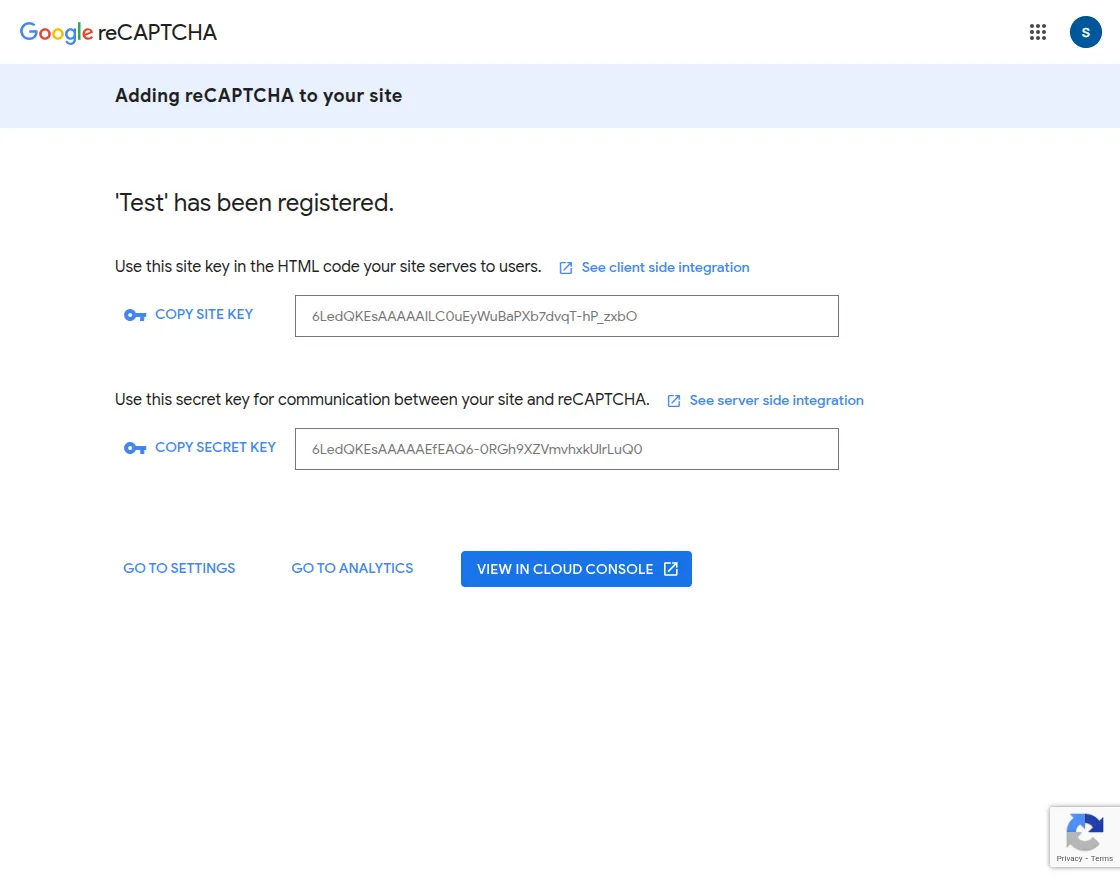
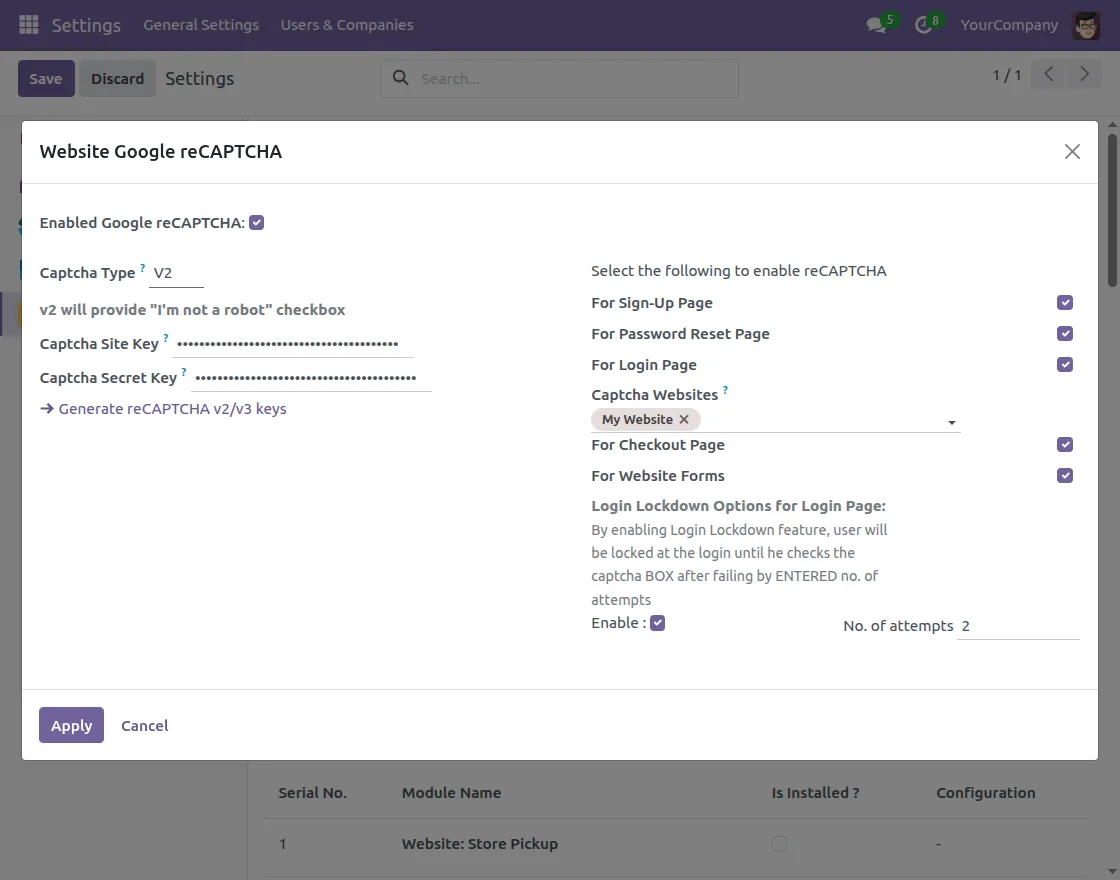
6. Then go back to the configuration page and paste the Captcha Site Key and Captcha Secret Key.
After that, select where you want the CAPTCHA on your website by checking the available options in the configuration panel.
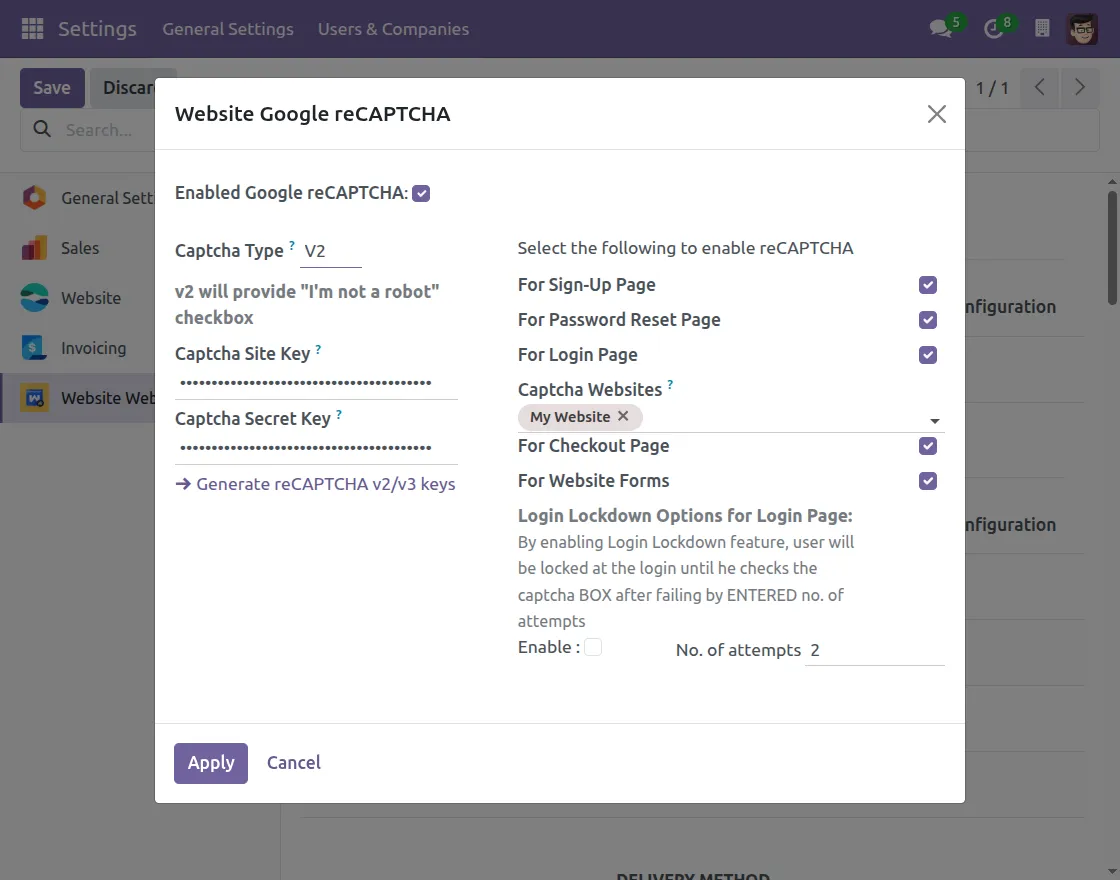
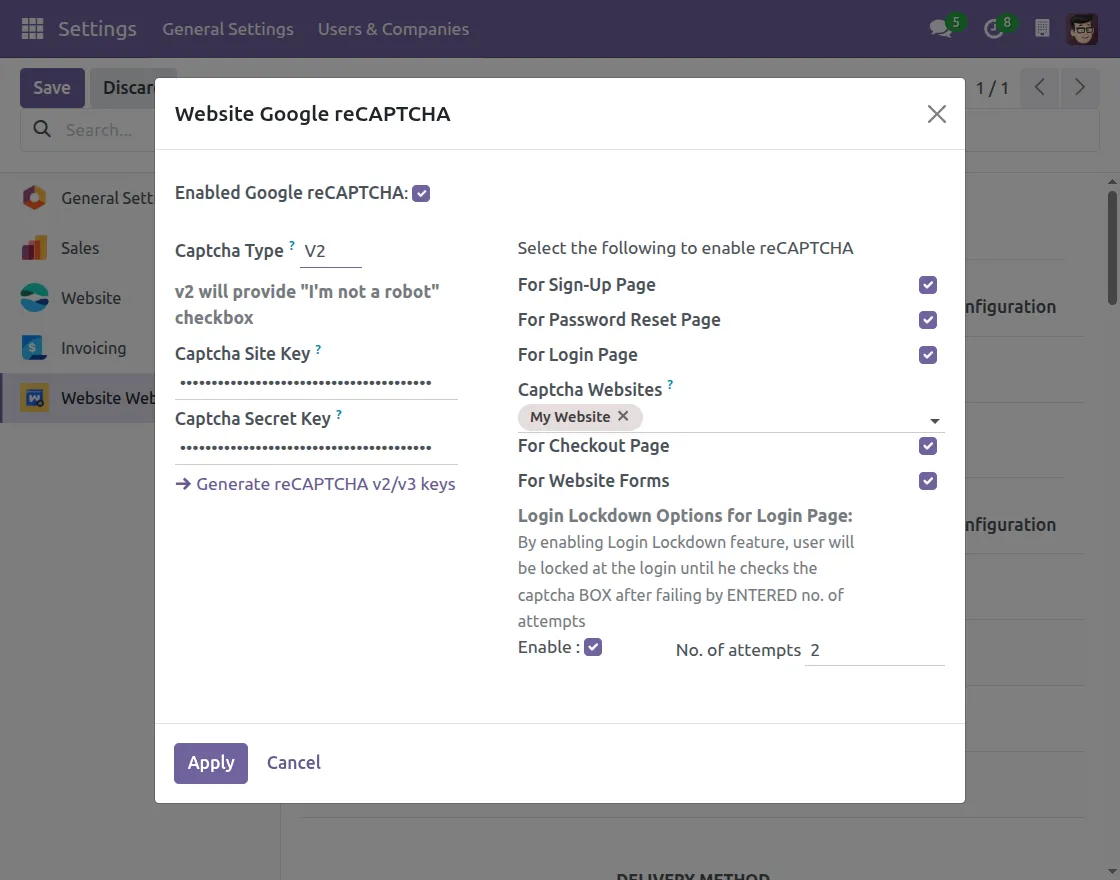
7. Then, enable Login Lockdown on the login page to limit multiple failed Captcha attempts during login, improving security.
You can set the number of attempts as per your preferences. After that, click Apply after completing all required settings.
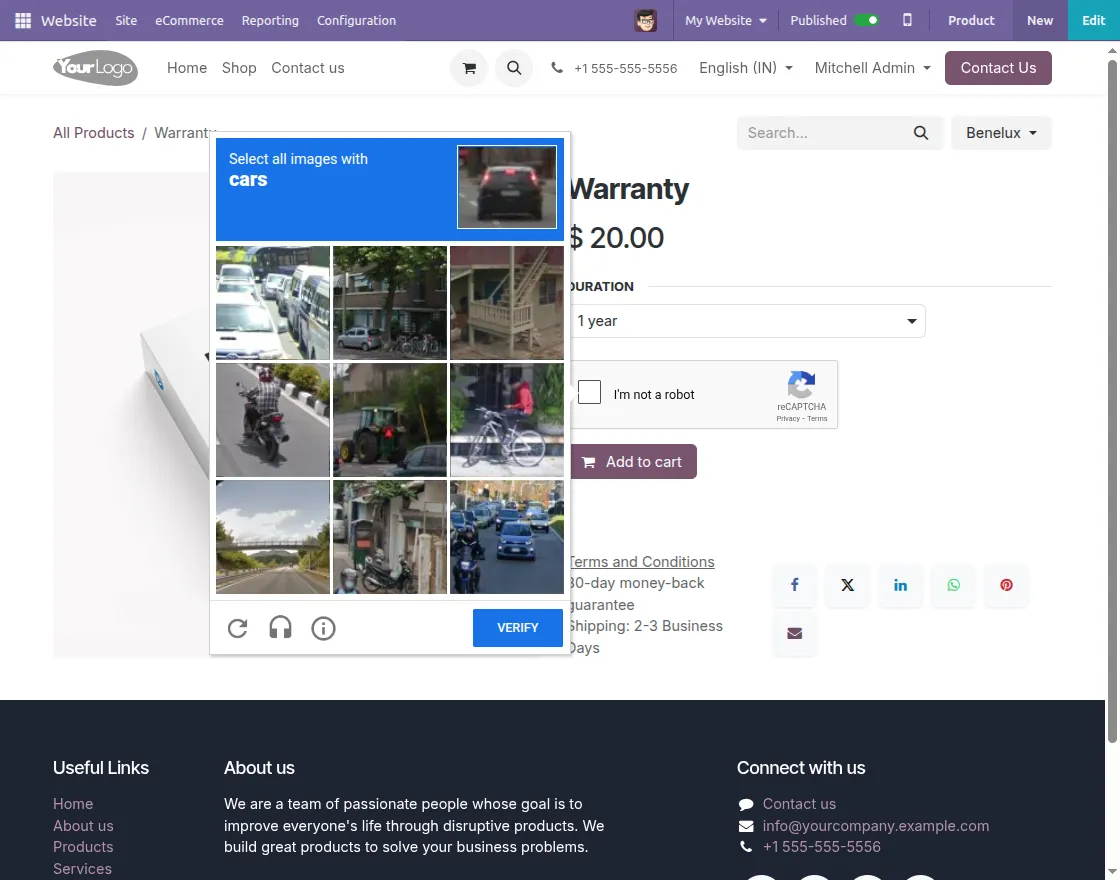
8. Finally, after applying all the Captcha settings, it will appear on all the selected pages.
Need Help?
Hope you find the guide helpful! Please feel free to share your feedback in the comments below.
If you still have any issues/queries regarding the same, please raise a ticket at the UV Desk.
I hope this helps. In case of any further queries, contact us at our support mail.
Thanks for paying attention!!
Current Product Version - 1.2.3
Supported Framework Version - Odoo V19, V18, V17

Be the first to comment.