INTRODUCTION
Odoo Sale Barcode Scan by Camera allows sales users to create quotations and sales orders by scanning customer and product barcodes directly through their device camera.
This eliminates the need for manual product and customer searches during order creation using an Odoo barcode scanner.
The module enables faster sales operations by utilizing mobile phones, tablets, laptops, or external webcams as barcode scanners.
Businesses can quickly add customers and products to quotations while maintaining accuracy and minimizing manual intervention during the sales process with an Odoo barcode scanner.
FEATURES
- Allows users to scan customer barcodes directly using the device camera.
- Enables product barcode scanning from sales quotations and sales orders.
- Automatically identifies and selects the corresponding customer after barcode scanning.
- Adds products to quotation or sales order lines automatically upon successful barcode detection.
- Provides an “Add & Scan Again” option to quickly scan multiple products without reopening the scanner.
- Allows users to choose from multiple available camera devices for barcode scanning through an Odoo barcode scanner setup.
- Validates scanned barcodes and displays an error message for invalid or unrecognized codes.
- Helps reduce order creation time by eliminating manual customer and product searches.
- Works smoothly across mobile phones, tablets, laptops, and desktop devices equipped with a camera.
INSTALLATION
- Once you purchase the App from the Webkul store, you will receive a link to download the module’s zip file.
- Extract the file on your system after the download finishes. As a result, you will be able to see a folder named ‘sale_barcode_scan_by_camera’.
- Copy and paste this folder inside your Odoo Add-Ons path.
- Now, open Odoo App and click on the Settings menu. Here, click on Activate Developer Mode.
- Then, open the Apps menu and click on ‘Update Modules List.’
- In the search bar, remove all the filters and search ‘sale_barcode_scan_by_camera’.
- You will be able to see the module in the search results. Click on ‘Install’ to install it.
WORKFLOW
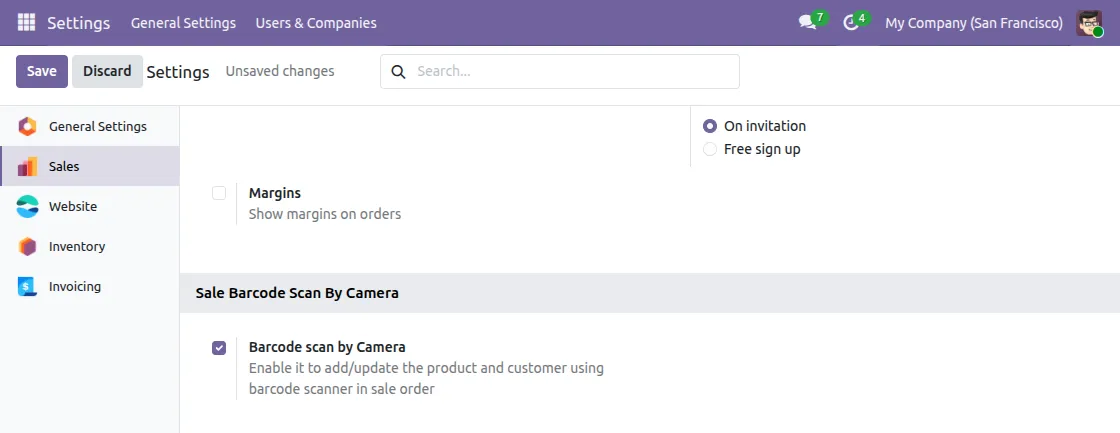
1. Enable Camera Barcode Scanning
Navigate to the module configuration settings and enable barcode scanning through the camera in Odoo Sale Barcode Scan by Camera module.
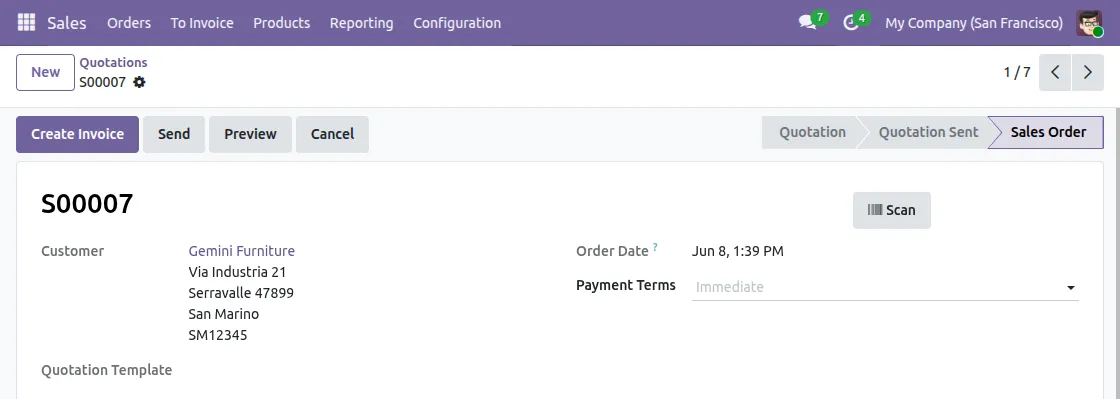
2. Open a Sales Quotation or Sales Order
Create a new quotation or open an existing sales order where barcode scanning is required.
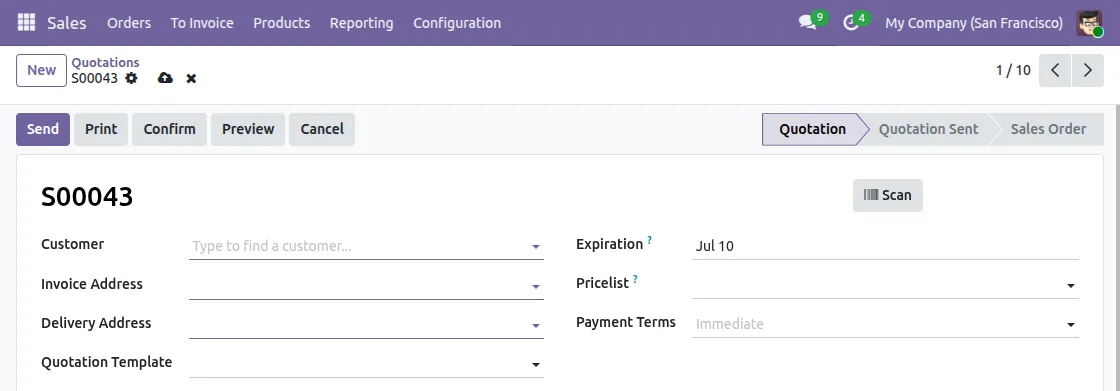
3. Scan Customer Barcode
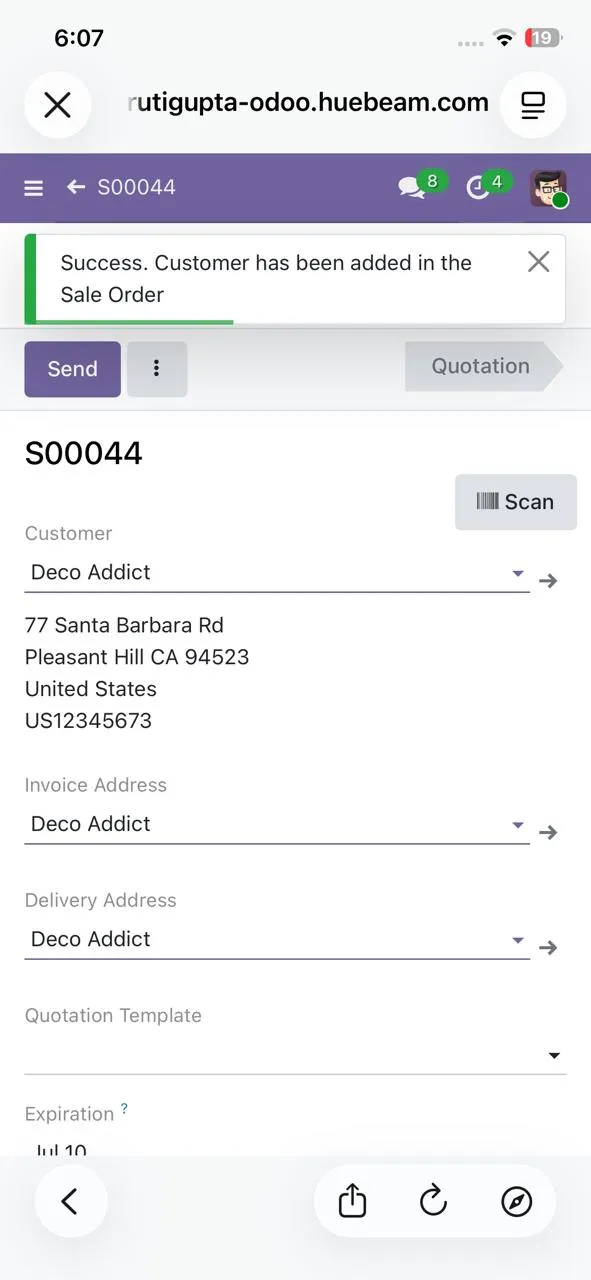
Click the customer barcode scan option and allow camera access. Scan the customer’s barcode and the system will automatically populate the customer field.
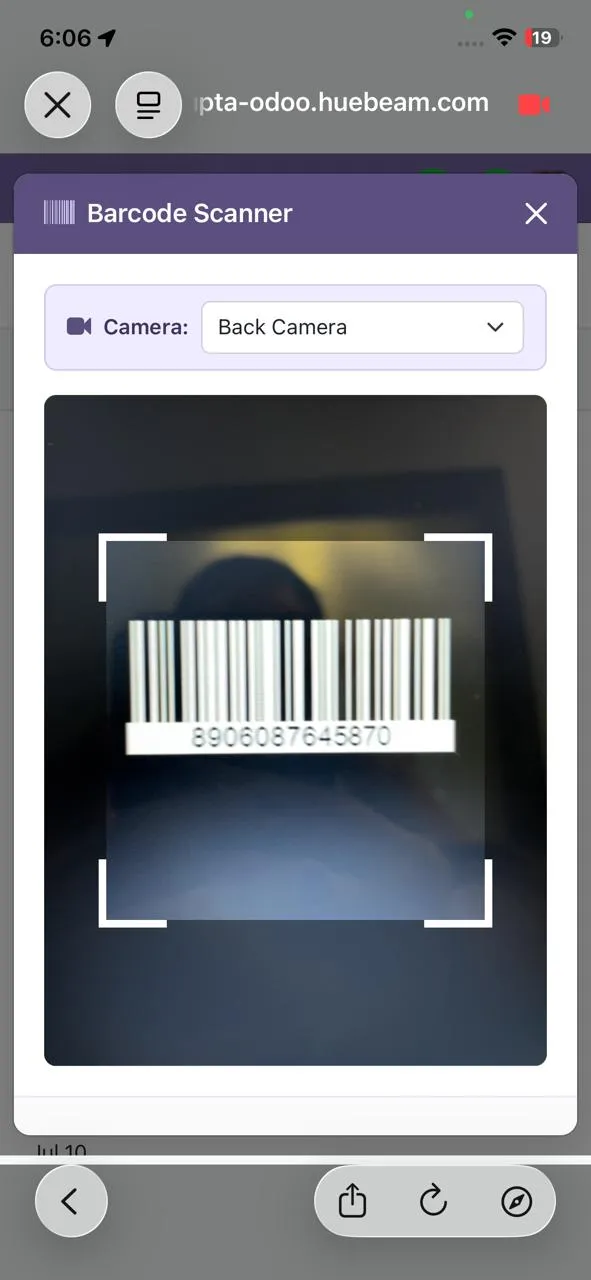
4. Customer Information added Automatically
Once the customer barcode is scanned, the details will be fetched and added in the sale order/quotation.
5. Scan Product Barcode
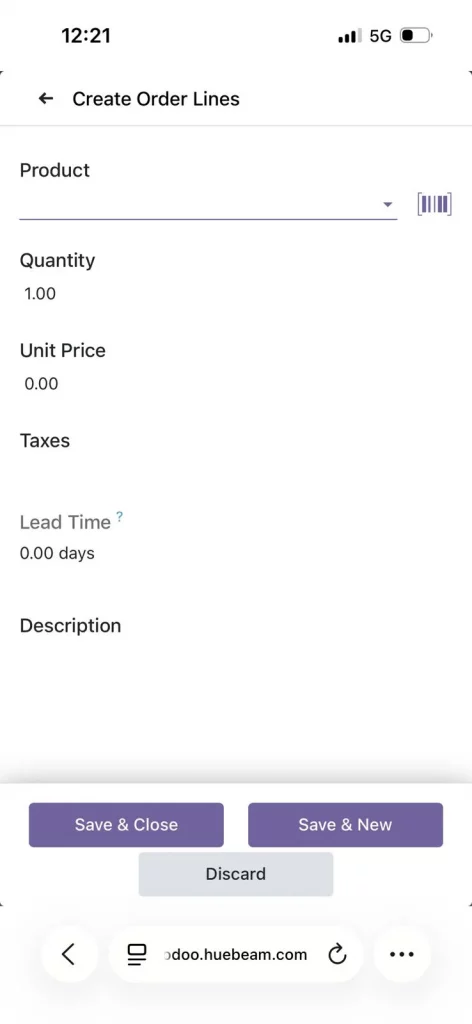
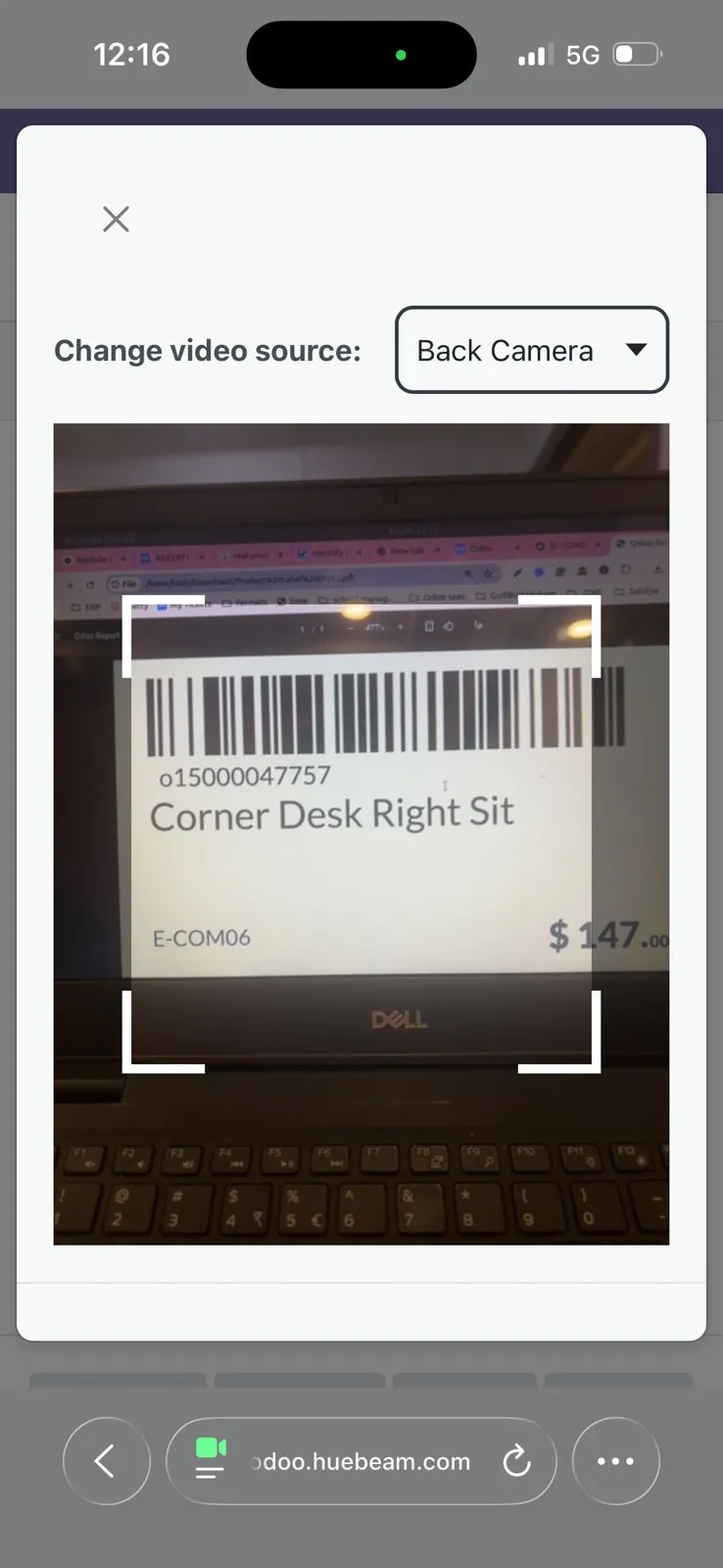
Click the product barcode scan option and scan the product barcode using the device camera using Odoo Sale Barcode Scan by Camera.
The Odoo barcode scanner instantly detects and processes the barcode information.
6. Product Added Automatically
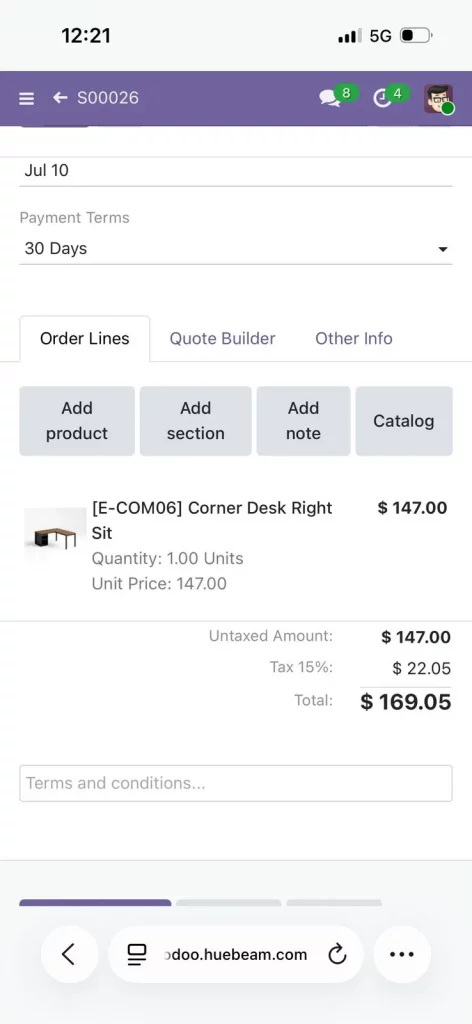
The scanned product will automatically be added to the quotation or sales order line using Odoo Sale Barcode Scan by Camera.
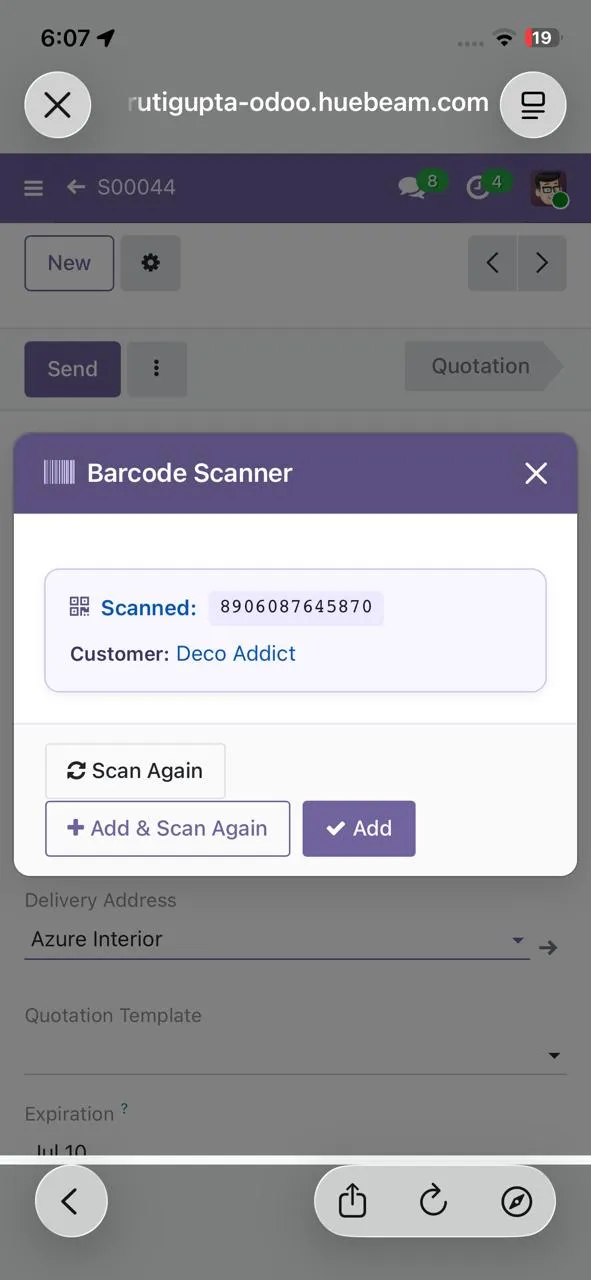
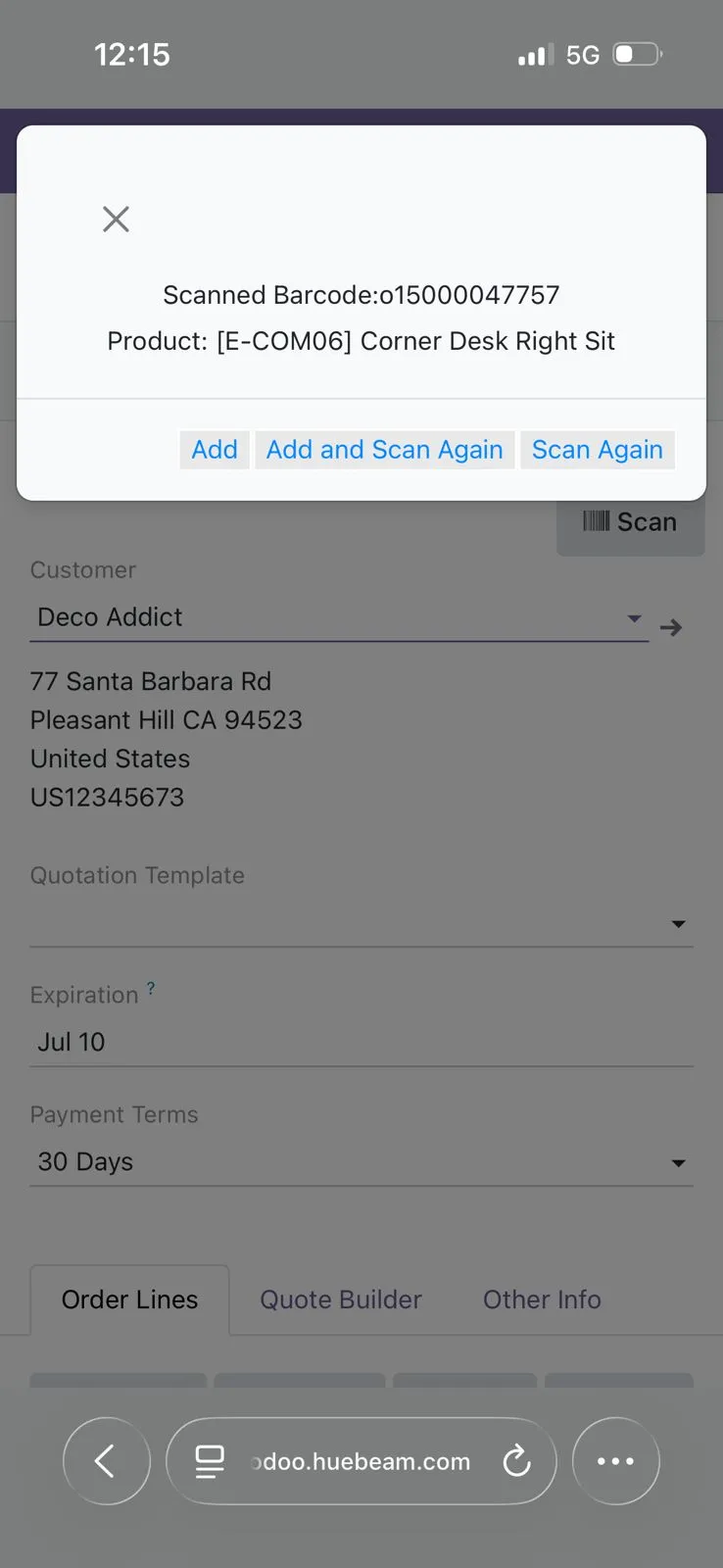
7. Use Add & Scan Again
Click the Add & Scan Again option to continue scanning multiple products without reopening the scanner.
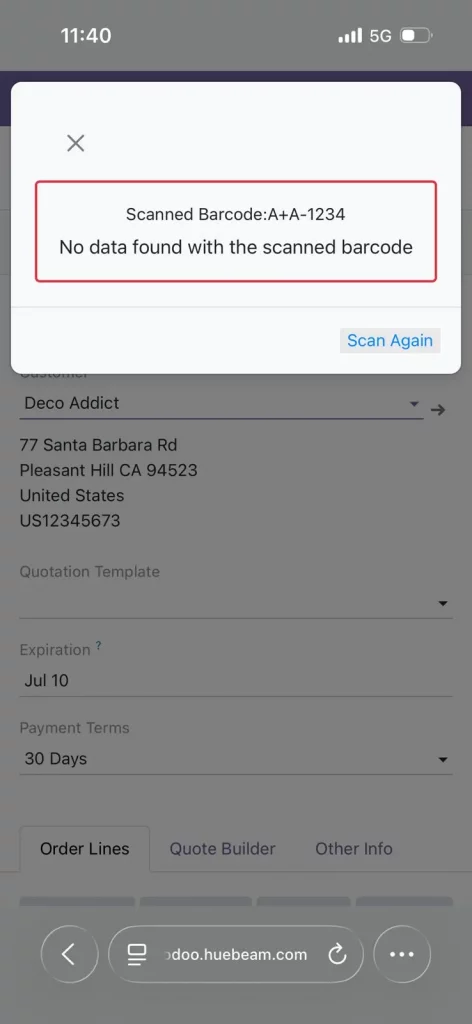
8. Barcode Validation
If an invalid or unrecognized barcode is scanned, the system displays an error message and prevents incorrect product/customer selection.
NEED HELP?
Hope you find this guide helpful! Please feel free to share your feedback in the comments below.
If you still have any issues/queries, please create a ticket at the UV Desk.
I hope this helps. In case of any further queries, contact us at our support mail.
Thanks for paying attention!!
Current Product Version - 1.0.0
Supported Framework Version - Odoo V19, V18, V17, V16

Be the first to comment.