Introduction
Odoo RSS Feed Reader helps you display live news, blogs, and updates automatically on your Odoo Website. It keeps your website content fresh without manual effort.
With the Odoo RSS Feed Reader, website visitors always see updated information, which improves engagement, trust, and SEO performance.
This module automatically fetches RSS feeds from external sources and displays them neatly on your Odoo Website.
Features
- Easy RSS feed setup for Odoo Website
- Live RSS feeds with automatic updates
- Multi-website RSS feed support
- Drag and drop RSS website snippet
- Backend RSS feed management
- Category-based RSS feed grouping
- Responsive RSS feed layout
- No coding configuration required
Installation
- Once you purchase the App from Webkul store, you will receive a link to download module’s zip file.
- Extract the file on your system after download finishes. As a result, you will be able to see a folder named- ‘odoo_rss_feed_reader’
- Copy and paste this folder inside your Odoo Add-Ons path.
- Now, open Odoo App and click on the Settings menu. Here, click on Activate Developer Mode.
- Then, open Apps menu and click on ‘Update Modules List.’
- In the search bar, remove all the filters and search ‘odoo_rss_feed_reader’
- You will be able to see module in the search results. Click on ‘Activate’ to install it.
Workflow
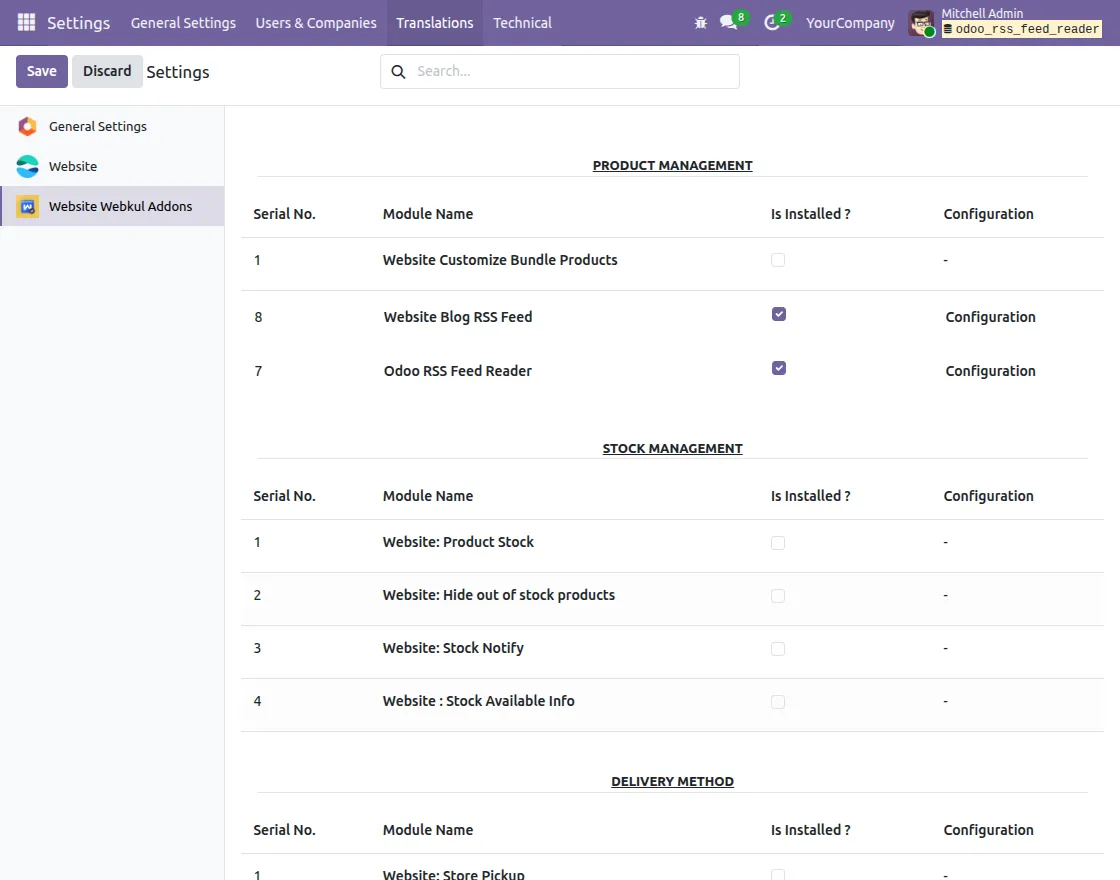
1. After installing the Odoo RSS Feed Reader module, enable the Odoo RSS Feed Reader fromSettings > Webkul Website Addons
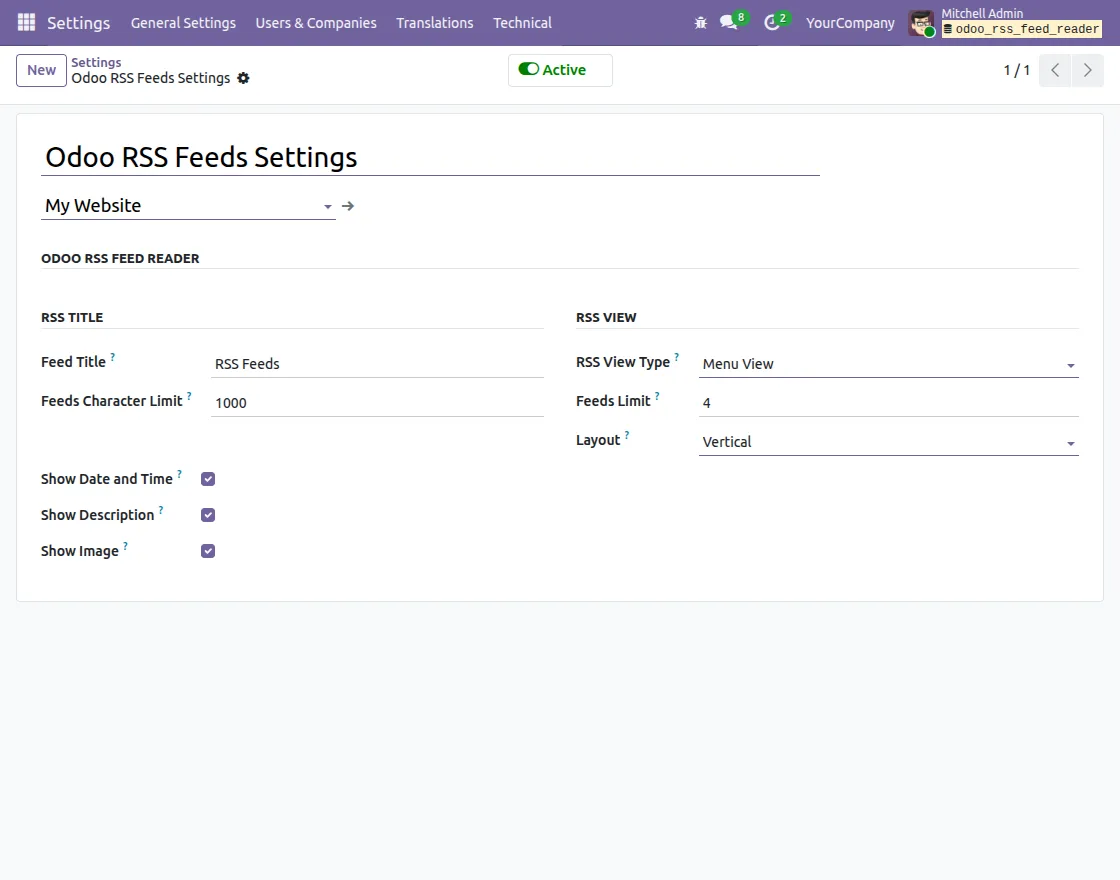
2. Click on Configuration, select the target website, and configure the RSS feed title, feed limits, and layout options.
Enter the required details, then click Save and Activate to apply the settings.
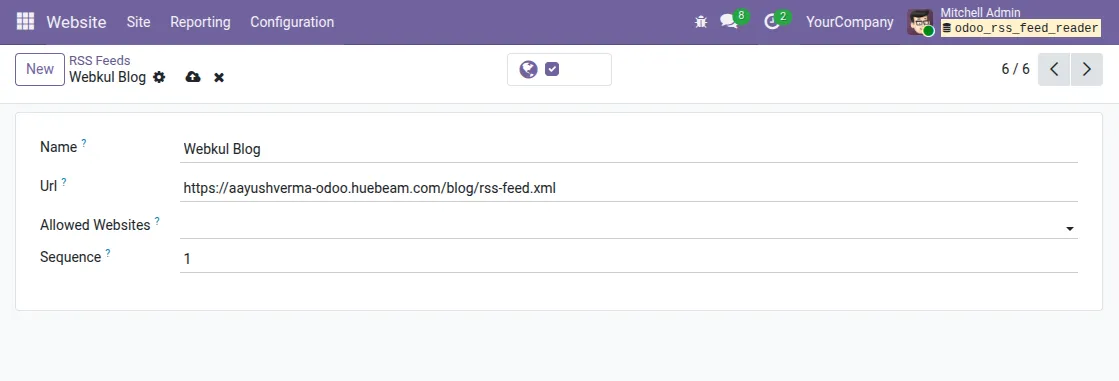
3. Navigate to Website > Configuration > RSS Feeds. Click on New, then enter the RSS feed name, RSS URL, website access, and sequence order from the backend.
4. Go to Website > Edit, then drag and drop the RSS feed snippet onto the website page to display live RSS feeds.
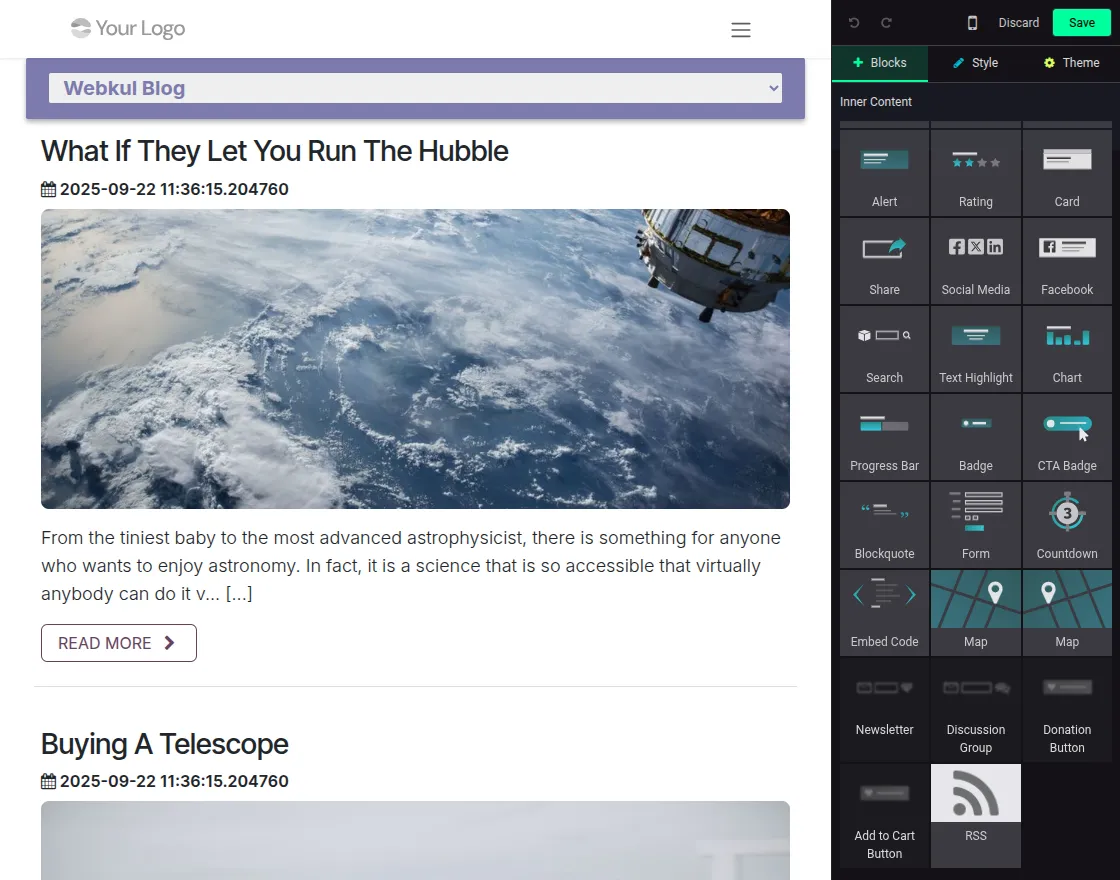
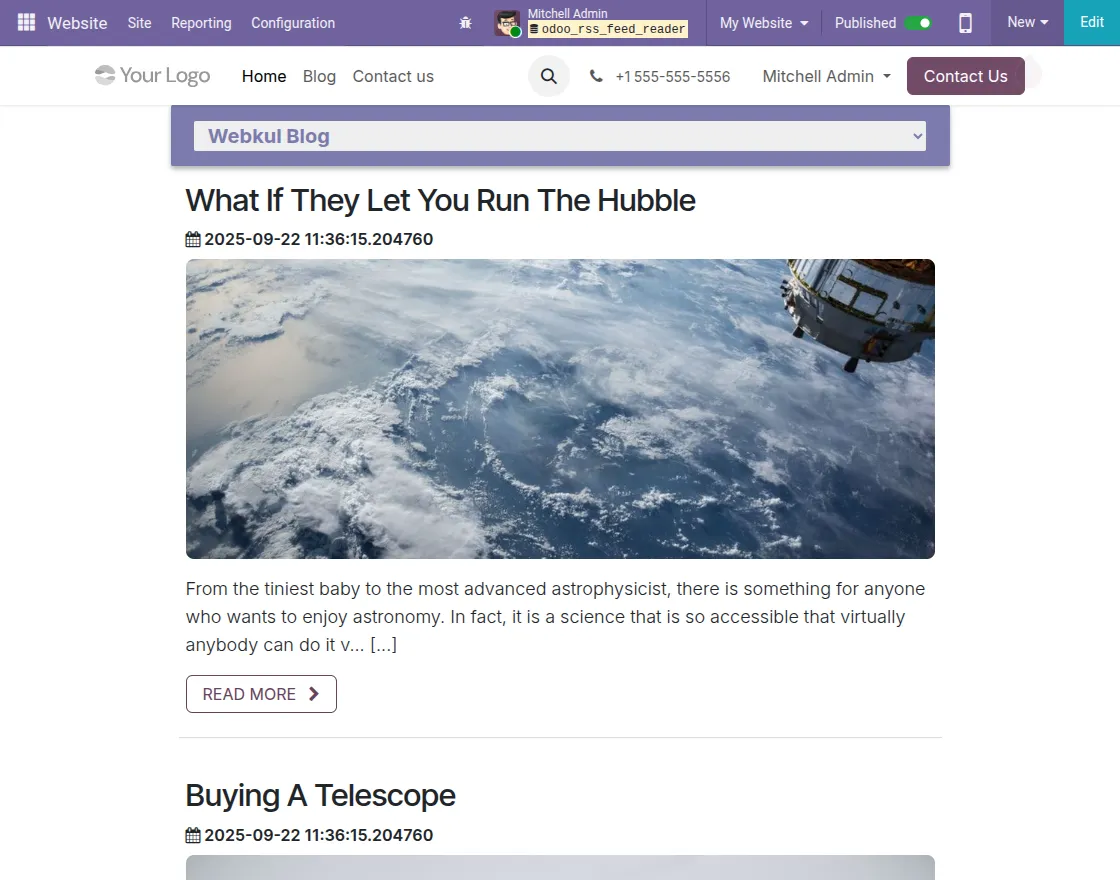
5. The RSS feed content is displayed clearly on the website frontend. Visitors can easily browse feed items and click to open the original articles, which helps improve user engagement.
Need Help?
Hope you find the guide helpful! Please feel free to share your feedback in the comments below.
If you still have any issues/queries, please create a ticket at the UV Desk.
I hope this helps. In case of any further queries, contact us at our support mail.
Thanks for paying attention!!
Current Product Version - 1.0.1
Supported Framework Version - Odoo V16, 17, 18, 19

Be the first to comment.