Introduction
Odoo Multi Pricelist on Order allows sales users to apply different pricelists on each quotation line while keeping the standard sales workflow unchanged.
With this module, users can preview price changes instantly, compare prices visually, and apply the best price without refreshing the page.
All calculations remain accurate as currency rules, taxes, and order totals are updated automatically, ensuring safe and flexible pricing control.
Features
- User-based multi-pricelist access control for authorized sales users
- Ability to change the pricelist individually for each quotation line
- Independent line-level pricing without affecting other order lines
- Real-time popup wizard to select and apply pricelists easily
- Instant price preview without reloading or refreshing the page
- Automatic currency-safe filtering of applicable pricelists
- Visual indicators to clearly show price differences on order lines
- One-click application to quickly update prices with selected pricelists
Installation
- Once you purchase the App from Webkul store, you will receive a link to download module’s zip file.
- Extract the file on your system after download finishes. As a result, you will be able to see a folder named- ‘order_multi_pricelist’
- Copy and paste this folder inside your Odoo Add-Ons path.
- Now, open Odoo App and click on the Settings menu. Here, click on Activate Developer Mode.
- Then, open Apps menu and click on ‘Update Modules List.’
- In the search bar, remove all the filters and search ‘order_multi_pricelist’
You will be able to see module in the search results. Click on ‘Install’ to install it.
Workflow
1. After installing the Odoo Multi Pricelist on Order module, enable the feature for the required sales users.
Navigate to Settings > Users & Companies > Users > Select User > Enable “Order Multi Pricelist”

2. Go to the Sales module and create a new quotation. Add the customer and required order details. Navigate to Sales > Orders > Quotations > Create.
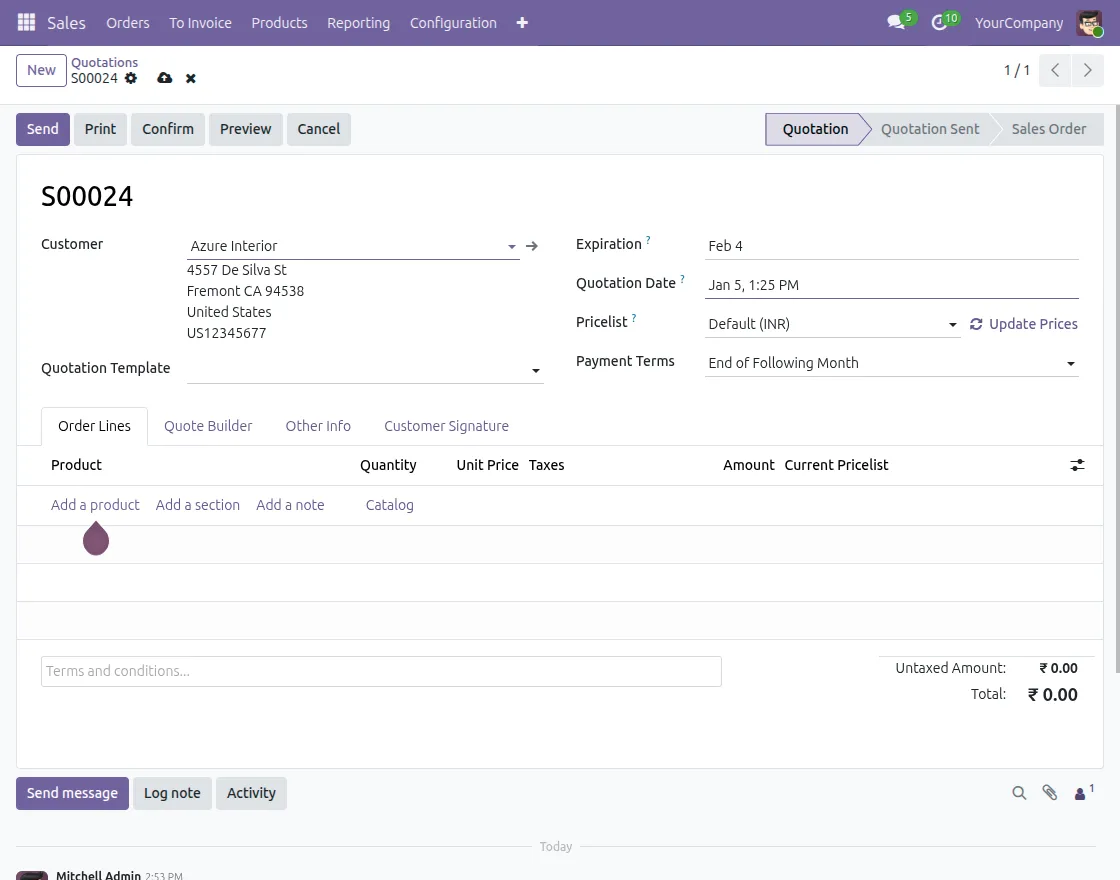
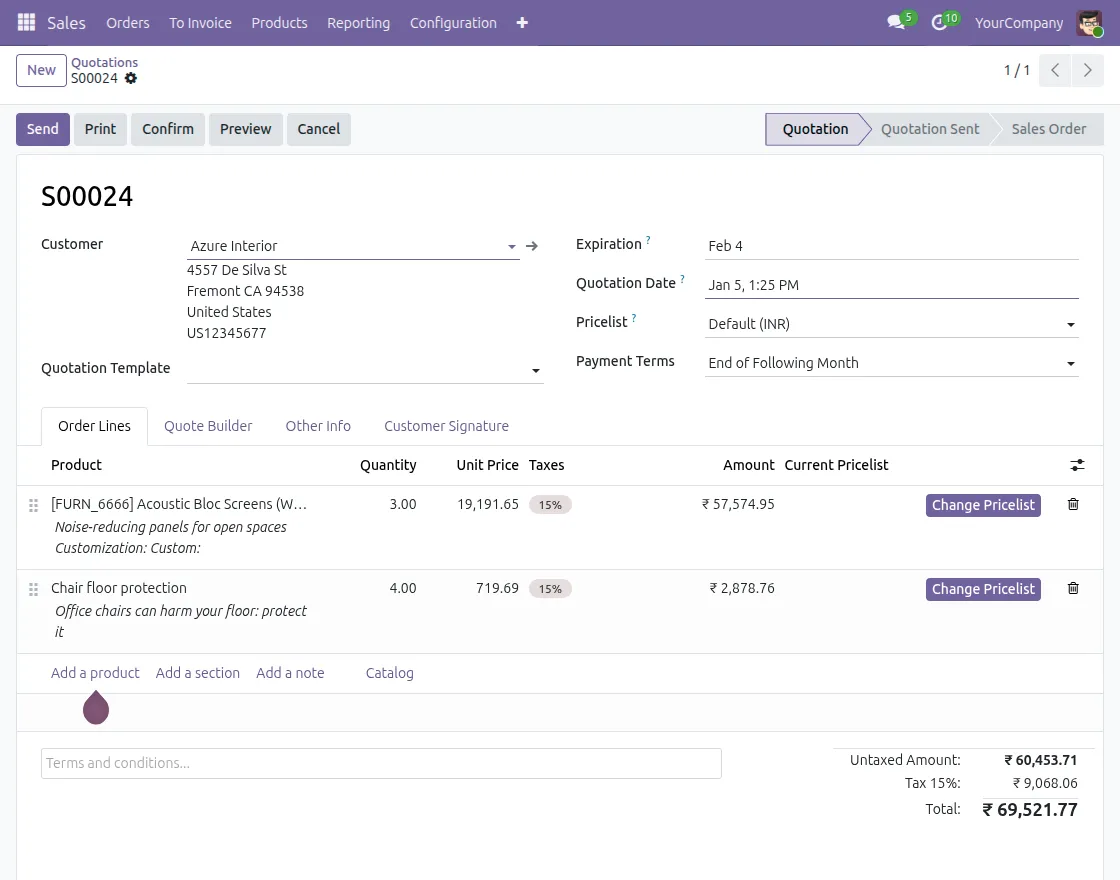
3. Add products to the quotation. Each order line has a Change Pricelist button, available only in the Quotation or Quotation Sent stage.
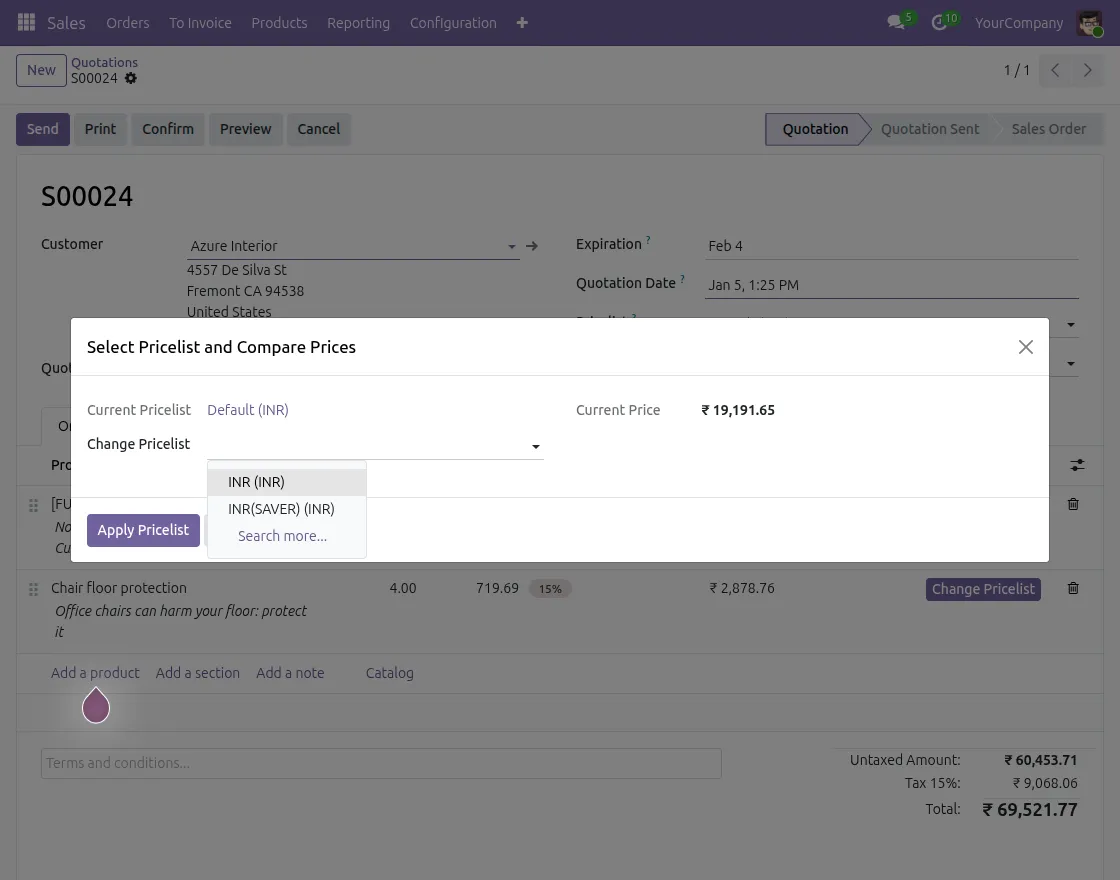
4. A pricelist pop-up wizard opens instantly without a page reload. It displays Current Pricelist, Change Pricelist, Current Price based on the currency.
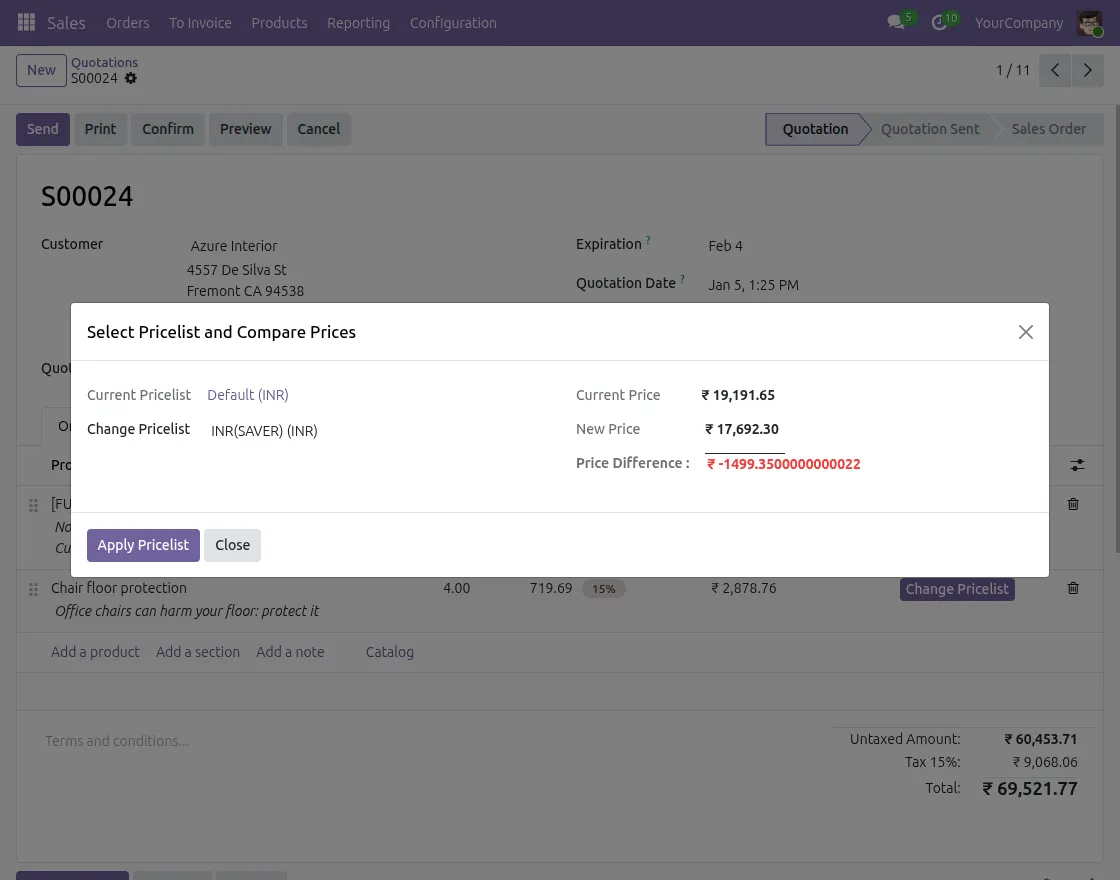
5. Select a different pricelist from the pop-up to preview the new price, see the exact difference, and identify increases or decreases using color indicators and click Apply Pricelist.
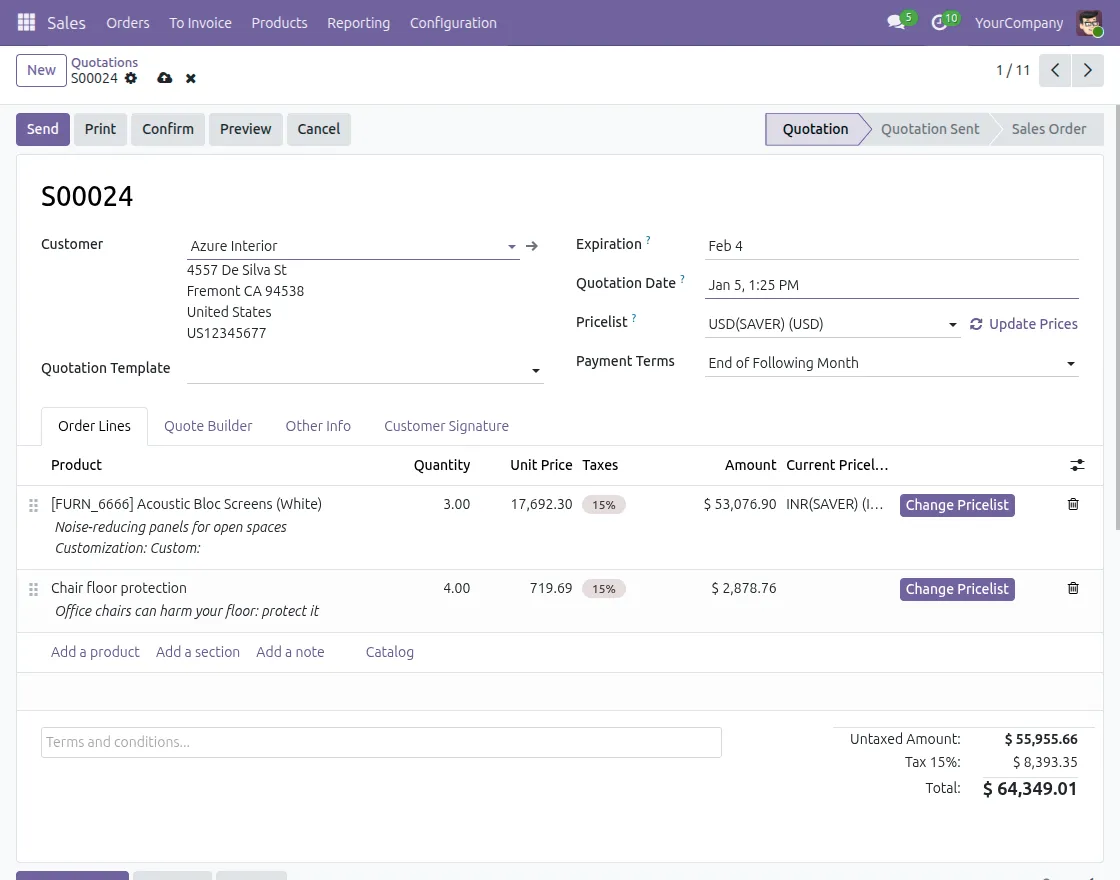
6. Click Update Prices to refresh pricing for all products at once based on the selected order-level pricelist.
This instantly updates unit prices, taxes, and totals for every order line in the quotation.
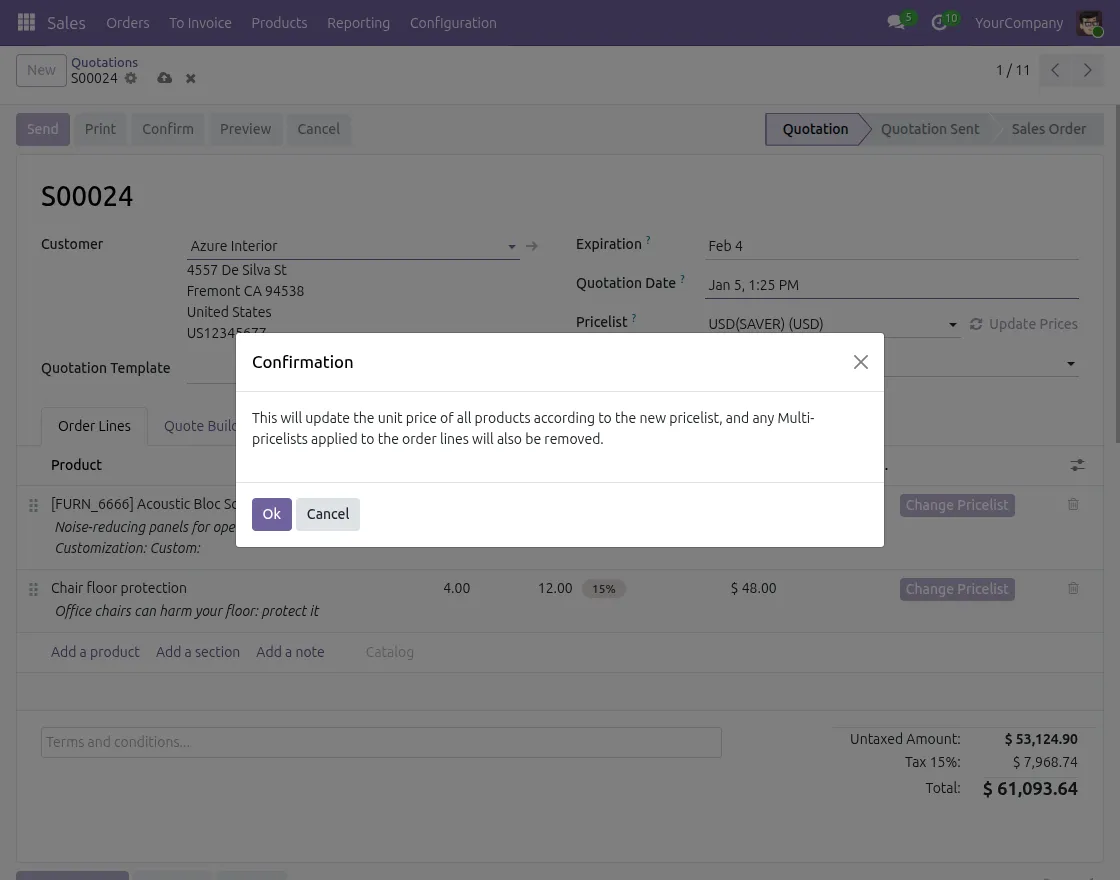
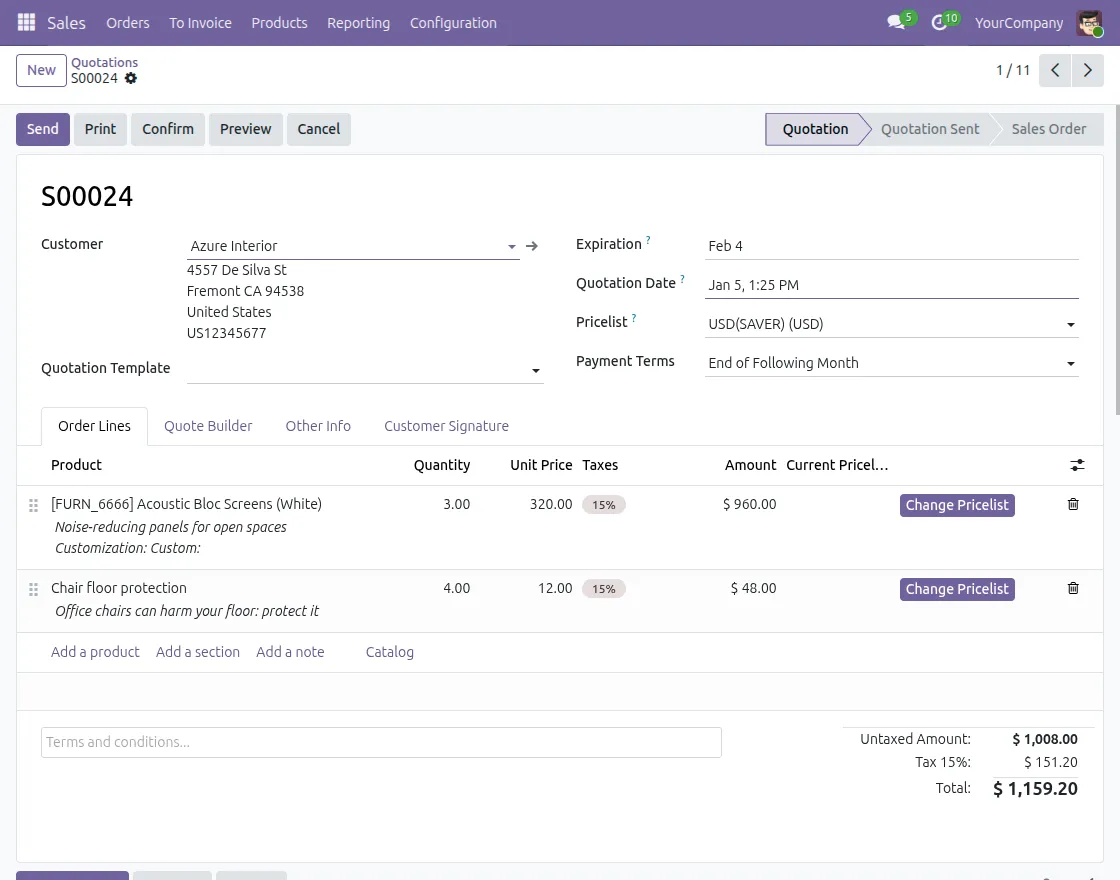
7. Click OK to confirm the update and apply the new pricelist to all products at once. This updates all unit prices and removes any line-level multi-pricelist applied to the order lines.
8. Once pricing is finalized, click Send to share the quotation with the customer.
Need Help?
Hope you find guide helpful! Please feel free to share your feedback in the comments below.
If you still have any issues/queries, please create a ticket at the UV Desk.
I hope this helps. In case of any further queries, contact us at our support mail.
Thanks for paying attention!!
Current Product Version - 1.0.0
Supported Framework Version - odoo v16, 17, 18

Be the first to comment.