


















Introduction
Odoo DPD Germany Shipping Integration connects your Odoo system with DPD Germany to simplify daily shipping tasks. You can configure your DPD Germany account, calculate shipping charges using rule-based pricing, create shipments, generate shipping labels, and track deliveries directly from Odoo.
Odoo DPD Germany Shipping Integration helps businesses manage shipping from one place without switching between different platforms. It also reduces manual work by keeping shipment details, package information, and shipping activities organized inside Odoo.
Features
- Configure your DPD Germany shipping account from Odoo.
- Create rule-based pricing with multiple conditions.
- Calculate shipping charges automatically.
- Create shipments directly from the Delivery Order.
- Generate PDF shipping labels automatically.
- Check shipment status from the Delivery Order.
- Set package type, shipment weight, and delivery settings.
- Handle shipping operations from a single place.
- Simplify daily shipping and reduce manual work.
Installation
- Once you purchase the App from Webkul store, you will receive a link to download module’s zip file.
- Extract the file on your system after download finishes. As a result, you will be able to see a folder named- ‘dpd_germany_delivery_carrier’.
- Copy and paste this folder inside your Odoo Add-Ons path.
- Now, open Odoo App and click on the Settings menu. Here, click on Activate Developer Mode.
- Then, open Apps menu and click on ‘Update Modules List.’
- In the search bar, remove all the filters and search ‘dpd_germany_delivery_carrier’.
- You will be able to see module in the search results. Click on ‘Activate’ to install it.
Workflow
1. DPD Germany Configuration
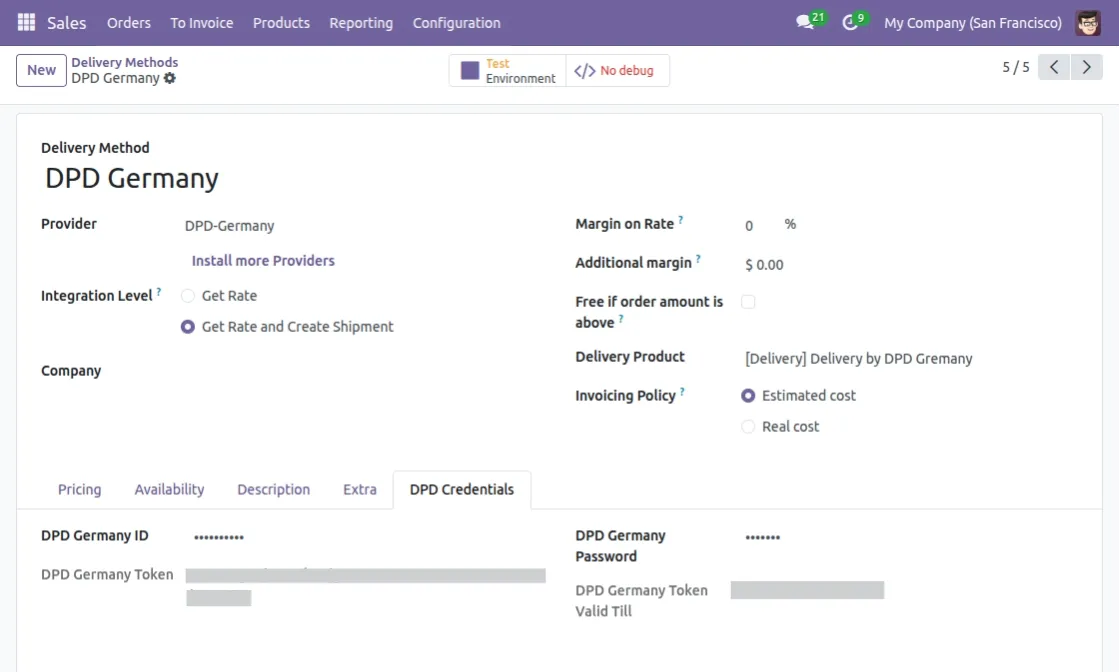
Go to Sales > Configuration > Delivery Methods. Then, open the DPD Germany Delivery Carrier from the available delivery methods.
Enter your DPD Germany account details to connect your shipping account with Odoo. Save the configuration to start using DPD Germany for shipments.
2. Additional Delivery Settings
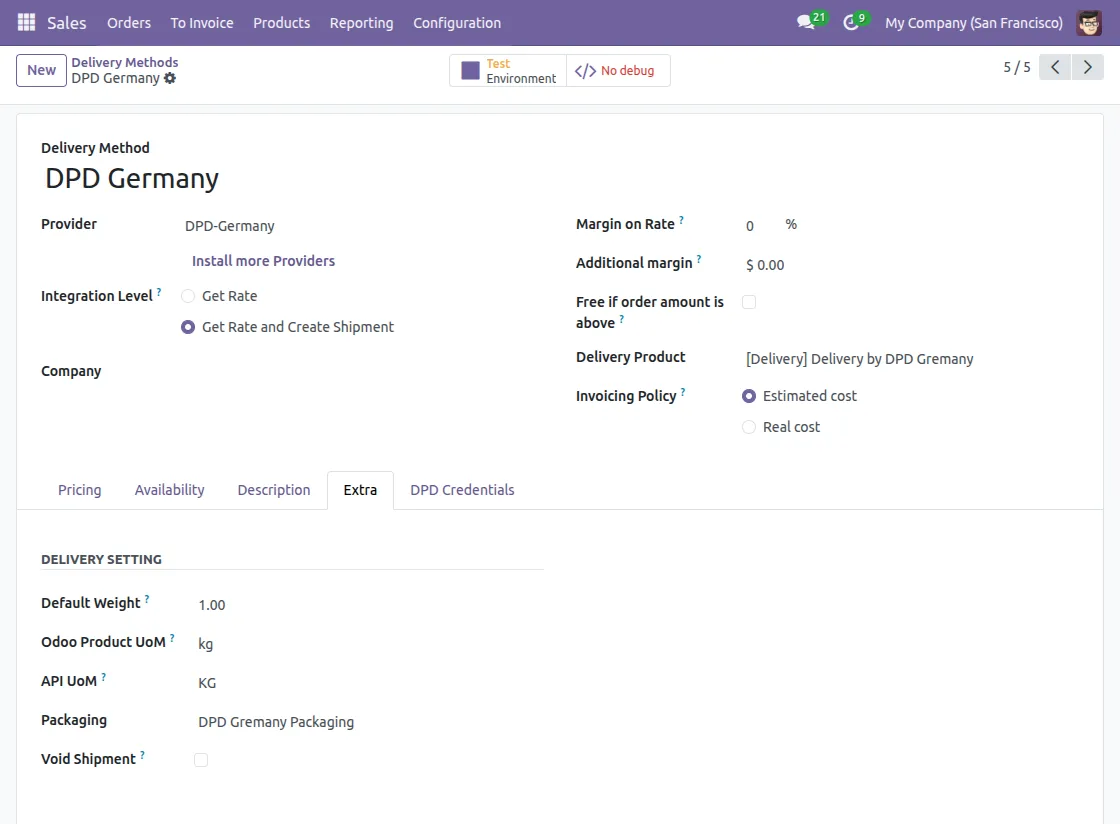
Open the Extra tab in the DPD Germany Delivery Carrier settings. Then, configure the package type, default shipment weight, units of measure, and other delivery settings.
Save the configuration after updating the required shipping settings. These values are used while creating shipments.
3. Create Rule-Based Pricing
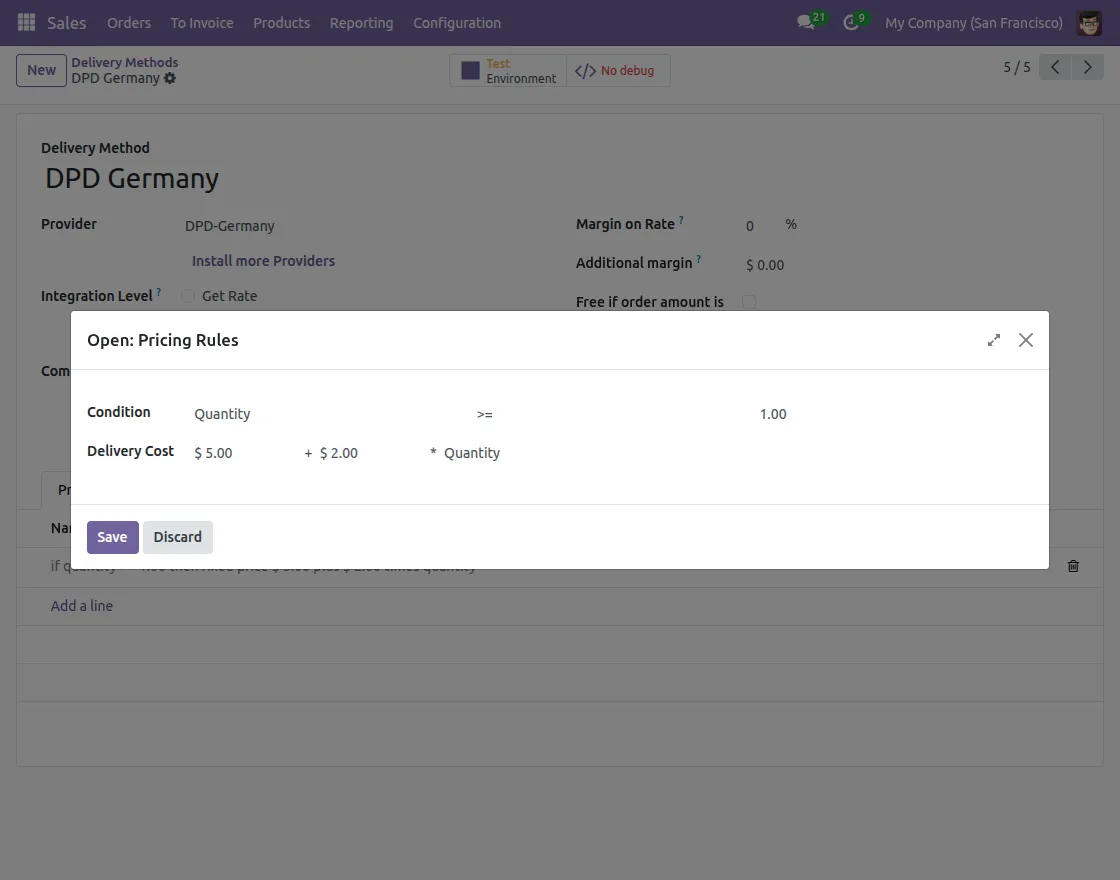
Open the Pricing tab and click Add a Line to create a new pricing rule. Then, define the required conditions and shipping charges.
Save the pricing rule after completing the configuration. The module uses these rules to calculate shipping charges automatically.
4. View Rule-Based Pricing
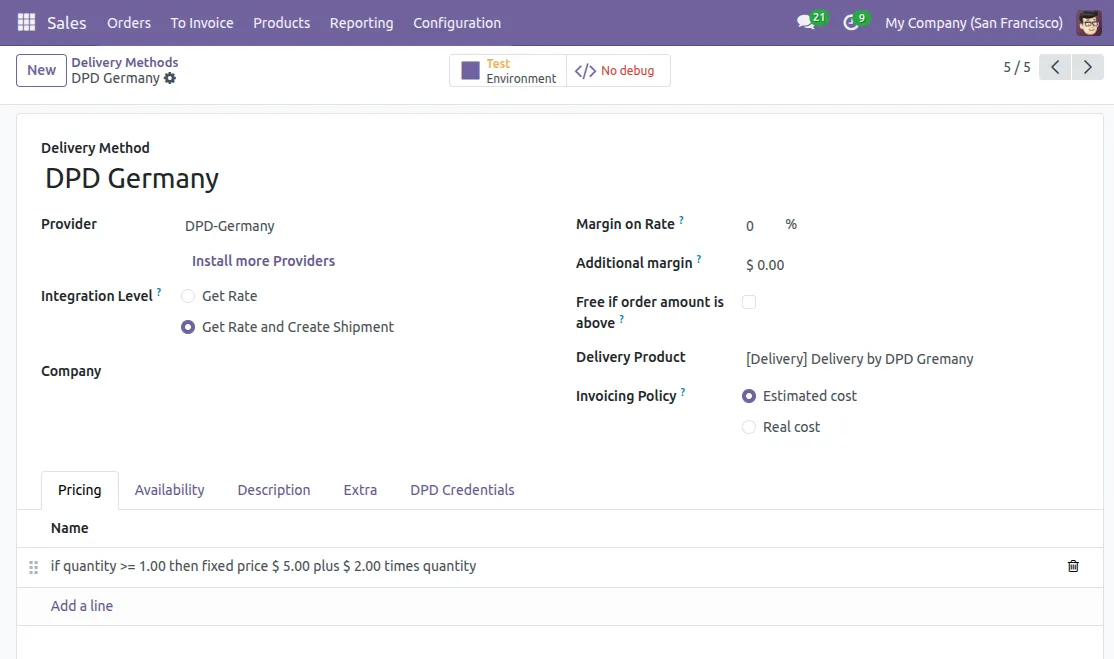
Open the configured pricing rules to review the shipping conditions and delivery charges.
You can update or manage the pricing rules whenever your shipping requirements change.
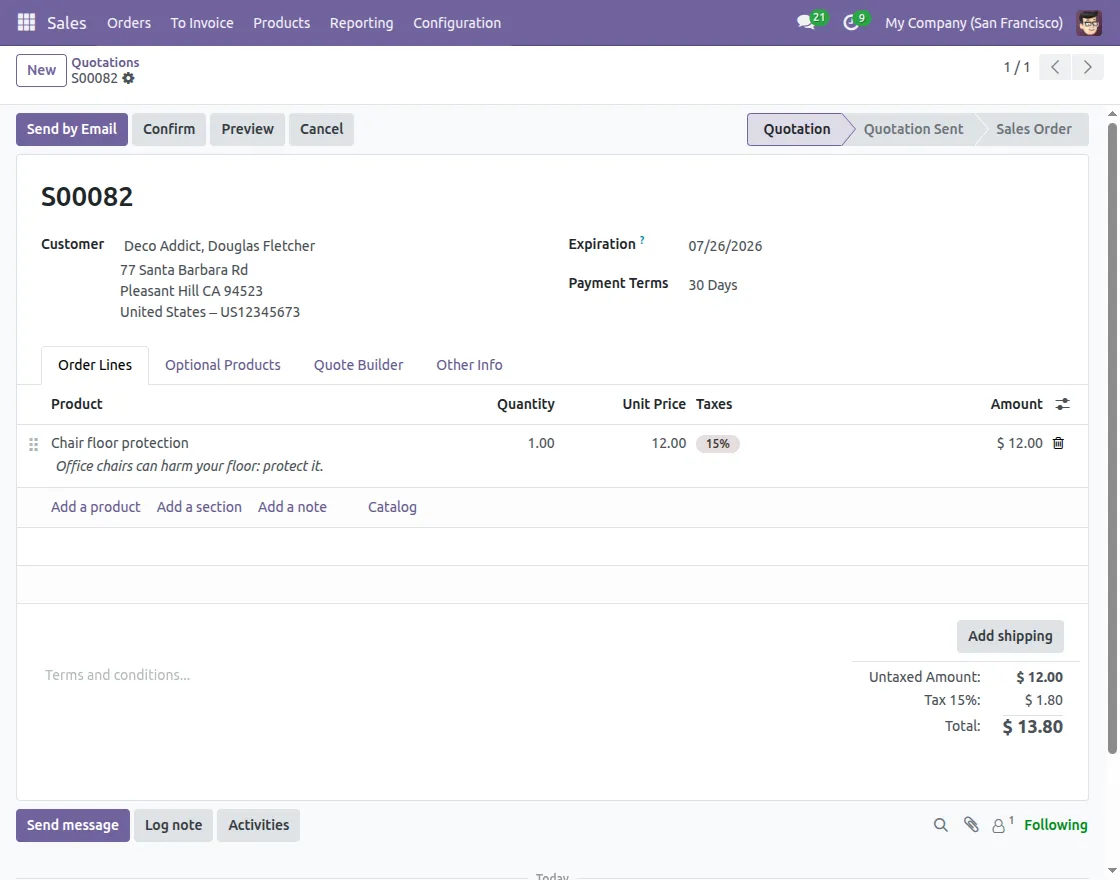
5. Create a Sales Quotation
Go to Sales > Orders > Quotations and create a new quotation. Add the customer and the required products.
Save the quotation before selecting the shipping method.
6. Add DPD Germany Shipping Method
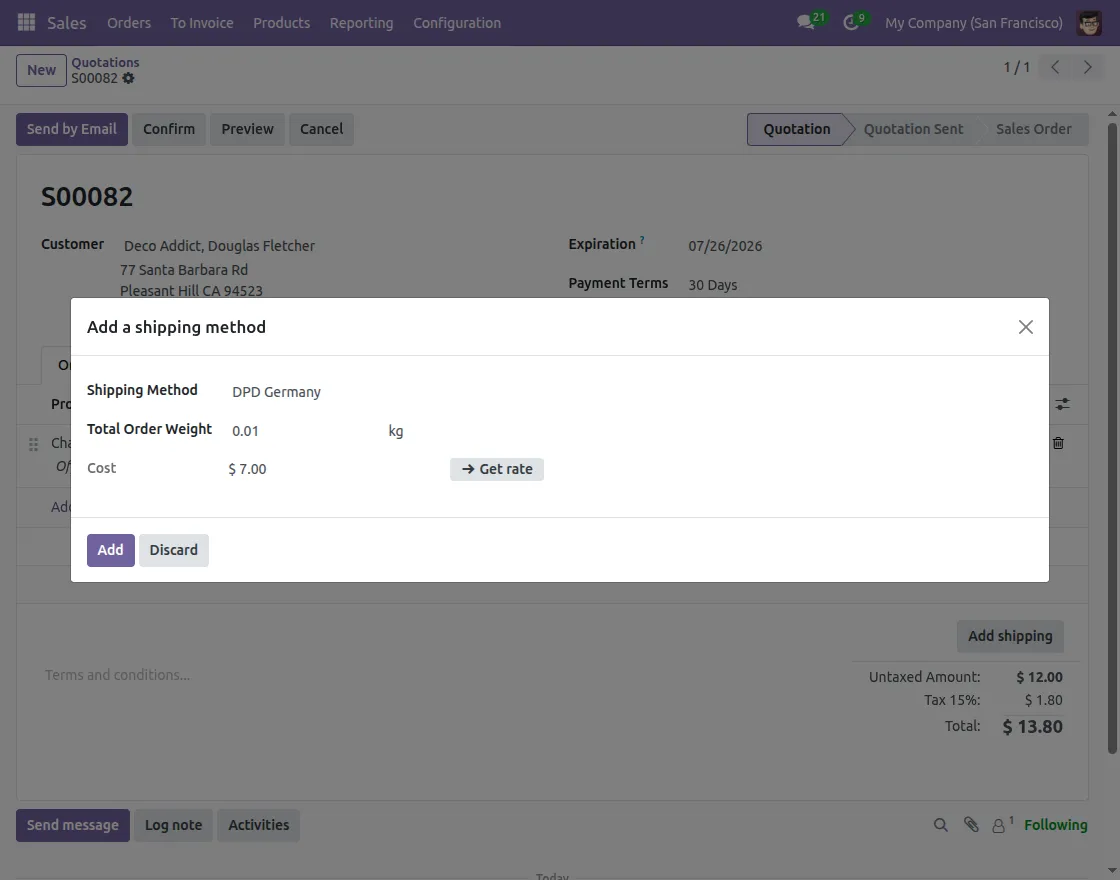
Click Add Shipping in the sales quotation. Then, select DPD Germany Delivery Carrier as the shipping method.
The module calculates shipping charges using the configured pricing rules and adds the delivery cost to the quotation.
7. View Shipping Method in Sales Order
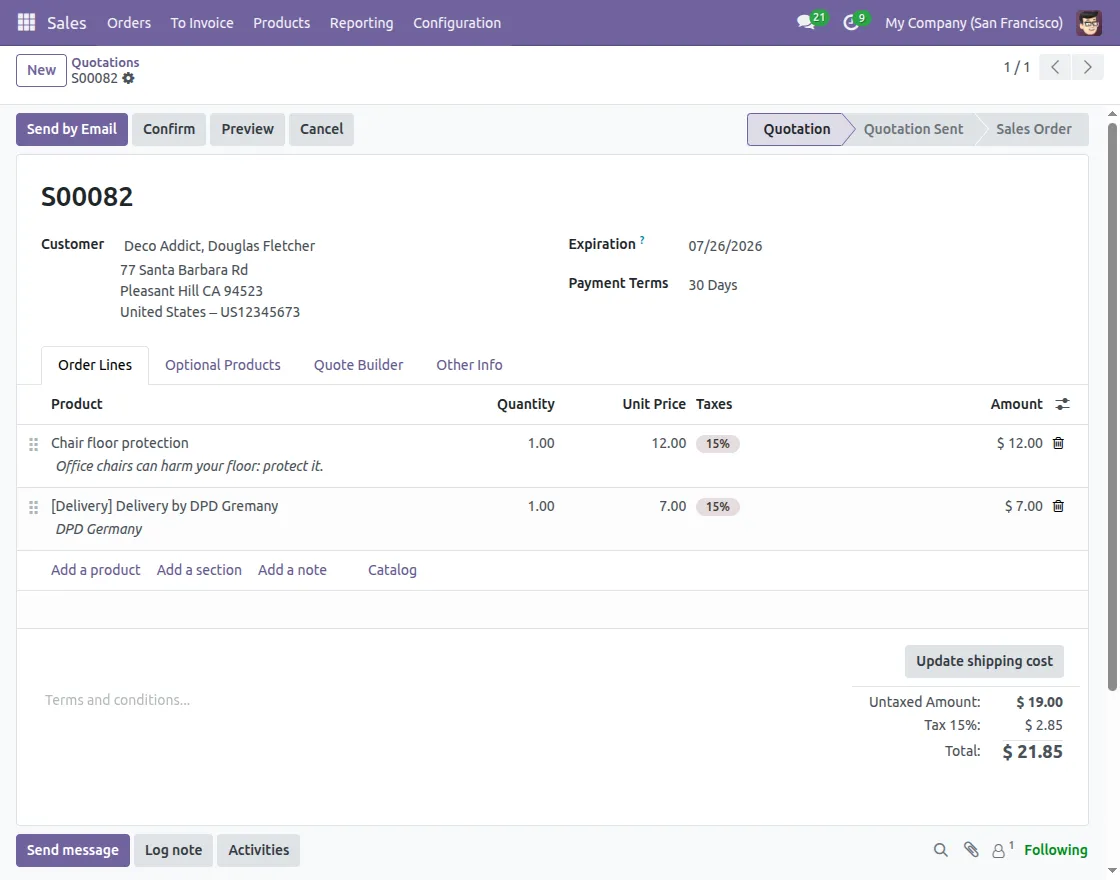
Confirm the quotation to create the sales order. The selected DPD Germany shipping method is displayed with the calculated delivery charges.
Review the shipping information before processing the delivery.
8. Open the Delivery Order
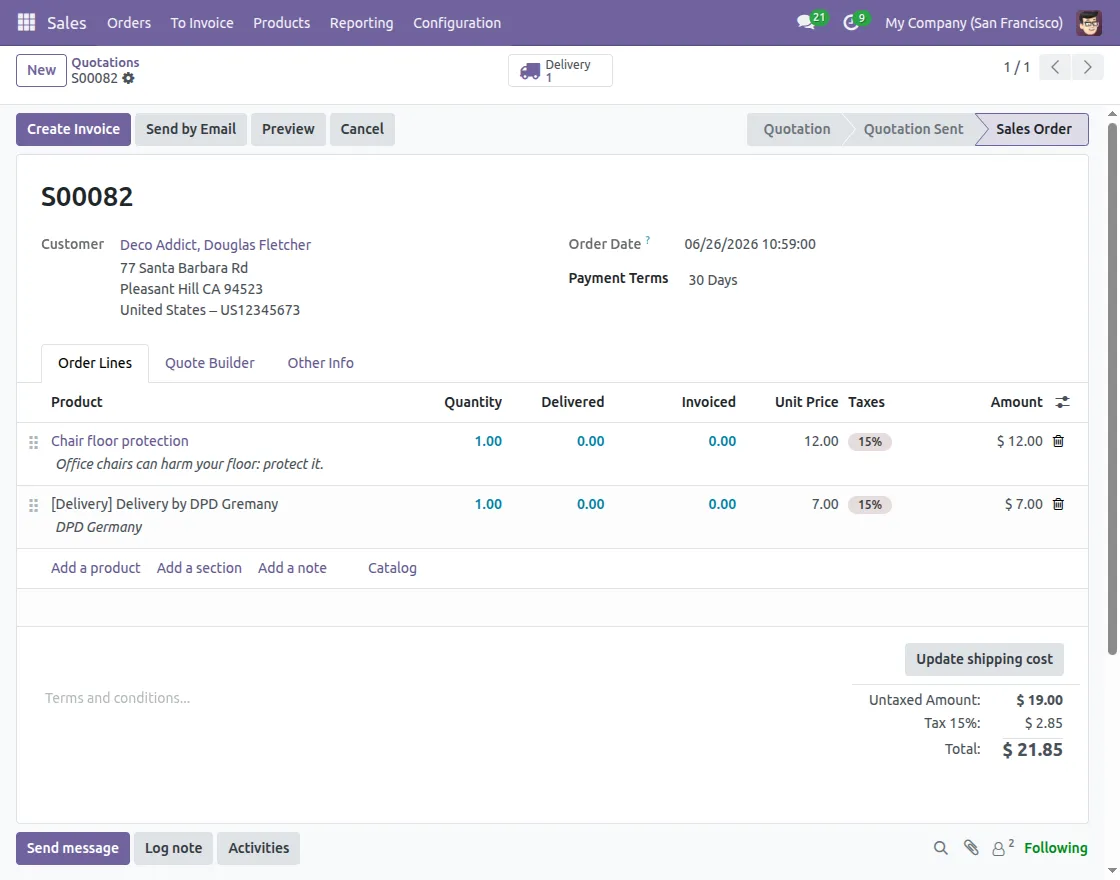
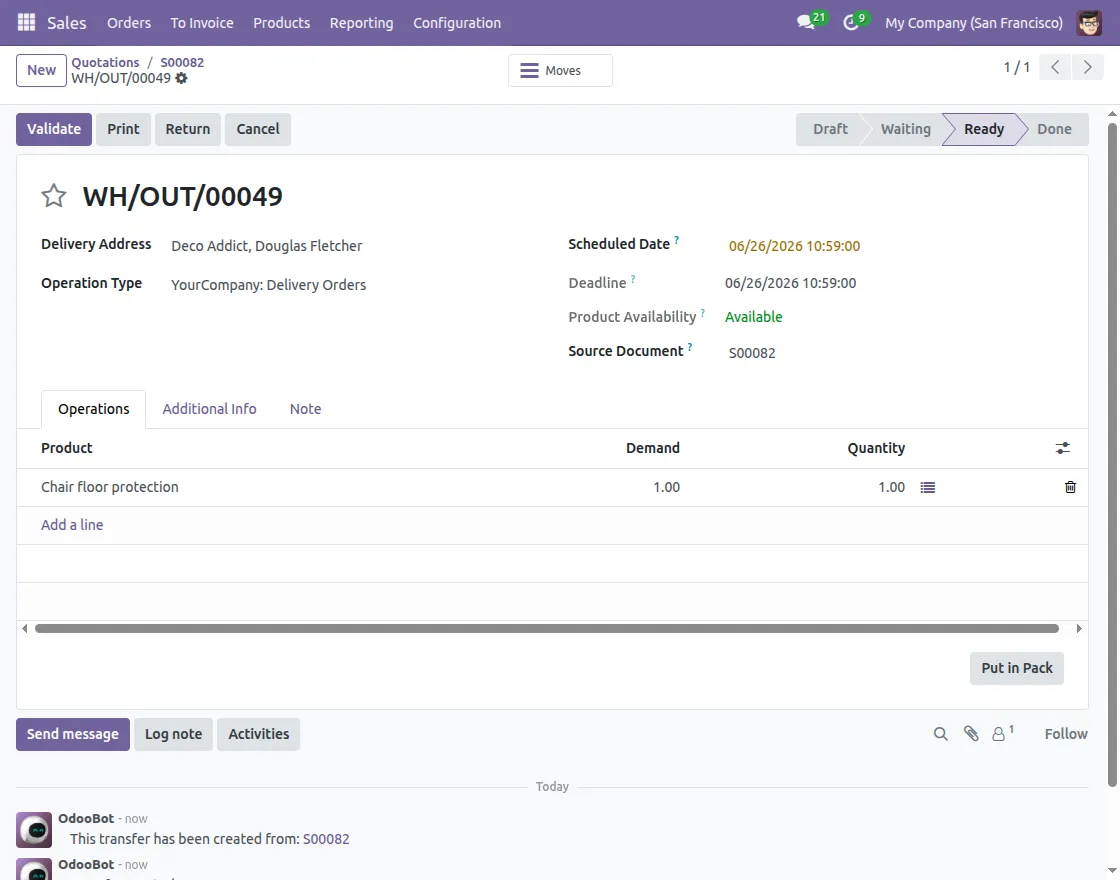
Open the Delivery Order from the confirmed sales order to prepare the shipment.
This page allows you to manage shipment details before creating the shipment in DPD Germany.
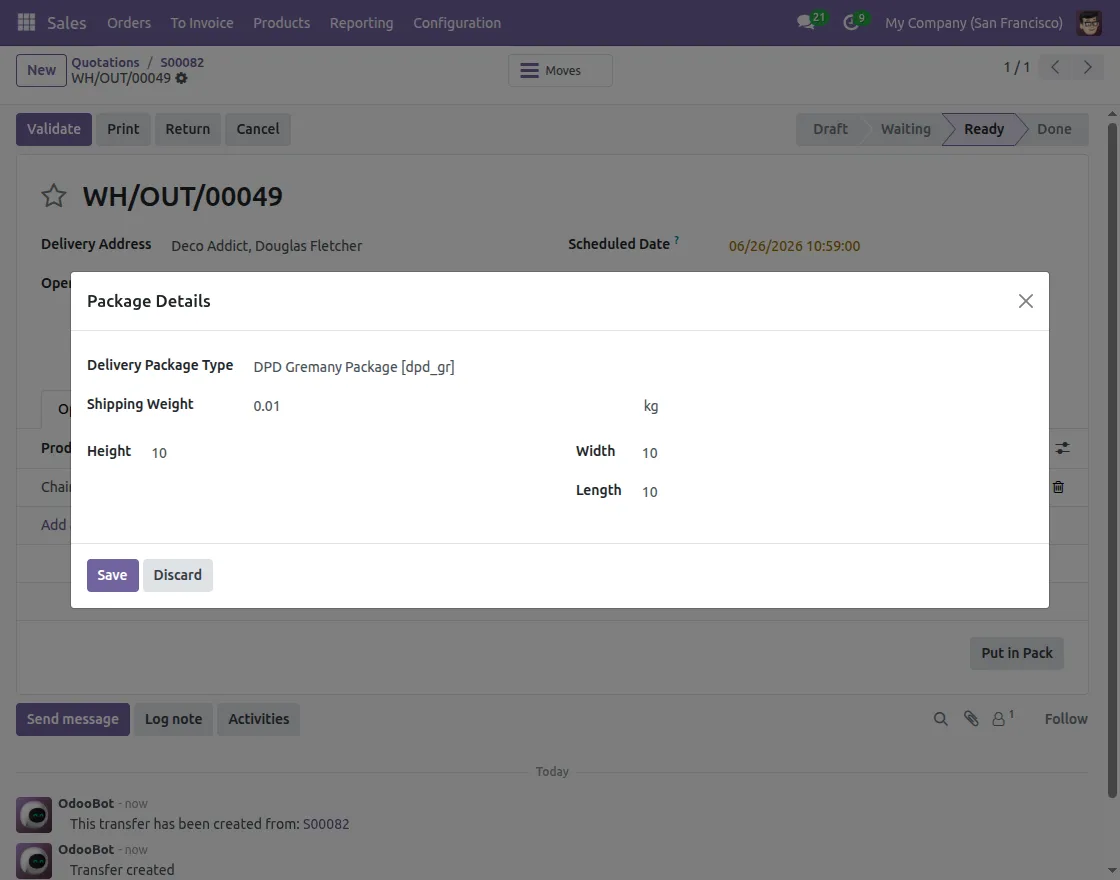
9. Configure Package Details
Click Put in Pack and enter the required package details, such as the package type and shipment weight.
Save the package information before validating the delivery to create the shipment successfully.
10. Shipment Tracking
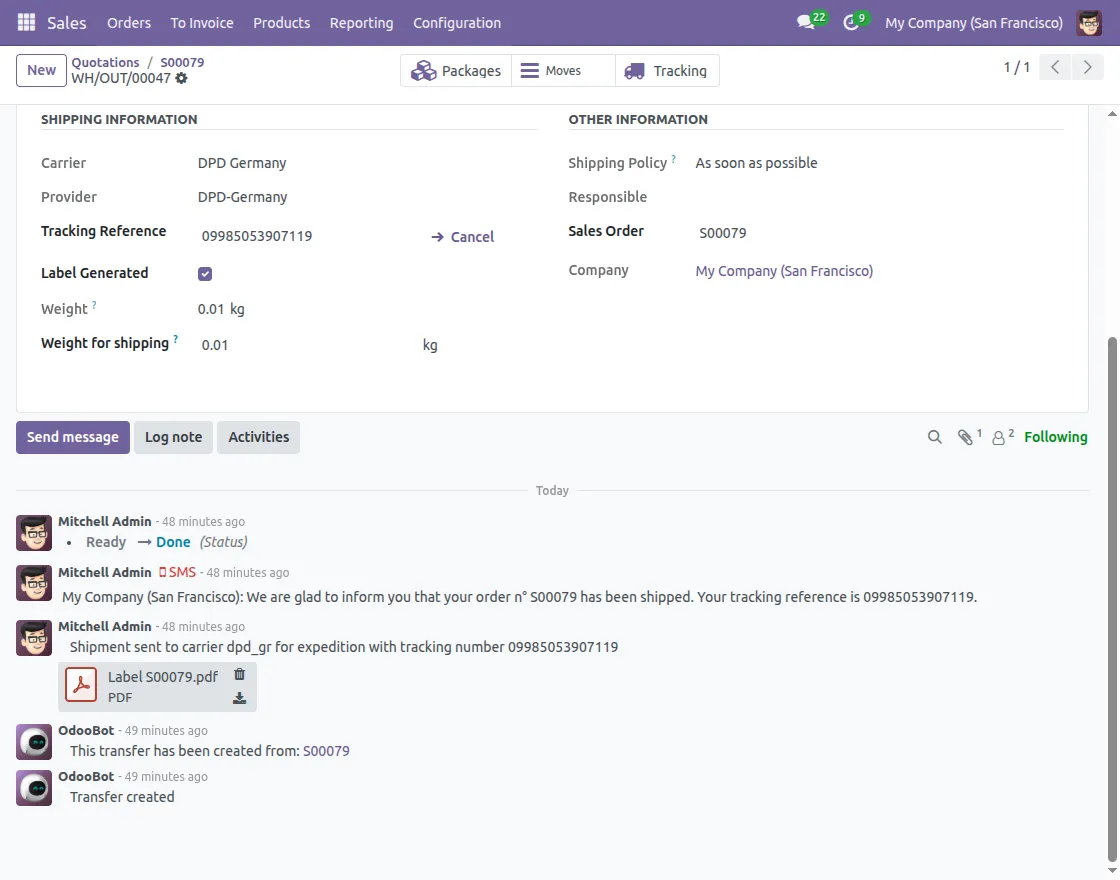
Validate the Delivery Order to create the shipment. Then, click the Tracking button to view the latest shipment status.
You can monitor the shipment directly from Odoo without opening the DPD Germany website.
11. Shipping Label Generation
After the shipment is created successfully, the module generates a shipping label automatically.
Download the PDF shipping label from the Delivery Order whenever you need it.
Need Help?
Hope you find guide helpful! Please feel free to share your feedback in the comments below.
If you still have any issues/queries, please create a ticket at the UV Desk.
I hope this helps. In case of any further queries, contact us at our support mail.
Thanks for paying attention!!
Current Product Version - 1.0.0
Supported Framework Version - Odoo V19, V18, V17, V16

Be the first to comment.