Introduction
Odoo AI Business Card Reader App helps users convert business cards into digital contact records.
The app works with Odoo to organize contacts, create Leads or Partners, and keep contact information easy to access.
Users can scan business cards, upload card images, or add contact details manually. The app helps reduce manual work and keeps business contacts organized in one place.
Check the video mentioned below for a brief overview of the module functionality:
Features
- Scan business cards and capture contact details with AI for faster record creation.
- Create Leads or Partner records directly in Odoo based on business needs.
- Upload business card images from the device gallery and extract contact information.
- Add contact information manually whenever a business card image is not available.
- Choose automatic or manual data synchronization for better record management.
- Save contact records locally for quick access and future reference.
- Create and manage CRM Leads from business card data to support sales activities.
- Manage multiple contact records in a single action to save time.
- Track leads through the Odoo sales pipeline and monitor sales progress.
Installation
- Once you purchase the App from the Webkul store, you will receive the link to download the zip file of the module.
- Extract the file on your system after the download finishes. As a result, you will be able to see a folder named- ‘odoo_ai_business_card_scan_app’.
- Copy and paste this folder inside your Odoo Add-Ons path.
- Now, open the Odoo App and click on the Settings menu. Here, click on Activate the Developer Mode.
- Then, open the AI Business Card Reader App Apps menu and click on ‘Update Modules List’.
- In the search bar, remove all the filters and search ‘odoo_ai_business_card_scan_app’.
- You will be able to see the module in the search results. Click on ‘Install’ to install it.
Workflow
- Once the Odoo AI Business Card Reader App is installed, open the camera within the app on your smartphone and scan the business card.
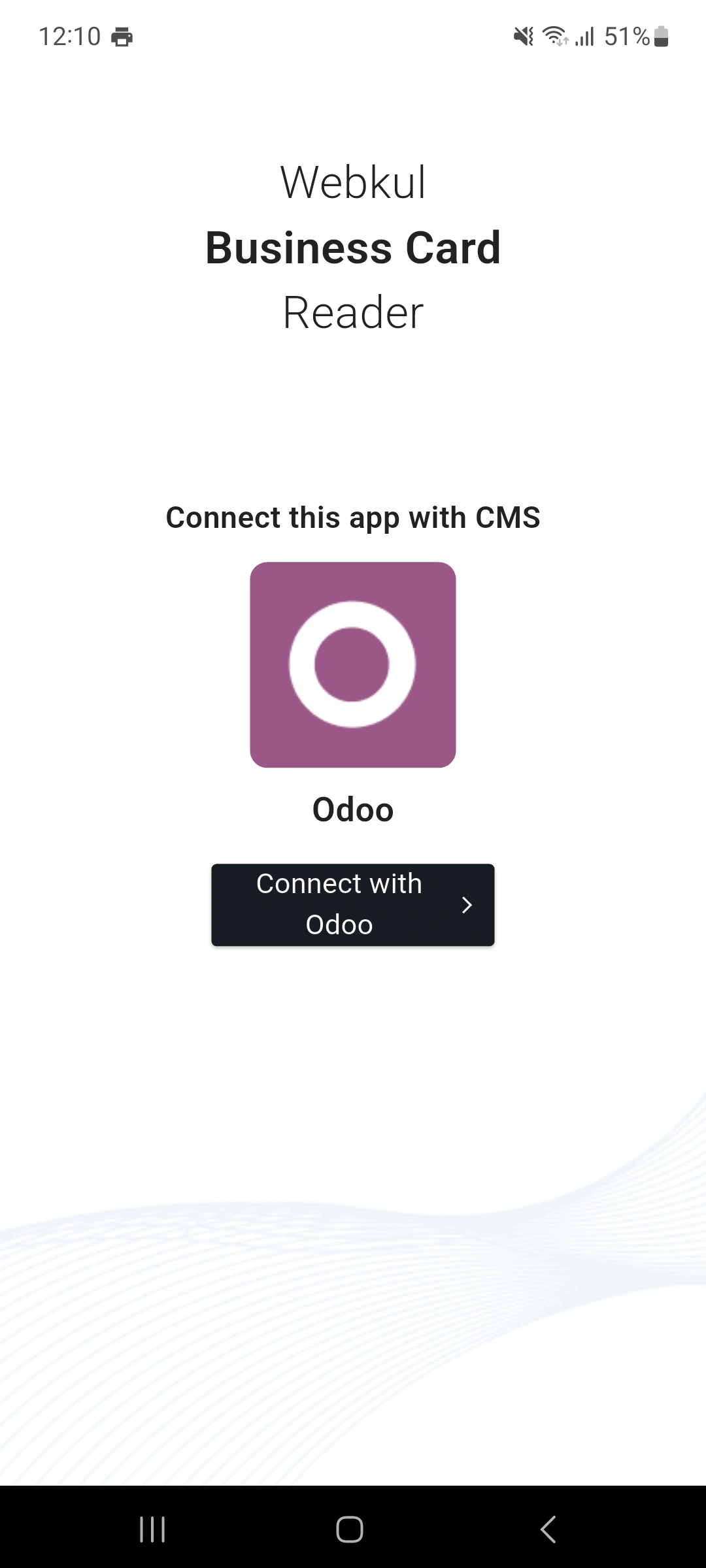
Connect AI Reader with Odoo
Establish a secure connection between the mobile app and Odoo to start managing business card records.
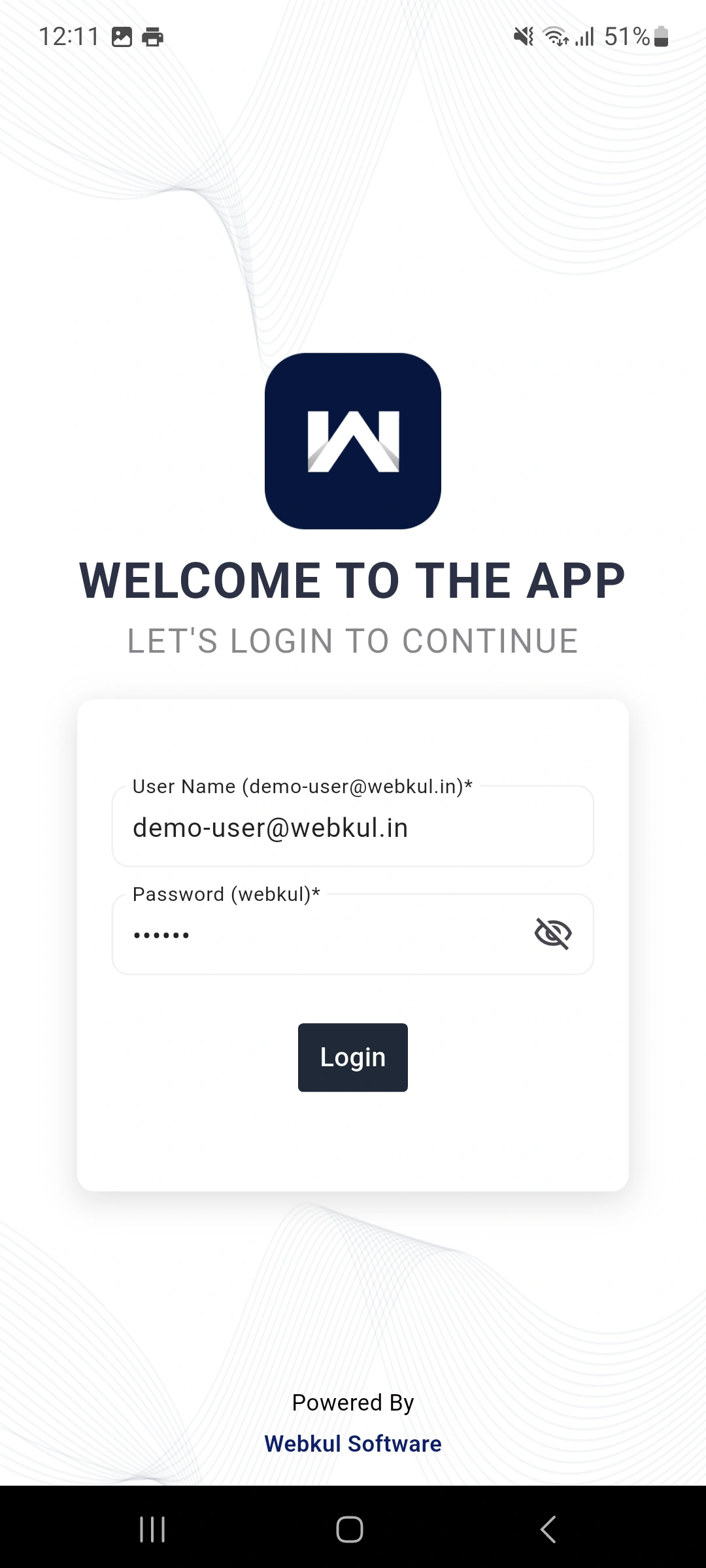
2. Sign in using your account credentials. After successful login, users can access all available business card management features.
Mobile App Login
Sign in to the application and access all available contact management features.
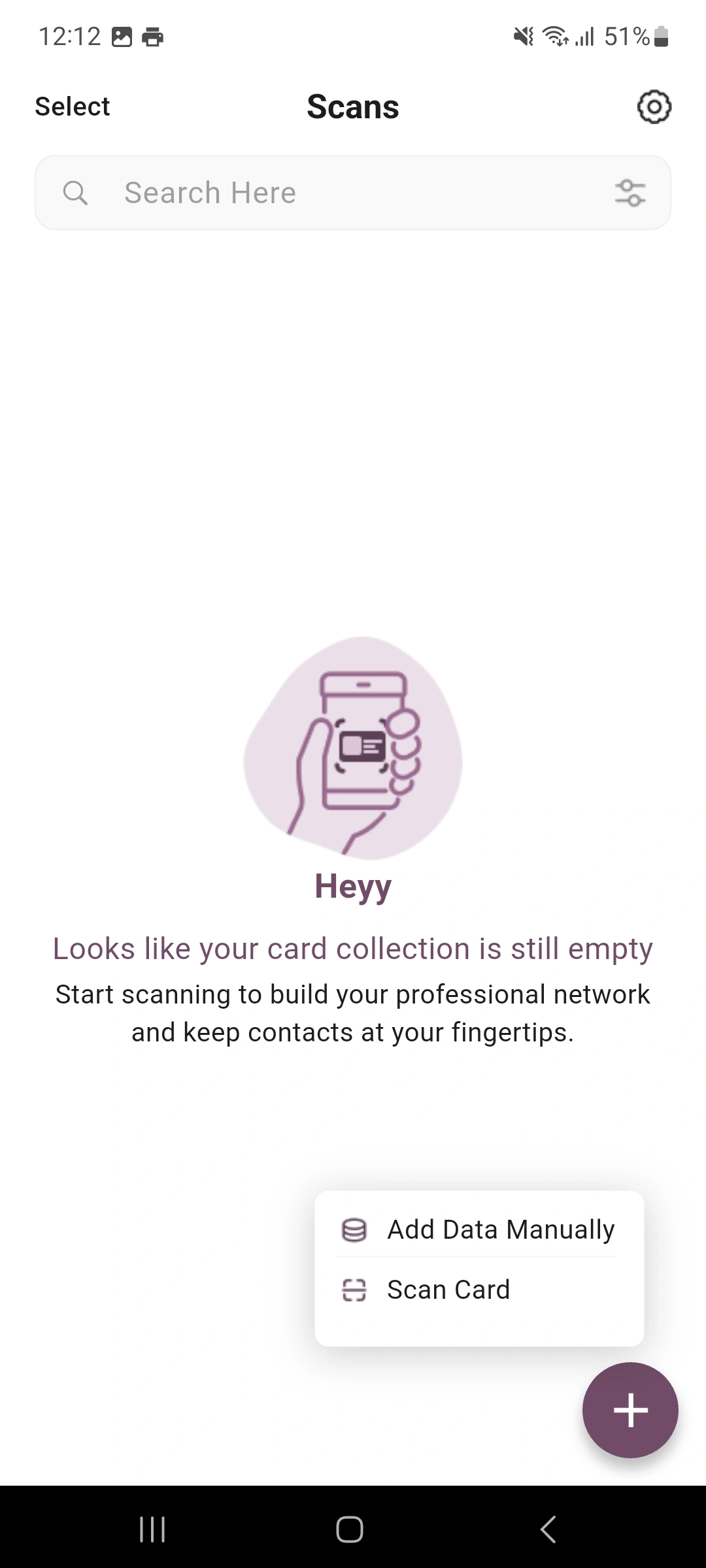
3. Choose how you want to create a contact record. Users can scan a card, upload an image from the gallery, or add details manually.
Method Selection Card Reader
Select whether to scan a card, upload an image, or enter contact details manually.
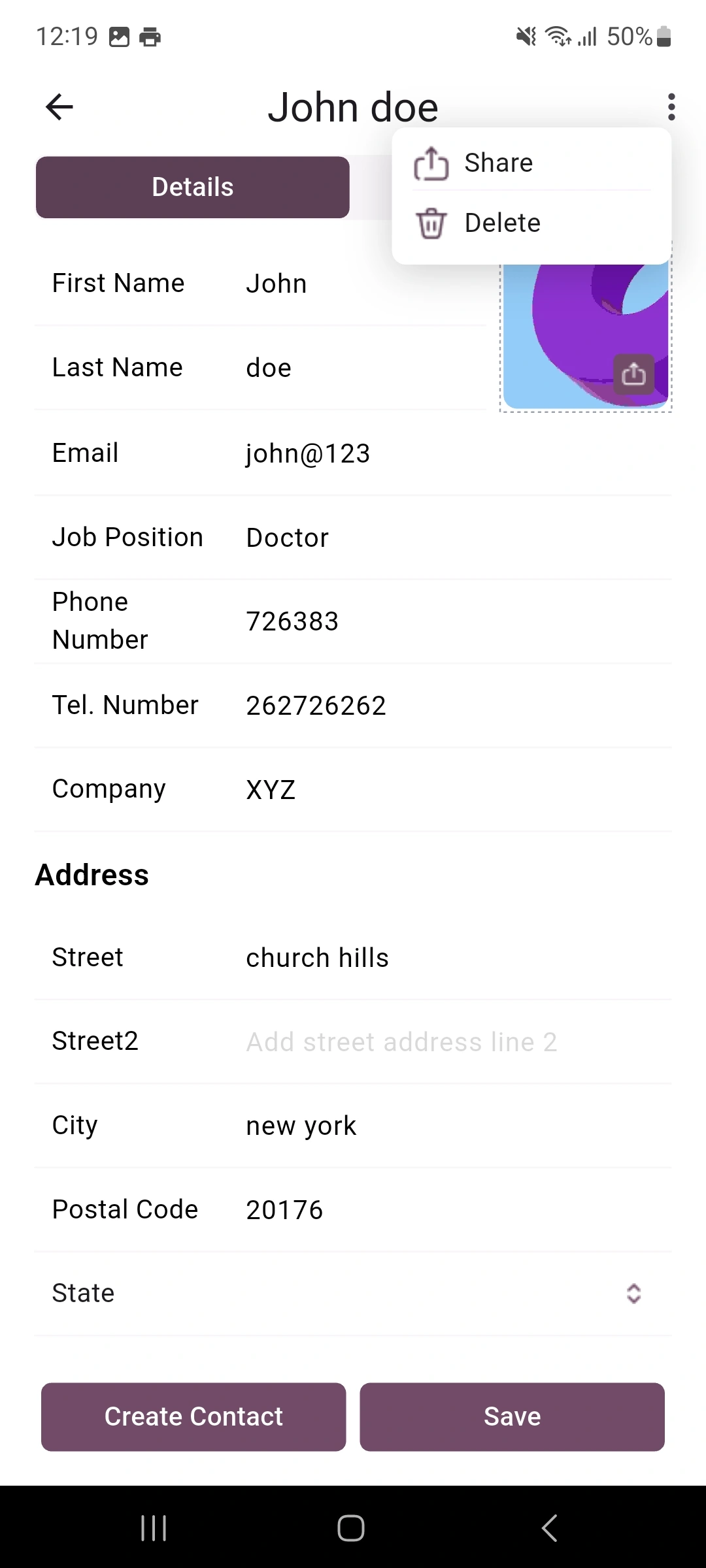
4. Select whether the scanned information should create a Lead or Partner record. Also, an option for share or delete.
Choose an Action for Scanned Records
Decide how scanned business card information should be saved as a contact record. Users can also share or delete selected records as needed.
5. View all saved contact records from one location. Users can search, sort, review, and manage saved contacts easily.
Saved Partner Contacts
View, organize, and access saved Partner contacts from a centralized contact list.
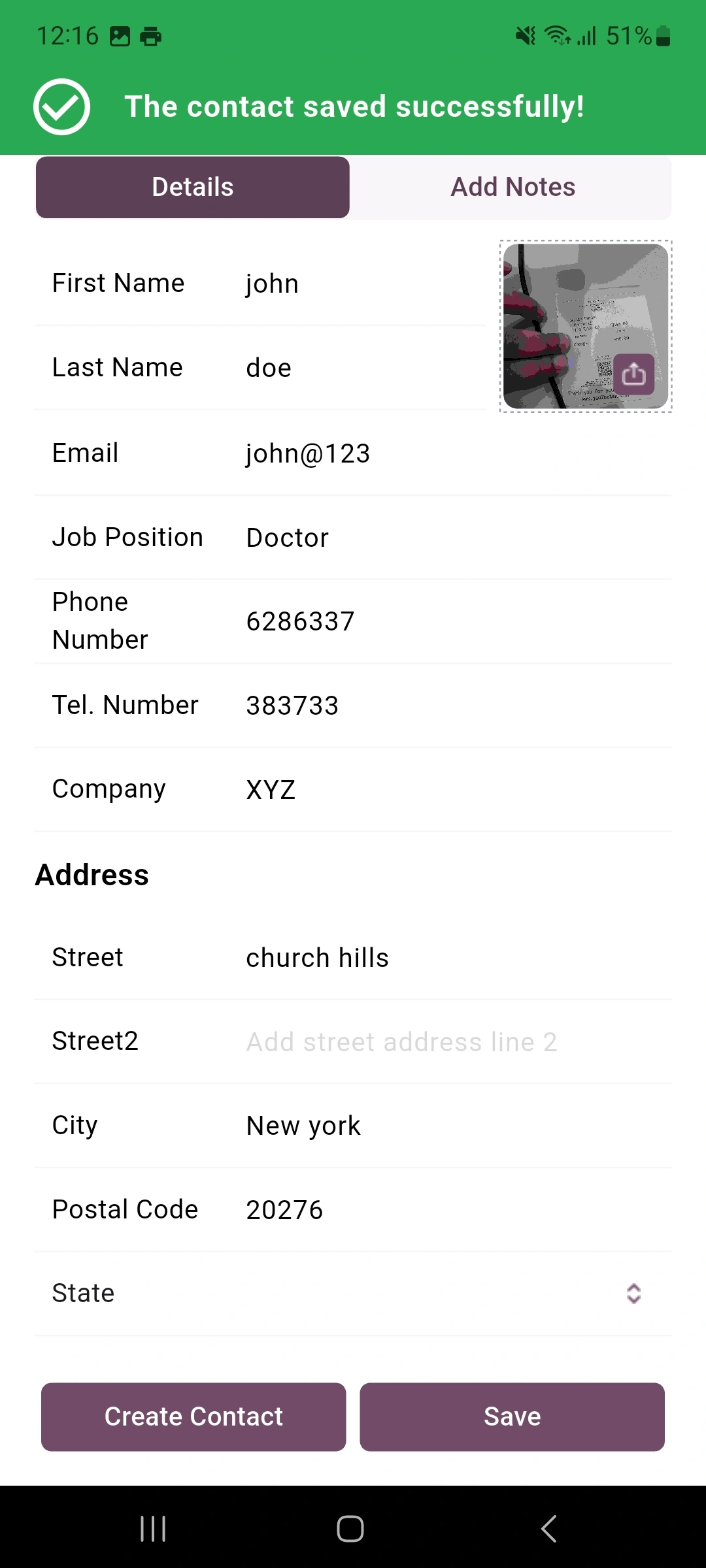
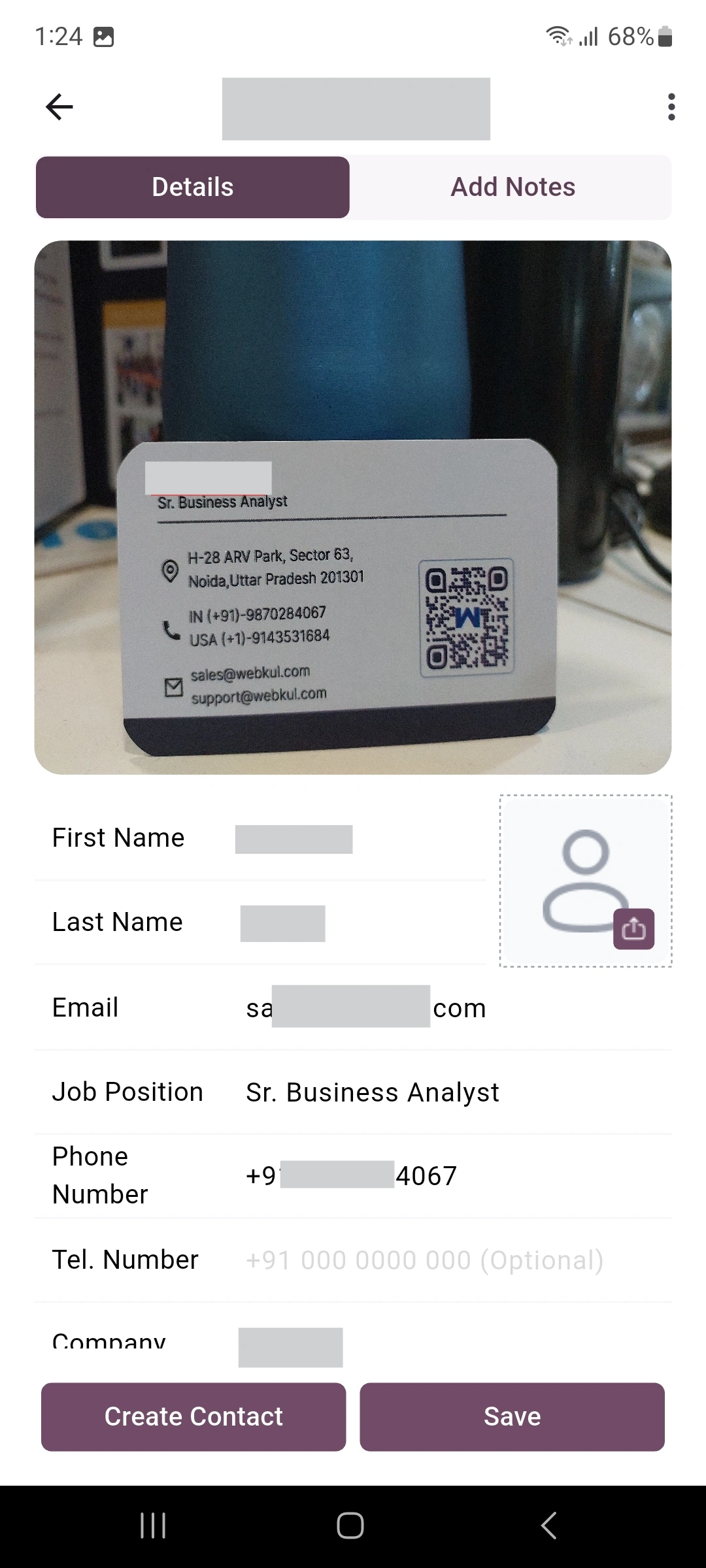
6. Review the extracted contact information before saving. Users can edit details, add notes, upload profile images, and update information.
Scanned Card Details
Check extracted details, update information, and complete contact records before saving.
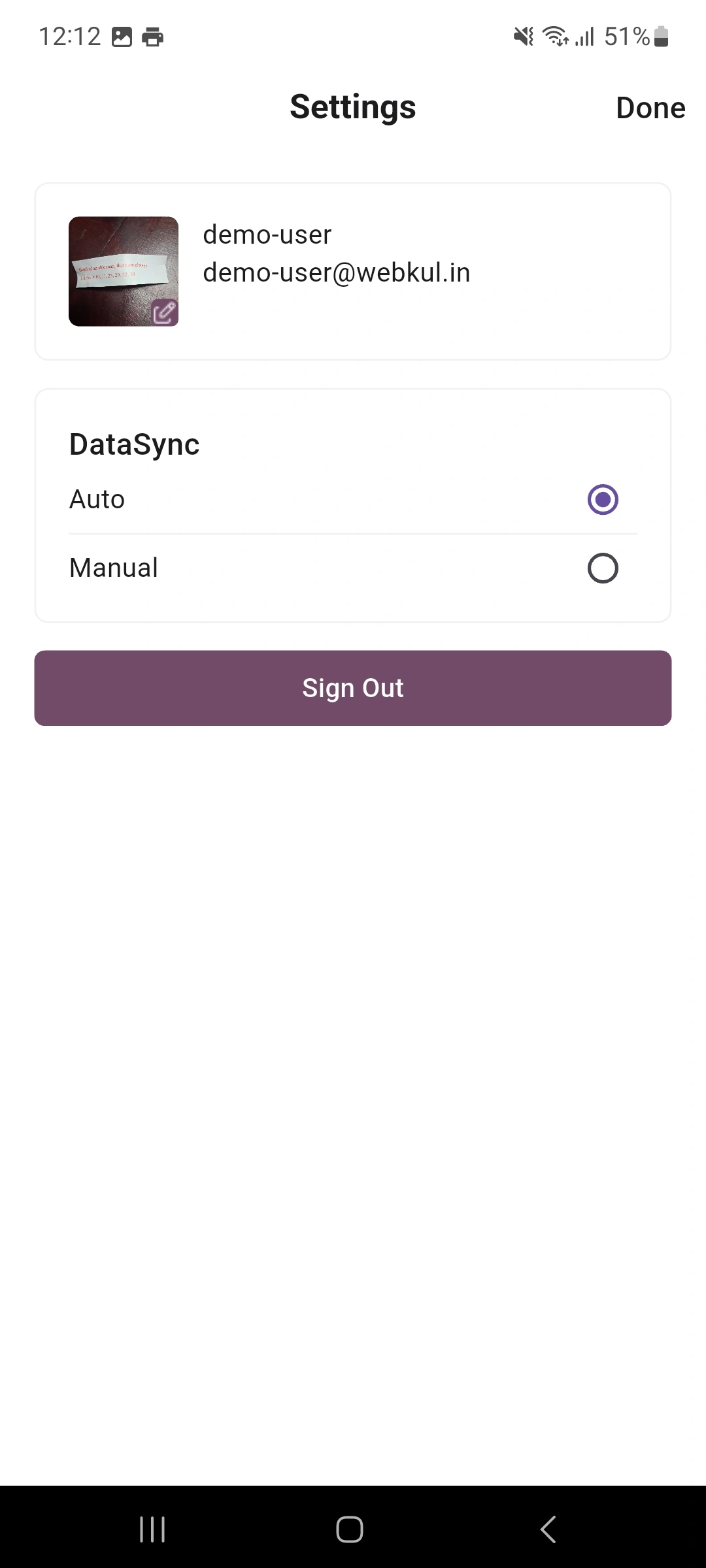
7. Choose how contact records are transferred to Odoo. Users can enable automatic sync or manually send records whenever required.
Data Sync Settings
Choose how contact records are transferred and synchronized with your Odoo database.
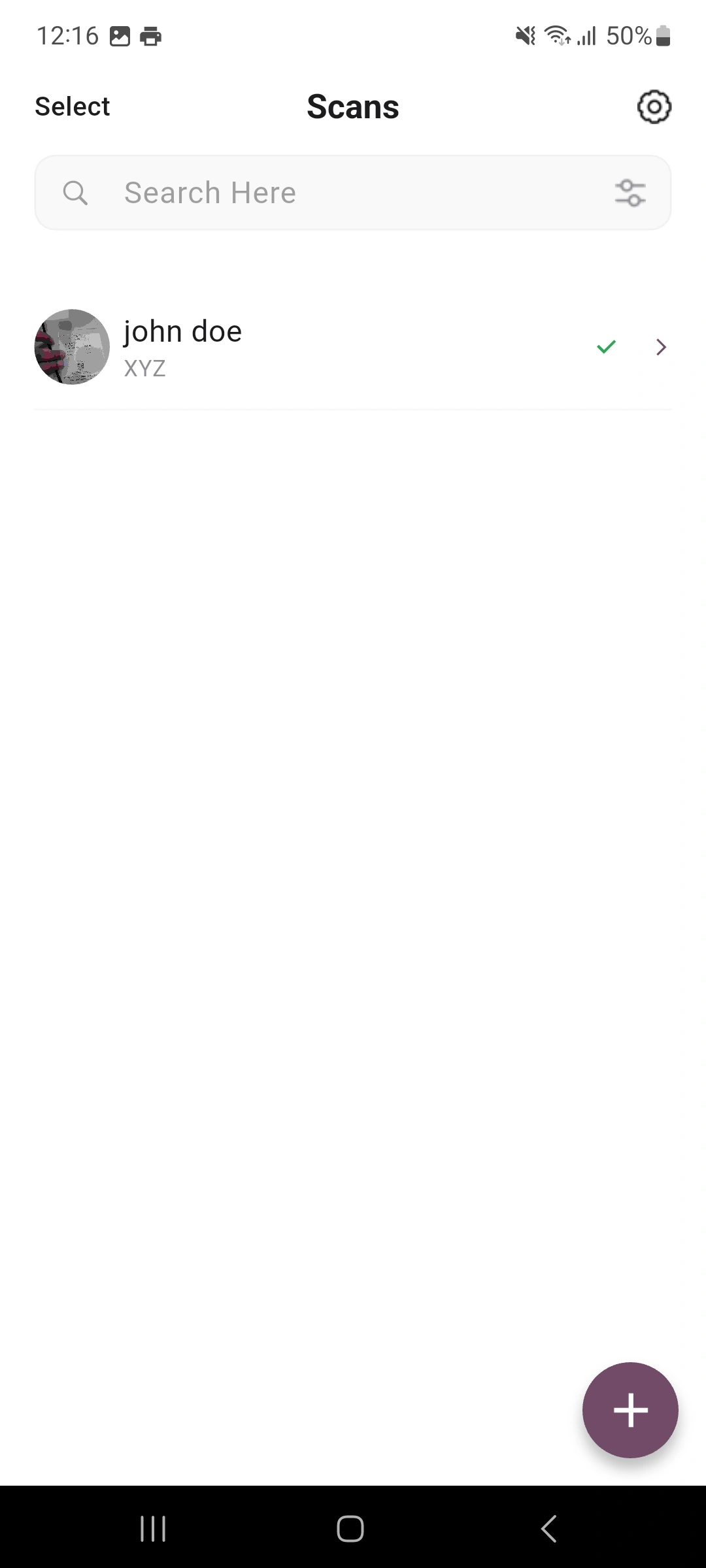
8. View contact information after successful synchronization with Odoo. Records are available for future business activities and follow-ups.
Odoo Integrated Record
Verify synchronized contact information and review created records directly within Odoo.
9. Choose how contact records are transferred to Odoo. Users can enable automatic sync or manually send records whenever required.
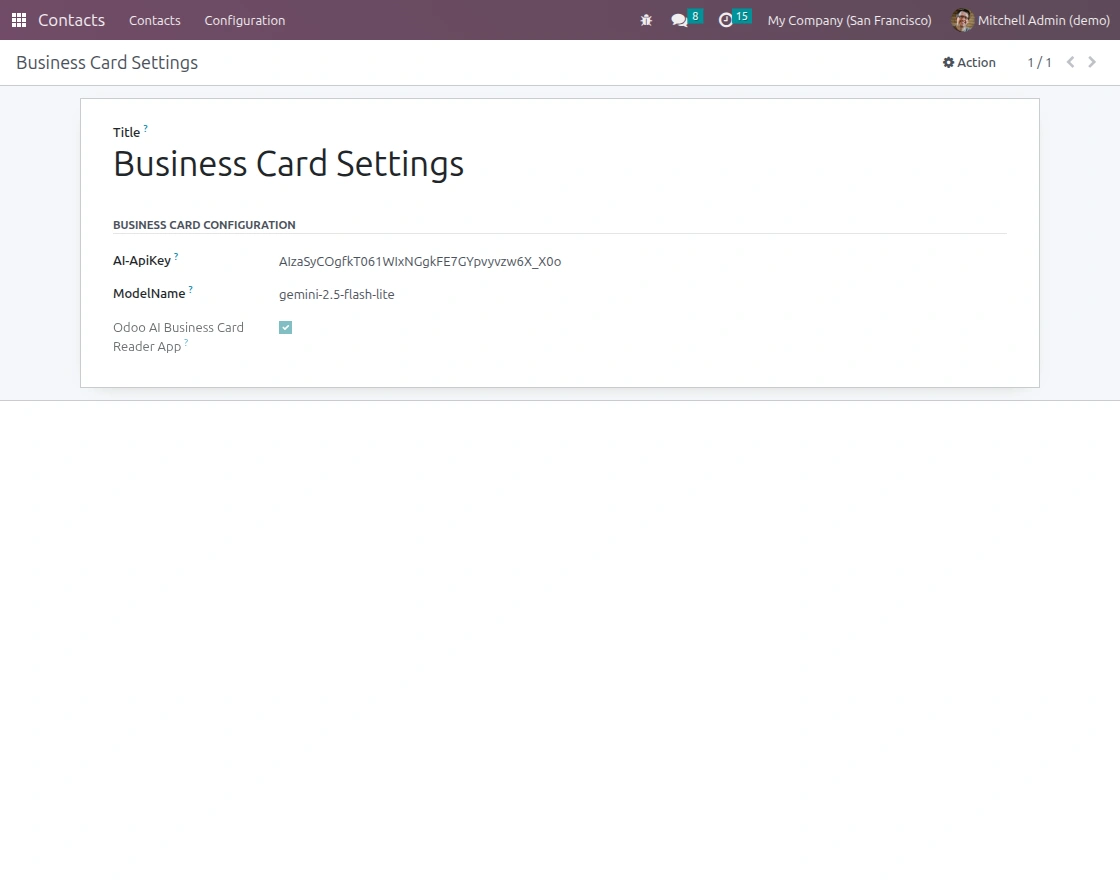
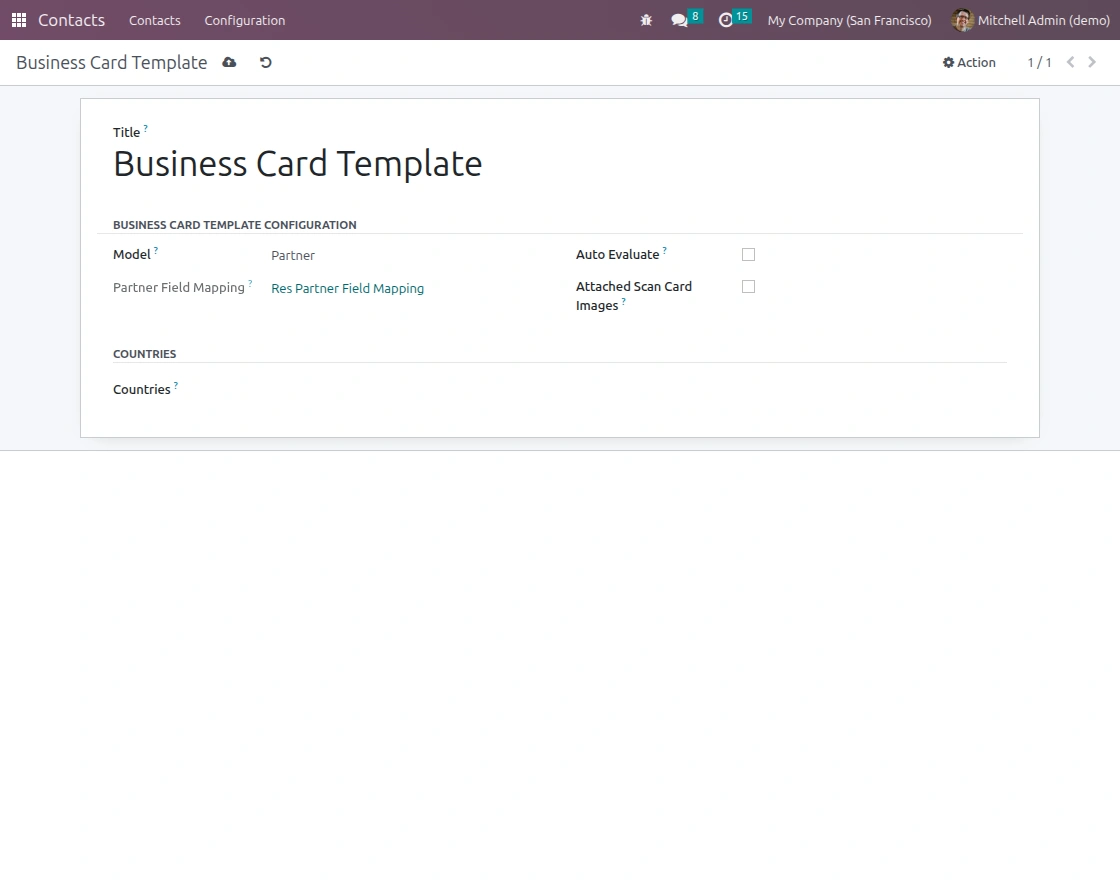
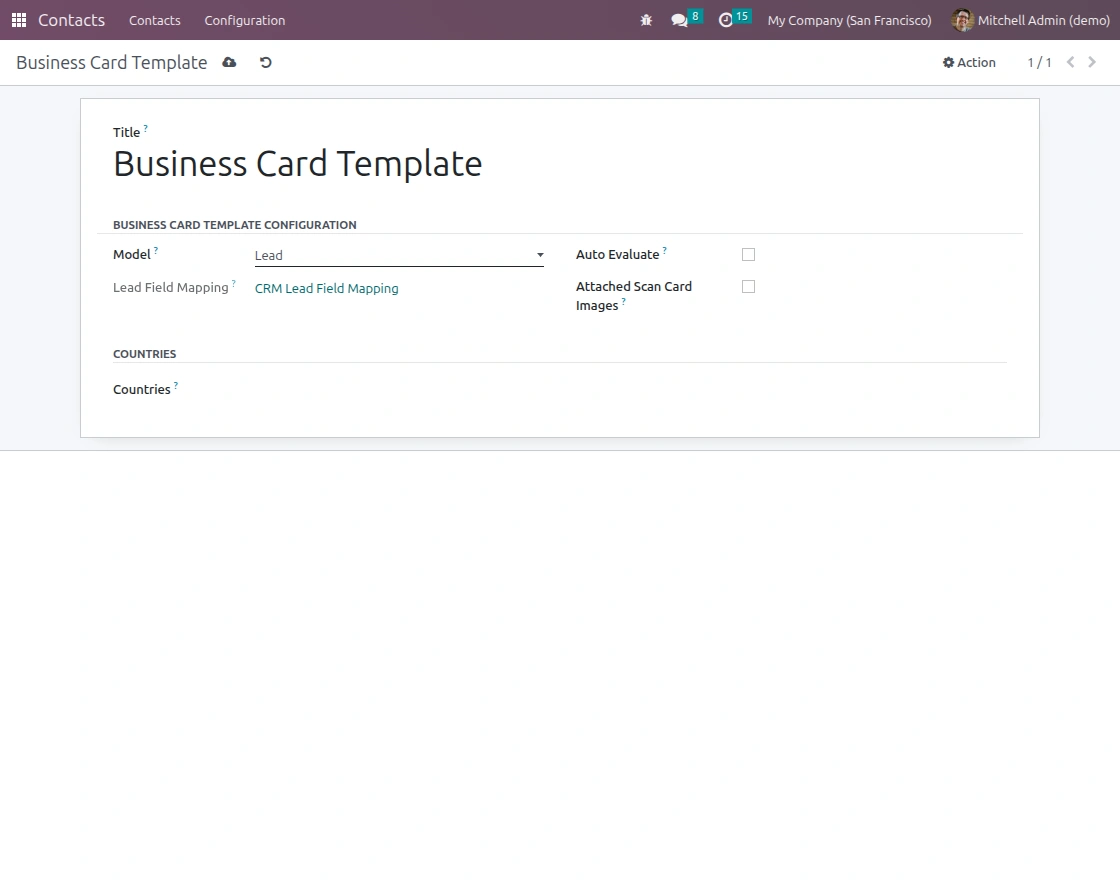
10. Define how scanned card information is mapped within Odoo. Users can choose whether records are created as Partner or Lead.
10a. For Partner
10b. For Lead
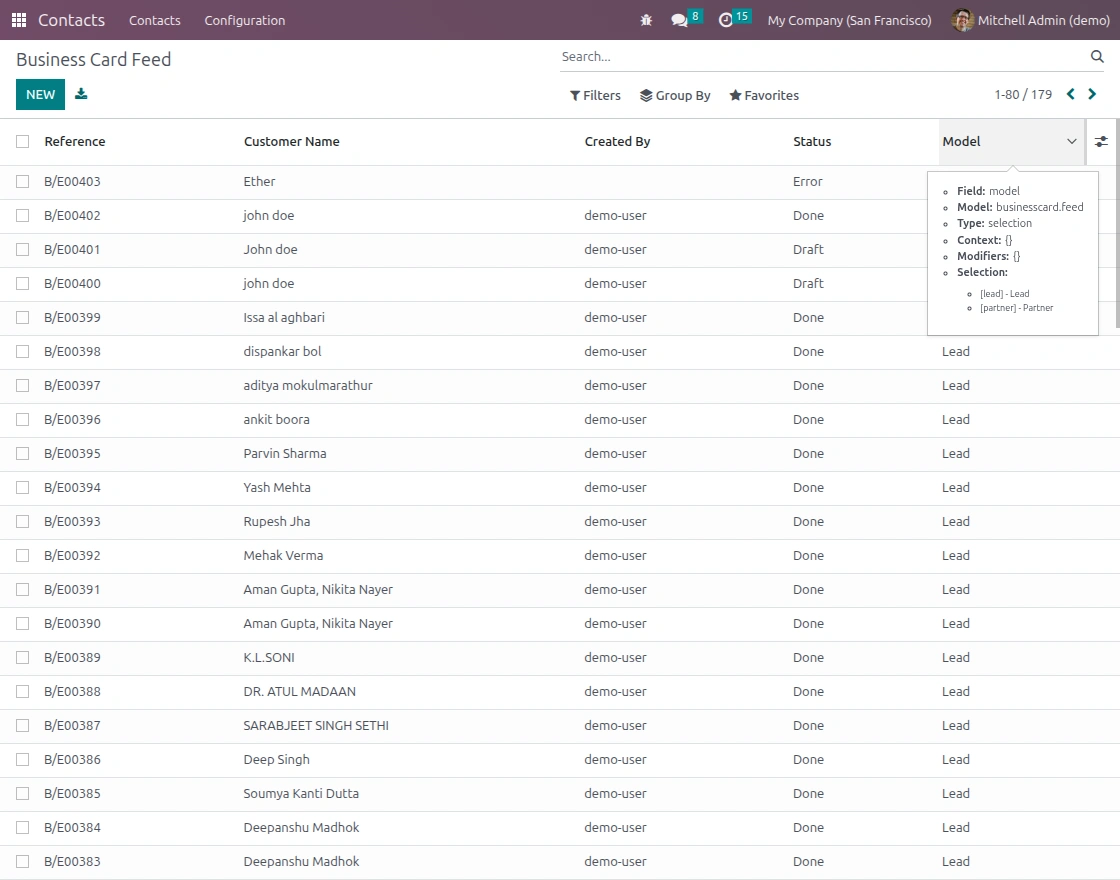
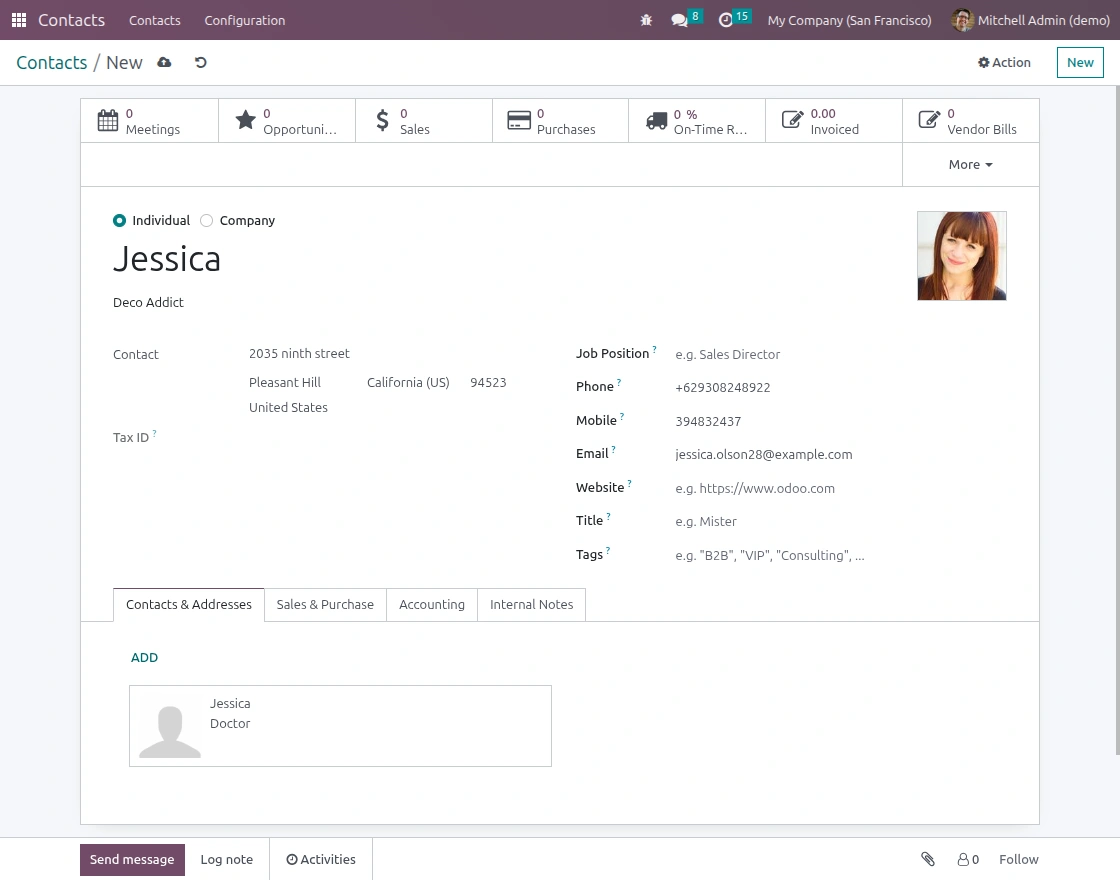
11. Access all processed business card records from a centralized location. This helps keep Contact information organized and easy to manage.
12. Add new contact information or update existing records. Users can edit details, assign locations, and maintain accurate records.
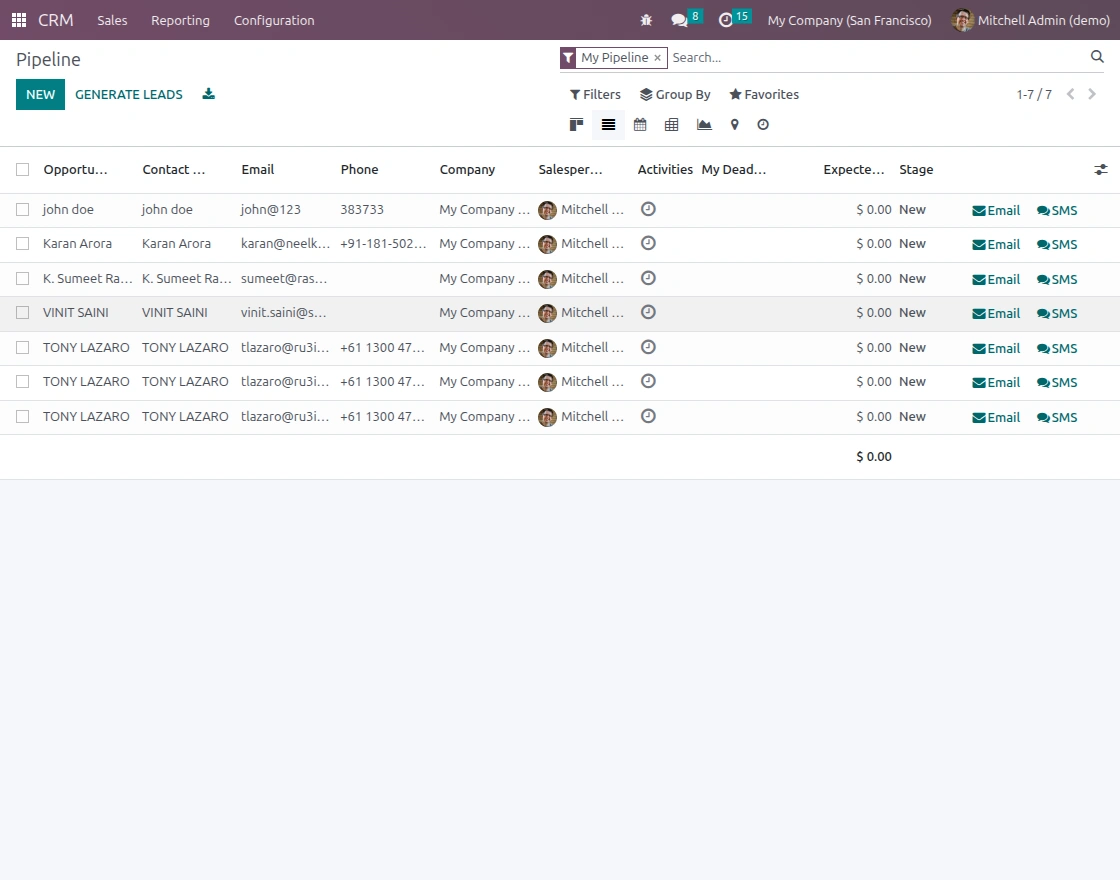
13. Track Leads generated from business card information. Users can monitor progress through different sales stages directly in Odoo.
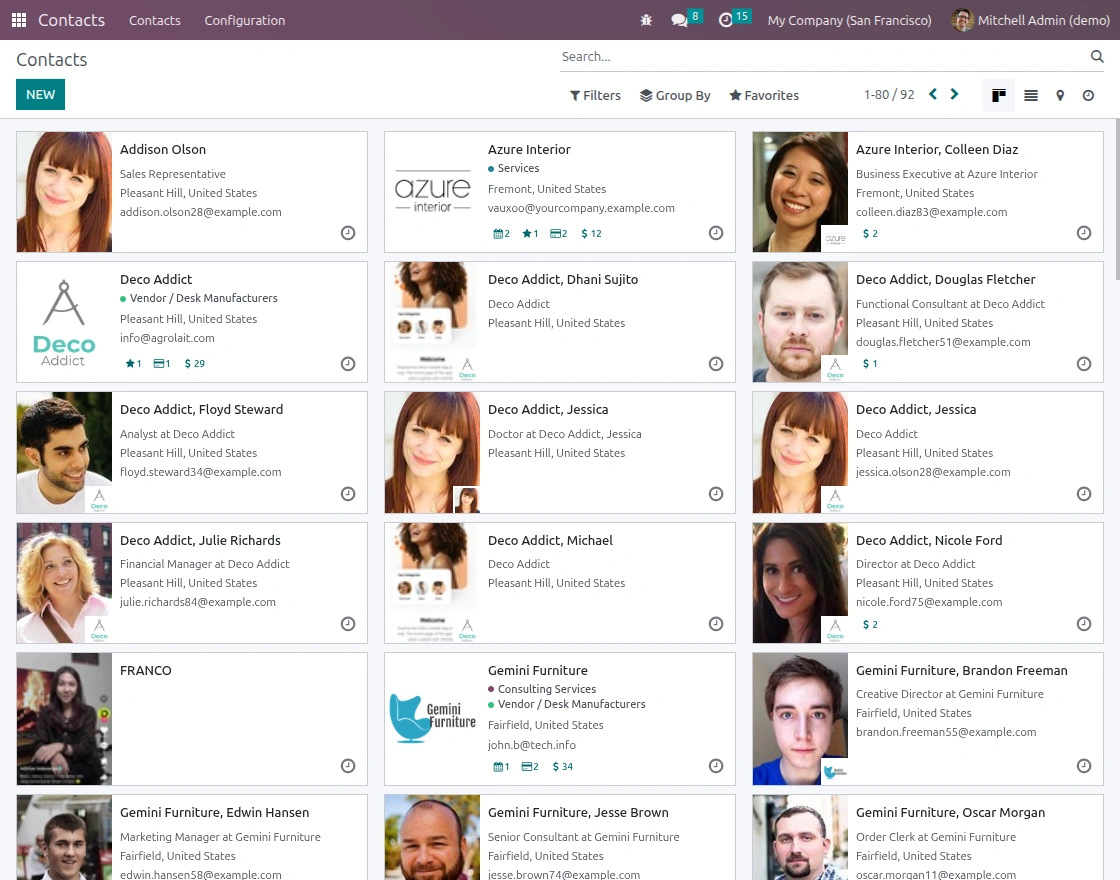
14. View all saved contacts in a single list. This helps users quickly access customer and company information when needed.
Need Help?
Hope you find the guide helpful! Please feel free to share your feedback in the comments below.
If you still have any issues/queries regarding the same, please raise a ticket at the UV Desk.
I hope this helps. In case of any further queries, contact us at our support mail.
Thanks for paying attention!!
Current Product Version - 1.1.1
Supported Framework Version - V19, V18, V17, V16, V15

Be the first to comment.