This guide explains how to register your account, generate a license key, and activate a Webkul extension in the Adobe Commerce store.
Prerequisites For License Activation
Before proceeding with the activation process, ensure the following requirements are met:
- Access to your Adobe Commerce admin panel
- A valid purchase of the Webkul extension
- The corresponding Order ID received after purchase
- Your store domain (production or development) where the extension will be used
Account Registration & Sign-In
First, you need to register an account in the Aureus License Validator system. This account will allow you to generate and manage your keys.
If you already have an account, simply sign in and proceed to generate your key.
Registration Steps For License Activation
1. Open the Validator Portal
To begin, access the Aureus License Validator portal in your browser.
2. Initiate Registration
Next, click on Sign Up / Register to create a new account.
3. Select Store
Choose the platform from which you purchased the extension.
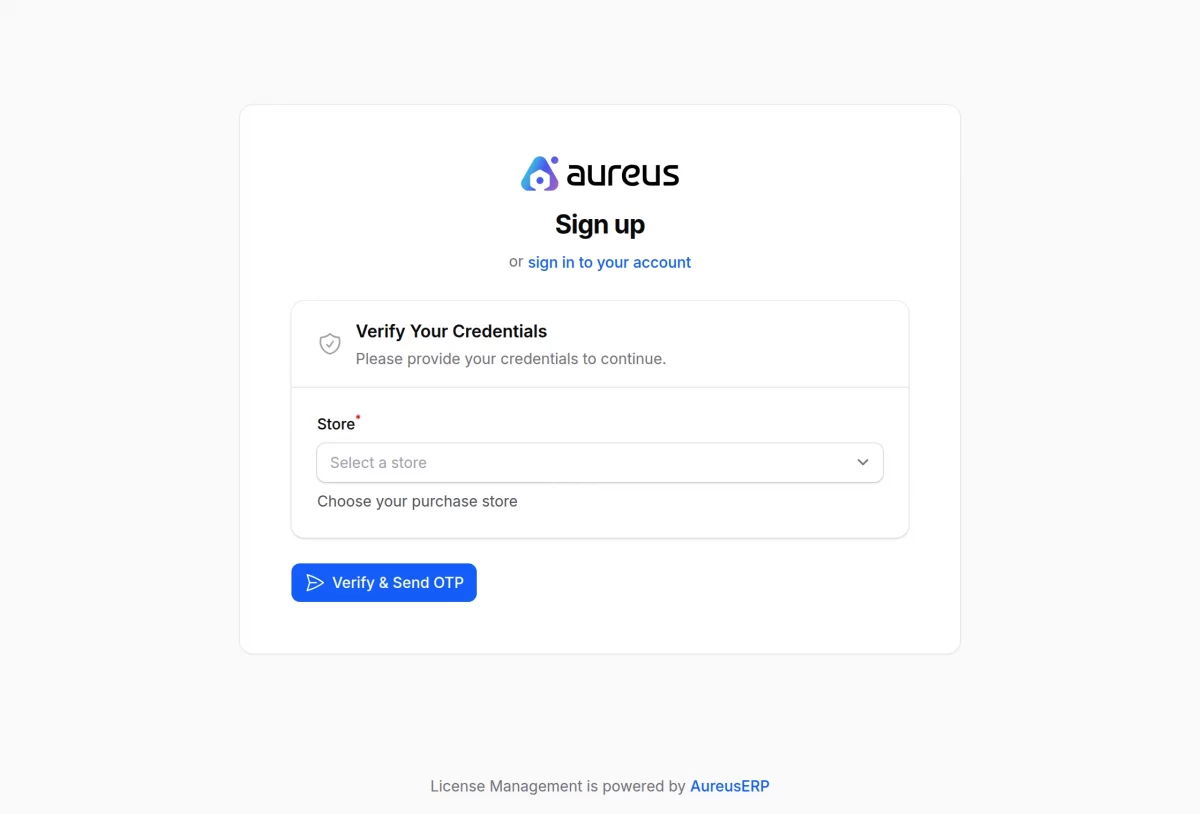
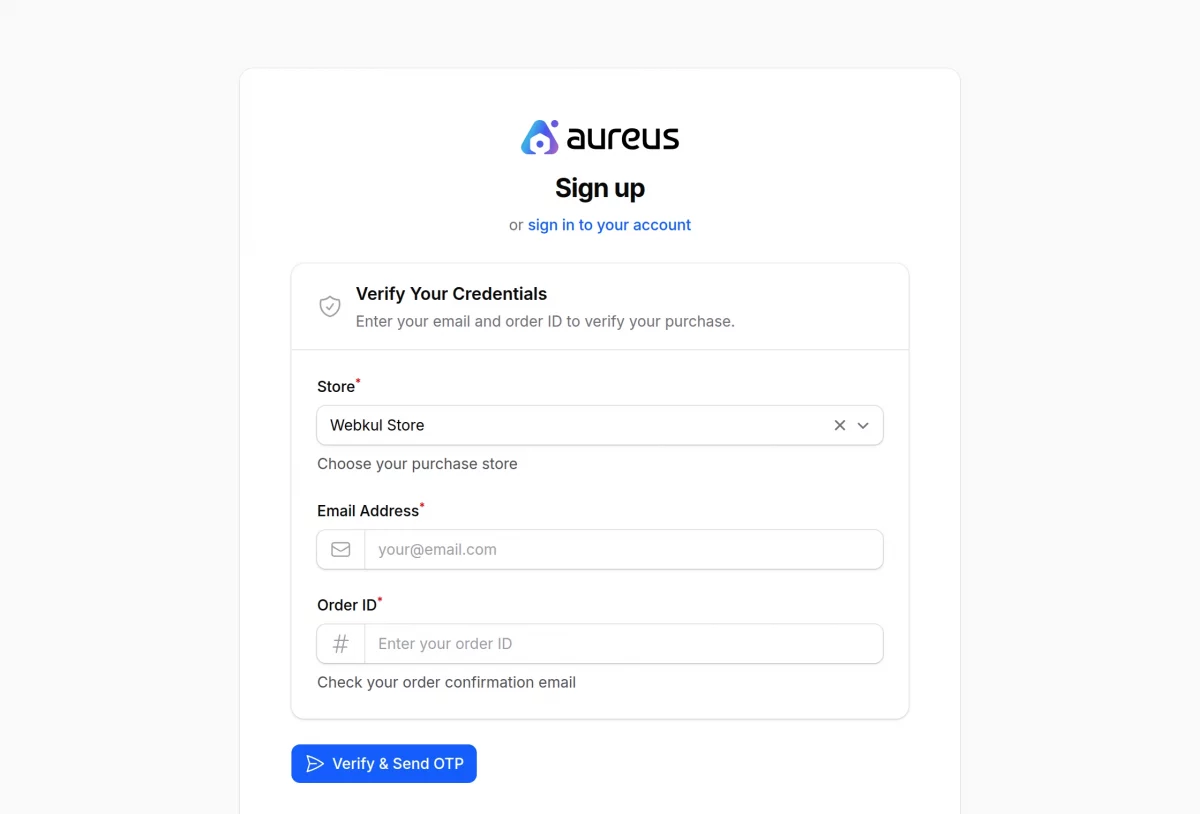
4. Enter Email Address And Order ID
Then, provide a valid email address and Order ID. Make sure you use an active email, as you will need it for verification and future access.
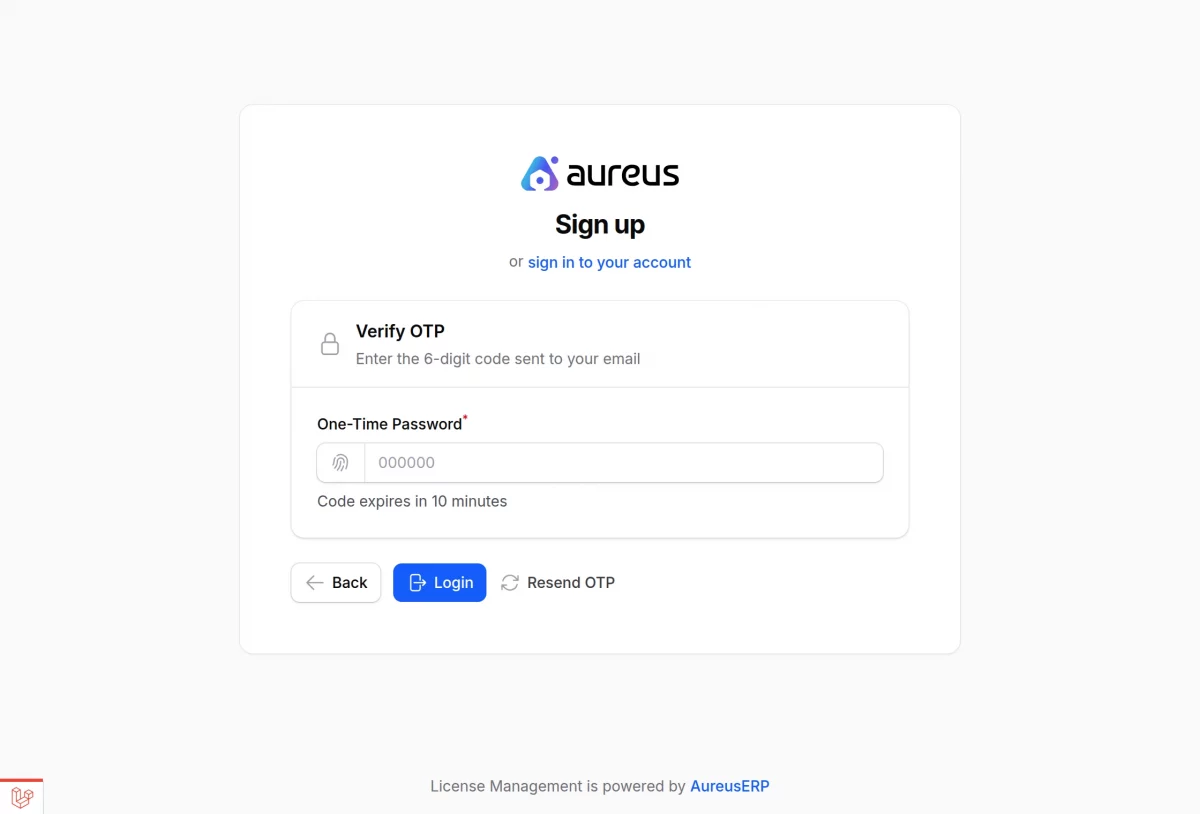
5. Email Verification via OTP
After that, check your inbox and enter the One-Time Password (OTP) sent to your email.
6. Complete Registration
Finally, once the system verifies your OTP, it will successfully create your account.
Sign In to Your Account
1. Go to the Login Page
Once registered, navigate to the login section.
2. Enter Your Email
Then, provide the same email address you used during registration.
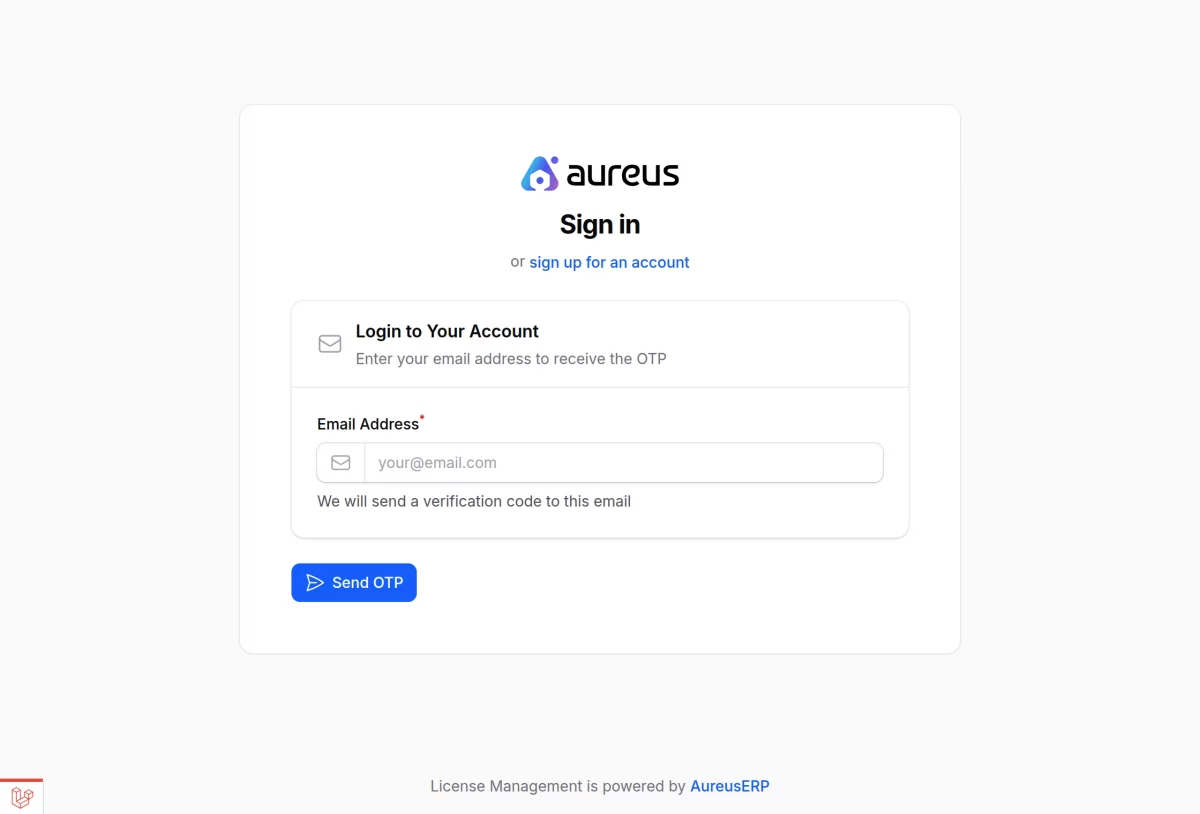
3. Verify with OTP
Next, enter the OTP sent to your email to proceed securely.
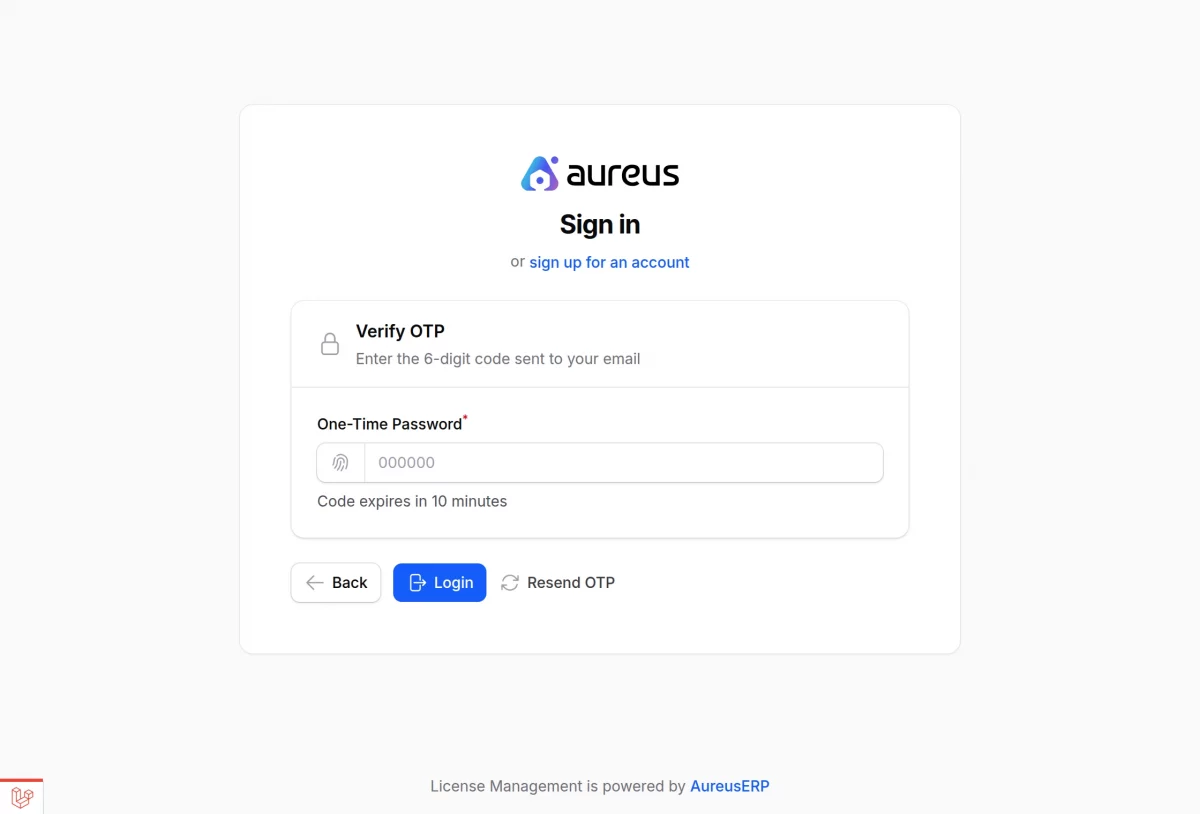
4. Access the Dashboard
After successful verification, the system redirects you to your dashboard.
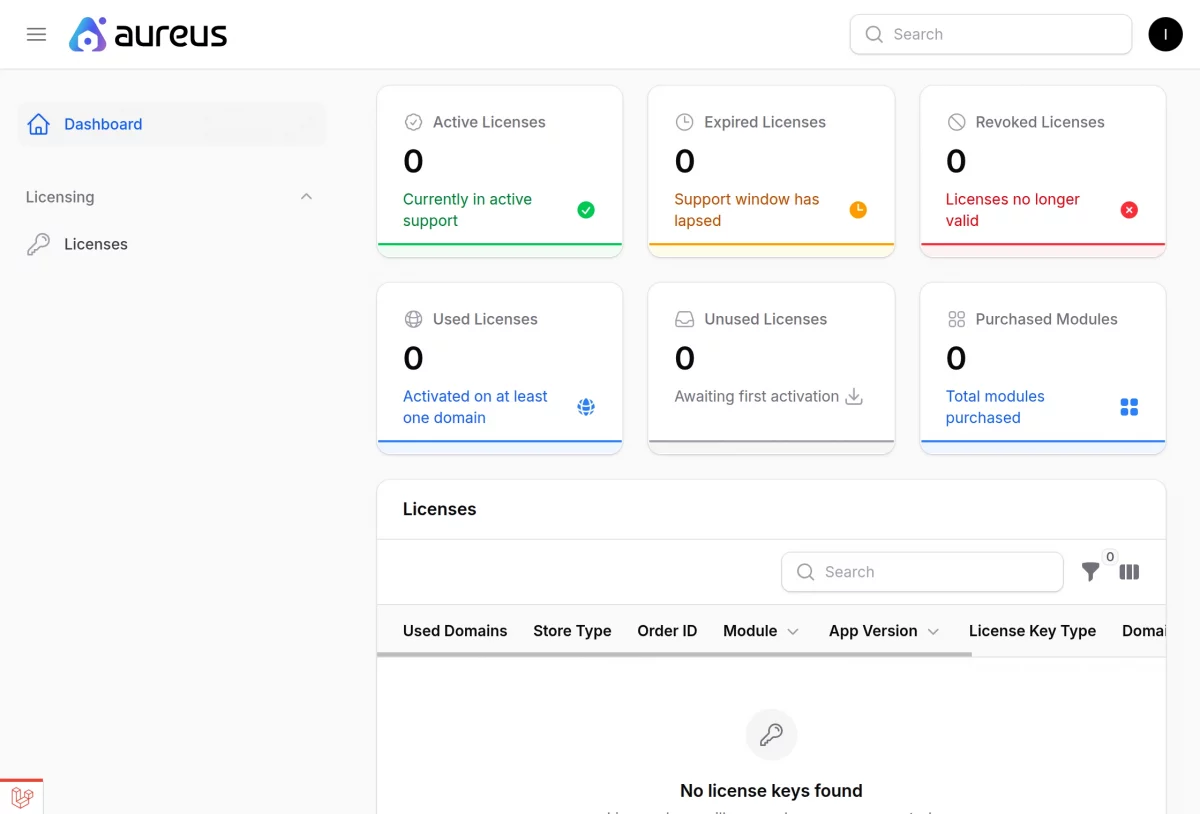
Generate Key
After logging in, you can proceed to generate a license key for your Adobe Commerce store.
1. Open License Management
From your dashboard, navigate to the License Management section.
2. Add a New License
Then, click on Add License to start the process.
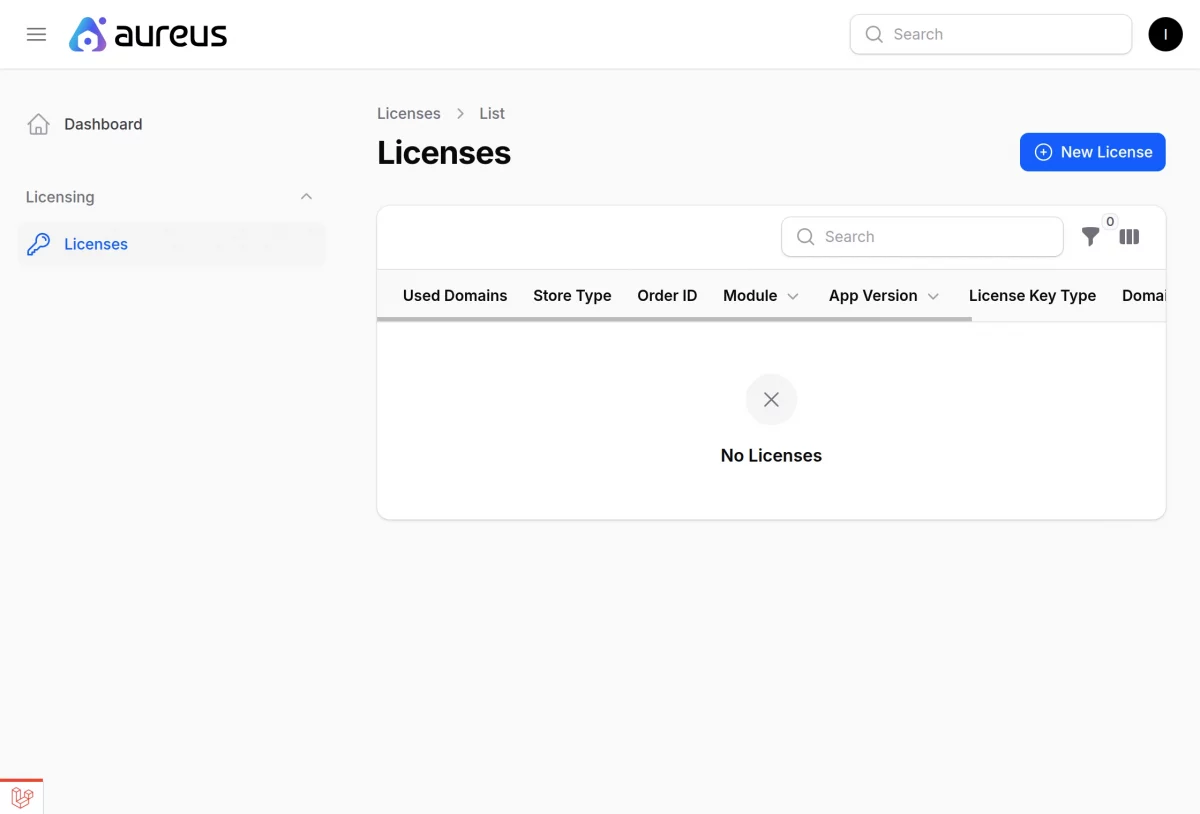
3. Select Store / Marketplace
After that, choose the platform from which you purchased the extension.
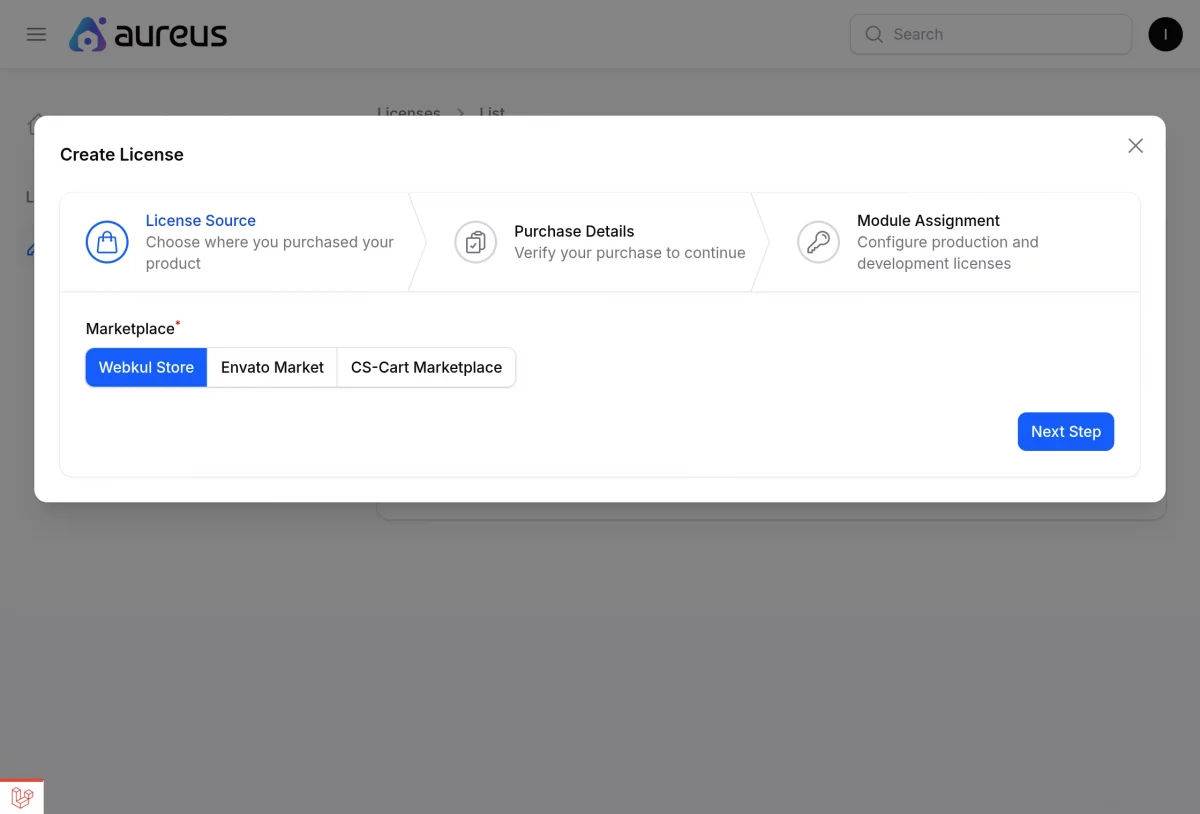
4. Enter Order ID
Next, enter your Order ID to confirm your purchase.
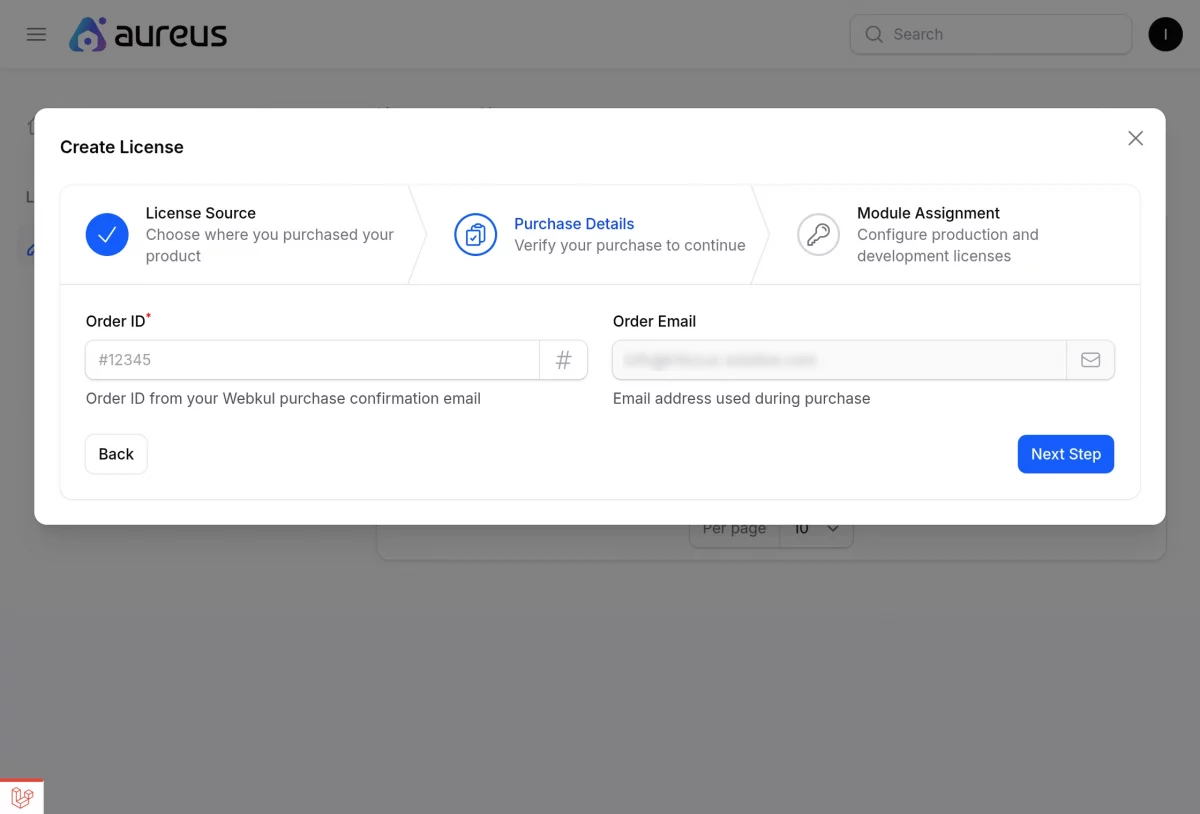
5. Provide Domain Name
Then, enter your Adobe Commerce store URL. Ensure that you enter the correct domain.
- Development Domain: Enter your development domain.
- Production Domain: Enter your production domain.
Initially, you can generate only a development key. Once you are ready to go live, you can then proceed to generate the production key.
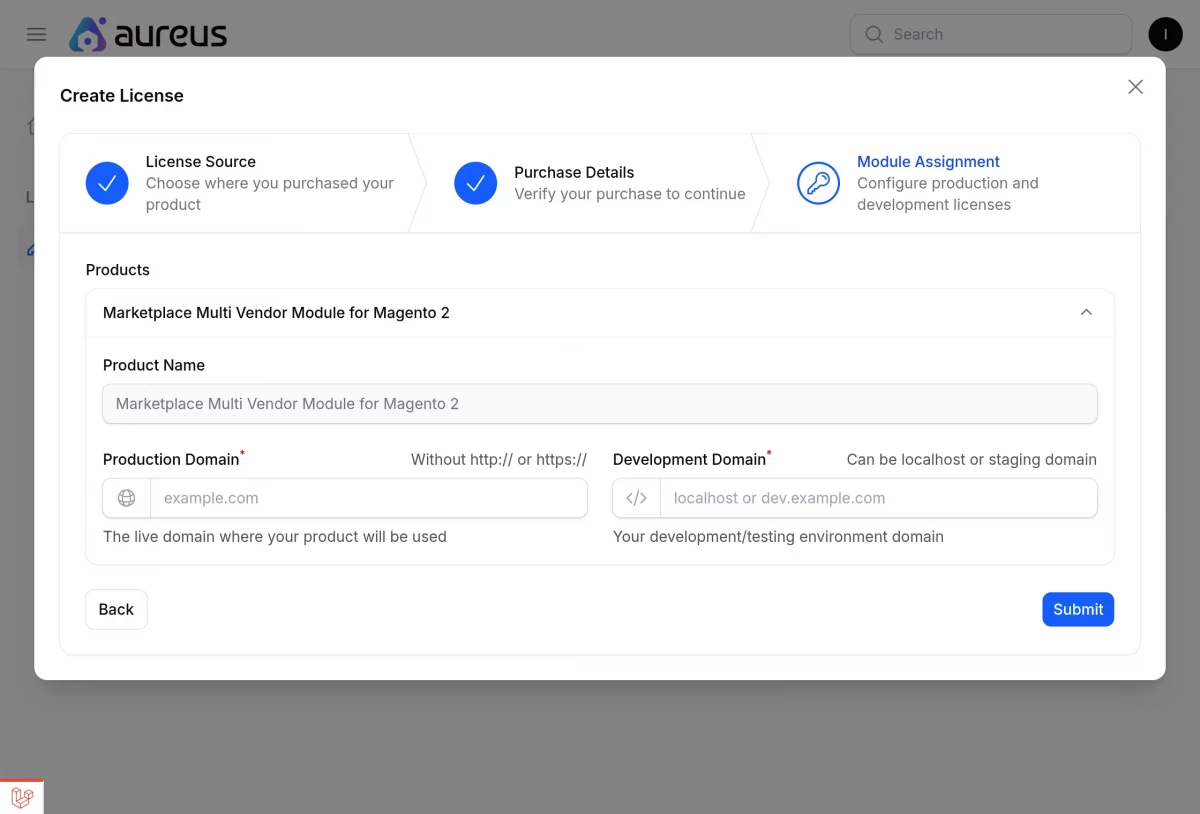
6. Submit the Details
Finally, review the information and submit the form to create the key.
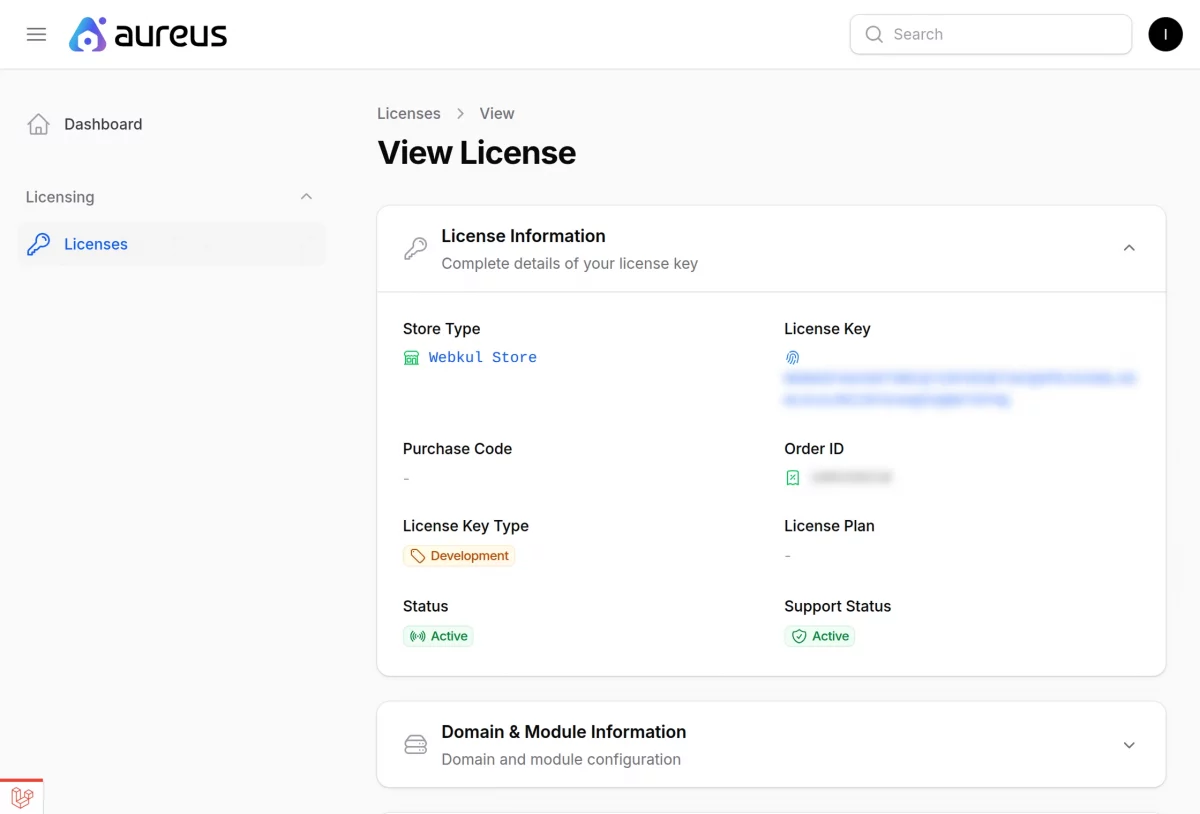
Activate License in Adobe Commerce
Once you generate the license key, you need to activate it in your Adobe Commerce Admin Panel.
1. Log in to Adobe Commerce Admin
First, access your Adobe Commerce backend using your admin credentials.
2. Navigate to Configuration
Then, go to:
Stores → Configuration → Webkul → [Extension Name]
3. Find License Settings
Next, locate the License Settings section within the extension configuration.
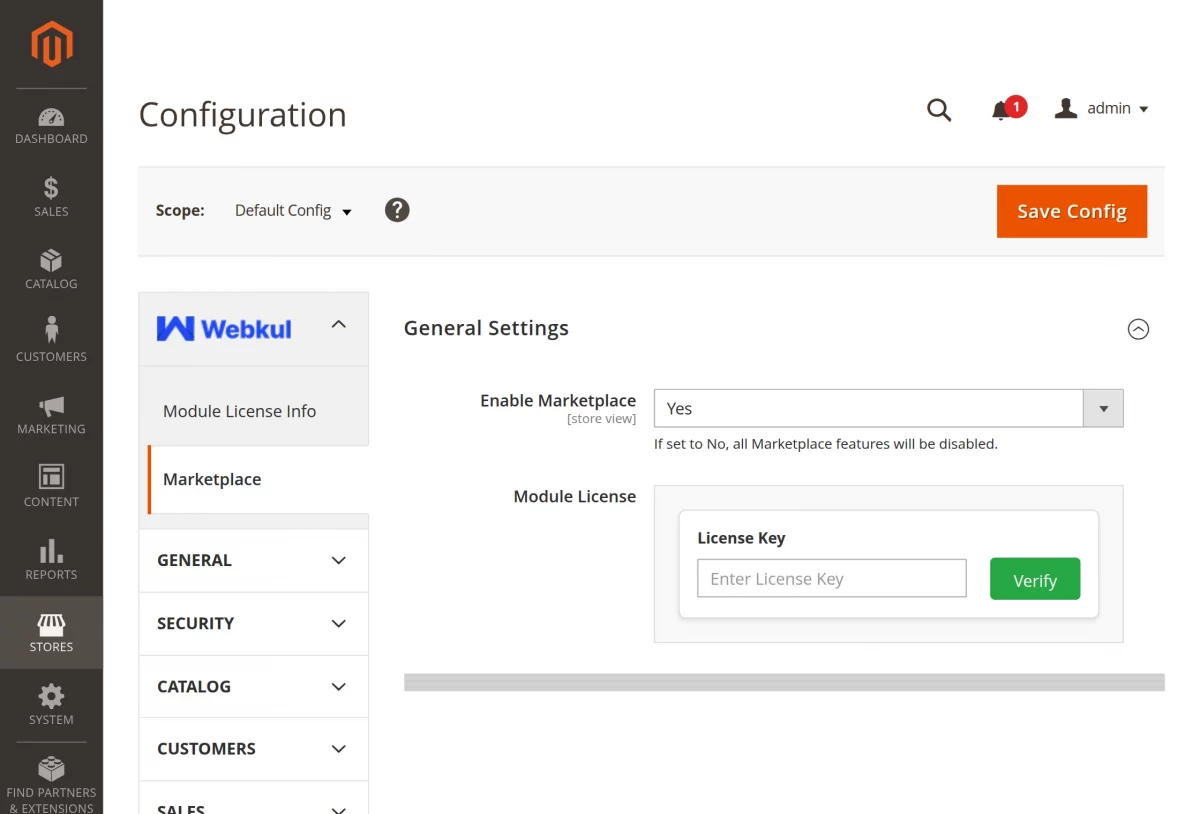
4. Enter License Details
After that, paste your License Key into the required field.
5. Save Configuration
Finally, click Save Config to apply the changes.
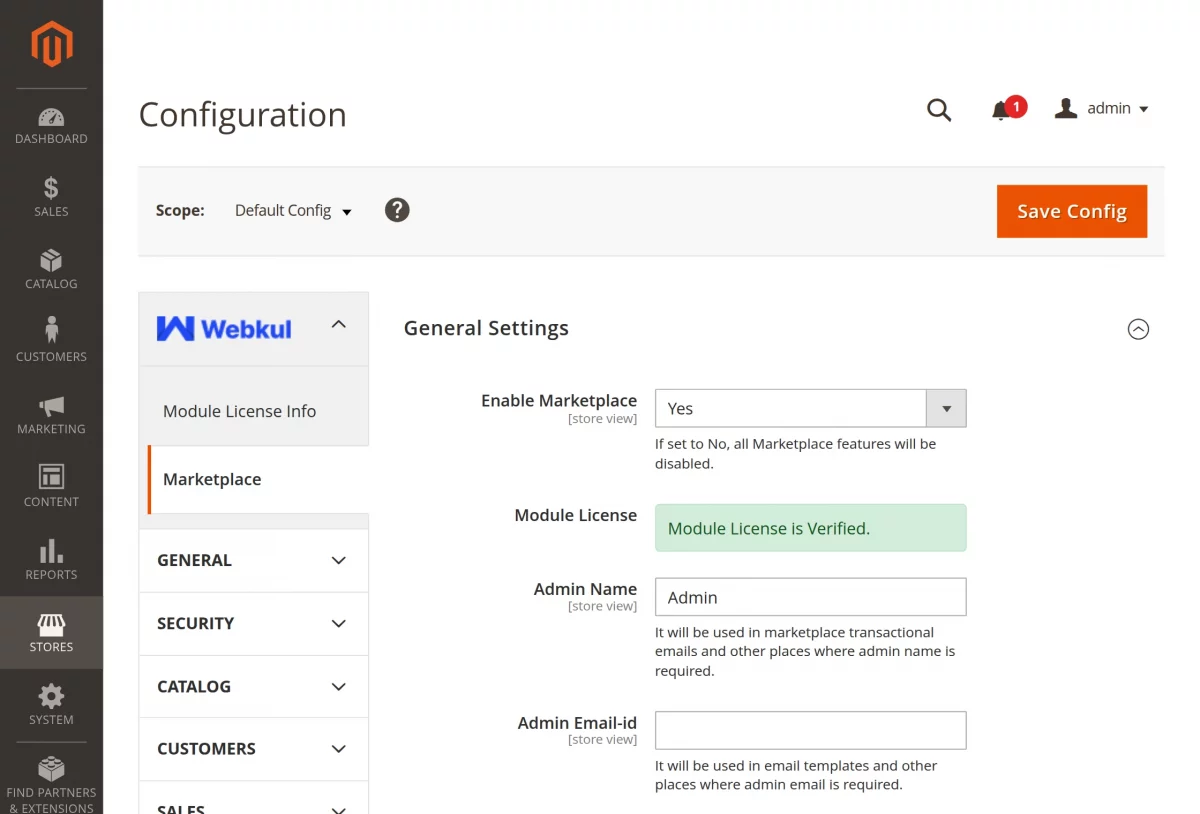
The license is validated successfully, and the extension is activated and ready to use.
Furthermore, there is no need to search elsewhere; seize the chance to initiate your projects with the accredited Magento 2 development company.
For a personalized touch, engage and hire Magento developers who are focused on delivering exceptional results for your custom e-commerce projects.

Be the first to comment.