Magento 2 Hyva Multi-Vendor Marketplace Theme is designed for fast and modern storefronts.
It improves page speed, user experience, and responsiveness across all devices.
The theme lets store owners configure mega menus, homepage banners, featured products, and footer sections directly from the admin panel.
It integrates smoothly with Webkul Marketplace and supports multivendor stores. Sellers and customers get a consistent and seamless shopping experience.
The theme supports multiple store views for different languages, regions, and brands. It is ideal for businesses planning to scale their marketplace.
Magento 2 Hyva Multi-Vendor Marketplace Theme Guide Features
- Hyvä storefront with a clean, modern look and easy-to-use design.
- Simple mega menu setup for fast and smooth site navigation.
- Manage home page banners to stay in control of your promotions.
- Show off key products with a clear and visual product showcase.
- Built-in design that works well for stores with more than one vendor.
- Set up your footer with your brand name, logo, and store details.
- Use store-view settings to set up and run more than one store with ease.
- A better shopping experience that is simple, fast, and easy to use.
Installation of Magento 2 Hyva Multi-Vendor Marketplace Theme
Download Module
You need to log in to the Webkul Store, go to My Account > My Purchased Products section, and verify.
And then, download and extract the contents of this zip folder on the system.
Upload Folder
Once the module zip extracts, follow the path src>app & copy the app folder into Magento 2 root directory on the server, as shown below:

Run Commands
php bin/magento setup:upgrade
php bin/magento setup:di:compile
php bin/magento setup:static-content:deploy
php bin/magento indexer:reindex
php bin/magento cache:flush
Module Configuration | Magento 2 Hyva Multi-Vendor Marketplace Theme
After successful installation of the Theme, the admin will navigate through Stores > Configuration > MVM Hyva Theme Configuration
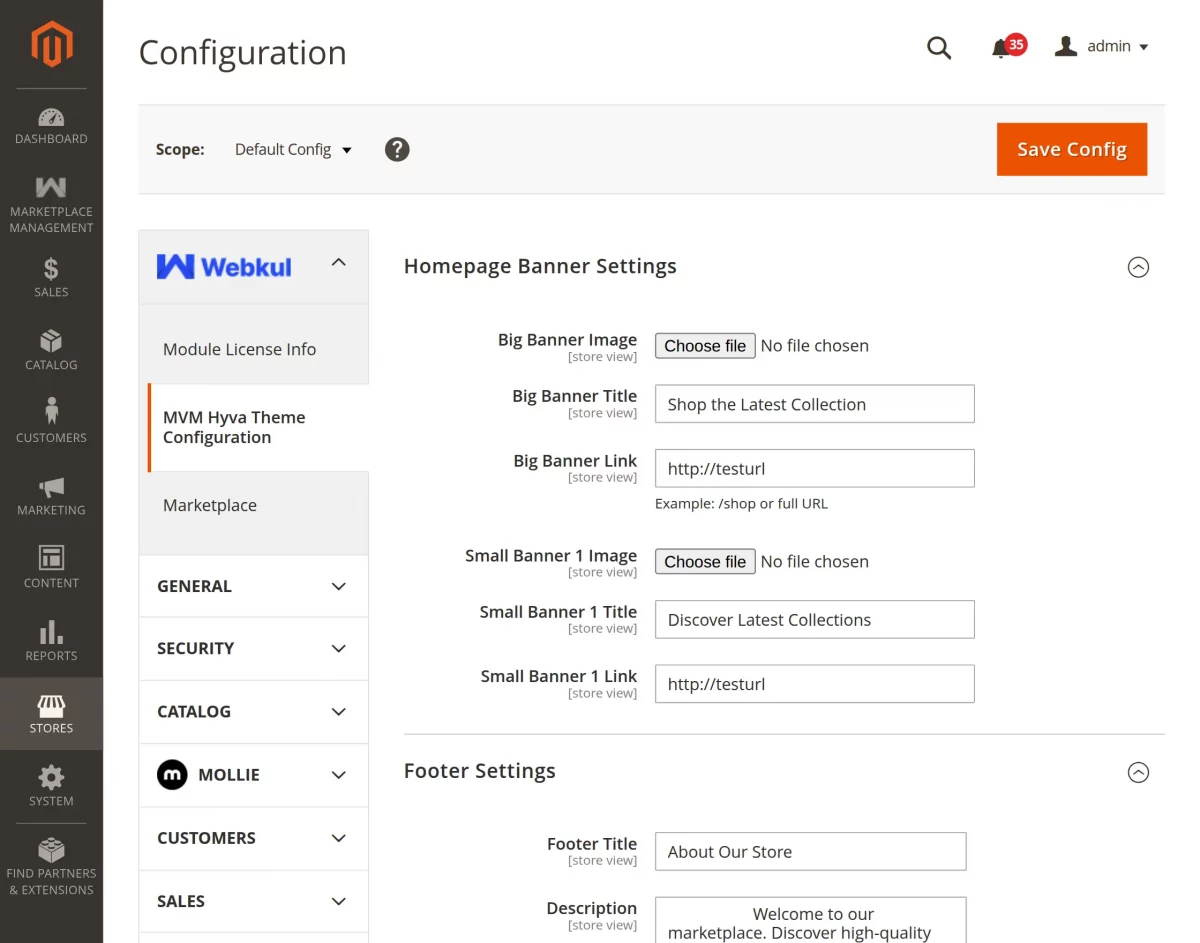
Further, the following options are available for configuration,
Homepage Banner Settings
Big Banner Image: Upload the main banner image that will be displayed prominently on the homepage to highlight promotions, collections, or featured marketplace offerings.
Small Banner 1 Image: Upload a secondary banner image to promote specific products, categories, offers, or marketplace sections.
Big Banner Title: Enter a title for the main banner to attract customer attention and showcase important campaigns or announcements.
Big Banner Link: Specify the destination URL or store path where customers will be redirected after clicking the main banner.
Small Banner 1 Title: Add a title for the small banner to provide a clear message and encourage customer engagement.
Small Banner 1 Link: Enter the URL or store path that customers will visit when they click the small banner.

Footer Settings
Footer Title: Enter a heading for the footer section to introduce your store, marketplace, or business information to customers.
Description: Add a brief description about your marketplace, products, services, or brand to help visitors understand your business and build trust.
Footer Link: Specify a URL where customers can learn more about your company, marketplace, featured services, or important store information.
Copyright Content: Enter the copyright text displayed in the footer to protect your brand identity and communicate ownership of the store content.
Facebook Link: Provide the URL of your Facebook page to help customers connect with your brand and stay updated with announcements and promotions.
X Link: Enter your X (formerly Twitter) profile URL to share updates, product launches, and marketplace news with your audience.
Instagram Link: Add your Instagram profile URL to showcase products, promotions, and visual content while increasing customer engagement.
LinkedIn Link: Specify your LinkedIn company page URL to strengthen your professional presence and share business-related updates.
YouTube Link: Enter your YouTube channel URL to provide customers with product videos, tutorials, demonstrations, and promotional content.
Mega Menu
Category Max Depth: Set the maximum category levels displayed in the mega menu for easier store navigation.
Images Configurations
Login Banner Image: Upload a banner image to enhance the appearance of the customer login page.
Add Products to Feature List
Open the product edit page and enable the Is WK Featured Product attribute, as shown below, to include the product in the Featured Products list.

To add a product to the Featured Products list, navigate to Catalog > Products.
Open an existing product by clicking the Edit link or create a new one using the Add Product button.
Enable the Is WK Featured Product option, then click Save to add the product to the featured product list.
Magento 2 Hyva Multi-Vendor Marketplace Theme Guide Frontend Overview
Home Page
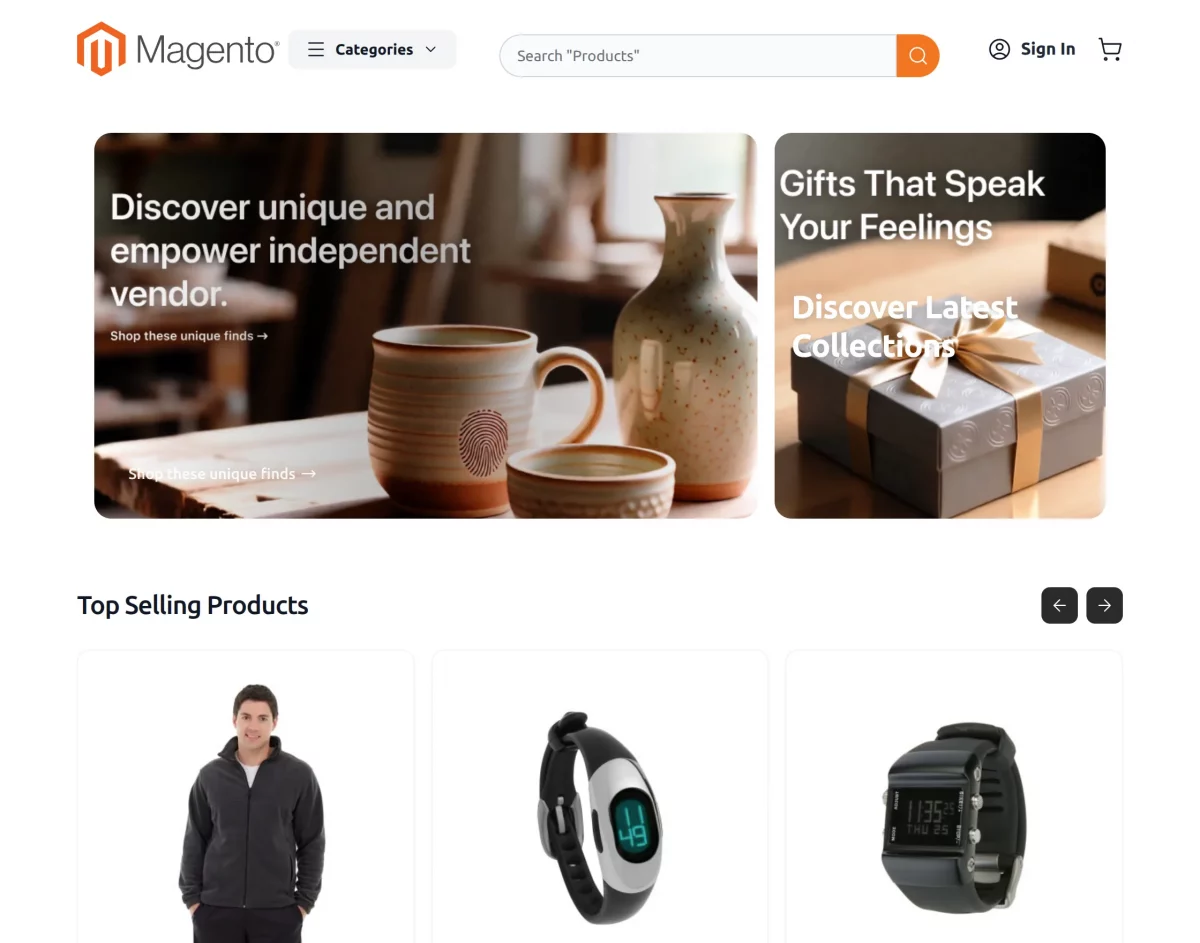
This is how the homepage will appear on the front-end of Magento 2 Hyva Multi-Vendor Marketplace Theme.
The homepage showcases a clean and modern marketplace storefront.
Promotional banners, featured products, category navigation, and a responsive layout.
Built on Hyvä, it delivers a fast and seamless shopping experience across desktop and mobile devices.
Featured Products
The Featured Products section showcases specially selected products, making it easier for customers to find and explore top offerings from the marketplace.

Customer Login Page
The login page features a customizable banner image and a simple account access form.
Allowing customers to sign in, recover passwords, or create a new account with ease.

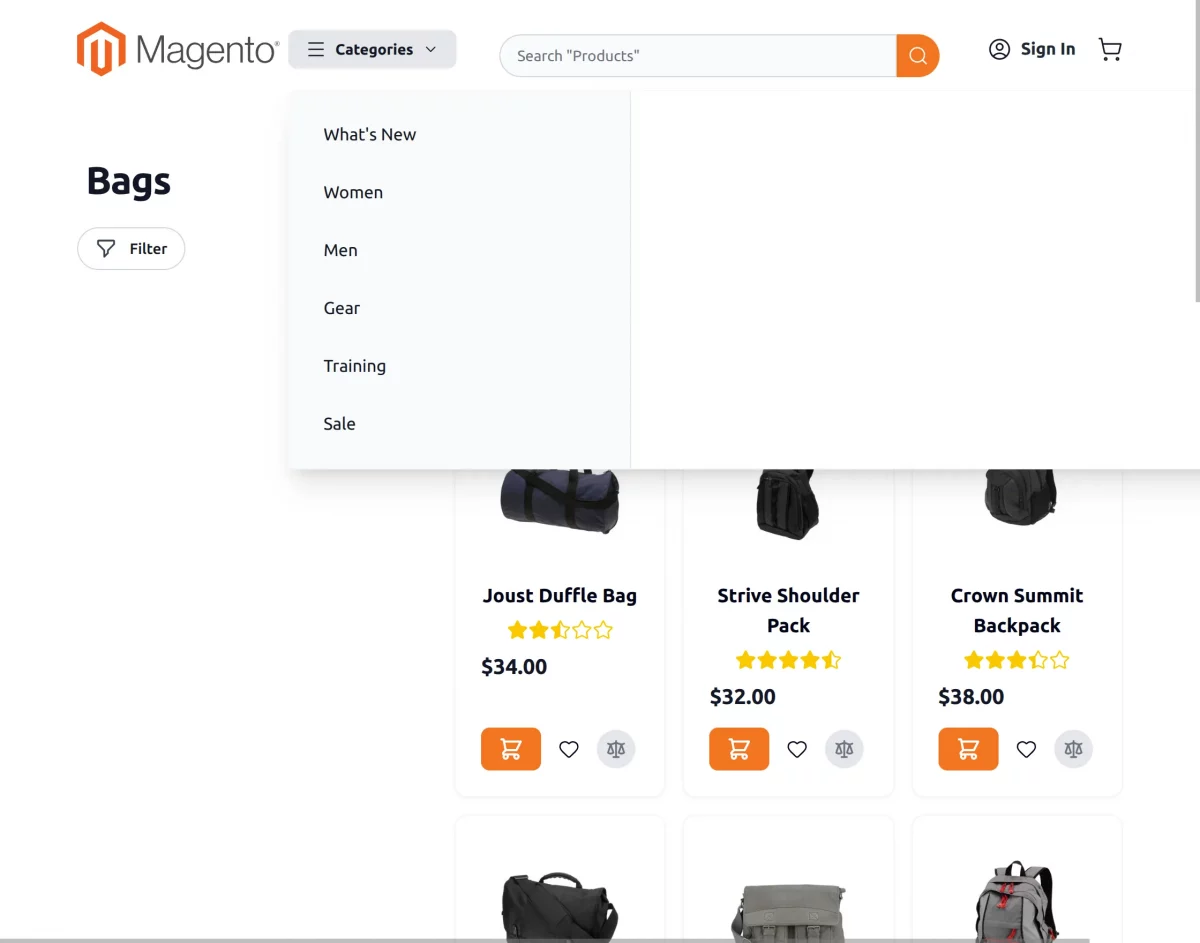
Category Page
The customers can view the category in list layout for more detailed product information.
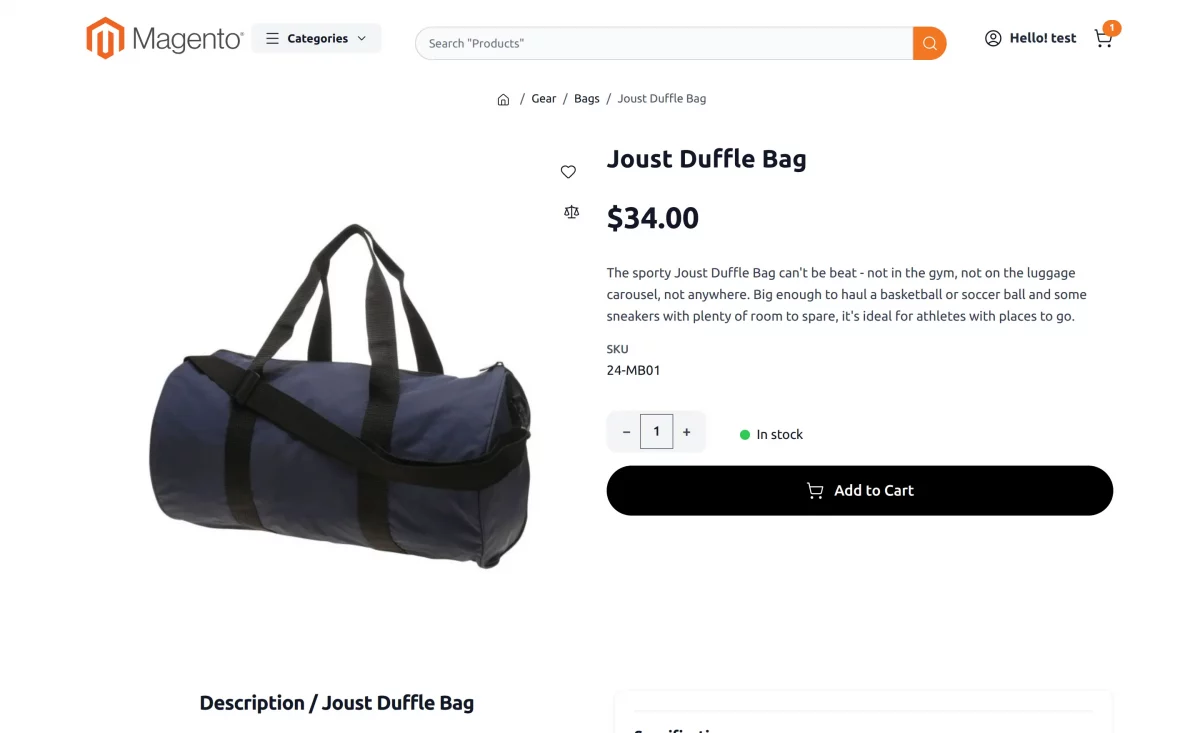
Product Page
The product page showcases detailed product information, images, pricing.
Purchase options in a clean and responsive layout, helping customers shop with confidence.
Product Compare Page
The customers can do the comparison between the two or more products of the store. Following is the product comparison page.

My Wishlist Page
Here’s the customer wishlist page, the customer can edit the quantity, add the product to cart, update wish list, and share the wish list with friends.

The customers can also add a comment for their wish list products.

Shopping Cart
Customers can access the shopping cart from any page by clicking the cart icon.
The cart section displays all added products along with their details, and the cart icon shows the total number of items currently in the cart.ts added to cart.

Frontend Footer
Below is the frontend footer view of the Magento 2 Hyvä Multi-Vendor Marketplace Theme with store information, quick links, and social media integration.

The footer provides quick access to key store pages and links.
It includes a store description, social media icons, Company links, and a Newsletter signup field.
Sellers can access the Marketplace section, and the bottom bar displays the store name and copyright details.
Magento 2 Hyvä Multi-Vendor Marketplace Theme
Magento 2 Hyvä Multi-Vendor Marketplace Theme is built on the Hyvä frontend and fully supports the Webkul Multi-Vendor Marketplace module.
It delivers a fast, responsive, and modern marketplace storefront experience.
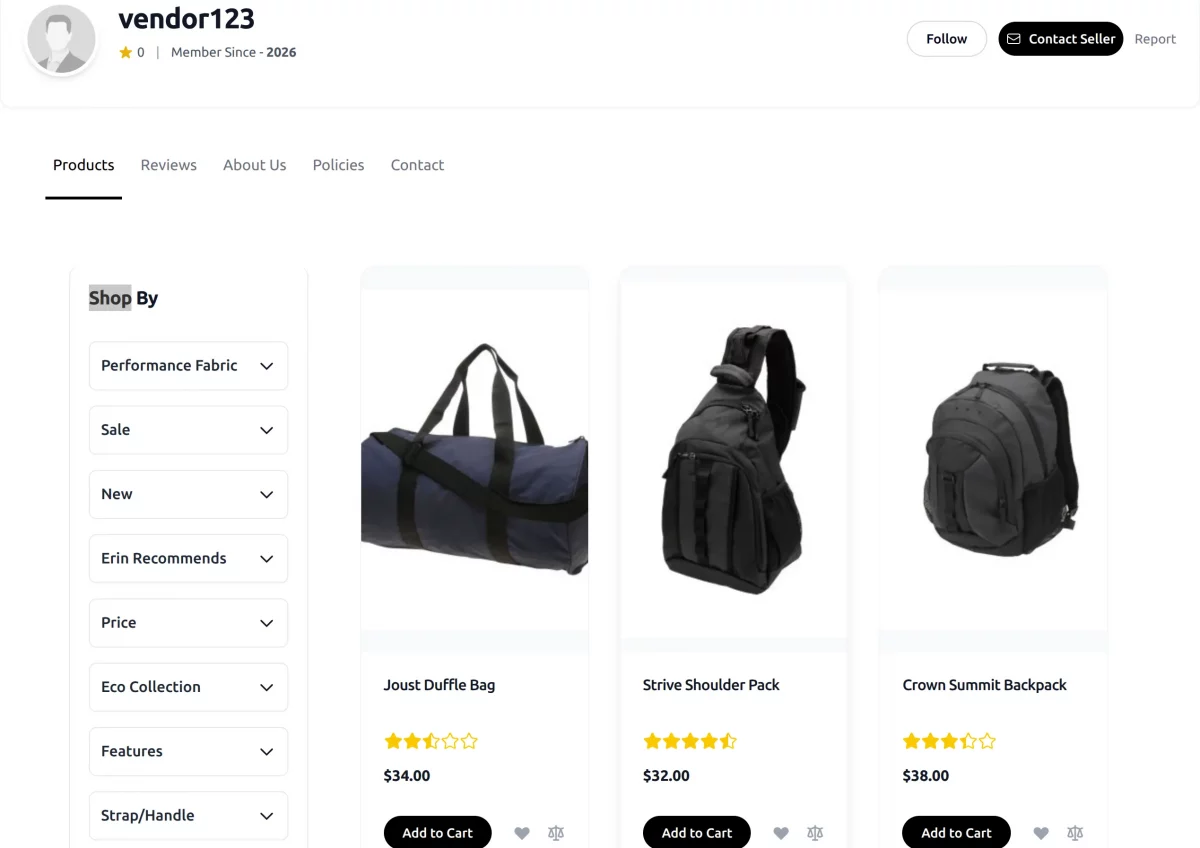
Seller Collection Page
The Seller Collection page allows customers to browse all products offered by a specific seller in one place.
Seller Order List
Designed with the Hyvä storefront experience.
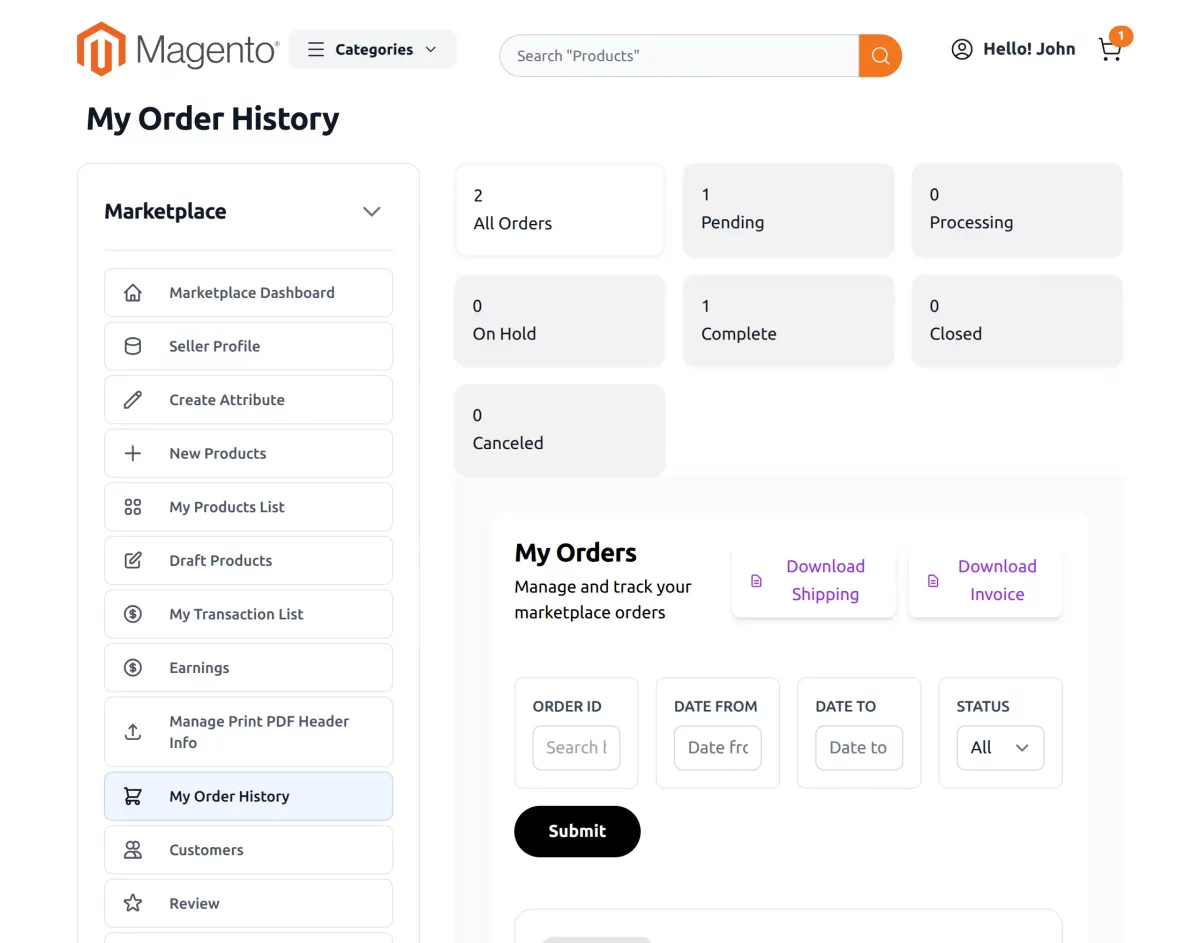
The Seller Order List offers a streamlined layout that helps sellers efficiently monitor and manage marketplace orders from a single page.

Seller Order Details
The Seller Order View page provides detailed information about each marketplace order in a clean and responsive Hyvä interface.
Sellers can easily access customer details, ordered products, shipping information, and order status from a single screen.

Marketplace Dashboard
A modern seller dashboard that displays essential store details and key marketplace information in a user-friendly layout.

Magento 2 Hyva Multi-Vendor Marketplace Theme Guide Mobile View
The theme is fully responsive, ensuring marketplace pages, menus, banners, and products display perfectly across all devices and screen sizes.
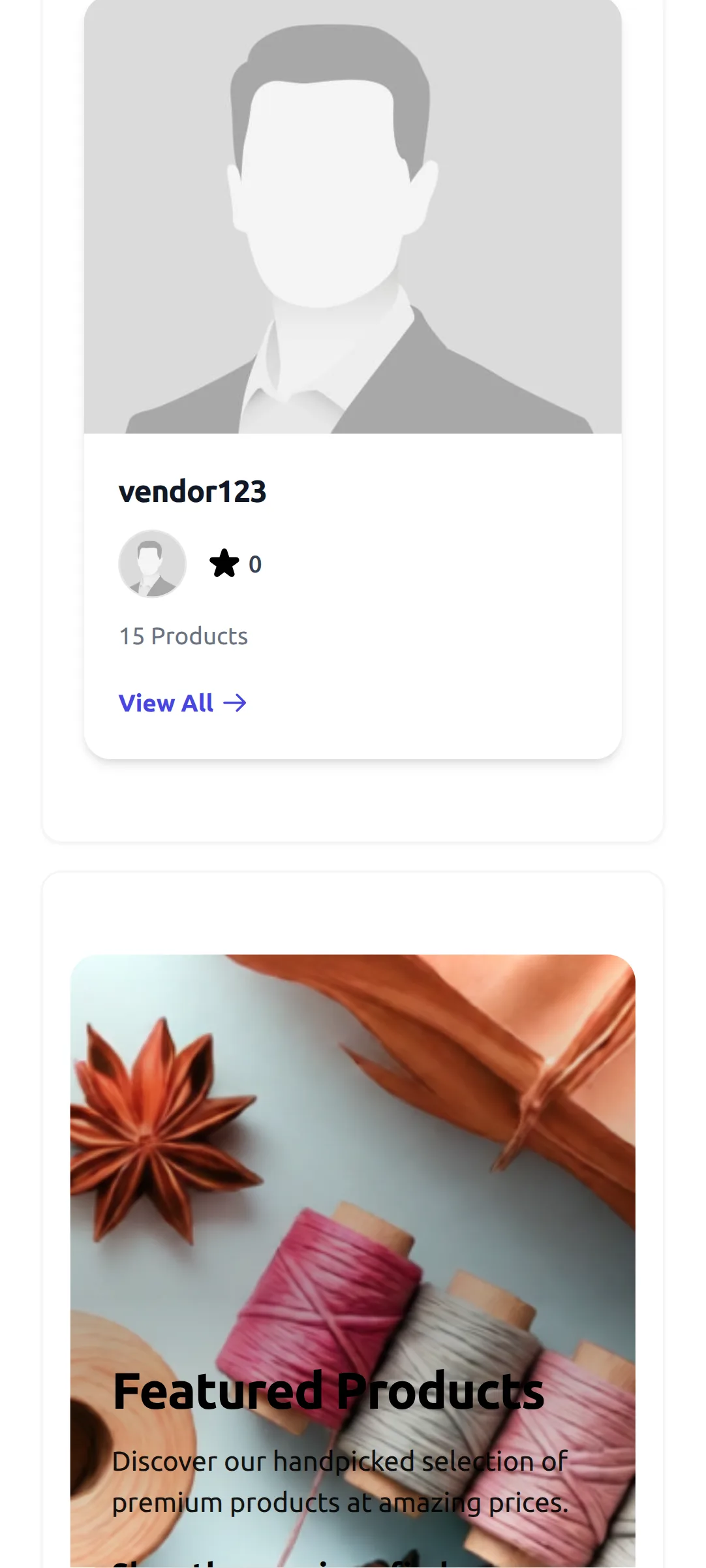
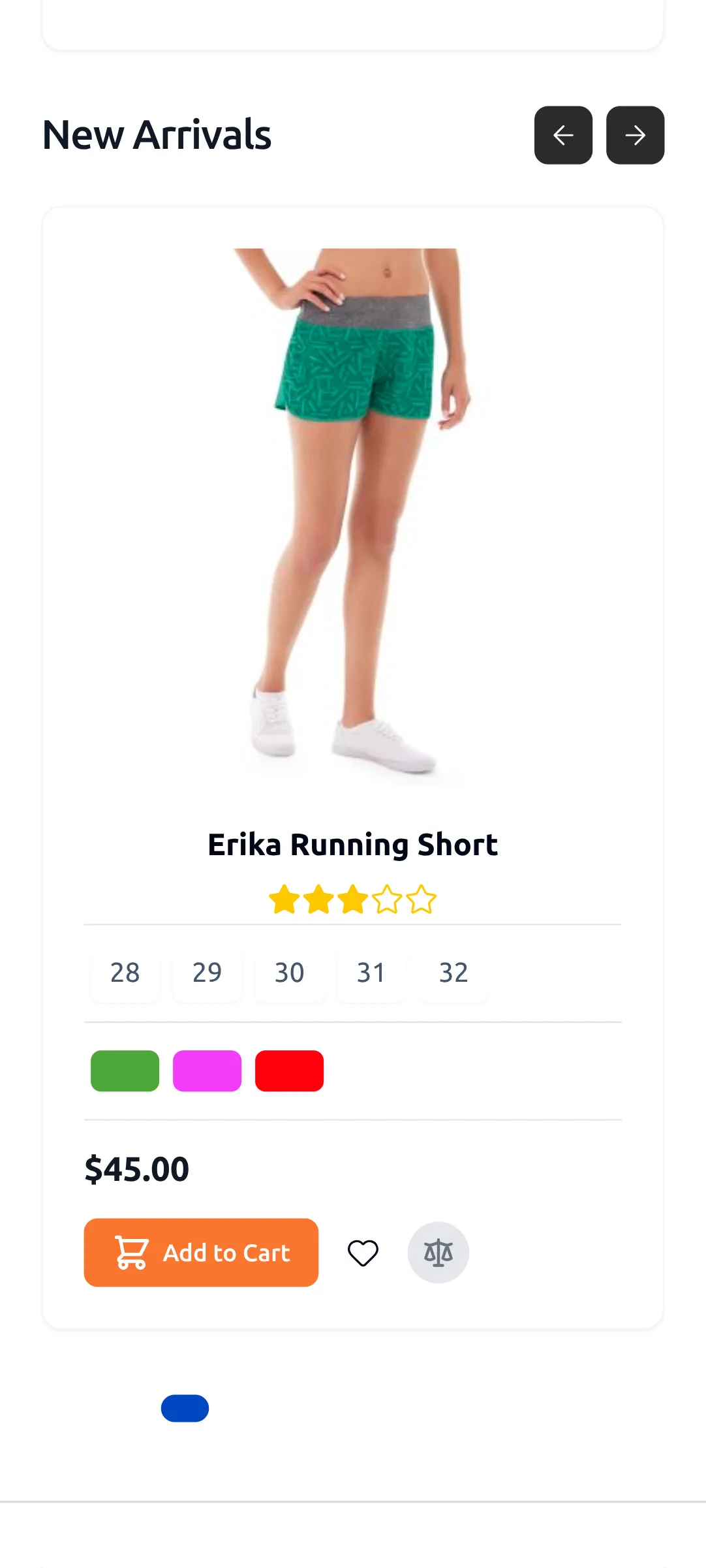
Home Page
The mobile homepage is optimized for smaller screens, ensuring a smooth and user-friendly shopping experience.
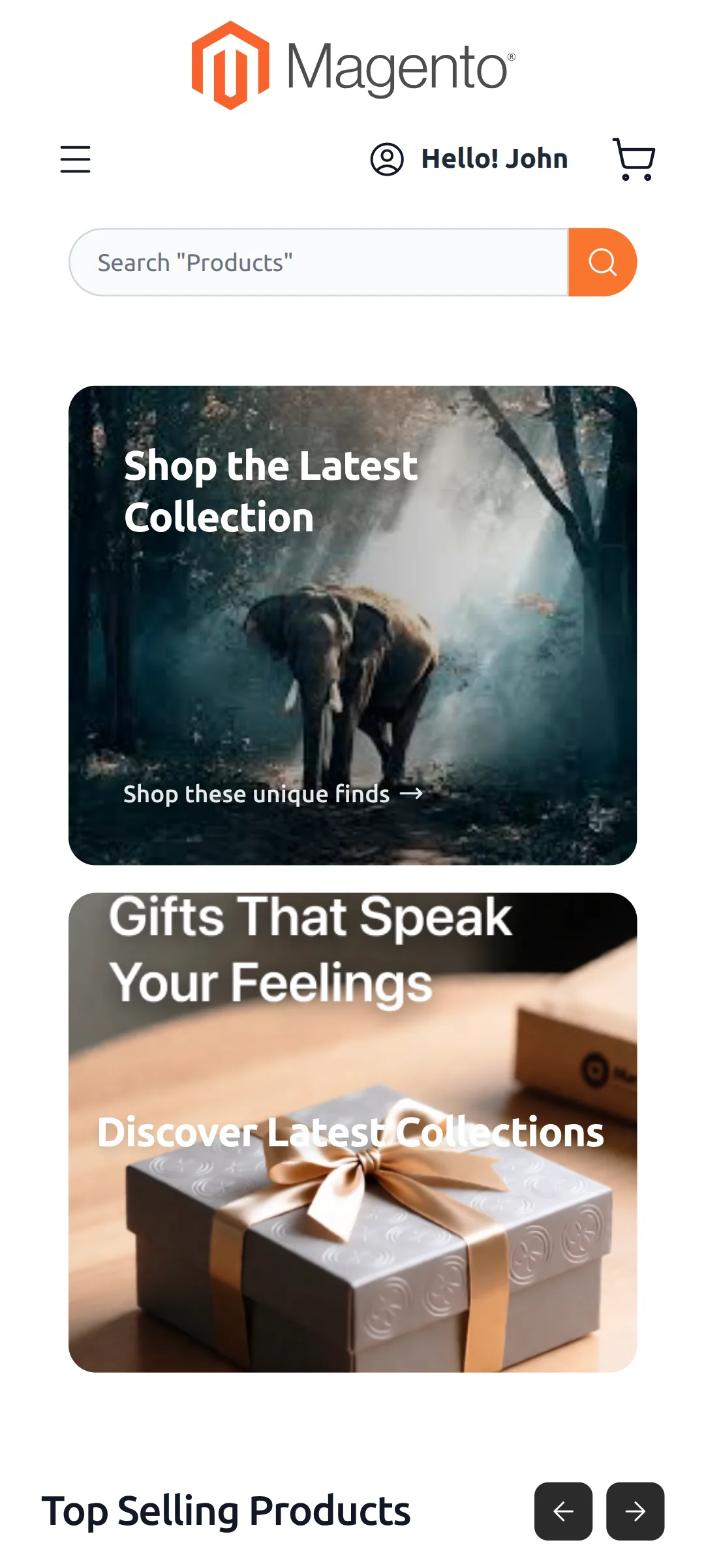
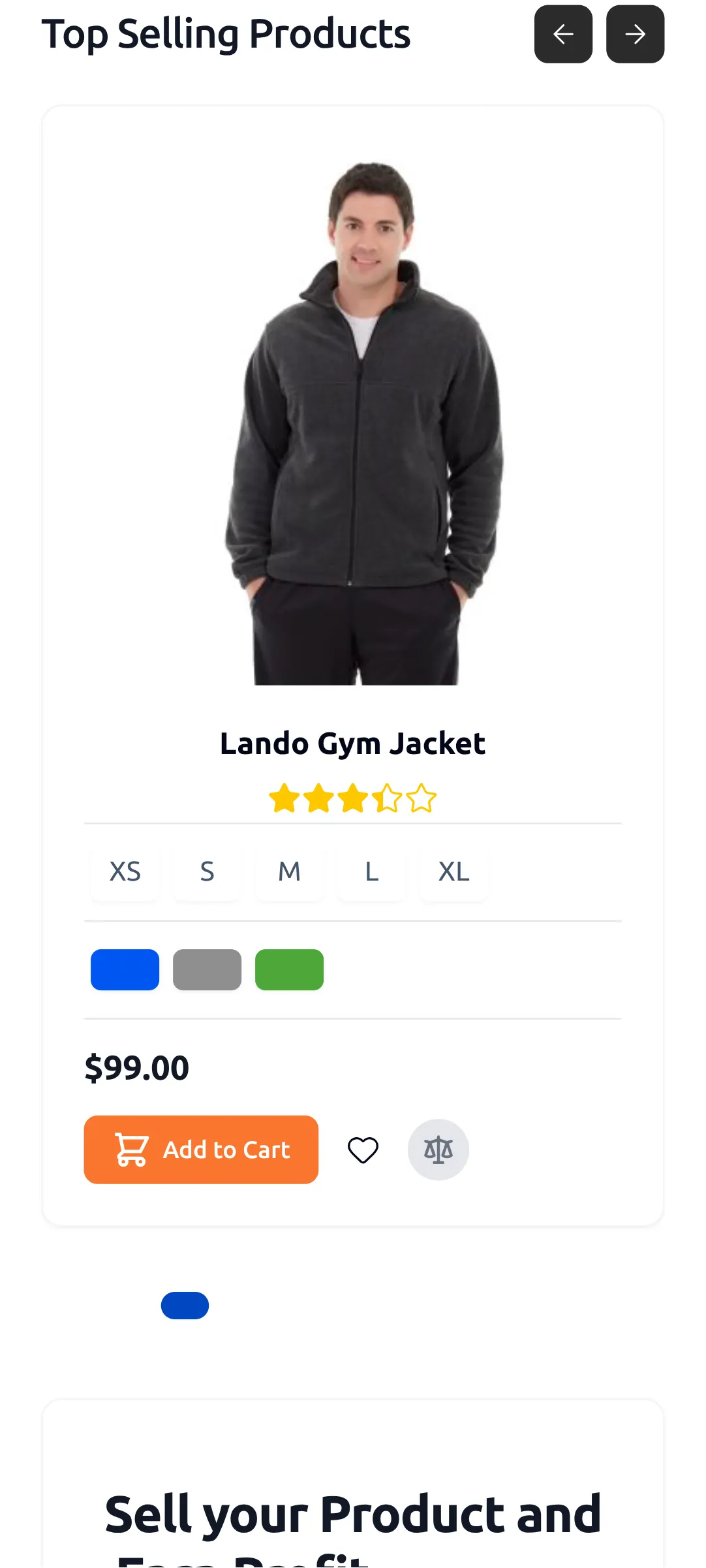
Banners, featured products, categories, and navigation menus automatically adjust to provide fast access and easy browsing on mobile devices.
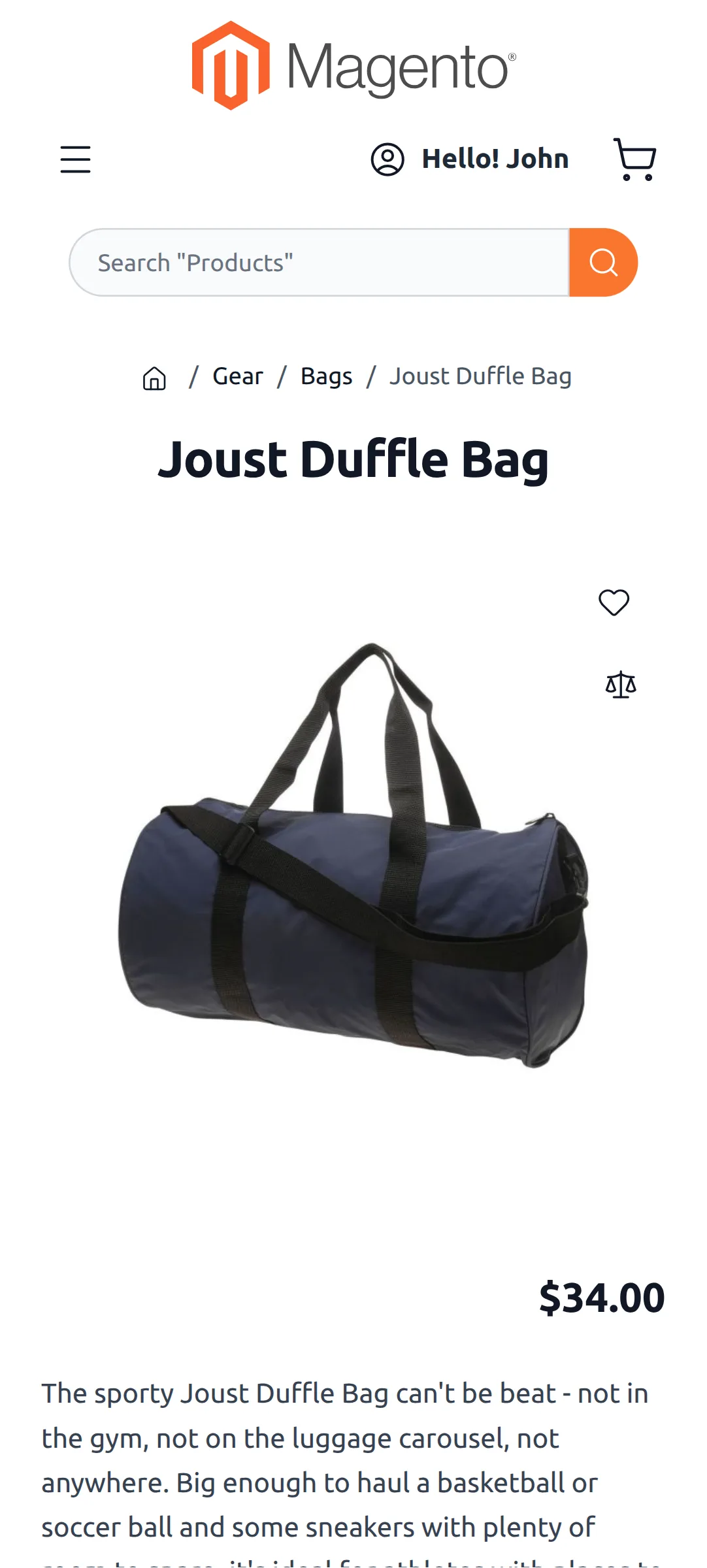
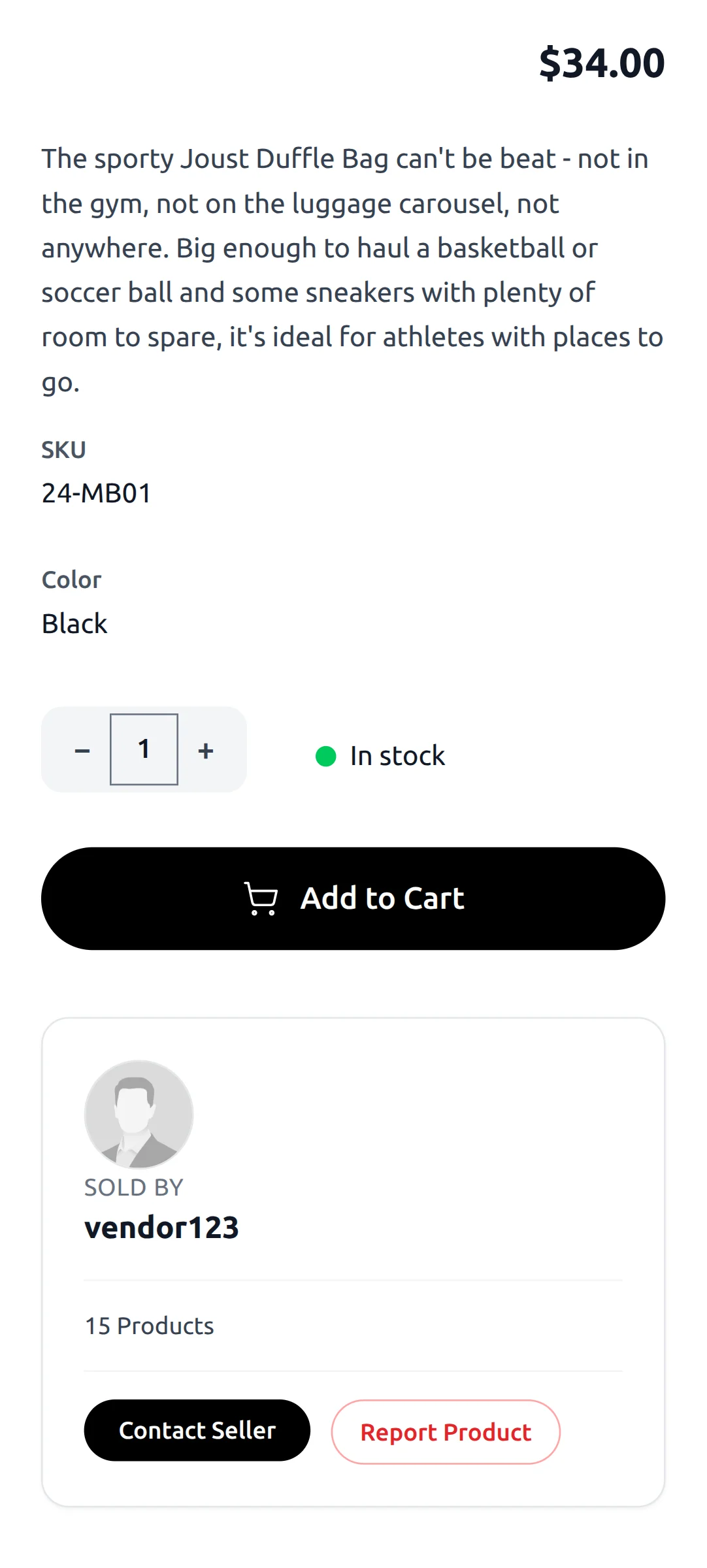
Product Page
The mobile product page is designed for easy browsing and shopping on smaller screens.
Product images, details, pricing, and add-to-cart options are displayed in a responsive layout for a seamless mobile shopping experience.
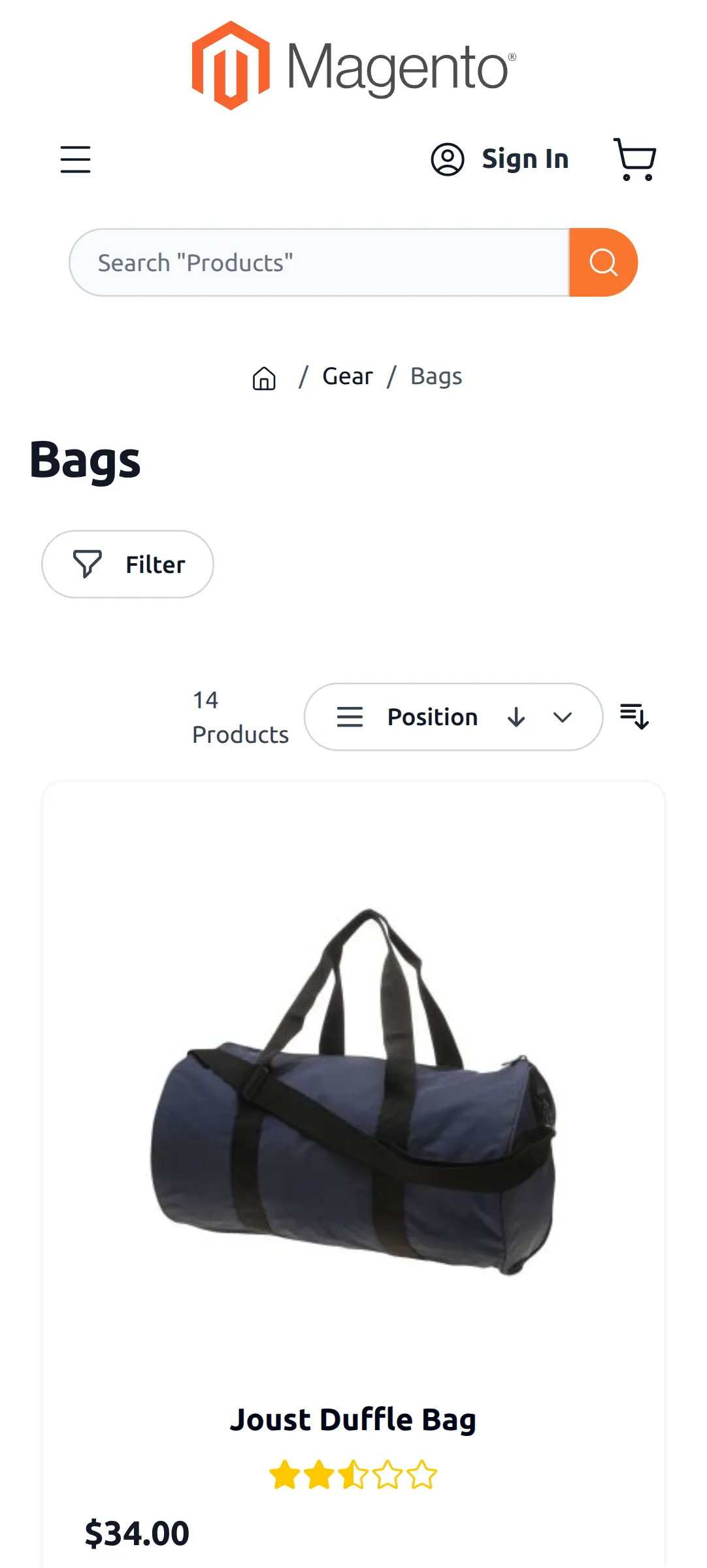
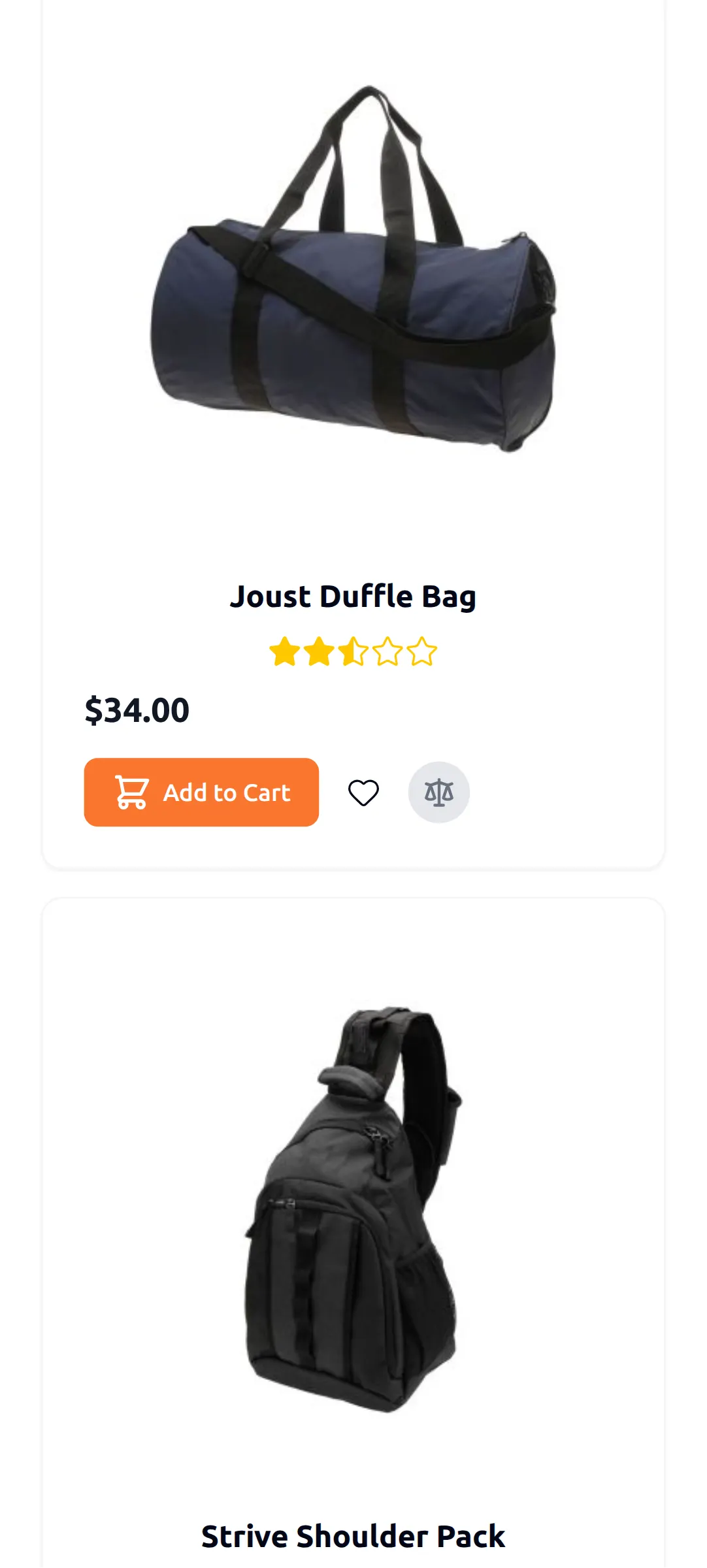
Category Page
The mobile category page provides a clean and responsive product listing experience.
Customers can easily browse products, apply filters, and navigate categories on any mobile device.
Login Page
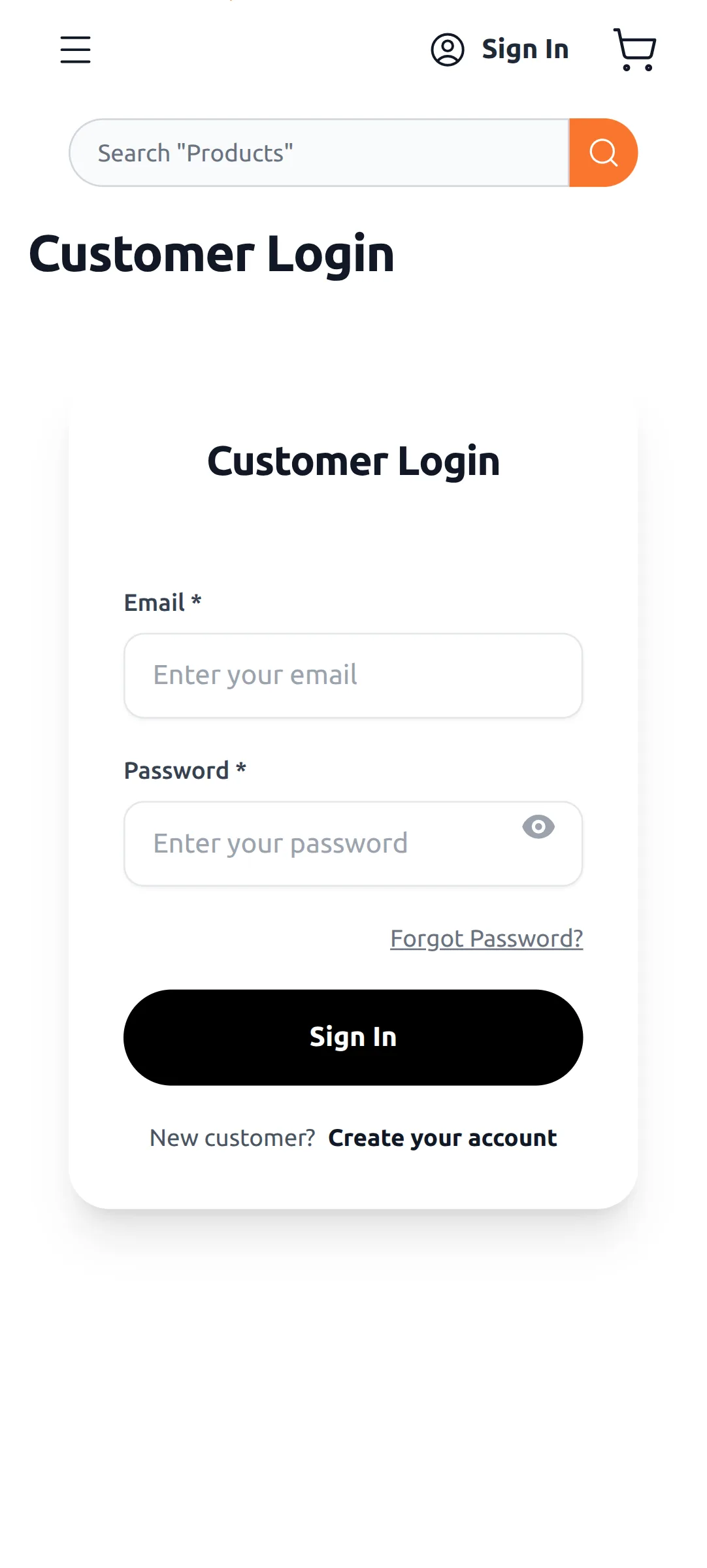
The mobile login page offers a simple and responsive interface for customer sign-in and registration.
The layout adapts seamlessly to smaller screens for quick and convenient account access.
Responsive Login Experience
Access your account quickly through a mobile-friendly login interface optimized for all screen sizes.
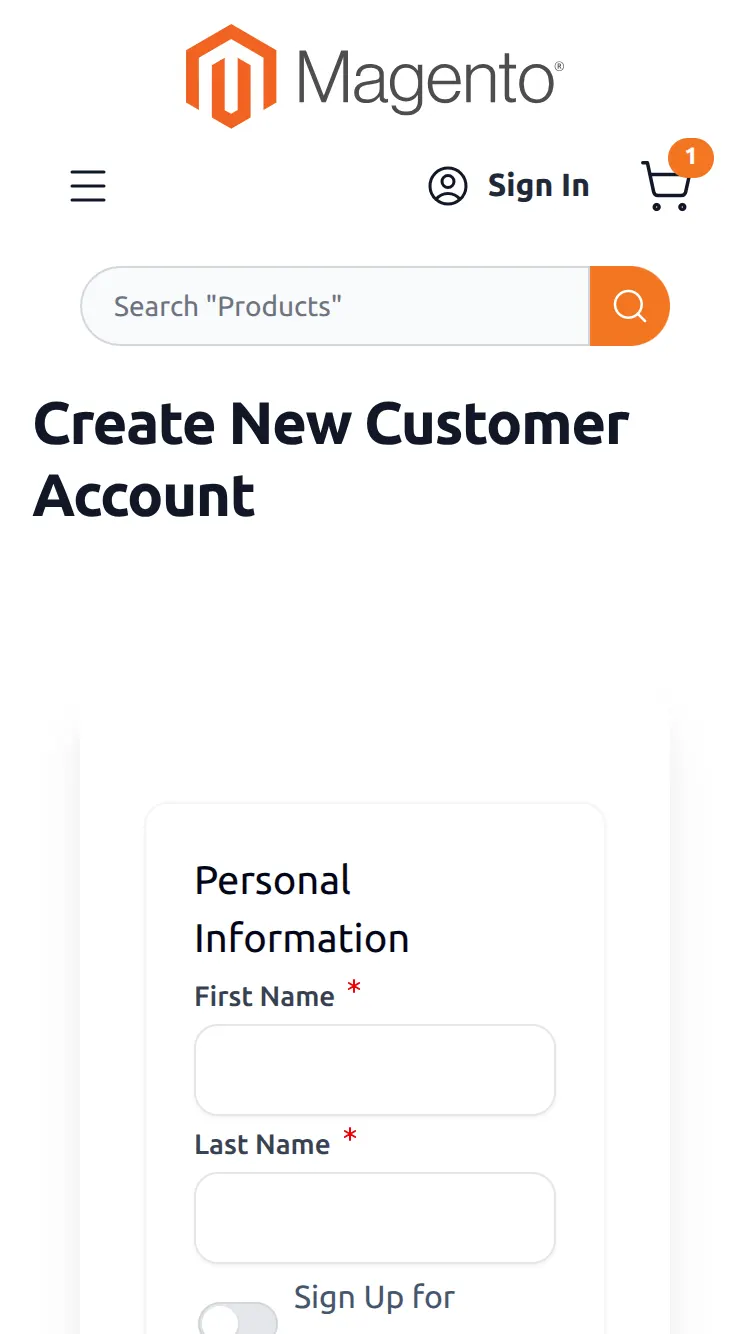
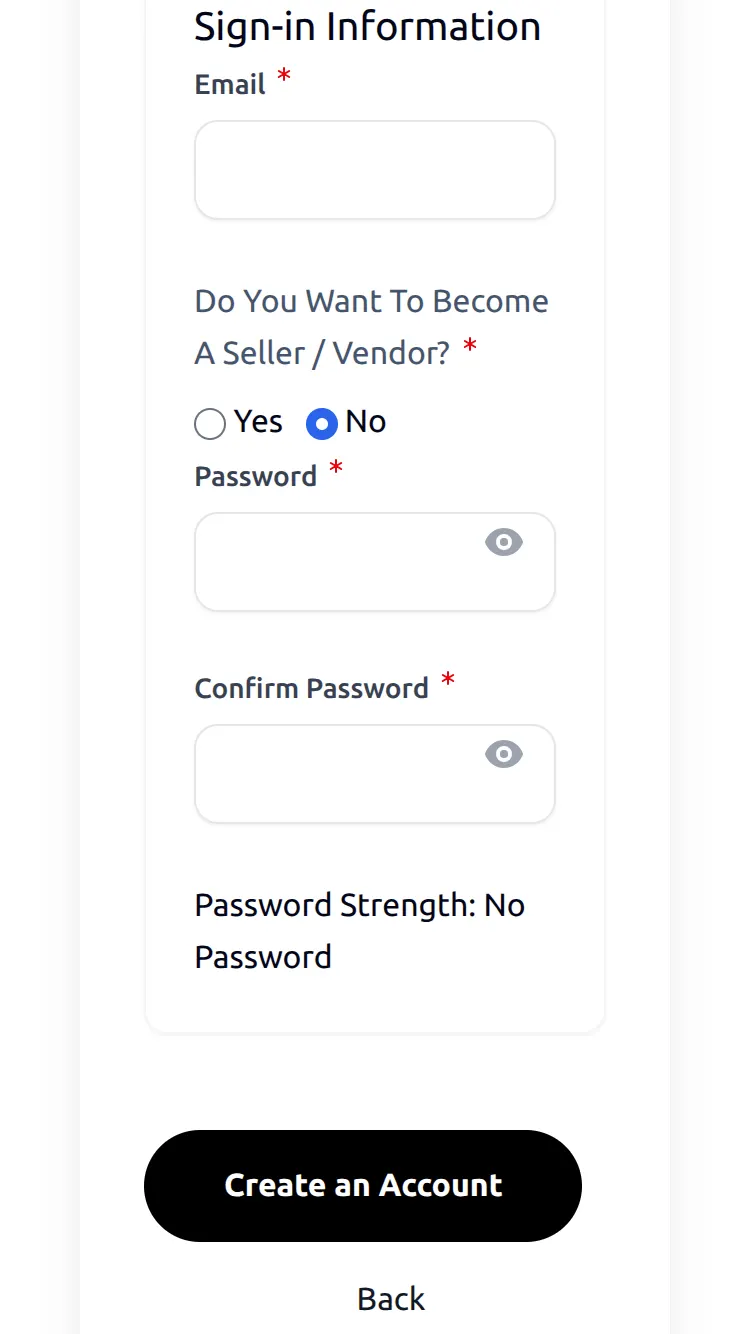
Signup Page
Register a new account with ease using a responsive signup page optimized for a smooth and convenient mobile experience.
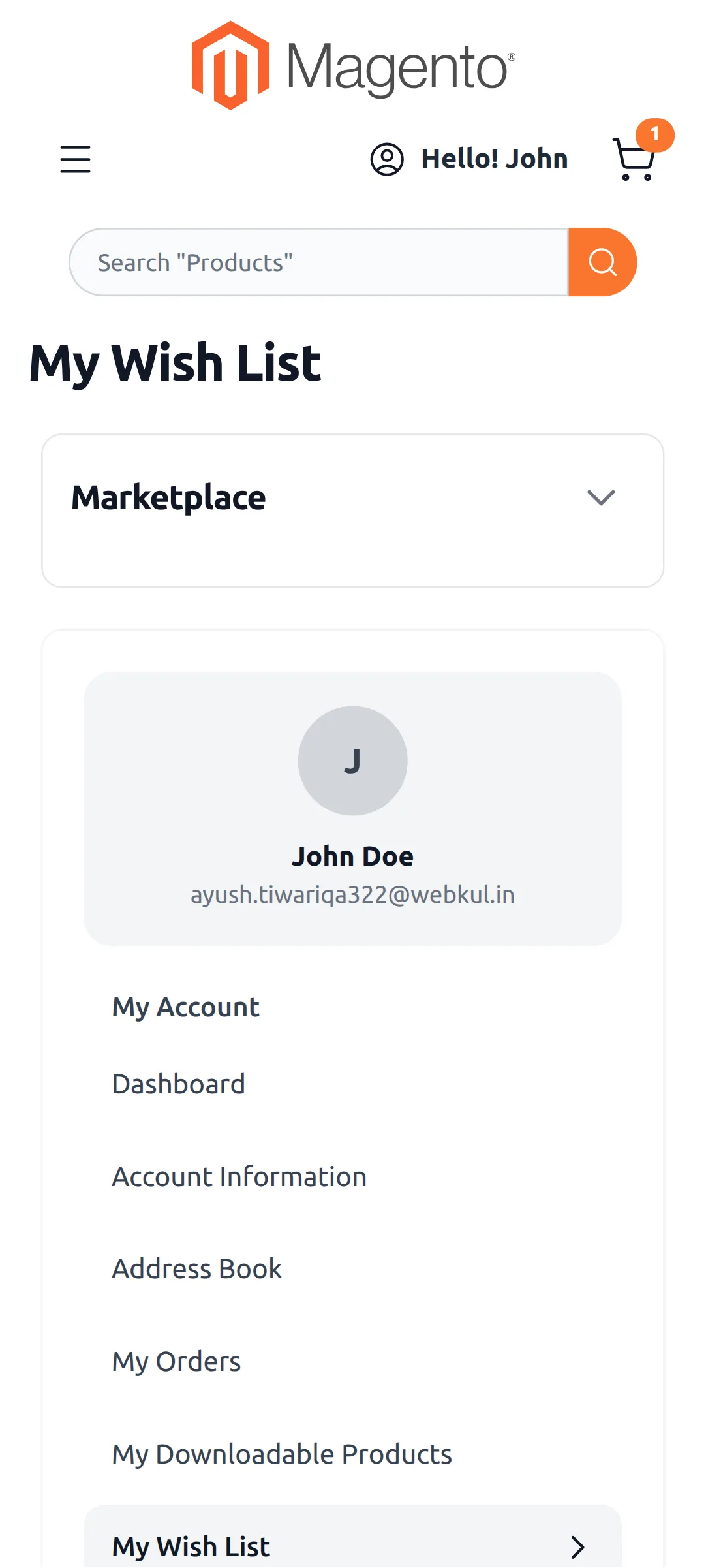
Wishlist Management
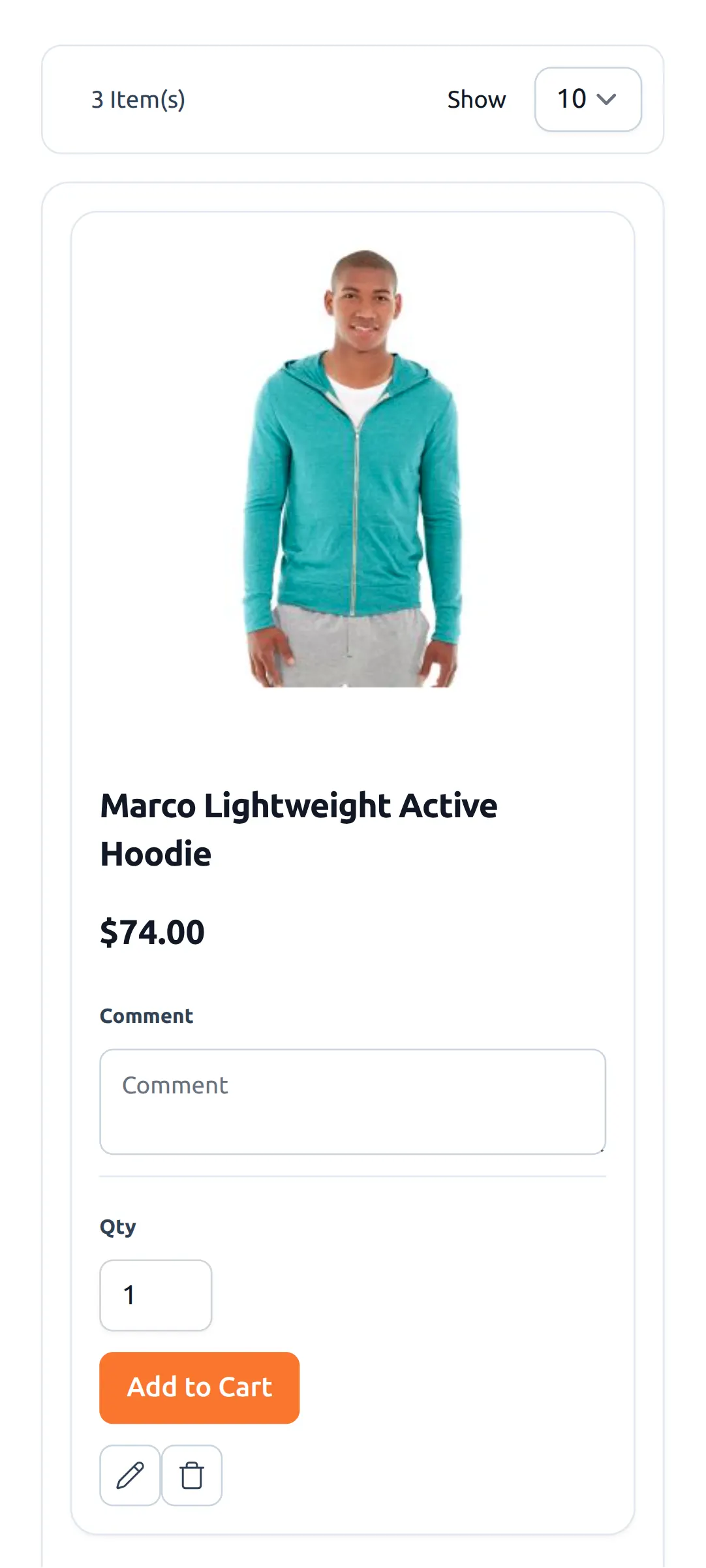
Manage your favorite products with a responsive wishlist designed for quick access and a seamless shopping experience
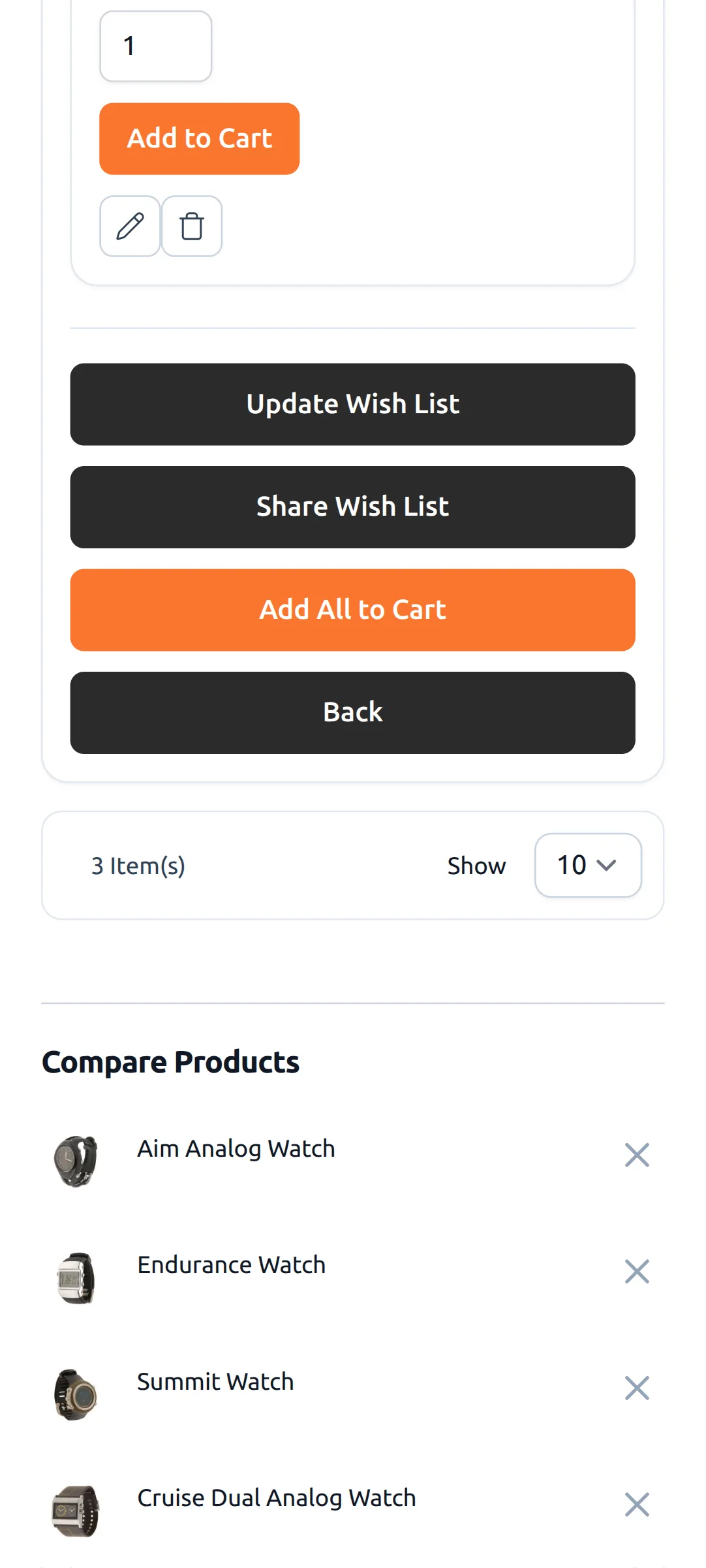
Wishlist Management
Keep track of desired products with a mobile-friendly wishlist designed for quick access and convenient shopping.
Shopping Cart
Review selected products, update quantities, and proceed to checkout through a responsive shopping cart designed for a seamless mobile experience.
Support
If you have any questions, suggestions, or customization requests, feel free to contact us at [email protected] or submit a ticket at webkul.uvdesk.com.
Please explore our Magento Development Services and Quality Magento 2 Extensions.
Current Product Version - 4.0.0
Supported Framework Version - Magento 2.0.x, 2.1.x, 2.2.x,2.3.x, 2.4.x

Be the first to comment.