Laravel SaaS FedEx Shipping lets every tenant connect their own FedEx account for real-time rates, labels, pickups, and tracking.
Tenant API tokens and pickup requests stay separate, so one company never sees or reuses another company’s FedEx data.
Requirements
Before installing the Laravel SaaS FedEx Shipping module, make sure the following modules are already installed:
- Bagisto v2.4.11
- Laravel SaaS (Multi-Company) v2.4.11
- Laravel FedEx Shipping v2.4.11
Laravel SaaS FedEx Shipping Features
- The tenant admin can enable or disable the FedEx Shipping method.
- The tenant admin can customize the FedEx Shipping method name and description.
- The tenant admin can define the allowed shipping services and weight unit.
- The tenant admin can configure the packaging type and drop-off type.
- Each tenant admin can configure their own FedEx credentials in Development or Live mode.
- The store fetches real-time shipping rates using the FedEx REST API.
- The tenant admin can generate and download shipment labels.
- The tenant admin can schedule and cancel pickup requests.
- Customers can track their shipments.
- The Super Admin can see the module version and a short module note.
Laravel SaaS FedEx Shipping Installation
Step 1: Extract the Package
Extract the package and merge the packages directory into the root directory of your Bagisto project.
Step 2: Register PSR-4 Autoload
Add the following namespaces to the autoload.psr-4 section of your composer.json file.
"Webkul\\FedExShipping\\": "packages/Webkul/FedExShipping/src",
"Webkul\\FedExShippingSaas\\": "packages/Webkul/FedExShippingSaas/src"
Step 3: Register Service Providers
Go to the bootstrap/providers.php file and add the following lines to the returned providers array:
Webkul\FedExShipping\Providers\FedExShippingServiceProvider::class,
Webkul\FedExShippingSaas\Providers\FedExShippingSaasServiceProvider::class,
Note: Register the providers in this order: SAASCustomizer, then FedExShipping, then FedExShippingSaas.
Step 4: Install the Module
Run the commands below to complete the setup:
composer dump-autoload
php artisan fedexshipping-saas:install
SaaS FedEx Shipping Configuration
Super Admin
Navigate to Configuration > Sales > Shipping Methods > FedEx Shipping
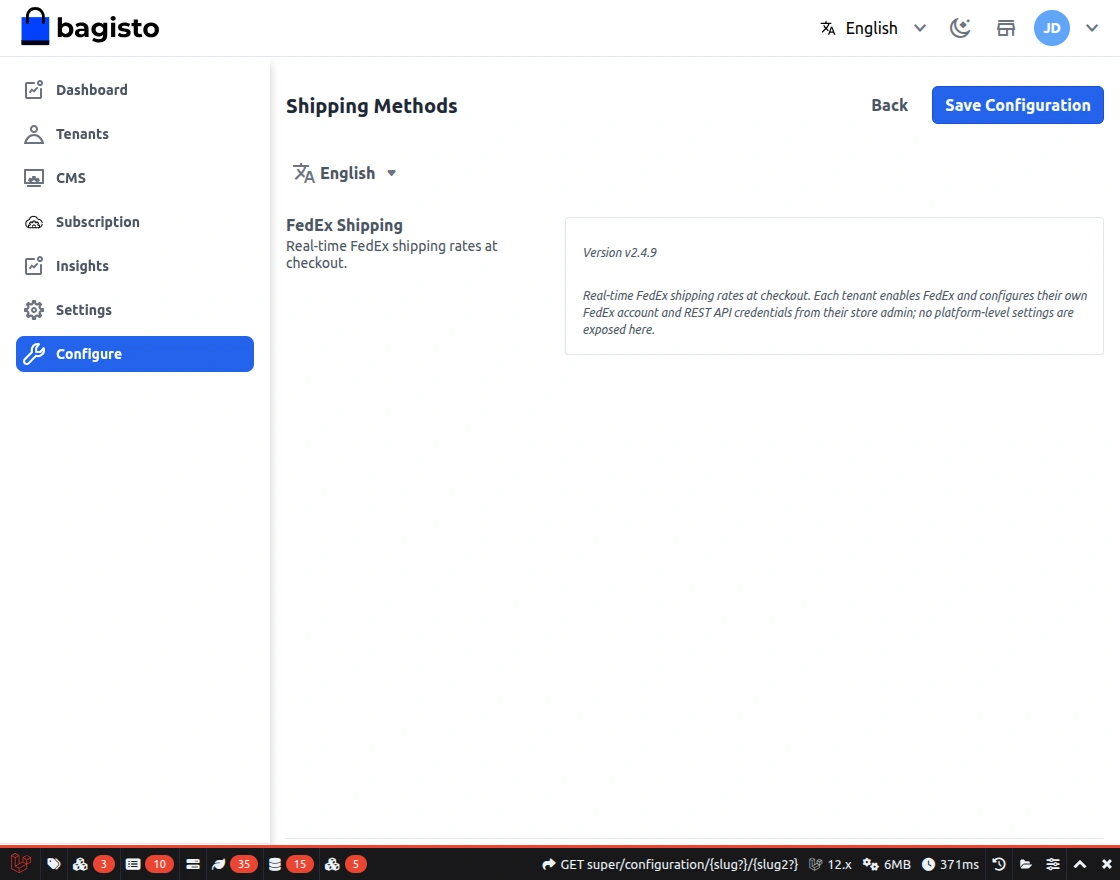
The Super Admin can only view the module information. Individual tenants manage all FedEx credentials.
Tenant FedEx Shipping Configuration
Log in as a tenant and navigate to:
Configuration > Sales > Shipping Methods > FedEx Shipping
Before configuring FedEx, make sure the shipping origin address is configured.
Configure FedEx Shipping
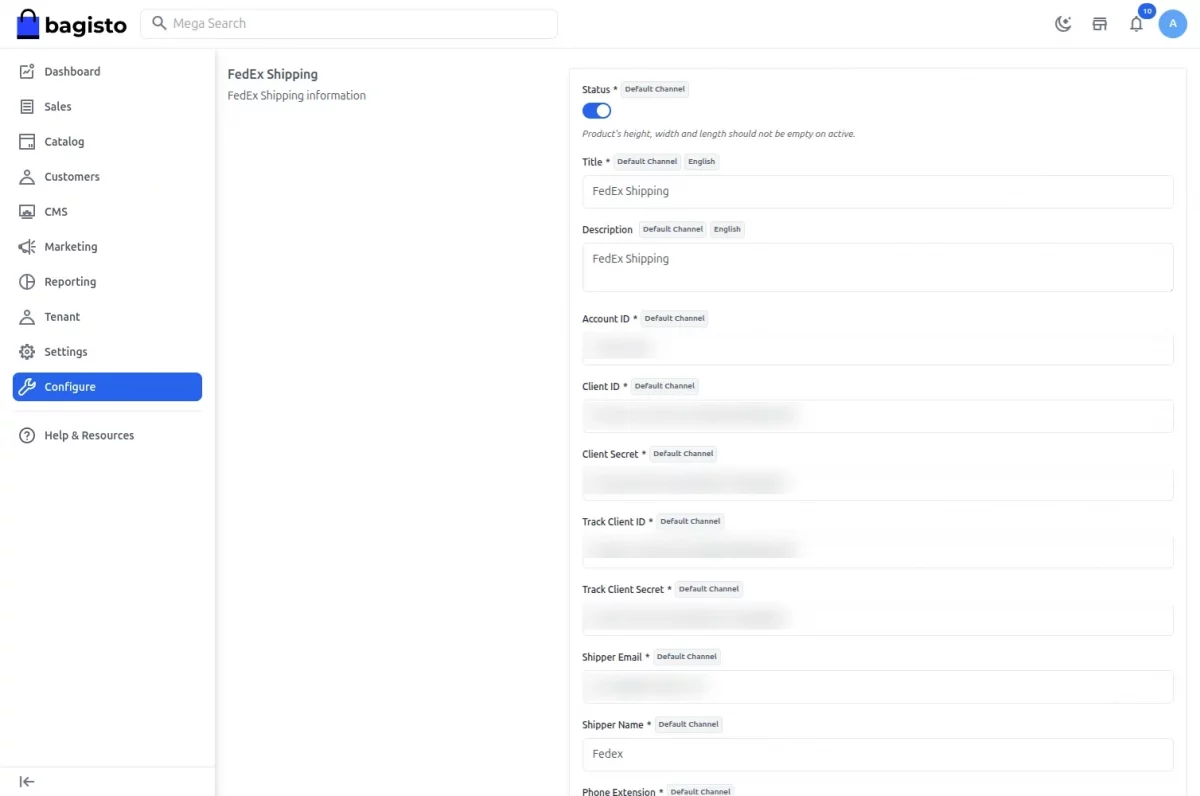
First, configure the required fields under FedEx Shipping as shown in the image below:
- Status: Enable or disable the shipping method.
- Title: Enter the shipping method name.
- Description: Enter a short description for the shipping method.
- Account ID: Enter your FedEx account number.
- Client ID: Enter the FedEx Client ID.
- Client Secret: Enter the FedEx Client Secret.
- Track Client ID: Enter the Tracking API Client ID.
- Track Client Secret: Enter the Tracking API Client Secret.
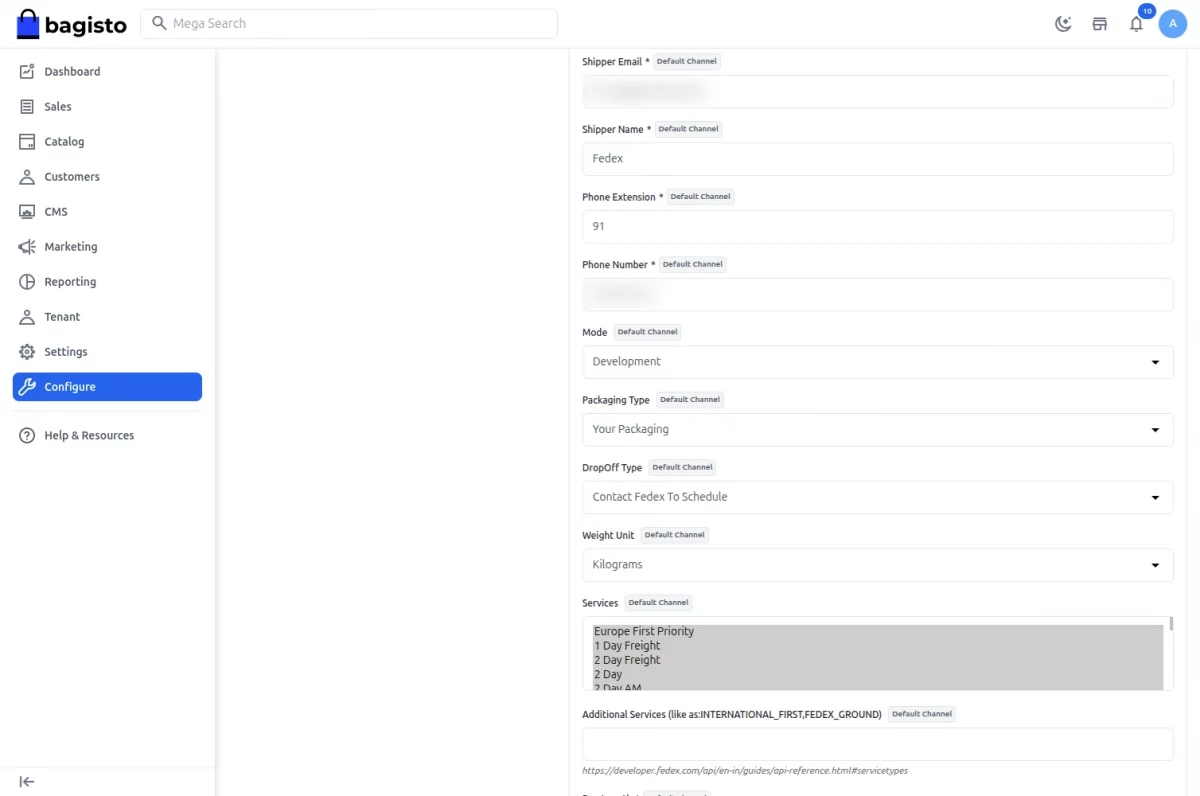
Next, configure the shipper, shipping preferences, and available services as shown in the image below:
- Shipper Email: Enter the shipper’s email address.
- Shipper Name: Enter the shipper’s name.
- Phone Extension: Enter the phone extension, if applicable.
- Phone Number: Enter the shipper’s contact number.
- Mode: Select Development or Live mode.
- Packaging Type: Select the preferred packaging type.
- Drop-Off Type: Select the preferred drop-off option.
- Weight Unit: Select LB or KG.
- Services: Select the FedEx services you want to offer.
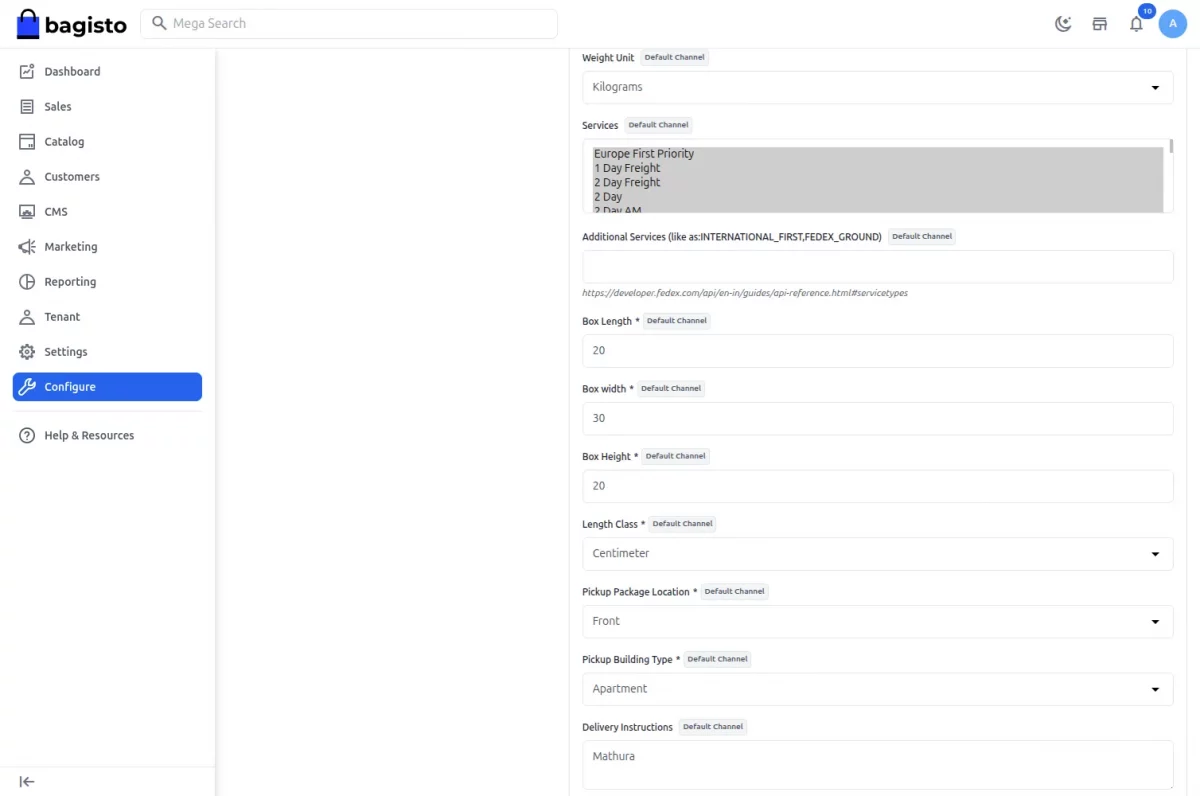
Then configure the additional services, package dimensions, pickup details, and delivery instructions as shown below:
- Additional Services: Enter the required additional service codes.
- Box Length: Enter the package length.
- Box Width: Enter the package width.
- Box Height: Enter the package height.
- Length Class: Select the length unit, either IN or CM.
- Pickup Package Location: Select the package pickup location.
- Pickup Building Type: Select the pickup building type.
- Delivery Instructions: Enter any additional delivery instructions.
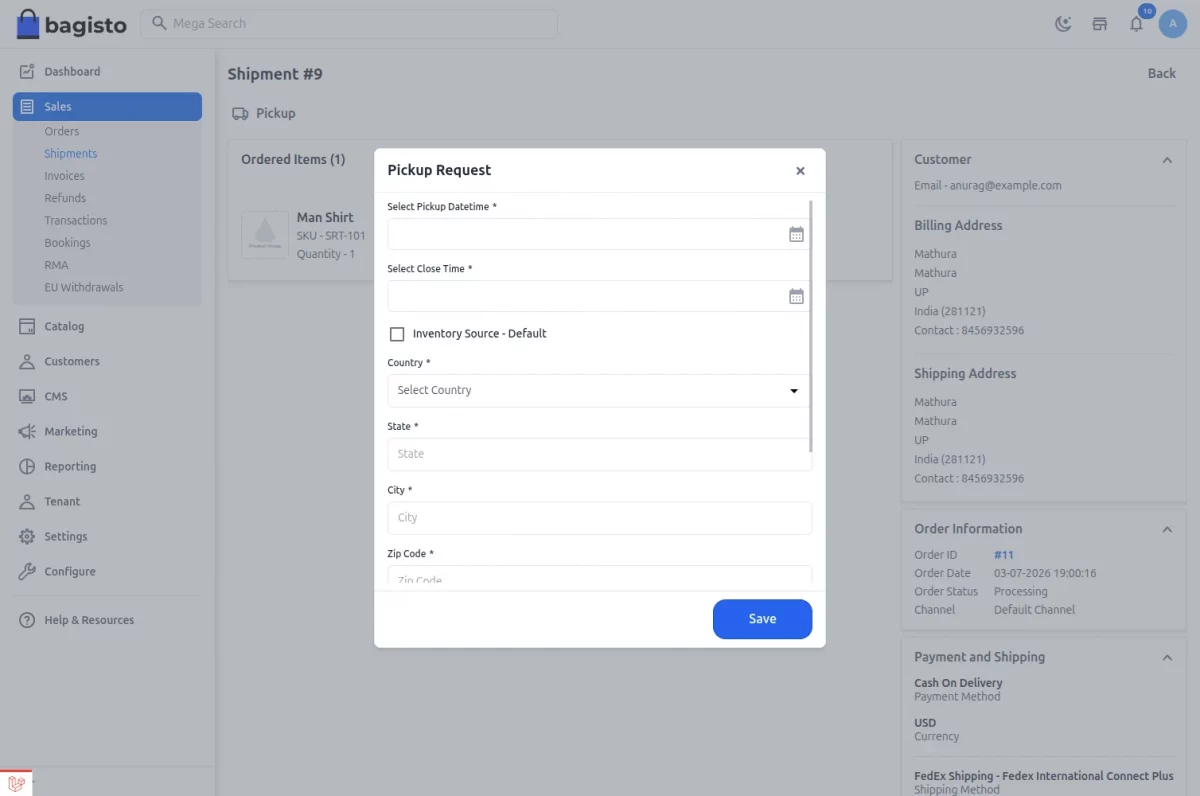
FedEx Pickup Requests
The Pickup Request option lets tenants schedule and cancel shipment pickups from the admin panel.
Open a shipment from Sales > Shipments to use it.
From here, the tenant can:
- Schedule a pickup
- View the pickup confirmation details
- Cancel a scheduled pickup
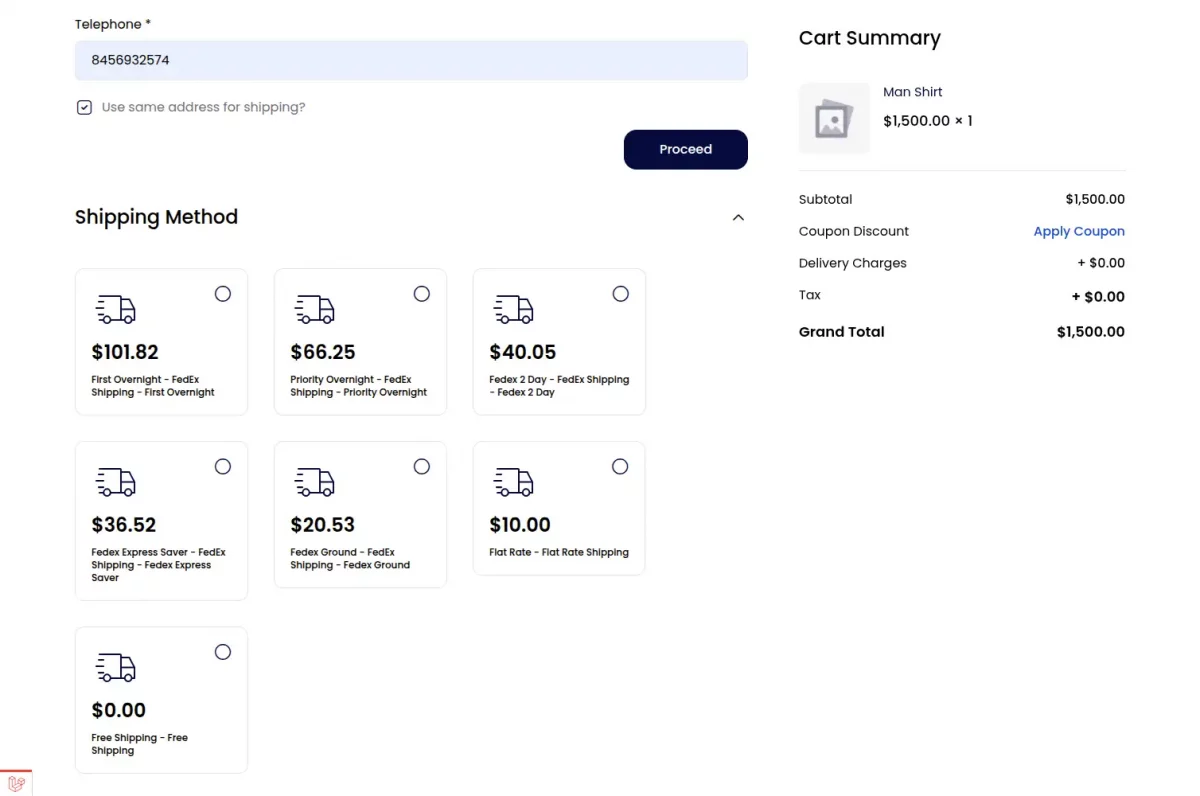
FedEx Shipping at Customer Checkout
After configuration, customers see the available FedEx shipping services during checkout.
They can:
- Select a FedEx shipping service
- View real-time shipping charges
- Complete the order
- Track shipments from the order page in My Account
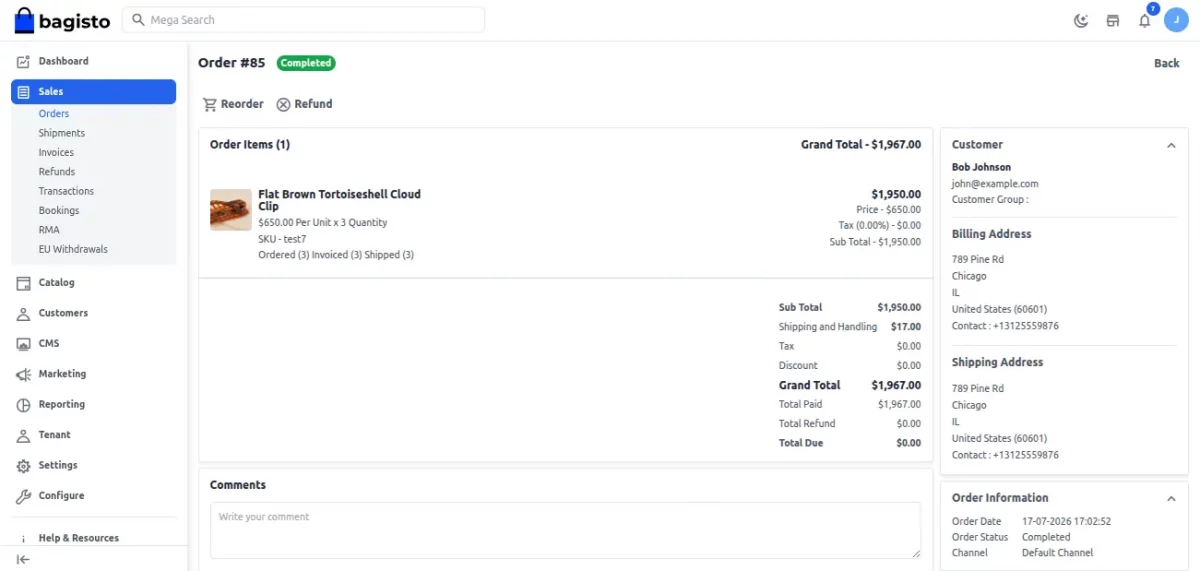
FedEx Shipment Management
The tenant can:
- Create invoices
- Generate shipments
- Generate and download shipping labels
- Track shipments
- Cancel pickups
- Process refunds
Navigate to Sales > Orders or Sales > Shipments
Support
For any queries or customization requests, contact us at [email protected].
You can also visit our HelpDesk or explore more Bagisto extensions.
Current Product Version - v2.4.11
Supported Framework Version - Bagisto v2.4.11

Be the first to comment.