The Bagisto SaaS GST extension adds India’s Goods and Services Tax (GST) support to a multi‑tenant Bagisto SaaS store.
Every tenant sets their own GSTIN, state, GST rates and price type, and keeps GST-compliant orders without affecting other tenants.
Features of the Bagisto SaaS GST Extension
The extension brings the following features to the platform and to its tenant stores.
Multi-Tenant GST Features
- Every tenant configures the GST of their store on their own, from their own admin panel.
- The extension keeps every product GST record and every order GST record against the tenant it belongs to, so the data of the tenants stays separate.
- Deleting a tenant from the platform also clears the GST records of that tenant.
- The extension adds a GST section to the configuration of the super admin, which describes the GST facility that the platform offers to its tenant stores.
- Ships with ready translations for 22 languages, so tenant admins and customers see the GST screens in their own locale.
Configuration and Product Features
- The tenant enters their preferred GSTIN Number.
- They also choose the State for tax purposes.
- The tenant sets the GST rate from the backend and enters multiple GST rates at once.
- The tenant decides the product price by including GST, by excluding GST, or by choosing the behaviour while adding or editing the product.
- The tenant includes or excludes GST for each product individually.
- A field in the product editing settings takes the HSN code of the product.
- The tenant also sets or modifies a specific GST rate while adding or editing a product.
- A dedicated Settings > GST section lists the products that carry GST, with search, filter, sort and export options.
- The tenant assigns the GST rate, HSN code and GST type to many products at once through a CSV import, and downloads a sample CSV file for the format.
- The tenant clears the GST details of a single product, or of several products together through the mass action.
Checkout, Order and Access Features
- The extension distinguishes automatically between IGST, CGST and SGST, depending on whether the transaction stays within the home state or crosses it.
- It charges SGST and CGST on intra-state transactions and IGST on inter-state transactions, going by the address that the customer provides.
- It charges GST only when the billing address belongs to India, so international orders remain unaffected.
- A button shows or hides the GST inclusion details on the storefront.
- An option prints the GSTIN of the store on the orders that the customers place.
- The order, invoice, refund, order PDF and order emails carry the HSN code along with the SGST, CGST and IGST break-up.
- Separate access permissions cover the viewing, the import and the deletion of the GST records.
Installing the Bagisto SaaS GST Extension
Bagisto Version: v2.4.9
Required Extensions: the Laravel eCommerce GST extension and the Laravel eCommerce SaaS extension.
It also needs the Laravel eCommerce SaaS Subscription extension, since a tenant needs an active plan before using the admin panel.
Step 1: Extract Package
Unzip the extension package and merge the packages folder into your project root.
Step 2: Update the composer.json File
Open the composer.json file and add the following lines under the ‘psr-4’ section:
 "Webkul\\GST\\": "packages/Webkul/GST/src",
 "Webkul\\GSTSaas\\": "packages/Webkul/GSTSaas/src",
Step 3: Register the Module in config/concord.php
In the config/concord.php file, add the following line under the ‘modules’ section:
\Webkul\GST\Providers\ModuleServiceProvider::class,
Step 4: Register Service Provider
Go to the bootstrap/providers.php file and add the following lines under providers:
use Webkul\GST\Providers\GSTServiceProvider;
use Webkul\GSTSaas\Providers\GSTSaasServiceProvider;

 return [
     GSTServiceProvider::class,
     GSTSaasServiceProvider::class,
 ]
Keep the GSTSaasServiceProvider after the GSTServiceProvider, because it swaps the models of the GST extension with the tenant aware ones.
Step 5: Run the Commands
Run the following command to refresh the autoload files:
composer dump-autoload
Run the following command to complete the setup:
php artisan gst-saas:install
This command migrates the GST extension and this addon, then clears the application cache.
It also publishes the sample CSV file used for bulk GST import.
The addon’s migration adds a tenant reference to the gst and gst_order tables.
This keeps each tenant’s GST data identifiable, and removes it when that tenant is deleted.
These steps complete the setup. The SaaS GST extension is now ready to use in your Bagisto v2.4.9 project.
GST Section in the Super Admin
Once the installation finishes, the super admin finds a GST section in the Configuration, under GST > GST Details.
This section explains the GST facility the platform offers tenant stores.
It covers GSTIN details, production state, GST rates, pricing type, HSN codes, and storefront tax visibility.
It also states that every tenant keeps these settings separately.
The super admin does not enter the GST values here. Every tenant enters them from their own admin panel, as the next section explains.
Configuration of the Tenant Store
The tenant navigates to Configure > Sales > Goods and Services Tax to reach the GST settings.
The image below shows the configuration screen.
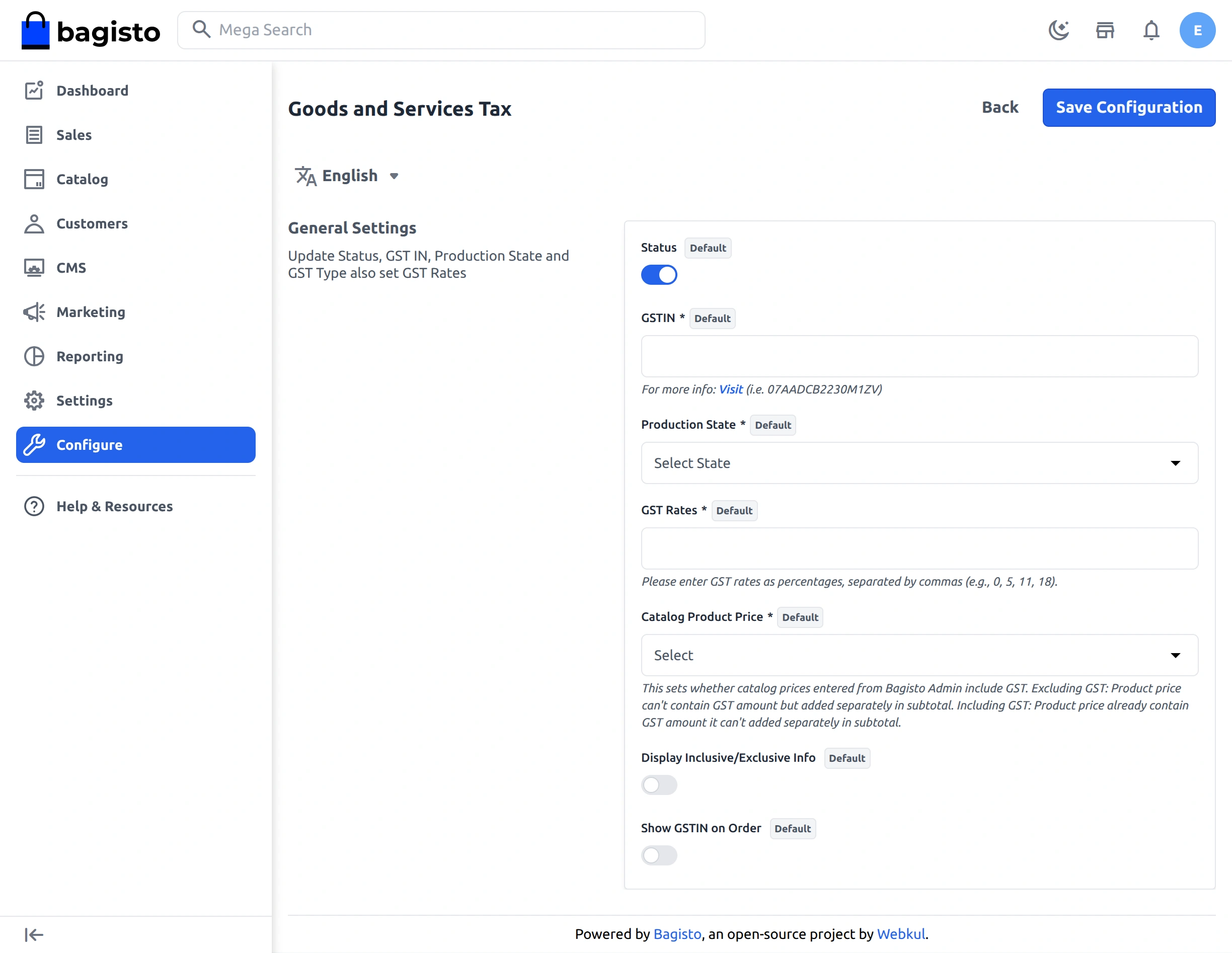
The tenant configures the following options,
- Status: Enable or Disable the GST module.
- GSTIN: Field to enter the GSTIN Number.
- Production State: Select the Production state from dropdown menu.
- GST Rates: Enter the required GST Rates as percentages, with a comma between them (e.g., 0, 5, 12, 18).
- Catalog Product Price: Dropdown menu that decides whether the prices of the tenant include GST, exclude GST, or wait for a choice while adding or editing a product.
- Display Inclusive/Exclusive Info: Button to enable or disable the displaying of GST exclusive/inclusive information on storefront.
- Show GSTIN on Order: Button to enable or disable the printing of the store’s GSTIN on the orders, invoices and order emails.
The platform holds these settings against the tenant, so each tenant runs its own GST setup.
Settings are channel based too, so a tenant with several channels sets GST separately for each.
The Settings > GST section of the admin panel appears once the tenant enables the Status and saves the configuration.
Add GST to Products
Once the tenant configures the extension, they add the Goods and Services Tax to the products of their store individually.
For this, the tenant goes to Catalog > Products and opens a product to add or edit.
They then open the GST section, shown in the image below.

The tenant configures the following options for every product,
- Button to enable or disable GST on product.
- Product Price: Dropdown menu that keeps GST inside the price or outside the price. This dropdown appears only when the Catalog Product Price configuration holds Select when initialize, otherwise the product follows the value of that configuration.
- GST Rate: Select the GST rate for the product. The dropdown lists the rates that the tenant entered in the GST Rates configuration.
- HSN Code: Enter the HSN Code of product.
The extension ties this GST record to the tenant who owns the product, so the record stays with that tenant only.
The GST section covers every product type except the Grouped and Bundle products, because those carry the GST of the products that they hold.
Manage and Import GST in Bulk
Setting GST product by product suits a small catalog, not a large one.
For a large catalog, the tenant opens Settings > GST.
This listing shows every GST product with its rate, HSN code, type, image, name, SKU, price and creation date.
The tenant searches, filters, sorts and exports this listing, which makes a quick review of the GST across the catalog easy.
Import GST Through a CSV File
To assign GST to many products at once, the tenant downloads the sample file with the CSV Demo button.
They fill it in, upload it through Import CSV file, and click Import.
The CSV file follows the format given below,
product_id,gst_rate,hsn_code,type
1,18,96081001,internal
2,5,96081001,external
Here is what every column of the CSV file holds,
- product_id: The Id of a product of the store.
- gst_rate: The GST rate for the product. It matches one of the rates that the tenant entered in the GST Rates configuration.
- hsn_code: The HSN code of the product.
- type: Either
internalfor the prices that already include GST, orexternalfor the prices that carry GST separately.
The extension validates the whole file before saving anything.
A bad row stops the import and shows an error, so a half-imported file never stays behind.
For a product that already has GST, the imported values replace the older ones.
Delete GST and Control the Access
The tenant clears a product’s GST through the listing’s delete action.
They clear several at once by selecting records and using mass delete.
Roles in the tenant store control access to this section.
From Settings > Roles, the tenant allows or restricts the GST, Import and Delete permissions for sub admins.
GST Information on Storefront
The storefront shows GST information when the tenant enables Display Inclusive/Exclusive Info.
Turning this setting off hides that information again.
The storefront carries the GST information in the 2 ways below,
1) GST inside the price

2) GST outside the price

GST Application on Checkout: CGST, SGST and IGST
The extension detects automatically when to charge IGST and when to charge SGST and CGST. It follows the conditions below,
1) An interstate transaction takes IGST, as the below image shows,

2) An intrastate transaction takes CGST and SGST, as the below image shows,

The extension compares the customer’s billing state with the Production State the tenant set.
GST applies only when the billing address is in India.
Orders to other countries follow the store’s default tax setup instead.
GST Details on Orders and Invoices
Once a customer places an order, the extension stores that order’s GST with its tenant reference.
These details stay the same even if the GST setup changes later.
The order, invoice and refund summaries in the admin panel show the SGST, CGST and IGST break-up.
So does the customer’s My Account order view, the order and invoice PDFs, and both admin and customer order emails.
Every ordered item also carries the product’s HSN code.
The order shows the tenant’s GSTIN as GST Registration No. once Show GSTIN on Order is enabled.
Support
So that is much about the Laravel eCommerce SaaS GST Extension.
If you require any further assistance, you can email us directly on [email protected] or raise a ticket.
Current Product Version - v2.4.9
Supported Framework Version - v2.4.9

Be the first to comment.