


















Laravel Group Buy for Bagisto lets a store sell the same product at a lower price when several customers buy it together.
Bagisto Group Buy module guide: create group deals, set discounted pricing and group size, then qualify or disqualify each group from the admin panel.
Note: Only a signed-in customer can start or join a group. Therefore, a guest who opens the product page sees a prompt to log in first.
Note: A group buy cart holds that one product only. Consequently, if a customer starts or joins a group while other items sit in the cart, the module removes those items so the order maps cleanly onto the group.
Features
- Any catalogue product: turn an existing product into a group buy offer without changing its product type.
- Discounted pricing: set the group buy price alongside the start and end date and time.
- Group size and quantity limits: decide how many members a group needs, plus the minimum and maximum units one member may order.
- Per-customer group limit: restrict how many groups a single customer may start, per channel.
- No overlapping deals: a second offer on the same product must run in a different window.
- Product type coverage: works with simple, virtual and configurable products, where a deal can run on an individual variant.
- Storefront widget: shows the offer, the open groups, each group’s progress towards its size, and when the offer expires.
- Listing badges: product listings mark the items that carry a live group buy offer.
- Customer account view: customers follow the groups they belong to, with each group’s status and progress.
- Admin listings: offers, groups and group members each appear in a searchable, sortable and filterable grid.
- Group lifecycle: statuses of Processing, Qualified, Disqualified and Refunded, set by the admin.
- Fulfilment hold: optionally block invoices and shipments for an order until its group qualifies.
- Configuration and access: per-channel settings, granular ACL for every admin action, and translations for all 22 locales Bagisto ships.
Installation
Bagisto Version: v2.4.10
Step 1: Extract Package
First, unzip the extension package and merge the packages folder into your project root.
Step 2: Register Service Provider
Next, go to the bootstrap/providers.php file and add the following line under ‘providers’.
Webkul\GroupBuy\Providers\GroupBuyServiceProvider::class,
Step 3: Update the composer.json File
Then open the composer.json file and add the following line under the ‘psr-4’ section.
"Webkul\\GroupBuy\\": "packages/Webkul/GroupBuy/src"
Finally, run the commands below to complete the setup.
composer dump-autoload
php artisan group-buy:install
Step-by-Step: Installing the Module
- Unzip the package and copy
packages/Webkul/GroupBuyinto your project root. - Open
bootstrap/providers.phpand addGroupBuyServiceProvider::classto the returned array. - Open
composer.jsonand add theWebkul\GroupBuy\namespace underautoload.psr-4. - Run
composer dump-autoloadfrom the project root. - Run
php artisan group-buy:install, which applies the migrations, publishes the assets and clears the cache. - Reload the admin panel and confirm that Group Buy now appears in the sidebar.
Laravel Group Buy Configuration in Bagisto
Navigate to: Admin → Configure → Group Buy → Settings
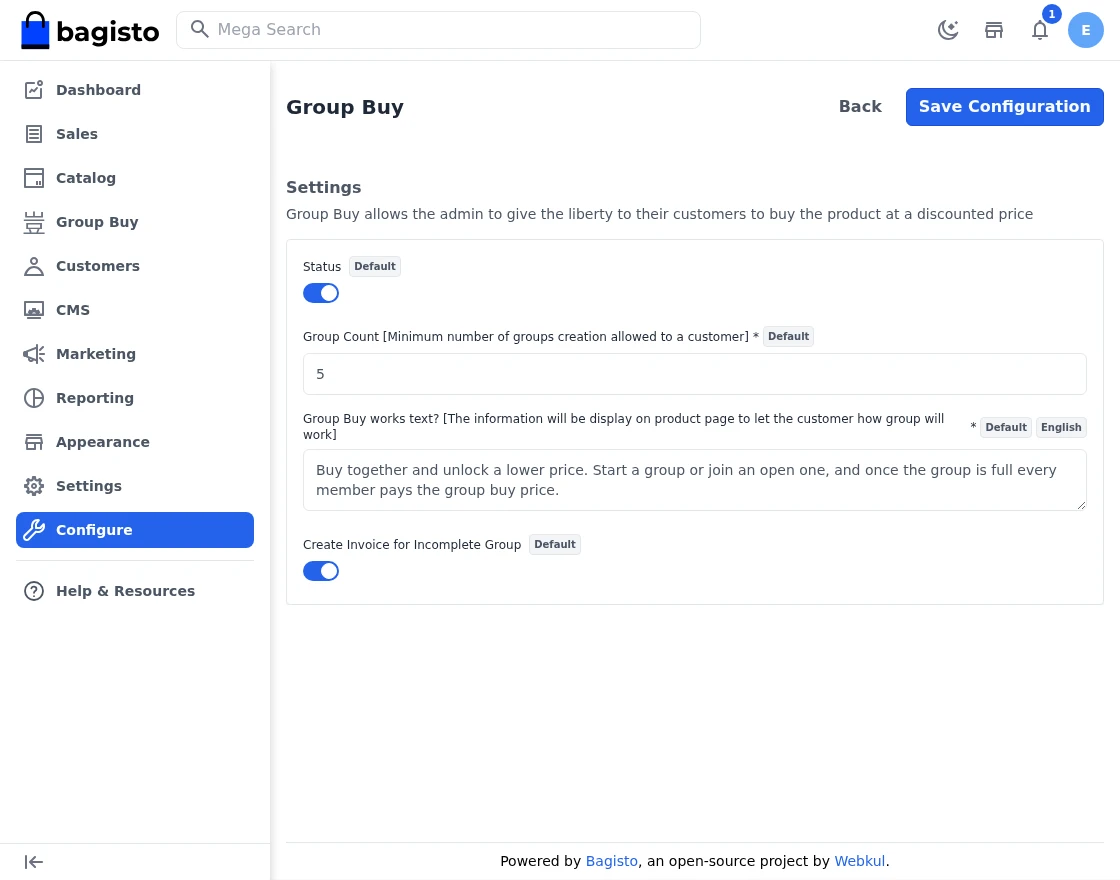
Configure the following settings.
Status: Enable or disable the Group Buy extension.
Group Count: The minimum number of groups a single customer may create.
Group Buy works text?: The information that appears on the product page to tell the customer how a group works, limited to 250 characters.
Create Invoice for Incomplete Group: Allows an invoice before the group qualifies. Conversely, leaving it off holds invoices and shipments back until the admin marks the group Qualified.
Note: While the extension stays disabled, the Group Buy admin routes return no page, and the product page shows the normal Add To Cart button instead of the group buy widget.
Step-by-Step: Configuring Group Buy
- Log in to the admin panel and open Configure from the sidebar.
- Select Group Buy, then open the Settings group.
- Turn Status on to enable the extension for the current channel.
- Enter a value in Group Count to cap how many groups one customer may start.
- Write the customer-facing explanation in Group Buy works text?, keeping it under 250 characters.
- Decide whether to allow invoices for incomplete groups, then click Save Configuration.
Creating a Laravel Group Buy Deal
Navigate to: Admin → Group Buy → Products → Create Product
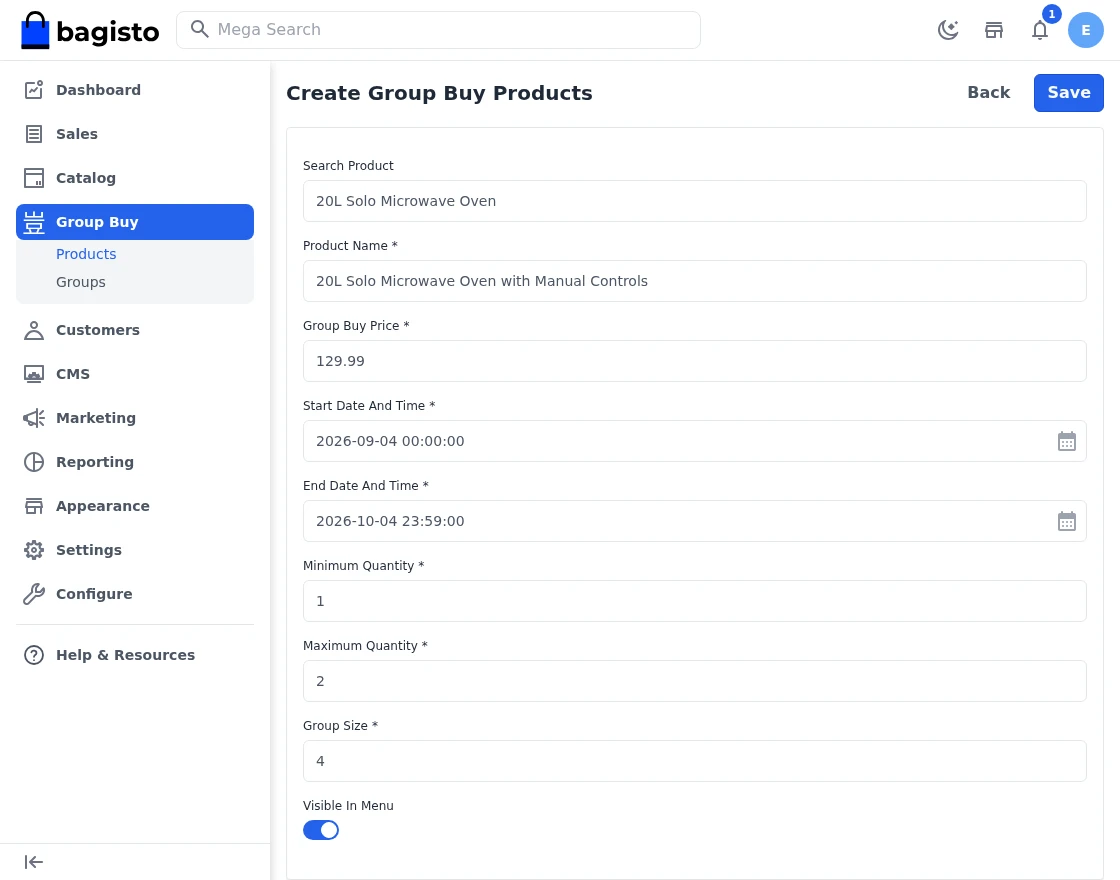
Configure the following fields.
Search Product: Type the name of the catalogue product the offer runs on, then pick it from the results. Notably, a configurable product allows the deal to run on an individual variant.
Product Name: The module fills this in from the product you selected.
Group Buy Price: The discounted price a member of a qualified group pays.
Start Date And Time: When the offer becomes available on the product page.
End Date And Time: When the offer expires.
Minimum Quantity: The fewest units a single member may order.
Maximum Quantity: The most units a single member may order.
Group Size: How many members a group needs before it fills.
Visible In Menu: Enable or disable this individual offer without deleting it.
Note: Two offers on the same product cannot run in overlapping windows. As a result, saving a second deal whose dates overlap an existing one returns a warning that the group buy product already exists.
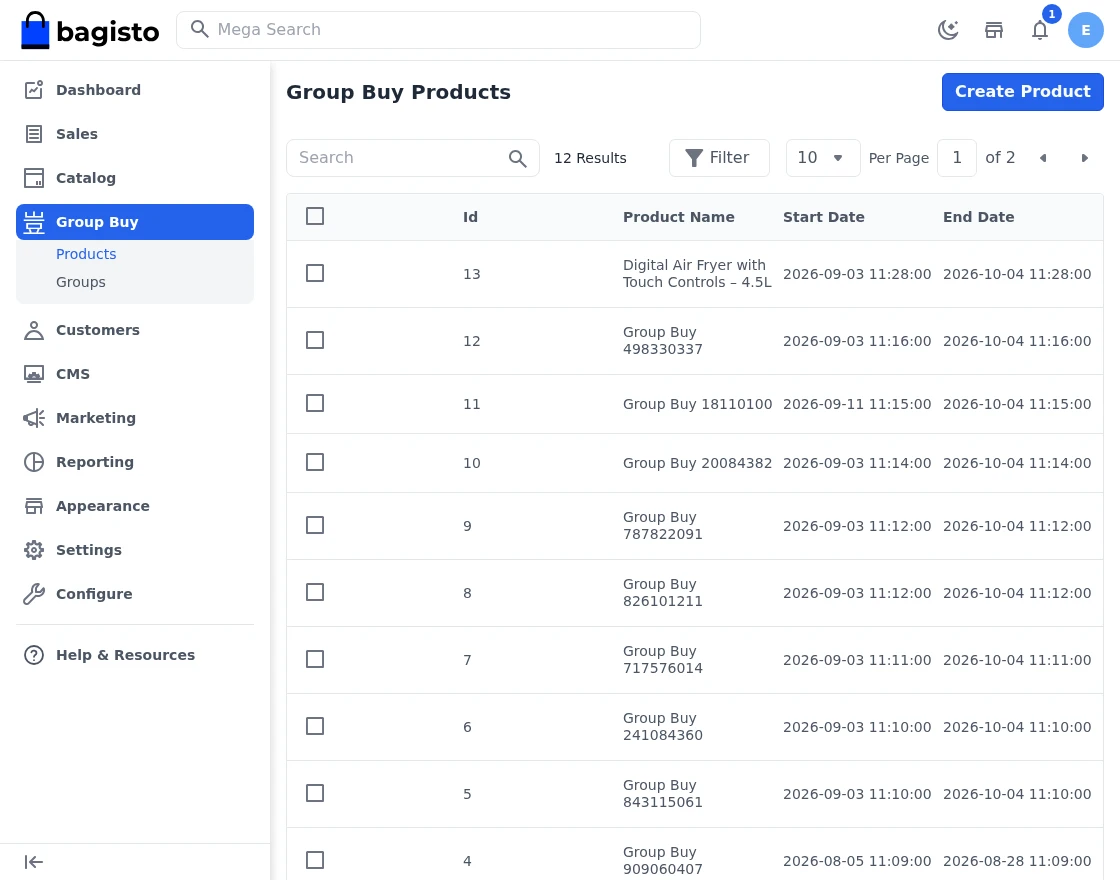
The Group Buy Products grid then lists every offer with its product name, start and end date, group size and status. Moreover, the grid supports editing, deleting and mass deletion.
Step-by-Step: Creating a Deal
- Open Group Buy → Products from the admin sidebar.
- Click Create Product to open the deal form.
- Type a product name in Search Product, then click Select on the matching row.
- Enter the Group Buy Price that members of a qualified group will pay.
- Set Start Date And Time and End Date And Time for the offer window.
- Fill in Minimum Quantity, Maximum Quantity and Group Size.
- Turn Visible In Menu on, then click Save.
Laravel Group Buy on the Storefront
Once the offer runs and a signed-in customer opens the product, the group buy widget appears beside the usual purchase button.
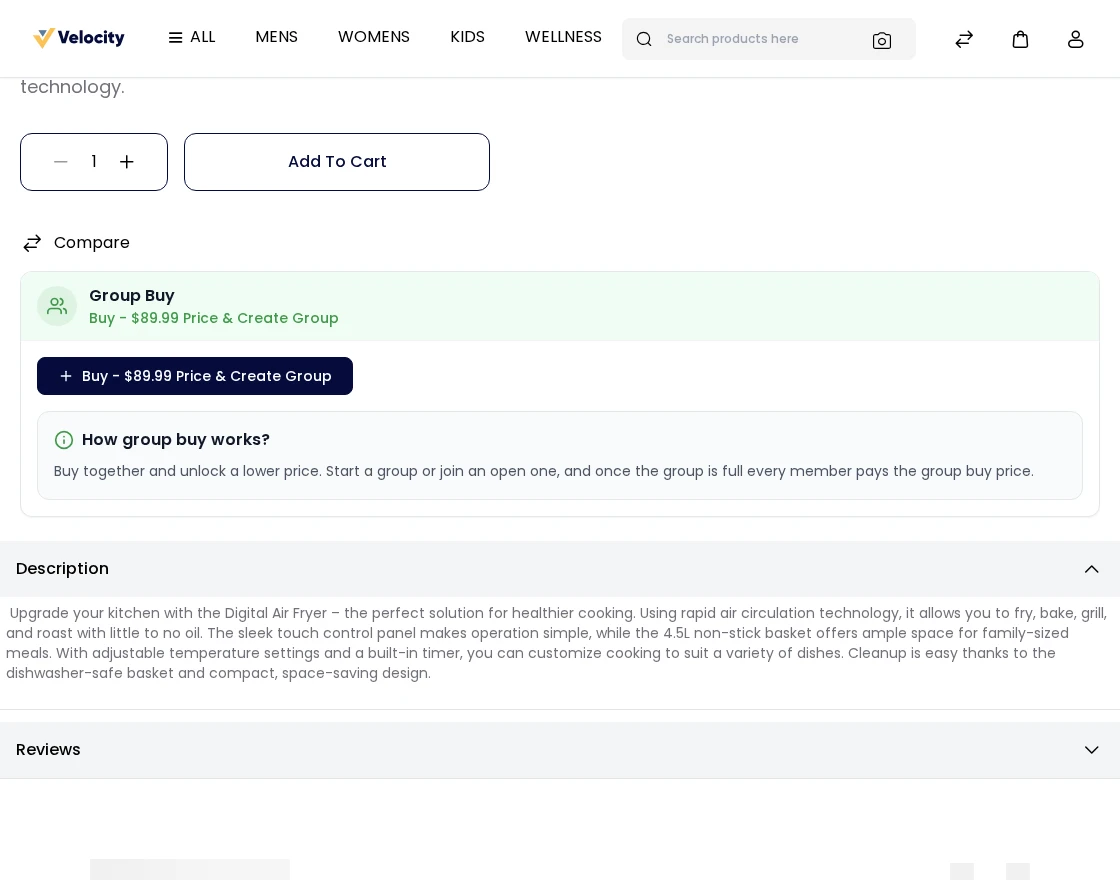
The widget presents the following.
- The group buy price, together with the Buy button that starts a new group.
- Existing Groups List, where each open group shows its author, its progress towards the group size, and a join button.
- Group Expires In, which counts down to the end of the offer.
- The works text from the configuration, under a How group buy works? heading.
- A Group Full marker on any group that already reached its size.
Additionally, product listings mark the items that carry a live offer, so customers spot them without opening each product.
Note: Outside the configured window the widget disappears entirely. Therefore, the product behaves like any other, with its normal price and Add To Cart button.
Starting or Joining a Group
A customer either starts a group of their own or joins one that already stands open. In the first case the module records that customer as the group’s author; in the second it records them as a member.
Either way, the group buy price applies to the cart line straight away. Furthermore, the customer checks out normally, including with a coupon or cart rule where one applies to the product.
Stock rules still apply. For example, asking for more units than the inventory holds returns the standard message that the requested quantity is not available.
Note: A full group accepts no further members. Likewise, a customer who already started as many groups as the Group Count setting allows cannot start another.
Step-by-Step: Starting a Group
- Sign in to the storefront as a customer, because a guest cannot join a group.
- Open a product that carries a live group buy offer.
- Read the How group buy works? panel under the offer.
- Click Buy – {price} Price & Create Group to start a group, or pick a group from Existing Groups List and join it.
- Review the cart, which now holds only that product at the group buy price.
- Complete the checkout to confirm your place in the group.
Managing Groups
Navigate to: Admin → Group Buy → Groups
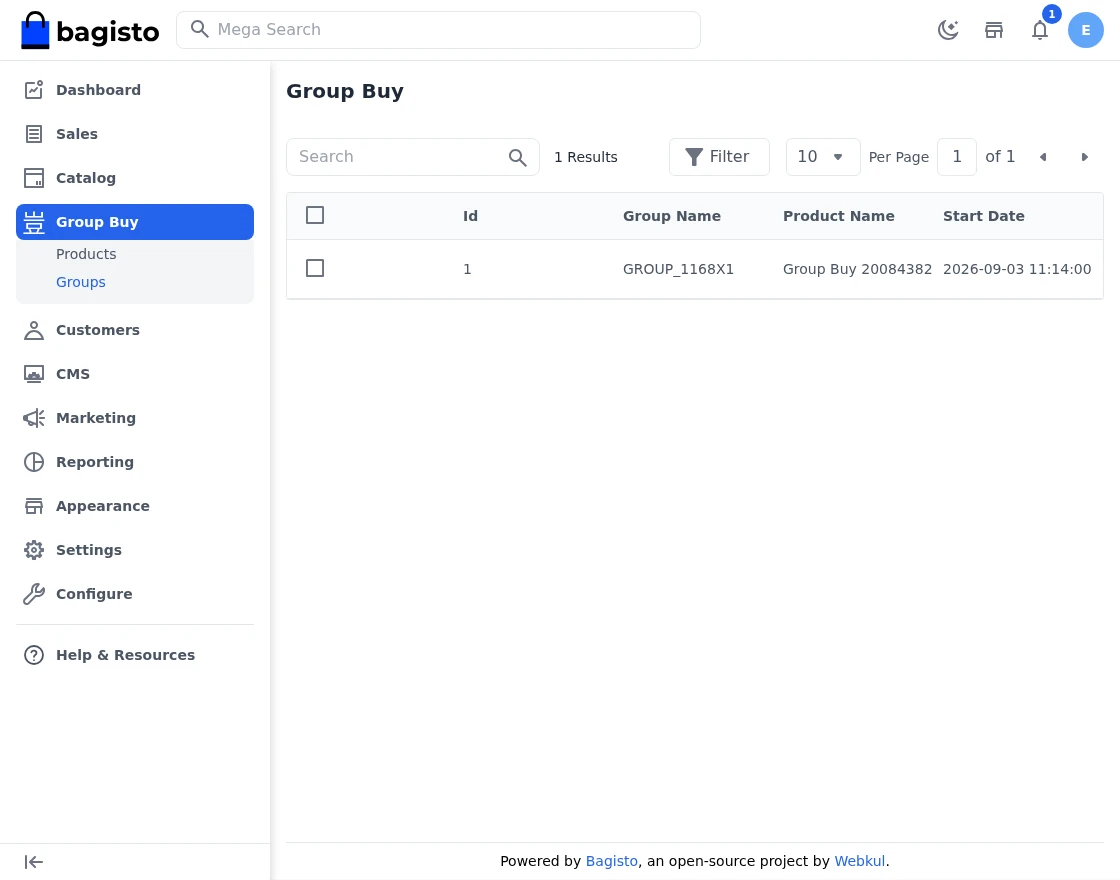
This grid shows the group name, the product, the start and end date, the group size and the current status of every group. Subsequently, the admin opens a group to review it and set that status.
Processing: The default state while the group still fills.
Qualified: The group met its conditions, so its orders can move to invoice and shipment.
Disqualified: The group did not meet its conditions.
Refunded: The store refunded the group’s members.
Each group also lists its members. Specifically, the member grid shows the customer name, the linked order, the order status, the join date, and which member authored the group.
Step-by-Step: Qualifying a Group
- Open Group Buy → Groups from the admin sidebar.
- Find the group you want to review, then click its edit action.
- Check the member list to see how many customers joined and who authored the group.
- Set the status to Qualified once the group met its conditions.
- Alternatively, choose Disqualified or Refunded where the group failed or the store returned the money.
- Save the group, then invoice and ship the member orders as usual.
Invoices and Shipments
Where Create Invoice for Incomplete Group stays disabled, the module holds invoices and shipments back for an order whose group has yet to reach Qualified.
This guard matters commercially. Otherwise, a store could fulfil an order at the discounted price before the group that earned that price actually came together.
Once the admin marks the group Qualified, the order moves to invoice and shipment in the usual way.
Customer Account
Navigate to: My Account → Groups
Customers see every group they belong to, along with the product, the group’s progress towards its size, and its current status. Consequently, they can follow whether a group still fills or has already qualified.
Laravel Group Buy Conclusion
Laravel Group Buy gives a Bagisto store a social reason to buy, because the discount arrives only when enough customers commit together. Meanwhile, the admin keeps full control of the price, the window, the group size and the fulfilment hold.
For further reading on extending Bagisto, see the Bagisto developer documentation.
Support
So, that was much about the User Guide of Laravel Group Buy. For any queries or doubts reach out to us at [email protected].
You can also raise a ticket at our HelpDesk System.
Please explore our Laravel Development Services and Quality Bagisto Extensions.
Supported Framework Version – v2.4.x

Be the first to comment.