Shipping cost is one of the last things a customer sees before they buy, and a wrong or missing rate is one of the fastest ways to lose the sale. The FedEx Shipping for Bagisto extension connects your Bagisto store directly to the FedEx API, so the rates shown at checkout are the real, live rates for the customer’s address and the items in their cart – no flat guesses, no manual price lists.
Once an order is placed, the extension does the fulfilment work for you: it creates the FedEx shipment, generates the shipping label, records the tracking number, and lets you schedule a FedEx pickup without leaving the admin panel.
Complete Features List
- Real-time FedEx rates at checkout for the customer’s cart and shipping address.
- Offer multiple FedEx services – First Overnight, Priority Overnight, 2 Day, Express Saver, Ground and more.
- Choose exactly which FedEx services are shown at checkout.
- Sandbox and Live modes – test end to end, then switch to live with one setting.
- Automatic FedEx shipment and PDF label creation when an order is placed.
- Shipment tracking – the FedEx tracking number is stored and links straight to FedEx tracking.
- FedEx pickup scheduling and cancellation from the shipment screen.
- Domestic and international shipments, with the customs and commercial-invoice details FedEx requires.
- Weight- and dimension-aware, with configurable box defaults as a fallback.
- Fully translatable – every label ships in all of Bagisto’s supported languages.
Installation of FedEx Shipping for Bagisto
Unzip the extension and merge the FedExShipping folder into packages/Webkul in your Bagisto project.
Goto bootstrap/providers.php file and add the following line under ‘providers’
use Webkul\FedExShipping\Providers\FedExShippingServiceProvider;

return
[
 FedExShippingServiceProvider::class,
]
Goto composer.json file and add the following line under ‘psr-4’
"Webkul\\FedExShipping\\": "packages/Webkul/FedExShipping/src"
Run these commands below to complete the setup
composer dump-autoload
php artisan fedexshipping:install
Admin Configuration
After the successful installation of the module, the admin can navigate to Configure >> Sales >> Shipping Methods and open the FedEx Shipping section. Turn Status on and fill in your FedEx account and API details. FedEx will not appear at checkout until the account and API credentials are saved.
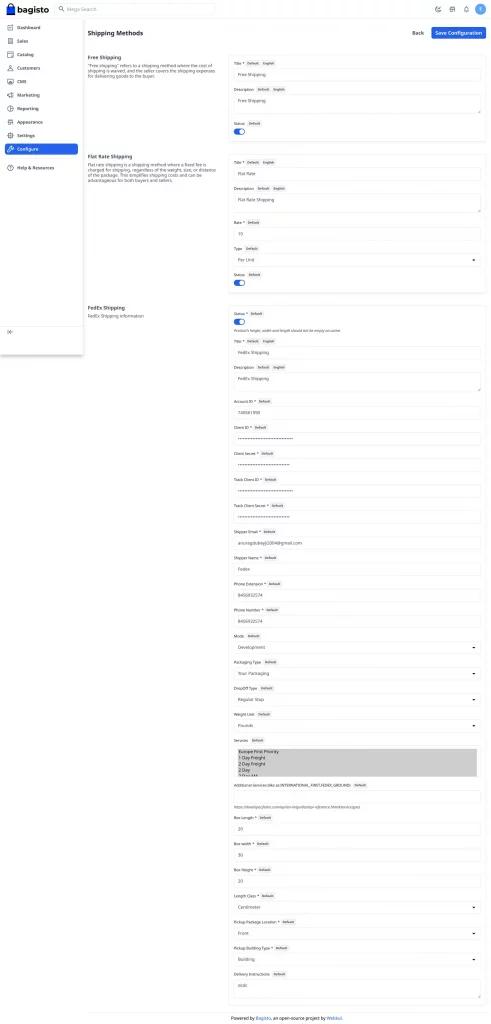
Status – The FedEx method can be enabled or disabled from here. When it is on, the product length, width and height become required so accurate rates can be calculated.
Title and Description – The name and text your customers see for FedEx at checkout.
Account ID – Your FedEx account number.
Client ID and Client Secret – Your FedEx API key and secret, used for rates, labels and pickups.
Track Client ID and Track Client Secret – The API key and secret used for tracking requests.
Shipper Email, Shipper Name, Phone Extension and Phone Number – The origin contact details FedEx prints on the shipment.
Mode – Choose Development to test against FedEx sandbox, or Live to charge real shipments.
Packaging Type and DropOff Type – How the parcel is packed and handed to FedEx.
Weight Unit and Length Class – The units FedEx should use – pounds or kilograms, inches or centimeters.
Services – The FedEx services you want to offer. Only the services you select here are quoted at checkout.
Box Length, Box Width and Box Height – Default parcel dimensions, used when a product has none of its own.
Pickup Package Location, Pickup Building Type and Delivery Instructions – The defaults used when you schedule a FedEx pickup for a shipment.
Customer Front End Panel
A customer adds products to the cart and goes to checkout as usual.
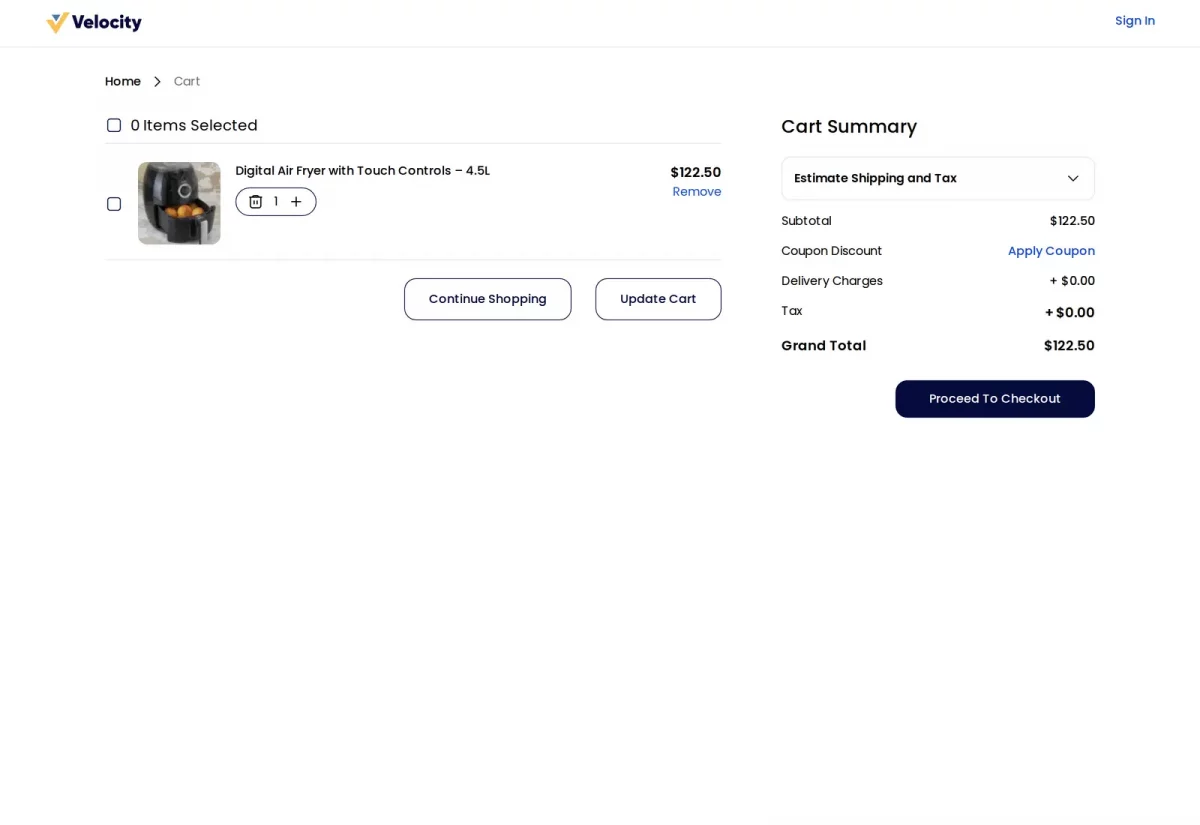
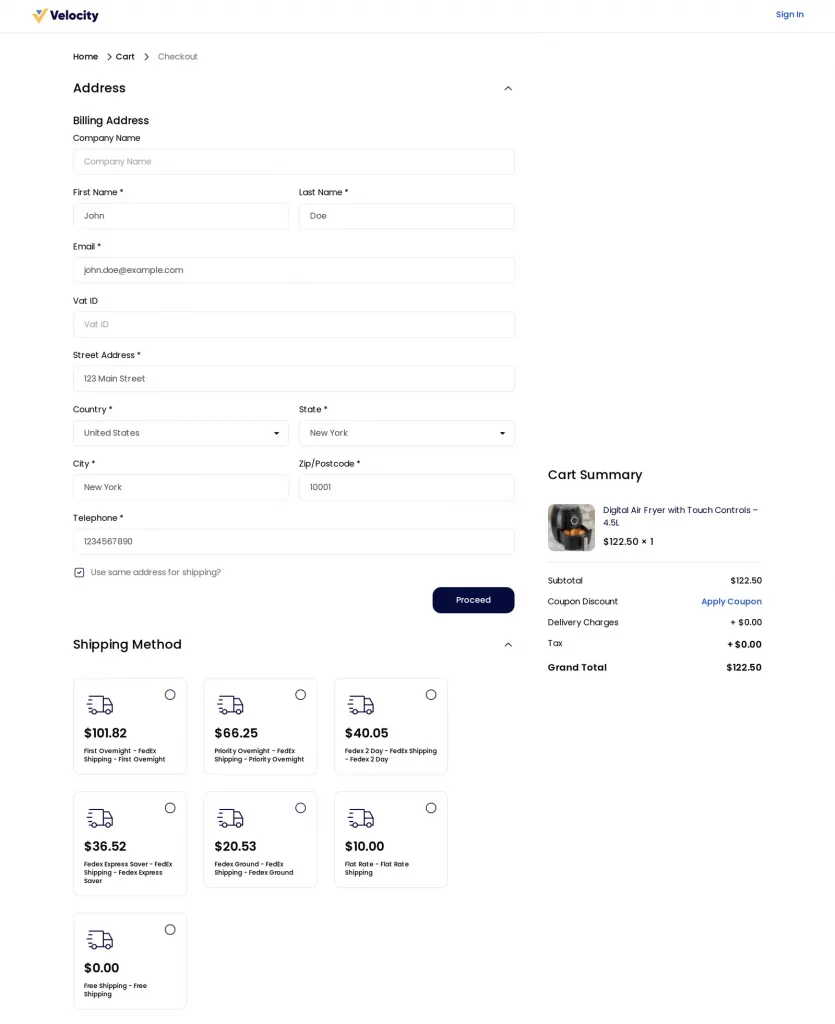
After entering a shipping address, the Shipping Method step shows every FedEx service you offer, each with its live price for that address and cart. The customer picks the one that fits their budget and delivery date.
Admin Panel – Managing FedEx Shipments
When a FedEx order is placed, the extension creates the shipment, generates the FedEx label and stores the tracking number for you. You manage everything from Sales >> Shipments.
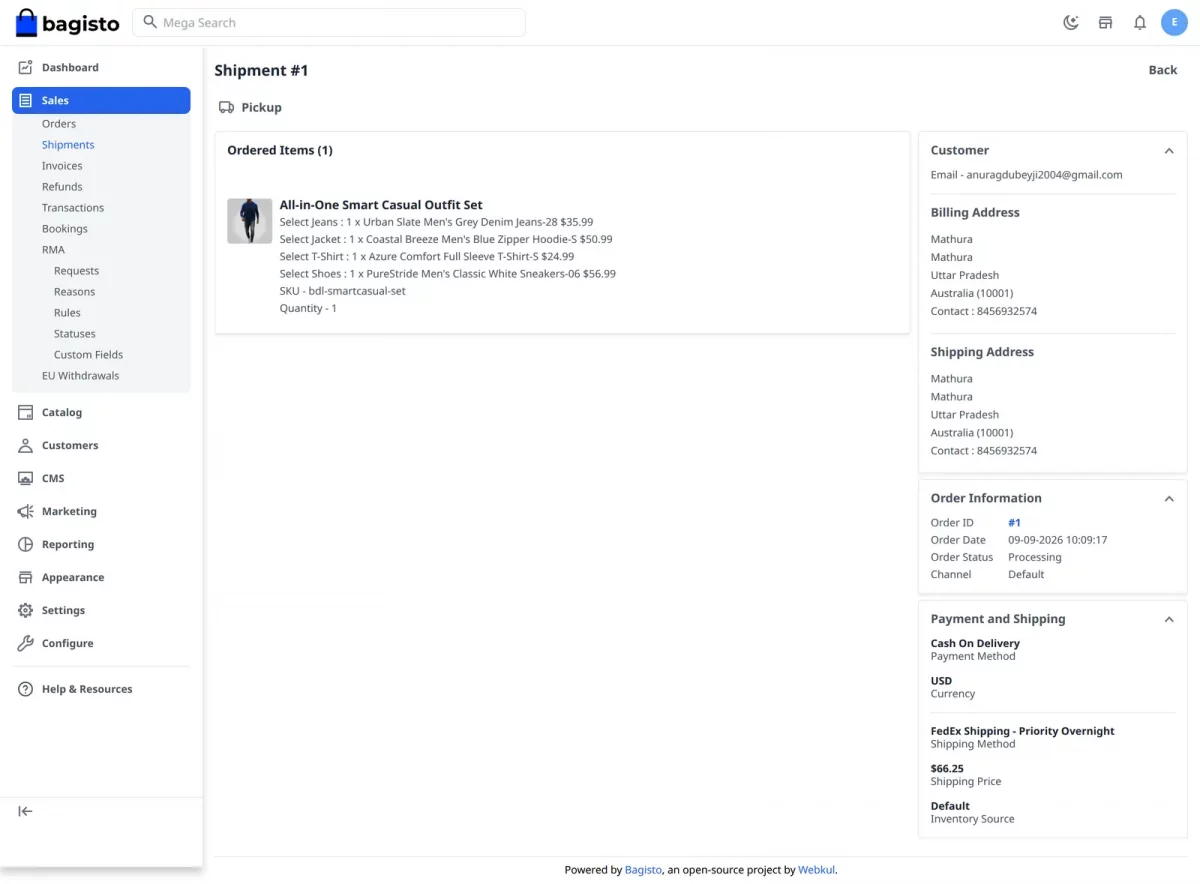
Open a shipment to see its FedEx details – the service used, the shipping price, the customer and the inventory source it ships from – alongside the actions for that shipment.
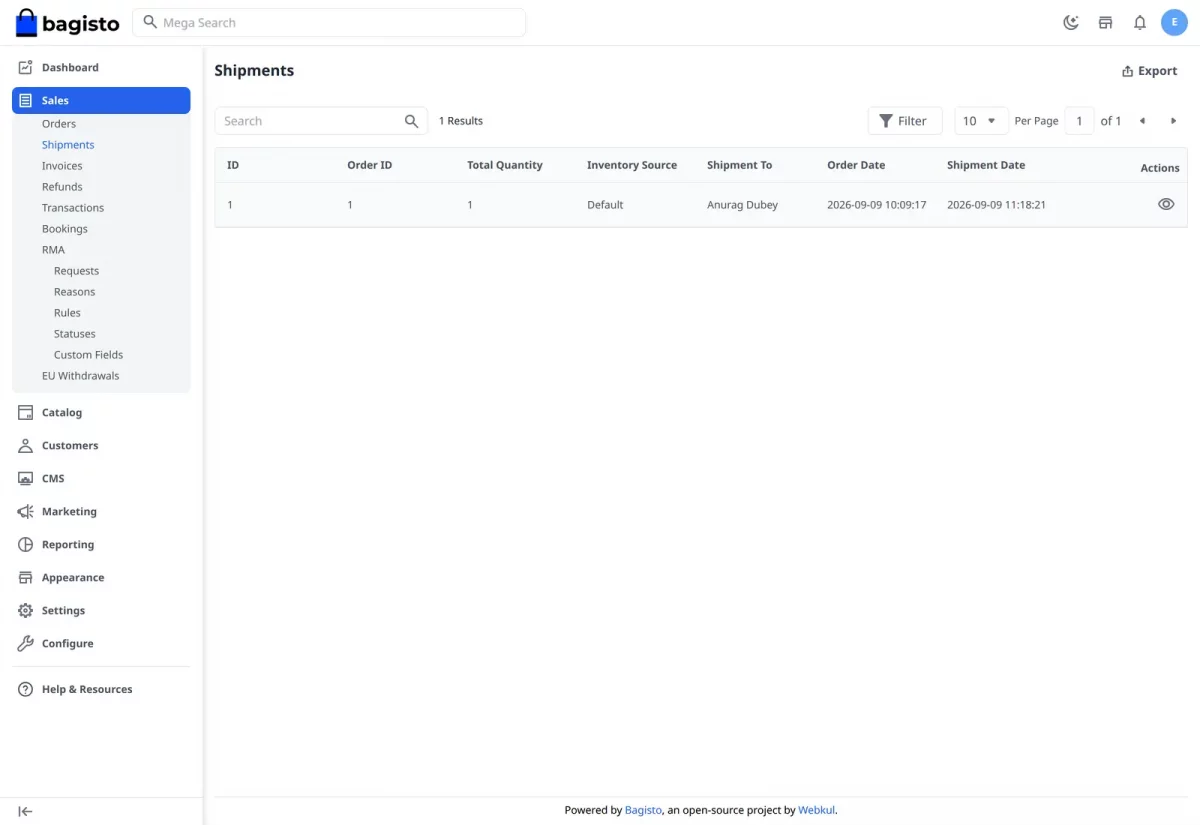
From the shipment screen you can download the FedEx label, track the shipment, schedule a FedEx pickup, and cancel a pickup you no longer need.
Schedule a FedEx Pickup
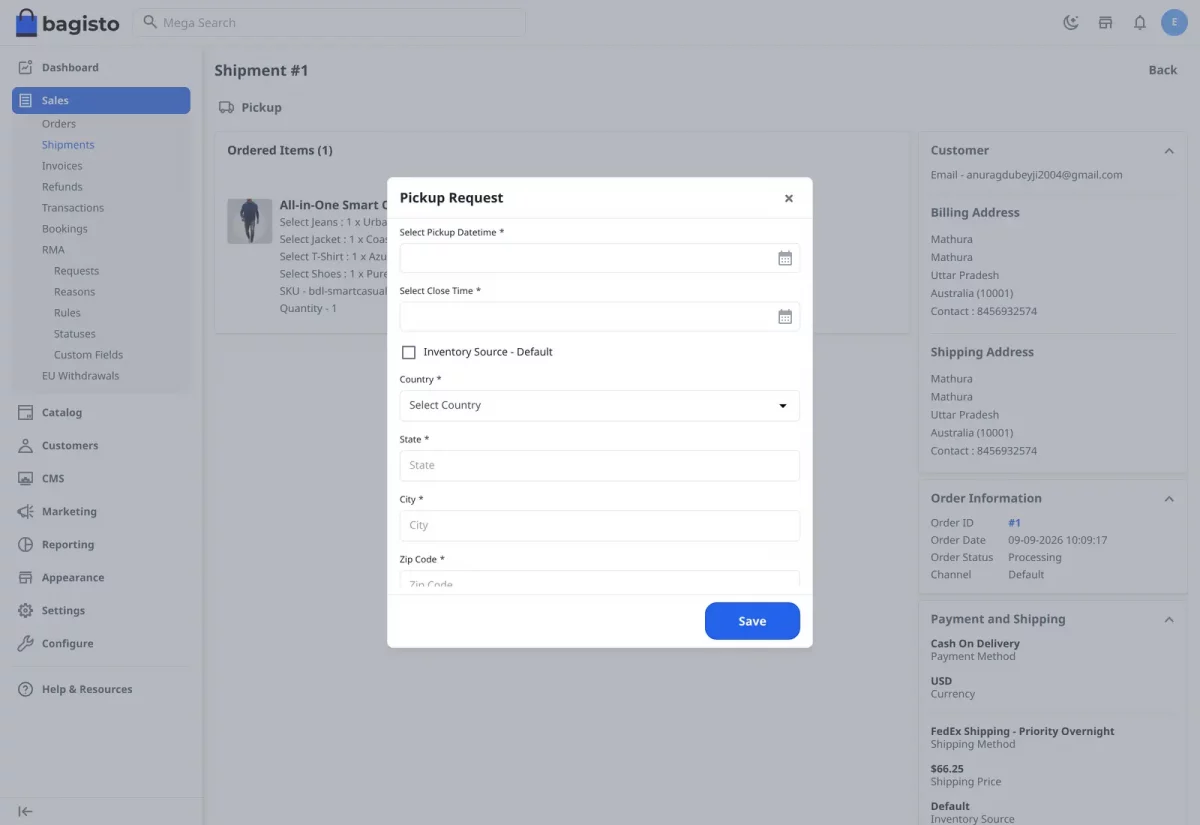
Click Pickup to open the Pickup Request form. Choose the pickup date and close time, use your default origin address or enter another, and save – the request goes straight to FedEx.
You do not have to create the shipment by hand. As soon as a FedEx order is placed, the shipment, label and tracking number are generated so your shipped-order emails already carry the tracking details.
Support
So, that was much about the User Guide of the FedEx Shipping for Bagisto module. For any queries or doubts reach out to us at [email protected]. You can also raise a ticket at our HelpDesk System.
Please explore our Laravel Development Services and quality Bagisto Extensions.
Current Product Version - v2.4.10
Supported Framework Version - v2.4.10

Be the first to comment.