Introduction
The Product Auction App now supports Shopify Auction Klaviyo Integration, allowing merchants to manage and send auction-related emails through Klaviyo.
This integration helps merchants create professional email templates in Klaviyo and use them for different auction email notifications.
To use this feature, you need to install and activate the Mailing with Klaviyo app from the Feature Apps section of the Product Auction App.
How to Activate Sending Mails with the Klaviyo Feature
To enable the Mailing with Klaviyo feature:
- Open the Product Auction App.

- Go to the Feature Apps section.
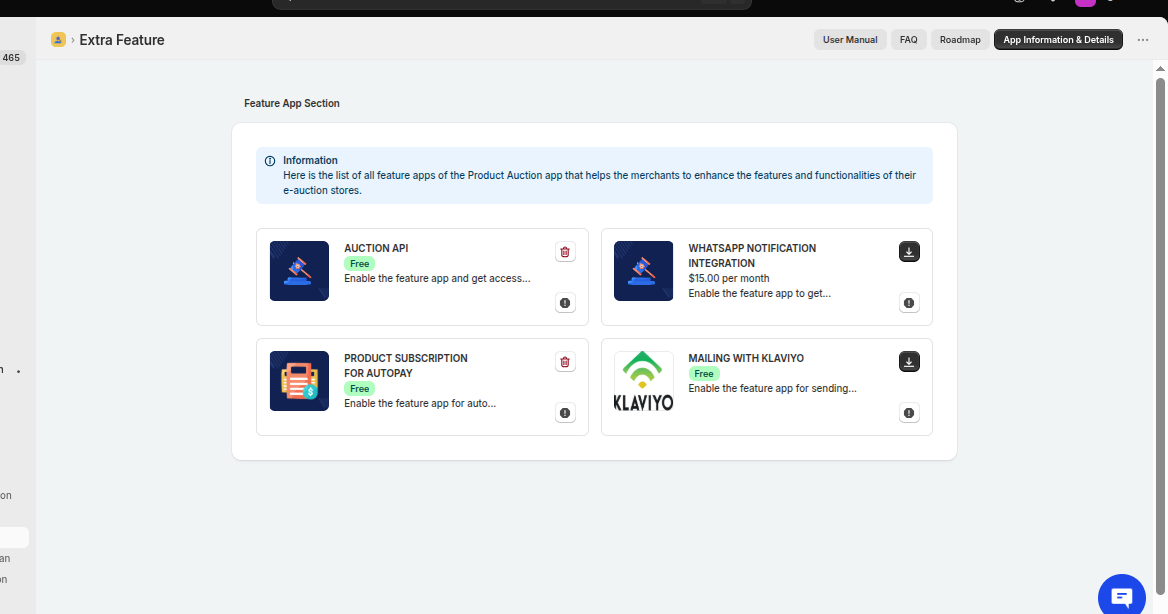
- Find the Mailing with Klaviyo app.
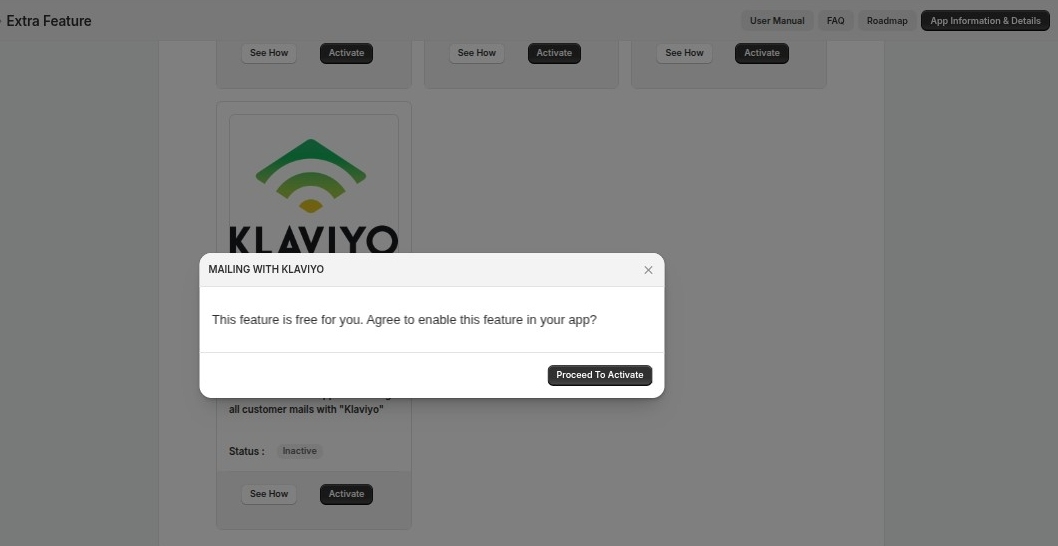
- Activate the app to start using the Klaviyo integration.
Once activated, you can configure Klaviyo settings from the Product Auction App.
How to Generate Klaviyo Private API Key
To connect Klaviyo with the Product Auction App, you need to generate the Klaviyo Private API Key from your Klaviyo account.
Follow these steps to create the API key:
- Login to your Klaviyo account.

- Navigate to Settings.
- Under the Settings menu, open the General section.
- Go to the API Keys option.
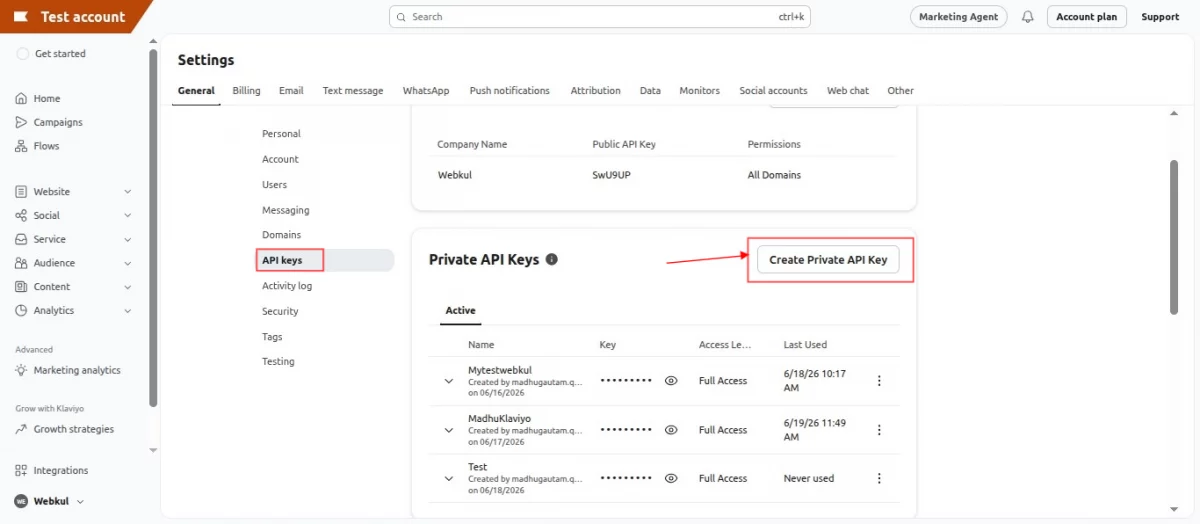
- Click on Create Private Key.
- Enter a name for your API key according to your requirement.
- Select the required access permission and provide Full Access.

- Click on Create Key.
Once the key is created, Klaviyo will generate a Private API Key.

Copy the generated key and use it in the Klaviyo Configs section of the Product Auction App to complete the integration.
Configure Klaviyo API Details
After activating the feature, navigate to:
Product Auction App → Configuration → Klaviyo Configs
Here, you need to enter your Klaviyo API credentials to connect your store with Klaviyo.
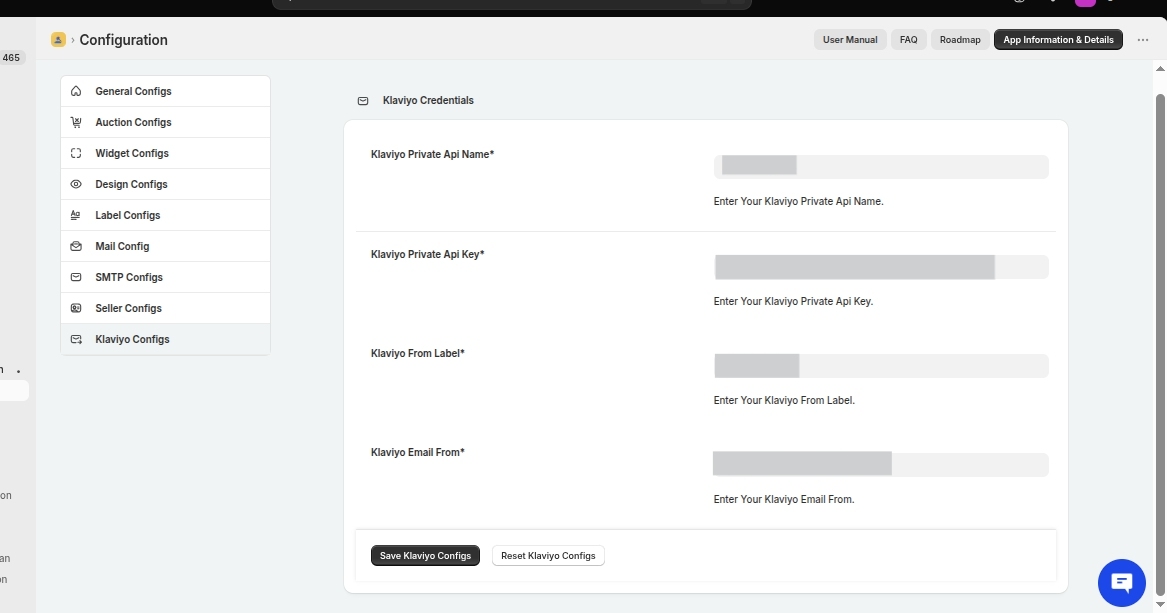
You need to add the following details:
- Klaviyo Private API Name
- Klaviyo Private API Key
After adding the required credentials, save the configuration.
The Klaviyo integration will now be connected with the Product Auction App.
Configure Auction Email Templates with Klaviyo
After connecting Klaviyo, go to:
Product Auction App → Mail Config
Select the required mail template.

Each auction email template will have the option to choose the mailing method:
1 – Through Klaviyo
2 – Through Default Smtp

Choose Klaviyo as the mailing method for that template.
Furthermore, in Klaviyo, we will provide two options:
You can either use the default templates provided by our app, where emails are sent in the same format configured in the app, or use a Klaviyo template for greater customization.
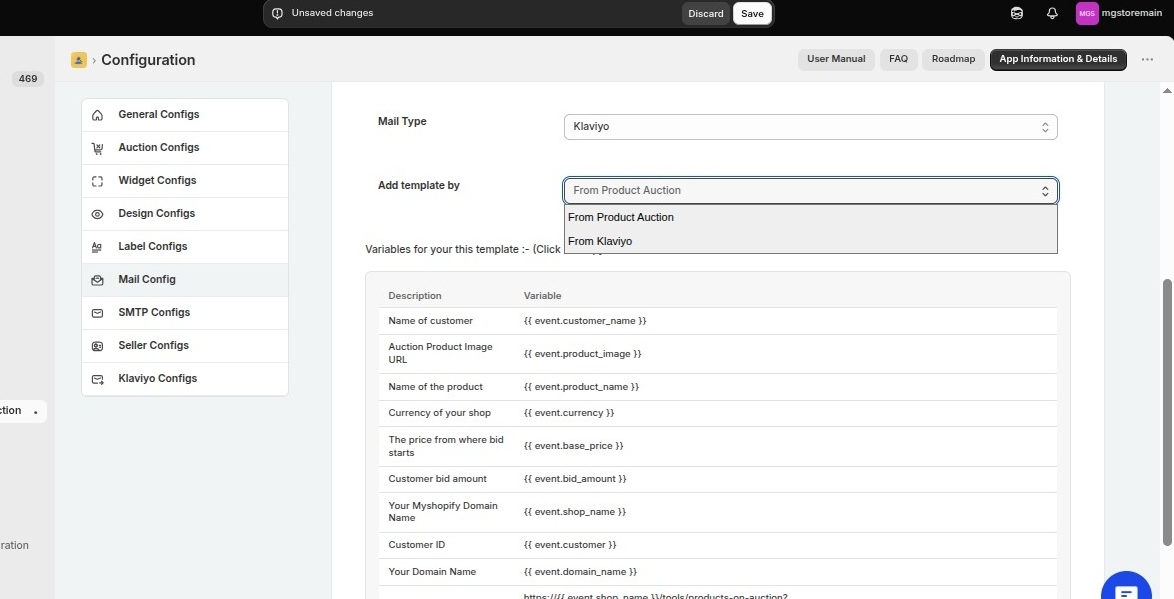
Map the Email Template with Klaviyo
To map an email template with Klaviyo, first go to Content in your Klaviyo account and open the Templates section.
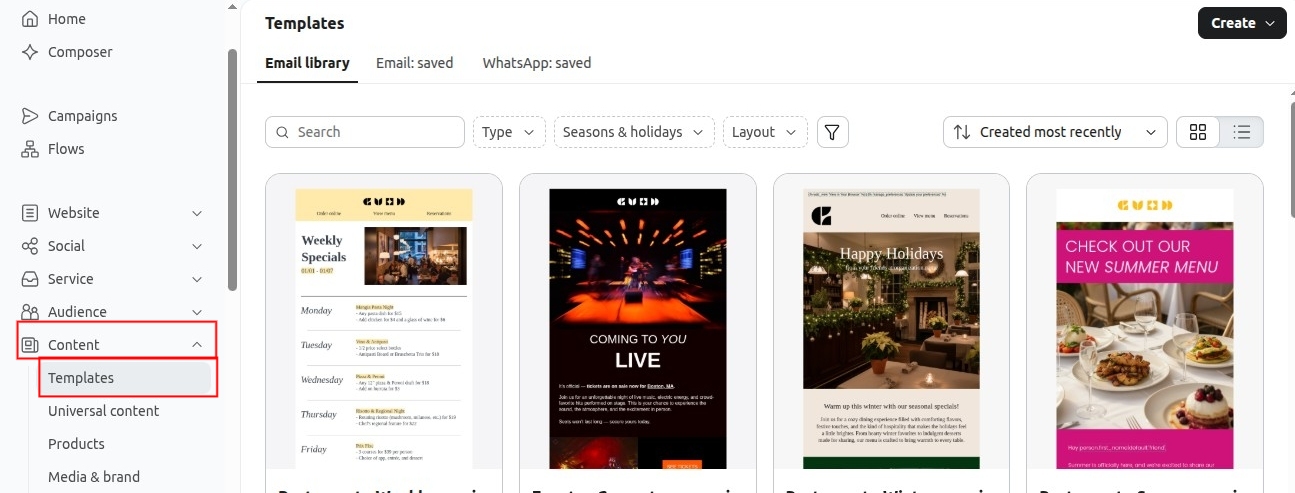
Click on any template you want to use.
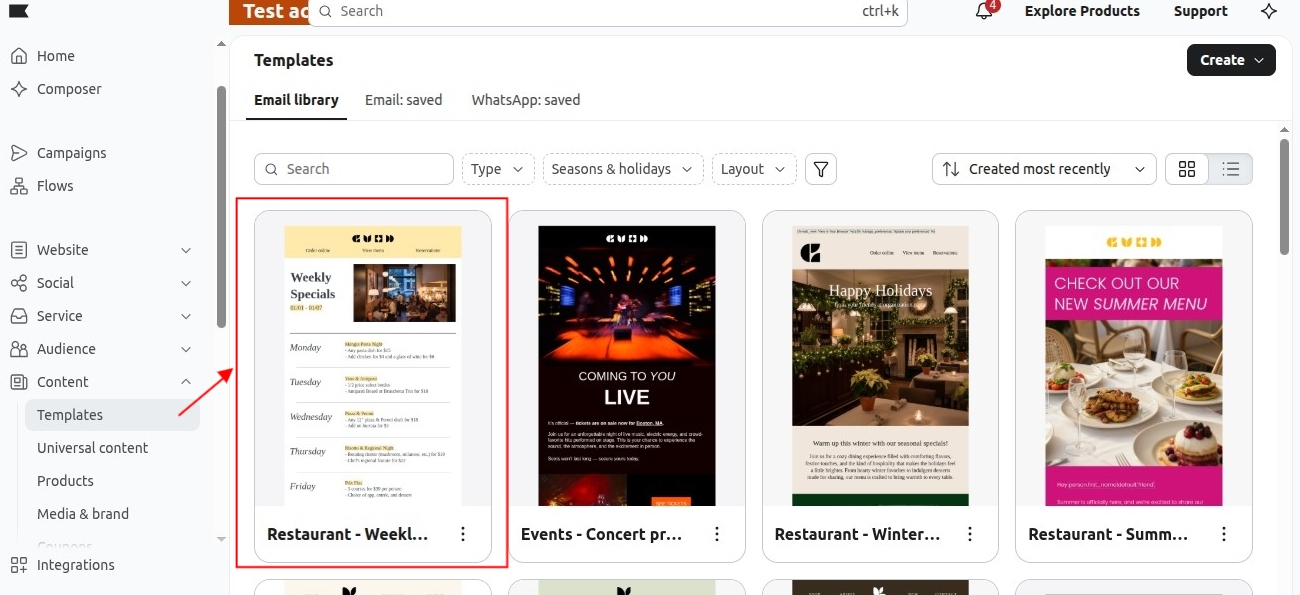
Use template.
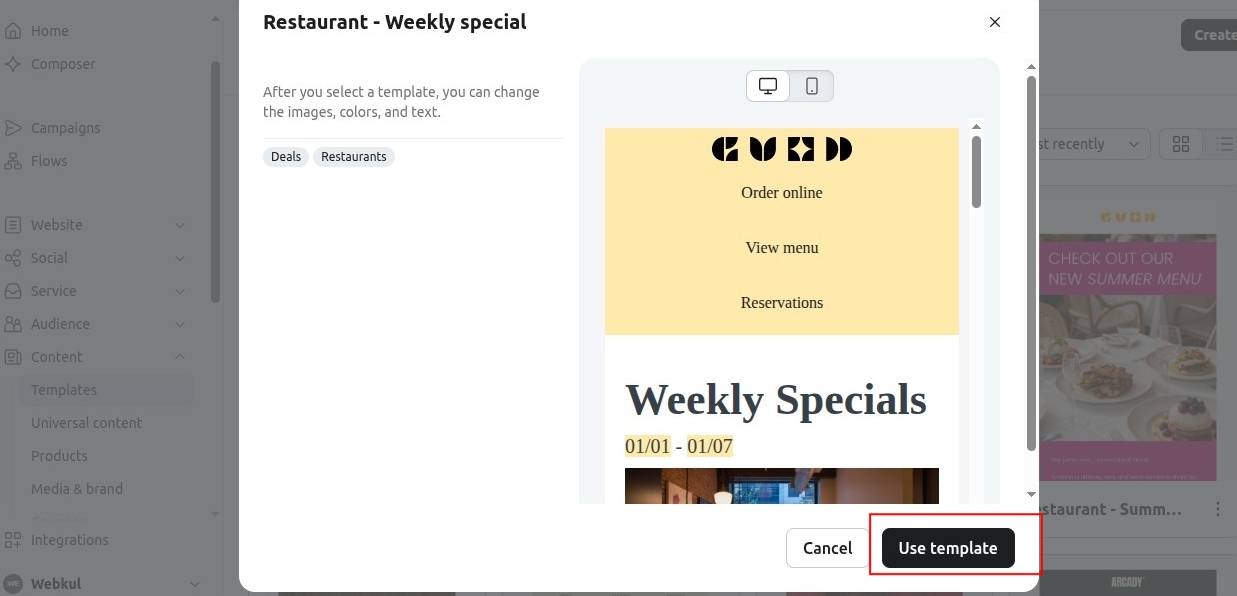
Edit it and Save it.
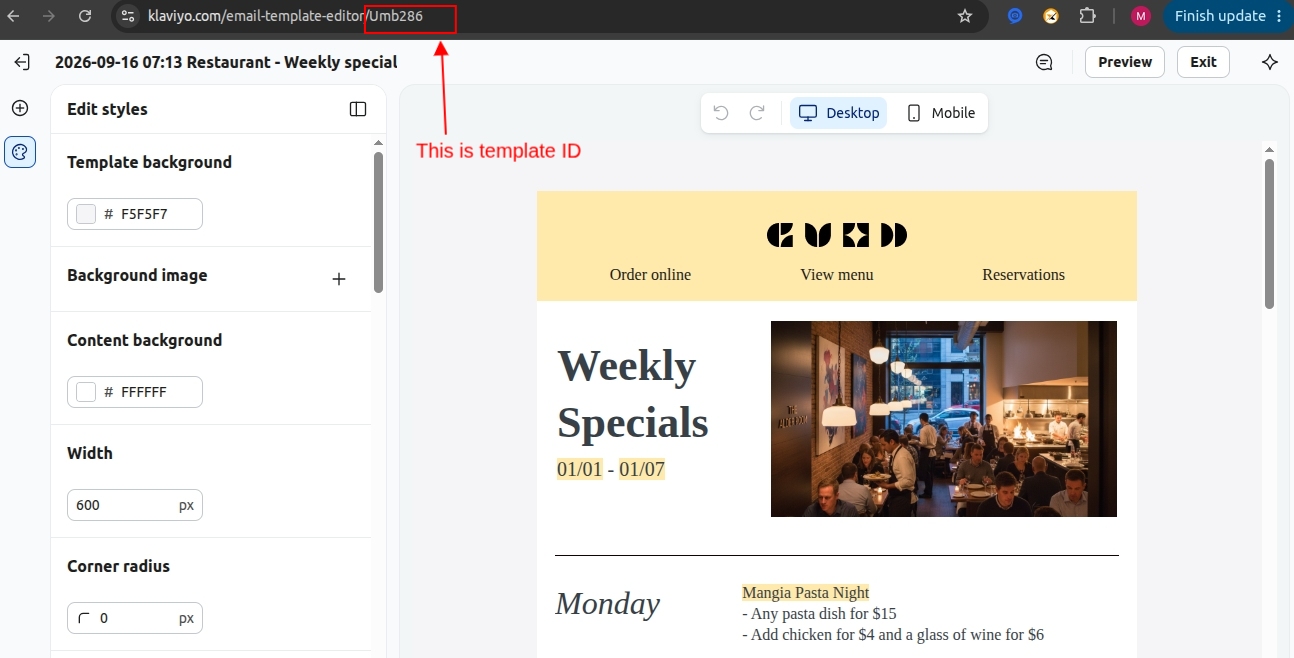
After saving the template, copy the Template ID from the URL displayed at the top of the template page.
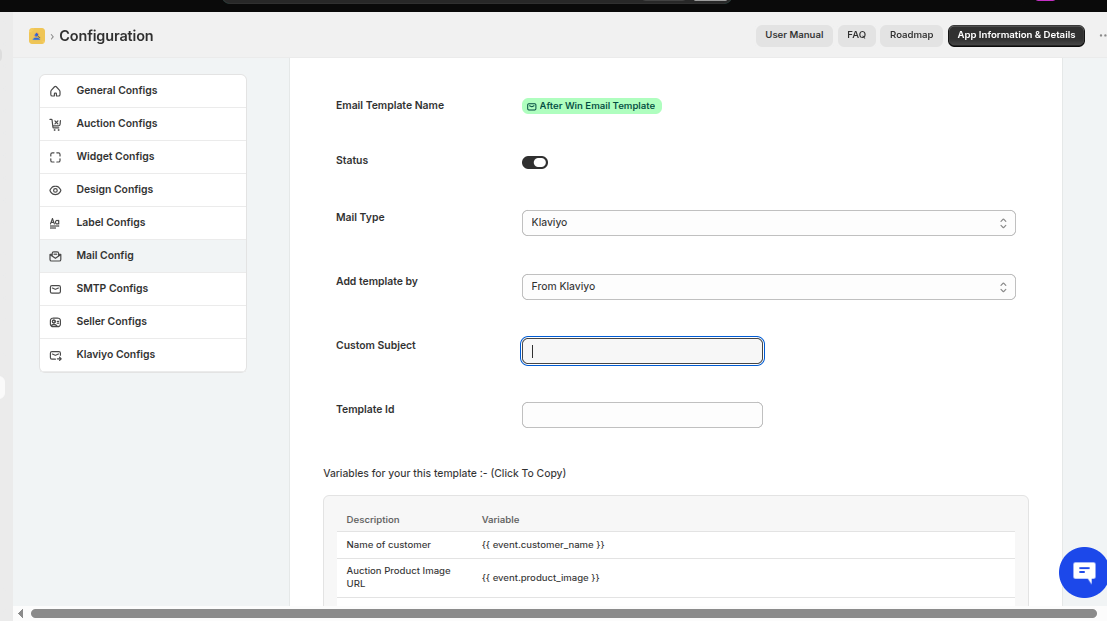
Next, go to the Auction App and enter the copied Template ID along with the Subject you want to use for the email. Finally, save the configuration to map the Klaviyo template with the auction email.
Conclusion
The Mailing with Klaviyo integration for the Product Auction App provides merchants with a powerful way to manage auction email notifications using Klaviyo’s email automation system.
With this integration, merchants can create customized email templates, map them with auction events, and automate communication with bidders and customers.
Hope you like this blog. To get more interesting blogs, keep in touch with us. If you need any kind of support, just raise a ticket at https://webkul.uvdesk.com/en/.
You can also reach out to [email protected] for further assistance.

Be the first to comment.