


















Introduction
Odoo Multichannel Flipkart Connector connects your Flipkart seller account with Odoo. It helps you manage Flipkart orders and product listings from Odoo.
The connector supports manual order imports, product exports, and automated order imports using cron jobs.
It also provides Flipkart-specific settings for orders, listings, shipping, GST, and product packages.
You can configure Flipkart API credentials, import orders using different filters, and export or update product listings. This helps manage Flipkart operations from your Odoo database.
Prerequisites for using Odoo Multichannel Flipkart Connector
Odoo Multichannel Flipkart Connector works in conjunction with the following module:
Odoo Multi-Channel Sale Module
You must install the above-mentioned module before using Odoo Multichannel Flipkart Connector.
The Webkul Store also lists Odoo Multi-Channel Sale as the framework module required for the Flipkart connector.
Features
- Connect Flipkart with Odoo using API credentials and OAuth authentication.
- Import Flipkart orders using date range, Order SKU, or order status.
- Automatically map products and customers during order imports.
- Export or update Odoo product templates and listings on Flipkart.
- Automate Flipkart order imports using cron jobs.
- Filter orders by APPROVED, PACKED, READY_TO_DISPATCH, and CANCELLED status.
- Configure ACTIVE or INACTIVE listing status and seller fulfillment settings.
- Set procurement SLA, procurement type, shipping charges, and GST rate.
- Configure default package dimensions and weight for Flipkart listings.
Installation
- Once you purchase the App from the Webkul Store, you will receive a link to download the module’s zip file.
- Extract the file on your system after the download finishes. As a result, you will be able to see a folder named flipkart_odoo_bridge.
- Copy and paste this folder inside your Odoo Add-Ons path.
- Now, open the Odoo App and click on the Settings menu. Here, click on Activate Developer Mode.
- Then, open the Apps menu and click on Update Modules List.
- In the search bar, remove all the filters and search for flipkart_Odoo_bridge.
- You will see the module in the search results. Click on Install to install it.
Workflow
Connect Flipkart with Odoo
1) After installing the module, log in to your Odoo account and open the Multi-Channel Sale application.
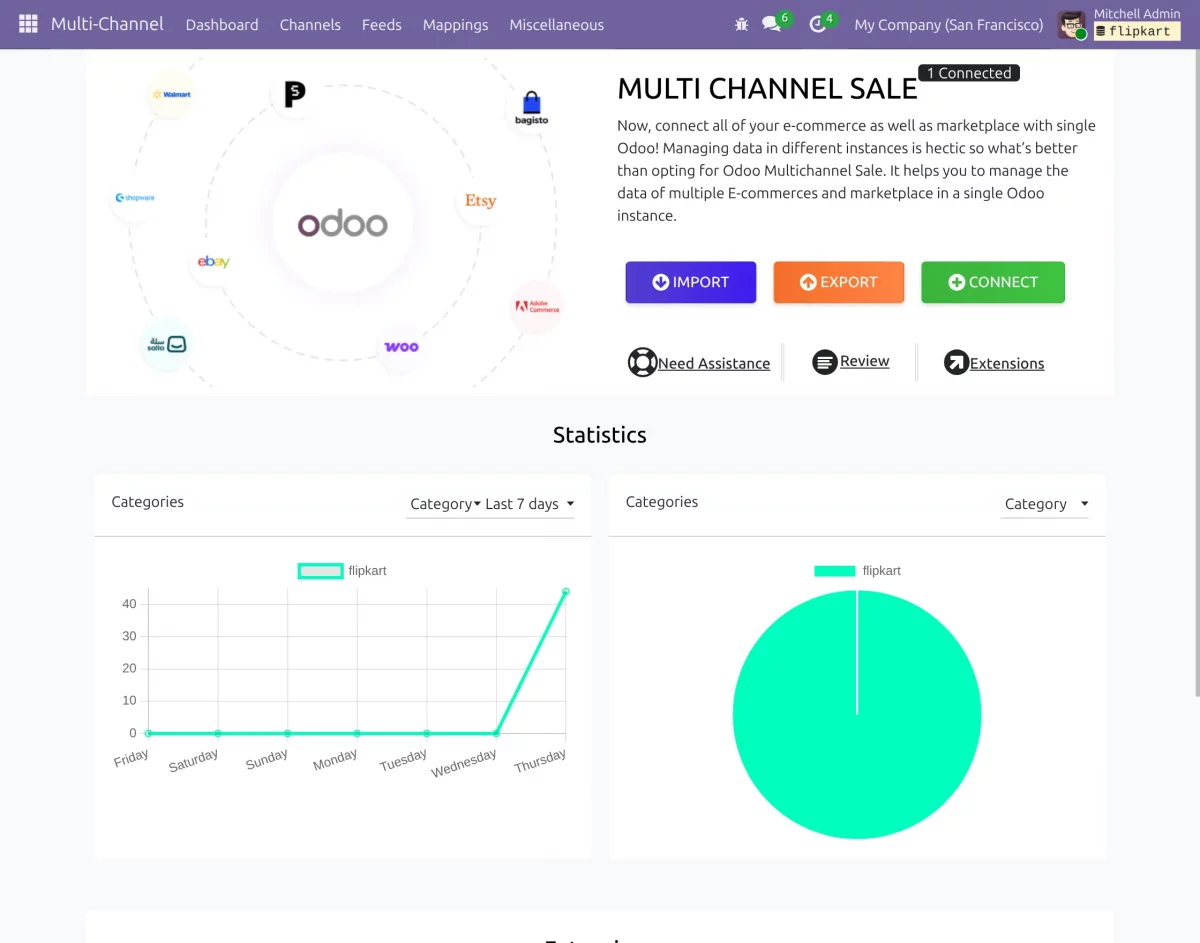
2) Create a new channel by clicking the Connect button.
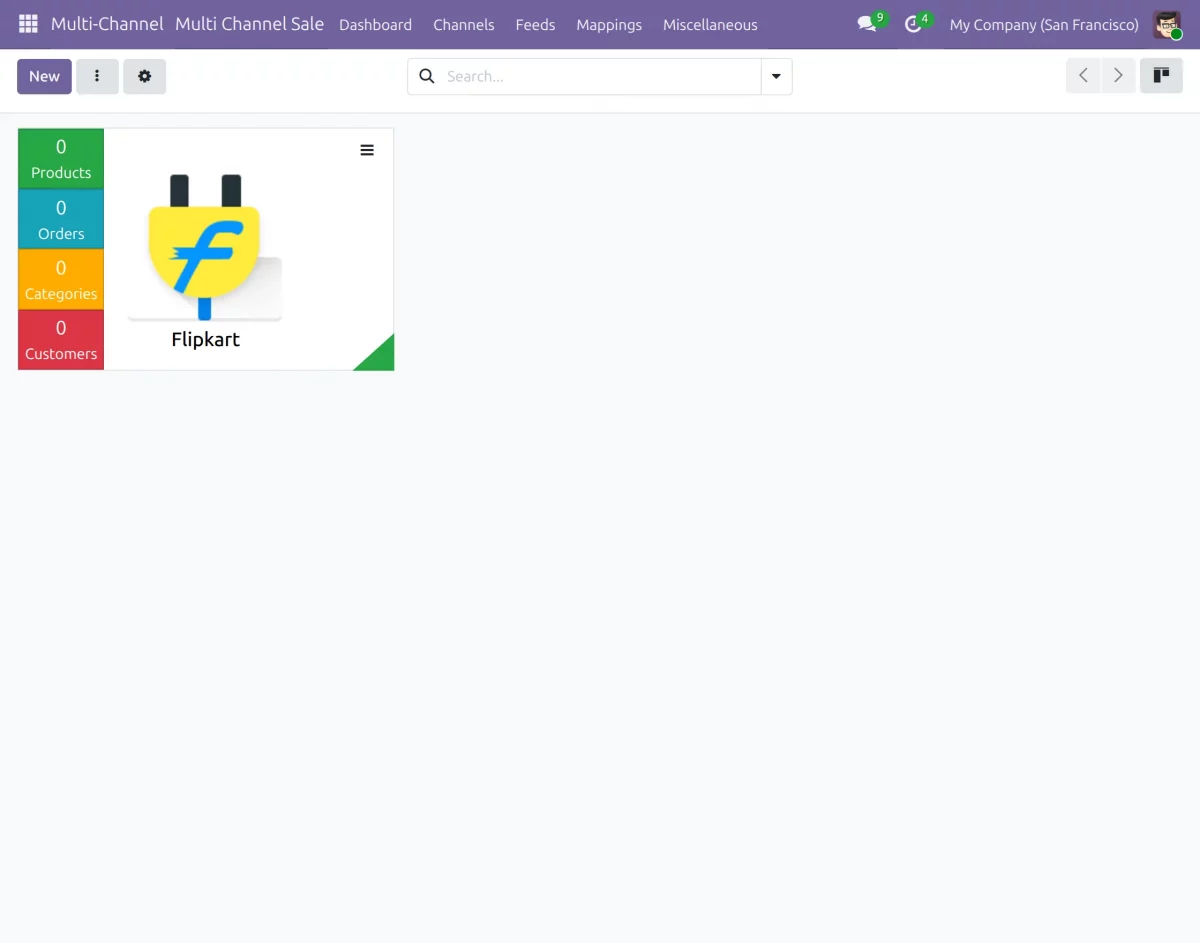
3) On the Multi-Channel dashboard, click the New button to create a new multi-channel
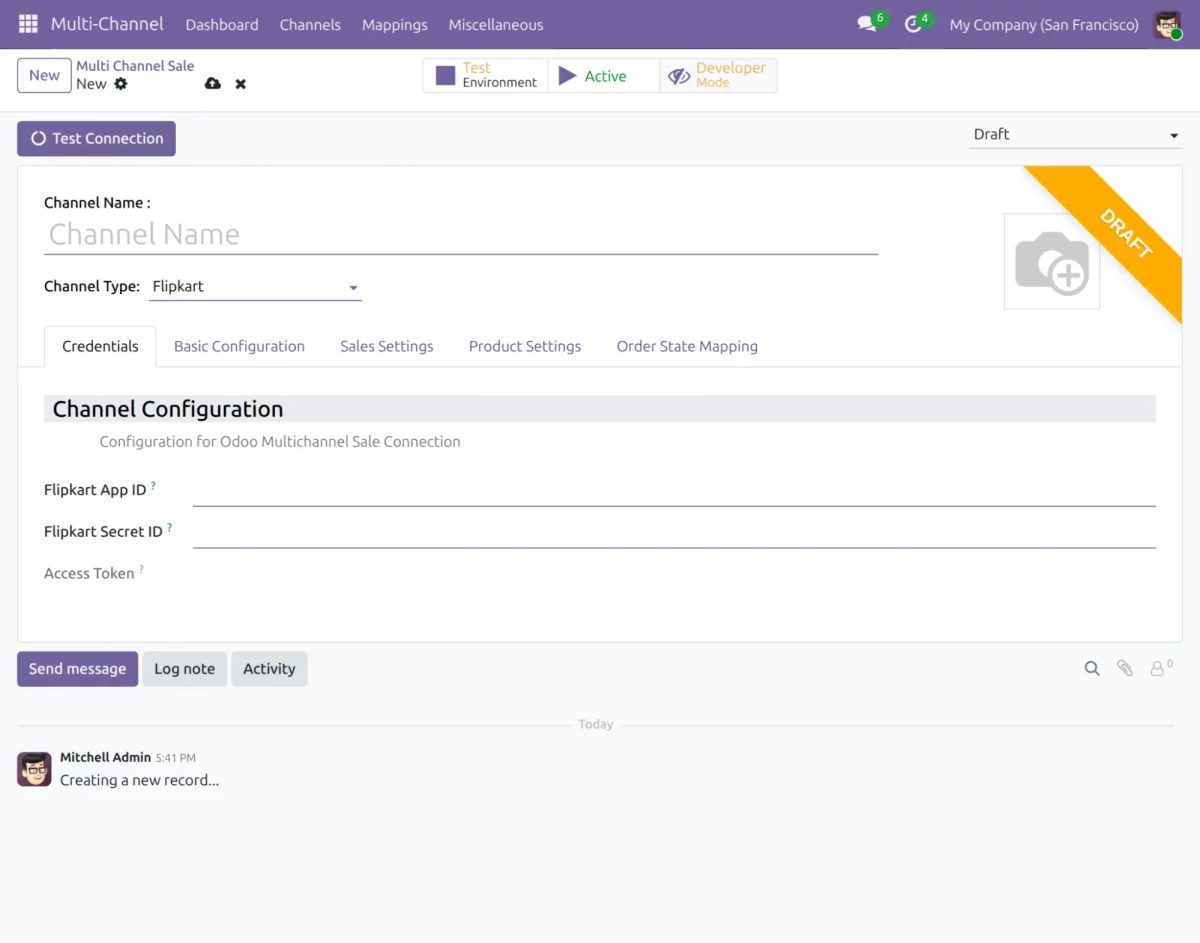
4) Select Flipkart as the channel type and enter the required channel details.
5) Enter the Flipkart App ID and Secret ID in the respective fields.
6) Complete the OAuth authentication process to generate the Access Token.
7) Click Test Connection to verify the Flipkart connection.
8) After the connection is successful, the Flipkart channel appears on the Multi-Channel dashboard. Click it to open its configuration.
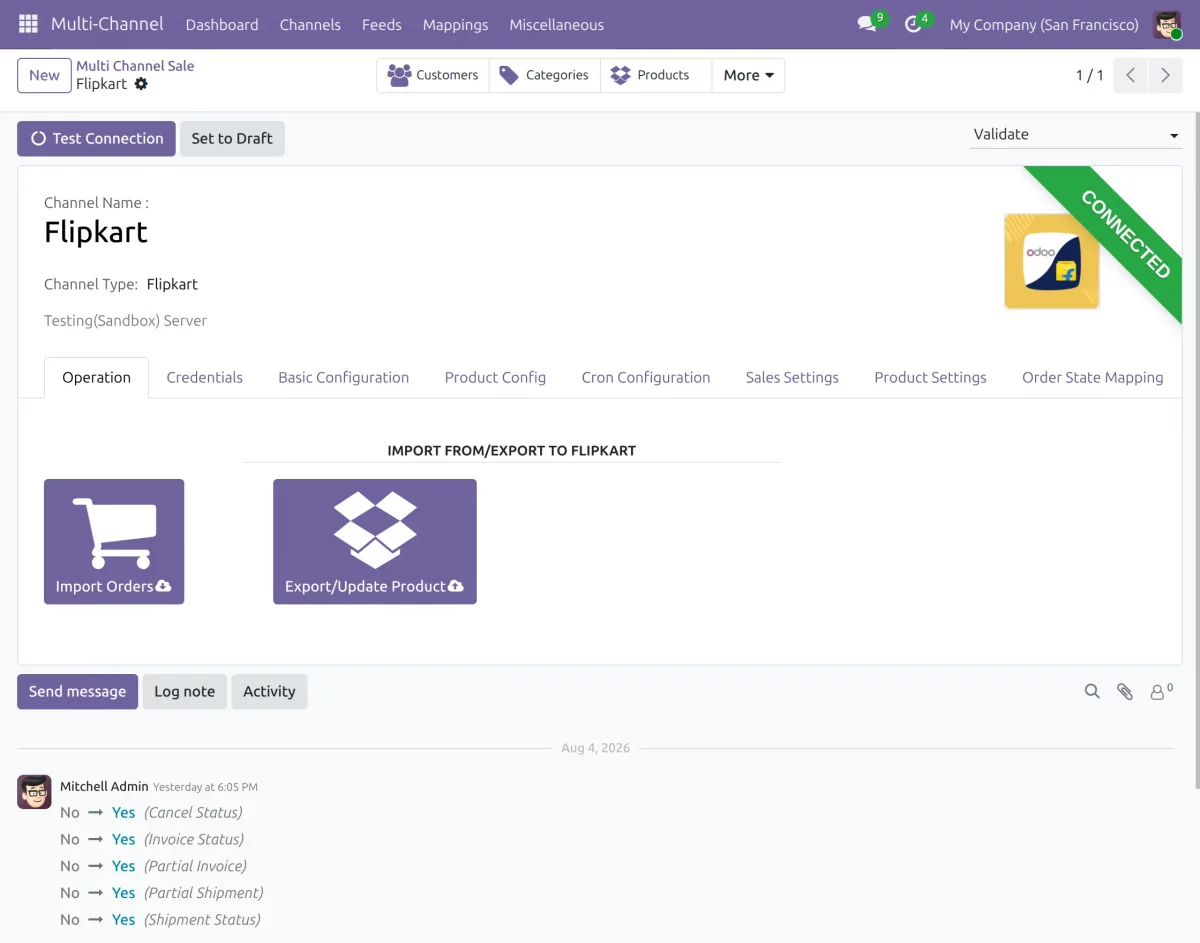
9) From the Operation tab, you can use Import Orders to import Flipkart orders and Export/Update Product to export or update product information on Flipkart.
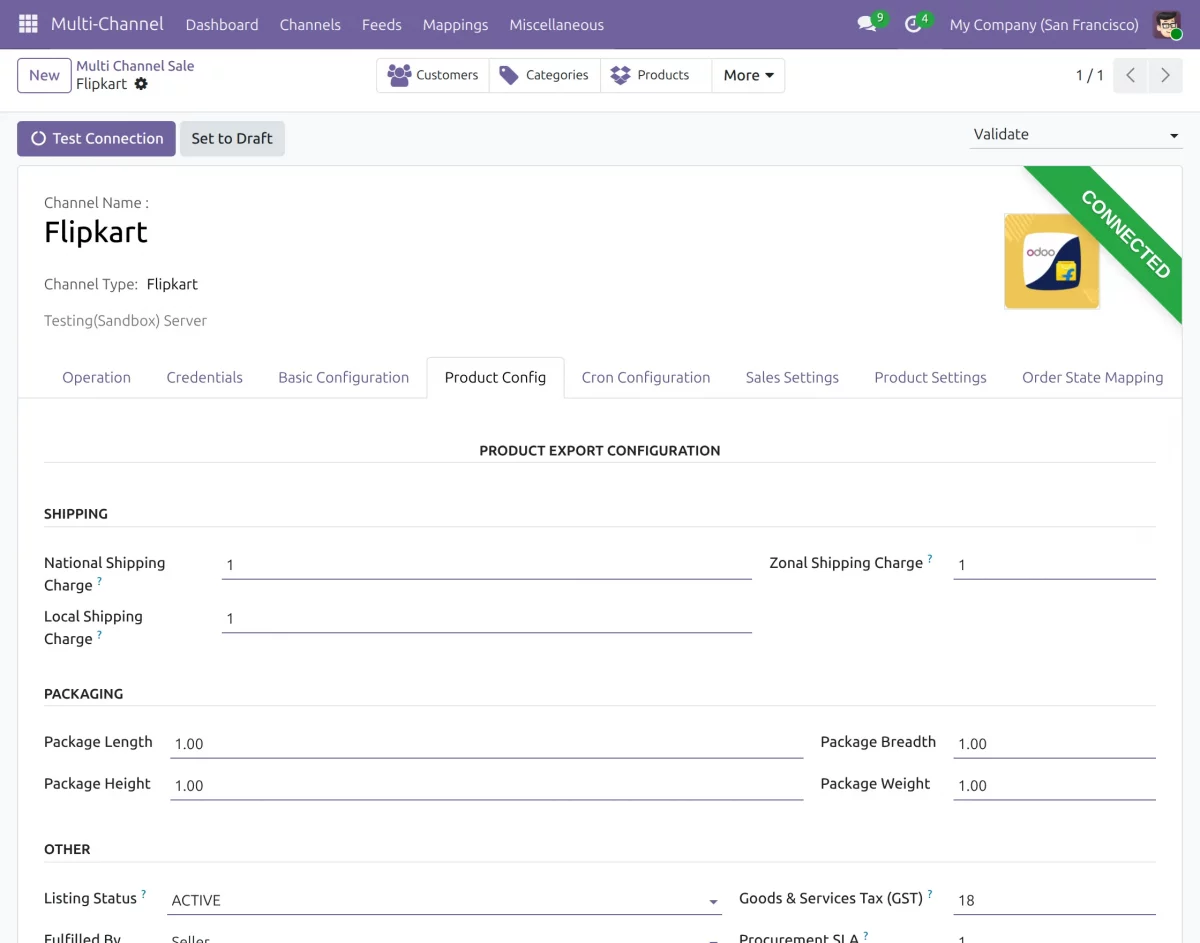
Configure Flipkart Settings
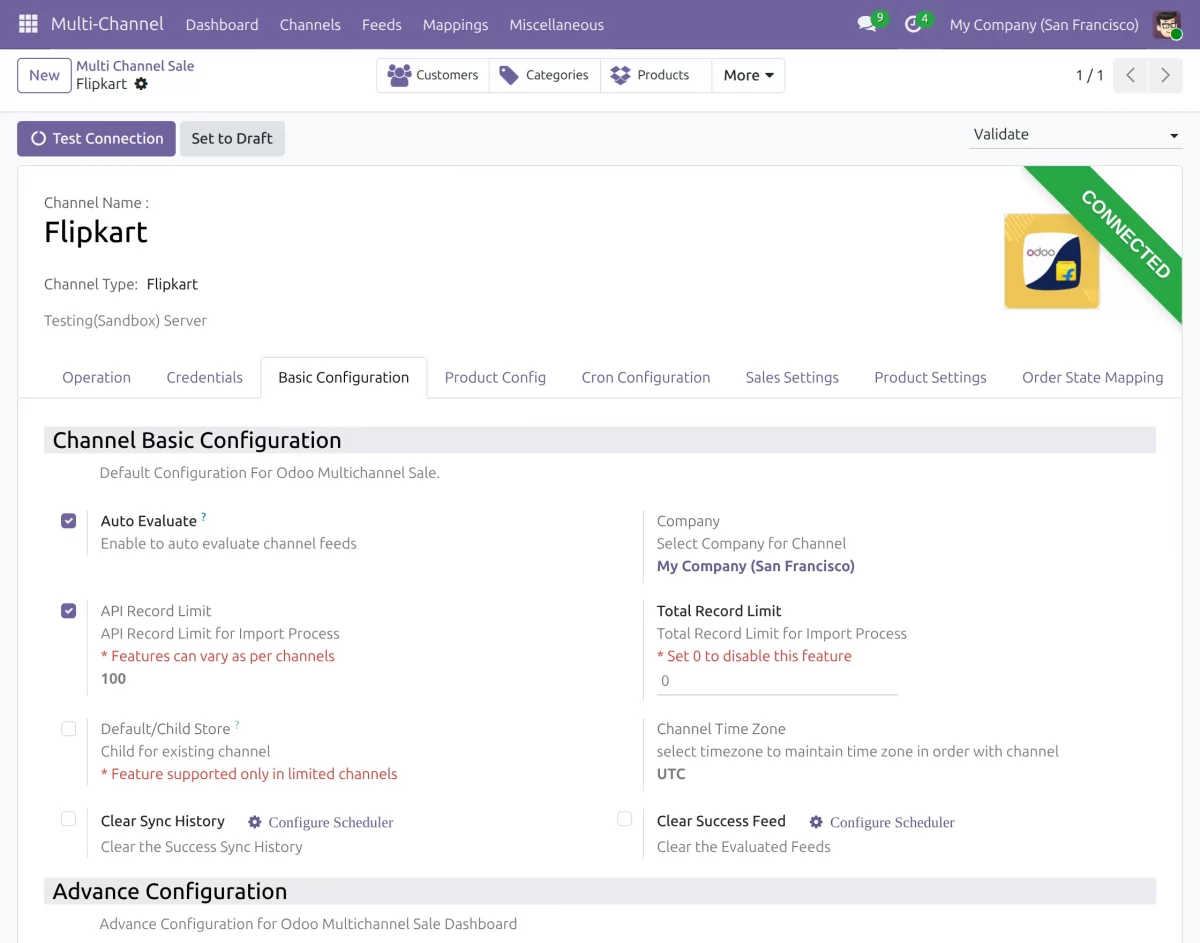
- Configure the required Flipkart settings from the Configuration tab.
- Set the required Order Filters, Listing Status, Fulfillment, Procurement, Shipping Charges, and GST details.
- Configure the default Package Dimensions and Weight for Flipkart listings.
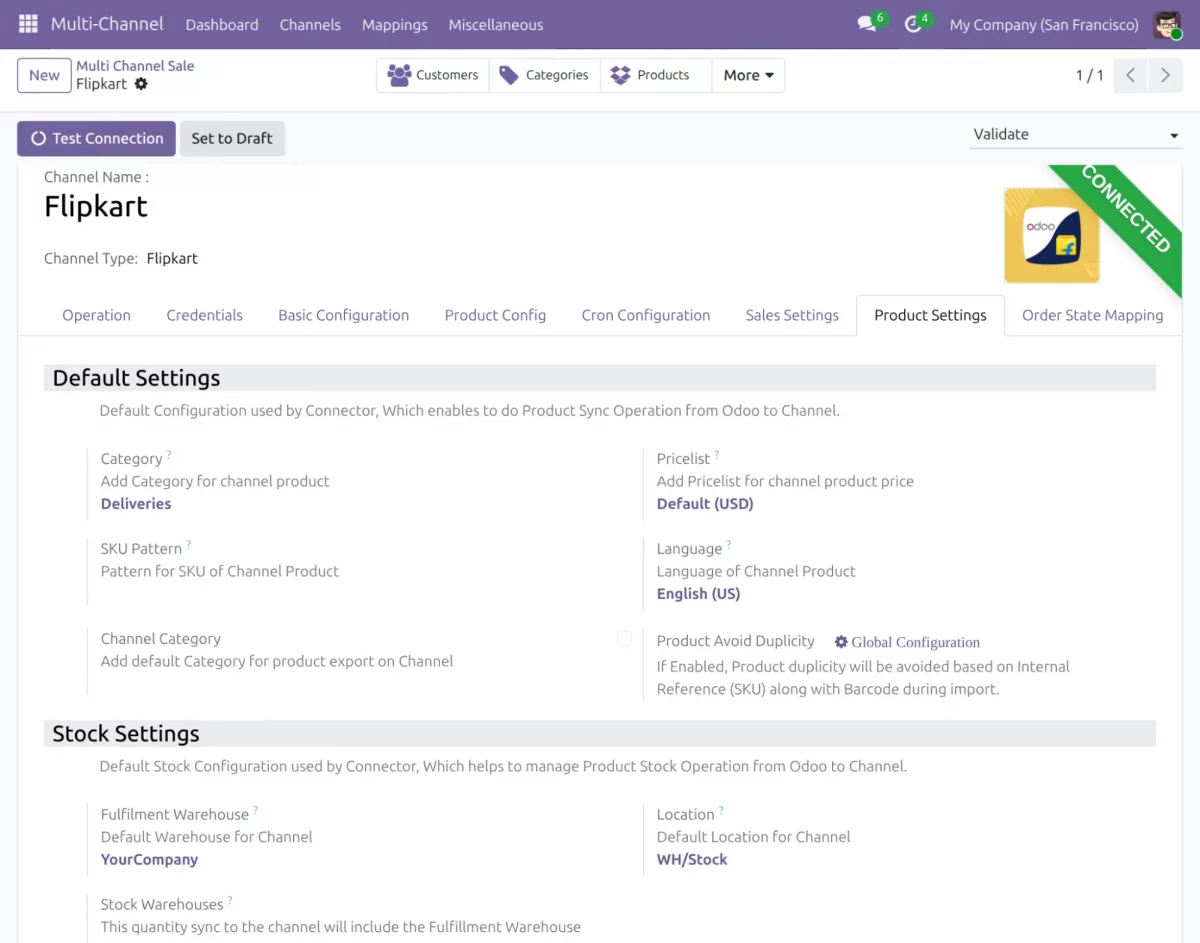
Product Settings
- Open the Product Settings tab to configure the default product synchronization settings.
- Under Default Settings, select the category, pricelist, language, SKU pattern, and default channel category for Flipkart products.
- Enable Product Avoid Duplicity to prevent duplicate products during imports using the product’s internal reference and barcode.
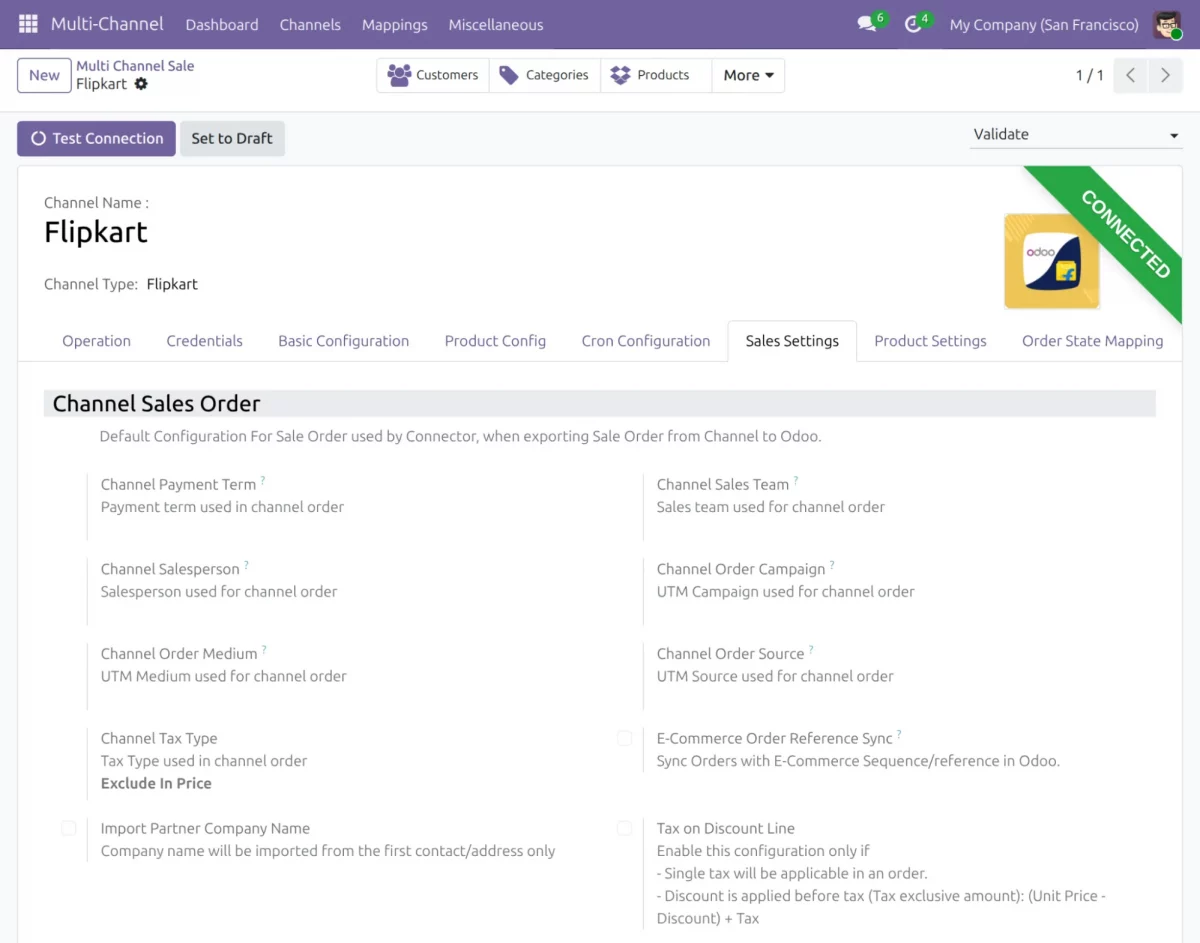
Sales Settings
- Open the Sales Settings tab to configure the settings used when Flipkart orders are imported into Odoo.
- You can configure default products for order discounts, shipping charges, and other charges.
Configure Order State Mapping
- Open the Order State Mapping tab to map Flipkart order states with Odoo order states.
- Add the required Flipkart order state and select the corresponding Odoo order state.
- You can also configure whether the selected state should be the default state, create an invoice, set the invoice state, or create a shipment.
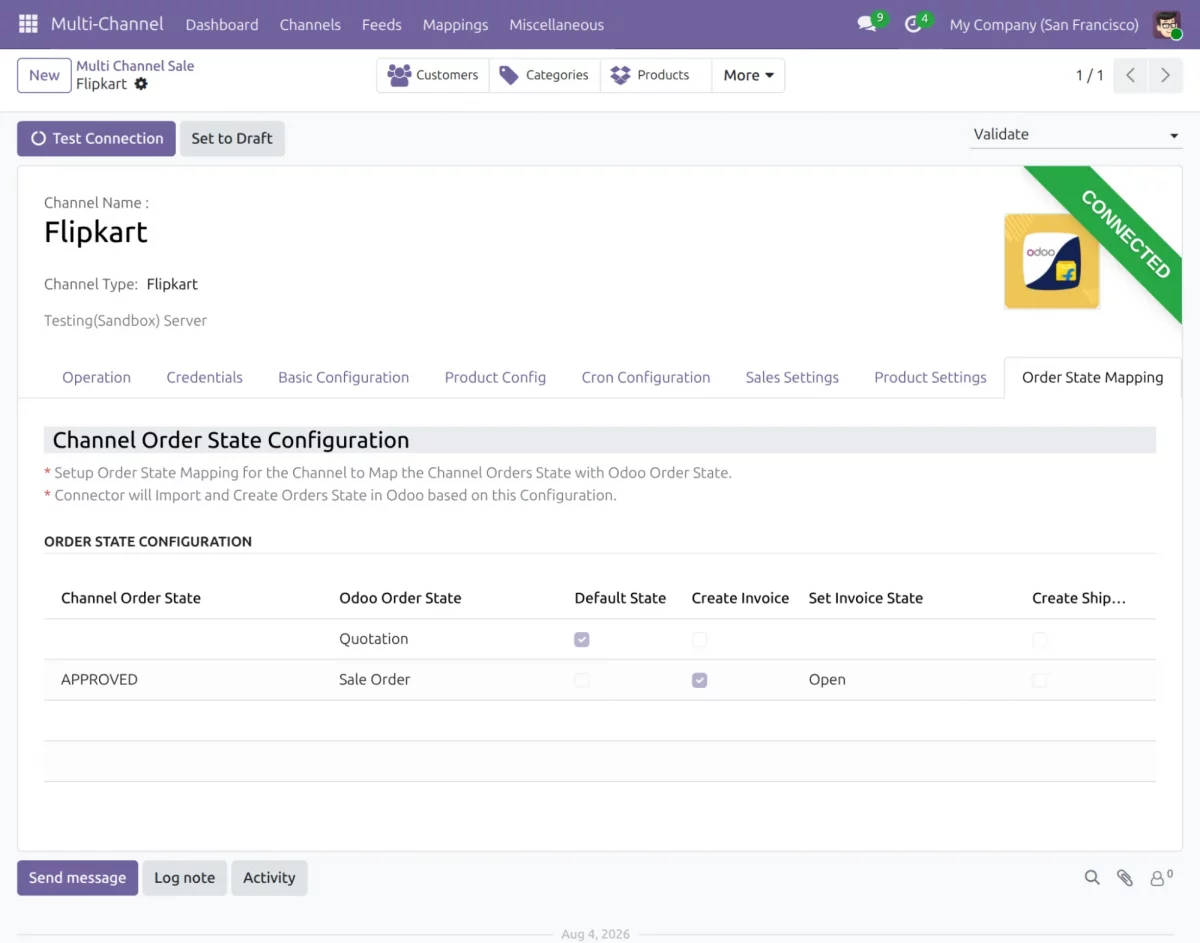
Only one order state can be configured as the default state. When enabled, orders imported with the mapped state follow the selected Odoo workflow.
Import Flipkart Orders
- Open the Flipkart Connector dashboard and click the Import option.
- Select Orders as the object to import.
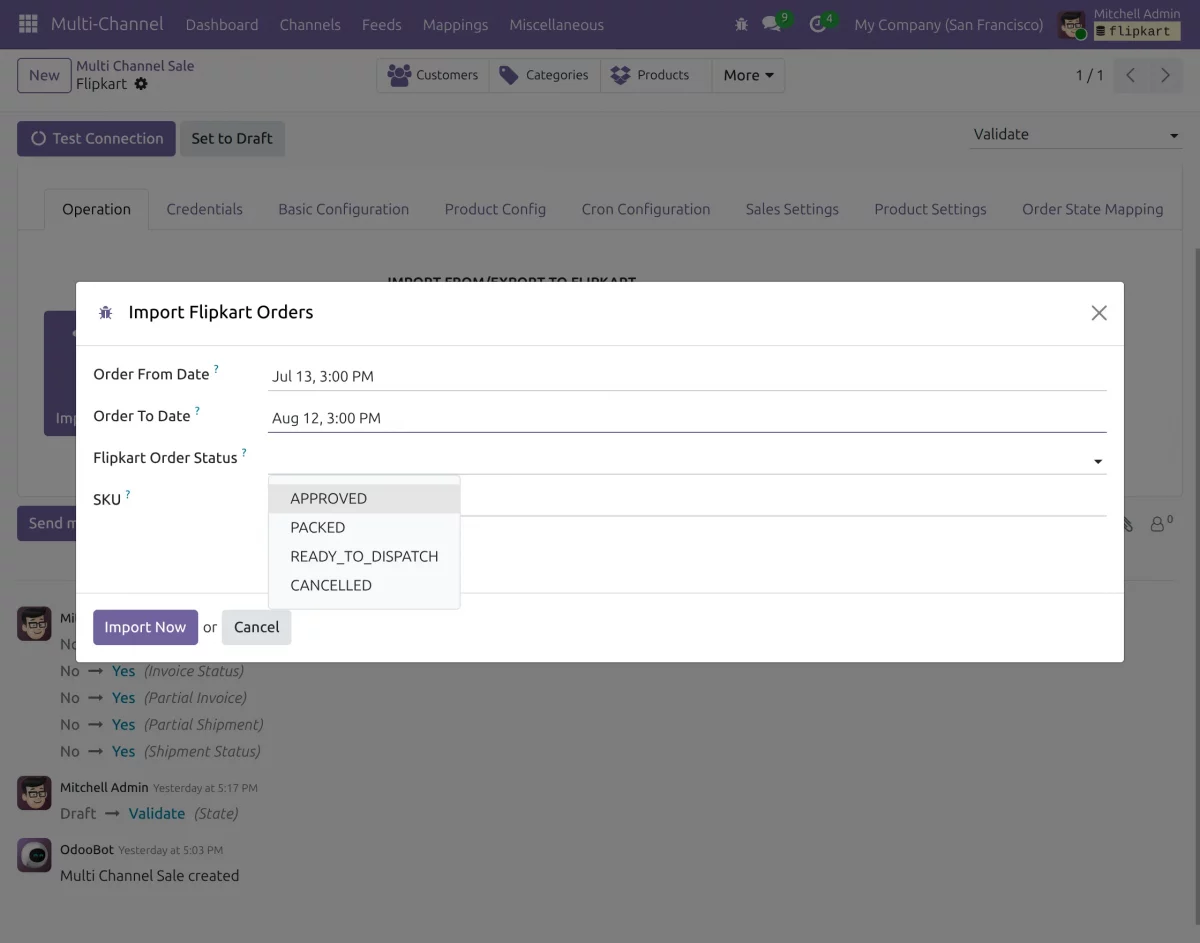
- Import orders using a Date Range, Order SKU, or Order Status.
- For status-based imports, select the required status such as APPROVED, PACKED, READY_TO_DISPATCH, or CANCELLED.
- During order import, the connector automatically extracts and maps the related Products and Customers/Partners.
Export or Update Products
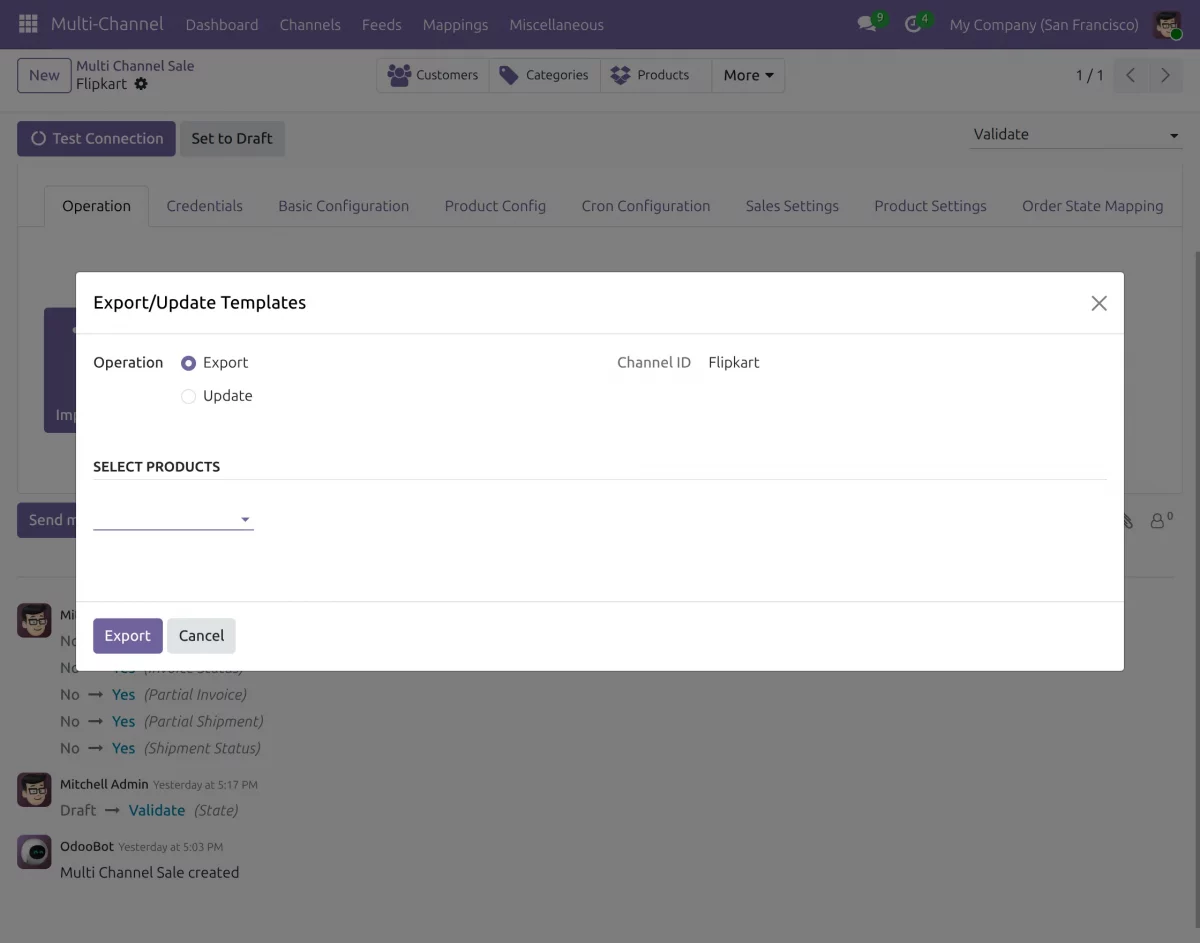
- Open the Export option from the Flipkart Connector.
- Select Product Templates to export product information to Flipkart.
- Export product details such as SKU, HSN, FSN, pricing, dimensions, and seller details.
- You can also update the product information on Flipkart from the product form.
Automate Order Import Using Cron
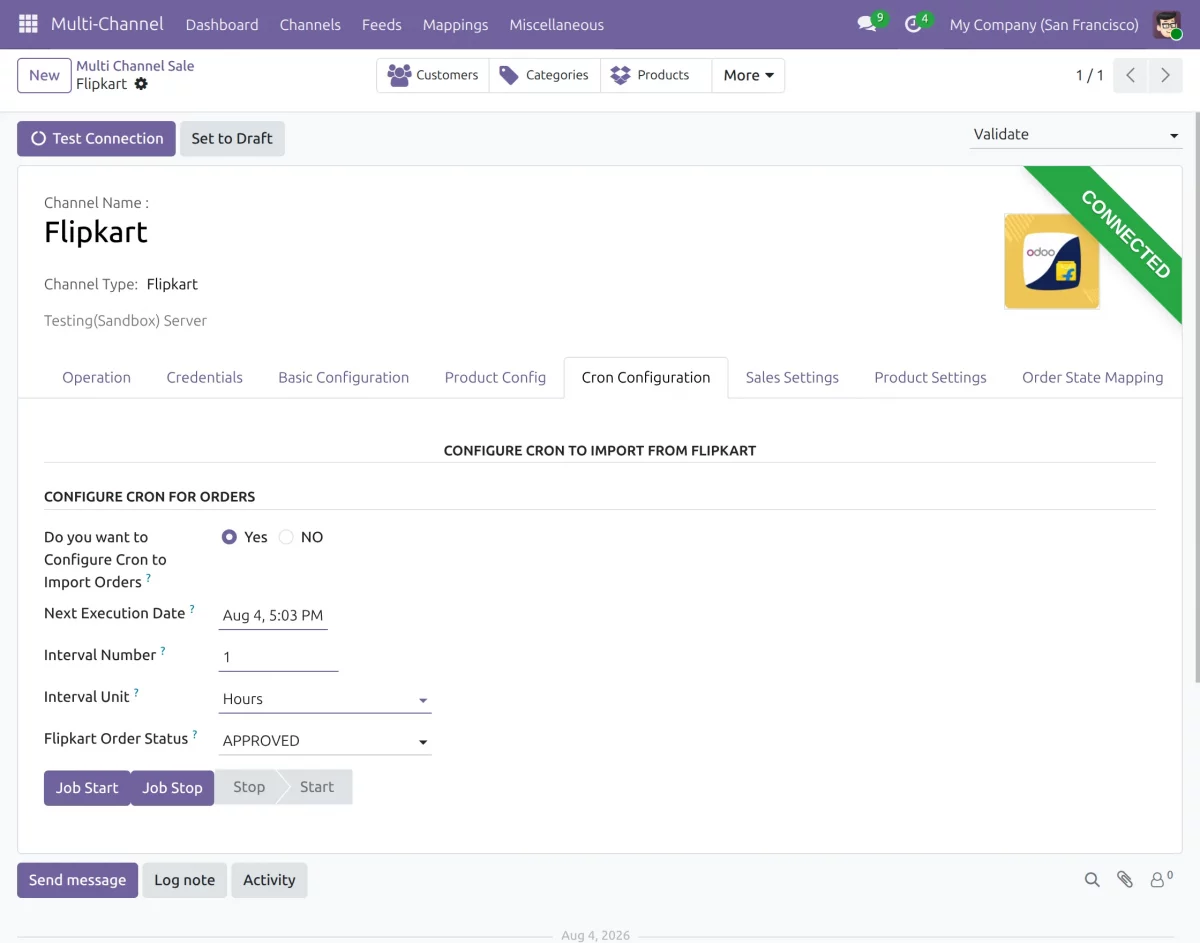
- Open the scheduled actions in Odoo.
- Configure the cron job for the Flipkart order import.
- Set the required execution schedule.
- The cron job automatically imports Flipkart orders according to the configured schedule.
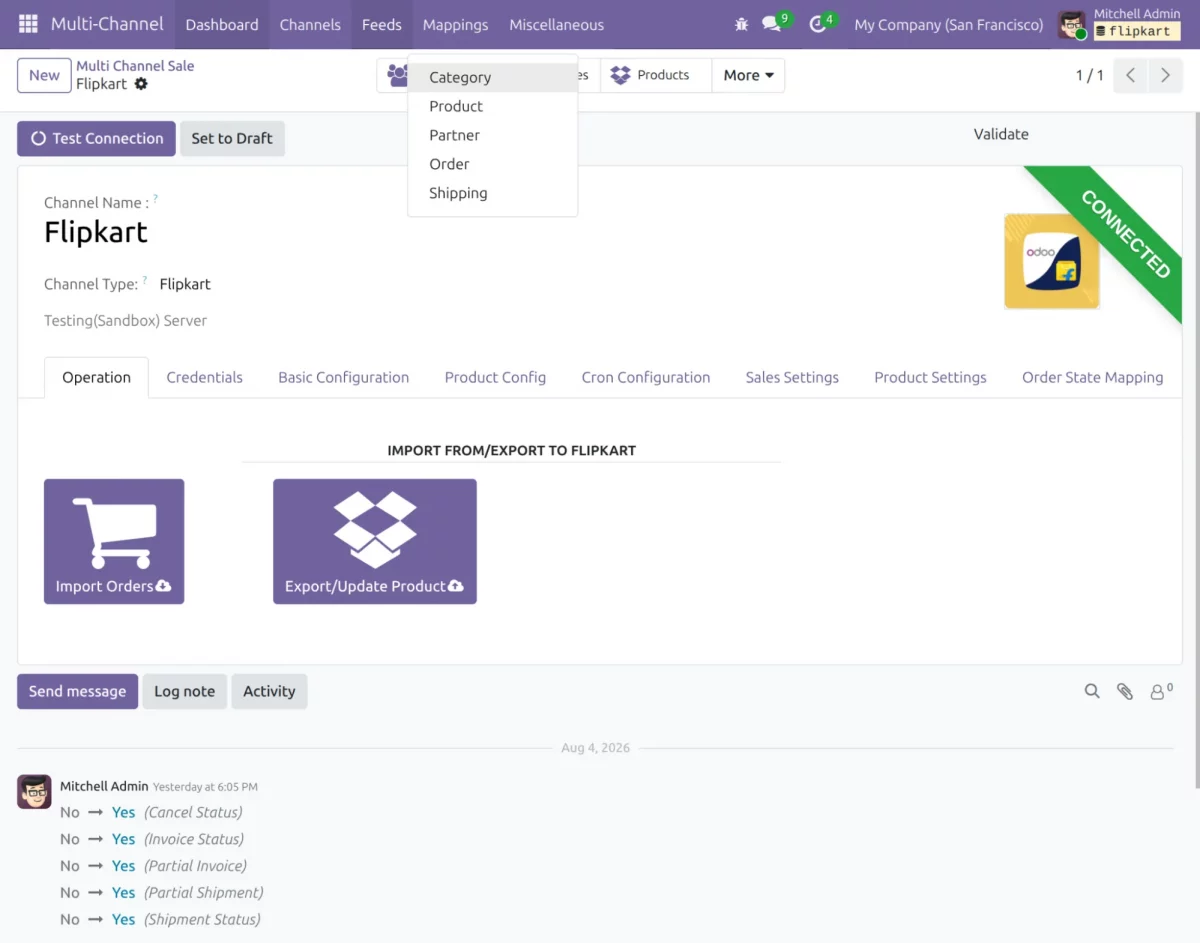
Manage Feeds
- The Feeds section displays the records created during Flipkart import and export operations.
- You can check the feed records to view the status of the related operation and track the data processed by the connector.
Manage Mappings
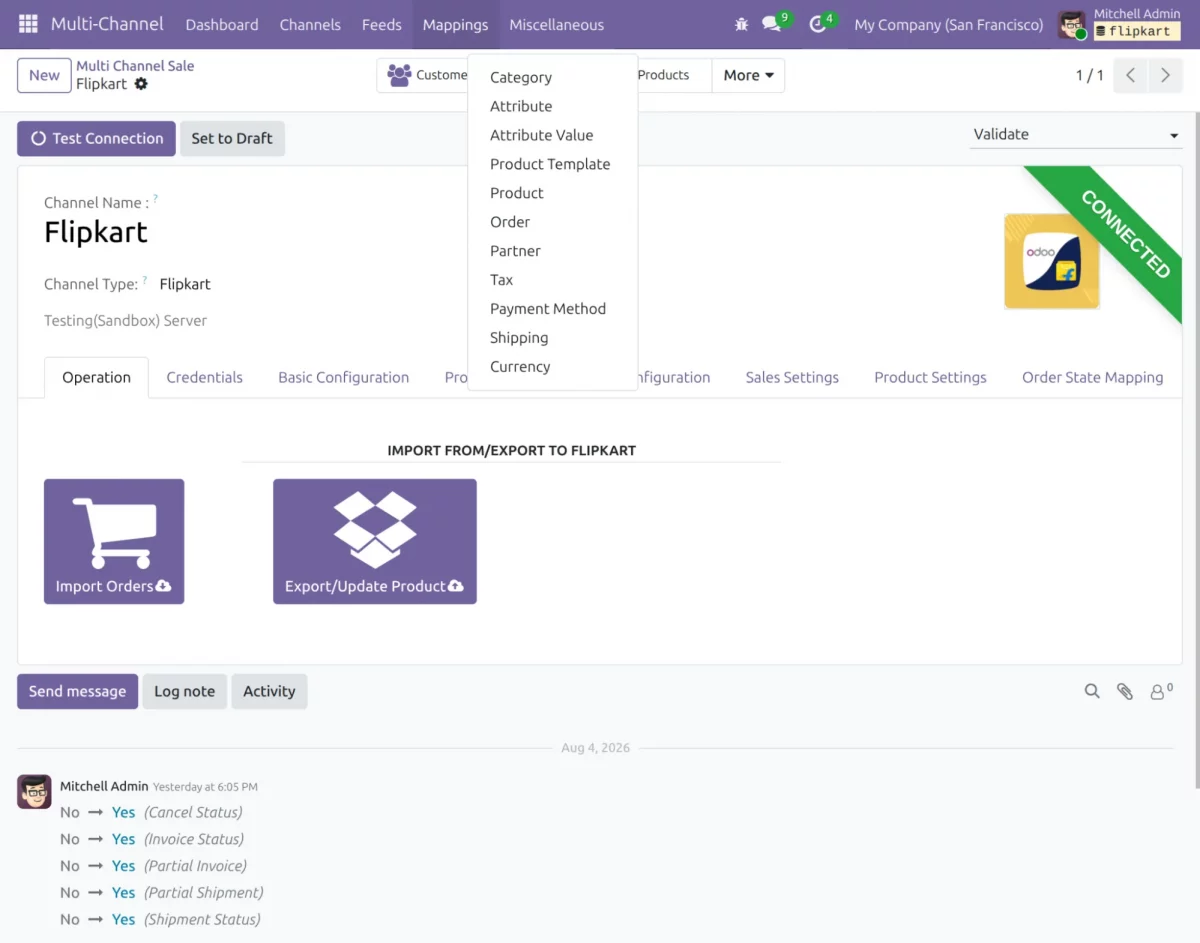
1)The Mappings section displays the mapping between Odoo and Flipkart records.
2) You can view the mapped records and use them during synchronization between Odoo and Flipkart.
Need Help?
Hope you find guide helpful! Please feel free to share your feedback in the comments below.
If you still have any issues/queries, please create a ticket at the UV Desk.
I hope this helps. In case of any further queries, contact us at our support mail.
Thanks for paying attention!!
Current Product Version - 1.0.1
Supported Framework Version - Odoo V19, V18, V17

Be the first to comment.