


















Introduction
ERPNext Website CyberSource Payment Acquirer adds CyberSource as a way to pay on your ERPNext website. It helps online stores make their checkout process smooth, flexible, and safe.
As a result, customers can securely pay for their orders and invoices using their cards on the CyberSource checkout page.
Moreover, their card details are sent directly to CyberSource and are never received or stored by your site.
When a customer clicks Pay, a payment method popup lists the payment gateways your company uses. When CyberSource accepts the payment, ERPNext marks the Payment Request as paid.
This guide is for store admins and website users. By the end, you can set up the CyberSource payment gateway and take card payments on the website. You can also track each payment in the backend.
Prerequisites for using ERPNext Website CyberSource Payment Acquirer
ERPNext Website CyberSource Payment Acquirer works in conjunction with the following modules:
Payments
Webshop
You must install the above-mentioned modules to use the ERPNext Website CyberSource Payment Acquirer.
ERPNext Website CyberSource Payment Acquirer works in conjunction with the following modules:
Payments
Webshop
You must install the above-mentioned modules to use the ERPNext Website CyberSource Payment Acquirer.
You also need a CyberSource Business Center account with a Secure Acceptance profile. Your website must be hosted on secured protocol.
Features
- Take card payments on the website through the CyberSource hosted checkout page.
- Keep card details off your site, because customers type them on the CyberSource page.
- Switch between Disabled, Enabled and Test Mode from one settings page.
- Use the Test, Live or Live India endpoint, or set your own endpoint URL.
- Choose sale or authorization as the transaction type.
- Limit CyberSource to the currencies you list.
- Let customers choose a gateway in a payment method popup that counts down to the default gateway.
- Mark the Payment Request as paid when CyberSource accepts the payment.
Installation
1. After purchasing the app from Webkul Store, you will receive a link to download the module ZIP file.
2. Extract the ZIP file. You will see a folder named ‘website_cybersource_payment_acquirer’.
3. Set up the module in your git repository, then fetch it using:
bench get-app --branch main "HTTPS URL"
(Replace “main” with your branch name and replace the “HTTPS URL” with your HTTPS clone URL.)
4. Install the app on your site:
bench --site <your-site-name> install-app website_cybersource_payment_acquirer
5. Run bench migrate to complete the setup.
Workflow
Setting Up CyberSource Settings
1. After you install the app, open Payments in the Desk. Under the CyberSource section, click CyberSource Settings. You can also type CyberSource Settings in the search bar.
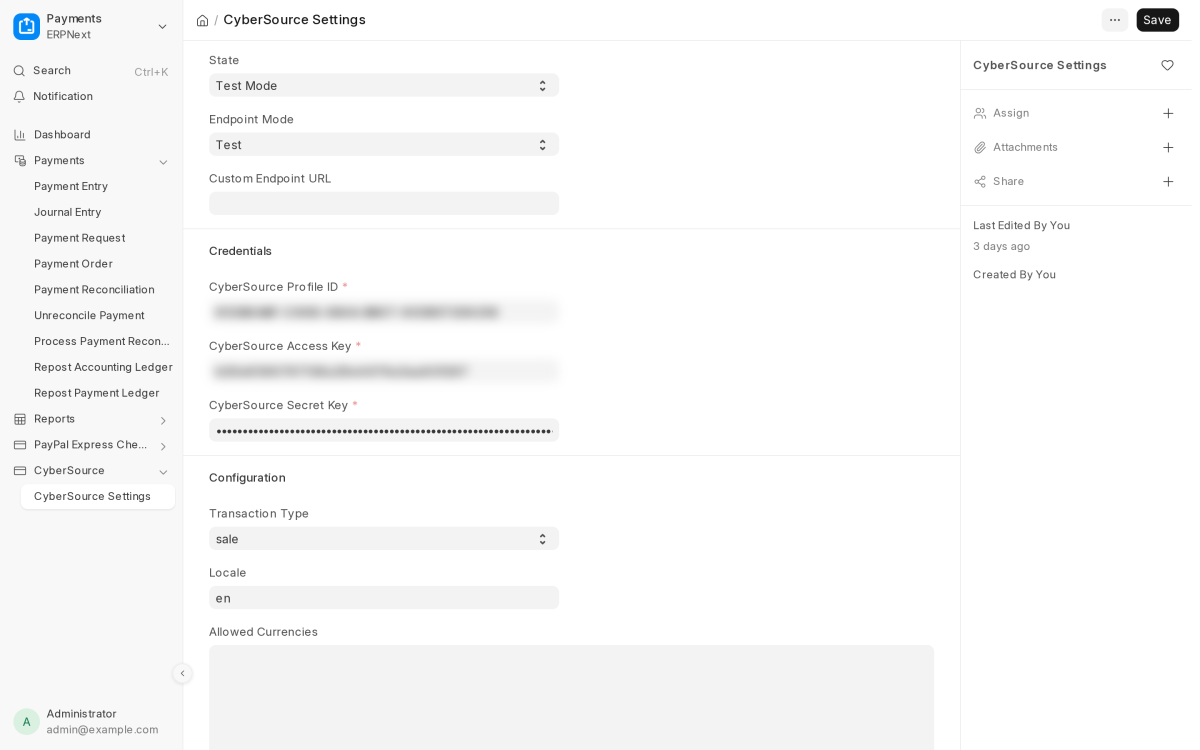
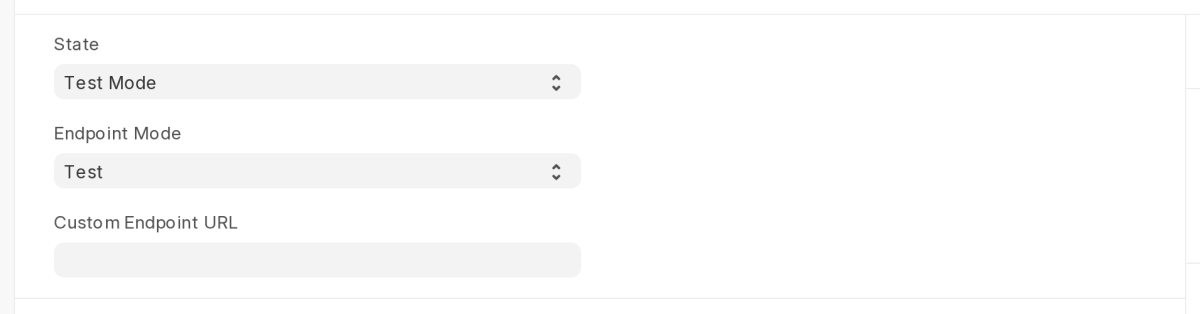
2. Set State. Choose Test Mode while you test with the CyberSource sandbox. Choose Enabled to take real payments.
3. Check Endpoint Mode. Test Mode always sets it to Test, and Enabled changes Test to Live. Pick Live India to use the CyberSource India endpoint.
4. Leave Custom Endpoint URL blank unless CyberSource gives you a different checkout address. When you fill it in, it replaces the endpoint above.
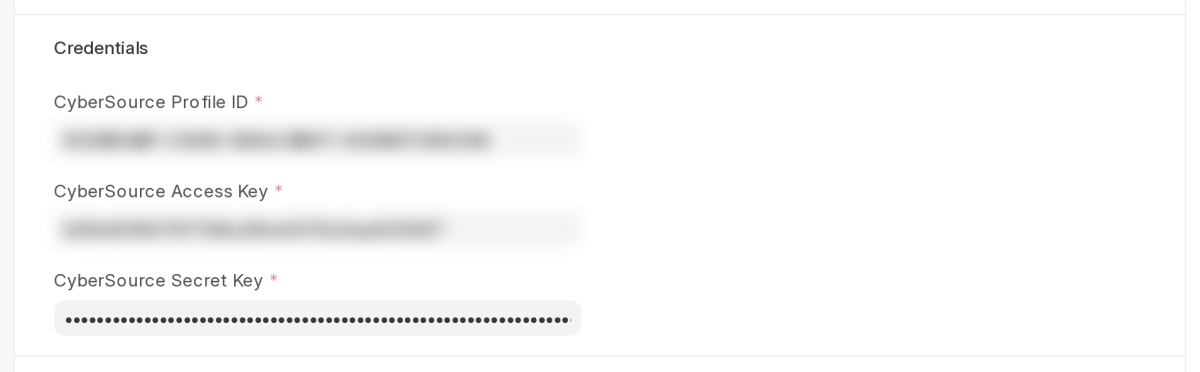
5. Next, navigate to the Credentials section and enter the CyberSource Profile ID, CyberSource Access Key, and CyberSource Secret Key .You must fill in all three unless State is Disabled.
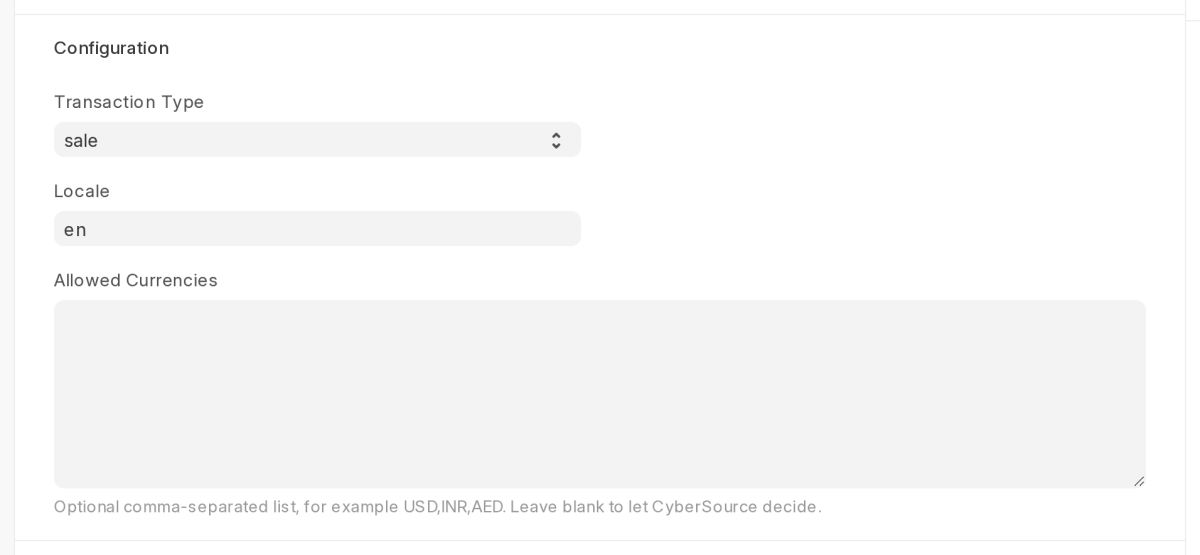
6. In the Configuration section, set Transaction Type. sale takes the payment at once. authorization only holds the amount on the card.
7. Set Locale to the language code for the CyberSource checkout page, such as en.
8. Use Allowed Currencies to limit CyberSource to some currencies. If an order uses a currency that is not on the list, ERPNext asks the customer to pick another payment method.
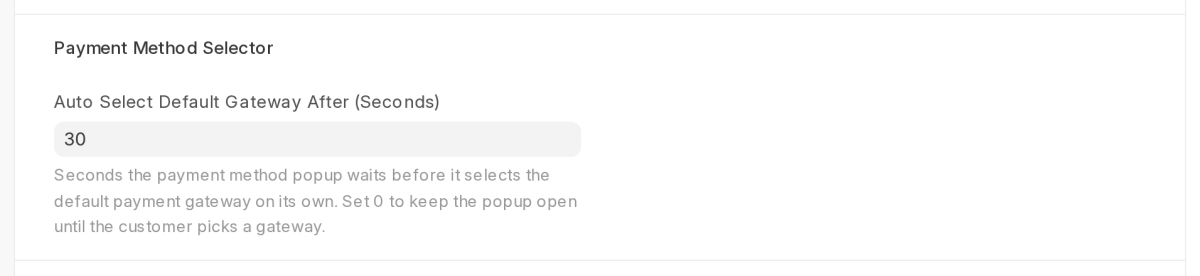
9. In the Payment Method Selector section, set Auto Select Default Gateway After (Seconds). This is how long the payment method popup waits before it picks the default gateway.
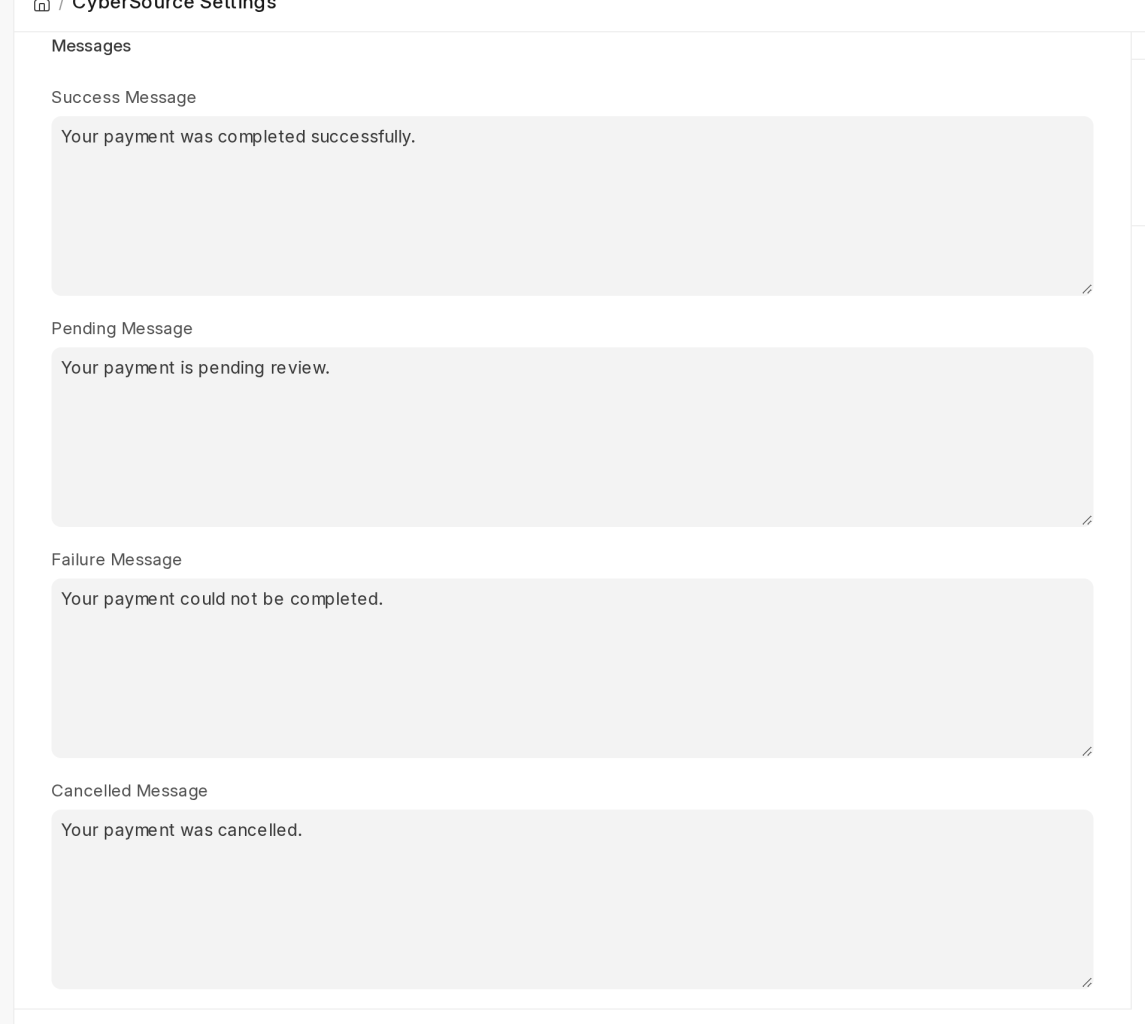
10. Additionally, the Messages section contains the default text displayed for each payment outcome: Success Message, Pending Message, Failure Message, and Cancelled Message.
11. Click Save.
Note: All three credentials must come from the same CyberSource setup. A profile made in the test Business Center works only with the Test endpoint.
Checking the CyberSource Payment Gateway Account
1. Installing the app creates a CyberSource Payment Gateway and a CyberSource Mode of Payment.
2. When you save CyberSource Settings, ERPNext adds a CyberSource bank account and a Payment Gateway Account. It does this for your default company, and only if they do not exist yet.
3. Open the CyberSource Payment Gateway Account. Check the Company, Payment Account and Currency. Tick Is Default if CyberSource should be the first choice for this company.
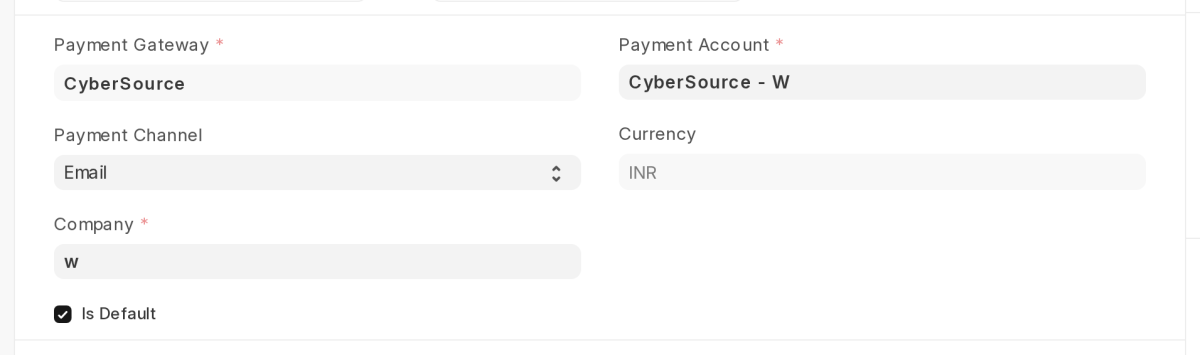
4. If you sell in more than one currency, you can add a CyberSource Payment Gateway Account for each one.
The app picks the account that matches the order currency, and the popup lists matching accounts first.
Paying for an Order on the Website
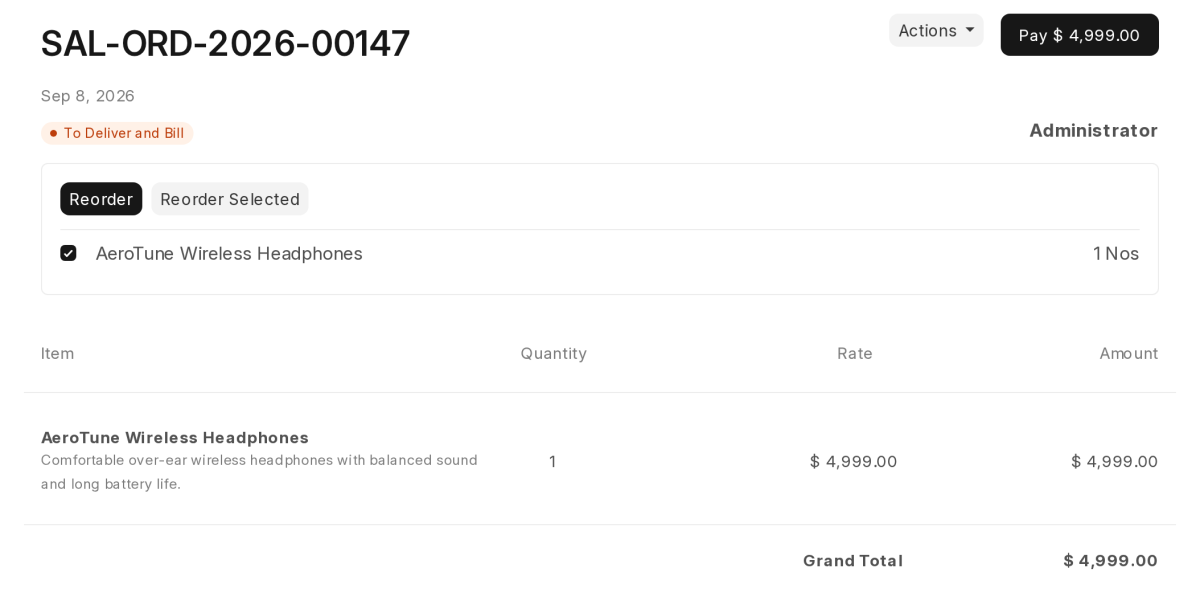
1. The customer opens an order from Orders on the website, or an unpaid invoice from Invoices. Then they click Pay.
2. The Select Payment Method popup opens. Additionally, it displays each payment gateway configured for the company, along with the amount due.
Furthermore, the default gateway is clearly identified with a Default badge.
3. A countdown at the bottom names the gateway the popup will choose by itself.
This is the default gateway, or the first gateway that can be used if the default cannot. Click Cancel to stop the countdown, or click × to close the popup.
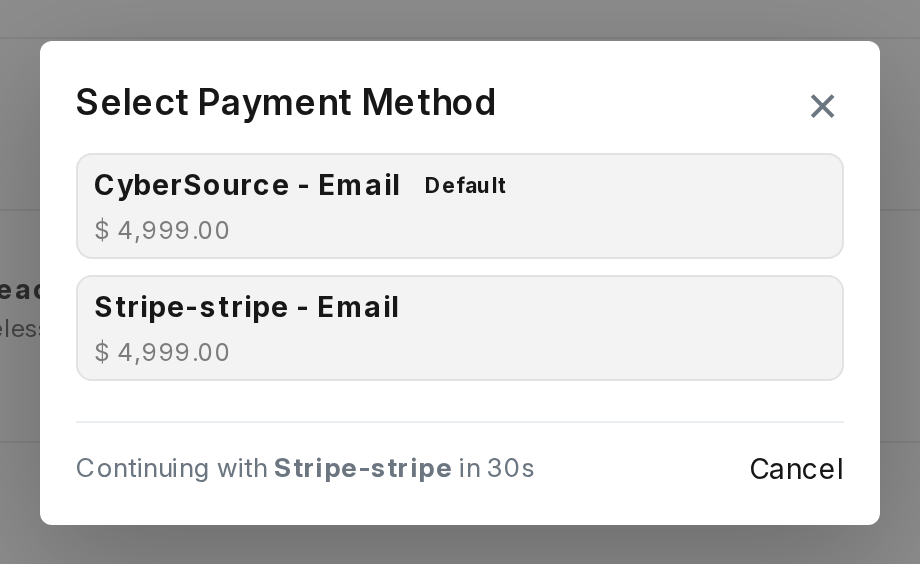
4. First, the customer clicks the CyberSource option, shown as CyberSource – Email above. Once clicked, the button changes to Redirecting… while the site creates a Payment Request for the order.
5. A Redirecting to CyberSource page shows for a moment. It then sends the customer to the CyberSource payment page. If the page does not move on, the customer can click Continue to Payment.
6. The customer enters their card details on the CyberSource page and pays.
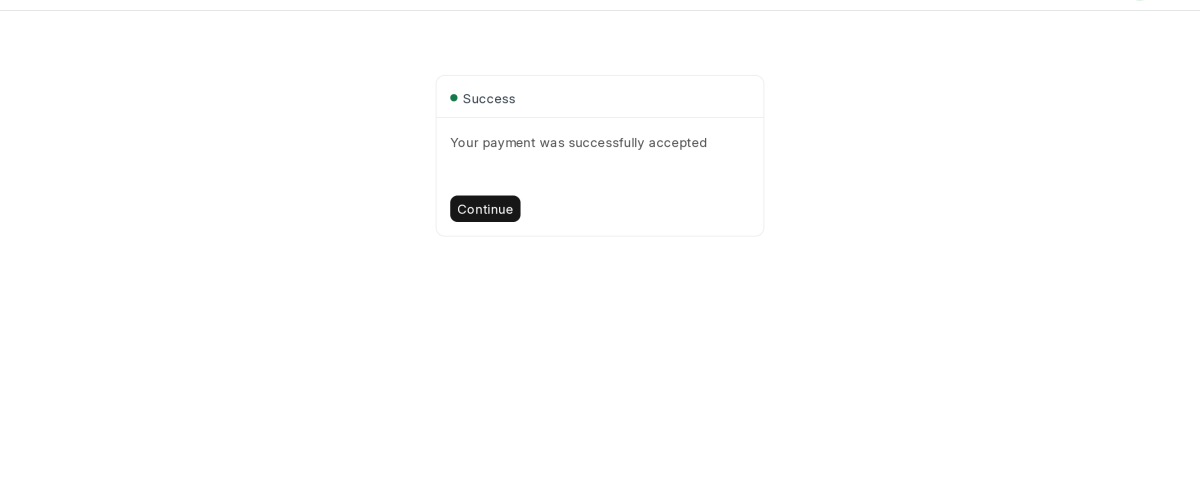
7. CyberSource sends the customer back to your website. If CyberSource accepts the payment or holds it for review, the customer sees the Success page.
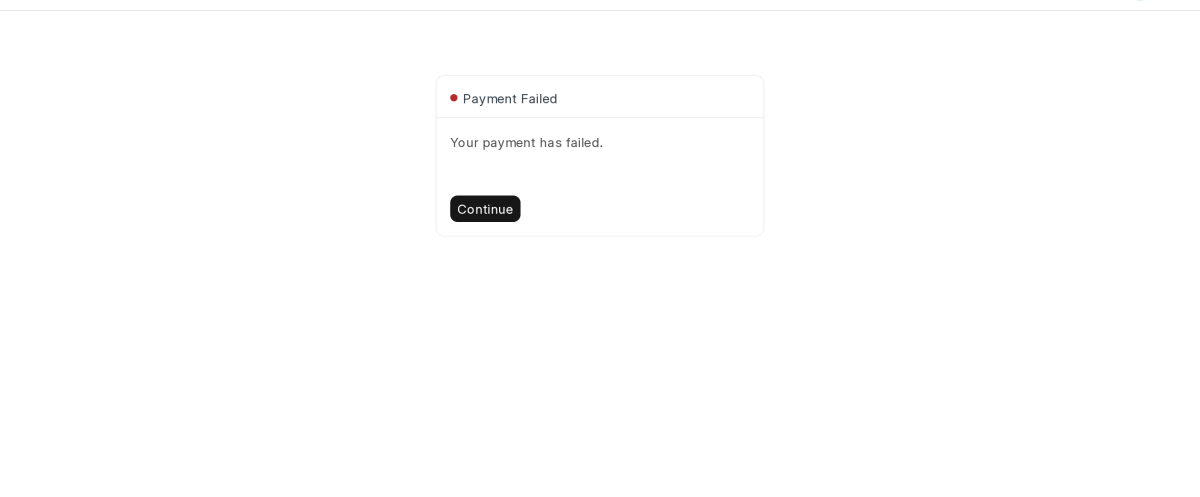
8. If CyberSource declines the payment, the customer cancels, or the payment fails, the customer sees the Payment Failed page.
Switching CyberSource Off
1. To switch off the CyberSource payment gateway, first set State to Disabled. Then, click Save to apply the changes. As a result, the gateway will be disabled without needing to uninstall the app.
2. As a result, the payment method popup no longer opens. Instead, the Pay button uses the standard ERPNext payment link.
3. If a Payment Request still points at CyberSource, the app moves it to another gateway set up for the company. With no other gateway set up, ERPNext shows its own error.
Tracking CyberSource Payments in the Backend
1. Open the Payment Request list and filter it by the CyberSource gateway. Each payment request shows its status, such as Paid , Requested or Cancelled.
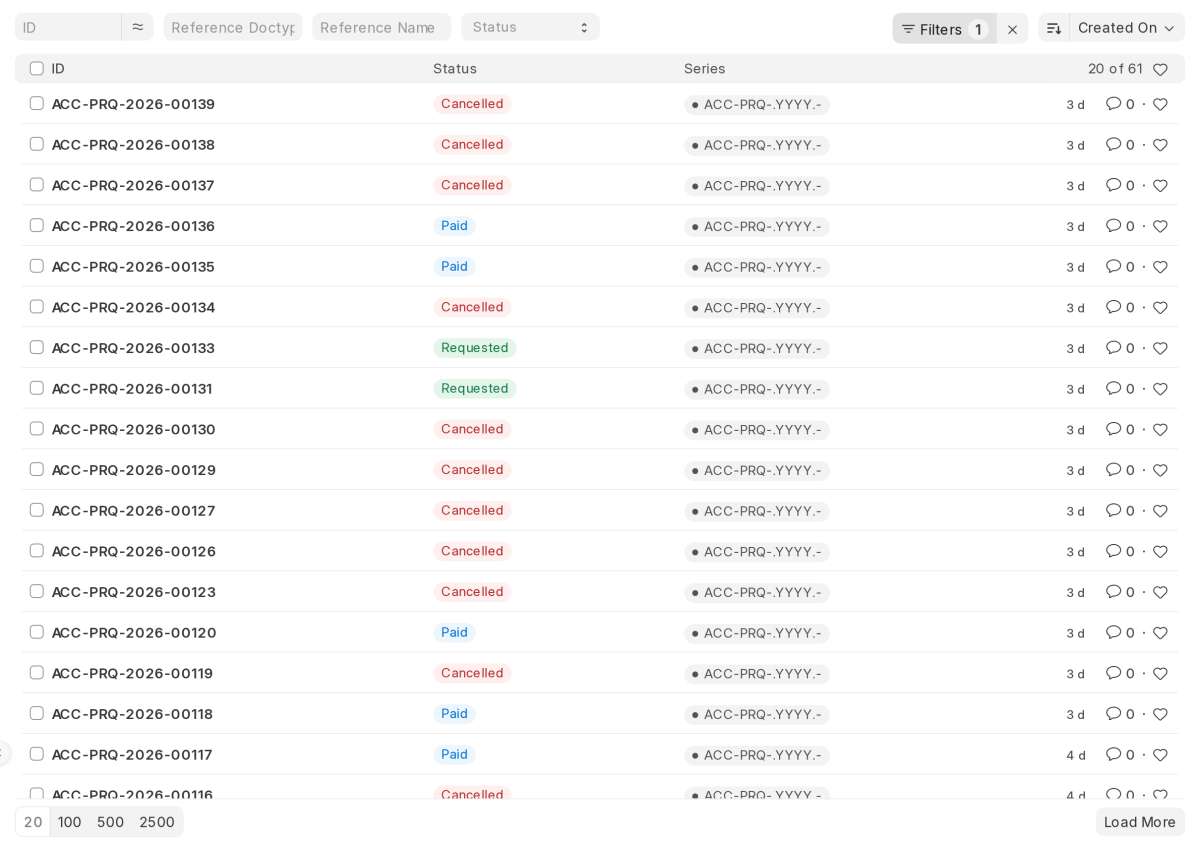
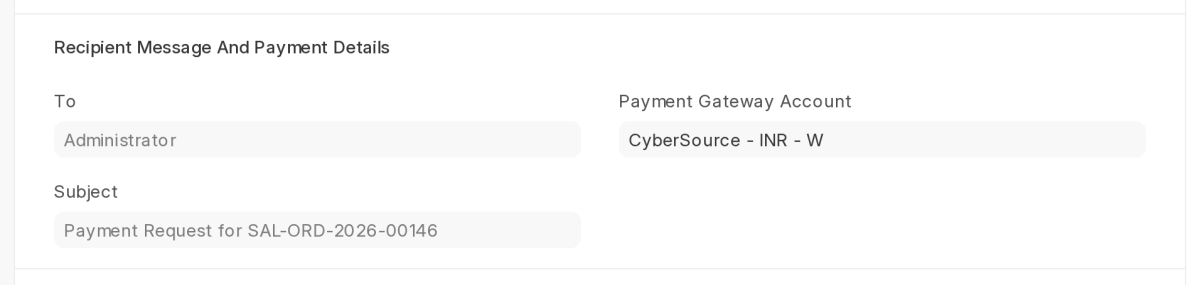
2. Open a payment request. The Payment Gateway Account field shows the gateway used. When CyberSource accepts the payment, the app marks the request as Paid.
3. Next, open an entry to view the decision, reason_code, and message returned by CyberSource, along with the payment status assigned by the appys and signatures show as ***.
Need Help?
Hope you find this guide helpful! Please feel free to share your feedback in the comments below.
If you still have any issues/queries, please create a ticket at the UV Desk.
I hope this helps. In case of any further queries, contact us at our support mail.
Thanks for paying attention!!
Current Product Version - 1.0.0
Supported Framework Version - ERPNext V16

Be the first to comment.