


















PrestaShop Countdown Deals is a module that lets you create dedicated deal and offer collection pages inside your PrestaShop store.
Instead of relying solely on global catalog price rules, you can build campaign-style landing pages — each with its own product filters, banner, schedule, and customer-group access.
It is intended for store owners and administrators who want to set up flash sales, seasonal promotions, or targeted discount campaigns without custom development.
Features of PrestaShop Countdown Deals
- Create unlimited offer pages with custom titles and SEO-friendly URLs
- Filter products by price, quantity, category, manufacturer, supplier, or discount range
- Restrict offers to specific customer groups and exclude individual products
- Date-based scheduling with start and end dates
- Multiple countdown timer styles (Default, Circle, Cyber, Dark, Losange)
- Configurable countdown timer position (above or below price)
- Banner slider on offer pages and category pages
- Social sharing for Facebook, X/Twitter, WhatsApp, and Pinterest
- Homepage offer widget with sortable product display
- Built-in analytics dashboard with KPIs and top-performer leaderboards
- Discount priority and SpecificPriceRule integration
- Multi-store and multi-language support
- Offer preview for upcoming campaigns
- Separate running and upcoming offer tabs on the front office
How to Install PrestaShop Countdown Deals module
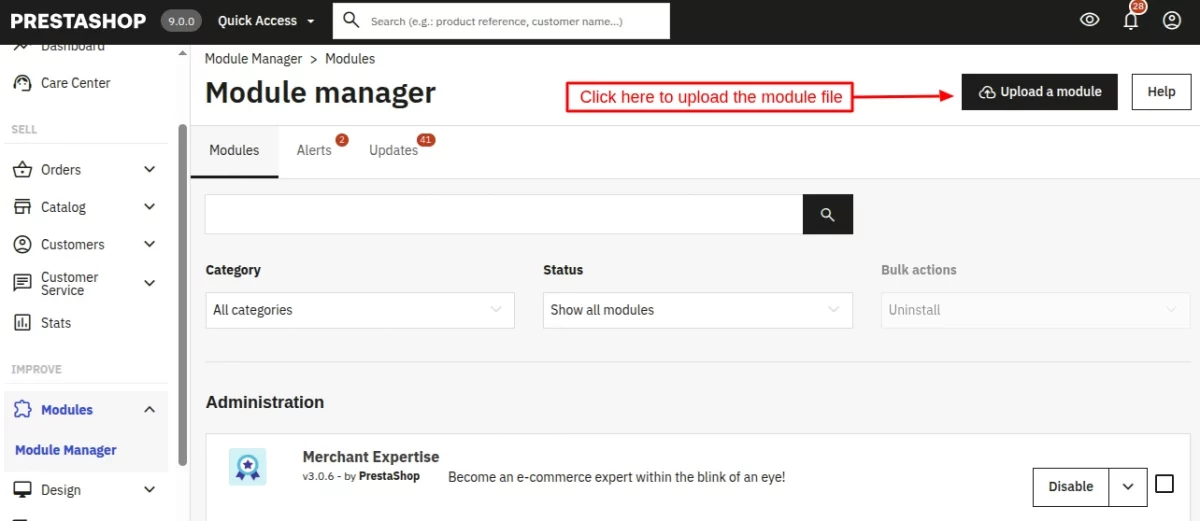
- Firstly, go to the module manager in the back office and click on ‘upload a module’.
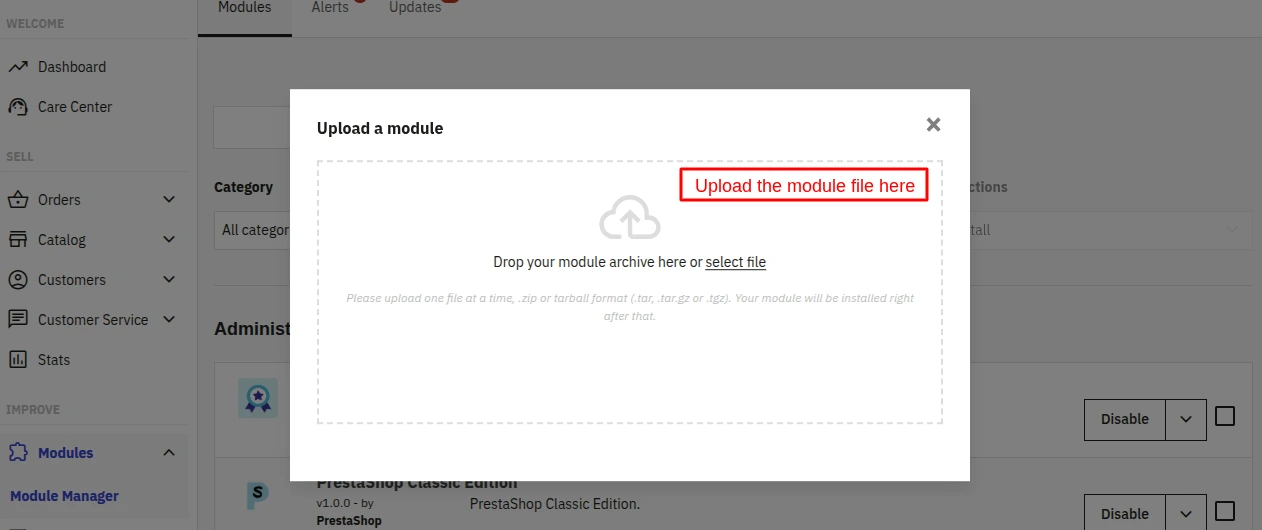
- After that, drag and drop the module file or select the file from the system.
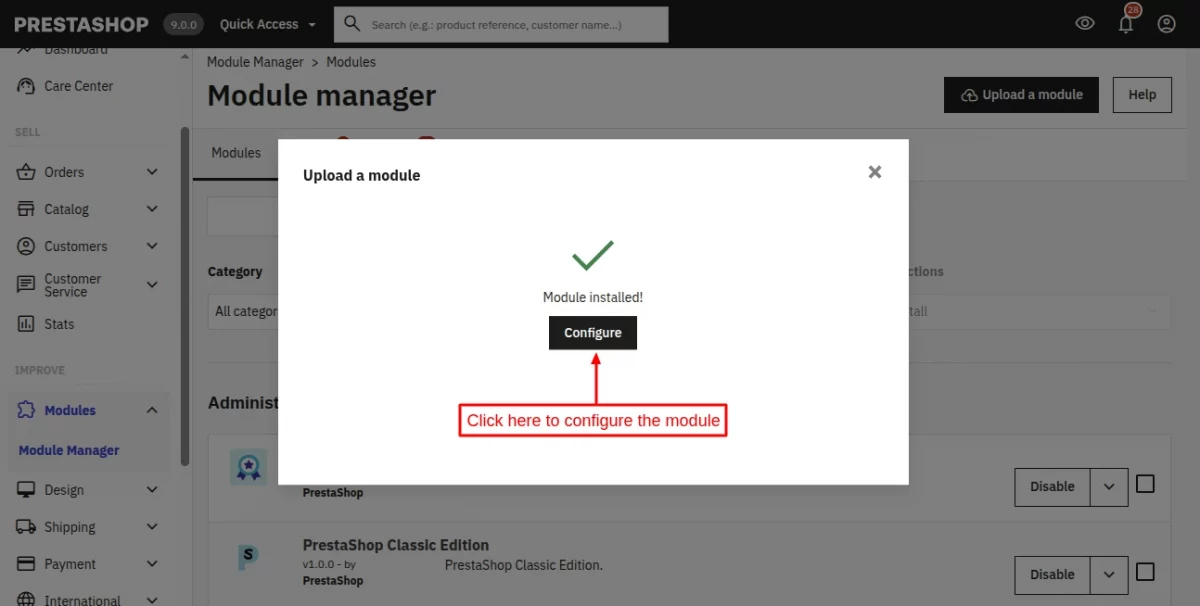
- In this way, the module installation will be successful.
PrestaShop Countdown Deals Configuration
After successfully installing the module, click on the “Configure” button, and you’ll see the following three tabs:
- General
- Slider
- Social Share
General Configuration
Controls the global special offer title, description, countdown timer behaviour, and homepage widget settings.
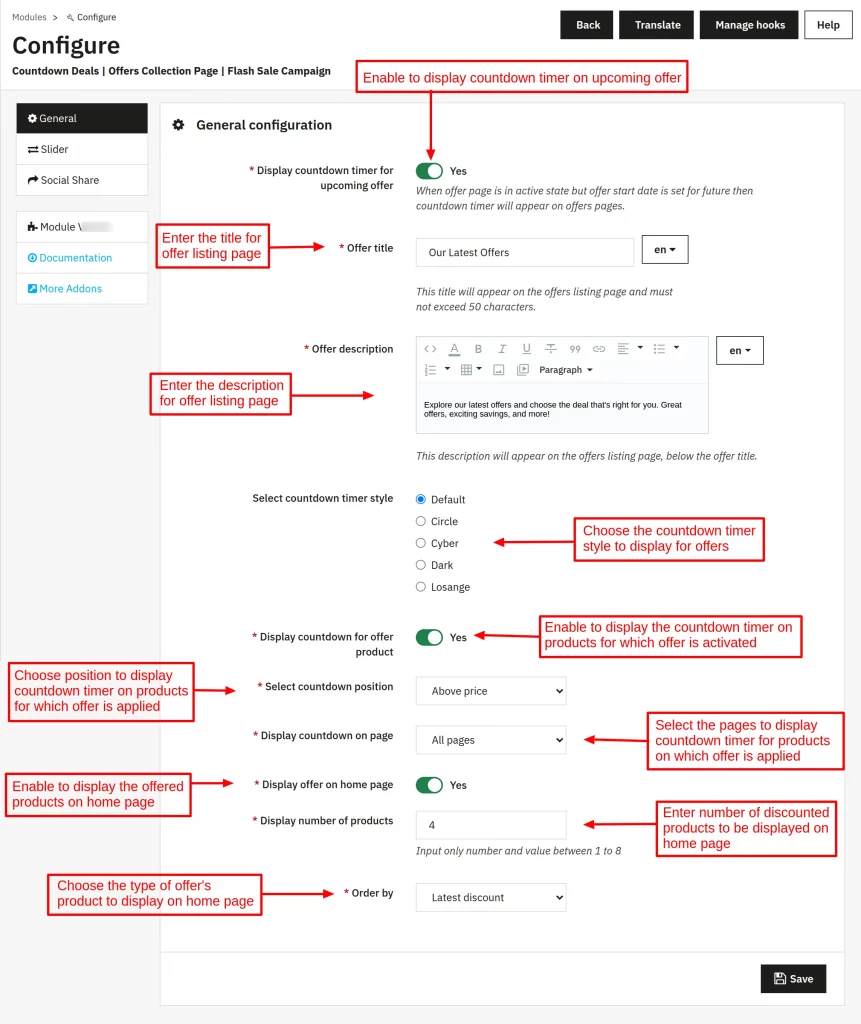
- Display countdown timer for upcoming offer — Show a countdown on offer pages when the start date is in the future.
- Offer title — Multilingual title displayed on the offers listing page. Maximum 50 characters.
- Offer description — Multilingual description shown below the title on the listing page.
- Select countdown timer style — Choose from Default, Circle, Cyber, Dark, or Losange.
- Display countdown for offer product — Show the countdown timer on individual product listings within offer pages.
- Select countdown position — Position the timer above or below the product price.
- Display countdown on page — Show timers on all pages or offer pages only.
- Display offer on home page — Enable the homepage offer widget.
- Display number of products — Number of products to show in the homepage widget (1–8).
- Order by — Sort the homepage widget by Latest discount, Max discount, or Ending soon.
Slider Configuration
Controls banner slider behaviour on offer pages and category pages.
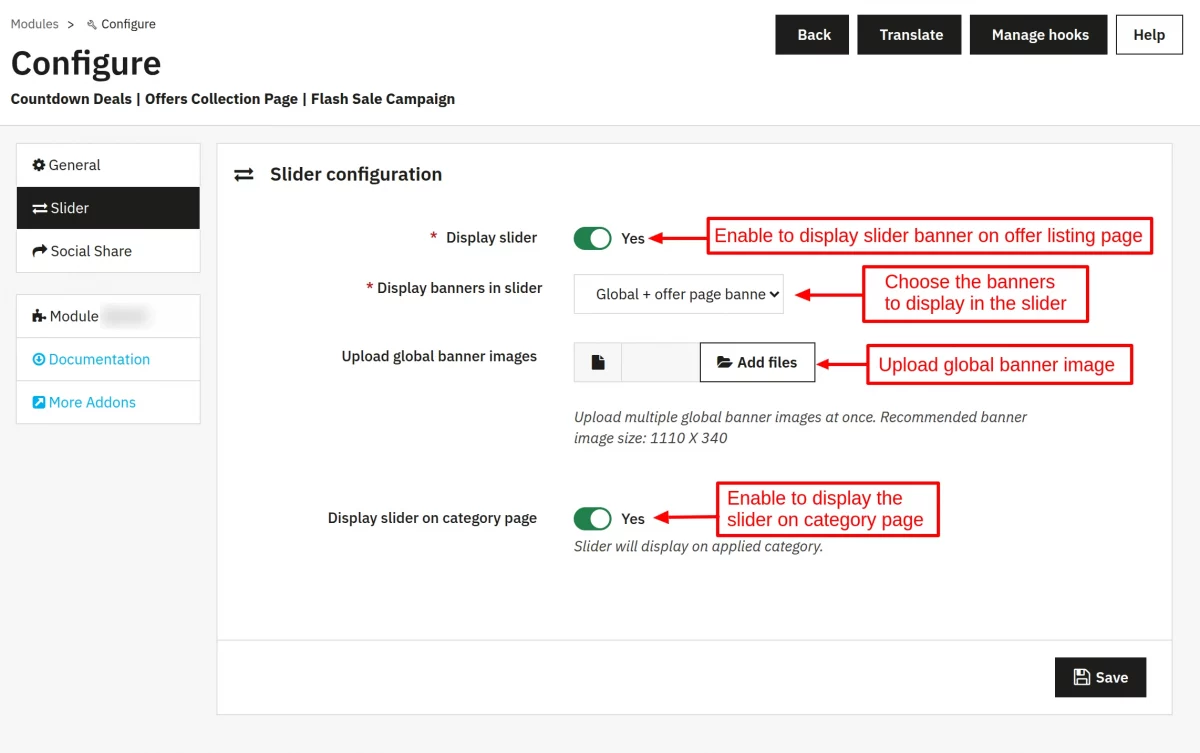
- Display slider — Enable or disable the banner slider globally.
- Display banners in slider — Choose between Global banners only, Offer page banners only, or both.
- Upload global banner images — Upload multiple banner images. Recommended size: 1110 × 340.
- Display slider on category page — Show the slider on category pages when enabled.
Social Sharing Settings
Enable or disable social share buttons per network. These settings are global toggles; individual offers can still hide social share from the offer edit form.
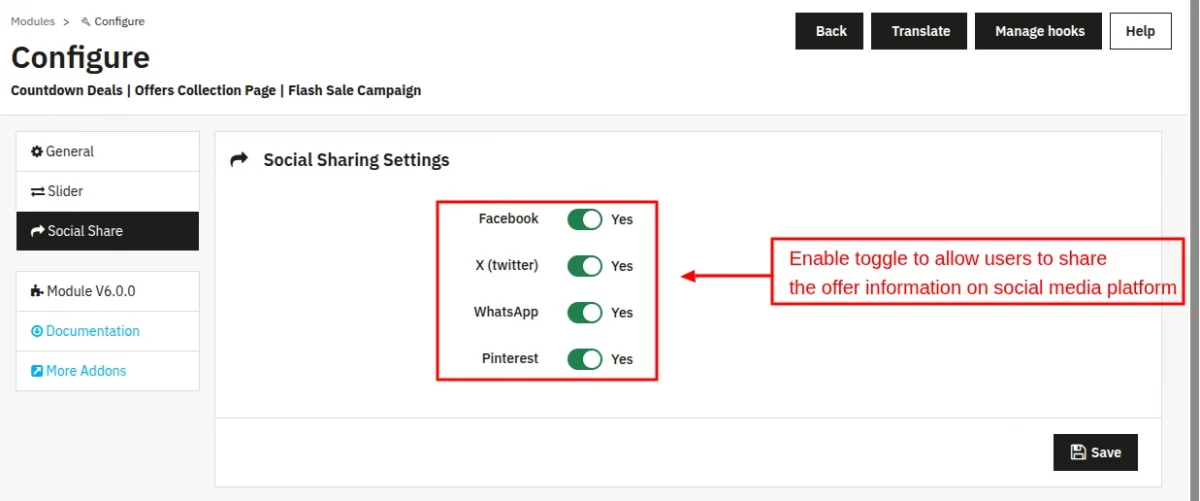
- X (Twitter)
After entering all settings, click “Save” to apply the configuration.
Managing Offers from the Admin Panel
Special Offers Listing
The top-level Special Offers tab lists every offer page with columns for Page ID, Page name, Friendly URL, Status, View, and Created at.
From here you can add new offers, edit existing ones, delete individually, or use bulk actions to delete or toggle status for multiple offers at once.
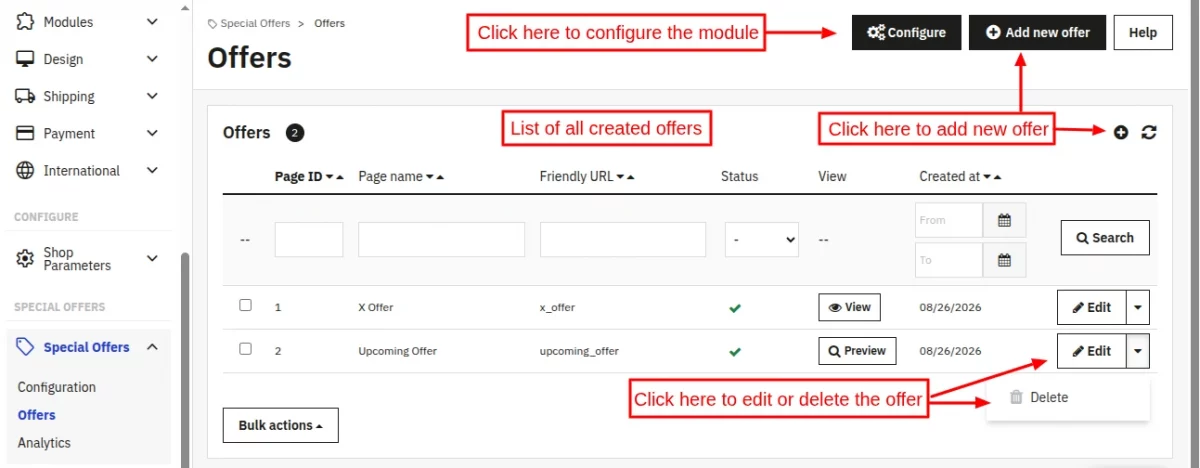
- Add new offer — Opens the offer creation form.
- Edit — Opens the offer edit form pre-filled with existing data.
- Delete — Removes the offer and all associated products, categories, manufacturers, and discount rules.
- Status toggle — Switch an offer between active and inactive directly from the listing.
- View button — Opens a front-office preview of the offer. For future offers, a signed preview token is generated so only admins can access the page before the start date.
Offer Creation & Edit Form
The offer form is divided into a General section and a Filter section.
General Section
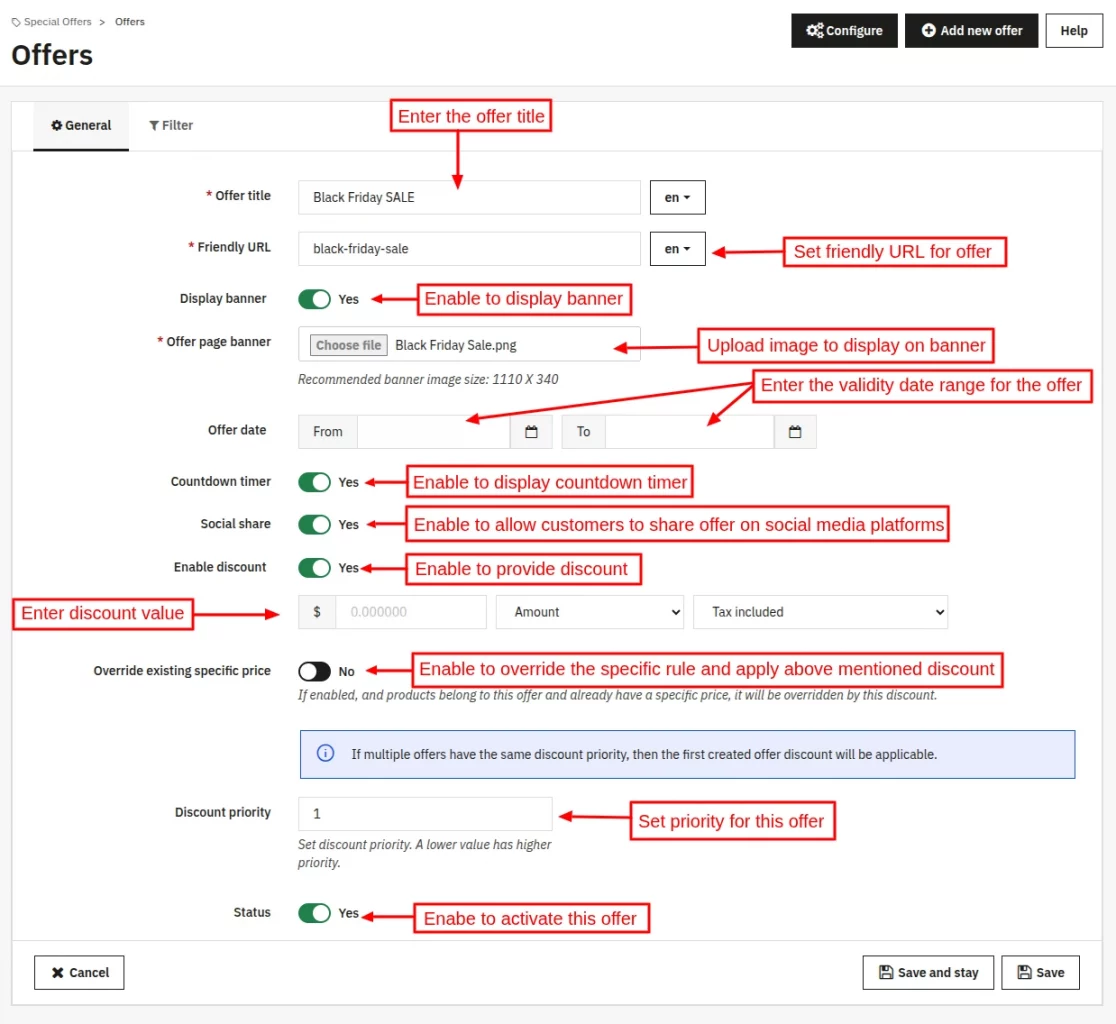
- Page name — Translatable title (max 30 characters in the default language).
- Friendly URL — Translatable URL slug for the offer page.
- Status — Active or inactive.
- Start date / End date — Define the campaign window.
- Customer groups — Select which customer groups can view the offer.
- Exclude products — Comma-separated product IDs to exclude from the offer.
- Display banner — Upload a banner image for this specific offer page.
- Show offer timer — Enable countdown timer for this offer.
- Social share — Enable social share buttons for this offer.
- Specific discount — Optionally create a PrestaShop SpecificPriceRule for this offer (percentage or amount, tax inclusive/exclusive).
- Priority — Set offer priority when multiple discounts apply.
Filter Section
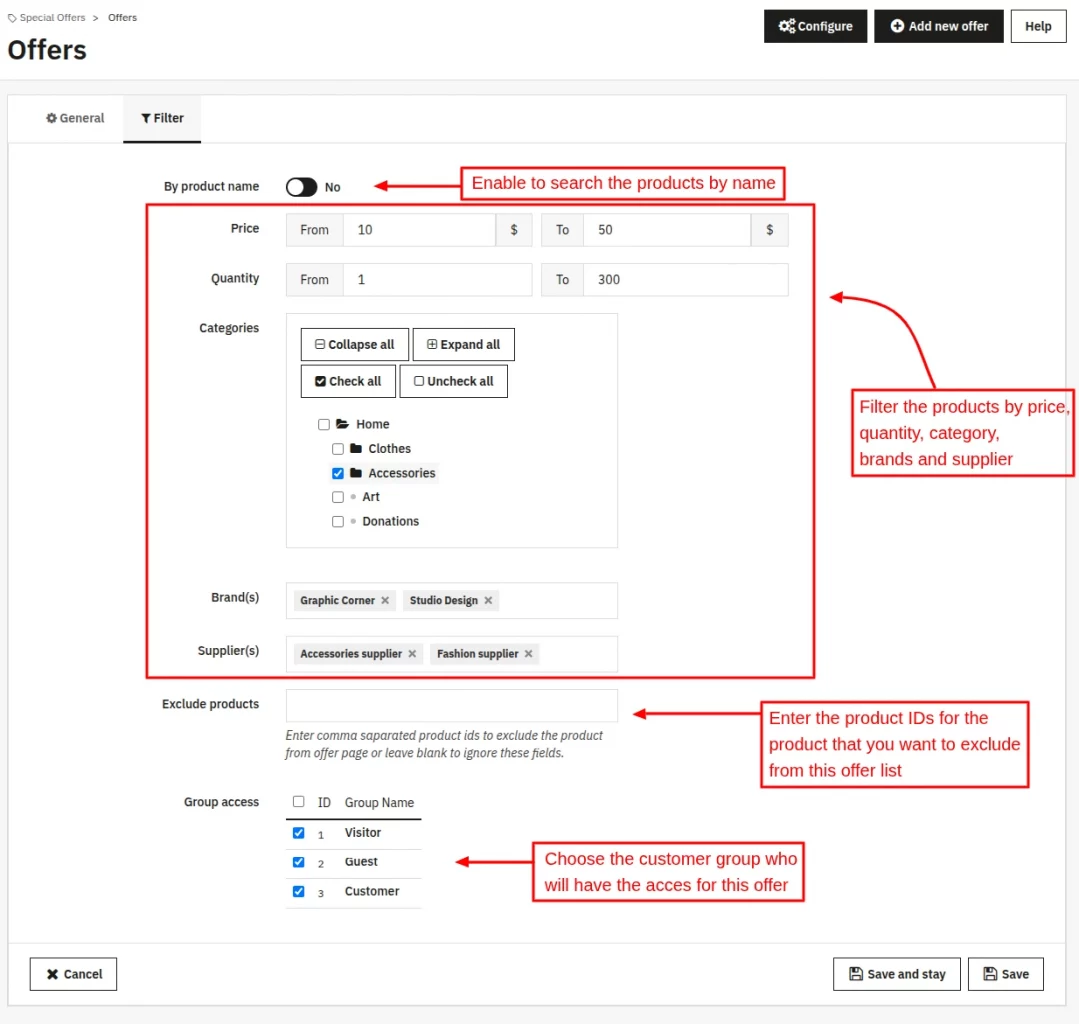
- By product name — Manually select products from the catalog with an Ajax search.
- By filters — Define dynamic rules: price range, quantity range, discount range, categories, manufacturers, and suppliers.
- Save and stay — Keep the form open after saving to make quick adjustments.
Analytics Dashboard
The Analytics tab (under Special Offers > Analytics) shows offer performance without leaving the back office.
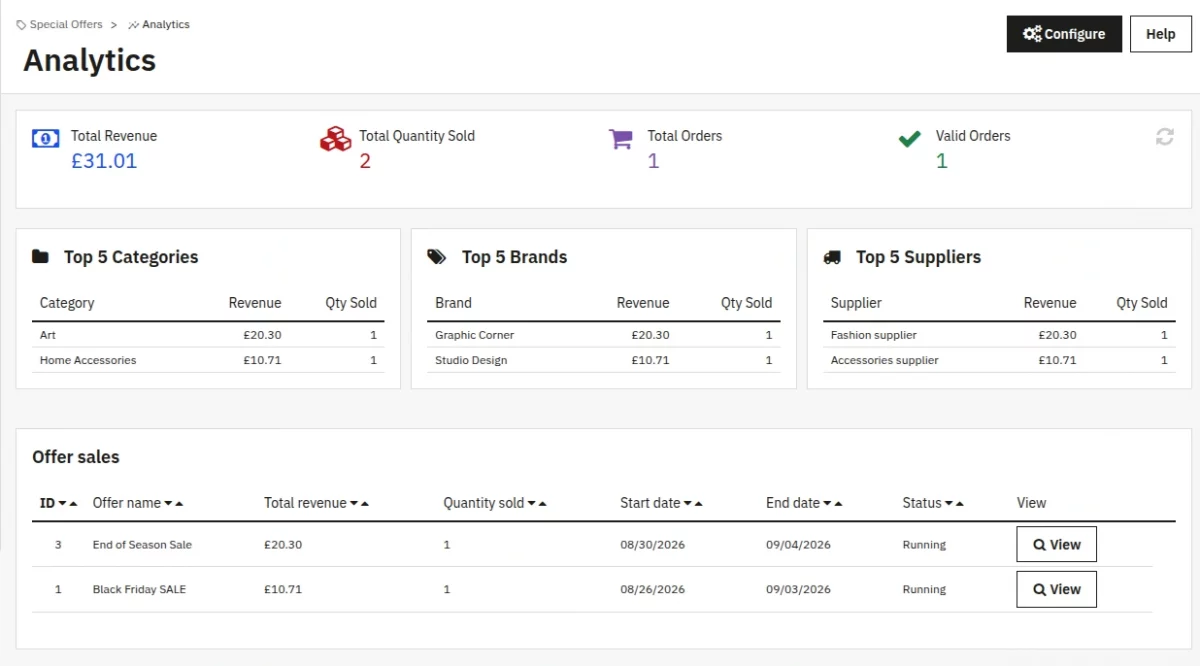
- KPI row: Total Revenue, Total Quantity Sold, Total Orders, and Valid Orders. KPIs refresh via Ajax.
- Top Categories — The five categories generating the most offer revenue.
- Top Brands — The five manufacturers generating the most offer revenue.
- Top Suppliers — The five suppliers generating the most offer revenue.
- Offer Listing — Searchable, sortable table of all offers with revenue, quantity, start date, end date, and status columns. Filter by date range.
- Per-offer detail view — Click an offer to see product-level analytics.
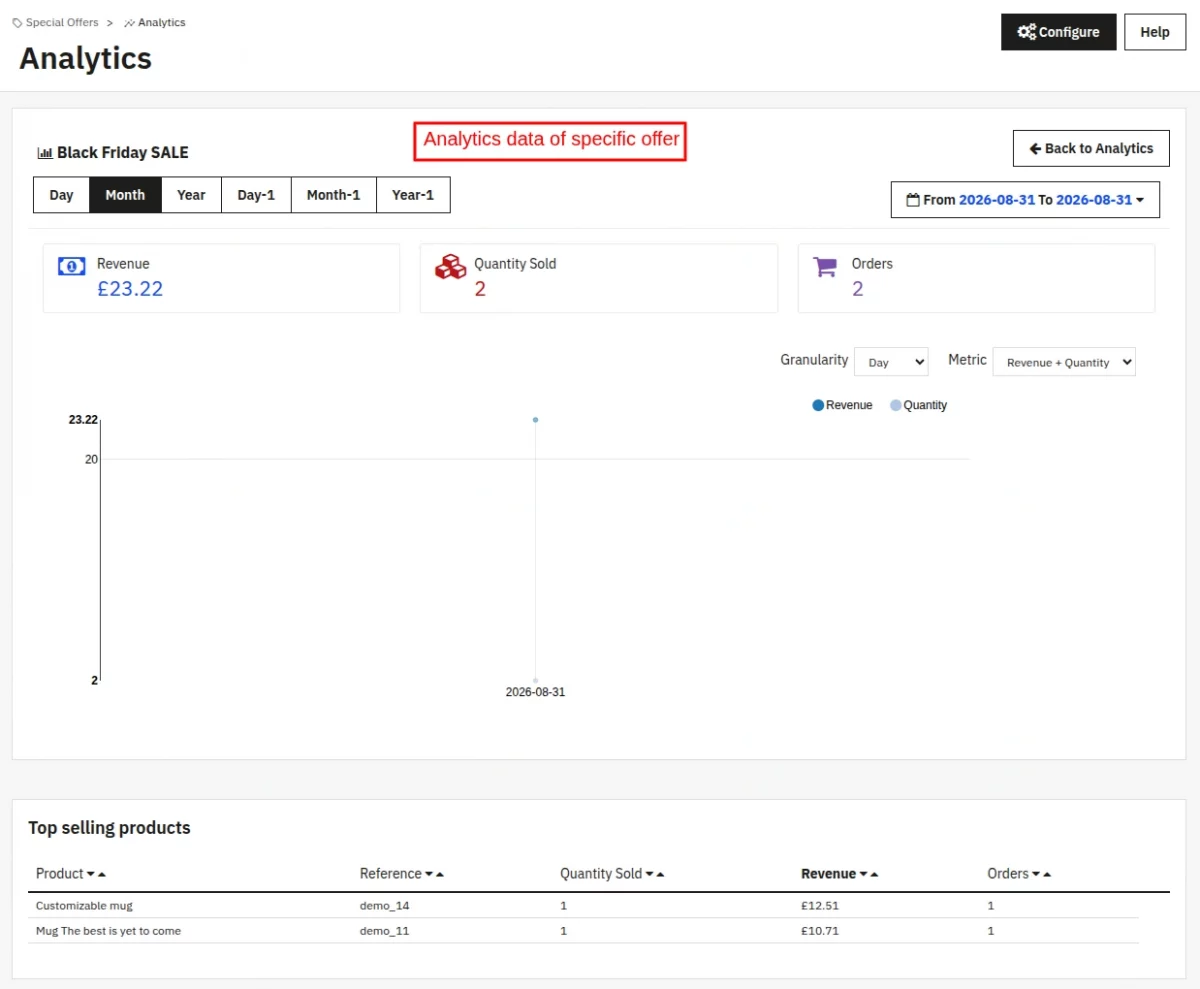
Note: The analytics data will be updated only when the order status reaches “Payment Accepted”.
Storefront Experience
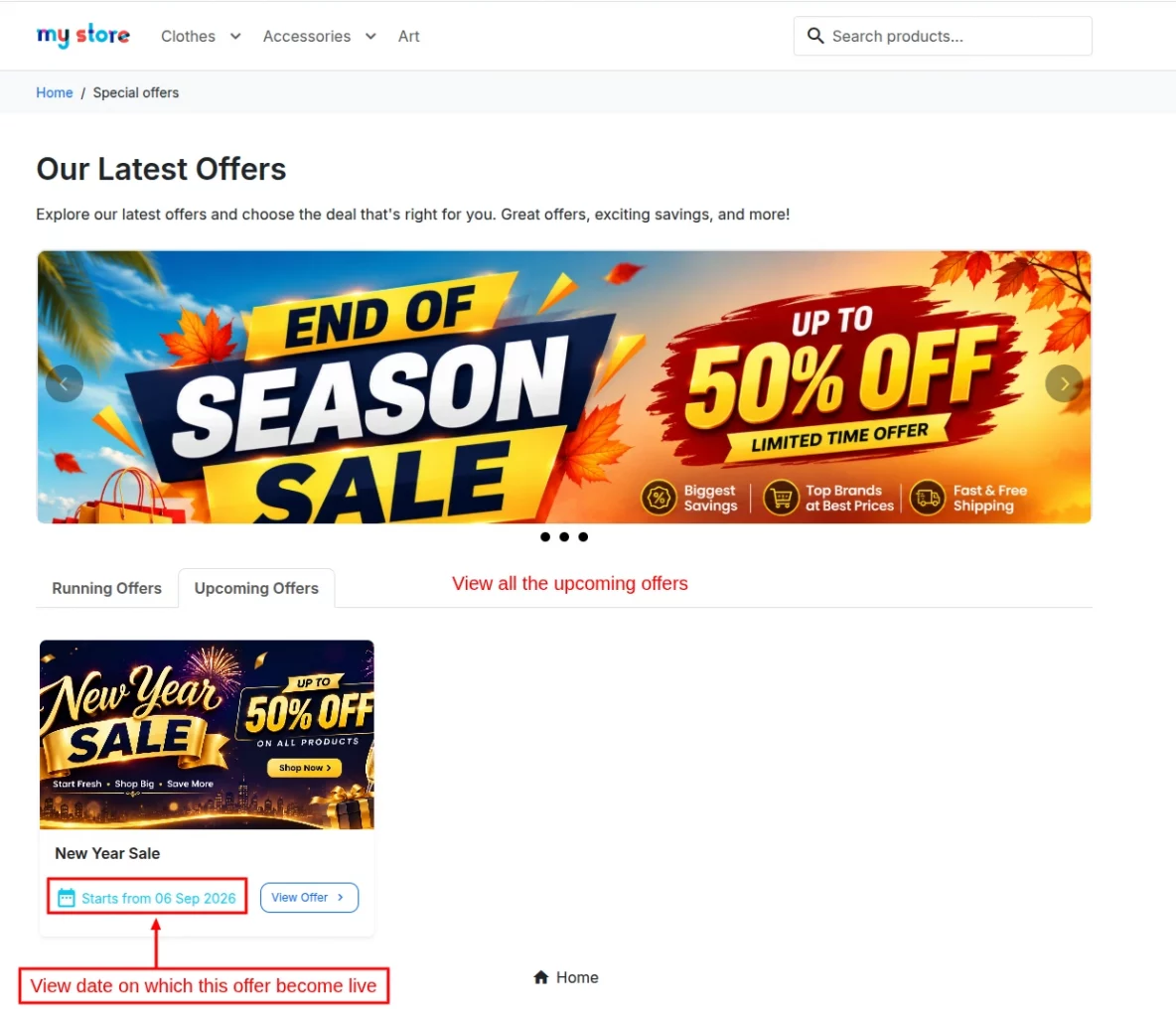
Offer Listing Page
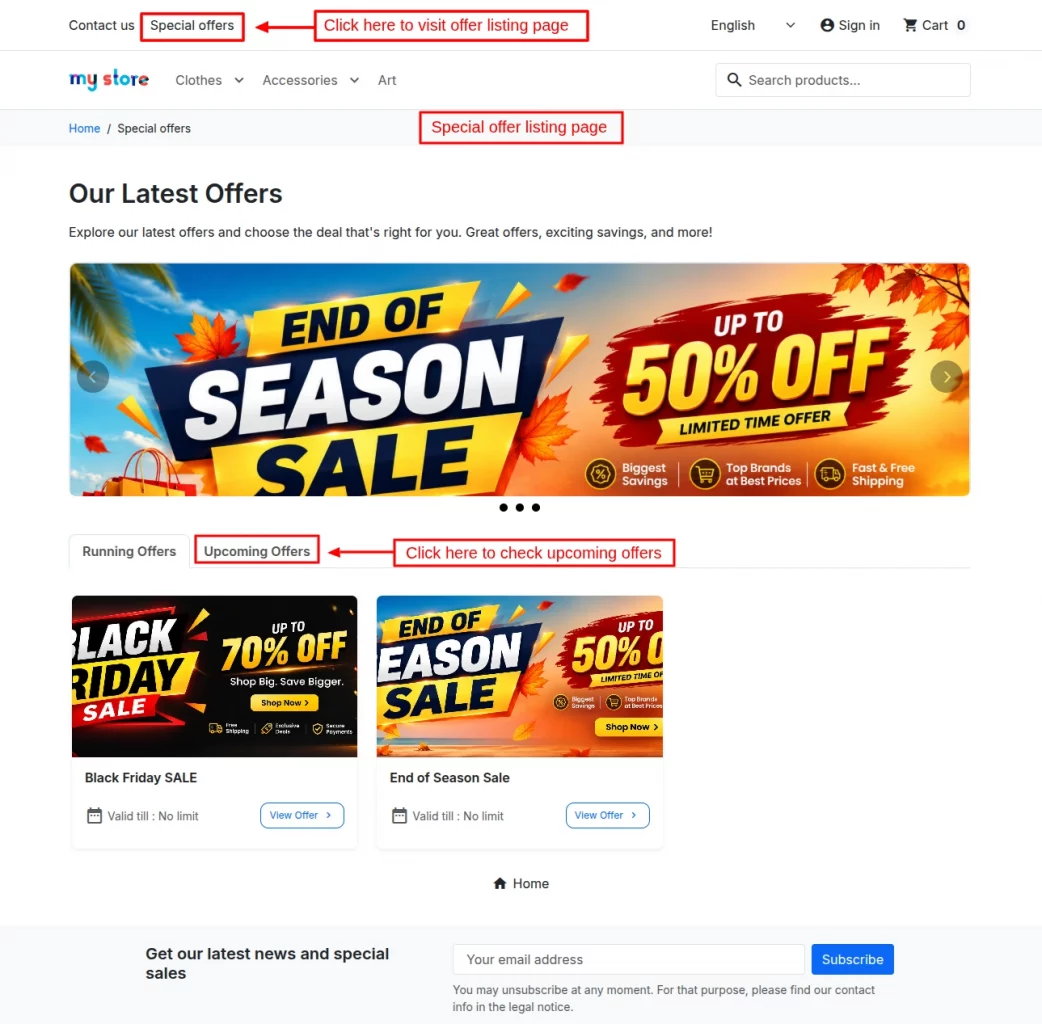
The offer listing is the main listing page accessible at the /special-offers route (or your custom friendly URL).
It shows running and upcoming offers in separate tabs. Each offer card displays the banner, title, and a link to the individual offer page.
A banner slider rotates at the top if global or per-page banners are configured.
Individual Offer Page
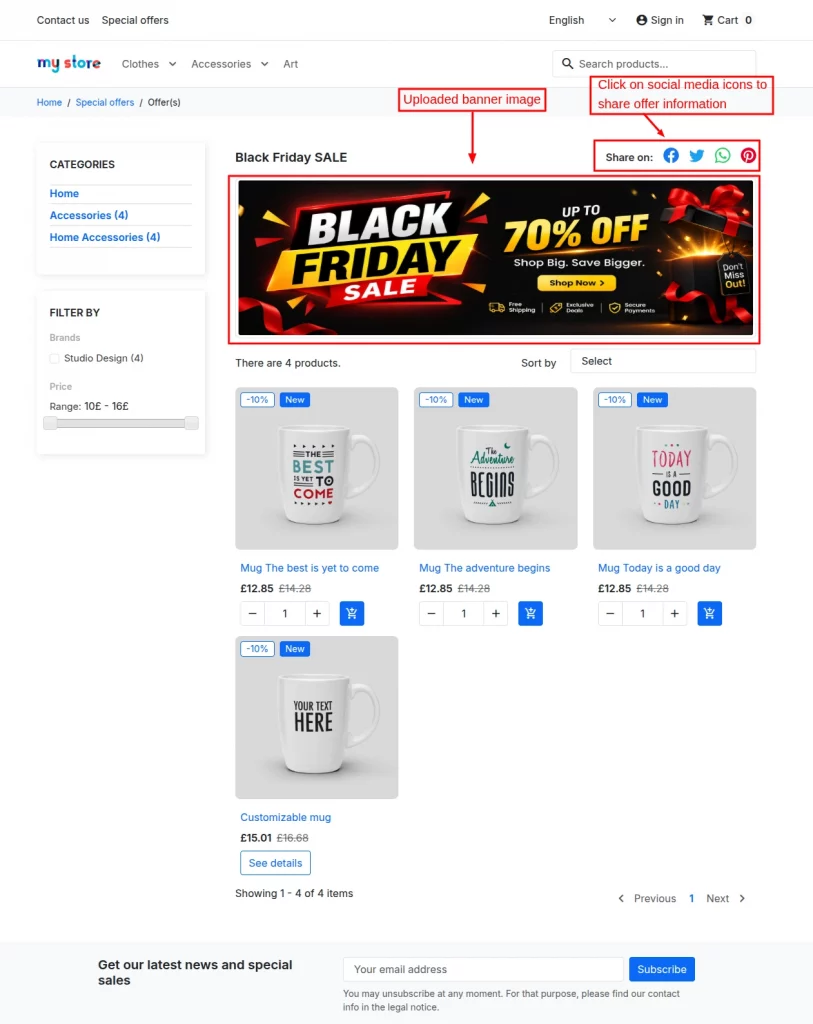
Each offer page displays a filtered product grid based on the rules defined in the admin panel.
Customers can sort products by name, price, quantity, or product ID, and navigate through paginated results.
If the offer has social sharing enabled, share buttons appear on the page.
If the admin creates the offer with the “Override existing specific price” option disabled, the existing specific price rule will remain applicable to the product.
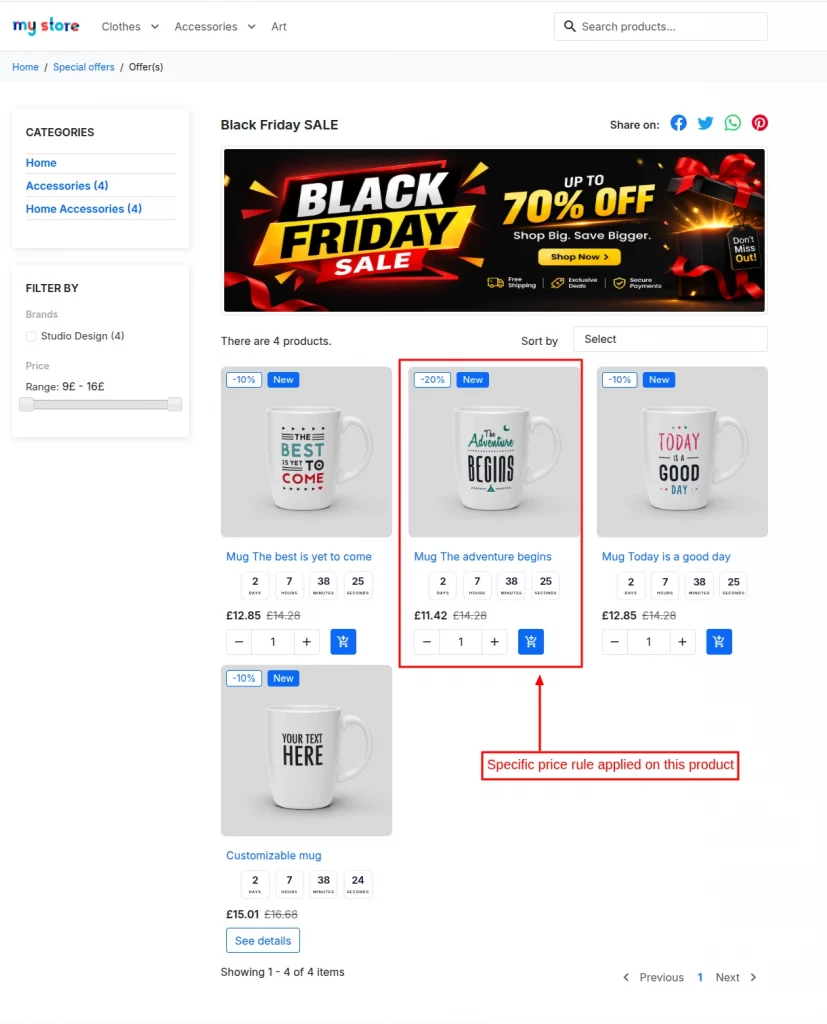
Note: If multiple offers have the same discount priority, then the first created offer discount will be applicable to products.
Upcoming Offer page
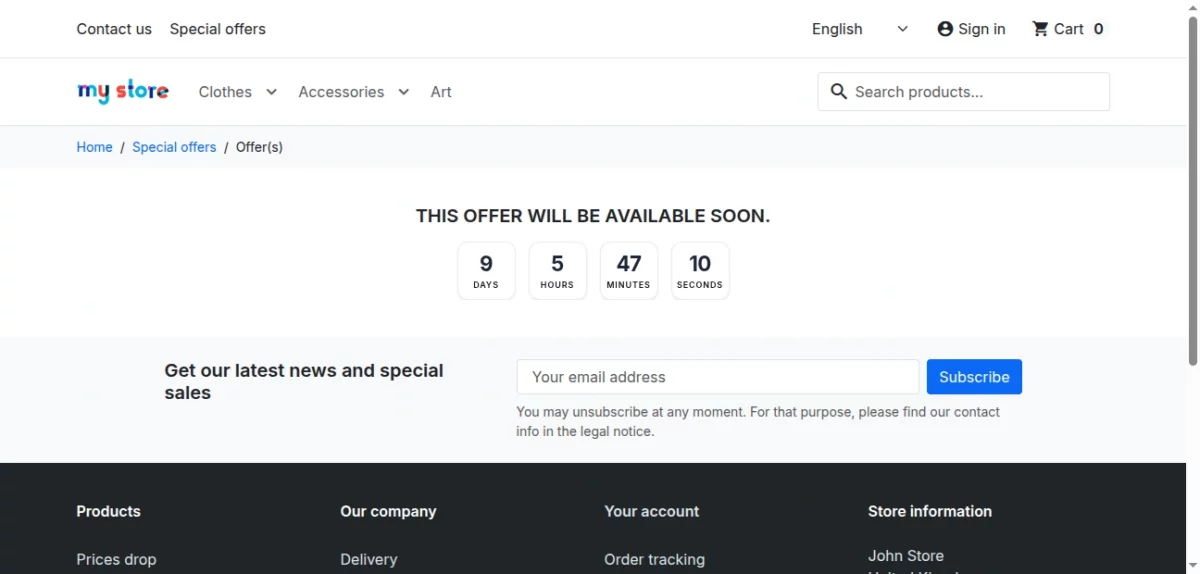
If a customer tries to access an upcoming offer outside its date window, they see a message with an optional countdown timer if the global countdown setting is enabled.
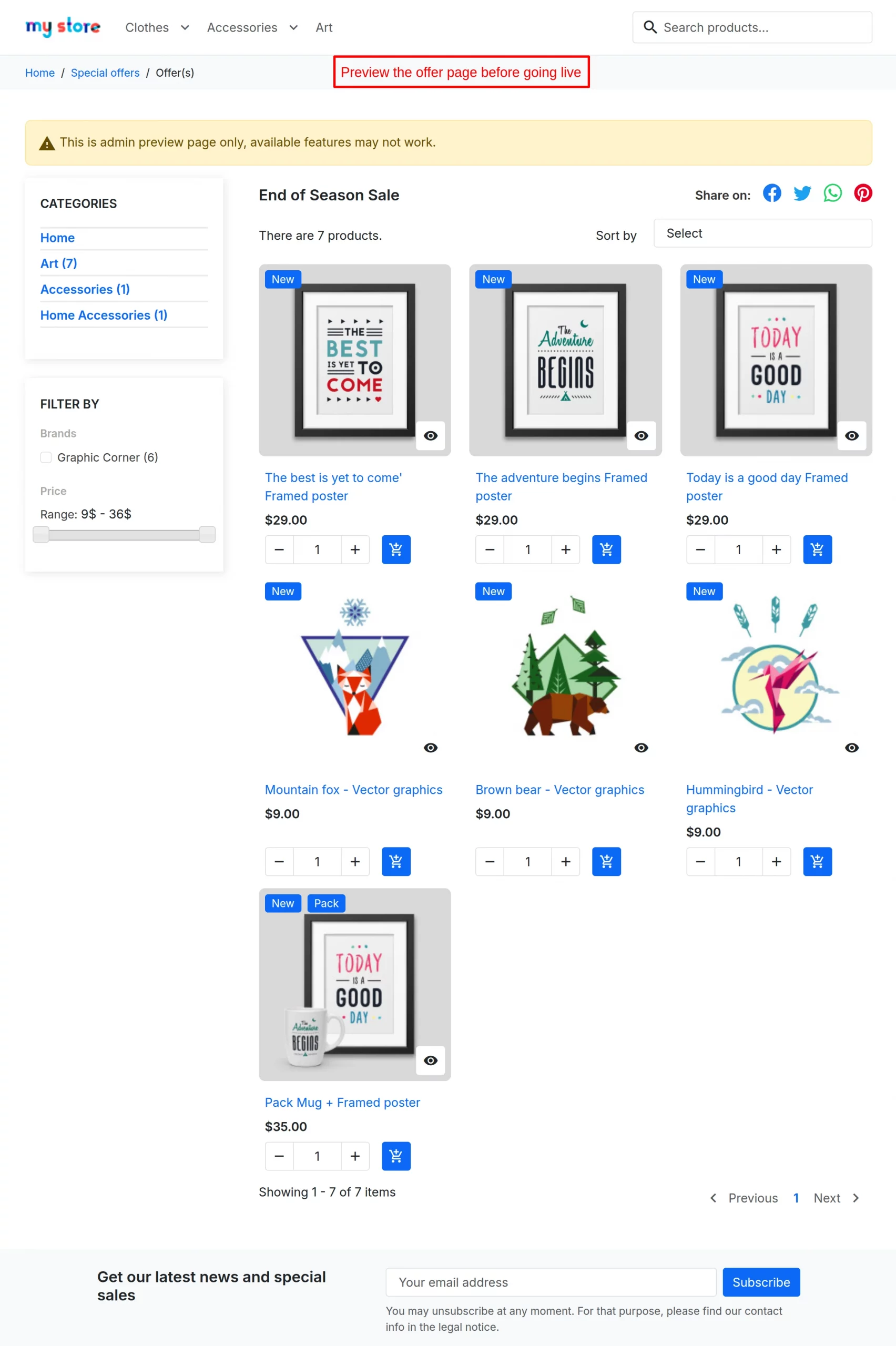
Preview Upcoming Offer
Before going live the admin can preview the list of products that are available in the upcoming offer.
Homepage Widget
When enabled, a configurable block of offer products appears on the store homepage. The widget respects the sort order and product limit set in General Configuration.
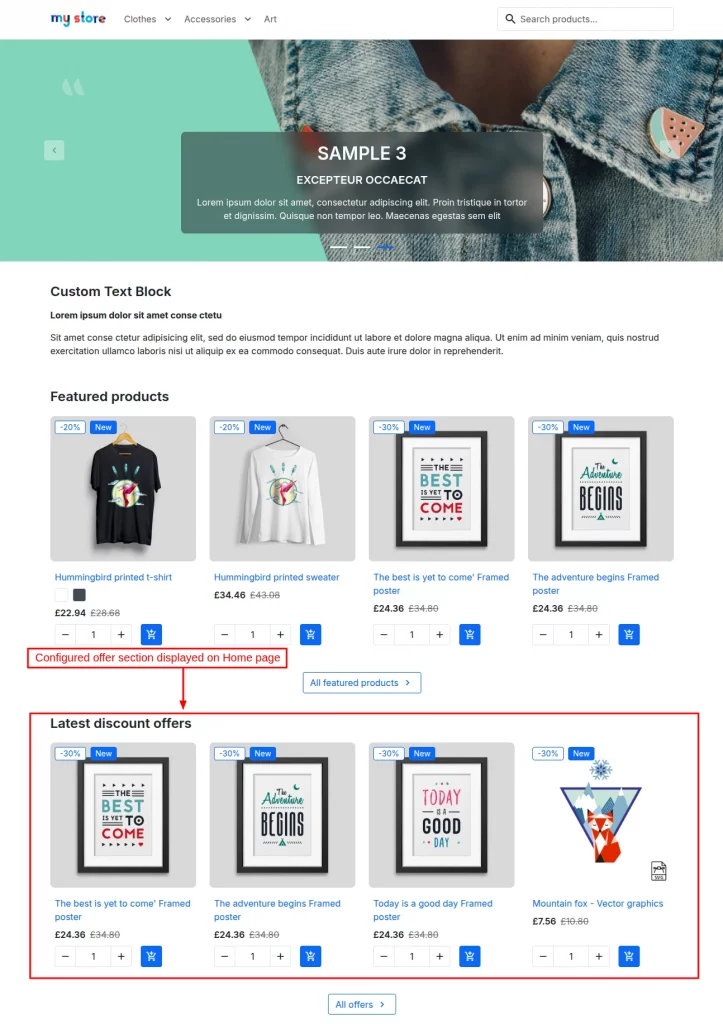
The admin can choose to display any one option from the following three options:
- Latest Offer Discount: Choose to display products on which recently created offer is applied.
- Max discount: Choose to display the products on which maximum discounts are applied
- Ending soon: Choose to display the products on which offers are expiring soon.
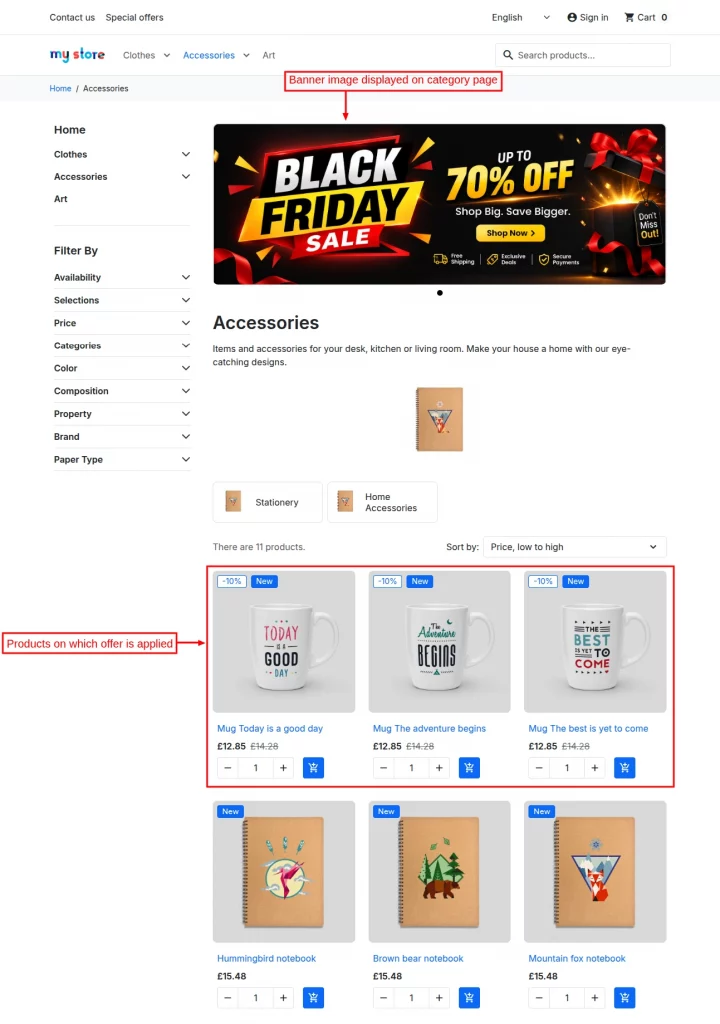
Category Page Slider
When the category-page slider is enabled, banner images appear at the top of category pages.
Sliders can show global banners, offer-page-specific banners, or both, depending on the Slider Configuration.
Countdown Timers on Product Listings
Countdown timers render on product listing pages for products that belong to an active offer with the timer enabled.
The timer style and position are controlled globally, and visibility can be restricted to offer pages only.
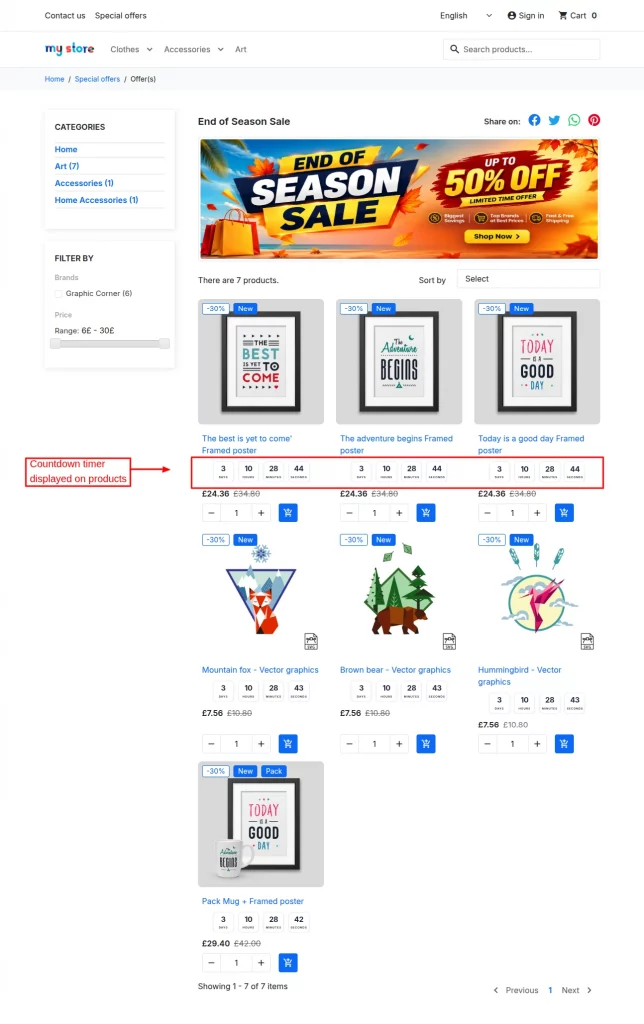
Note: If the end date is not configured while creating/editing the offer, the countdown timer will not be displayed on products.
Social Sharing
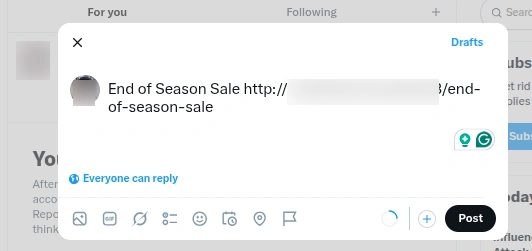
Share buttons appear on individual offer pages when enabled. Customers can share the offer on Facebook, X/Twitter, WhatsApp, and Pinterest.
Support
For any kind of technical assistance or query, please raise a ticket or send us a mail at [email protected]
Also, please explore our PrestaShop development services and vast range of quality Prestashop addons.
Current Product Version - 6.0.0
Supported Framework Version - 9.x.x, 8.x.x, 1.7.x.x

Be the first to comment.