CS-Cart Shiprocket Integration simplifies order management by automatically syncing orders and updates between CS-Cart and Shiprocket.
This seamless integration significantly accelerates the shipping process while ensuring a smooth and hassle-free return experience for both businesses and customers.
It automatically generates shipping labels and invoices, which not only saves valuable time but also reduces the potential for human errors, leading to a more efficient operation.
By streamlining various aspects of e-commerce management, this integration allows businesses to handle tasks with greater precision and accuracy.
In the long run, this solution enhances operational workflows, making eCommerce processes more efficient and allowing businesses to focus on growth and customer satisfaction.
Explore the CS-Cart POS Customer Screen addon for real-time product and price display at checkout.
Also, check our CS-Cart AI Reporting extension that uses GenAI, LLMs, and Vanna AI to turn questions into SQL, simplifying reporting for admins and vendors.
Note: Before installing the add-on, extract the downloaded package.
- Install the License Manager add-on first.
- Then install the required add-on.
- Follow the license activation steps to generate your license key.
Features
- Order status changes in CS-Cart are automatically synced with Shiprocket.
- Return orders are auto-created in Shiprocket when requested in CS-Cart.
- Shipping labels are generated in Shiprocket when orders are delivered.
- Invoices are generated in Shiprocket once the order is delivered.
- Return order labels are auto-generated upon delivery status in Shiprocket.
- Return order invoices are created automatically on delivery confirmation.
- Return order status updates in CS-Cart sync seamlessly with Shiprocket.
- The vendor and the admin can manage the orders and returns.
Installation
When you download the add-on, you get one zip file and the install.txt file. Please read it carefully and follow it.
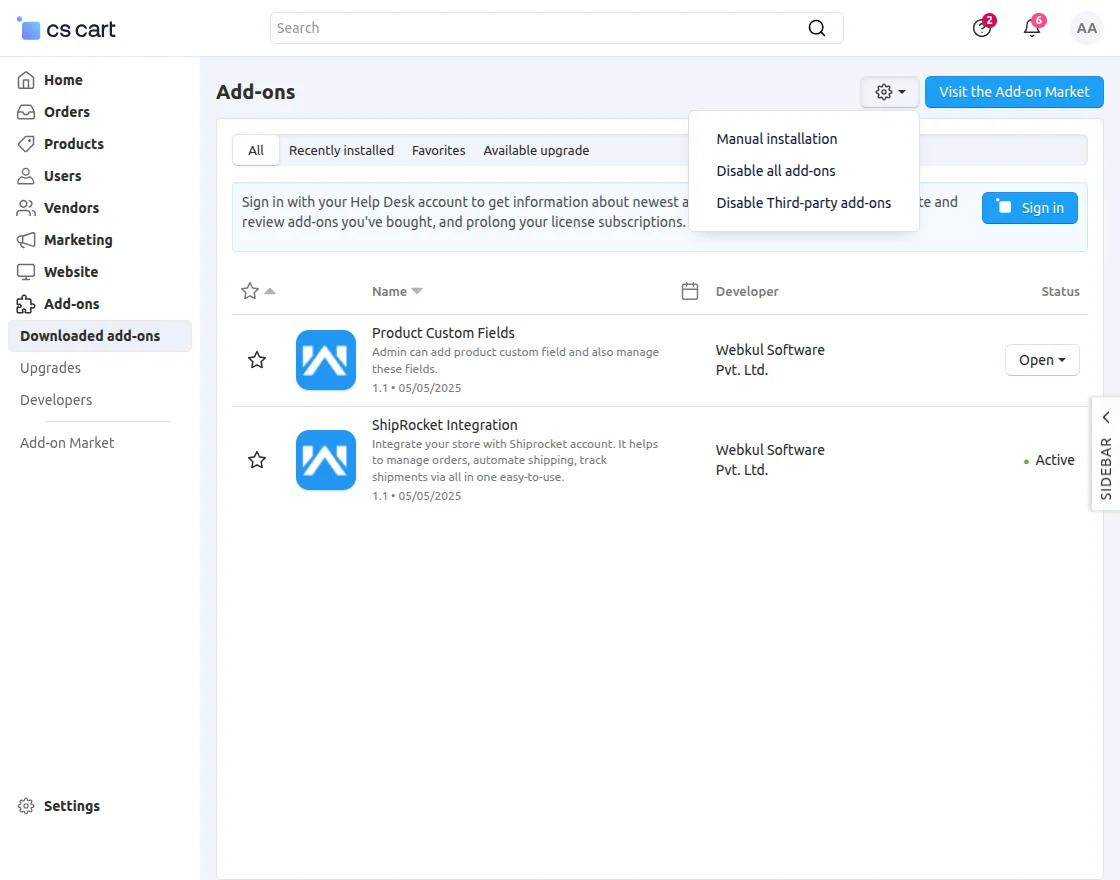
Firstly, click on the “Gear icon” and select “Manual Installation” to upload the zip file as per the screenshot below.
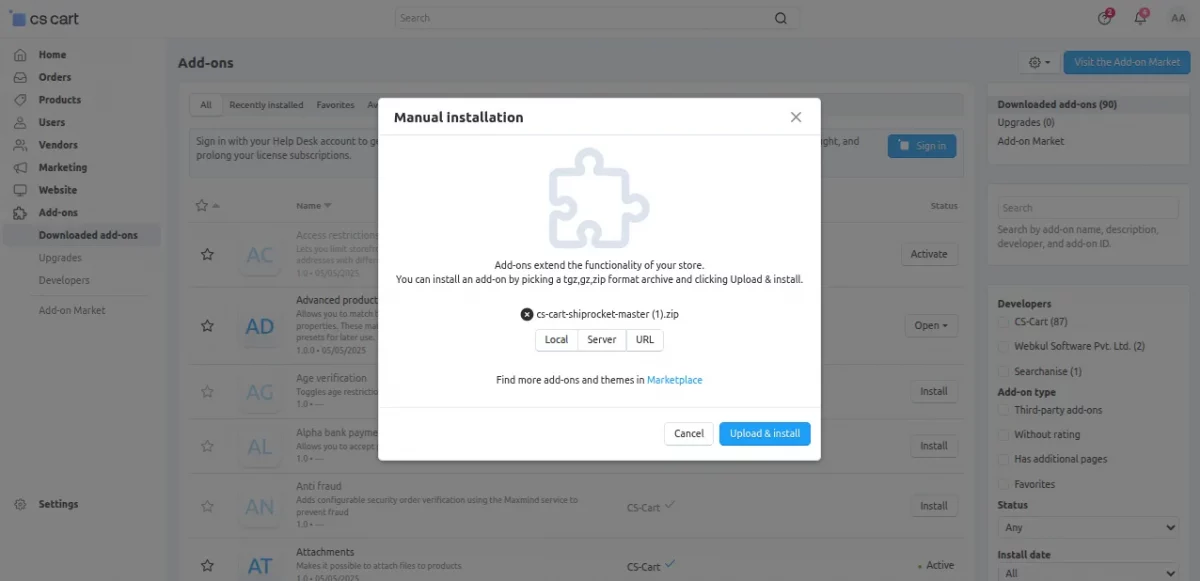
Click on “Local” to browse the zip file, and then click on “Upload & Install” as shown below in the snapshot.
Add-on Configuration
After installing the add-on, you will find Shiprocket Integration in the list of available add-ons.
Next, proceed to configure the settings accordingly.
Click on “settings” to enable, disable, install, or refresh. Make sure the add-on is activated as shown in the snapshot below.

CS-Cart Shiprocket Integration – Workflow
After installing the add-on, navigate to the module’s settings to begin configuration, as shown below.
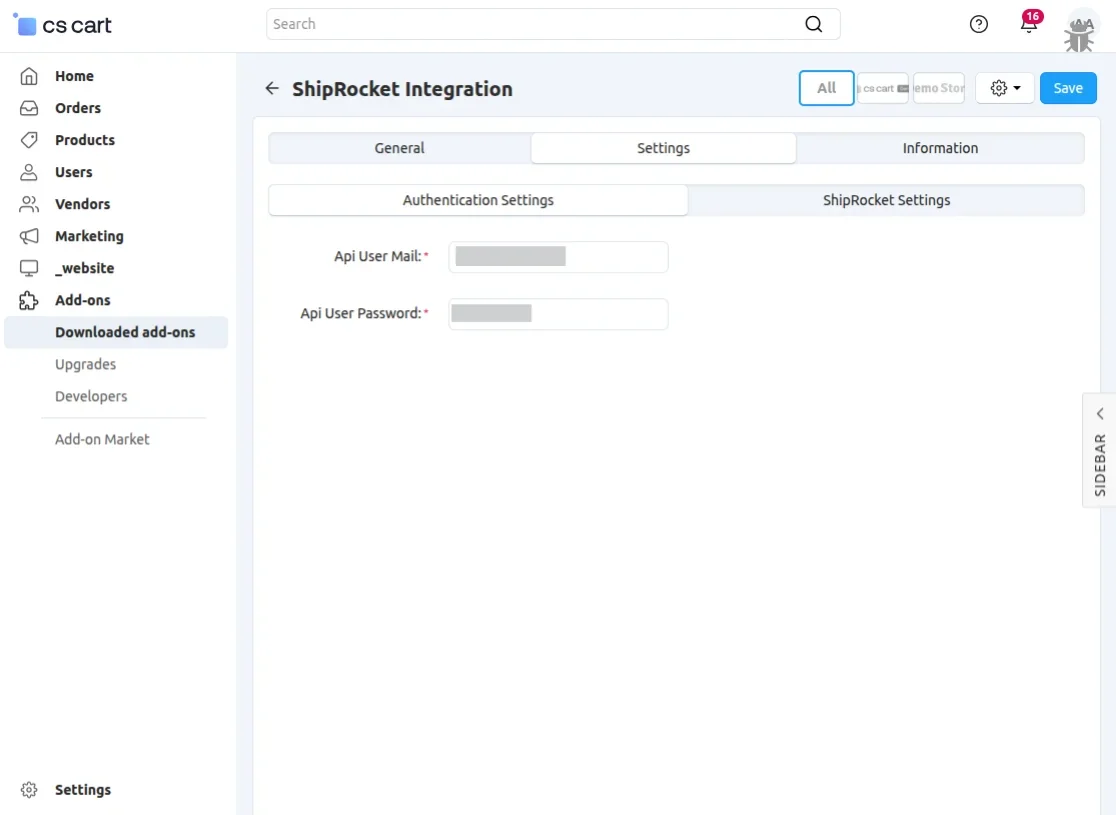
Once all required fields are filled and settings are configured, click the save button to apply the changes.
Once the details are saved in the “Authentication Settings”, then under the “Shiprocket Settings”, details will be reflected, such as pickup, shipping methods, COD payments, prepaid, and order status, as illustrated in the snapshot below.

Note –
To connect your CS-Cart store with Shiprocket, you’ll need your API credentials. The user needs to sign up with Shiprocket if they are using it for the first time, as shown below in the snapshot.
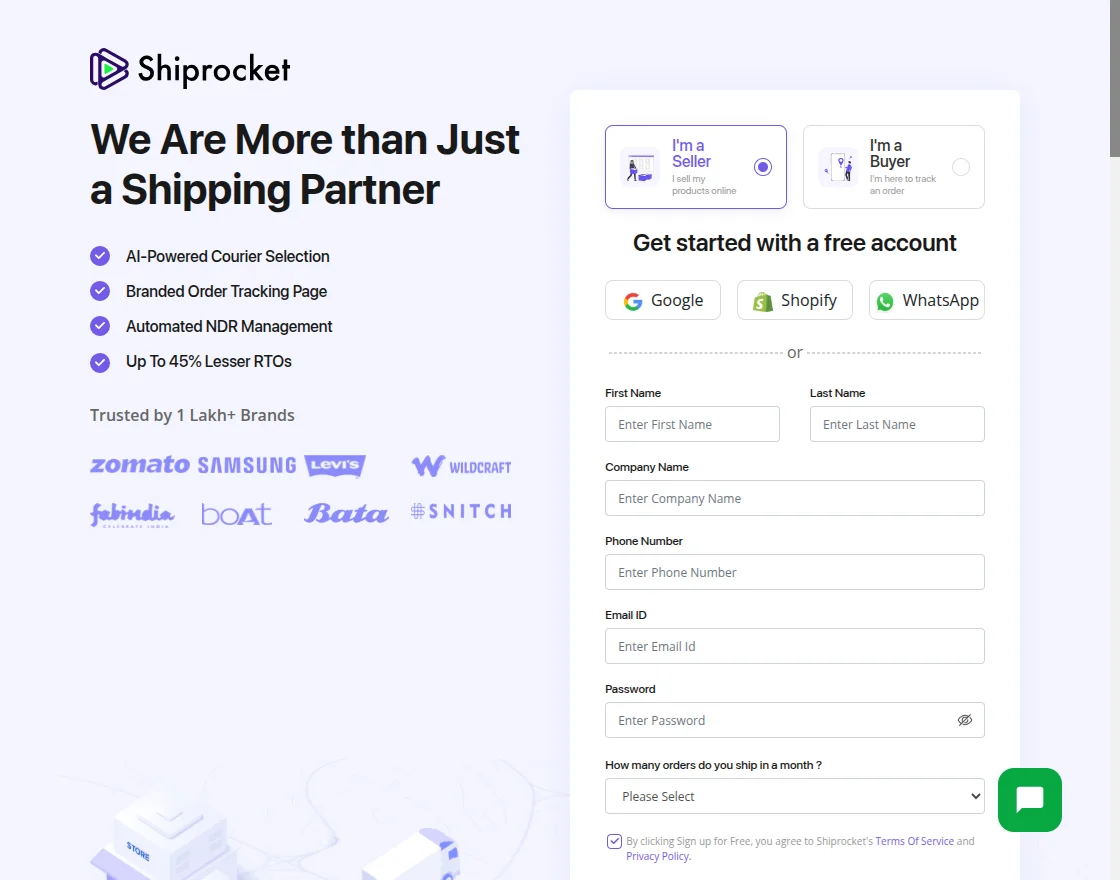
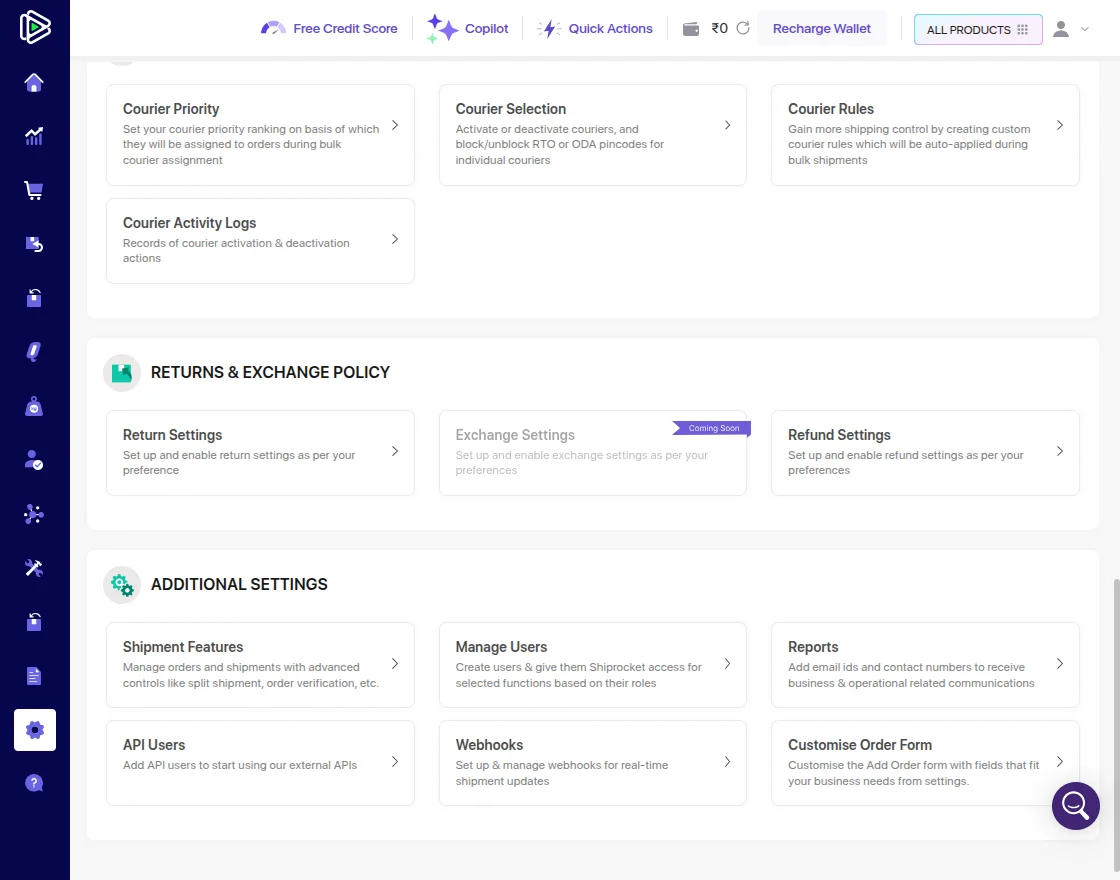
Navigate to Settings >> API Users as shown in the snapshot below.
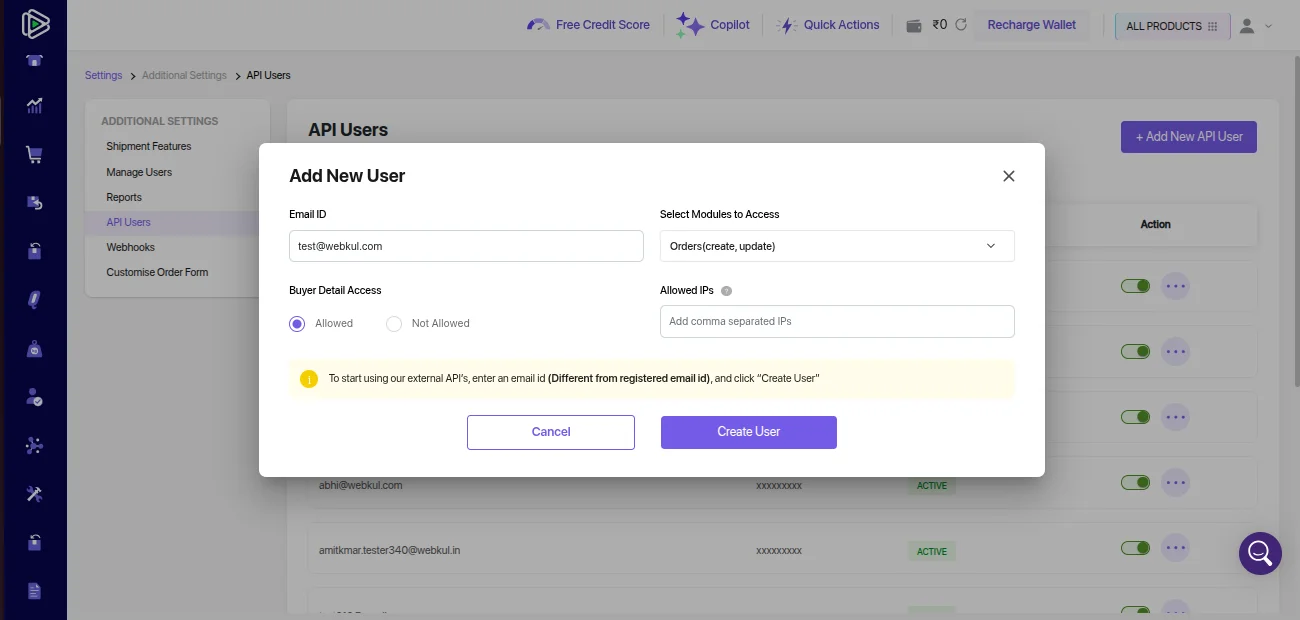
On the API page, click on the Add New API User tab. Then fill in the required fields such as email ID, select modules to access, select the buyer detail access, and lastly, enter the allowed IPs.
After adding all the details, click on Create User as shown in the snapshot below.
CS-Cart Shiprocket Integration – Order Sync to Shiprocket
Once set up, the module automatically syncs orders and returns between CS-Cart and Shiprocket.
When a customer places an order on the CS-Cart store, it’s automatically sent to the Shiprocket panel, and the order is synced to the Shiprocket panel.
To enable automatic order sync, the admin and vendor can configure settings from the CS-Cart settings panel in the backend.
This includes selecting the pickup location, shipping methods, COD and prepaid options, and the order status for sync.
CS-Cart Shiprocket Integration – Frontend
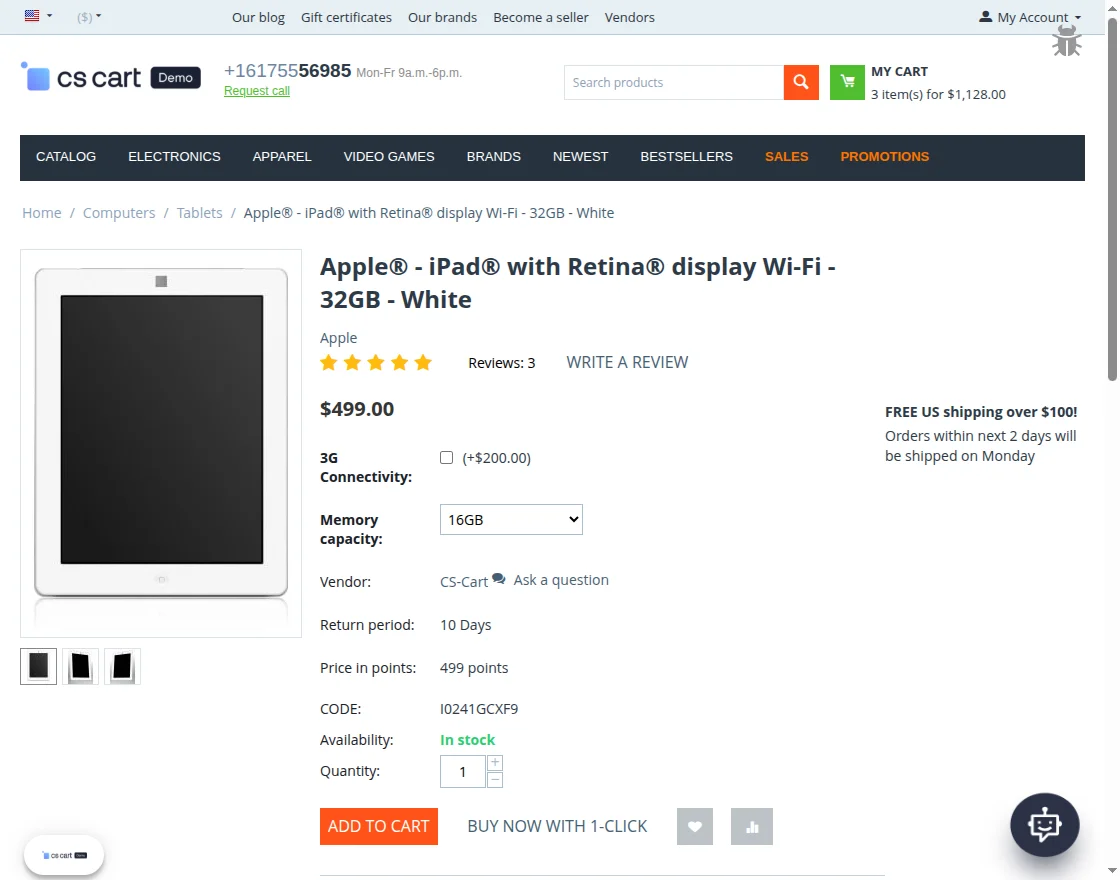
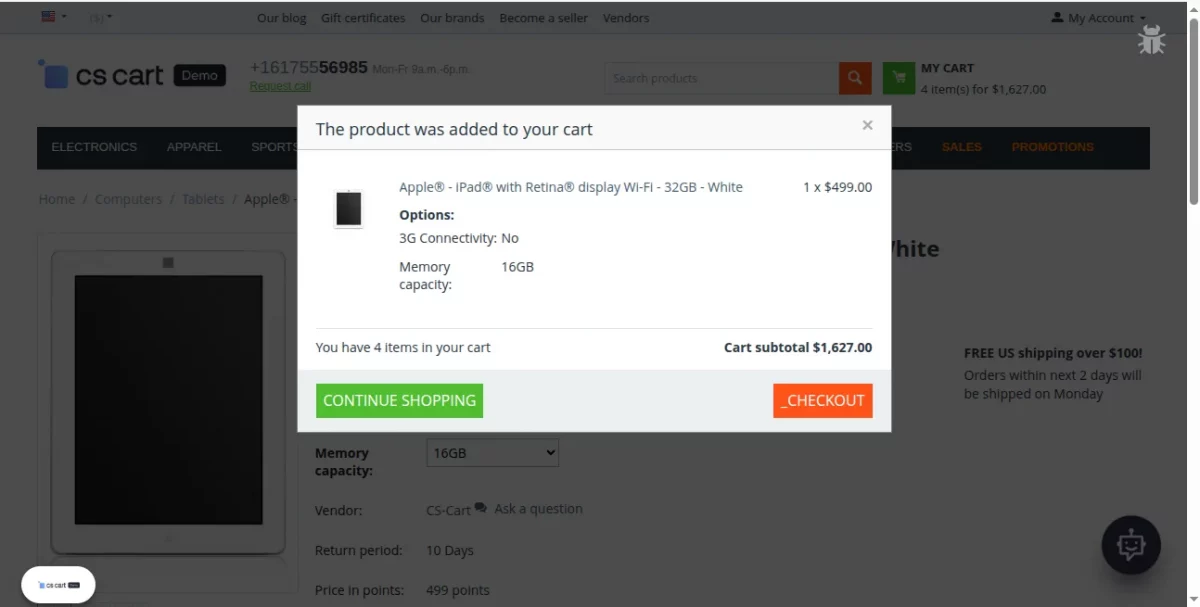
After selecting the products, customers proceed to add them to the cart as shown in the screenshot below.
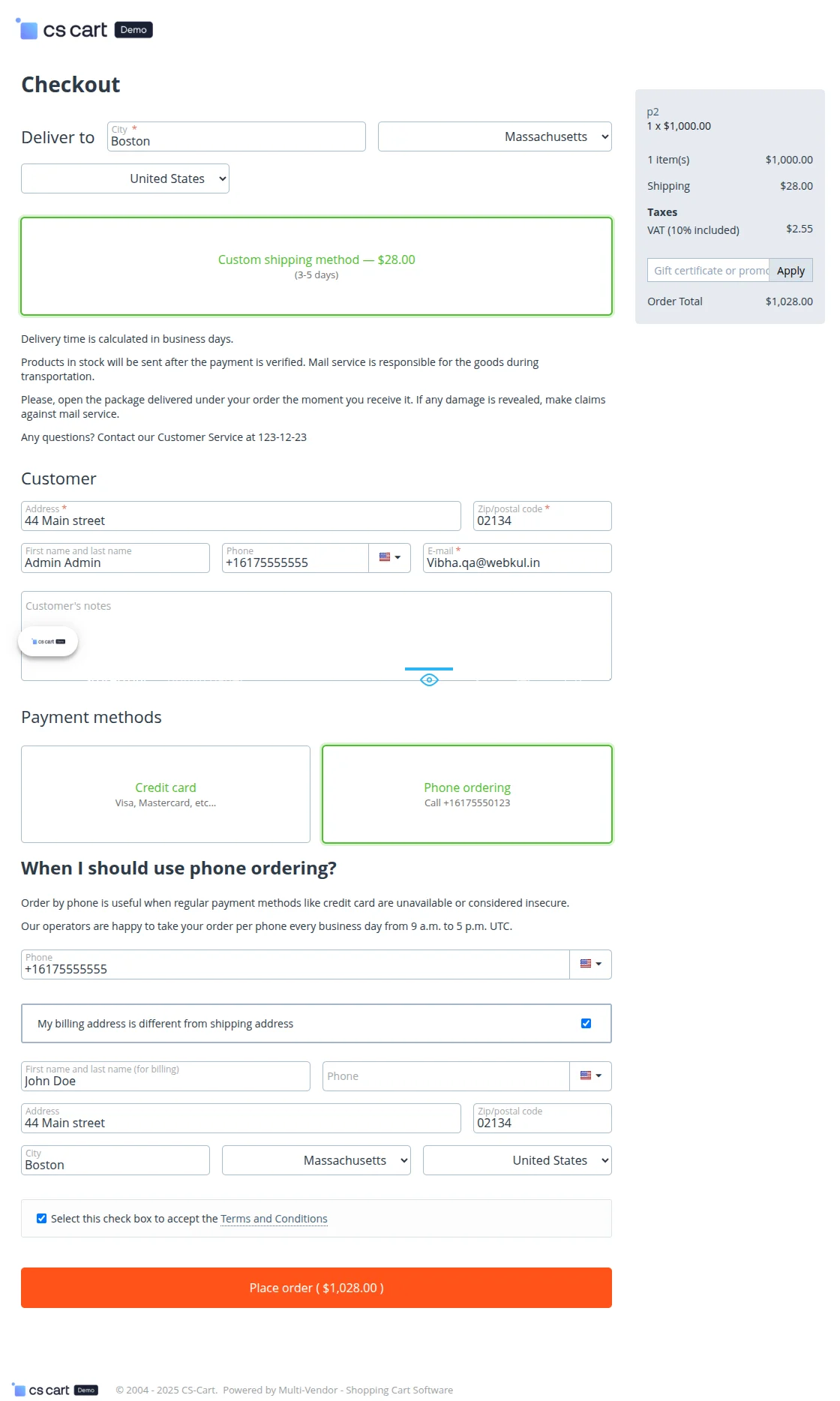
Next, continue with the product checkout process as illustrated in the image below.
After placing the order, customers can choose a payment method based on the options mapped in the CS-Cart settings within the admin panel.
The image below illustrates how the selected payment method is integrated and mapped in the admin configuration.
CS-Cart Shiprocket Integration – Order Status Updates
When a customer places an order, it is automatically synced to the Shiprocket panel.
The admin and vendor can then track the order status, shipping details, and more from the dashboard.

CS-Cart Shiprocket Integration – Return Order Sync
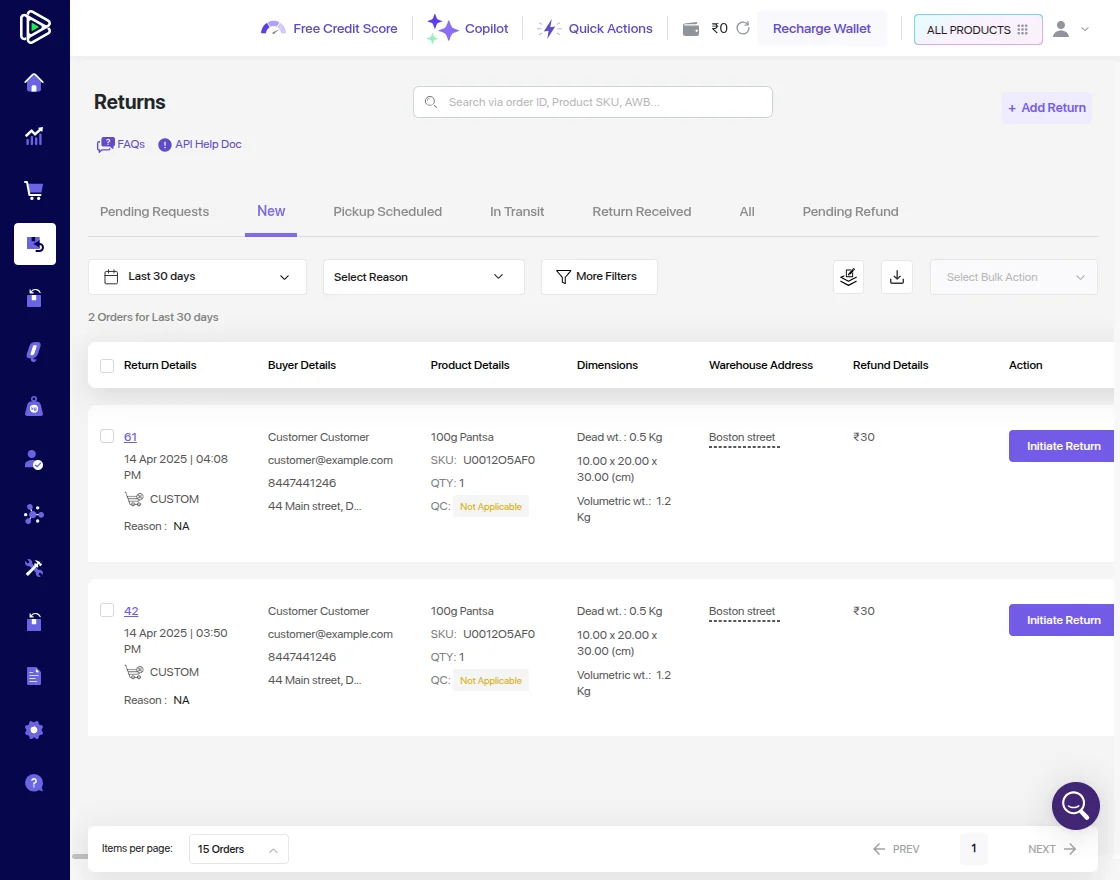
When a customer initiates a return in CS-Cart, the module automatically creates a return order in Shiprocket.
It includes the return reason, notes, product details, and pickup address, removing the need for manual entry.
Support
This is all about CS-Cart Shiprocket Integration. For any further queries, feel free to contact us at http://webkul.uvdesk.com.
Please explore our CS-Cart Development Services and Quality CS-Cart add-ons.
Explore the CS-Cart OpenAI ChatBot extension that connects product data with ChatGPT to answer queries and share product links.
Current Product Version - 1.0
Supported Framework Version - (4.16.x , 4.17.x, 4.18.x)

Be the first to comment.