CS-Cart M-Pesa Express Payment Gateway add-on provides seamless integration of the M-Pesa payment gateway into your CS-Cart store.
With this add-on, customers can securely complete their purchases using M-Pesa, ensuring a fast and reliable payment experience.
M-Pesa is a payment gateway that gives secure mobile money transfer services using a mobile number.
The extension gives the customers an option to select M-Pesa as a payment method to make the payment.
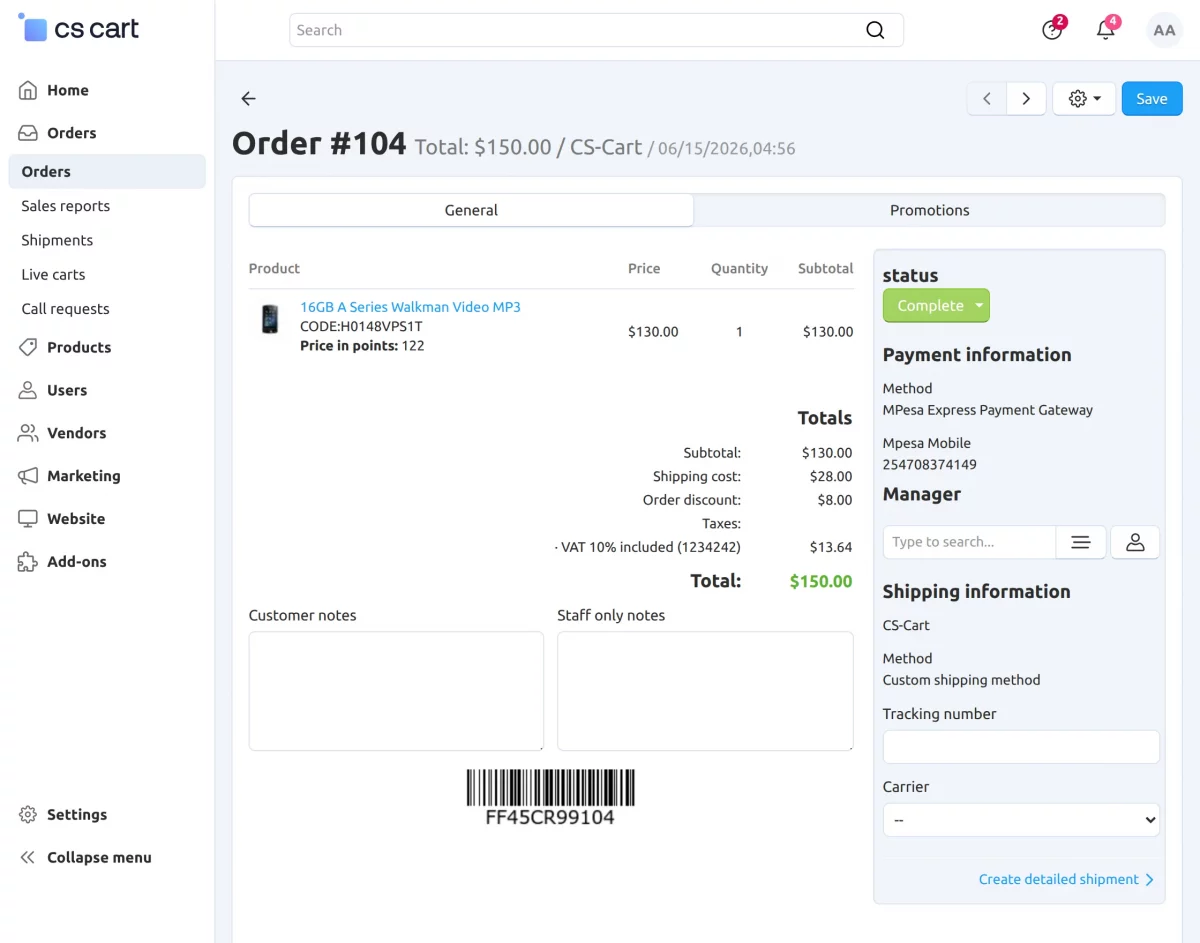
The M-Pesa payment method details will display order details in the order section.
Features
- Fully compatible with the CS-Cart Multi-Vendor marketplace.
- Simple and easy installation and configuration process.
- Allows the admin to integrate the M-Pesa Express payment gateway into the CS-Cart store.
- Enables customers to make secure payments through the M-Pesa application.
- Admin can customize and assign a title to the payment method.
- Customers can view payment-related information in their order history.
- Admin can access and review payment details from the Orders section in the backend.
Flow Of Installation And Configuration:
When you download the “CS-Cart M-Pesa Express Payment Gateway”, you’ll get one zip file and the install.txt file. Read it carefully and follow it. After that, install the zip file.
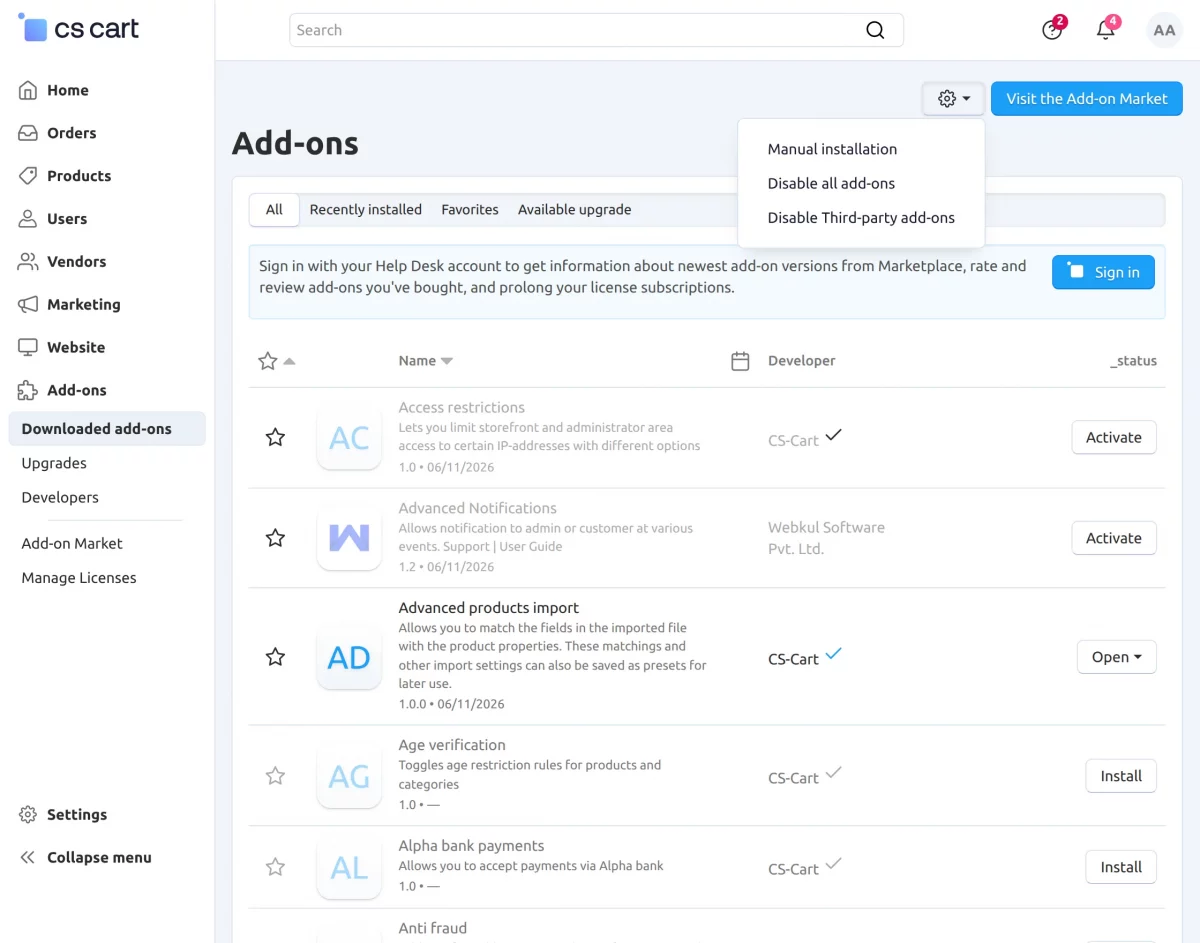
Navigate to Add-ons > Downloaded add-ons and click on the settings icon. You can manually install the zip file as shown below:
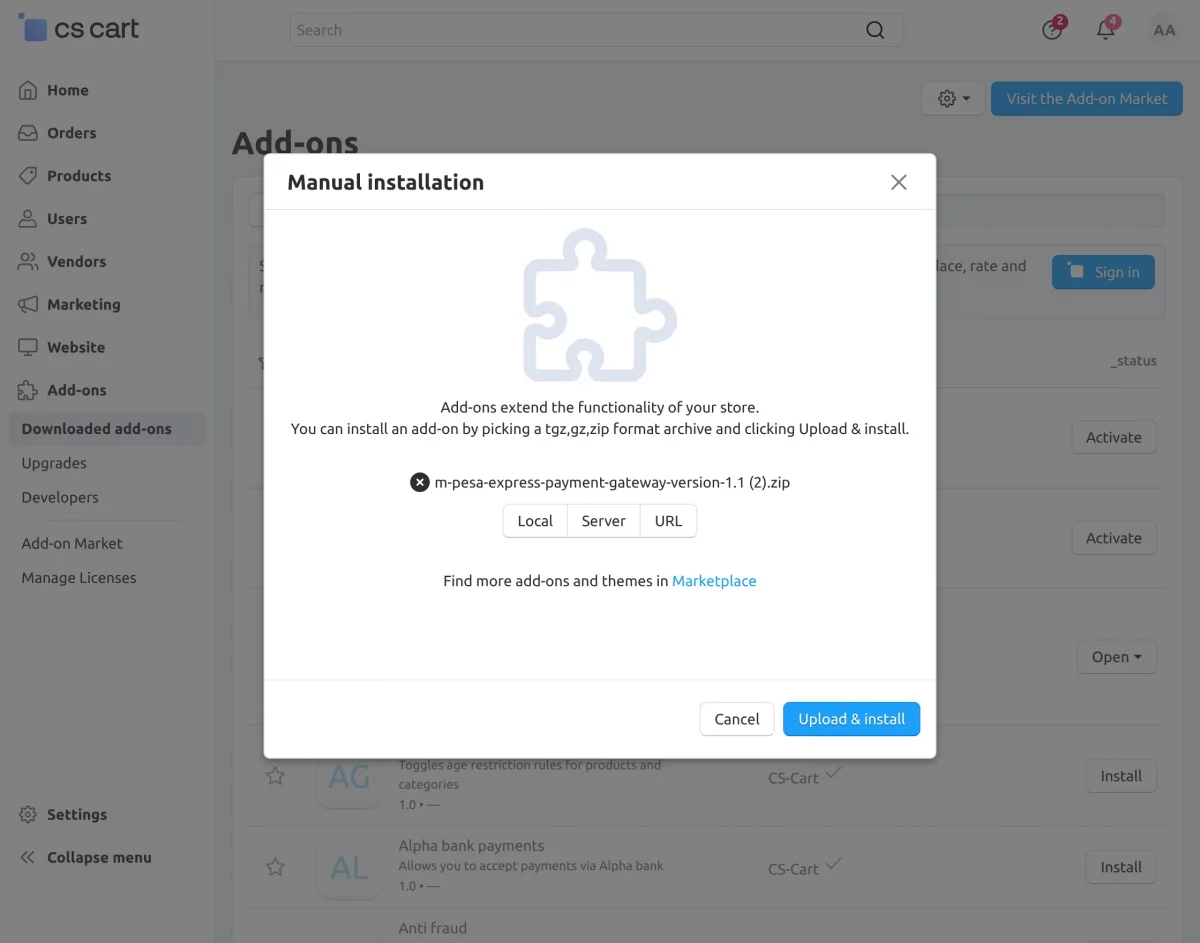
Click on “Local” to browse the zip file and then click on “Upload & Install” as shown below in the snapshot.
How to Generate M-Pesa Express Credentials for CS-Cart
To generate the credentials, first, you need to redirect to the following website: Developer Safaricom.
Afterward, the admin needs to follow the defined steps.
Step 1: The admin needs to sign up by clicking on the login/ Sign up button as per the image below.

2: The admin needs to enter the following details to sign up.

3: The admin can log in by entering the credentials.

4: The admin needs to click on CREATE NEW APP button.

5: Here, the admin needs to enter the app name and select Lipa Na M-Pesa Sandbox.
Developers Safaricom
Step 6: Afterwards, the admin can check the credentials as per the image below.

7: After doing the following steps the admin needs to select APIs and Click on SIMULATE button under M-PESA Express.

8: Here, the admin needs to select the newly created app as per the image below.

9: By clicking on the following button the admin can generate the test credentials as per the image below.

10: The admin can successfully get the credentials as per the below image and Use Phone Number, BusinessShortCode, and PassKey to check out.

Admin Configuration: CS-Cart M-Pesa Express Payment Gateway
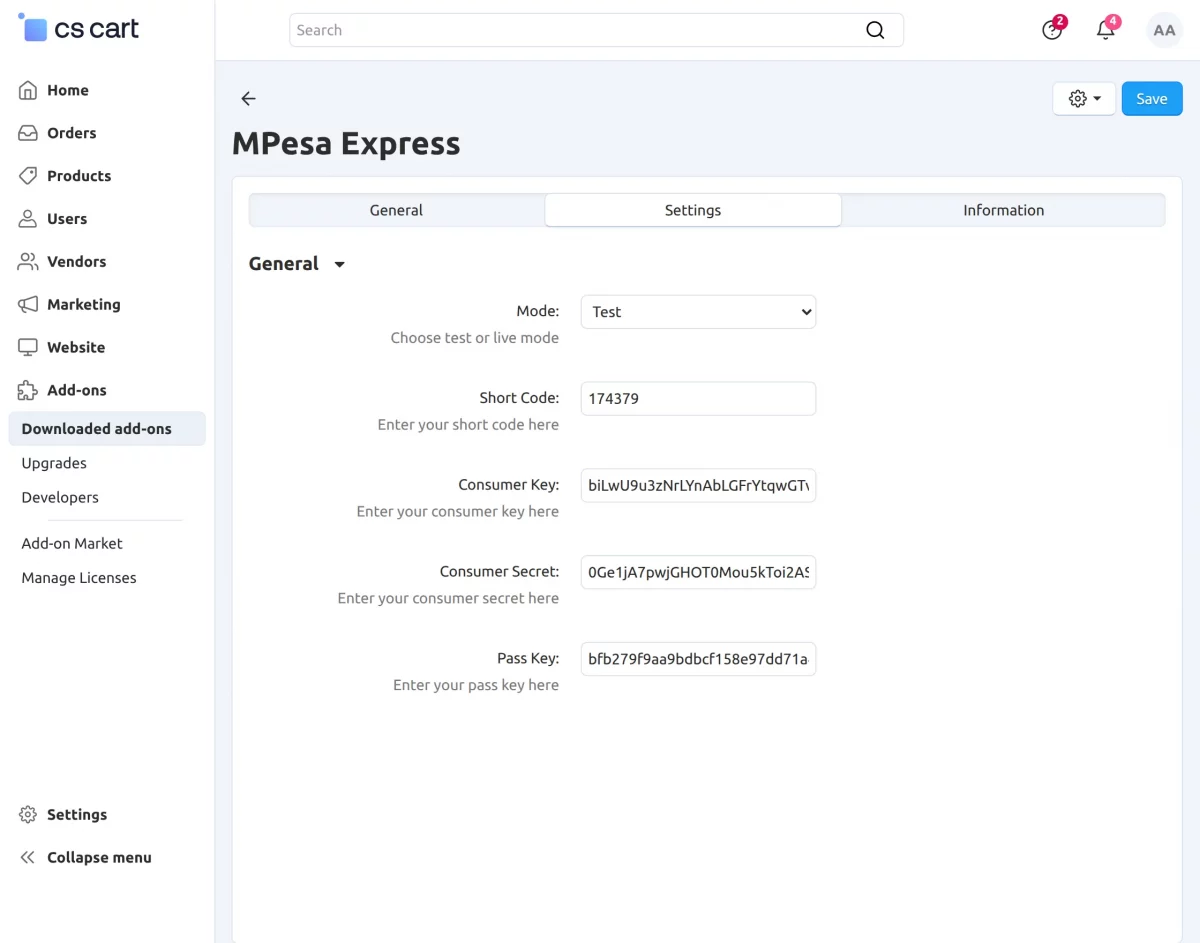
Go to Add-ons → Settings and configure the following settings for the M-Pesa Express payment gateway:
- Mode – Select the payment gateway mode, either Test or Live.
- Short Code – Enter the M-Pesa shortcode provided by Safaricom.
- Consumer Key – Enter the Consumer Key generated from your Safaricom Developer account.
- Consumer Secret – Enter the Consumer Secret associated with your application.
- Pass Key – Enter the M-Pesa Pass Key required for payment authentication.
Payment Method Configuration
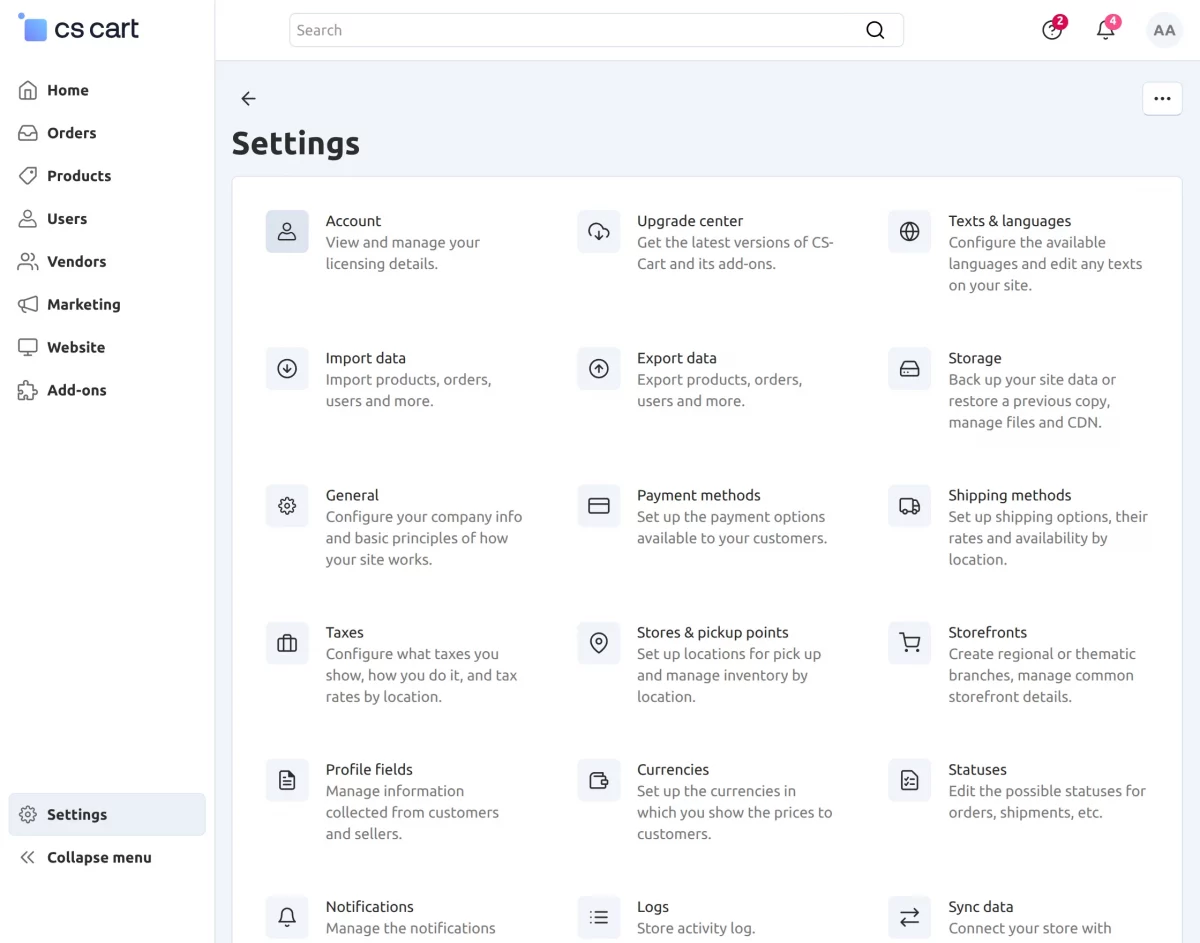
- First, go to Settings > Payment Methods from the admin panel.
- Navigate to Settings, then click Payment Methods to begin configuring the payment gateway.
Click on “+” to create a new payment method.
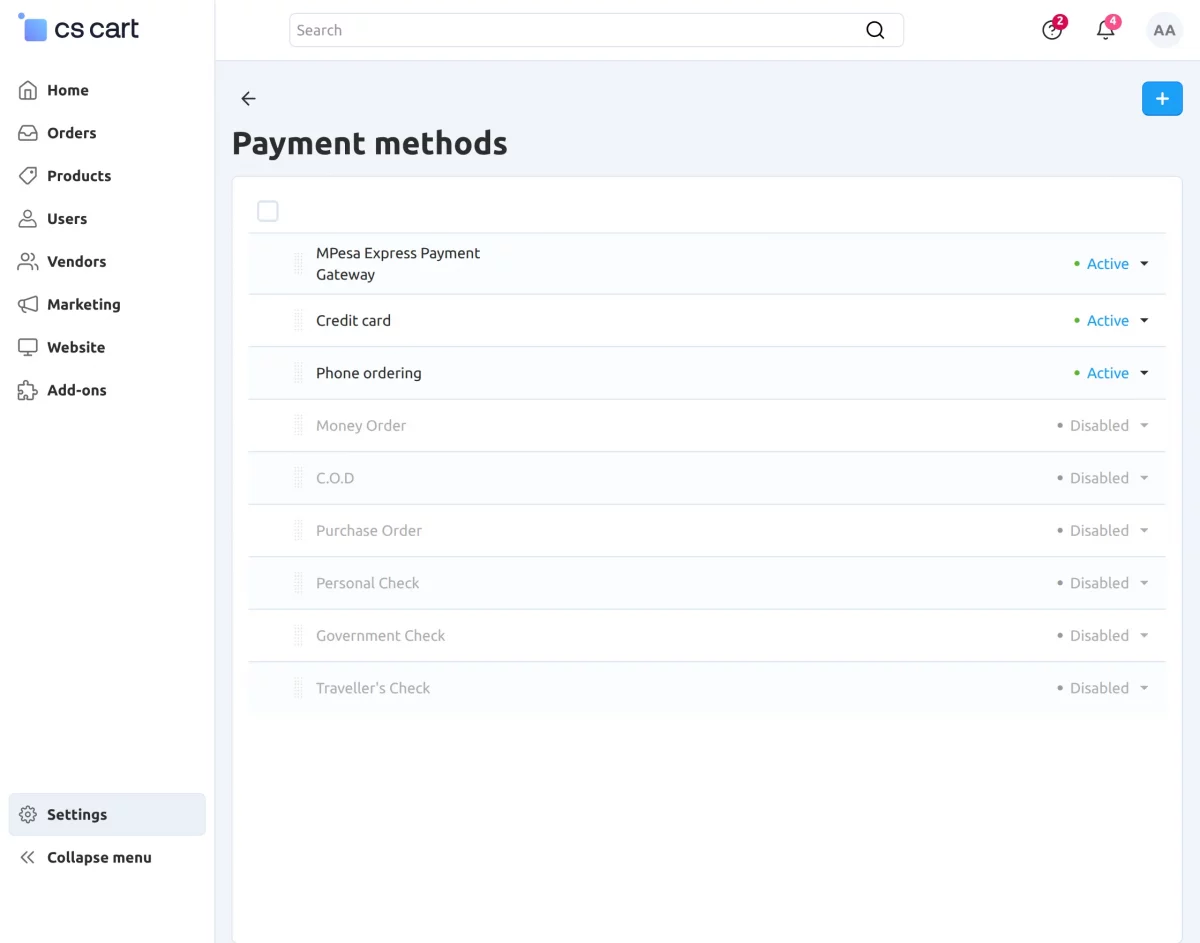
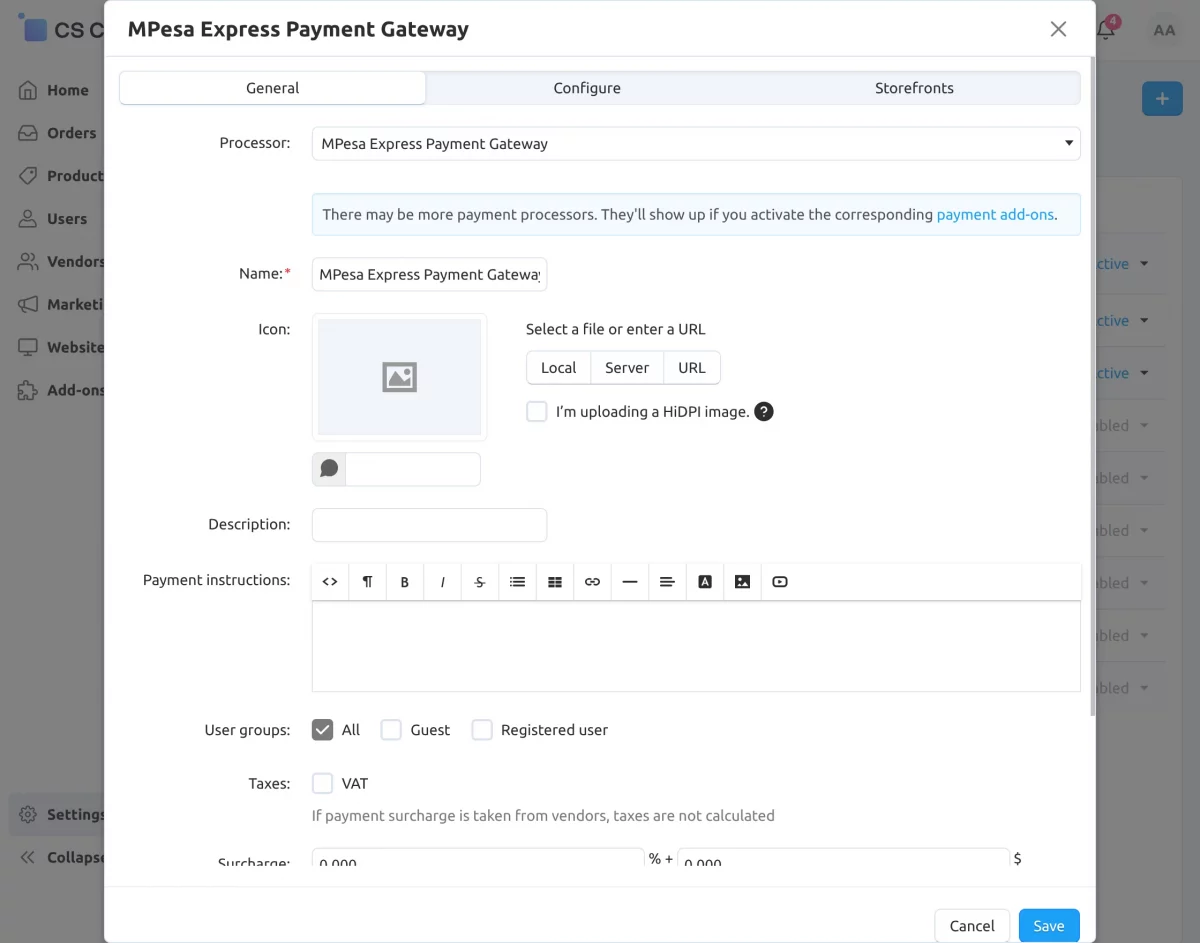
- Select MPesa as the Payment Processor.
- Enter a suitable name for the payment method.
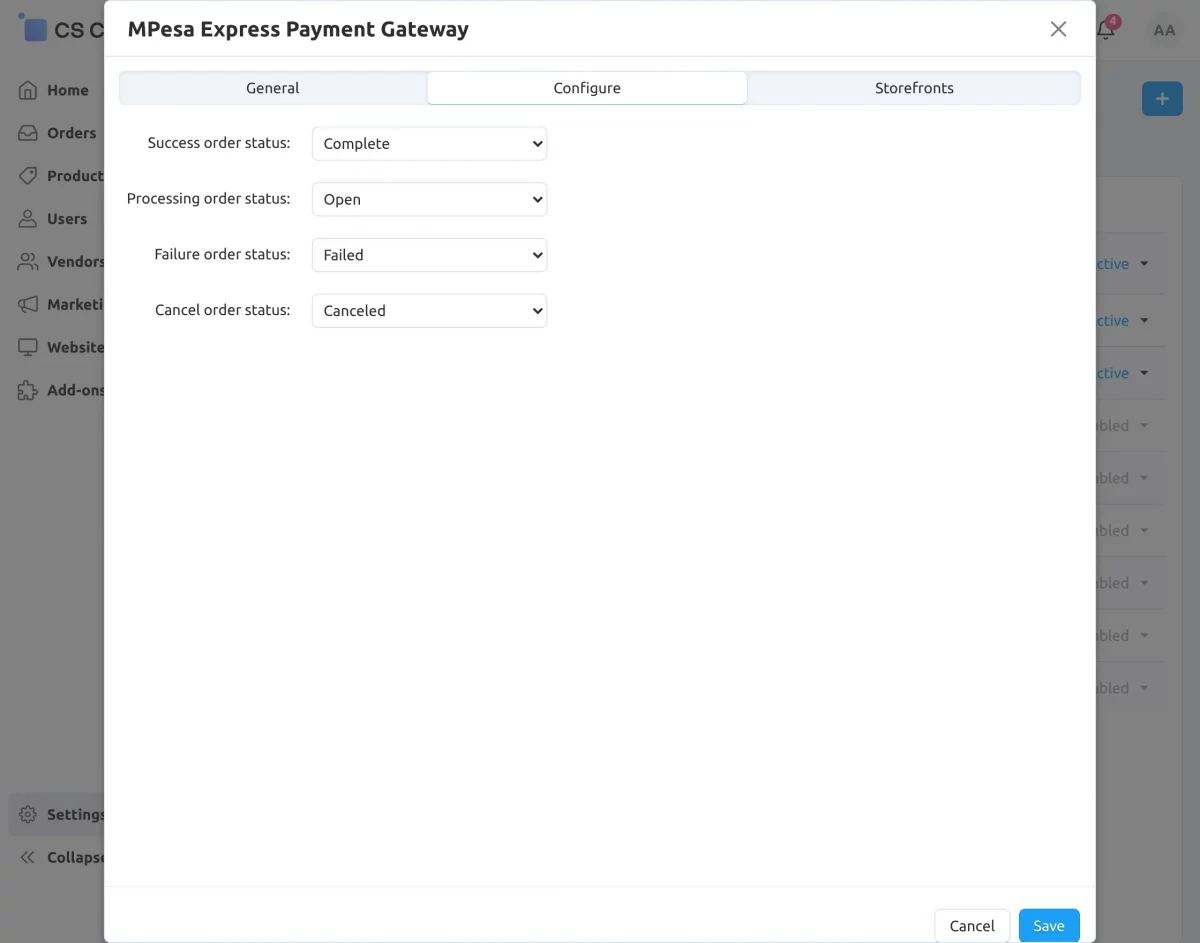
Click on the Configure tab and enter the required details as shown in the screenshot below.
- Success Order Status – Select the status for successful payments.
- Processing Order Status – Select the status for payments that are being processed.
- Failure Order Status – Select the status for failed payments.
- Canceled Order Status – Select the status for canceled payments.
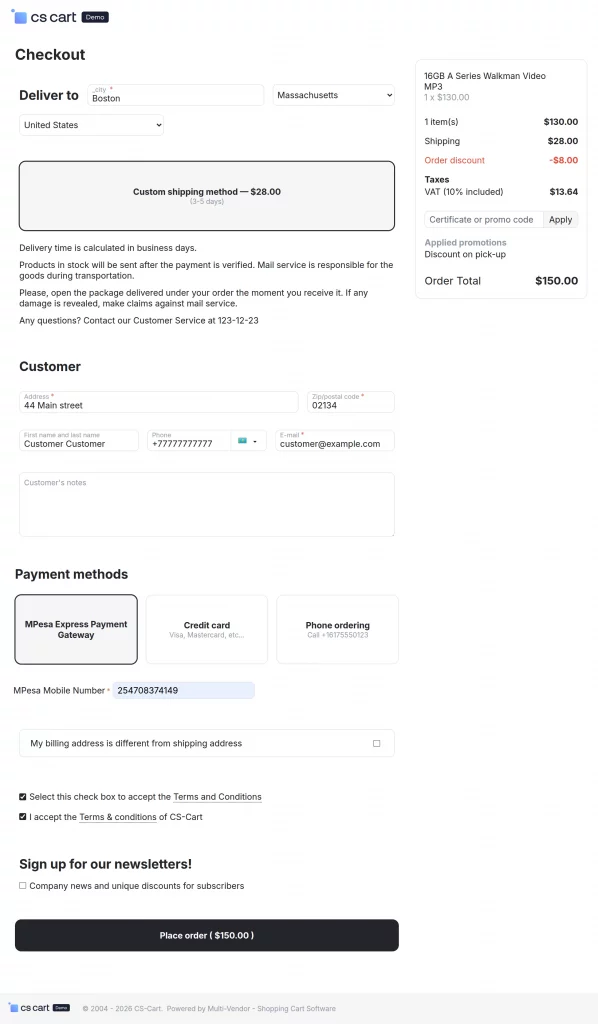
Front End View
For payment via “CS-Cart M-Pesa Express Payment Gateway,” select the option as shown below in the snapshot.
Enter your M-Pesa mobile number, fill in the required details, and click the Place Order button.
Payment Response View at the admin end
Likewise, the MPesa Express Payment Gateway payment method will display at the admin end in the order details.
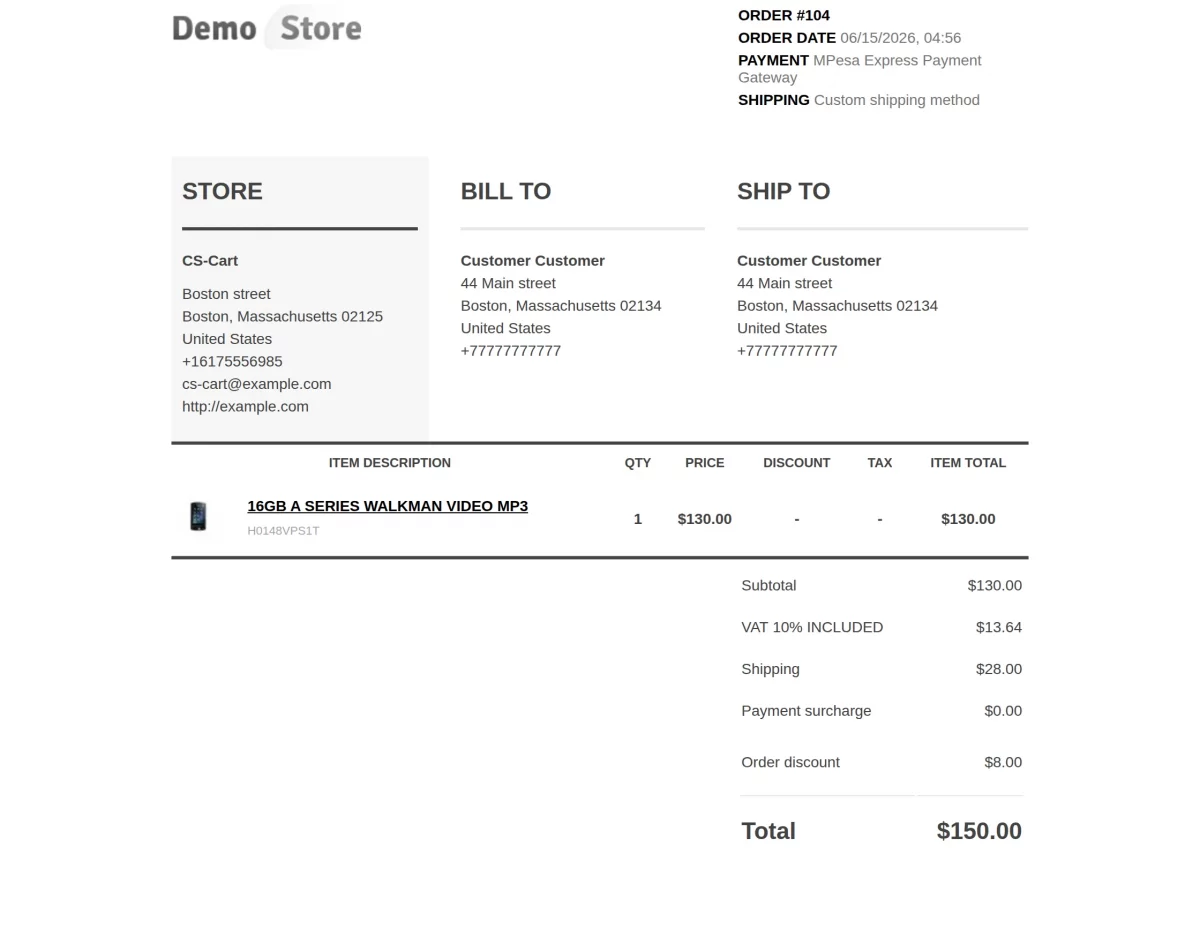
The selected payment method will be visible in the invoice, as shown in the image.
Support:
If you have any questions, suggestions, or customization requests, feel free to contact us at [email protected] or submit a ticket at webkul.uvdesk.com.
Explore our premium-quality CS Cart Extensions to enhance your store functionality.
You can also explore our CS-Cart Development Services and Quality CS-Cart add-ons.
Current Product Version - 1.1
Supported Framework Version - 4.16.x to 4.20.x

Be the first to comment.