CS-Cart Extended Store Locator add-on will power users’ sites with a CS-Cart store locator integrated with a location management system possessing the best location representation tool.
Its flexibility allows user to easily manage any number of store locations. Moreover, it will provide visitors with a searchable map of stores to increase the points of interest.
The main aim is to increase visitors’ experience with minimal effort.
Note: Map API keys credentials are not available in the Live Demo; customers can enter their own Map API keys credentials in the Live Demo to check the working of the module.
- Before installing the add-on, extract the downloaded package.
- Install the License Manager add-on first.
- Then install the required add-on.
- Follow the license activation steps to generate your license key.
Features
- Well integrated with CS-Cart Multi-Vendor Marketplace.
- Option to view the vendor’s store location.
- Can be operated along with the CS-Cart store locator.
- In addition functionality of viewing the name and location of the store is provided.
- Functionality of latitude and longitudinal view via geographical location.
- Manage and display the store location via Google Maps.
- Moreover, it can be referred to as an address map, address location map, store locator map, admin store finder, and vendor store locator.
- Adding physicality to business, which will add authenticity and genuineness to admin existence.
- Attract more customers, extending beyond the online space.
- Allow permission privilege for user groups.
Installation of CS-Cart Extended Store Locator
To install CS-Cart Extended Store Locator, follow these steps:
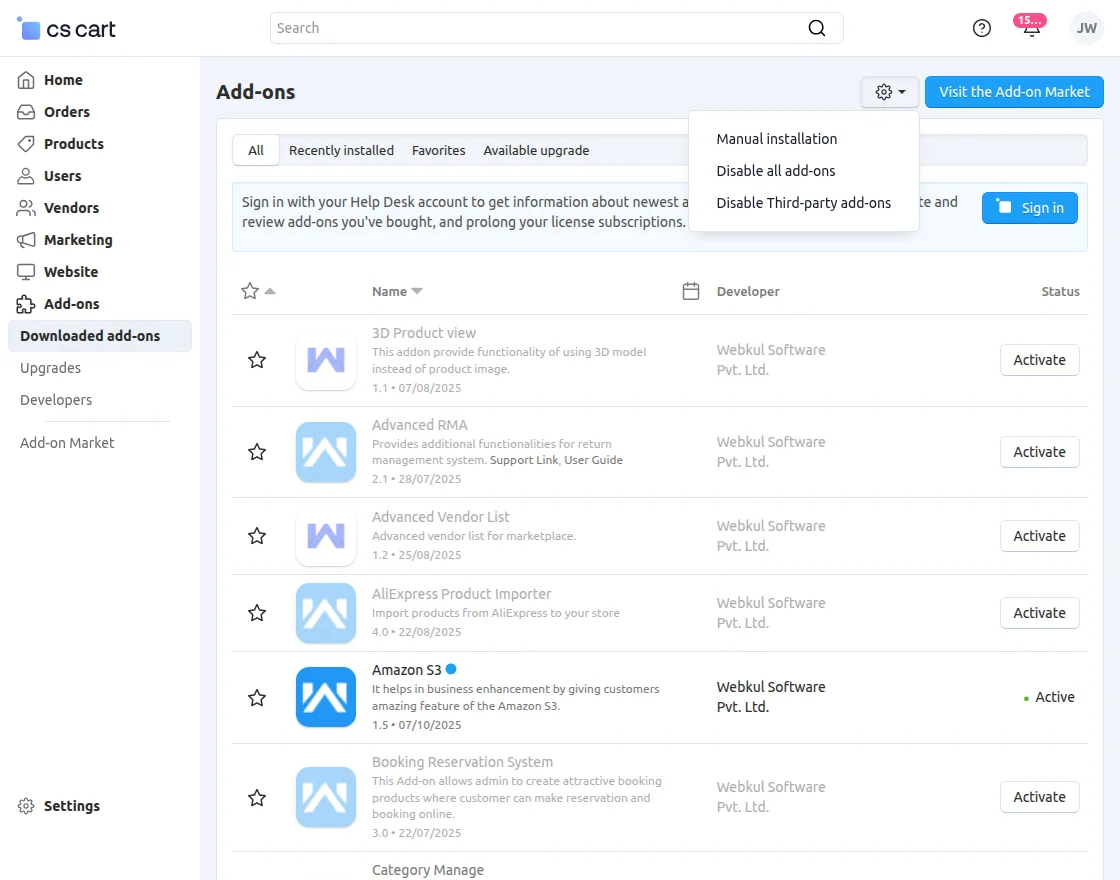
- Go to Manage Add-ons, click on the gear drop-down, and select Manual Installation.
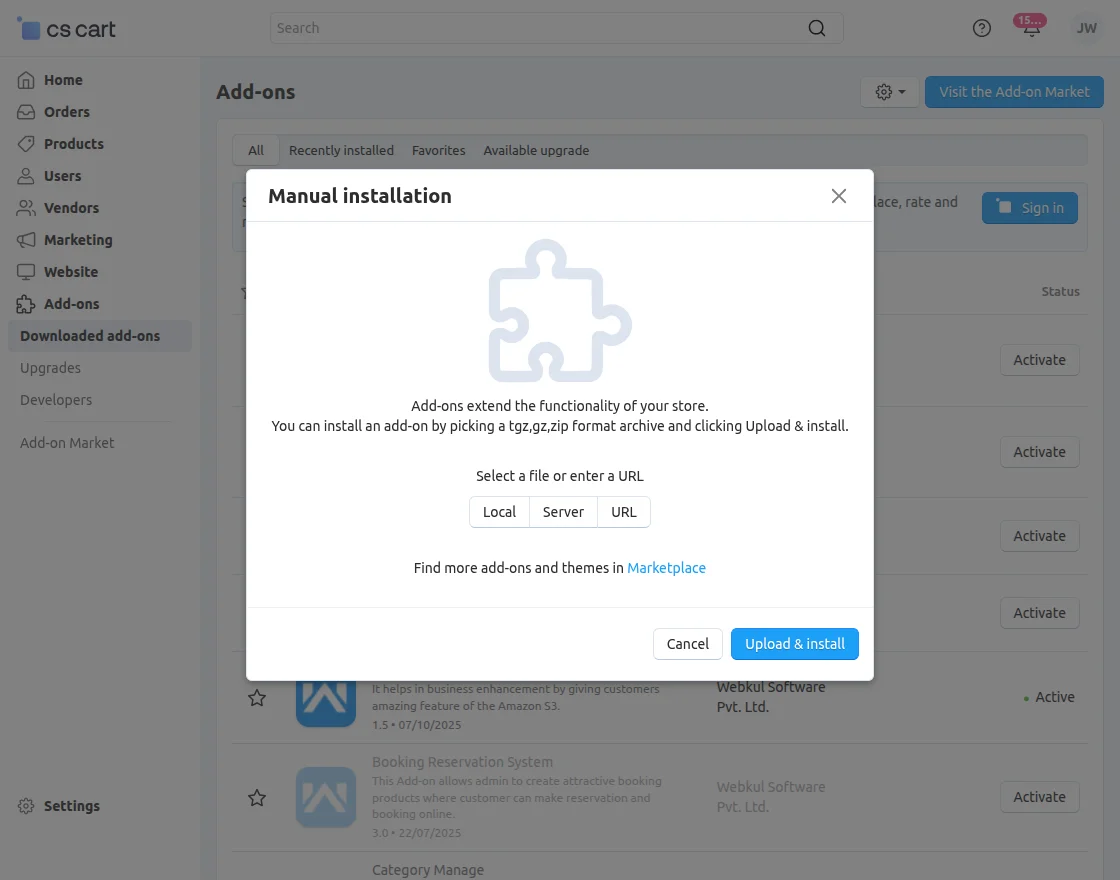
2. Select the zip File and click on Upload & install.
Video Tutorial
Add-on Configuration
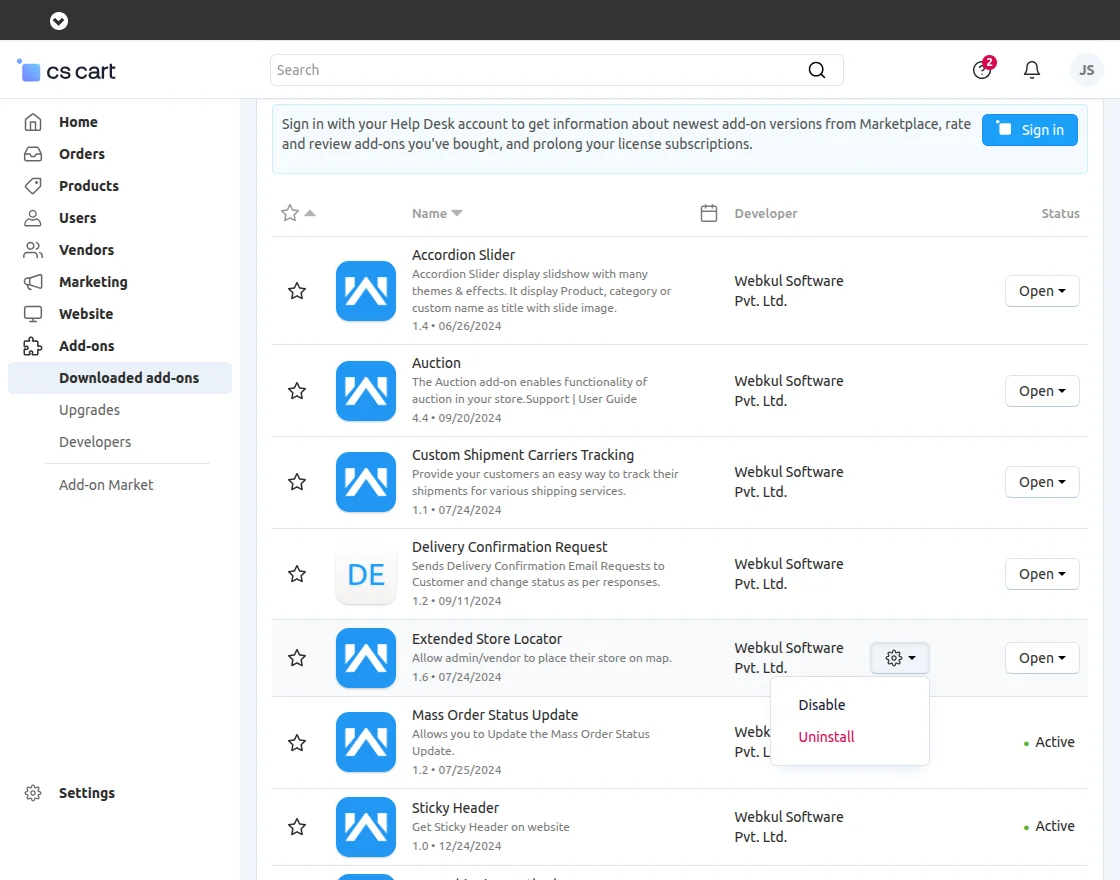
Click on Extended Store Locator to configure the add-on.
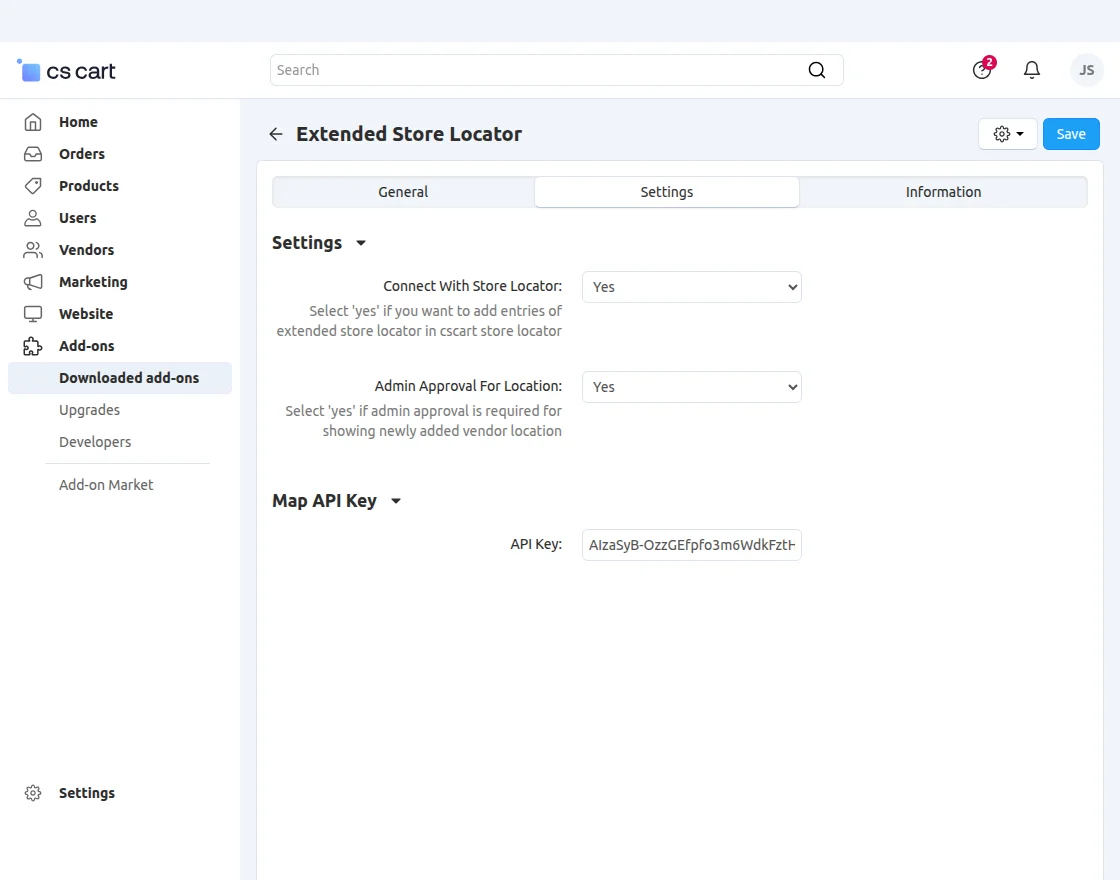
Enter the Map API key and save the settings.
If Admin wants to view the vendor store locator as an admin store locator, he/she needs to select “YES”; otherwise, vice versa.
For approval to view the vendor store location, please select “YES” otherwise “NO”.
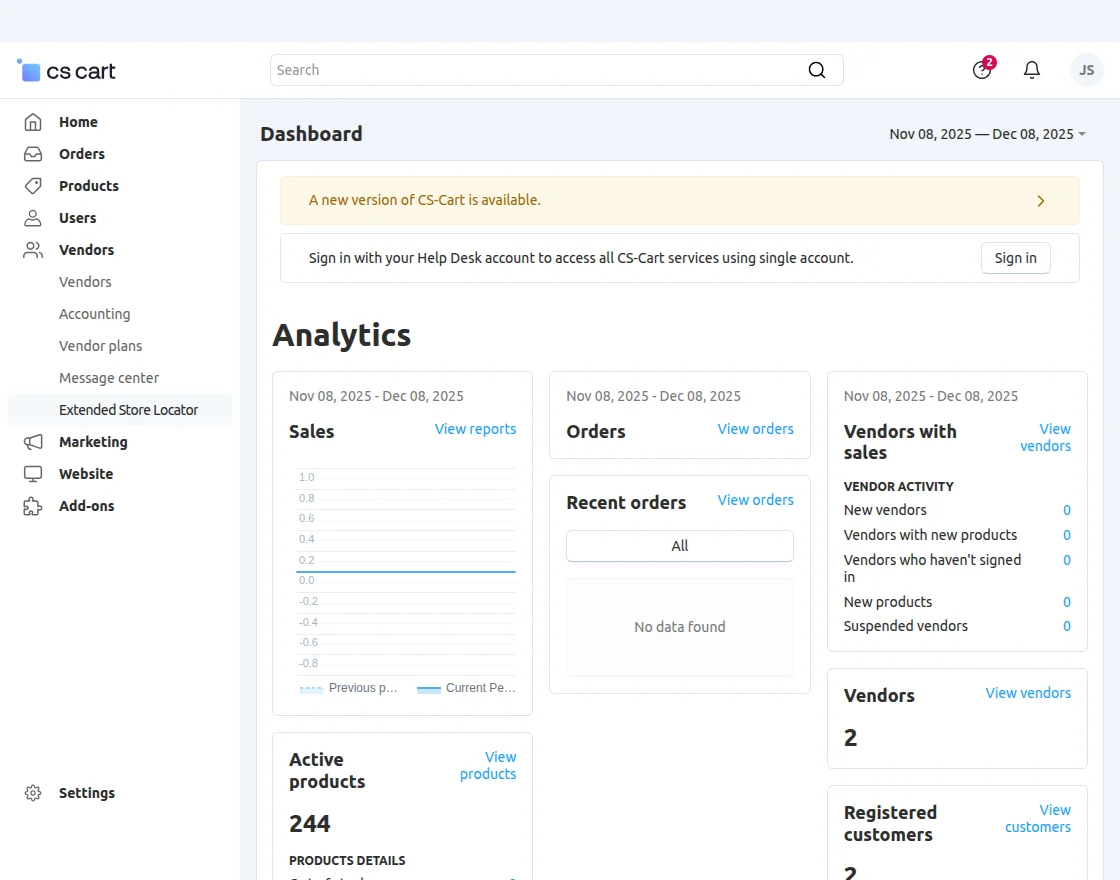
 To redirect to the Extended Store Locator page, go to the Vendors Section.
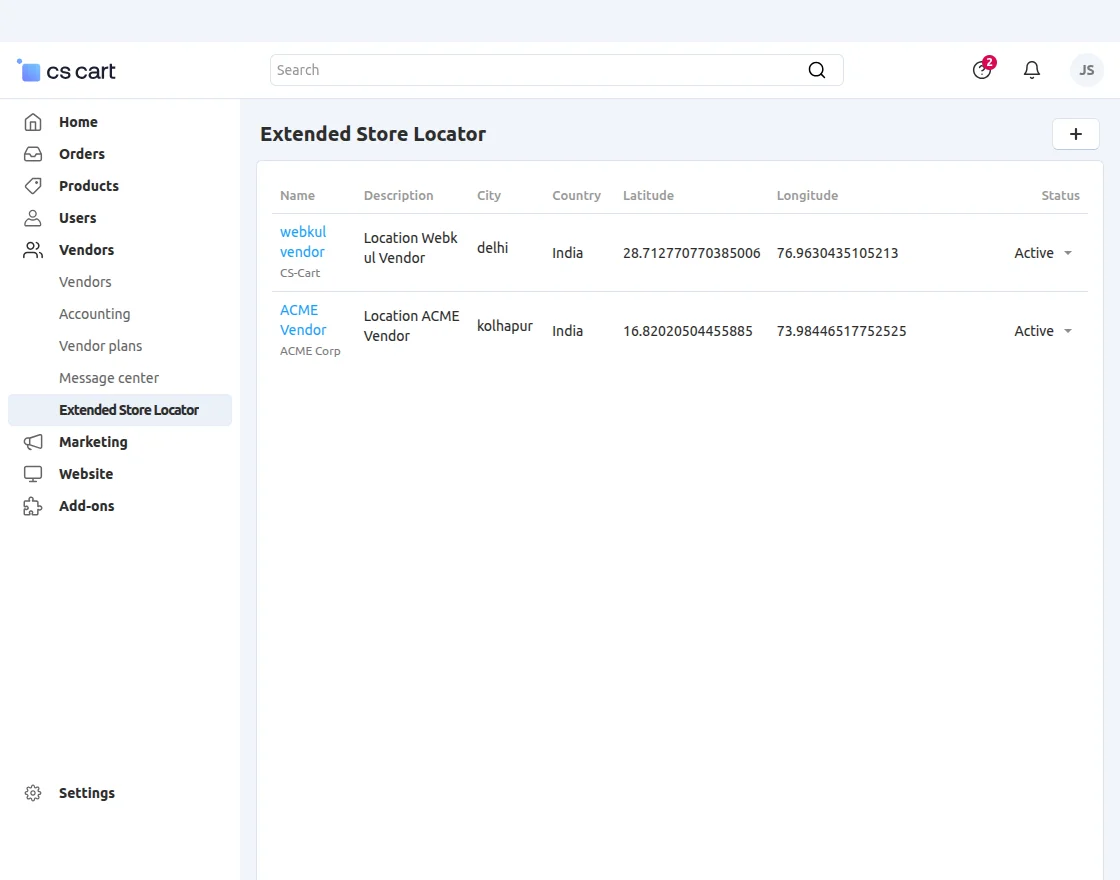
To create a new location, simply click the “+” button.
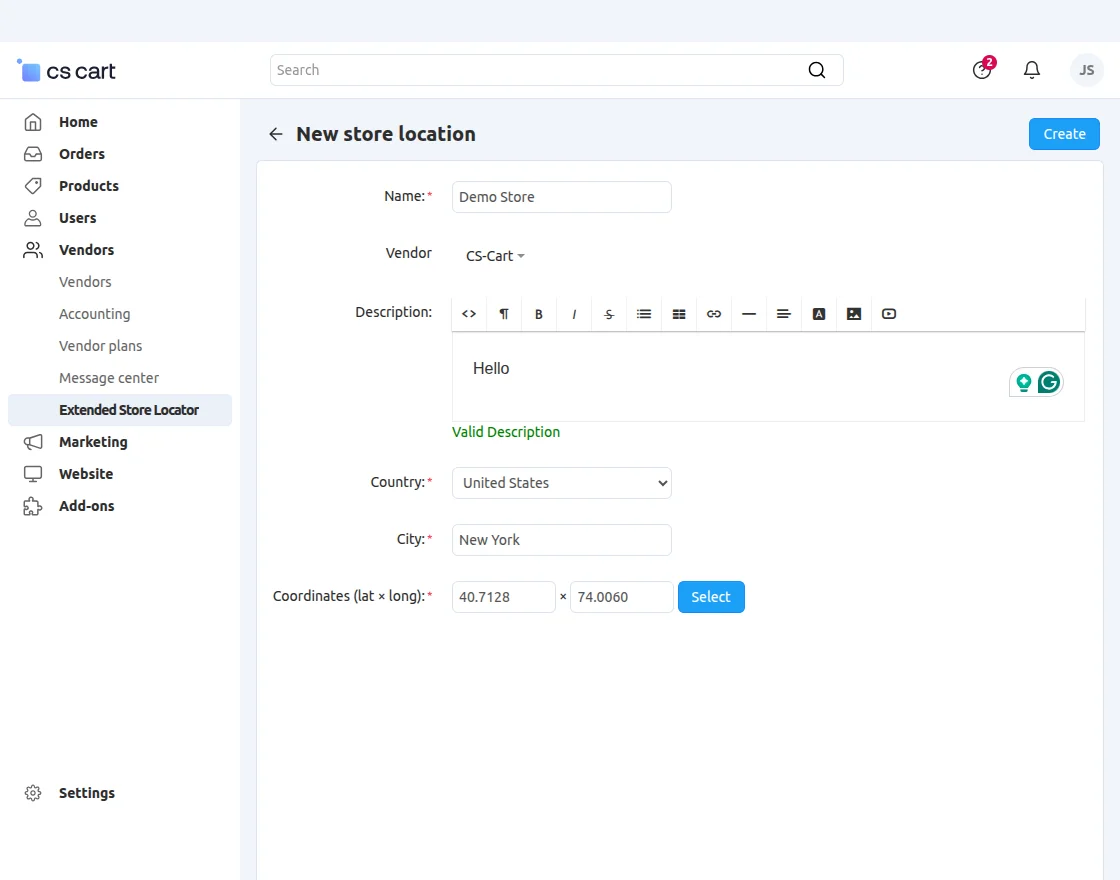
Fill in the details mentioned below, which include-
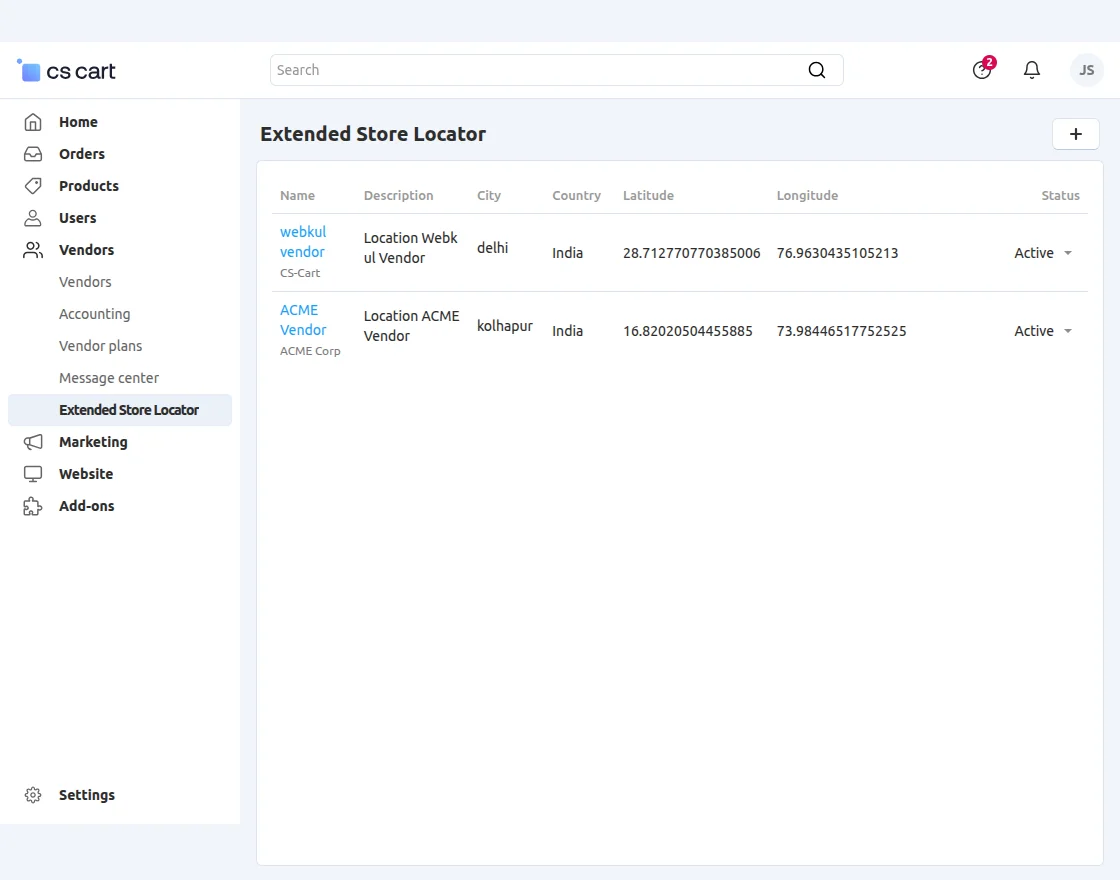
Here, Admin can view the details of all the vendor store locations.
He can enable/disable the store location.
For a better understanding, please view the snapshot below.
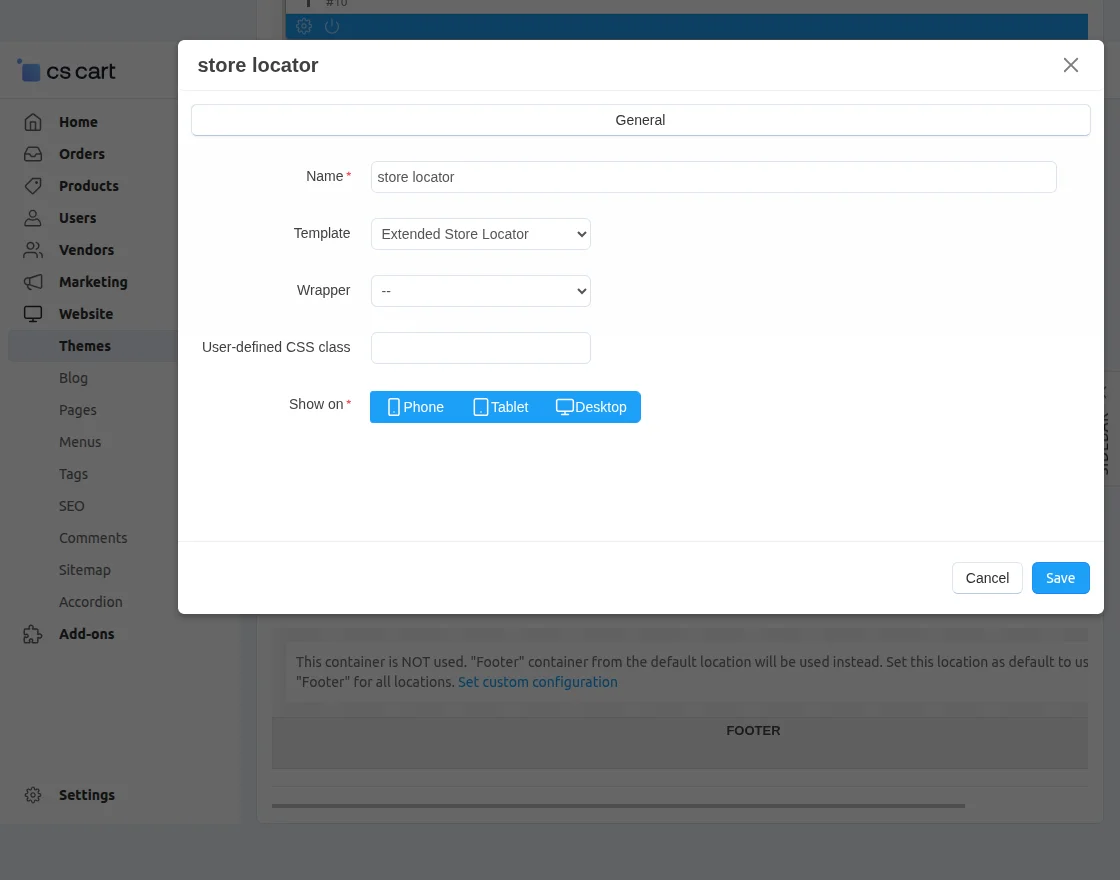
In Order to display the Store Locator Map on the Vendor Store, A layout block needs to be added.
Go to Website ->Theme-> Layouts -> Vendor Store to add a block in the desired position as shown below.
Frontend View
If the admin has enabled the vendor location as a store location, then the user can view the details of the store location.
which includes the individual vendors’ store location with description and the location of the store and the admin store location.
Go to the Account Section on the store, click on Store Locator.

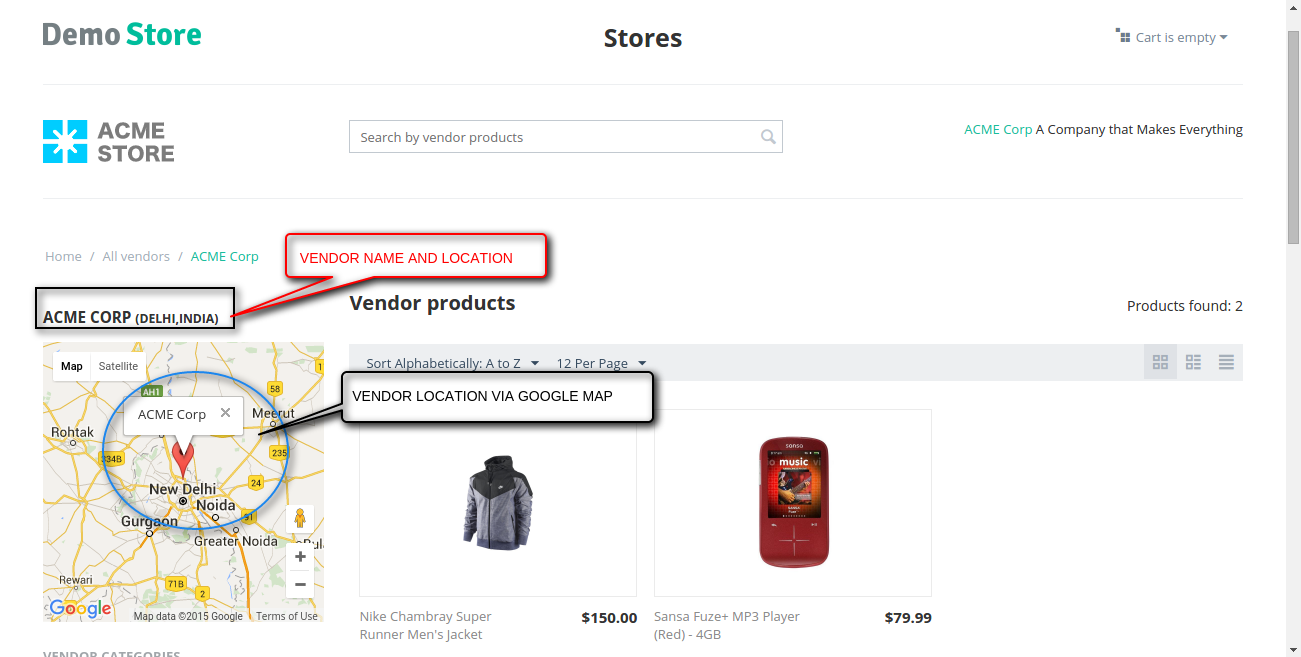
View of individual vendor location.
It will only be visible if the admin has added a block for this under layout settings.
Support
For assistance with CS-Cart Extended Store Locator setup or customization, contact [email protected] or Webkul Support.
Discover more powerful CS-Cart extensions to enhance your store’s functionality!
Current Product Version - 1.7
Supported Framework Version - 4.18.x - 4.20.x

Be the first to comment.